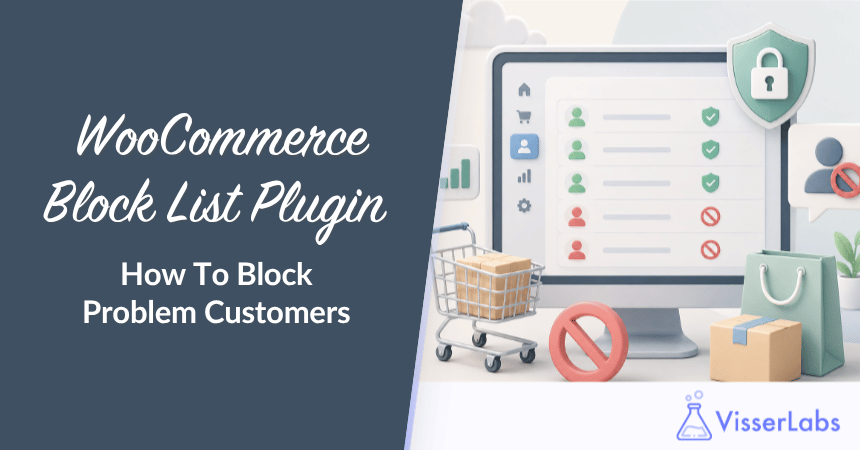
A WooCommerce block list plugin is a tool that stops orders from specific people you have already identified, by matching an incoming order’s billing details against a list you control. It works on certainty rather than guesswork: if the order matches an entry on your list, it’s blocked, and if it doesn’t, the order goes through untouched.
That single idea separates a block list from every other fraud tool on the market. Most store owners reach for risk-scoring software the moment a bad order shows up, then spend weeks tuning rules and apologizing to real customers who got caught in the net.
The problem usually isn’t a mystery, though. It’s a handful of people you already know by name. In this article, we’ll cover how a WooCommerce block list plugin works, what data it matches on, how to set one up with Checkout Guard, and when it beats an algorithm. Let’s break it down.
Table of Contents
What Is A WooCommerce Block List Plugin?
A WooCommerce block list plugin stops orders from named people you’ve flagged, by comparing each order’s billing details to a list you build by hand. It’s deterministic, not predictive: an exact match is blocked, everyone else checks out normally. There’s no risk score, no confidence threshold, and no model deciding who looks suspicious today.
The list is yours. You add each entry yourself, which means you always know why an order was stopped and who stopped it.
Blacklist or block list: same thing, different name
You’ll see both terms used interchangeably, and a WooCommerce blacklist plugin is the same tool under an older name. “Block list” is the newer, more neutral phrasing, but the mechanism is identical: a stored list of identifiers, checked against every incoming order, with the order stopped on any exact match. If you searched for a blacklist manager and landed here, you’re in the right place.
What we’ve seen: the stores that get the most value from a block list are the ones with a clear “never again” list. A few repeat chargeback artists, a serial coupon abuser, an ex-customer who keeps placing fake orders out of spite. Naming those people once and blocking them for good is far less work than chasing them order by order.
How A WooCommerce Block List Plugin Works
A WooCommerce block list plugin checks every incoming order against entries you’ve added by hand, then blocks any order that matches. The flow is short enough to describe in four steps, and nothing about it involves scoring or probability.
- You build the list. Add the people you never want to sell to again, usually by email, full name or IP address.
- A shopper reaches checkout. The plugin reads the billing details they entered.
- The plugin compares. Those details, plus the shopper’s IP address, are matched against every entry on your list, ignoring capitalization in names and emails.
- It blocks or it doesn’t. A match stops the order and shows your denial message. No match, and the shopper checks out with zero friction.
This model is predictable, which is exactly why it works. You always know why an order was blocked, because you put that person on the list yourself.
Compare that to a scoring tool, where a legitimate buyer can get flagged for traveling abroad or shipping a gift to a new address, and you’re left guessing which rule misfired. Pulling the billing details for your list is easy too, since they’re already sitting in your order records, as our guide to exporting WooCommerce orders shows.
What Data A Block List Matches On
A block list matches on identifying details taken from the order’s billing information, most commonly the billing name and the email address. The exact fields depend on the plugin, but the goal is always the same: recognize a specific person you’ve flagged before, and leave everyone else alone.
Each identifier carries a trade-off, so it’s worth knowing what you’re relying on:
- Billing name: the most human identifier, and the easiest one for a determined offender to change.
- Email address: slightly stickier, since people reuse the same address across orders out of habit.
- IP address: matched by Checkout Guard and some other block-list tools. It catches a repeat buyer who changes their name and email but orders from the same connection, though addresses shift on mobile networks and get shared across households and offices.
Where a block list stops being the right tool
Bots are a different problem, and it’s worth knowing where the line sits. A block list stops human offenders you’ve identified, not automated bots cycling through random details.
That volume is real. According to Imperva threat research, retail sites face a heavy, constant volume of AI-driven attacks. Stopping that is the job of reCAPTCHA, spam filters, and rate limiting, not a manual list.
Checkout Guard: A WooCommerce Block List Plugin For Your Store
Checkout Guard is a WooCommerce block list plugin built on exactly this model. You add an entry with a billing first and last name, an email address, an IP address, or any mix of the three, and any order that matches that entry is blocked at checkout. It runs on the classic checkout and on the newer Block checkout, so the rule holds no matter how your store is built.
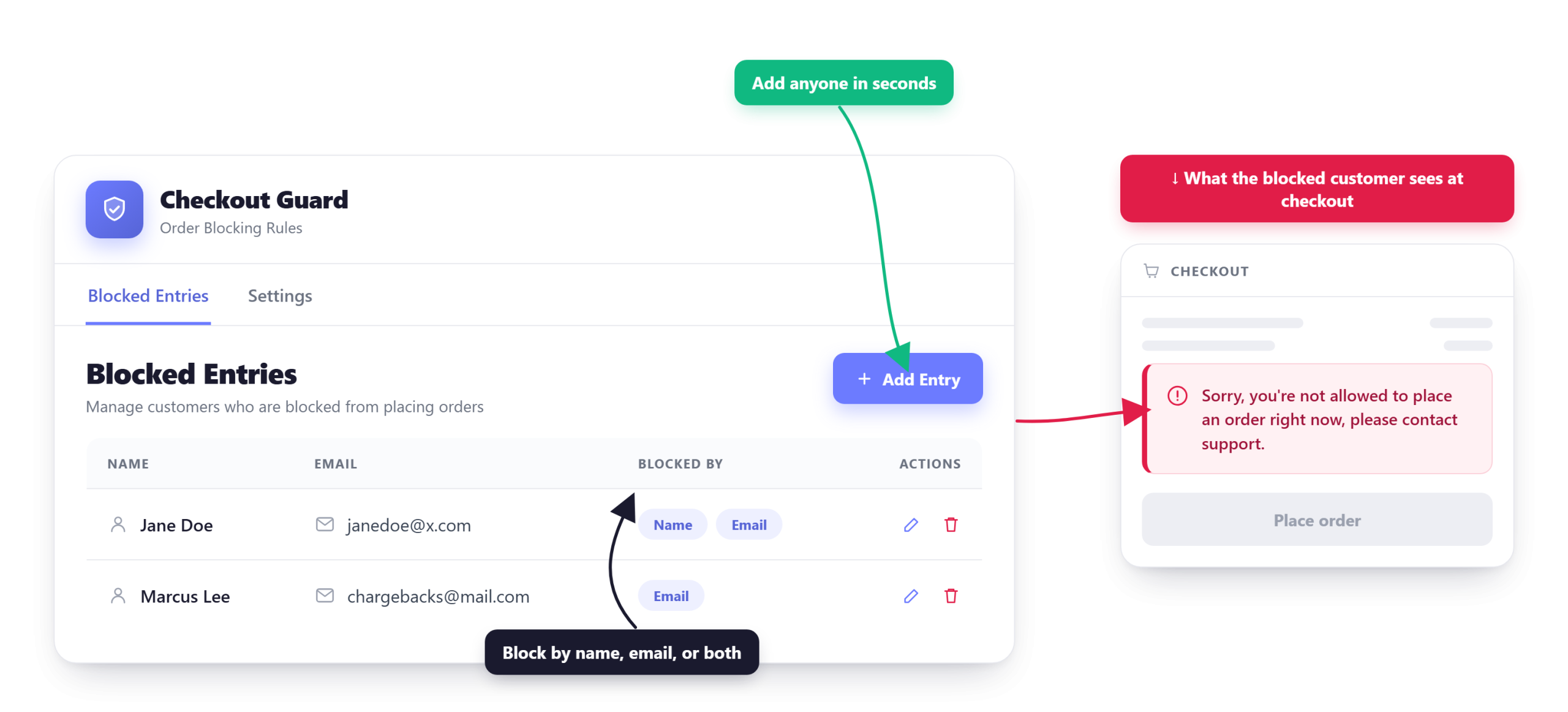
What happens when someone on your list tries to order
The block is immediate and complete. Their cart is emptied, their session is expired, and they see a denial message you write yourself instead of an order confirmation.
On the classic checkout the block fires during validation, so no order is ever created. On the Block checkout, where the order record is created a moment earlier in the flow, Checkout Guard removes it. Either way you’re not left cleaning up junk orders by hand.
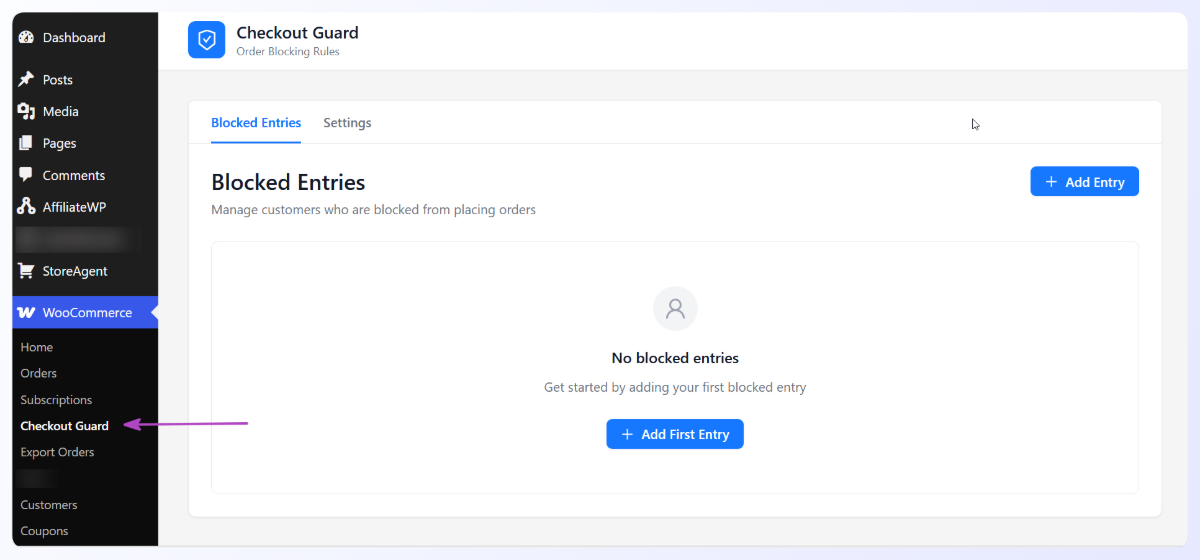
How to set up your block list
Setup takes a couple of minutes, and there’s only one setting to decide on before you start adding people.
- Go to WooCommerce > Checkout Guard > Settings and write your Checkout Denial Message. This is the text a blocked shopper sees, so keep it short and neutral, and point them at support if you want a way back.
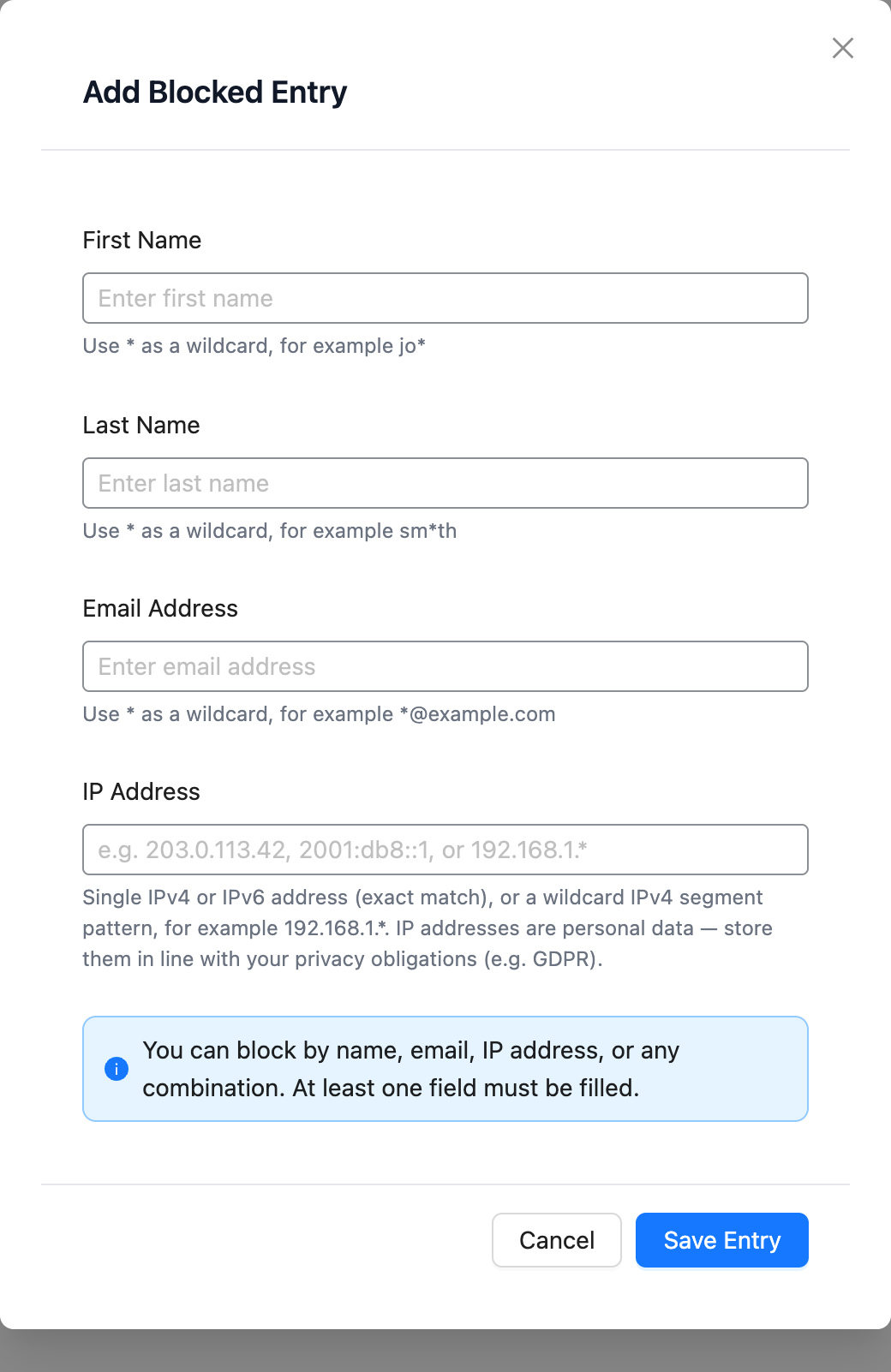
- Open the Blocked Entries tab and choose Add Entry.
- Fill in the First Name and Last Name, the Email Address, the IP Address, or any combination. Name matching needs the first and last name together, so an email or IP address is the safer catch if you only have one detail. Names, emails and IPv4 addresses accept a
*wildcard, which is how you block an email domain in WooCommerce with a single rule. - Save the entry. It takes effect on the next order attempt, with no cache clearing or re-save needed.
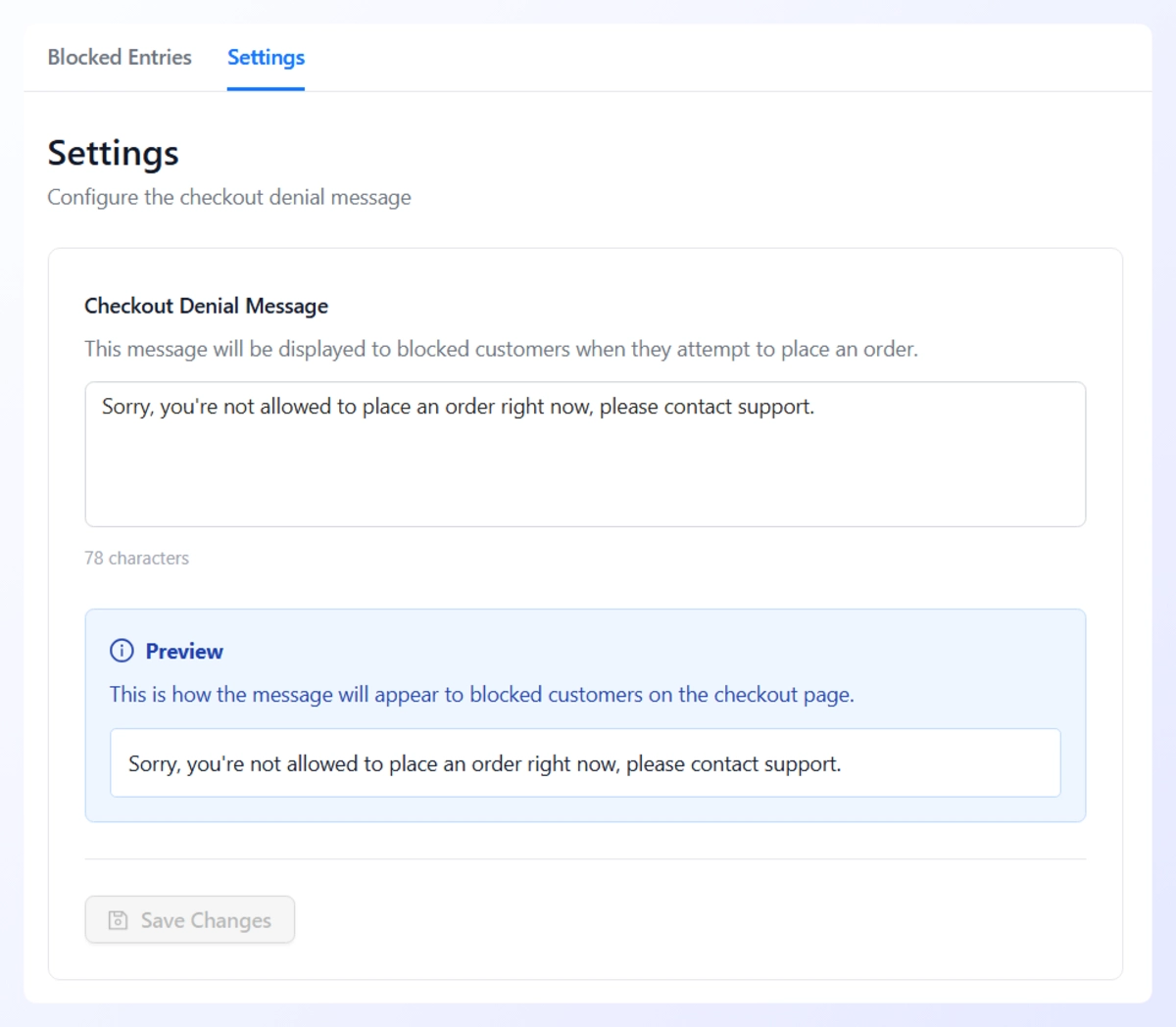
💡 Practical tip: the Blocked Entries table carries a Notes column so you can record why someone is on the list. Notes are set through Checkout Guard’s REST API rather than the add-entry dialog, so if you add entries by hand, keep the reason in a private note on the customer’s last order. Six months from now, “three charge-backs, March” is the difference between a confident decision and a guess.
Managing the list as it grows
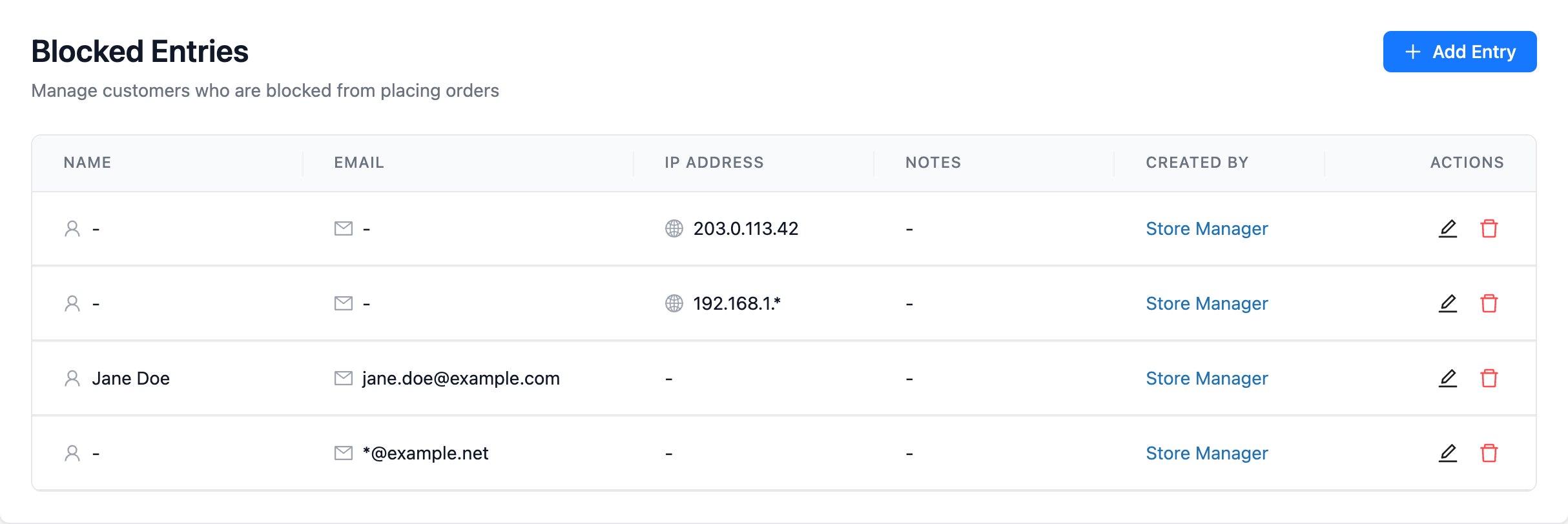
Every entry lives in one table you can scan at a glance, showing the name, email, IP address, notes, and who added it. You can edit or delete any entry, so letting someone back in is a single click. If the list is fed by another system rather than by hand, the WooCommerce block list API creates, updates and deletes the same entries over REST.
That “created by” column matters more than it sounds on a store with more than one admin. When a customer calls to ask why their order failed, you know who to ask before you answer.
The Best WooCommerce Block List Plugins Compared
Six plugins can block a named customer in WooCommerce, and they split into two camps: pure block lists that only match what you type, and fraud suites that bolt a block list onto a scoring engine. Here’s what each one actually matches on, so you can see which camp you’re buying into.
| Plugin | Matches on | Blocks at | Scoring engine | Free tier |
|---|---|---|---|---|
| Checkout Guard | Full name, email, IP address, wildcard rules (incl. email domain) | Checkout (classic + blocks) | No, by design | No |
| Blacklist Manager | Email, phone, IP, email domain | Checkout, registration, comments, reviews, forms, REST API | Premium tier only | Yes |
| Dotstore Fraud Prevention | Blacklist rules plus risk signals | Checkout or registration | Yes | Yes |
| YITH WooCommerce Anti-Fraud | IP, geolocation, billing and shipping address | Checkout, with flag-or-block | Yes | No |
| FraudLabs Pro | External screening service | Checkout | Yes | Yes, limited |
| WooCommerce Blacklist | Email, phone, full name | Checkout (classic + blocks) | No | No |
One thing in that table is worth saying out loud. Checkout Guard is deliberately focused on checkout. It doesn’t try to police registration, comments or contact forms, because checkout is where a blocked person actually costs you money, and that’s where every entry on your list is enforced.
What Checkout Guard gives you instead is a tool with nothing to tune. One screen, two tabs, a record of who added every entry, and no threshold that needs revisiting after it wrongly stops someone. For a store whose problem is three named people rather than a fraud program, that’s the trade worth making.
What to look for when you’re choosing
- Which identifiers it matches: name and email are the details a known offender reuses most. An IP catches the one who changes both, though a phone leaving Wi-Fi gets a new address, so pair it with another detail where you can.
- Where in the flow it blocks: stopping the order before payment means no gateway fee and no half-finished order to tidy up afterwards.
- What the shopper sees: you should be able to word the denial message yourself, so you decide how much is revealed.
- Whether it keeps a record: in six months, knowing who added an entry and why is the difference between trusting your own list and wondering whether someone still belongs on it.
- How much setup it needs: a list you maintain in seconds per entry gets maintained. A rules engine often doesn’t.
False positives and tuning
The appeal of a pure block list is that it shouldn’t produce false positives at all. Because it only matches entries you added by hand, it never touches anyone else. Once a tool starts layering on “smart” detection you’re back in scoring territory, and the tuning that comes with it: set the threshold loose and fraud gets through, set it tight and you decline real buyers who never come back.
The scale behind that caution is real. NRF reports that return fraud is a significant cost for retailers. Some of that comes from repeat behavior by people a store can already identify, which is exactly what a list handles and a model doesn’t need to guess at.
Block List Or Risk Scoring: Which One Do You Need?
Choose a block list when your problem is known people, and choose a risk-scoring tool when your problem is unknown fraud at scale. That one distinction settles most of these decisions, because the two tools are answering different questions.
| Question | Block list | Risk scoring |
|---|---|---|
| What it stops | Specific people you’ve named | Orders that look statistically risky |
| How it decides | Exact match against your list | Signals like geolocation, proxy use, email reputation, order velocity |
| Who maintains it | You, one entry at a time | The vendor’s model, plus your rule tuning |
| Main trade-off | Only catches people already on the list | Can block a real customer who looked risky |
| Best fit | Repeat offenders you can name | High-volume card testing from strangers |
Risk scoring is genuinely useful when strangers you can’t predict are hammering your store. Catching the unknown is something a manual list simply cannot do.
The cost of that power is false positives, and for a small or mid-sized store whose actual pain is a few repeat offenders, that’s a steady source of friction for no gain. The FTC reported that a growing share of people who filed a fraud report in 2024 actually lost money, which says fraud is landing harder rather than just appearing more often. When the people hurting you are identifiable, a deterministic list beats an algorithm every time.
Many growing stores end up running both: a scoring tool for the unknown, and a block list for the known. If you already have a short list of names, emails or IP addresses you never want to see again, adding them to Checkout Guard takes a couple of minutes and stops them at the door from then on.
Frequently Asked Questions
Is a blacklist the same as a block list?
Yes. They’re two names for the same mechanism: a list of identifiers you maintain, checked against every order, with a block on an exact match. “Blacklist” is the older term and still the more common search; “block list” is the newer, more neutral phrasing. Plugin names use both.
Can a block list plugin block by IP address?
Yes. Checkout Guard matches on IP address: an entry can hold a single IPv4 or IPv6 address, or an IPv4 range written with a wildcard such as 192.168.1.*, and an IP match blocks the order on its own. Blacklist Manager also matches on IP in its free version. Pair an IP with an email or full name where you can, since a phone off wi-fi gets a fresh address. Our guide to blocking an IP address in WooCommerce covers the setup.
What does a WooCommerce block list plugin do?
A WooCommerce block list plugin stops orders from specific people you’ve already identified, by matching their billing details against a list you maintain. It’s deterministic rather than predictive: an exact match gets blocked, and everyone else checks out as normal. Unlike risk-scoring software, it never guesses, so it won’t flag a legitimate buyer who simply looks unusual on a given order.
How do I block a customer in WooCommerce?
You block a customer in WooCommerce by adding their billing email, full name or IP address to a block list plugin, which then stops any matching order at checkout. With Checkout Guard, you go to WooCommerce > Checkout Guard > Blocked Entries, add the entry, and save. WooCommerce has no built-in customer blocking, so this needs a plugin.
What data does a block list use?
Block lists match on identifying details from an order’s billing information, most often the billing name and email address, and some tools also match on the shopper’s IP address. Checkout Guard matches on the billing name, the email and, since version 1.0.2, the shopper’s IP address. Names and emails compare without regard to capitalization, so blocking stays precise and you control exactly who gets stopped.
Block list or fraud scoring, which is right for me?
A block list is right when your problem is known repeat offenders you can name. Fraud scoring is right when you’re hit by large-scale fraud from strangers you can’t identify in advance. Scoring catches the unknown but risks false positives, and a block list is precise but only stops people you’ve already added. Many growing stores run both for full coverage.
Does a block list stop bots?
No, and it’s honest to say so. A block list stops human offenders you’ve identified by name, email or IP address, not automated bots cycling through random details. Stopping bots is the job of tools like reCAPTCHA, spam filters, and rate limiting. If bots are your problem, pair a block list with one of those, and use the block list for the specific people you’ve decided to keep out.
Does blocking a customer work on the WooCommerce Block checkout?
Yes, Checkout Guard blocks matching orders on both the classic checkout and the newer WooCommerce Cart and Checkout Blocks. On the classic checkout the order is never created, and on the Block checkout the order record is removed. The shopper sees your denial message in both cases.
Pick The Tool That Matches Your Actual Problem
A WooCommerce block list plugin isn’t trying to be clever. It does one thing with total reliability: it stops the specific people you’ve already identified, and leaves everyone else alone. For most small and mid-sized stores, that’s the fraud problem that actually keeps coming back. Here’s what we covered:
- How a block list works: deterministic matching, no scoring or guessing.
- What data it matches on: billing name, email and IP address, all under your control.
- How to set one up: write a denial message, add your entries, done in minutes.
- Which tool you need: known offenders call for a block list, unknown fraud at scale calls for scoring.
If you’re ready to stop the people you can already name, a WooCommerce block list plugin is the fastest fix. Get Checkout Guard and block them cleanly, for good.