
WooCommerce export orders is one of the most critical workflows a store owner needs to get right. The built-in WooCommerce analytics give you basic order summaries, but they fall short when you need filtered exports, custom field selections, or automated delivery to your accounting software.
Without a reliable export workflow, you end up copying order data manually, dealing with incomplete spreadsheets, or building workarounds that break every time WooCommerce updates. The bigger your store gets, the worse this problem becomes.
This guide walks you through how to export WooCommerce orders step by step using Store Exporter Deluxe. You’ll learn how to select specific order fields, filter by date range or status, export to CSV or Excel, schedule automatic exports, and handle bulk exports for large stores.
- What Order Data Can You Export From WooCommerce?
- How To Export WooCommerce Orders (Step By Step)
- How To Export Orders To CSV
- How To Schedule Automatic Order Exports
- How To Export Orders In Bulk (Batch Exporting)
- Common Use Cases For WooCommerce Order Exports
- Start Exporting WooCommerce Orders Today
- Frequently Asked Questions
What Order Data Can You Export From WooCommerce?
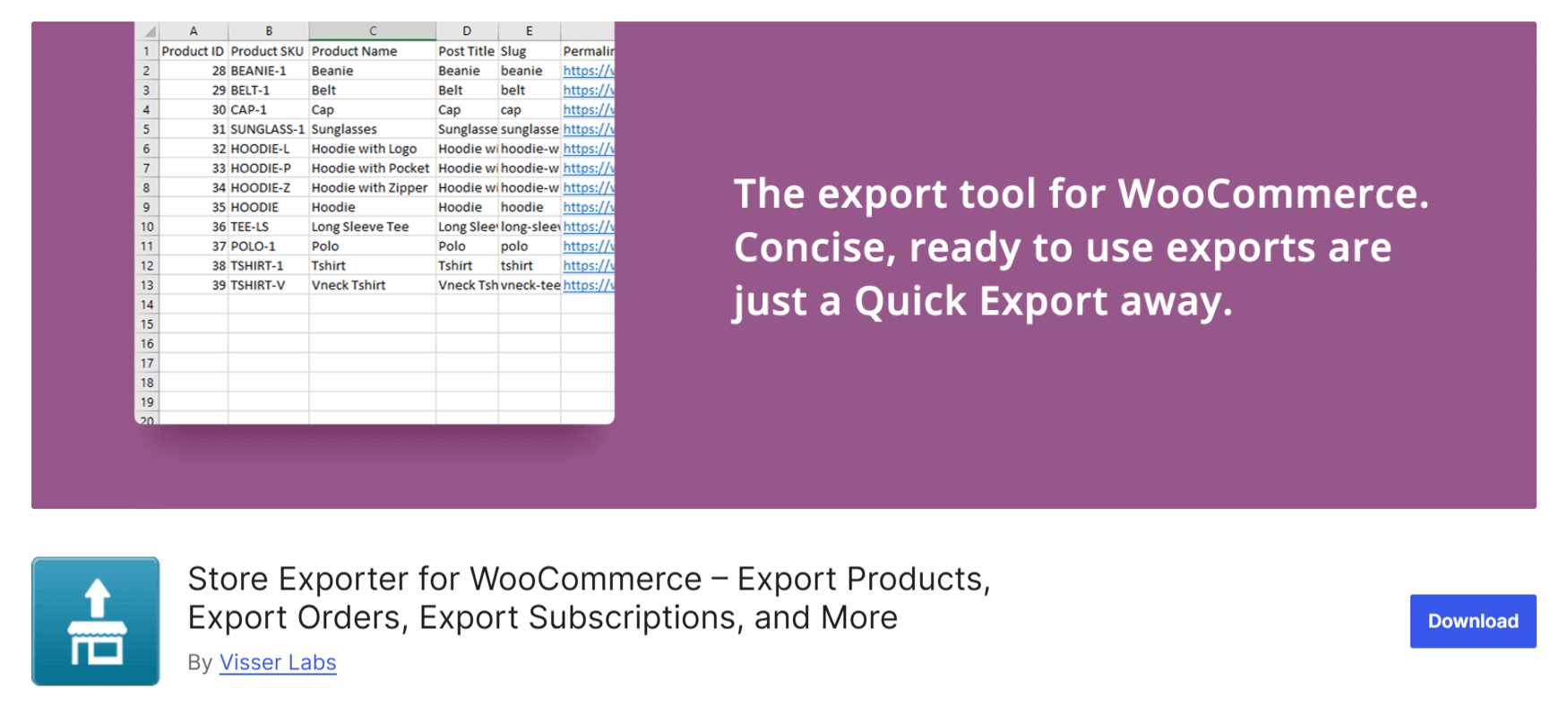
Store Exporter Deluxe lets you export over 50 order fields, covering everything from basic order details to custom meta data. You choose exactly which fields to include in each export, so your spreadsheets contain only the data you need. This is a key advantage over built-in WooCommerce reporting, which gives you summary data but does not let you control exactly which columns appear in your output file.
Here is a breakdown of the available order data, grouped by category.
Order basics:
- Order ID, order number, and order status
- Order date, completed date, and modified date
- Order currency and payment method
- Customer notes and internal order notes
Billing and shipping details:
- Billing name, company, email, phone, and full address
- Shipping name, company, and full address
Line items:
- Product name, SKU, quantity, and individual item price
- Product variations and attributes
- Line item totals and tax amounts
Totals and financials:
- Subtotal, tax total, shipping total, discount total, and order total
- Coupon codes applied and coupon discount amounts
- Refund amounts and refund reasons
Customer information:
- Customer ID, username, and email
- Customer role and account registration date
Custom meta data:
- Custom order meta fields from any plugin (Store Exporter Deluxe supports 125+ plugin integrations)
- Custom checkout fields added by third-party plugins
The ability to select individual fields means you never have to deal with bloated spreadsheets full of irrelevant columns. Export only billing details for your accountant, only shipping data for your fulfillment partner, or only line items for inventory analysis.
You can save your field selections as export templates so you do not have to reconfigure them each time. This is especially useful when you run the same export regularly for accounting or fulfillment.
How To Export WooCommerce Orders (Step By Step)
Exporting orders with Store Exporter Deluxe takes five steps: select the export type, choose your fields, apply filters, pick your format, and run the export. The entire process takes under a minute once you know which data you need. Below is the complete walkthrough.
Step 1: Select orders as your export type
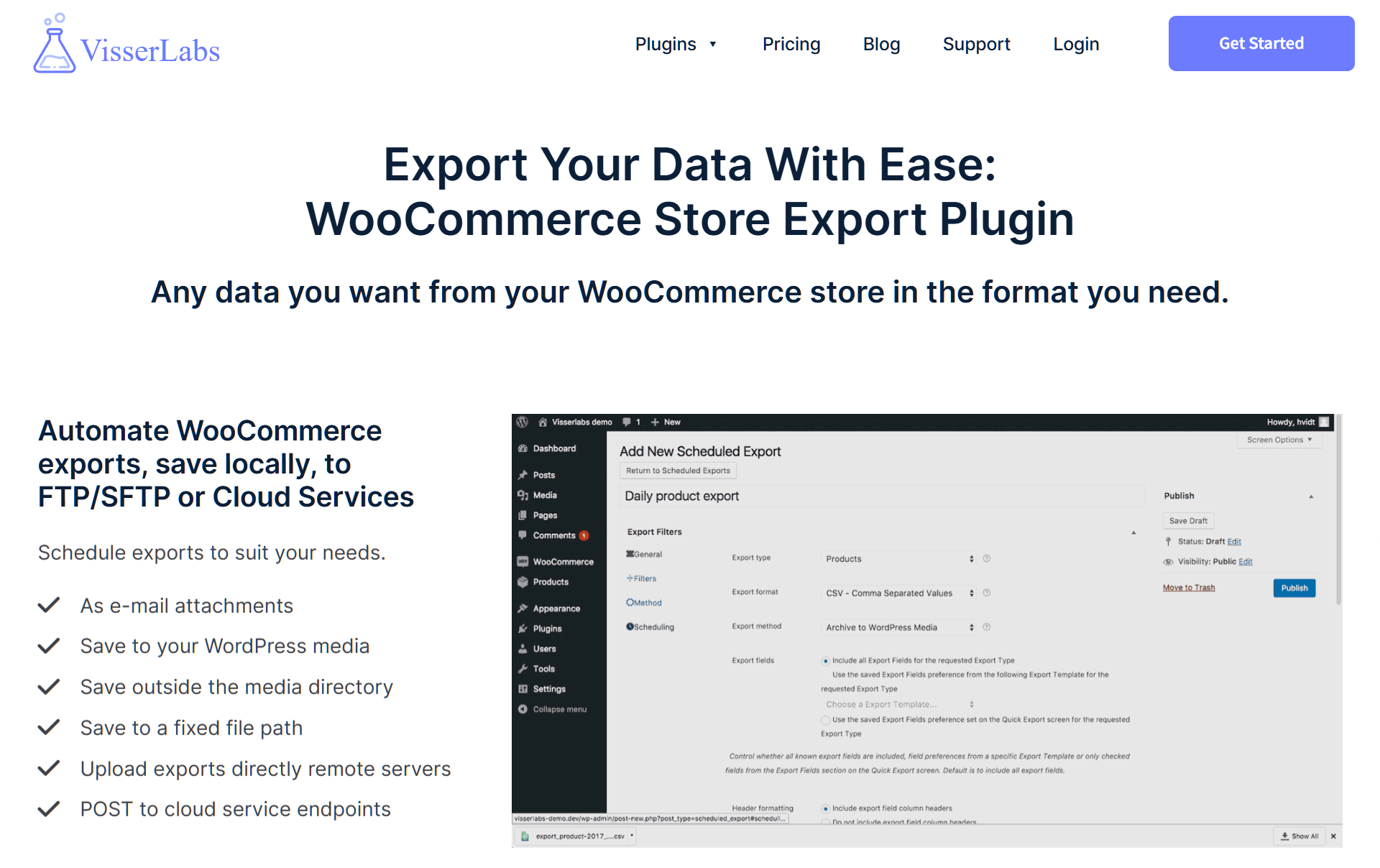
In your WordPress dashboard, navigate to the Store Exporter Deluxe export screen. Select “Orders” as the export type from the available options. This tells the plugin which data source to pull from and loads the order-specific field and filter options. Store Exporter Deluxe also supports exporting products, customers, coupons, and other WooCommerce data types, but for order exports, “Orders” is the starting point.

Step 2: Choose which order fields to include
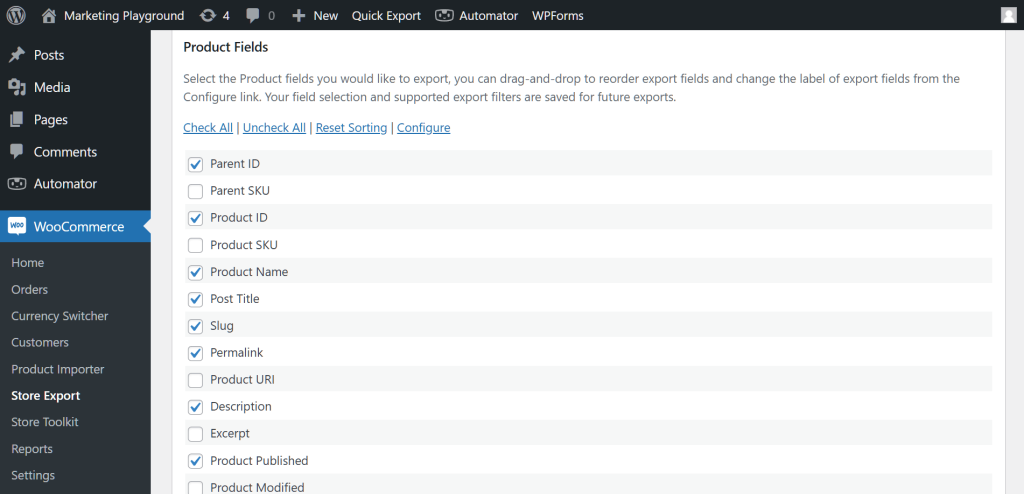
Check the boxes next to each order field you want in your export. You can select all fields or pick only the ones relevant to your use case. Being selective here is important because it keeps your exported files clean and easy to work with.
For accounting exports, you typically need order ID, date, billing details, line items, and totals. For fulfillment, focus on shipping address, product names, SKUs, and quantities. For sales analysis, include order date, product names, quantities, totals, and coupon codes so you can track revenue trends and promotional performance.
If you plan to run this same export again, save your field selection as an export template. Templates store your exact configuration so you can reuse it with one click.
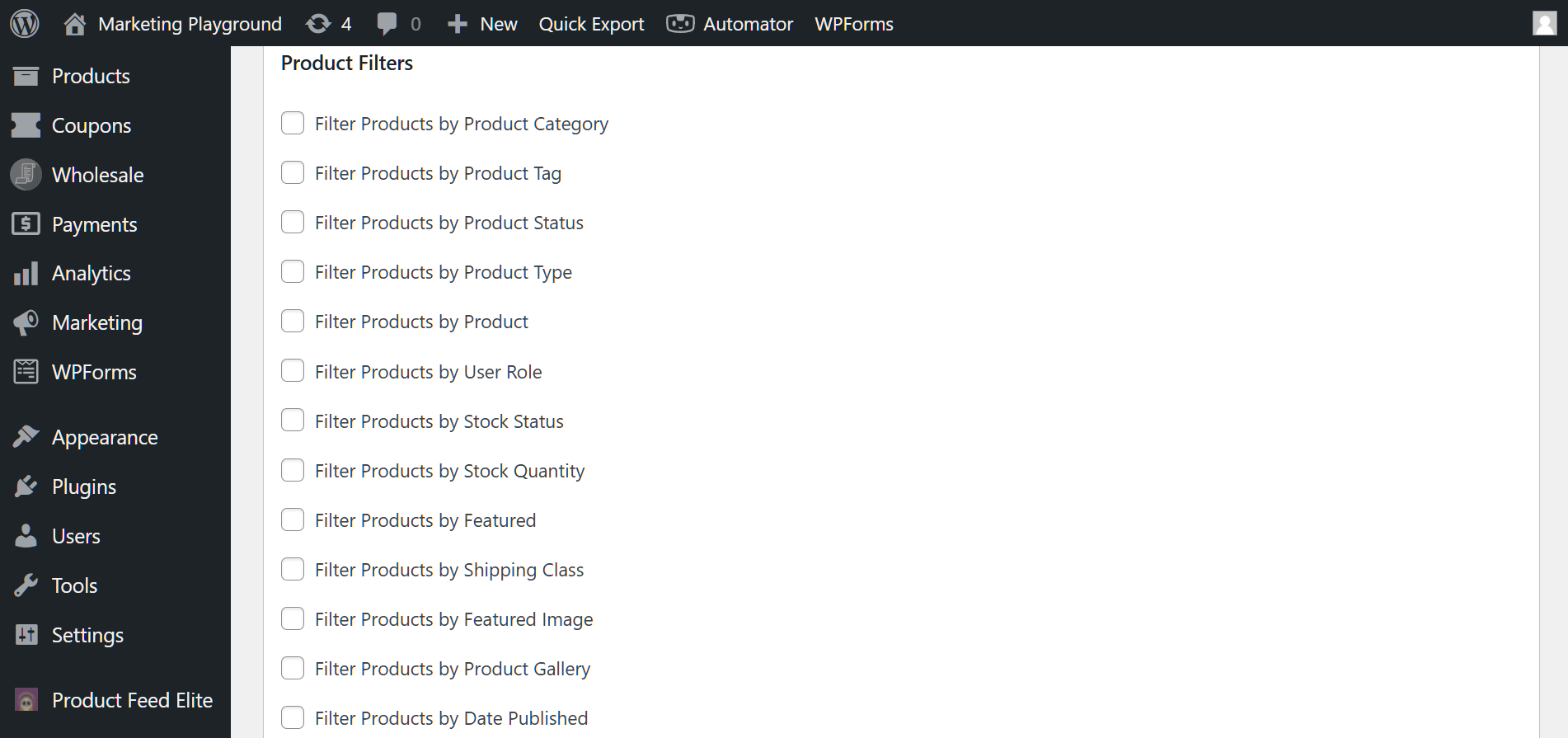
Step 3: Filter orders by status, date range, product, or customer
Filtering lets you export only the orders you need instead of your entire order history. Without filters, you get every order ever placed in your store, which is rarely what you want. Store Exporter Deluxe provides several filtering options that can be combined for precise results.
- Order status: Export only completed orders, processing orders, refunded orders, or any combination of statuses.
- Date range: Set a start and end date to export orders from a specific period (such as a single month for bookkeeping).
- Product: Filter to only include orders containing a specific product or product category.
- Customer: Export orders from a specific customer by email or customer ID.
- Payment method: Isolate orders by payment gateway (PayPal, Stripe, bank transfer, etc.).
What We’ve Seen: One of the most common mistakes we see is forgetting to set a date range filter before running an export. Without a date filter, Store Exporter Deluxe exports every order in your store’s history. For stores with thousands of orders, this creates unnecessarily large files and long export times. Always set a date range that matches the specific period you need.
Step 4: Pick your export format
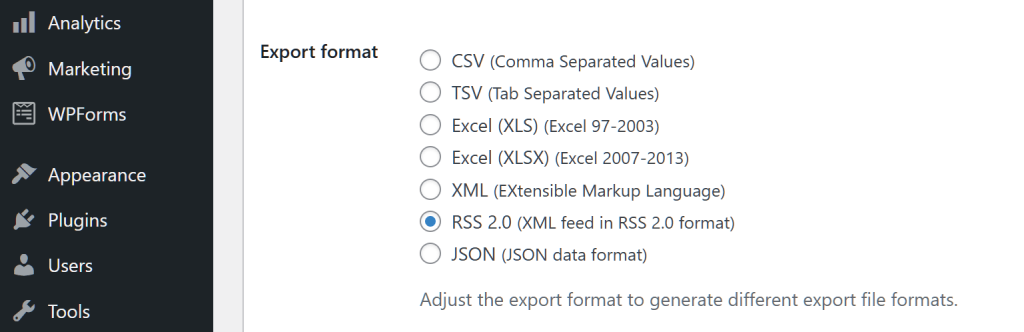
Choose the file format for your export. Store Exporter Deluxe supports CSV, TSV, XLS (Excel 97-2003), XLSX (Excel 2007+), and XML. CSV is the most universally compatible choice and works with virtually every accounting tool, spreadsheet app, and import system. Excel formats (XLS/XLSX) are ideal when you need to share files with team members who work in Excel. XML is best for automated system-to-system data transfers.
If you work with accountants or team members who need a native Excel file, see the step-by-step walkthrough on how to export WooCommerce orders directly to Excel — including how to avoid the data-type pitfalls that trip up most CSV-to-Excel conversions.
For a complete guide on exporting WooCommerce orders in CSV or XML format, check out this article:
How To Easily Export WooCommerce Orders In CSV Or XML Format
Step 5: Run the export
Click the export button to generate your file. Store Exporter Deluxe processes the export and provides a download link when finished. For smaller exports (a few hundred orders), the file generates almost instantly. Larger exports may take a few seconds depending on your server configuration and the number of fields selected.
Once the file downloads, open it in your preferred application to verify the data looks correct before importing it elsewhere. Check that the columns match your field selections and that filtered data (like date ranges) looks accurate. A quick spot-check now saves time troubleshooting later.
If you plan to repeat this export regularly, save the entire configuration as an export template. Templates preserve your field selections, filters, and format choice so future exports take just one click.
How To Export Orders To CSV
CSV is the most common format for WooCommerce order exports. It works with Excel, Google Sheets, QuickBooks, Xero, and virtually every data import tool. Here are specific tips for getting clean, usable CSV exports.
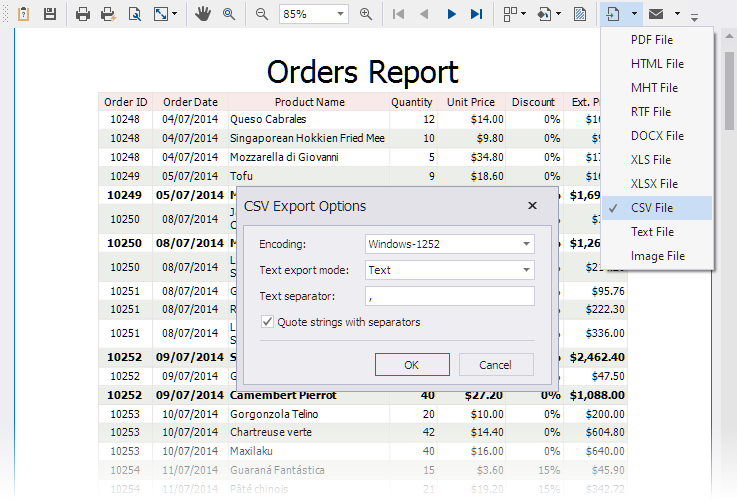
Selecting fields for CSV: Only include the fields your destination tool actually needs. CSV files do not support multiple sheets, so every field becomes a column in a single flat table. Including unnecessary fields creates wide, hard-to-read spreadsheets. For accounting imports, a lean export with order ID, date, billing name, line items, tax, and total is usually sufficient.
Handling special characters: Order data often contains commas in addresses, apostrophes in customer names, and currency symbols in totals. Store Exporter Deluxe automatically wraps these fields in proper CSV quoting so the data stays in the correct columns. If you notice misaligned columns when opening a CSV, check that your spreadsheet app is using comma as the delimiter (not semicolon, which is the default in some European locale settings).
Opening CSV in Excel vs Google Sheets: When you open a CSV in Excel, use the “Data > From Text/CSV” import option instead of double-clicking the file. This lets you specify the delimiter and character encoding, which prevents issues with special characters and accented names. In Google Sheets, use File > Import and select “Comma” as the separator type. Google Sheets handles UTF-8 encoding automatically, making it the simpler option when your order data includes international characters.
Line items in CSV exports: WooCommerce orders can contain multiple line items (products), and how these appear in a CSV depends on your export settings. Store Exporter Deluxe can output each line item on its own row (with the parent order data repeated), which is the most common format for accounting imports. This flat structure keeps one product per row, making it straightforward to calculate per-product totals or filter by SKU in your spreadsheet.
If you export WooCommerce orders to CSV regularly, save your field selection and filters as an export template. This ensures every CSV export is consistent and ready for your accounting or fulfillment workflow without reconfiguration.
How To Schedule Automatic Order Exports
Scheduled exports eliminate the need to manually run exports on a recurring basis. Store Exporter Deluxe lets you configure automated exports that run at any interval and deliver the file to the destination of your choice.
To set up a scheduled export, configure these three components.
Choose your interval: Set how often the export runs. Common configurations include daily exports for accounting software syncs, weekly exports for management reports, and monthly exports for tax preparation. You can set any custom interval that matches your workflow.
Select format and fields: Scheduled exports use the same field selection and filtering options as manual exports. Apply your filters (such as “only completed orders from the last 7 days”) so each automated export contains only the relevant new data. Save these settings as an export template to ensure consistency across every scheduled run.
Configure delivery: Choose where the exported file goes after it generates. Store Exporter Deluxe supports several delivery methods.
- Email attachment: Send the export file directly to your accountant, fulfillment partner, or your own inbox.
- FTP/SFTP: Upload the file to a remote server. This is common for 3PL providers and warehouse management systems that pull data from an FTP directory.
- WordPress media library: Store the file on your WordPress site for manual download later.
- Cloud endpoints: Deliver to remote cloud storage or API endpoints for automated data pipelines.
Practical example — daily fulfillment: A store that ships through a third-party logistics provider can schedule a daily CSV export of all “processing” orders. The export runs every morning at 6 AM, includes shipping addresses, product names, SKUs, and quantities, and uploads the file to the 3PL’s SFTP server. By the time the warehouse team starts their shift, the day’s orders are already in their system.
Practical example — weekly accounting: Schedule a weekly Excel export every Monday morning containing all completed orders from the previous seven days. Include order ID, date, billing name, line item totals, tax, shipping, discounts, and payment method. Deliver it as an email attachment to your bookkeeper. This replaces the manual process of logging into WooCommerce, running a report, and emailing the file yourself.
Once a scheduled export is configured, it runs in the background using WordPress cron. You do not need to be logged in or have the browser open. The exports continue automatically as long as your site is active and receiving traffic.
How To Export Orders In Bulk (Batch Exporting)
Batch exporting lets you export large volumes of orders in manageable chunks rather than processing everything at once. For stores with thousands of orders, this prevents your server from running out of memory or hitting PHP execution time limits.
How batch controls work:
Store Exporter Deluxe gives you two controls for this:
- Volume limit — how many orders to include per batch (e.g., 500 or 1,000)
- Offset — where each batch starts (batch 1 starts at 0, batch 2 at 1,000, and so on)
Example: If you have 8,000 orders, set the volume limit to 1,000 and run eight exports, incrementing the offset each time. Each batch produces a clean, separate file you can combine at your destination.
What We’ve Seen:
Stores on shared hosting regularly hit PHP timeout errors when exporting 2,000+ orders in one go. The server cuts the process short, leaving you with incomplete or empty files. Batching in 500–1,000 order chunks eliminates this problem entirely.
Tips for very large stores (50,000+ orders):
- For recurring full exports, pair batch settings with scheduled exports so the process runs automatically
- Combine date range filters with batch limits — export one month at a time instead of the full order table
- This keeps files organized, date-labeled, and easy to verify
Common Use Cases For WooCommerce Order Exports
WooCommerce order exports serve a wide range of business needs beyond basic record-keeping. Nearly every store eventually needs to get order data out of WooCommerce and into another system. Here are the most common reasons store owners export their order data and the export configurations that work best for each.
- Accounting and bookkeeping: Export orders to CSV or Excel for import into QuickBooks, Xero, FreshBooks, or other accounting software. Include order totals, tax amounts, dates, and payment methods to match your bookkeeping format.
- Fulfillment and shipping: Send order data to third-party logistics (3PL) providers or warehouse management systems. Scheduled FTP/SFTP exports keep fulfillment partners updated without manual intervention. Getting this handoff right depends on how cleanly your store already separates order stages, since sloppy WooCommerce order management is what usually causes 3PL feeds to include orders that aren’t actually ready to ship.
- Sales analysis and reporting: Export order data into spreadsheets or business intelligence tools to analyze revenue trends, product performance, average order value, and customer purchasing patterns.
- Tax preparation: Generate date-filtered exports for specific tax periods. Include tax totals, shipping charges, and refund amounts to simplify tax filing.
- Platform migration: Moving to a new ecommerce platform or a new WooCommerce installation requires a complete order history export. Batch exporting handles even the largest stores without data loss.
- Backup and archival: Maintain offline copies of your order data as a safety net. Regular exports to a secure location protect against data loss from hosting issues, hacking, or accidental deletion.
The common thread across all of these use cases is that they require specific, filtered order data in a specific format. A one-size-fits-all export rarely works. Store Exporter Deluxe’s field selection, filtering, and format options let you tailor each export to its exact destination.
Most of these use cases benefit from scheduled automatic exports. Once you configure the export template and delivery method, the data flows to the right place without any manual effort.
Start Exporting WooCommerce Orders Today
Exporting WooCommerce orders does not have to be a manual, time-consuming process. With Store Exporter Deluxe, you can select exactly the order fields you need, filter by status, date range, product, or customer, and export to CSV, Excel, or XML in under a minute.
For stores that need regular exports, scheduled automation delivers the right data to the right place (email, FTP, or cloud) without any manual intervention. And for large stores with thousands of orders, batch exporting keeps every export fast and reliable regardless of volume.
Get started with Store Exporter Deluxe and take control of your WooCommerce order data.
Frequently Asked Questions
How do I export WooCommerce orders to CSV?
Install Store Exporter Deluxe, select “Orders” as your export type, check the order fields you need (such as order ID, date, billing details, line items, and totals), apply any filters like date range or order status, choose CSV as your format, and click export. The plugin generates a CSV file that you can download and open in Excel, Google Sheets, or import into accounting software like QuickBooks or Xero.
Can I export orders with custom fields and meta data?
Yes. Store Exporter Deluxe exports custom order meta fields from any plugin. This includes custom checkout fields, subscription data, booking details, and any other meta data attached to WooCommerce orders. The plugin supports 125+ plugin integrations, so custom fields from popular plugins are automatically recognized and available as export options.
How do I export orders for a specific date range?
Use the date range filter in Store Exporter Deluxe before running your export. Set a start date and end date to limit the export to orders placed within that period. This is particularly useful for monthly accounting exports, quarterly tax reports, or exporting orders from a specific sale or promotional period.
Can I schedule automatic WooCommerce order exports?
Yes. Store Exporter Deluxe supports scheduled automated exports at any interval you choose. Configure the export fields, filters, and format, then set your schedule (daily, weekly, monthly, or a custom interval). The exported file can be delivered via email attachment, FTP/SFTP upload, saved to the WordPress media library, or sent to cloud endpoints.
What’s the fastest way to export thousands of orders?
Use batch exporting. Set a volume limit (such as 1,000 orders per batch) and use the offset to process your orders in sequential chunks. This avoids server timeout errors that commonly occur when exporting very large datasets in a single request. Each batch completes quickly and produces a complete, reliable file. For ongoing large-volume exports, combine batch settings with scheduled exports to automate the process.