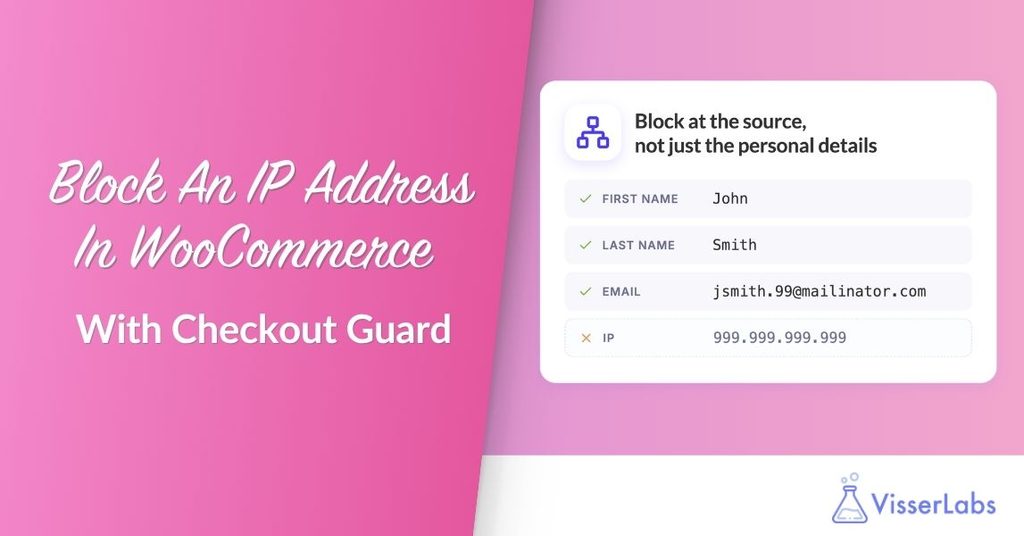
Checkout Guard now lets you block an IP address in WooCommerce. Add an IP to a blocked entry and the order stops at checkout, even when the shopper changes their name and email. It closes the easiest way around a block list.
The feature arrives in Checkout Guard 1.0.2. There is no new settings page and no separate list to maintain. IP sits on the same blocked entry you already use for names and emails, as one more field you can fill in.
Table Of Contents
- Why A Name And Email Block List Was Not Enough
- How To Block An IP Address In WooCommerce
- Where Checkout Guard Gets The Customer IP Address
- Adding Your First IP Rule
- What Checkout Guard Accepts As An IP Address
- Where IP Matching Behaves Differently From Names And Email
- IP Addresses Are Personal Data, So Treat Them That Way
- Managing IP Rules From Another System
- Conclusion
- Frequently Asked Questions
Why A Name And Email Block List Was Not Enough
Blocking on name and email works right up until someone notices they are blocked.
A person who wants to get back through your checkout has two very cheap options. They can type a different name. They can sign up for a free mailbox and use a different address. Neither takes more than a minute, and both defeat a block list that only knows who they said they were.
That is the gap. Until this release Checkout Guard compared the billing first name, the billing last name and the billing email, and nothing else. Someone placing junk orders from the same laptop on the same connection looked like a brand new customer every time they changed those three fields.
IP address is a harder thing to change. It is not perfect, and no single signal is, but it describes the connection rather than the story typed into the form. For repeat abuse from one person or one machine, it is usually the most stable identifier you have. That is why being able to block an IP address in WooCommerce matters.
How To Block An IP Address In WooCommerce
An entry in your block list can now carry an IP address alongside the name and email fields. Nothing about the existing fields changed.
The matching rule is an OR across field types. A blocked entry stops an order when any populated field on it matches the customer: both names match, or the email matches, or the IP matches. Fields you leave empty are ignored, so a rule with only an IP in it is perfectly valid and blocks purely on the connection.
That last part is worth sitting with, because it changes how you can use the list. Before this release every entry needed a name or an email. Now you can add an IP with no name and no email attached. That is what you want when you know the connection is a problem but the identity attached to it keeps changing.
An empty customer IP never matches anything. If Checkout Guard cannot resolve an address for a shopper, your IP rules simply do not apply to that order. Your name and email rules carry on as normal.
Where Checkout Guard Gets The Customer IP Address
Reading the visitor’s IP address sounds simple and is not, because most stores sit behind something.
A CDN, a reverse proxy or a load balancer all sit between the shopper and WordPress. Read the connection address naively and you get the address of that middle layer, which is the same for every customer. Block it and you block your entire store.
Checkout Guard avoids this by asking WooCommerce rather than reading the connection directly. The plugin resolves the shopper’s address through WooCommerce’s own geolocation helper, which already understands the common forwarded headers that proxies and CDNs set. If your store runs behind Cloudflare, the address Checkout Guard compares is the shopper’s, not Cloudflare’s.
The address is resolved once, in the single method that decides whether to block a customer. Both of your checkouts funnel through that method, so the classic shortcode checkout and the block checkout running on the Store API both match against exactly the same value. There is no path where IP blocking works in one checkout and quietly does nothing in the other.
Adding Your First IP Rule
To block an IP address in WooCommerce, open the dialog you already use. It has one more field in it.
- Go to WooCommerce → Checkout Guard and open the Blocked Entries tab.
- Add an entry, or edit an existing one.
- Type the address into the IP Address field. The dialog checks the value and refuses to save a malformed one.
- Leave the name and email fields empty if the connection is the only thing you want to block.
- Save the entry.
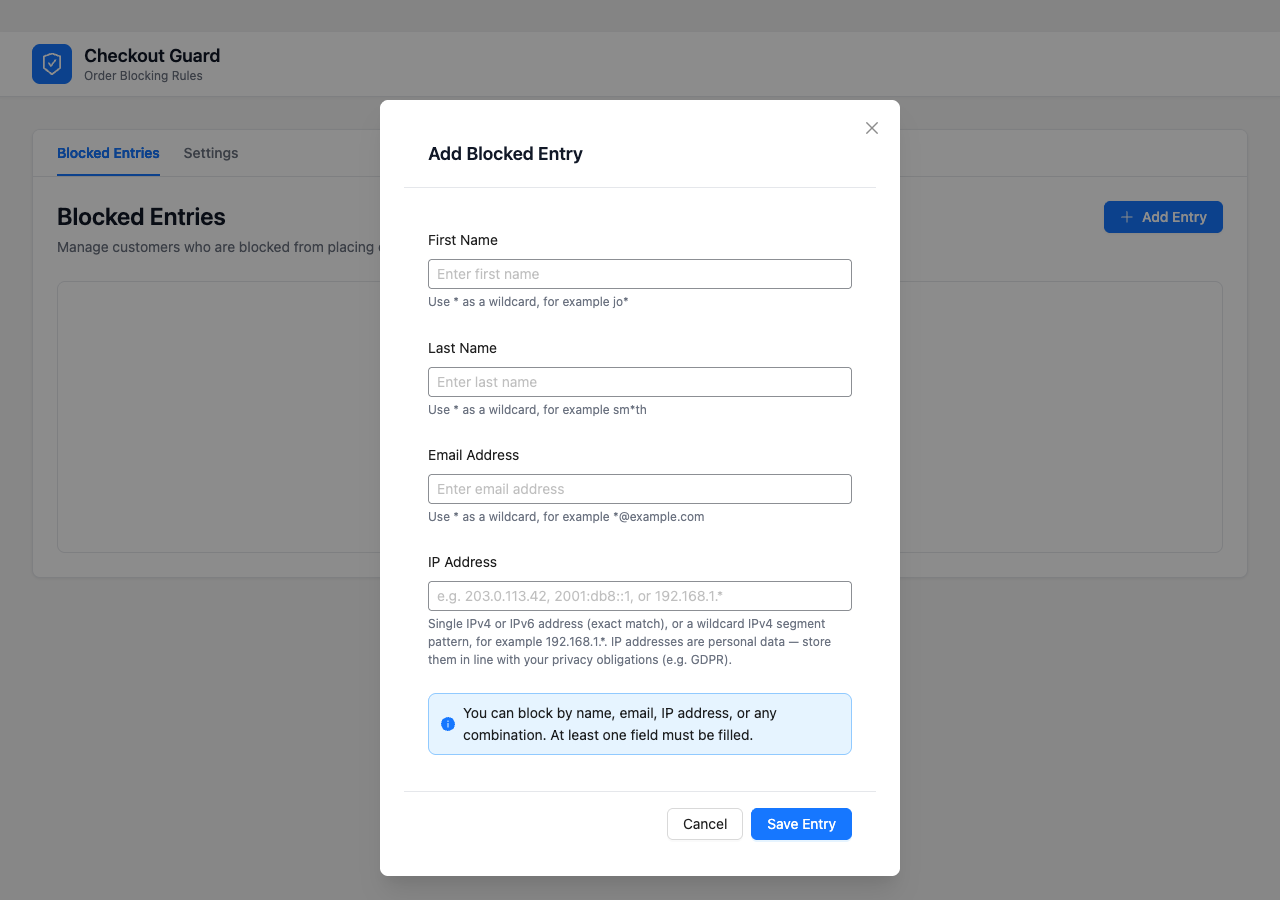
The Blocked Entries table now shows an IP Address column. You can see at a glance which of your rules block on connection and which block on identity.
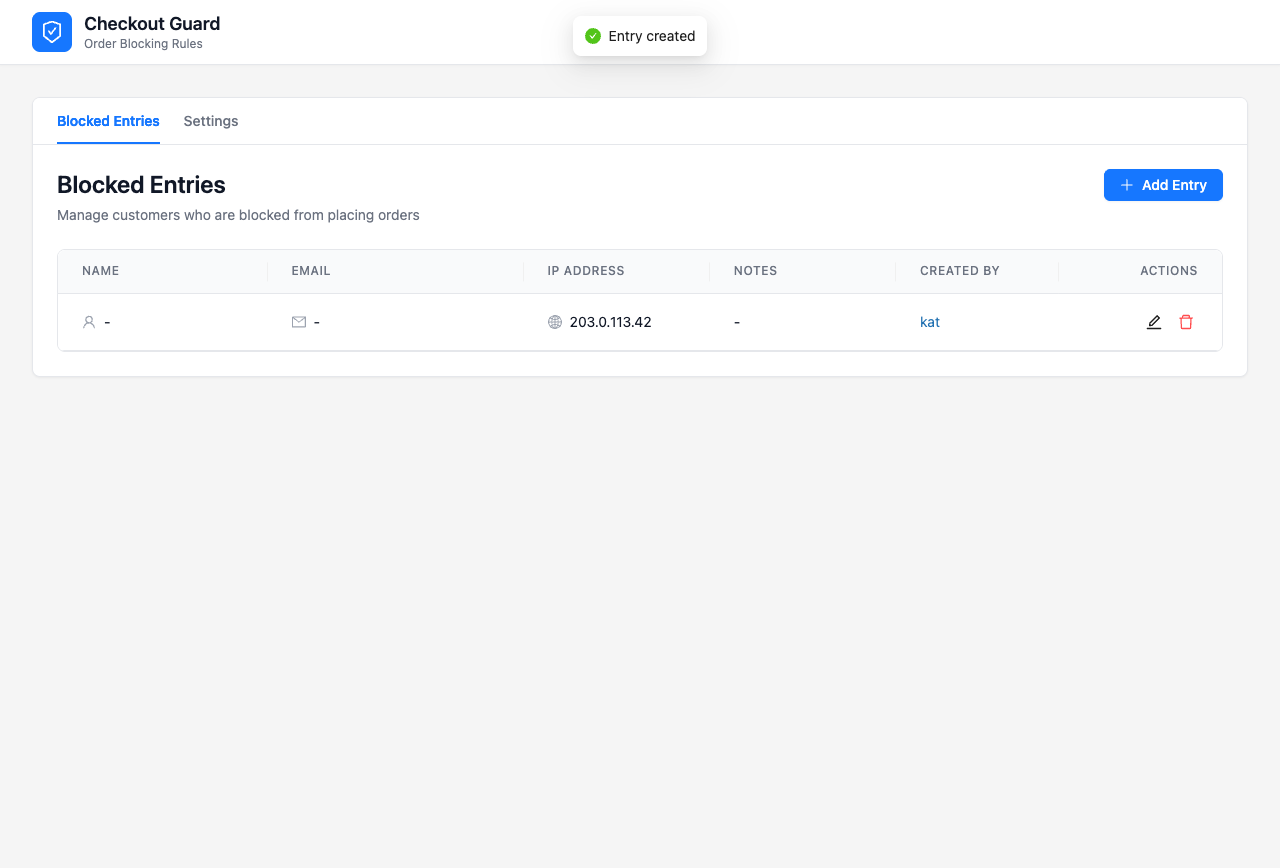
Enforcement needs no configuration. Once the entry is saved, a matching shopper sees the message set in your Checkout Denial Message setting, the cart is emptied, and no payment is attempted.
What we’ve seen: IP rules age differently from email rules. An email address usually belongs to the same person for years, but mobile and residential addresses get reassigned, so an address worth blocking last year can belong to a perfectly ordinary customer now. Review your IP rules from time to time, and reach for an email or name rule instead whenever you have a reliable one.
What Checkout Guard Accepts As An IP Address
A single IPv4 or IPv6 address is what the field is built for, and both are accepted.
Values are checked with PHP’s own address validator, documented by the PHP manual as filter_var with the FILTER_VALIDATE_IP filter, then stored in a normalized form. A field left empty is fine. A field with something in it that is not a valid address is rejected outright rather than saved and quietly ignored. That way a typo surfaces when you save the rule, not on the day it fails to block someone.
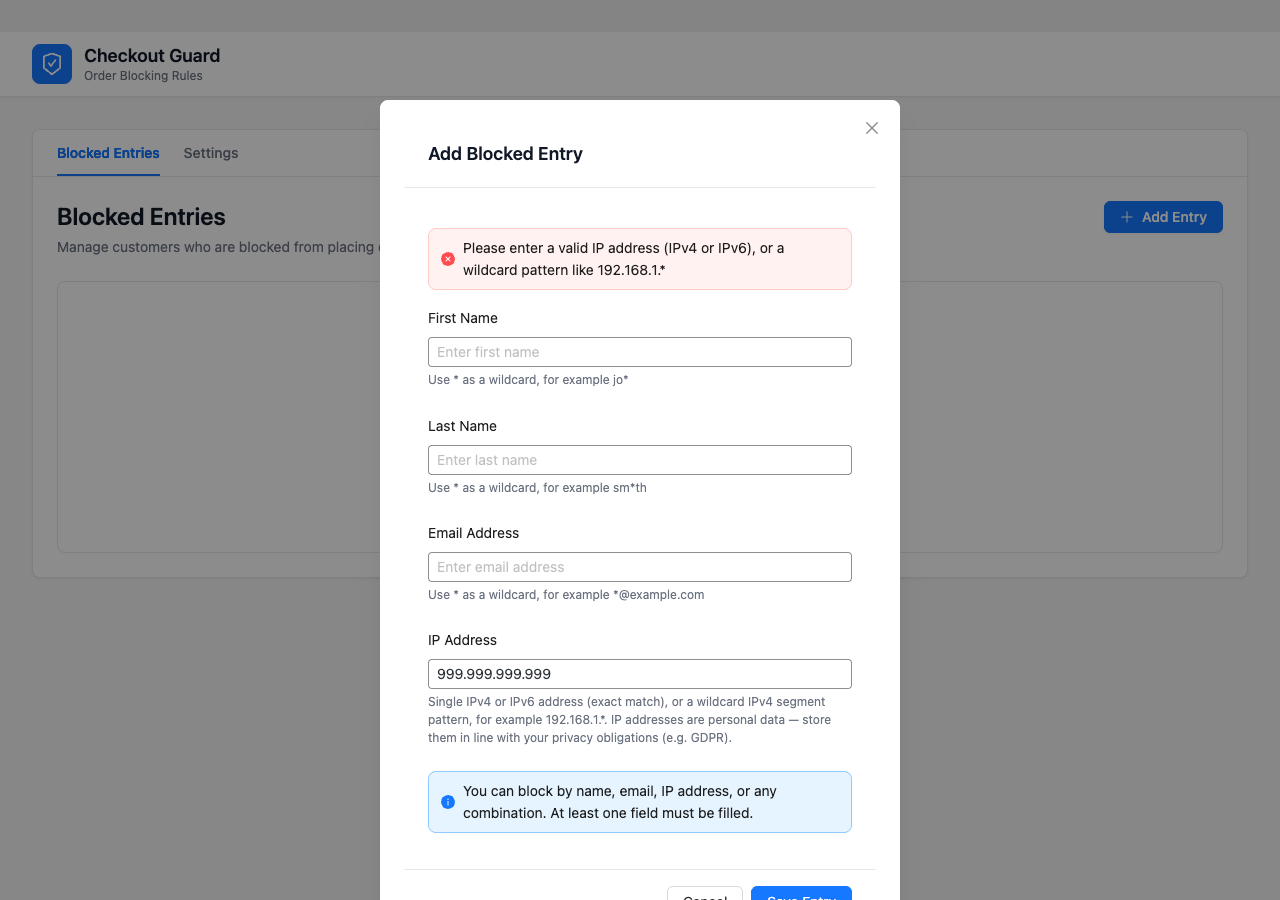
Wildcard IPv4 segment patterns such as 192.168.1.* also work, which arrived in the same 1.0.2 release and lets one rule cover a whole range. Our guide to blocking an email domain in WooCommerce covers the wildcard rules in full, including the exact IP segment form Checkout Guard accepts.
Two things are deliberately out of scope for this release. CIDR notation, the /24 style of writing a range, is not supported. Country or region blocking is not part of this either, because Checkout Guard matches addresses rather than looking up where they are.
Where IP Matching Behaves Differently From Names And Email
Three details separate IP rules from the name and email rules you already use. None of them will bite you often, but each one explains a result that otherwise looks like a bug.
IP Comparison Is Case-Sensitive
Names and email addresses are compared without regard to capitalization. IP addresses are not. In practice this only matters for IPv6, where the same address can be written with uppercase or lowercase hex, so store IPv6 addresses the way your logs report them.
A Wildcard Rule And A Literal Rule Are Two Different Entries
Checkout Guard uses one matcher to decide whether to block an order and a different, literal one to look rules up. The block decision expands *. Searching the Blocked Entries list, and the duplicate check that stops the API creating the same rule twice, both compare the characters exactly. So a rule holding 192.168.1.* and a rule holding a literal address are separate rows, and filtering the list by one address will not surface the wildcard that covers it.
The Patterns Checkout Guard Refuses To Save
A wildcard IP has to be IPv4 in segment form: exactly four dot-separated parts, each either a number or a lone *, with at least one real number. These are all rejected:
*.*.*.*, because no segment is a real number, so the rule would match every customer19*.168.1.1, because a segment has to be all digits or all wildcard, never a mix1.2.3.*.5, because that is five segments192.168.1.*., because of the trailing dot2001:db8::*, because IPv6 wildcards are not supported, though an exact IPv6 address is fine
IP Addresses Are Personal Data, So Treat Them That Way
Storing an address is a privacy decision, not just a technical one.
Under the GDPR, an IP address is an online identifier. Recital 30 names “internet protocol addresses” directly, in a list of identifiers that can be combined with other information to single out a person. Putting one in your block list means you are holding personal data about someone.
That is entirely allowed, and blocking abuse is a normal reason to do it. It does mean the addresses in your block list belong in the same conversation as the rest of the personal data your store holds. Cover them in your privacy policy, keep them for a sensible length of time, and remove them when the reason for holding them is gone.
Checkout Guard shows a short privacy reminder next to the IP field for exactly this reason. The plugin does not decide your retention policy for you, and it should not, but it does put the prompt where the decision actually gets made.
Managing IP Rules From Another System
You can also block an IP address in WooCommerce over Checkout Guard’s REST API, which matters if your block list is fed by something other than a person. Our walkthrough of the WooCommerce block list API covers every endpoint, the authentication it expects and what it returns.
The ip_address field is accepted and returned on the endpoints that create, update and batch-create entries, and on the endpoint that lists them. You can filter the list by IP to find a specific rule. The API also carries a notes field of up to 140 characters, which is where the Notes column in the Blocked Entries table gets its content.
Repeated creates behave sensibly. An entry that carries only an IP is identified by that IP, so sending the same address twice updates the rule in place instead of leaving you with duplicates. A malformed address is rejected with a 400 on a single create or update. On a batch it is skipped and counted in the response rather than failing the whole request.
There is also an endpoint that answers whether a given customer would be blocked, and it accepts an IP like every other field. It runs the same matching code as the live checkout, so the answer it gives you cannot drift away from what actually happens to a real shopper.
Conclusion
The ability to block an IP address in WooCommerce closes the gap that made a name and email block list easy to walk around. One field, on the entry you already use, and the rule now describes the connection instead of whatever the shopper typed in the form.
If you are new to Checkout Guard, our introduction to the plugin covers the basics of building a block list. Our walkthrough of blocking by name or email covers the fields this release builds on. For the wider problem, our guide to stopping spam orders in WooCommerce puts blocking in context alongside the other things worth doing.
You can block an IP address in WooCommerce today with Checkout Guard 1.0.2.
Frequently Asked Questions
Can I block an IP address in WooCommerce?
Yes. You can block an IP address in WooCommerce with Checkout Guard 1.0.2, which adds an IP Address field to each blocked entry. A rule can then stop an order based on the shopper’s connection rather than their billing name or email. An entry containing only an IP address is valid.
Does IP blocking work behind Cloudflare or a proxy?
Yes. Checkout Guard resolves the shopper’s address through WooCommerce’s geolocation helper, which reads the common forwarded headers a CDN or reverse proxy sets. The address compared is the shopper’s, not your proxy’s.
Does this work on the block checkout as well as the classic one?
Yes. Both checkouts run through the same method that resolves the IP and decides whether to block. A rule therefore behaves identically on the classic shortcode checkout and on the block checkout using the Store API.
Can I block a range of IP addresses?
You can use a wildcard IPv4 segment pattern such as 192.168.1.* to cover a range. CIDR notation like /24 is not supported in this release, and neither is blocking by country or region.
What happens if I enter an invalid IP address?
The rule is rejected rather than saved. The admin dialog refuses to save it, and the REST API returns a 400 for a malformed address on a single create or update. On a batch create the bad item is skipped and counted in the response.
Do my existing name and email rules still work?
Yes. Nothing about the existing fields changed. An entry blocks an order when any populated field matches, so adding IP support does not alter how your current name and email rules behave.