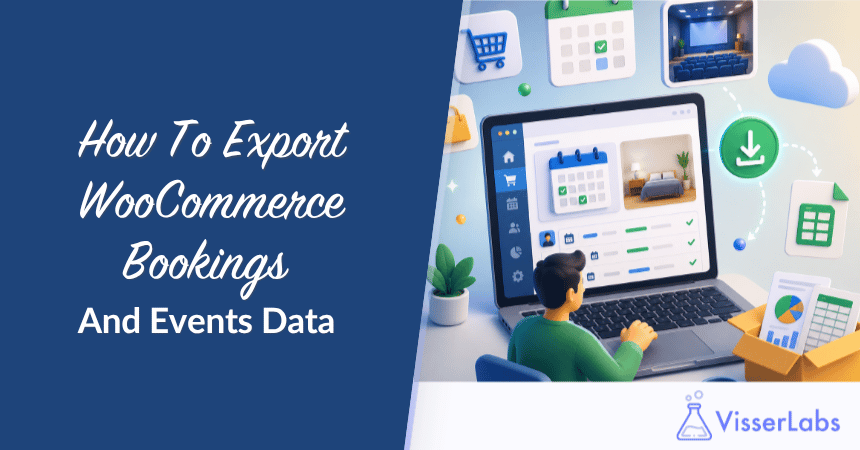
Bookings are not orders, and the usual WooCommerce order export was never built to capture them. When you run WooCommerce Bookings for a venue, class, appointment, or rental business, you need a purpose-built way to export WooCommerce bookings into reporting, calendars, and reminder workflows.
If you’re running WooCommerce Bookings for venues, classes, appointments, or rentals, you already know bookings live in their own data bucket. They have start and end times, resources, persons per booking, and statuses that behave differently from a one-off product sale. You need a purpose-built export to pull that data into reporting, calendars, reminder workflows, or your accountant’s inbox.
Store Exporter Deluxe handles Bookings as a native export type, so you can export WooCommerce bookings in three clicks and feed them into whatever downstream system you run. This guide walks through setup, fields, filters, validation, and four use cases that turn the export from a data dump into an operational tool.
Table of Contents
Why Export WooCommerce Bookings And Events Data
Bookings are revenue events, operational commitments, and customer touchpoints rolled into one. Here are the five reasons owners run a WooCommerce bookings export on a regular cadence.
Revenue reporting
Bookings often drive a separate revenue stream from your standard product catalog. A yoga studio might sell mats as products and classes as bookings, and the two sit in different buckets inside WooCommerce. Exporting bookings lets you report on booking revenue by service, resource, or time period without writing SQL.
External calendar and scheduling systems
Front-of-house, cleaning, and instructor staff rarely live inside WooCommerce. They live in Google Calendar, Outlook, iCal, or a rostering tool like Deputy or When I Work. A clean booking export feeds those tools through CSV-to-ICS conversion or through Zapier or Make, so staff see bookings alongside their other commitments without needing WordPress admin access.
Backup and compliance
Booking data is personal data. GDPR, audit trails, and common sense point to keeping a restorable snapshot outside WordPress. Quarterly exports to Dropbox, Google Drive, or an accountant’s file share protect you if the site ever goes down or needs rolling back.
Customer communication
A filtered export of “bookings starting in 48 hours” is the raw material for reminder emails, SMS alerts, and loyalty follow-ups. Most booking businesses need a reliable nightly list of who is coming and how to reach them. That list drops straight into Mailchimp, Klaviyo, or a Twilio workflow, and it keeps your no-show rate honest.
Accounting reconciliation
Bookings are revenue events, and your accountant wants them alongside your order data. If you don’t have a direct Xero, QuickBooks, or MYOB integration, a monthly CSV handoff is the next best thing. A column set of booking ID, customer, service, date, amount, and tax lines up with almost any chart of accounts.
What Booking Data Is Available
Before you export WooCommerce bookings, it helps to know what fields live inside a WooCommerce Bookings record. Your exact field list will depend on how your store and the Bookings extension are configured, but at a high level you can expect:
- Booking identifiers. Booking ID and linked order ID, which lets you reconcile a booking against the originating order.
- Customer details. Name, email, phone, and address, where those are captured at checkout.
- Product details. The bookable product, any variation, and the resource assigned (room, stylist, piece of equipment).
- Scheduling fields. Start datetime, end datetime, duration, and timezone.
- Capacity and persons. Where your bookings track multiple people per slot (a cooking class with 8 seats, a minibus tour with 12), the persons field captures how many were booked.
- Status. Pending, confirmed, paid, cancelled, complete.
- Pricing. Booking cost, any add-ons, taxes, and totals.
Confirm the exact field list inside Store Exporter Deluxe’s Bookings field selector before your first run. The selector shows every available field for your specific store configuration.
Events-specific plugins are a caveat here. If your store runs The Events Calendar, Modern Events Calendar, or Event Organiser instead of WooCommerce Bookings, your data structure will look different, because those plugins store events and attendees in their own tables. Store Exporter Deluxe supports over 125 plugin integrations, but check compatibility with your specific events plugin before you commit to an export workflow.
Step 1: Configure Store Exporter Deluxe For Bookings
Here is the three-step featured answer for anyone who wants the short version.
- Install and activate Store Exporter Deluxe, then go to WooCommerce, Store Export.
- Select Bookings as the export type and choose your file format.
- Pick fields, apply filters, and run the export.
Now the full walkthrough.
Install and activate:
Purchase Store Exporter Deluxe, upload the ZIP through WordPress admin (Plugins, Add New, Upload Plugin), activate it, and enter your license key. If you already run Store Exporter Deluxe for orders and products, Bookings is not a separate purchase. It’s built into the same plugin as a native data type.
Navigate to the Store Export screen:
Go to WooCommerce, Store Export in the admin menu. Store Exporter Deluxe opens a multi-tab interface with an export type dropdown.
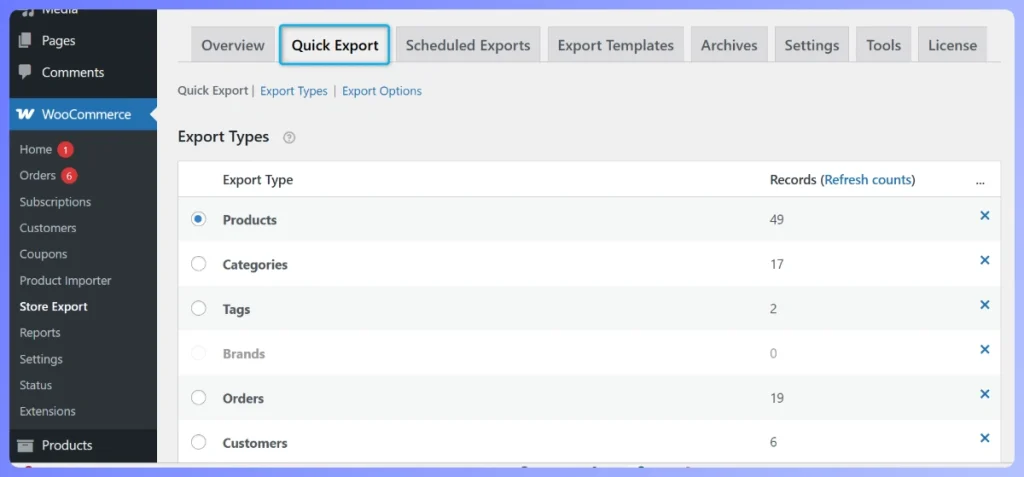
Select Bookings as the export type:
In the export type dropdown, choose Bookings. This swaps the field selector and filter panel over to Bookings-specific options. If you leave the type as Orders or Products, you won’t see booking start times, resources, or persons fields at all.
Hands-on observation: The Bookings export type only appears in the dropdown when the WooCommerce Bookings extension is installed and active. If you open Store Export and Bookings is missing, check that WooCommerce Bookings is still active under Plugins, Installed Plugins. We’ve seen this trip up owners after a plugin audit where Bookings gets deactivated by mistake, and the symptom is always “the Bookings option disappeared.”
Choose your file format:
- CSV. Default for spreadsheets and accountants. Opens in Excel, Google Sheets, and Numbers.
- XLSX. Native Excel format. Preserves data types and currency formatting.
- XML or JSON. Best for feeding external systems, calendar converters, or Zapier webhooks that expect structured data.
Pick the format that matches how the file gets used. Most owners end up with CSV for humans and JSON for automations. For a broader reference on format selection, see the Visser Labs how to export WooCommerce data guide.
Step 2: Select Fields And Filters
Once Bookings is selected, the field selector and filter panel reload with booking-specific options. Small decisions here save hours of cleanup later.
Pick a minimal starting field set:
Resist the urge to tick every box on your first export. Start with the fields that answer your actual question and add more only when you need them. A reliable starter set:
- Booking ID
- Customer name and email
- Bookable product
- Resource (if your store uses resources)
- Start datetime
- End datetime
- Status
- Cost
This is enough for a roster, a calendar sync, or a reminder email. You can always add persons, phone number, order ID, or add-ons later.
Filter by booking date, not order date:
This is the most important distinction in the walkthrough. WooCommerce Bookings stores two dates per booking: the order date (when the customer paid) and the booking date (when they’re coming in). Filtering by order date pulls everything paid in the last 30 days, which sweeps in future bookings and drops past ones, so for operations, rostering, and reminders, always filter by booking date.
Apply a status filter:
Exclude cancelled bookings unless you are doing a refund reconciliation. For accounting, filter to paid and complete. For reminders, filter to confirmed and paid with a start datetime in the future. For revenue reporting, complete is usually the cleanest status.
Filter by resource for team-level reports:
If your venue has multiple rooms, your studio has multiple instructors, or your salon has multiple chairs, the resource filter breaks exports down per team member. One export per resource, delivered to that resource’s inbox, turns a central admin chore into a distributed operational workflow.
What We’ve Seen: One mistake we see repeatedly is exporters pulling bookings in UTC when the store runs in local time, which leaves you with a spreadsheet where a 9am Monday class shows up as 11pm Sunday. Always confirm the timezone column matches your store timezone before handing the file on, and always include the timezone field itself so the recipient can spot the issue. The second mistake we see just as often is exports with no customer email. Bookings are worthless for reminders if the email column is empty, so double-check the Customer Email field is ticked before your first run. Both are quick to fix in setup and painful to clean up after.
Step 3: Run And Validate Export
Running the export is a click. Validating it saves you from handing your accountant a file with three missing weeks of bookings.
Preview before you run:
Run a preview on a narrow date range (a single week is ideal) and spot-check five rows. Look at:
- Start datetime format. Is it ISO 8601, DD/MM/YYYY, or MM/DD/YYYY? Does it match what your downstream system expects?
- Timezone. Does the time match your local store time?
- Customer email. Is the column populated for every row?
- Status. Are you seeing only the statuses you filtered for?
- Cost. Is the currency and decimal format clean?
If any of these look wrong, fix the field selection or filters before the full run.
Run the full export:
With the preview clean, run the full date range. The file downloads directly, or gets emailed, FTP’d, or saved to the media library depending on your delivery configuration.
Validate the output:
Open the file and run three quick checks before you hand it on.
- Row count. If you expected roughly 60 bookings for the month and the file has 12, something filtered them out.
- Datetime consistency. Check the last row’s datetime formatting matches the first row’s.
- Empty cells. Sort on Customer Email and Start Datetime. Any blanks are a red flag that the field selector dropped something important.
Hands-on observation: For a busy venue exporting a full year in one go (a function center with 300+ bookings across 12 months), we’ve seen the export hit PHP memory or timeout limits on stretched shared hosting. The fix is to chunk the export by month or quarter and stitch the files together downstream, then automate it with a scheduled export so recurring runs stay inside their interval.
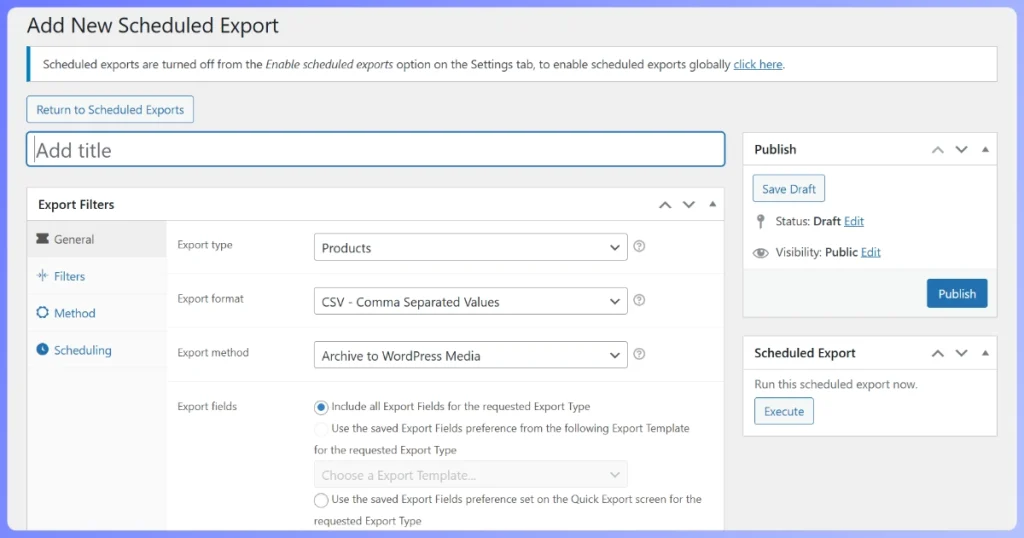
Full setup is in the Visser Labs how to create an export schedule guide.
Use Cases For Booking Exports
Once the export runs cleanly, four downstream workflows turn the file into operational value.
Revenue reporting
Drop the CSV into Google Sheets or Excel and build a pivot with booking date on rows, bookable product on columns, and cost as the value. That gives you a month-by-service revenue view, and adding resource as a filter breaks it down per room, instructor, or chair. Compare booking revenue against your orders export to see what share of the business sits in bookings versus one-off sales.
External calendar sync
Convert the CSV to ICS (iCalendar) format with a free online converter or a short script, then import it into Google Calendar, Outlook, or Apple Calendar. For real-time sync, feed the export into Zapier or Make with a “new row in Google Sheets” trigger and a “create event in Google Calendar” action. Staff see bookings alongside their other commitments and nobody needs admin access to WooCommerce.
Customer communication
Filter the export to “start datetime in the next 48 hours” and upload it to Mailchimp, Klaviyo, or a Twilio-backed SMS service, and that’s your reminder list. Filter to “end datetime in the last 7 days” and upload it to your review request tool. Automate the filter step with a scheduled export, and the whole reminder pipeline runs without you touching it.
Accounting reconciliation
Monthly CSV handoff to your accountant with booking ID, customer name, bookable product, booking date, amount, and tax. This lines up with almost any chart of accounts. If you want a direct integration instead of a file handoff, the Visser Labs best WooCommerce accounting plugins guide covers Xero, QuickBooks, and MYOB options.
Frequently Asked Questions
Does Store Exporter Deluxe export cancelled bookings?
Yes. When you export WooCommerce bookings, cancelled bookings are included and filterable by status. If you only want active and complete bookings, apply a status filter before running the export, or filter to Cancelled to pull just those rows for a refund reconciliation.
Can I schedule recurring booking exports?
Yes. Store Exporter Deluxe’s scheduled exports feature lets you configure a recurring booking export (daily, weekly, monthly, or custom via WP-Cron) and deliver it by email, FTP, SFTP, or save it to the WordPress media library. Save your Bookings export template first, then reference it in the schedule. Full setup details are in the Visser Labs how to create an export schedule guide.
Does this work with The Events Calendar, Modern Events Calendar, or Event Organiser?
Store Exporter Deluxe supports over 125 plugin integrations, but events plugins store their data differently from WooCommerce Bookings. Check compatibility with your specific events plugin before committing to an export workflow. The Bookings export type in this guide is purpose-built for the WooCommerce Bookings extension. If you run an events plugin instead, test a preview export on a small data set first and confirm the fields you need are available.
How do I get booking attendee details for classes with multiple people?
WooCommerce Bookings captures the persons count per booking when your bookable product is configured with persons. The persons field is available in the Store Exporter Deluxe Bookings field selector, so you can include it alongside the customer name and email. For multi-attendee classes where each person has their own details (name, dietary requirement, skill level), those are captured as booking meta or add-ons, and you may need to add the relevant meta fields to your export selection.
What format should I export in for Google Calendar?
Google Calendar imports ICS (iCalendar) files. Store Exporter Deluxe does not export ICS natively, so the cleanest path is CSV out of Store Exporter Deluxe, then CSV-to-ICS conversion with a lightweight converter. For real-time sync, feed the export rows directly into a “create calendar event” action via Zapier or Make.
Conclusion
Bookings export is native inside Store Exporter Deluxe, which means you can export WooCommerce bookings in three steps and unlock four high-value workflows: revenue reporting, calendar sync, customer communication, and accounting reconciliation. Select Bookings as the export type, pick a minimal field set, filter by booking date and status, preview, validate, run.
Here’s a quick recap of what we covered:
- Why store owners export bookings: revenue, calendars, backups, reminders, and accounting
- What booking fields Store Exporter Deluxe exposes
- How to configure the Bookings export type, fields, and filters
- How to preview and validate before the full run
- Four downstream workflows for the exported file
Ready to export WooCommerce bookings without wrestling with the database? Get Store Exporter Deluxe for $39.50/year for Bookings support, 125+ plugin integrations, scheduled exports, and FTP/SFTP delivery.