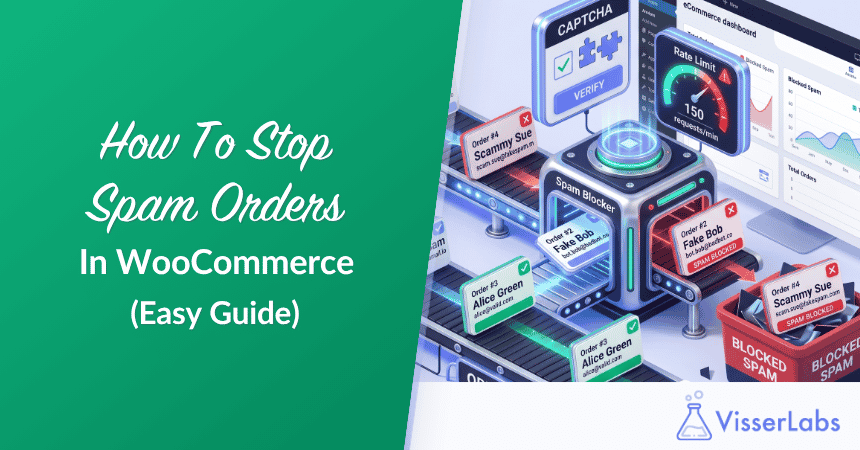
Learning how to stop spam orders in WooCommerce comes down to layering three defenses: add a CAPTCHA to block bots, apply rate limiting to slow repeat automated attempts, and use a manual block list to stop the specific human offenders who slip past those filters. Most stores need all three.
If you’ve run a WooCommerce store for any length of time, you know how the panic starts: you log in to a wall of pending orders from names you don’t recognize, half of them on cards that already got declined. Spam orders waste your time, pollute your reports, rack up gateway fees, and can even get your store flagged by your processor. The good news? You don’t need an expensive fraud platform to get quiet again. You need to know what’s generating the noise, then match each cause to the right fix.
In this article, we’ll break down what’s actually generating your spam orders, then walk through the three layers that show you how to stop spam orders in WooCommerce. Work through them in order and you’ll cut the volume sharply.
Table of Contents
What Causes Spam Orders In WooCommerce
Spam orders come from three sources: automated bots hitting your checkout, card-testing scripts validating stolen card numbers, and real humans placing fake or abusive orders. Each needs a different fix, so identifying which one you’re dealing with saves hours.
Bots are the highest-volume culprit, and automated traffic isn’t a fringe problem. Bad bots accounted for 32% of all website traffic in 2023, according to Imperva’s 2024 Bad Bot Report, and many of them crawl checkout forms looking for an open path to submit orders. Card testing is the second source, and it’s nastier: fraudsters run stolen card numbers through your checkout in rapid bursts to see which ones still work. Each test order can trigger a gateway fee even when the charge fails.
Then there are humans. A real person who chargebacks every order, abuses your refund policy, or places spite orders after a dispute won’t be caught by any bot filter. They aren’t a bot; they’re a known face causing a known problem. The wider trend is ugly too, with global ecommerce payment-fraud losses topping $48 billion in 2023, up from around $41 billion the year before, according to Juniper Research. The mechanics are identical at any scale, even if a small store never sees billions in loss.
What We’ve Seen: A common pattern shows up across support tickets and store-owner forums. An owner assumes every junk order is a bot and keeps tightening automated rules, and often two-thirds of the volume really is bots. But the orders actually costing money come from a handful of repeat customers who order, charge back, and reorder under slight name variations. No amount of CAPTCHA touches them, because they’re solving the CAPTCHA. The bots and the humans have to be handled separately.
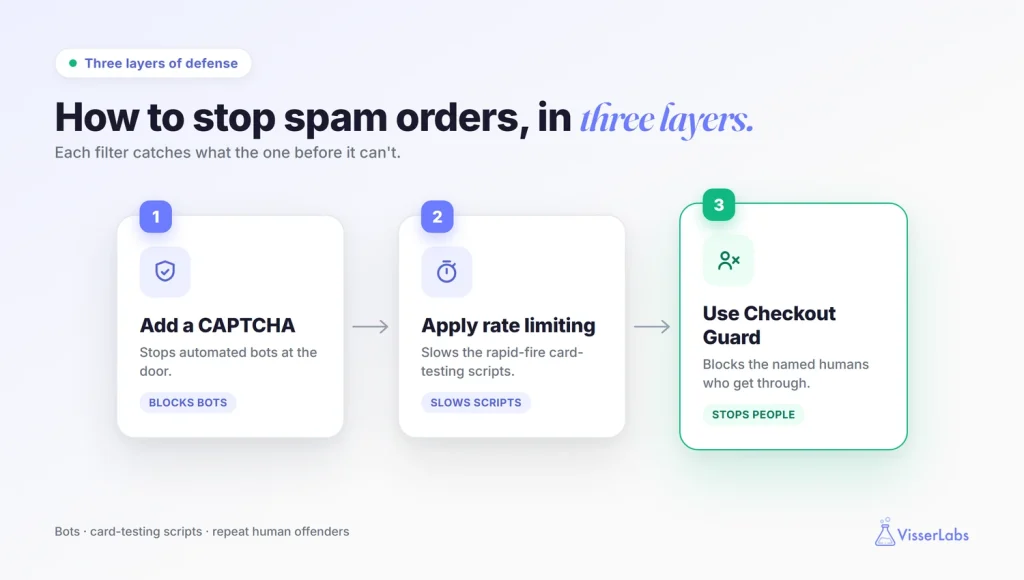
Step 1: Add A CAPTCHA To Block Bots
Start with a CAPTCHA, because bots create the most volume and a challenge stops most of them at the door. A CAPTCHA asks the visitor to prove they’re human before the order submits, and automated scripts usually can’t pass it.
Google’s reCAPTCHA is the common choice and it’s free. The invisible v3 version scores traffic in the background, so genuine shoppers rarely see a challenge while suspicious sessions get blocked. Plenty of WooCommerce security plugins add a reCAPTCHA field to the checkout and login forms in a few clicks. You configure it once, drop in your site keys from Google, and your checkout stops accepting raw automated submissions.
Be honest about what this fixes. A CAPTCHA stops bots. It does nothing about a human who’s determined to order, because a person can solve the puzzle. Treat it as your first filter, not your only one, and if you haven’t added a checkout CAPTCHA yet, do that today.
Step 2: Apply Rate Limiting To Slow Repeat Attempts
Rate limiting caps how many orders or requests a single source can fire in a set window, which kills the rapid-fire bursts that card-testing scripts depend on. A bot that can only attempt one checkout every few minutes loses most of its value to a fraudster.
Rate limiting isn’t a Checkout Guard feature, so don’t go looking for it there. It usually lives at one of two layers. Your host or a security service like a web application firewall can throttle requests before they ever reach WordPress, which is the most efficient place to do it. Failing that, several WooCommerce security plugins add basic order-attempt throttling inside the application. Either way, the automated flood slows to a trickle.
Rate limiting and CAPTCHA together handle the overwhelming majority of automated spam. For the orders that still slip through, our guide on WooCommerce order management covers how to triage and cancel junk orders without breaking your reports. What they can’t handle is the human who already knows your store, already passed the filters, and keeps coming back. That’s the gap step three closes.
Step 3: Block Known Human Offenders With Checkout Guard
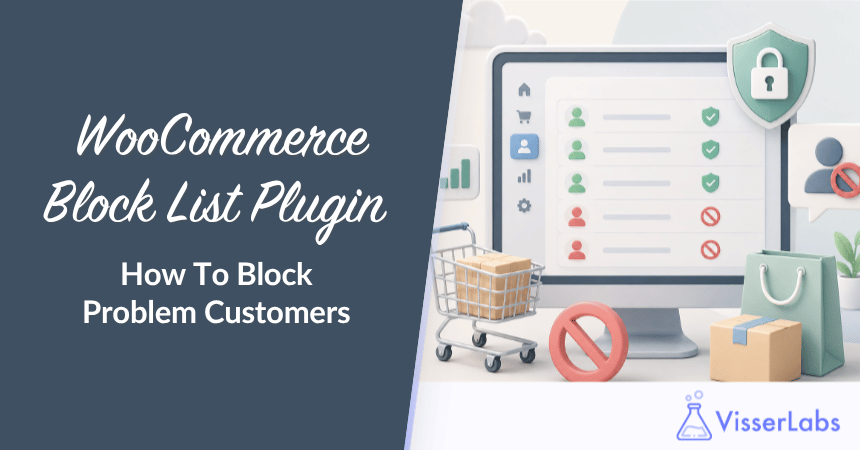
When a specific person keeps placing bad orders and your automated filters can’t stop them, use a manual block list to refuse that individual by name and email. Checkout Guard is built for exactly this: it’s a deterministic block list for the human offenders you’ve already identified, not an automated fraud scanner.
How Checkout Guard works
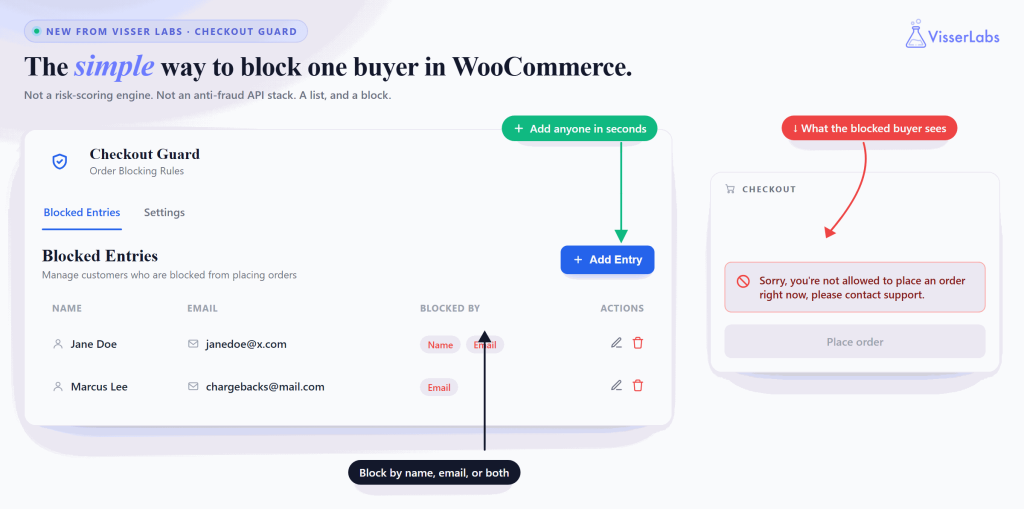
- Add a blocked entry. Enter a first and last name together, an email address, an IP address, or any combination of those.
- Let Checkout Guard match the order. When an order comes in where the billing name or email exactly matches an entry on your list, it’s caught at checkout.
- The order gets blocked. It’s deleted, the cart is emptied, and the shopper sees a denial message you’ve customized in the settings.
It works on every WooCommerce checkout, whether your store uses the classic checkout or the newer block-based one.
The part that matters most is that it’s deterministic: Checkout Guard doesn’t guess, score orders, or detect anyone automatically. It blocks the exact people you put on the list and leaves everyone else alone, so legitimate shoppers are never affected. Since version 1.0.2 an entry can also carry an IP address, so you can block an IP address in WooCommerce when the name and email keep changing, or use a wildcard to block an email domain in WooCommerce that only ever sends you spam. Treat it as your last line of defense, the one that catches the named humans who clear CAPTCHA and rate limiting. If you’ve identified the people abusing your store, add them to Checkout Guard’s block list and stop fighting the same orders twice.
How To Stop Spam Orders In WooCommerce With All Three Layers
Think of it as a funnel. CAPTCHA filters the bulk automated noise at the door, rate limiting slows whatever slips past so it can’t flood you, and Checkout Guard catches the named humans who clear both filters. Skip a layer and you leave a gap that one of the three spam sources walks straight through.
Spam orders also tend to spike in the fourth quarter, when traffic and fraud both climb during the holiday rush. Setting up all three layers now, while things are calm, beats scrambling in November. The same logic applies on a WooCommerce multi-vendor marketplace, where one spam wave can hit every vendor at once.
Get Your Store Quiet Again
Spam orders feel chaotic, but they come from a short, predictable list of sources, and each has a matching fix. That’s really all there is to how to stop spam orders in WooCommerce: diagnose what’s hitting you, then layer your defenses in order.
Here’s a quick recap of what we covered:
- Diagnose the cause: bots, card-testing scripts, or known human offenders.
- Add a CAPTCHA to filter automated bots at checkout.
- Apply rate limiting to slow rapid-fire repeat attempts.
- Use Checkout Guard to block the specific humans who get through.
- Combine all three layers before the Q4 rush.
Once you’ve stopped the bots and slowed the scripts, the customers still causing you grief are people you can name. That’s where a manual block list earns its place. If you’re ready to take back control of your order screen, see how Checkout Guard blocks known problem customers and stop fighting the same orders twice.
Frequently Asked Questions
What’s the difference between spam orders and fraud orders?
Spam orders are the broad category of unwanted, fake, or automated orders that clutter your store. Fraud orders are a subset placed with stolen payment details or with intent to chargeback. A bot probing your checkout creates spam; a card-testing script using stolen cards creates fraud. Most stores see both at once, which is why knowing how to stop spam orders in WooCommerce means layering defenses rather than relying on one tool.
Does reCAPTCHA stop all spam orders?
No. reCAPTCHA stops automated bots that can’t solve the challenge, and it’s an excellent first filter for that. But it can’t stop a real human who’s determined to place a bad order, because a person can solve the puzzle and proceed. Use reCAPTCHA for the bots and a manual block list like Checkout Guard for the specific people you’ve already identified as problems.
Can I block a specific customer from ordering in WooCommerce?
Yes. A manual block list like Checkout Guard lets you refuse orders from a specific person by adding their billing name and/or email. When a matching order comes in, it’s blocked at checkout, the cart is emptied, and the shopper sees your custom denial message. It’s the right tool when you’ve identified a repeat offender by name rather than trying to detect unknown fraud automatically.
Will blocking spam orders hurt my legitimate customers?
It shouldn’t, if you choose your tools carefully. An invisible CAPTCHA rarely interrupts genuine shoppers, and rate limiting only triggers on abnormal bursts. A deterministic block list like Checkout Guard only stops the exact names and emails you add, so it never affects a customer who isn’t on the list. False positives come mainly from automated risk-scoring tools that guess, which is a different category of product.
When should I worry about spam orders most?
The fourth quarter is the highest-risk window. Holiday traffic surges, and so does the fraud and bot activity riding on it. The safest move is to set up your CAPTCHA, rate limiting, and block list well before the rush, while you can test calmly. Stores that wait until orders are flooding in spend the busiest weeks of the year firefighting instead of selling.