To bulk edit WooCommerce products with CSV, you export your catalog to a spreadsheet, make the changes there, then reimport the file with the importer set to update existing products. It’s the practical way to handle jobs the admin screen can’t, like a percentage-based price rise across a whole catalog.
WooCommerce’s own bulk edit screen handles small, simple changes well. It cannot apply a percentage to every price, and it gets unwieldy once you select more than a screenful of products. The CSV round-trip has no such ceiling, and the same loop covers prices, stock, SEO meta, categories, descriptions, and supplier feeds.
This guide walks through the full workflow using Store Exporter Deluxe on the way out and WooCommerce’s free built-in importer on the way back. You’ll get a worked 10% price increase example, the one SKU mistake that creates duplicate products, how to handle variable products, and when in-admin bulk edit is still the right tool.
Table of Contents
Why CSV Beats In-Admin Bulk Editing
WooCommerce’s built-in bulk edit screen is fine for tiny jobs. Five products, one price change, one category swap. Once your catalog gets past a few hundred SKUs or your edits involve math, SEO fields, or supplier data, the admin screen runs out of room fast.
Here are the four scenarios where the CSV round-trip pulls ahead every time.
Percentage-based price changes
The admin bulk edit lets you set a flat price or add/subtract a fixed amount. It can’t multiply. If your supplier raised costs by 8%, or you need a 15% markdown across a category for a sale, there’s no formula input in the WooCommerce UI. In a spreadsheet, that’s one cell: =ROUND(B2*1.08, 2), dragged down the column.
SEO meta updates
The admin bulk edit screen doesn’t touch meta titles, meta descriptions, or focus keywords. Those fields live in AIOSEO, Yoast, or Rank Math, and none of them expose a usable bulk editor from the products list. CSV export pulls those fields; CSV reimport writes them back. If you just rewrote your SEO strategy and have 300 products to update, the spreadsheet is the only path that finishes this week.
Category and tag reassignment at scale
Renaming a category, merging two tag groups, or reshuffling products across collections is painful in the admin. In a spreadsheet, you use find/replace or a VLOOKUP against a mapping table and get consistent results in one pass. VLOOKUP is a spreadsheet function that looks up a value in one column and returns the matching value from another. Think of it as a bulk find-and-reassign.
Stock refreshes from supplier feeds
Suppliers send stock counts in their own CSV. Pasting supplier counts into your WooCommerce export keyed on SKU, then reimporting, is the fastest way to keep stock in sync without building an integration. You keep a copy of the “before” export as an instant rollback, which makes the whole round-trip non-destructive.
How To Bulk Edit WooCommerce Products With CSV: The Loop
Here’s the shape of the full loop before we go step by step. Every job to bulk edit WooCommerce products with CSV follows these same three moves.
- Export your products via Store Exporter Deluxe as CSV or XLSX.
- Edit in Excel or Google Sheets, keeping an untouched copy as your rollback.
- Reimport through WooCommerce’s built-in importer with Update existing products ticked.
Only the export side needs a plugin. WooCommerce ships a product CSV importer that handles the return trip, including matching rows to existing products by ID or SKU so your edits land on the products you already have instead of creating copies. What core’s exporter does not give you is control over which fields and which slice of the catalog you pull, which is where a dedicated exporter earns its place in this loop.
Step 1: Exporting Products With Store Exporter Deluxe
This step gives you the source file for your edits. The goal is a clean CSV (or XLSX) with every field you want to change plus the SKU column intact as your match key.
Install and activate the plugin
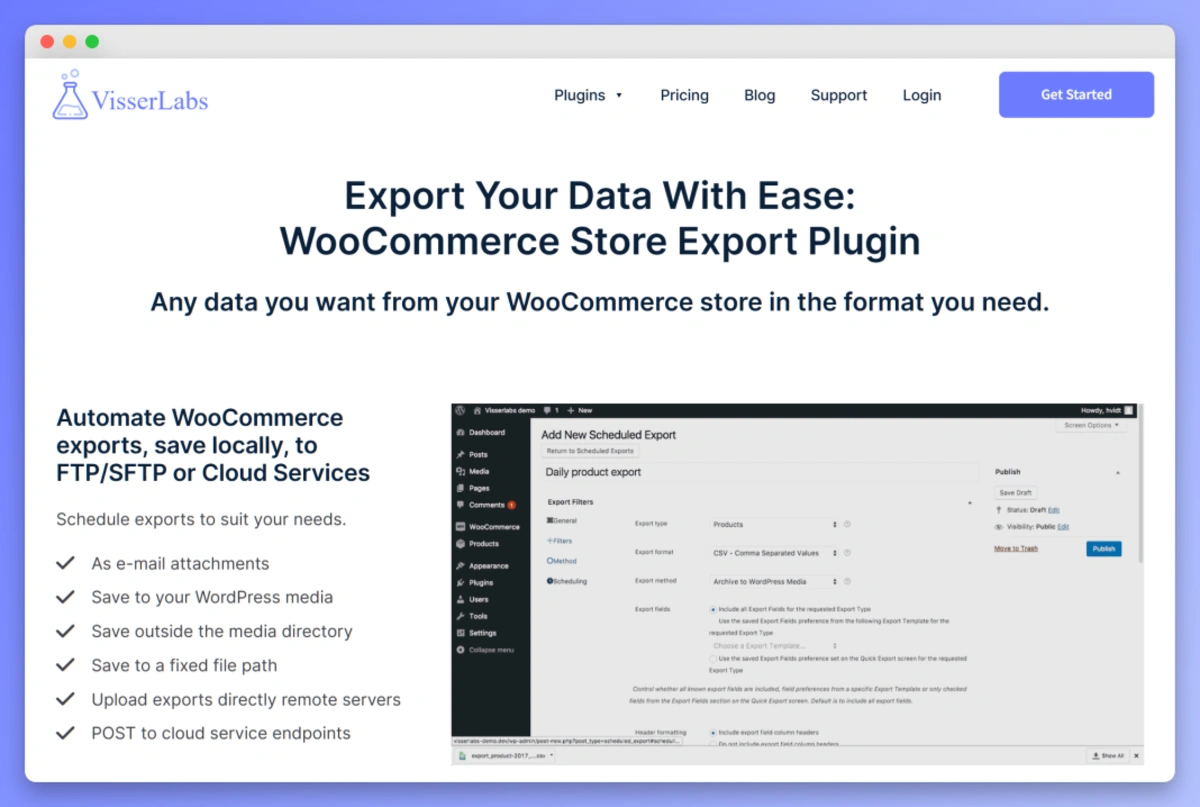
Purchase Store Exporter Deluxe from Visser Labs and upload the ZIP through WordPress admin, Plugins, Add New, Upload Plugin. Activate and paste your license key on the plugin settings screen.
Open the product export screen
Go to WooCommerce, Store Export in the admin menu, then select the Products tab. This is where you choose format, fields, and filters before running the export.
Choose your format
- CSV for lightweight edits. Opens fast, works in any spreadsheet tool, best for large catalogs where file size matters.
- XLSX if you need cell formatting preserved (currency types, date types, text columns with leading zeros). Good for teams who want the file to open in Excel without a Text Import Wizard detour.
For most bulk edits, CSV is the right choice. Go XLSX if you have SKUs with leading zeros (like 00123) that you don’t want Excel silently stripping.
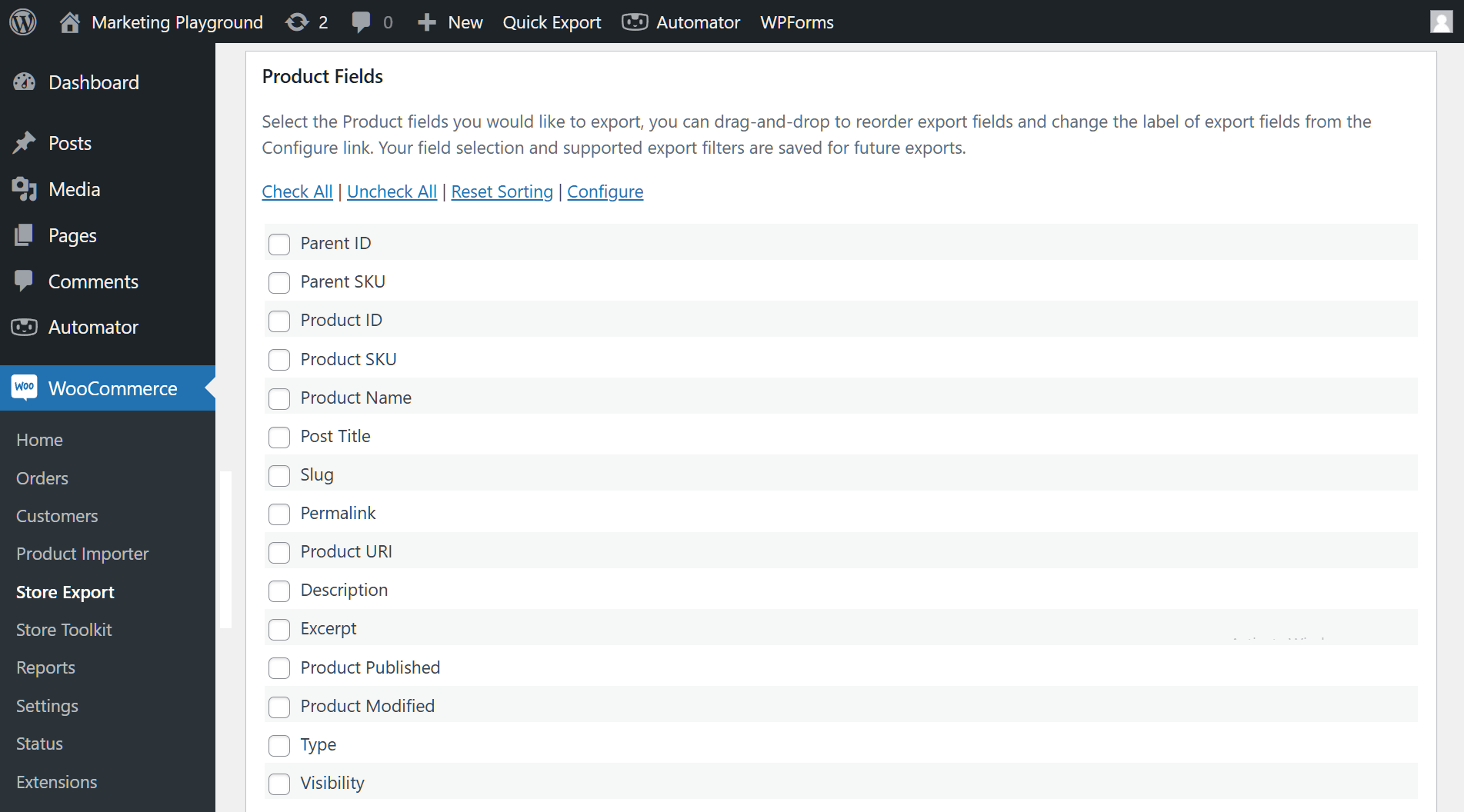
Select your fields
Store Exporter Deluxe lists every product field as a checkbox. At minimum, include:
- Product ID
- SKU
- Name
- Regular Price
- Sale Price
- Stock
- Stock Status
- Categories
If you’re editing SEO meta, tick the meta title, meta description, and focus keyword fields. If you’re rewriting copy, include Description and Short Description.
Critical: always include the SKU column. This is your re-import match key. Without it, the importer can’t tell “update this existing product” apart from “create a new one”.
Filter if you only need a slice
You can filter by category, stock status, or product type before exporting. If you’re only bumping prices in the “Wholesale” category, filter to that category first. Smaller file, faster import, less to go wrong.
Click Export
Run the export. Store Exporter Deluxe produces a clean CSV with every column labeled, no mystery columns, no half-broken headers.
For the full context on the export side, see Visser Labs’ full guide to exporting WooCommerce products.
Step 2: Bulk Editing In Excel Or Google Sheets
You now have your source file. Open it in Excel or Google Sheets, and before you touch anything, save a copy as catalog-YYYY-MM-DD-backup.csv. That’s your rollback if the reimport goes sideways.
Common edit scenarios
- Price updates: use a helper column with a formula like
=B2*1.10, then paste values back into the Regular Price column. - Stock refreshes: paste your supplier’s stock file into a new sheet, then use VLOOKUP or XLOOKUP keyed on SKU to pull their counts into your Stock column.
- Category reassignment: find/replace within the Categories column, or build a mapping table and use VLOOKUP for bulk reassignment.
- SEO meta updates: write or paste new meta titles and descriptions into the SEO meta columns.
- Description rewrites: use ChatGPT or Claude to generate batch rewrites, paste into the Description column. For smaller batches, you can connect Claude to WooCommerce and have it write the new descriptions straight onto the products.
Worked example: bulk increase all prices by 10%
Here’s the exact recipe for a 10% catalog-wide price increase. Assume your Regular Price is column B.
- In a new helper column (say column Z), enter:
=ROUND(B2*1.10, 2) - Drag the formula down to cover every product row.
- Select the helper column Z, copy it, then paste values only into the Regular Price column B (in Google Sheets: Edit, Paste special, Values only; in Excel: right-click, Paste Special, Values).
- Delete the helper column.
- Save as CSV: in Google Sheets, File, Download, Comma-separated values; in Excel, File, Save As, CSV UTF-8.
The ROUND(..., 2) wrapper is important. Without it, floating-point math leaves you with prices like 19.990000000001. Two decimal places keeps the price sensible and avoids reimport warnings.
What not to touch
- Don’t edit the SKU column. This is your match key on reimport. Changing it breaks the match.
- Don’t edit the Product ID column. Also used for matching, and touching it can create duplicates.
- Don’t rename the column headers. WooCommerce matches them on the Column Mapping screen, and keeping the export’s original names means it does that work for you. Rewriting “Regular Price” as “Price” forces you into manual mapping.
Step 3: Reimporting With The Built-In Importer
This is where store owners destroy their catalog if they are careless. One checkbox decides whether your file updates the products you have or creates a second copy of every one of them.
Nothing to install
The importer ships with WooCommerce, so there is no plugin to buy or activate for this step. Everything below happens in your existing dashboard.
Go to the import screen
Go to Products → All Products and click Import. Choose your edited CSV, or point at a server file path under Advanced options if the file is too large to upload through the browser.
Tick “Update existing products”
This is the single most important setting in the entire workflow. Ticked, the importer matches each row against your catalog and updates that product in place, skipping any row it cannot match. Left unticked, every row is treated as a new product, and that is exactly how a catalog doubles overnight.
Understand how rows are matched
WooCommerce matches on the ID column first, then falls back to SKU. Keeping both columns exactly as they came out of your export is the safest approach, since either one alone is enough to find the right product. If you drop the ID column, make sure every row still carries its original SKU.
Keep the file narrow while you’re at it. Include the match columns plus the fields you actually intend to change, and leave the rest out of the file entirely. That way there’s no question about what an empty cell might do to a value you wanted to keep.
Check the Column Mapping screen
WooCommerce reads your header row and pre-fills a match for each column, so standard fields like Regular price, Sale price, Stock, Categories, and Description are handled for you when the headers came from your export. The ones worth checking by hand are custom fields, third-party plugin fields, and anything you renamed. Anything it does not recognize defaults to “Do not import” and is skipped silently.
Read the summary afterwards
When the run finishes, WooCommerce reports how many products were imported, updated, skipped, and failed. Read those numbers rather than the word “success”. A high skipped count means your rows are not matching, usually a changed SKU. A high imported count when you expected updates means the Update existing products box was not ticked.
Run the import
Click Run the importer. Larger files take longer, and a file of a few thousand rows with a handful of changed columns usually finishes in a few minutes. If it stalls, split the file into smaller batches rather than raising server limits.
💡 For broader context on the reimport side, see Visser Labs’ full guide to importing WooCommerce products and the dedicated WooCommerce CSV import workflow article.
What We’ve Seen: The single most common mistake we see is store owners editing the SKU column during bulk edit, either “cleaning it up” or accidentally letting an autocorrect break it. When the SKU changes, the importer can’t match the row to the existing product, and if you’re not in “Update Existing Only” mode, it creates a duplicate product with the new SKU. It is one of the fastest ways to end up with a duplicated catalog. Rule: lock the SKU column before editing, or hide it entirely. Your SKU is your match key. Treat it like a primary key in a database.
Handling Variable Products In Bulk Edits
Variable products (a t-shirt with size and color options) export as a parent row plus one row per variation. Each variation has its own SKU, its own stock, and its own price. This is where bulk edits get tricky.
Match on variation SKU, not parent SKU
Each variation’s SKU is the match key for that variation row. The parent row’s SKU is the match key for the parent product only. If you try to update variation prices by editing the parent row, nothing happens on the front end. Variations override parent pricing.
Filter your spreadsheet to variation rows for variation-specific edits
If you’re bumping stock by size across 200 variations, filter your sheet to show only variation rows (usually the Product Type column contains “variation” for these rows). Apply your edit, remove the filter, save.
Common gotcha
If you edit the parent row’s Regular Price but forget the variation rows, variations keep their old prices and the parent’s price doesn’t show. Your 10% bump looks like it did nothing. Always check whether the field you’re editing lives on the parent, the variation, or both.
A pattern we see consistently with variable product bulk edits: variation rows with blank SKUs silently skip during reimport. Where every variation has a unique, consistent SKU, the bulk edit behaves the same as a simple product import. Where SKUs are missing on some variations, those rows go nowhere.

For the full variation workflow, see Visser Labs’ variable product import workflow article.
Common Gotchas And How To Avoid Them
- Preserve SKU as match key. Covered above, worth repeating. Lock the SKU column before editing.
- Currency formatting. Excel sometimes converts prices like
$19.99into formatted currency cells. Export as raw numbers. On reimport, make sure the Regular Price column contains numbers only, no dollar signs or thousands separators. - Date formatting on sale dates. For Sale Price Start/End dates, use YYYY-MM-DD. Excel’s locale-based date formats (MM/DD/YYYY vs DD/MM/YYYY) can flip values during export and import. A sale that ran on 3 May becomes one that ran on 5 March.
- Leading zeros in SKUs. SKUs like
00123get stripped to123if Excel treats the column as a number. When opening a CSV, use File, Import (not double-click) and force the SKU column to Text. Or use XLSX, which preserves the type. - Special characters in descriptions. Curly quotes, em dashes, and non-ASCII characters can render differently after a CSV round-trip. Test with one product before reimporting 1,000.
- Large file timeouts. If your CSV has 10,000+ products, split it into batches of 2,000 to 5,000 rows to avoid PHP timeouts. PHP timeout is the server-side limit on how long a single import can run (controlled by
max_execution_timein your PHP config); large files can hit it and stop mid-import. - Backup first. Always export a “before” snapshot before editing. If the reimport goes wrong, you can reimport the snapshot to restore the prior state.
When To Use This Workflow (And When Not To)
The CSV round-trip is a heavy hammer. It’s not the right tool for every nail.
- Perfect for: bulk price changes, seasonal stock refreshes, SEO meta updates, category reassignment, description rewrites, supplier feed updates.
- Overkill for: editing five to ten products. Just use the admin.
- Not ideal for: image updates (images need a separate upload workflow, not CSV rows), complex metadata that doesn’t map cleanly to CSV columns.
- Use in-admin bulk edit when: you’re changing a single field on a small group of products and don’t need percentage math or SEO field access.
Honest assessment: the CSV workflow is the right tool for catalogs over a few hundred products or any edit involving math, SEO, or supplier data. Below that scale, the built-in bulk edit screen saves you the round-trip.
Frequently Asked Questions
Do I need a plugin to bulk edit WooCommerce products with CSV?
Only for the export half, and only if you need control over it. WooCommerce handles the reimport itself through Products → All Products → Import, with Update existing products ticked. A dedicated exporter like Store Exporter Deluxe earns its place by letting you choose exactly which fields and which products come out, which is what makes the edit step manageable.
Can I use WooCommerce’s built-in CSV import instead?
Yes, and it is the method described in this guide. The built-in importer has an Update existing products option that matches rows by ID or SKU, a Column Mapping screen for headers it does not recognize, and full support for variable products. The part core does less well is the export: its exporter gives you limited control over which fields and which products you pull.
What happens if my import creates duplicate products?
You almost certainly left Update existing products unticked, or your SKUs changed between export and reimport. Delete the duplicates, restore from your untouched backup file, and re-run with the box ticked and the original ID and SKU columns intact.
Can I automate recurring bulk edits?
Partly. Store Exporter Deluxe supports scheduled exports with email, FTP, and SFTP delivery, so the export half can run on its own. The reimport is the manual half, because WooCommerce’s built-in importer has no scheduling and must be triggered from the dashboard. A fully hands-off supplier-feed loop needs a third-party import plugin that supports cron and remote file sources.
What format should I use, CSV or XLSX?
Export as CSV if you plan to reimport through WooCommerce, because its importer reads CSV only and will not accept an XLSX file. XLSX is still useful as a working copy when you have SKUs with leading zeros or currency fields Excel mangles on open, but save back down to CSV UTF-8 before the reimport.
Can I bulk edit products from multiple stores at once?
Not from a single WooCommerce instance, since each store has its own products and its own database. Run the same export, edit, reimport loop separately on each store. If you manage several sites, check the licensing on whichever export plugin you use, as multi-site coverage varies by plan.
Start Running Bulk Edits With CSV
The export-edit-reimport loop is the most powerful WooCommerce workflow you’re probably not using. Once you’ve run it once, every future job to bulk edit WooCommerce products with CSV drops from a multi-day admin slog to an afternoon with a spreadsheet.
Here’s a quick recap of what we covered:
- Start with the export step and pull a clean file with SKU as your match key.
- Apply your edits in a spreadsheet using the worked 10% price example as a template.
- Reimport with Update existing products ticked and check the Column Mapping screen before running it.
- Handle variable products carefully by matching on variation SKU, not parent SKU.
- Watch the gotchas around currency formatting, leading zeros, and date locales.
If you’re ready to bulk edit WooCommerce products with CSV, the export is the part worth getting right. Pull a clean, filtered file with Store Exporter Deluxe, edit it in a spreadsheet, and send it back through the built-in importer.