A WooCommerce import variable products job comes down to one rule: one row for the parent, one row for each variation, and a Parent column linking them. Get that structure right in your CSV and the free built-in importer builds the whole thing, attributes and all. Get it wrong and your variations arrive as separate standalone products.
That single structural detail is why bulk imports of t-shirts, shoes, or anything else with sizes and colors trip people up more than any other product type. It isn’t a limitation of the importer. It’s a formatting problem in the spreadsheet.
In this guide, we’ll cover how to structure the file, which attribute columns you need, how to run the import, and how to convert products you already have into variable ones. So, let’s get started!
Table of Contents
Understanding WooCommerce Import Variable Products
What are variable products?
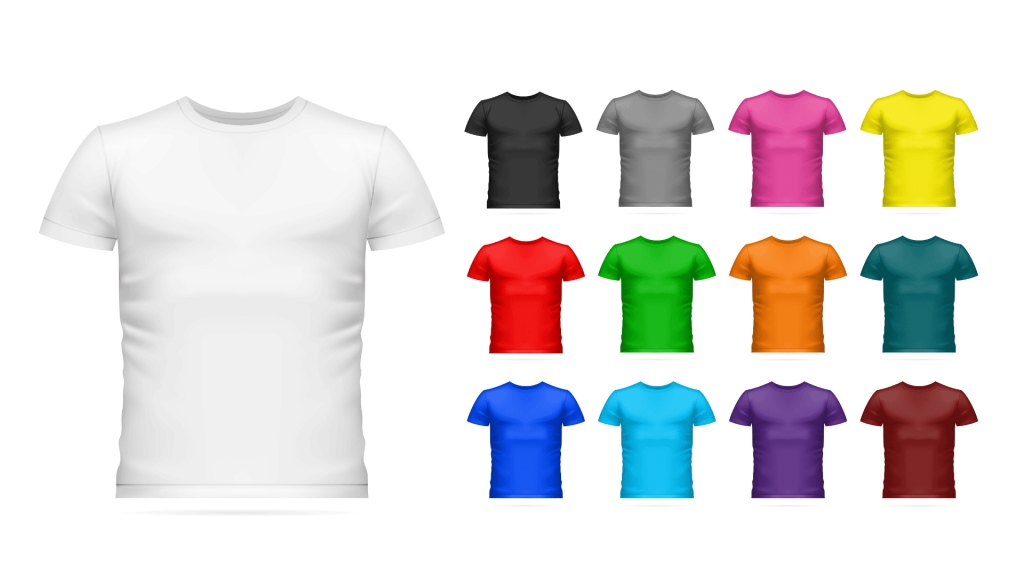
A variable product is one listing that contains several buyable options. A T-shirt sold in Small, Medium, and Large across three colors is a single product page with nine variations behind it, each carrying its own price, SKU, and stock level.
The parent holds everything shared: the name, the description, the categories, and the list of attributes customers choose from. The variations hold what differs.
Why import them instead of building them by hand
Building variations manually means clicking through the same screens once per combination. Nine variations is tedious; ninety is a lost afternoon. A spreadsheet does the same job in one pass and keeps your SKUs and pricing consistent, and it lets you update stock levels across hundreds of variations later by re-importing the same file.
How To Structure Your CSV File
Your file needs a parent row using the type variable, followed by one row per variation using the type variation. Each variation row points back at its parent through a Parent column containing the parent’s SKU. That link is what turns a pile of rows into one configurable product.
Here’s the shape of it, using a T-shirt in three colors:
| Type | SKU | Name | Parent | Attribute 1 name | Attribute 1 value(s) | Regular price |
|---|---|---|---|---|---|---|
| variable | TSHIRT-001 | Classic T-Shirt | Color | “Red, Blue, Green” | ||
| variation | TSHIRT-001-RED | TSHIRT-001 | Color | Red | 29.99 | |
| variation | TSHIRT-001-BLU | TSHIRT-001 | Color | Blue | 29.99 | |
| variation | TSHIRT-001-GRN | TSHIRT-001 | Color | Green | 32.99 |
Three details decide whether this works:
- The parent lists every value. Its Attribute 1 value(s) cell holds all the options, comma-separated inside double quotes. Each variation names only its own.
- Every variation carries a Parent value. Use the parent’s SKU, or
id:followed by the parent’s product ID if it already exists in your store. - Prices live on the variations. The parent’s price column stays empty, because customers buy a variation, not the parent.
Variations can also carry their own Stock, Images, Weight, and dimensions. Anything you leave blank on a variation row falls back to the parent, so you only need to fill in what actually differs. For the full list of columns and accepted values, see our WooCommerce CSV import guide.
The Attribute Columns You Need
Attributes are what customers pick from, and they come as a numbered set of columns. Every attribute needs a name and value pair, and you repeat the set for each additional attribute: Attribute 1 for Color, Attribute 2 for Size, and so on.
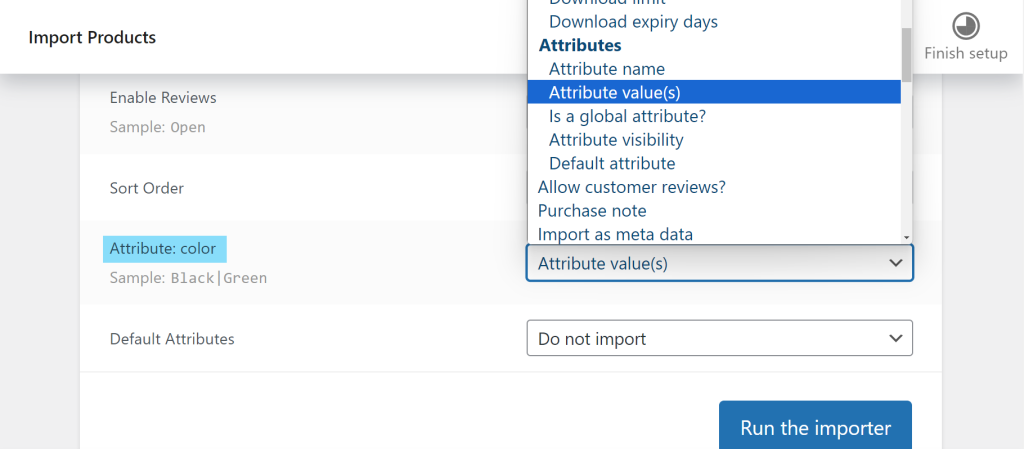
- Attribute N name: the label, such as Color or Size. Keep it identical across the parent and all its variations, including capitalization.
- Attribute N value(s): all values on the parent, comma-separated in quotes. One value on each variation row.
- Attribute N visible:
1or0, controlling whether it appears in the Additional Information table on the product page. - Attribute N global:
1to use a store-wide attribute taxonomy,0for one that exists only on this product. - Attribute N default: optional, the value preselected when someone opens the product page.
Global attributes are worth using when the same Color or Size list appears across your catalog, because they give you filterable, reusable terms. Set that column to 1 and WooCommerce creates the taxonomy if it doesn’t exist yet.
How To Run The Import
Go to Products → All Products and click Import to open the built-in product CSV importer. It’s free with WooCommerce and handles variable products without any additional plugin.
- Save your spreadsheet as CSV UTF-8, so accented characters and symbols survive the import.
- Go to Products → All Products → Import and choose your file.
- Tick Update existing products only if you’re updating variations you already have, rather than creating new ones.
- On the Column Mapping screen, confirm Type, Parent, and every attribute column is mapped. Your headers don’t have to match WooCommerce’s names exactly, since you can assign each one from the dropdown.
- Click Run the importer, then open the parent product and check its Variations tab.
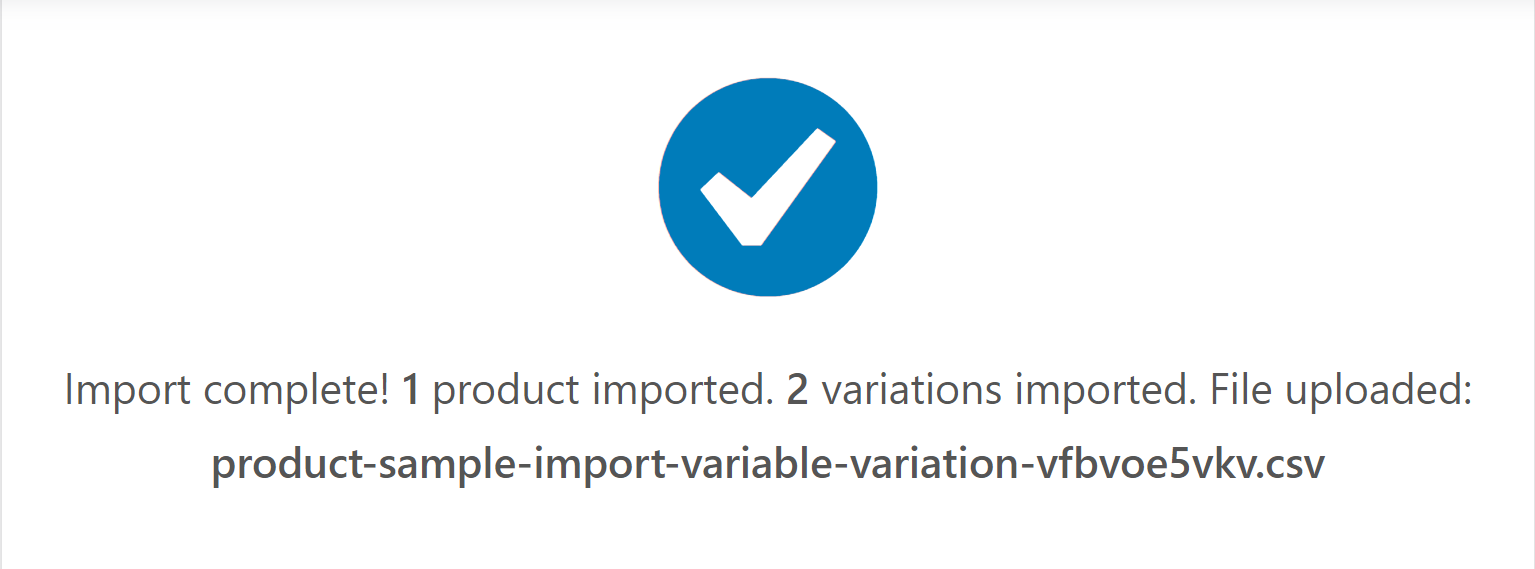
Test with one parent and its variations before running the full file. A structural mistake repeats on every product, so catching it on four rows is far cheaper than catching it on four hundred.
Converting Existing Products To Variable
Turning a simple product you already have into a variable one takes two separate imports. The first changes the product’s type and gives it attributes; the second adds the variation rows. Trying to do both in one file fails, because the variations have nothing to attach to at the moment they’re processed.
- First pass: import a file with the product’s SKU, Type set to
variable, and the attribute name plus all its values. Tick Update existing products so it modifies the product rather than creating a duplicate. - Second pass: import the variation rows, each with Type
variation, its own SKU and price, and the Parent column pointing at the now-variable product.
Back up before the first pass. Changing a product’s type rewrites how WooCommerce stores it, and there’s no undo button on an import.
Fixing Common Variation Import Problems
Nearly every WooCommerce import variable products failure traces back to the link between parent and variation rows. Work through these in order.
- Variations imported as separate simple products: the Parent column is missing, misspelled, or doesn’t match the parent’s SKU. Check for trailing spaces, which are invisible and break the match.
- The product imported but has no variations: the variation rows are probably typed
simpleinstead ofvariation. - Attributes exist but nothing is purchasable: a variation’s attribute value isn’t in the parent’s value list. The two have to match exactly, including capitalization.
- All values landed in one variation: the parent’s value list wasn’t quoted, so the comma split it into separate CSV columns. Wrap it in double quotes.
- Variations show but can’t be added to cart: each one needs its own price. A variation with an empty Regular price isn’t purchasable.
- Nothing changed on the frontend: clear your site cache, then reload the product page.
If the import itself is failing rather than the structure, see our product import troubleshooting guide.
Conclusion
WooCommerce import variable products is only difficult until the row structure clicks. Once you’ve built one file correctly, every catalog after it is the same pattern repeated, and the free built-in importer handles the rest.
Here’s a quick recap of what we covered:
- One parent row plus one row per variation, linked by the Parent column.
- Attribute values comma-separated in quotes on the parent, single values on variations.
- Check the Column Mapping screen before running the importer.
- Converting a simple product takes two passes, never one.
- Most failures are a broken parent link, usually a trailing space.
If you’re reworking a catalog you already have, start from your real data instead of a blank spreadsheet. Export your products and variations with Store Exporter Deluxe, edit the file, and import it back through the steps above.
Frequently Asked Questions
How do I import variable products in WooCommerce?
A WooCommerce import variable products file needs one parent row typed variable and one row per variation typed variation, imported at Products → All Products → Import. Each variation row needs a Parent column holding the parent’s SKU, plus its own price and attribute value. The built-in WooCommerce importer handles this at no cost.
How do I import product attributes in WooCommerce?
Use paired columns named “Attribute 1 name” and “Attribute 1 value(s)”, repeating the pair as Attribute 2, Attribute 3 and so on for each additional attribute. List every value on the parent row, comma-separated inside double quotes, and a single value on each variation row.
How do I separate multiple attribute values in a WooCommerce CSV?
Separate them with commas and wrap the whole cell in double quotes, like "Red, Blue, Green". A pipe character is a convention from other import tools and WooCommerce won’t read it, and skipping the quotes lets the comma split your value across CSV columns.
How do I import products with custom fields in WooCommerce?
Prefix the column header with meta: and the value is saved to that meta key, so a column called meta:wholesale_price populates the wholesale_price field. This works on variation rows as well as parent rows, and no extra plugin is needed.
How do I add variations to an existing WooCommerce product?
Run two imports: one that sets the existing product’s Type to variable and adds its attributes, then a second one carrying the variation rows. Tick Update existing products on the first pass so the product is modified rather than duplicated. You can also add variations by hand on the product edit screen under the Attributes and Variations tabs.
What is the difference between a simple product and a variable product?
A simple product is a single item with one SKU, price, and stock level. A variable product groups several options, such as sizes or colors, under one listing, and each variation carries its own SKU, price, stock, and image while sharing the parent’s name and description.