A WooCommerce product import not working is almost always a problem with the CSV file rather than with your store. Encoding, unmapped columns, a broken parent link on variation rows, or a server limit account for the large majority of failures, and each one has a specific fix you can check in a couple of minutes.
The frustrating part is how quietly it fails. WooCommerce often reports a successful import while half your rows went nowhere, so you’re left guessing which stage broke.
This guide works through the causes in the order worth checking them, from the file itself to plugin conflicts and server limits, with the exact fix for each. So, let’s get started!
Table of Contents
CSV Format Problems: The Most Common Cause
A large share of “import not working” cases trace back to the file, not the store. Three details cause most silent failures, and all three are visible if you open the CSV in a plain text editor rather than a spreadsheet app.
- UTF-8 encoding: files saved from Excel default to Windows-1252 or MacRoman, and every accented character, currency symbol, or smart quote gets corrupted. Re-save as “CSV UTF-8 (Comma delimited)”, or use Google Sheets, which exports UTF-8 by default.
- Unquoted multi-value fields: a cell holding several categories or image URLs needs double quotes around it. Without them the comma is read as a column break and the row falls apart.
- Variation rows with no parent: each variation needs a Parent column carrying the parent product’s SKU. Missing or mismatched values mean variations import as orphaned simple products.
Run this checklist on the file before assuming the problem is on the WooCommerce side:
- Open it in a plain text editor and look for garbled characters. “café” showing as “café” confirms an encoding problem.
- Check that multi-value cells are wrapped in double quotes.
- For variable products, confirm a few variation rows reference the correct parent SKU, with no trailing spaces.
- Import 5 to 10 rows first. If those land correctly, scale up to the full file.
For the full breakdown of columns, accepted values, and formatting rules, see our WooCommerce CSV import guide.
Why Is Your WooCommerce Product Import Not Working?
A WooCommerce product import not working comes down to four causes: the file’s formatting, columns left unmapped, a plugin interfering with product creation, or the server cutting the process short. Working through them in that order finds the cause fastest, because the first two are far more common than the last two.
- Wrong encoding, or unquoted values containing commas
- Columns left on “Do not import” during mapping
- Variation rows that don’t reference their parent
- Timeouts or memory exhaustion on large files
- Conflicts with caching, security, or SEO plugins
- Image URLs the server cannot reach
Start with the file. Validate the formatting and confirm your mapping, then move on to plugin and server checks if the problem survives.
What File Format Is Required For WooCommerce Product Imports?
WooCommerce imports CSV files in UTF-8 encoding, and nothing else. Other formats like XLSX, TSV, or JSON have to be converted to CSV first, which any spreadsheet application does through Save As or Download.
Worth knowing: far fewer columns are required than most guides claim. Only Name is genuinely mandatory, plus Type for anything that isn’t a simple product. SKU is generated automatically when it’s missing, so a blank SKU column won’t stop an import, though it does leave you without a key for future updates.
- Does every row have a Name?
- Are product types spelled correctly (
simple,variable,variation)? - Any trailing spaces or hidden characters in SKU or Parent columns?
- Any completely empty rows mixed into the data?
Why Columns Go Missing On The Mapping Screen
If products imported but their data is empty, the column was almost certainly left on “Do not import”. WooCommerce shows a Column Mapping screen after you upload, and anything it doesn’t recognize defaults to being skipped rather than guessed at.
This also means your headers never needed to match WooCommerce’s names. A column called “Item Code” or “Product SKU” maps perfectly well from the dropdown, so renaming your supplier’s columns is wasted effort. Read the mapping screen rather than clicking past it, and set any column you actually want.
Unrecognized columns can also be sent to a custom field by mapping them to a meta: key, which is how supplier codes and wholesale prices come across.
What Plugin Conflicts Affect WooCommerce Product Import?
Plugins that hook into product creation can slow an import to a crawl or reject rows outright. Caching, security, and SEO tools are the usual suspects, because each one runs extra work every time a product is saved.
- Caching plugins (WP Rocket, W3 Total Cache)
- Security and firewall plugins (Wordfence)
- SEO tools that hook into product metadata
- Other import and export tools
Test on a staging site with non-essential plugins deactivated and a default theme like Twenty Twenty-Four active. If the import runs clean, reactivate one plugin at a time until it breaks again.
How Do You Check Server Resource Limits For Product Imports?
Large catalogs can exceed PHP’s execution time or memory before the import finishes, and when that happens the process stops without a useful error. The PHP manual puts the default max_execution_time at 30 seconds through a web server, which a few thousand rows will pass straight through.
max_execution_time, raised to 300 seconds or more for big filesmemory_limit, with 512MB a reasonable starting pointupload_max_filesizeandpost_max_size, which cap what you can upload through the browser
These live in your PHP configuration, and shared hosting often caps what you’re allowed to change. The reliable workaround is smaller batches of 500 to 1,000 rows, which sidesteps the limits entirely.
What Error Messages Appear When An Import Fails?
WooCommerce reports failures at the row level rather than explaining them. The import summary tells you how many rows were imported, updated, skipped, and failed, and the failed count is the number worth reading, because a “successful” import can still have skipped half your file.

A stalled progress bar with no summary at all usually means a timeout rather than a data problem. If nothing appears on screen, check your server’s error log and confirm WordPress and WooCommerce are both up to date.
How Do You Prevent Duplicate Or Missing Products?
Duplicates almost always mean the Update existing products checkbox was left unticked. With it enabled, WooCommerce matches each row against your catalog by product ID or SKU and updates the match instead of creating a second copy. Rows with no match are skipped rather than added.
The opposite symptom, products silently skipped when you expected updates, means the box was ticked but nothing matched. Check the SKU column for trailing spaces and inconsistent capitalization, both common in supplier files and both enough to break a match.
- Use unique SKUs across products and variations
- Leave the ID column out unless you’re deliberately updating by ID
- Only include the columns you intend to change on an update run
- Back up before any update, since it applies to your live catalog immediately
What To Do When The Import Still Will Not Run
If the file is clean and your WooCommerce product import not working persists, the problem is almost always size. Three approaches get around it without touching your hosting plan.
- Use a server file path. Upload the CSV over FTP, then open Advanced options on the import screen and enter the path. The browser upload limit stops applying entirely.
- Split the file. Batches of 500 to 1,000 rows finish well inside any timeout, and a failure only costs you one batch.
- Run it from the command line. WP-CLI bypasses browser and web server timeouts, which suits very large one-off migrations.
Test the whole process on a staging site first when the catalog is large. An import that half-finishes on a live store is considerably more work to unpick than one that fails safely somewhere else.
How Can You Export Products For Troubleshooting?
Exporting your existing products gives you a file WooCommerce already accepts, which turns guesswork into comparison. Put your export beside your import file and the mismatch usually becomes obvious: a column named differently, a value in the wrong shape, a missing parent reference.
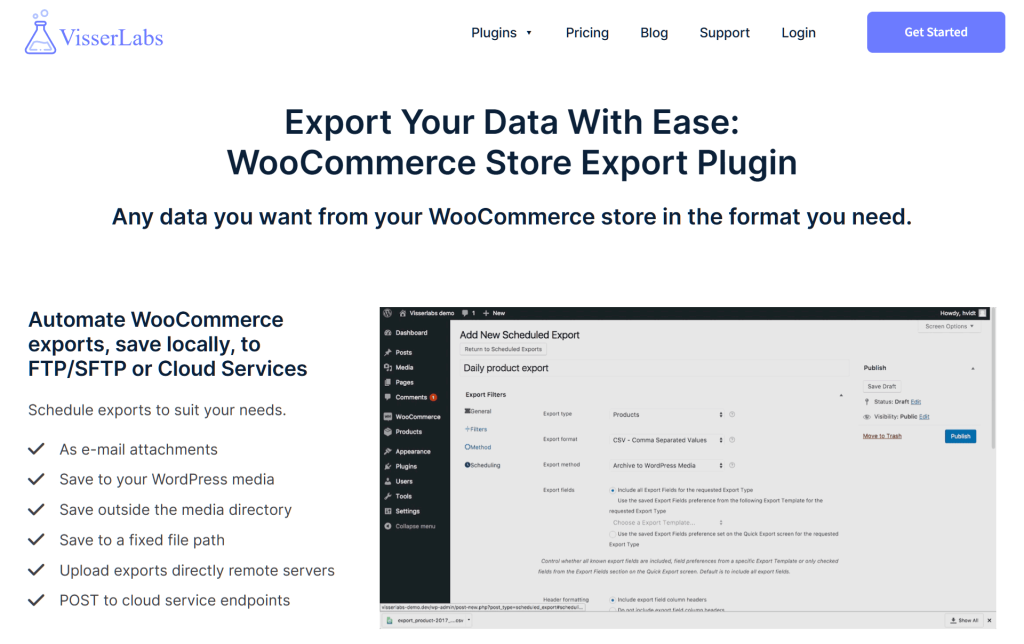
Store Exporter Deluxe handles the export side, in CSV, TSV, XLS, XLSX, XML, or JSON:
- Export products, variations, tags, and stock levels
- Spot missing taxonomy terms or custom fields
- Create a working template to build your import file from
- Archive a snapshot before any major change
What Are The Best Practices To Avoid Import Failures?
A few habits prevent most repeat problems. They cost a little time up front and save the rework that comes from discovering a bad import two weeks later.
- Back up your store before any large import
- Test with a small sample file first, every time
- Save as CSV UTF-8 rather than plain CSV
- Keep WordPress and WooCommerce up to date
- Use a staging site for bulk operations
- Spot-check a handful of products afterward instead of trusting the summary
Final Thoughts
A WooCommerce product import not working is rarely a broken store. It’s a file that doesn’t say quite what you think it says, and the fix is usually one setting or one column away.
Here’s a quick recap of what to check, in order:
- File encoding and quoting, the most common cause by far.
- The Column Mapping screen, where data quietly goes missing.
- Plugin conflicts, tested on staging with a default theme.
- Server limits, or simply smaller batches.
- The Update existing products checkbox, which decides duplicates.
If you’re troubleshooting a file you didn’t build, start from one WooCommerce already accepts. Export your current catalog with Store Exporter Deluxe and compare it against the file that’s failing.
Frequently Asked Questions
What does “CSV format requirements” mean for WooCommerce import?
It means a comma-delimited file saved in UTF-8 with a header row. Only the Name column is genuinely required, and your headers don’t need to match WooCommerce’s field names because the Column Mapping screen lets you assign each one. The full specification is in our CSV import guide.
Why does my WooCommerce CSV import succeed but products don’t appear?
Three causes account for nearly all of these. The products imported as drafts, so check the status filter on the products list. A Published column was set to 0 or -1, which makes them private or draft. Or a parent variable product imported while its variations failed, which shows up as a product with no purchasable options.
Why is my WooCommerce product import not working?
The most common reasons are a file saved in the wrong encoding, columns left on “Do not import” during mapping, variation rows with no Parent value, and server timeouts on large files. Check them in that order, because the first two account for most failures and both are visible before you run the import.
How do I fix “404 image URL” errors during CSV import?
The importer downloads each image URL during the import, so every URL must return a real image without a redirect or a login wall. Test them with curl -I, or paste one into an incognito window. Images behind authentication or hot-link protection will always fail, so upload those to your Media Library first and reference their final URLs.
Why did my variations import as separate products?
The Parent column is missing, misspelled, or doesn’t match the parent’s SKU exactly. Each variation row needs Type set to variation and a Parent value holding the parent’s SKU or id: plus its product ID. Trailing spaces are the usual culprit, since they’re invisible in a spreadsheet but break the match.
Why does my import stop partway through?
That’s a timeout, not a data problem. PHP stops any script running longer than max_execution_time, which defaults to 30 seconds on most servers. Split the file into batches of 500 to 1,000 rows, or place it on the server and use the file path option under Advanced options.
Can I undo a WooCommerce product import?
No, WooCommerce has no undo for imports, which is why a backup before any large run matters. To correct a bad import, fix the source file and run it again with Update existing products ticked so the rows are corrected in place rather than duplicated.