
You already know data-driven marketing works. You’ve read the HubSpot blog posts, you’ve seen the customer lifetime value frameworks, and you’ve probably nodded along to a dozen webinars about customer segmentation. But here’s the uncomfortable truth: most WooCommerce store owners never actually run the numbers on their own store. That gap is exactly what WooCommerce data marketing is meant to close.
The data is all there. Orders, customers, products, coupons, line items, payment methods, discount codes, and all the meta fields you’ve been quietly capturing for years. It’s sitting inside WooCommerce waiting to be exported. The moment you get it into a spreadsheet, a whole layer of marketing intelligence opens up that the WooCommerce admin dashboard will never show you. That hidden layer is the whole point of WooCommerce data marketing.
In this guide, we’ll walk through seven high-value marketing analyses you can run using exported WooCommerce data, what each one tells you, and how to get the data out so you can actually run them. This guide is the WooCommerce data marketing playbook.
Table of Contents
The Marketing Data Hiding In Your Store
WooCommerce captures more marketing-useful data than most store owners realize. Every order carries the line items, quantities, coupon codes used, payment method, and billing and shipping location. Every customer has a total spend, an order count, and a last-order date. Every product has a category and attributes. If you’ve set up UTM capture or a referrer-tracking plugin, every order also carries the acquisition channel that brought the customer in. Captured together, that’s the raw material every WooCommerce data marketing decision is built on.
The issue isn’t data collection. It’s data access.
The WooCommerce Analytics dashboard shows you aggregates: total sales this month, top products, top earners. That’s useful for a quick pulse check but nowhere near enough for real marketing analysis. To work out which channel brings in the best long-term customers, or which products always sell together, or which coupon campaigns earn their margin, you need the raw data in a format you can pivot.
That raw format is a CSV or XLSX file opened in Google Sheets, Microsoft Excel, or Looker Studio. Once the data is there, the analysis is mostly pivot tables, SUMIFS, and a bit of QUERY. You don’t need a BI degree. You need an afternoon and a willingness to follow a few recipes.
What We’ve Seen: Every store owner we’ve worked with who sets up a monthly export walks away from their first analysis with at least one surprise. The top customer no one knew about. The product always bought with another. The seasonal pattern affecting inventory that nobody had mapped. The data was always there. Exporting it is what turned the lights on.
The tool that gets the data out is where we’ll land later in this guide. For now, the mindset shift is the important part. You’re sitting on a marketing goldmine. WooCommerce data marketing is simply the work of mining it, and the playbook below shows you how.
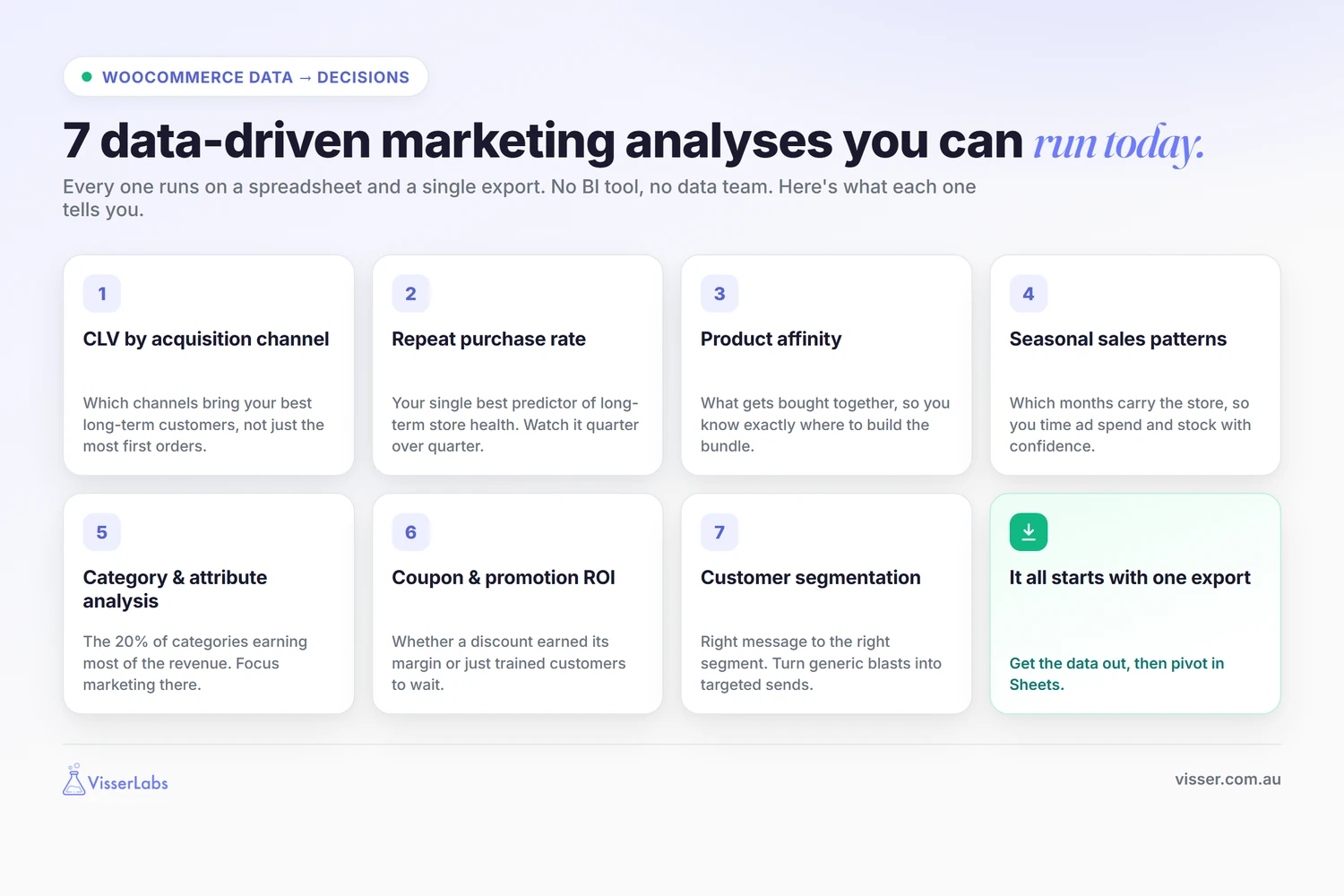
7 Data-Driven Marketing Analyses You Can Run
Each of the seven analyses below can be run by anyone comfortable with pivot tables. None of them require a paid BI tool. All of them pay for themselves the first time you act on what they tell you. Together they make up a repeatable WooCommerce data marketing routine.
1. Customer lifetime value by acquisition channel
Customer lifetime value (CLV) is the total revenue a customer generates across their entire relationship with your store. Running CLV by channel tells you which marketing channel brings in the best long-term customers, which is a different question from which channel brings the most first orders. The answers rarely match.
Data needed: orders export with customer ID and acquisition source (UTM parameters, referrer, or a custom meta field captured at checkout).
Quick workflow: export orders with customer ID and source, pivot in Sheets by customer, sum lifetime revenue per customer, then group by channel and take the average.
What it tells you: paid search might bring in more customers but organic might bring in higher-CLV ones. Or email referrals might have a ten-times CLV edge over Facebook. Rebalance ad spend accordingly. The first time you run this you’ll usually find one channel is being over-funded and one is being under-funded.
Gotcha: this only works if you captured the acquisition channel when the customer first arrived. If you haven’t been, start now with UTM parameters on every marketing link and a custom meta field at checkout. Historical data is lost but three months of forward tracking is enough to start making decisions.
2. Repeat purchase rate
Repeat purchase rate (RPR) is the percentage of your customers who have ordered more than once. It’s the single best predictor of long-term store health. High RPR means you don’t need to keep acquiring new customers forever. Low RPR means every marketing dollar has to work twice as hard because the first sale is the only sale.
Data needed: customer export with the total orders field (sometimes labeled “order count” depending on your export setup).
Quick workflow: export customers with order count, count customers with two or more orders, divide by total customers.
What it tells you: your baseline retention. Industry benchmarks vary by category, but anything under 15 to 20 percent usually means your email and retention marketing has room to grow. Watching it quarter-over-quarter tells you whether your loyalty and retention efforts are working.
Repeat purchase rate is the single most mindset-shifting number we see store owners confront. Most haven’t calculated it in over a year, if ever. Knowing your number and watching it quarterly changes how you think about every marketing dollar. It’s one of the simplest WooCommerce data marketing habits to build.
3. Product affinity analysis
Product affinity is a fancy term for “what gets bought together.” It’s the foundation of every cross-sell, bundle, and “customers also bought” campaign. And it’s often completely counter-intuitive to what a store owner assumes.
Data needed: orders export with line items at the product level, not just order totals.
Quick workflow: export orders with line items, pivot by order ID to see the product combinations in each cart, count how often each product pair appears, and sort by frequency.
What it tells you: which products naturally sell together. That tells you where to build a bundle, an upsell at checkout, or a “frequently bought with” email sequence. We’ve seen a store discover that a candle always sold alongside its diffuser, build a bundle around the pair, and watch that bundle climb to a top-three SKU inside a quarter.
Tip: ignore the obvious pairs. The valuable insight is usually a product you wouldn’t have paired yourself. That’s the one worth building a campaign around.
4. Seasonal sales patterns
Seasonal patterns drive inventory planning, ad budget timing, hiring decisions, and cash flow forecasting. If you don’t know which months carry your store, you’ll either over-order heading into a slow period or under-stock heading into a peak.
Data needed: orders export by month for the last two to three years.
Quick workflow: export orders with the order date field, pivot by month, then compare year-over-year. Identify the months that carry the store and the months that drag it.
What it tells you: when to ramp ad spend (the six weeks before your peak is usually where the real payoff sits), when to clear stock, and when to run a slow-season promotion. It also tells you whether a pattern you thought was seasonal is actually just growth.
Gotcha: one year of data isn’t enough. You need two or more to separate seasonality from growth. If you have less, start exporting monthly now so you’ll have the data next year.
5. Category and attribute analysis
Most stores earn the majority of their revenue from a small number of categories or product attributes. Category analysis tells you which ones, which means it tells you where to concentrate ad spend, SEO effort, and new-product development.
Data needed: orders with line items and product category or attribute meta fields, or a products export with category data.
Quick workflow: export orders with line items and category meta, pivot by category, sum revenue. Do the same for any attribute you think matters (size, color, style).
What it tells you: the long tail versus the workhorse. Most stores earn 60 to 80 percent of revenue from 20 percent of categories. Focus marketing on the 20.
A store’s best-selling category rarely matches the one they’re marketing hardest. There’s almost always a quiet category earning more than the loud one. The analysis tells you to rebalance.
6. Coupon and promotion ROI
Coupons are the easiest marketing lever to pull and the hardest one to measure honestly. “My 20 percent off email converted heaps” is a vanity metric. The real question is whether the discount drove incremental revenue you wouldn’t have earned without it.
Data needed: coupon export with redemption count, plus orders linked to each coupon code.
Quick workflow: export coupons, sum the revenue from orders using each coupon, subtract the discount value, and compare to a baseline (the average order value of non-coupon orders in the same period).
What it tells you: whether the coupon earned its margin back or just trained customers to wait for the next discount. A few coupon campaigns will look great until you calculate the lost margin on customers who would have paid full price.
Gotcha: account for cannibalization. Many coupon redemptions come from customers who would have bought anyway. The cleanest coupon ROI analysis uses a control segment that didn’t receive the coupon.
7. Customer segmentation for email marketing
“Email the whole list” is a cheat code for generating unsubscribes. Segmented sends convert better than a single blast because the message meets each customer where they actually are, and audience segmentation is one of the core strategies Mailchimp’s email benchmarks point store owners toward. Good segmentation starts with knowing who’s in your list: each customer’s lifetime value, order count, when they last bought, and the categories they’ve purchased.
Data needed: a customer export for lifetime value and order count, plus an orders export (with line items) to derive each customer’s last order date and the categories they’ve bought.
Quick workflow: export customers with lifetime value and order count, pull last-order-date and categories from an orders export, then tag segments in Sheets. A useful starter set:
- VIP: top 10 percent by lifetime value
- Lapsed: no order in 180 days
- High frequency: four or more orders
- First-timers: one order in the last 30 days
Upload each segment to your email platform as a list or tag.
What it tells you: which campaigns to send to which segment. Win-back flows for lapsed customers, new-product previews for VIPs, second-order nudge sequences for first-timers, loyalty rewards for high-frequency buyers. Generic sends become targeted ones and conversion rates go up.

For the export recipe, see our guide on how to export WooCommerce customers with the fields segmentation needs.
The 7 analyses at a glance
- CLV by acquisition channel: orders plus customers plus source meta. About 60 minutes. Rebalances ad spend.
- Repeat purchase rate: customers with order count. About 15 minutes. Baseline retention metric.
- Product affinity: orders with line items. About 45 minutes. Reveals cross-sell bundles.
- Seasonal sales patterns: orders by month across two or more years. About 30 minutes. Drives inventory and ad timing.
- Category and attribute analysis: orders with line items and category meta. About 30 minutes. Focuses ad spend.
- Coupon and promotion ROI: coupon export plus linked orders. About 45 minutes. Drives discount discipline.
- Customer segmentation: customers for lifetime value and order count, plus orders for last-order-date. About 60 minutes. Lifts email conversion.
How To Export The Right Data
Every WooCommerce data marketing analysis above starts with the same step: get the data out of WooCommerce. Two options here, and it helps to be honest about the trade-off.
Native WooCommerce exports give you aggregate CSVs from the built-in reports screen. They’re enough for simple seasonal patterns and broad sales figures. They aren’t enough for CLV analysis, product affinity, or any segmentation work, because they lack custom meta fields, line-item detail, and the customer-level fields that those analyses need.
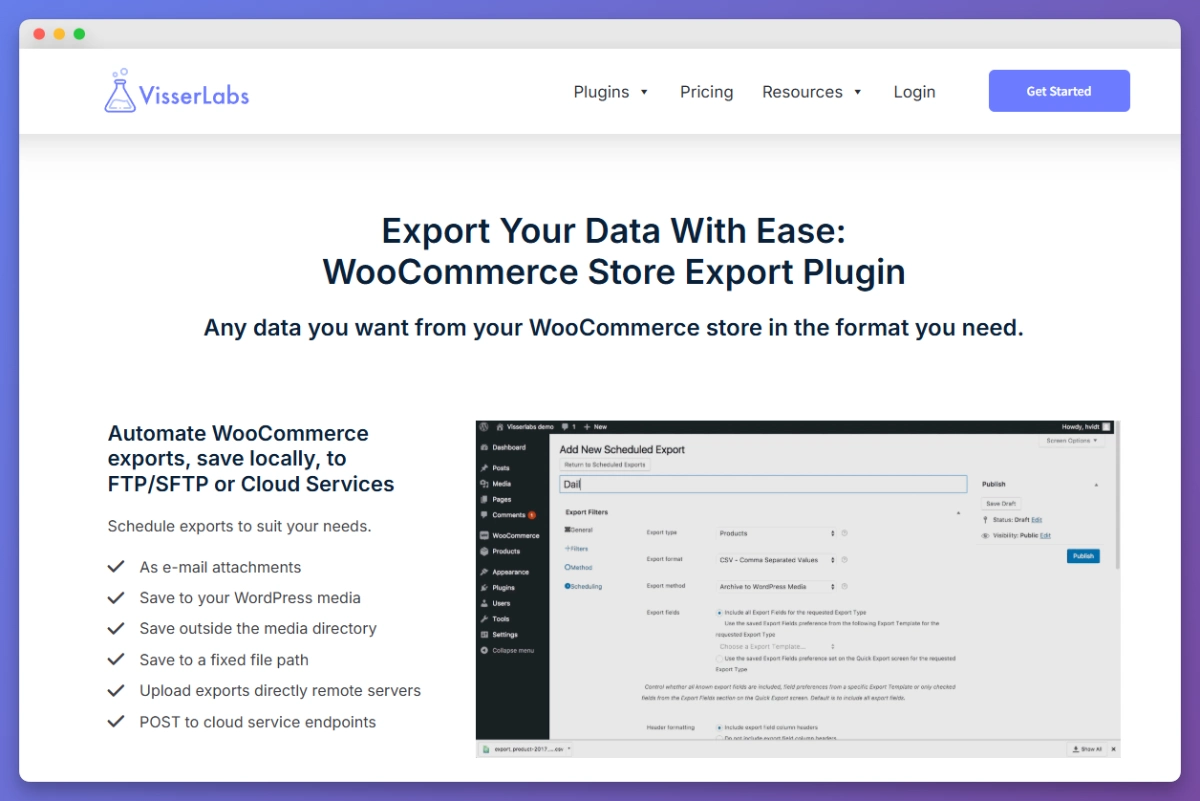
A dedicated export plugin gives you every field including custom meta, line items, and coupon-linked orders, plus filtering and scheduling. Store Exporter Deluxe is the plugin we build, and it’s the one we reach for whenever a store needs repeatable marketing exports. It handles orders, customers, products, and coupons, and it supports multiple export formats including CSV and XLSX.
Here’s the export recipe for each of the seven analyses:
- CLV by channel: orders with customer ID and UTM or source meta. See our full guide to exporting WooCommerce orders.
- Repeat purchase rate: customers with total orders field.
- Product affinity: orders with line items.
- Seasonal patterns: orders with date field.
- Category and attribute analysis: orders with line items and category meta, or a products export. See the guide to export WooCommerce products.
- Coupon ROI: coupon export with redemption data. See our coupon export guide.
- Customer segmentation: customers for lifetime value and order count, plus an orders export for last-order-date and categories.
For a broader view of how exports fit into day-to-day store operations, see our companion piece on WooCommerce order management.
Export frequency to aim for: monthly for segmentation and CLV, weekly for promotion ROI during active campaigns, and quarterly for seasonal and category analysis. The store owners who get the most out of this workflow set up a scheduled monthly export. One email hits the inbox with the month’s orders and customer file, and they spend 30 minutes in Sheets. That rhythm is where WooCommerce data marketing actually happens.
Need the data out of WooCommerce on a schedule so the analysis loop actually runs? Store Exporter Deluxe handles orders, customers, products, and coupons at $39.50 per year for the introductory license.
Tools For Analysis
You don’t need a BI tool, a data warehouse, or a six-figure analytics stack to run any of the seven analyses above. A spreadsheet and 30 minutes gets it done. Here’s the honest tooling ladder.
- Google Sheets is free, collaborative, and handles every analysis in this guide natively with pivot tables, the QUERY function, and a bit of SUMIFS. This is the right starting point for roughly 95 percent of store owners.
- Microsoft Excel is more powerful for large datasets (100,000 rows and up), has better native pivot tables, and includes Power Query for data transformation. Worth it once Sheets starts to feel slow.
- Looker Studio is a free Google tool that connects to Sheets or CSVs and builds dashboards you can refresh monthly. It’s the right step up once Sheets starts to feel limiting and you want visual dashboards rather than raw pivot tables.
Store Exporter Deluxe gets the data out, and that export is the first step of any WooCommerce data marketing workflow. The analysis happens in whichever tool above fits your comfort level. Pick the cheapest one that works and upgrade only when it stops working.
Frequently Asked Questions
Do I need a data analyst to run these analyses?
No. Every WooCommerce data marketing analysis in this guide can be run in Google Sheets or Microsoft Excel by anyone comfortable with pivot tables and SUMIFS. If you can export a CSV, you can run CLV by channel. The hardest part is usually picking which analysis to run first, not the spreadsheet work itself.
What if I haven’t been capturing UTM or acquisition channel data?
Start now. UTM parameters on every marketing link plus a custom meta field at checkout (or a referrer-tracking plugin) gives you the data from this point forward. Historical data is lost. Three months of forward tracking is usually enough to start the CLV-by-channel conversation honestly.
How often should I run these analyses?
Monthly for CLV, customer segmentation, and coupon ROI during active campaign periods. Quarterly for seasonal patterns, category analysis, and repeat purchase rate. Product affinity every quarter is usually enough unless you’re adding new SKUs fast.
What’s the cheapest way to export WooCommerce data on a schedule?
Store Exporter Deluxe at $39.50 per year for the introductory license includes scheduled exports to email or FTP. Once set up, it runs automatically. For one-off exports, the built-in WooCommerce report CSV is free but lacks the line-item and meta-field detail most of these analyses need. A scheduled export is the cheapest way to keep a WooCommerce data marketing routine running.
Can I run these analyses using just the WooCommerce admin dashboard?
Not really. The admin dashboard shows aggregates (total sales, top products, top earners) which give you a pulse check but not enough detail for pivot-based analysis. CLV by channel, product affinity, and segmentation all need customer-level and line-item-level data that the dashboard doesn’t expose. Exporting is where real WooCommerce data marketing starts.
Do I need to buy Looker Studio or a BI tool to get started?
No. Google Sheets handles all seven analyses in this guide. Looker Studio is a free Google tool if you want dashboards later, but it isn’t required to get value from the workflow. Start with Sheets and upgrade only if you hit a limit.
Turn Your Data Into Marketing Decisions
WooCommerce has the data. Most store owners never get it out. The seven analyses in this guide (CLV by channel, repeat purchase rate, product affinity, seasonal patterns, category analysis, coupon ROI, customer segmentation) are the WooCommerce data marketing moves worth running first. Each one pays for itself the first time you act on what it tells you.
Data-driven marketing doesn’t take a bigger analytics stack. It takes one afternoon with your own store’s data. Every store we’ve watched do this once comes away with at least one surprise. The top customer no one knew about. The product always bought with another. The seasonal pattern no one had mapped. Run the analyses. Then run them again next quarter.
Every one of these analyses starts with the same step: getting the data out. That first export is where WooCommerce data marketing begins. If you’re ready to put your store’s data to work, Store Exporter Deluxe is the data-out layer built for that job, at $39.50 per year for the introductory license.