If you run an agency building WooCommerce stores, you’ve probably watched the same pattern play out across clients. One brand opens a second store for a new market. A retail group rolls out ten per-location sites. A franchise adds three territories. Every time, the same operational question lands on your plate: how do you keep product data, prices, and stock in sync across these sites without hiring someone to babysit CSV files? That question is what WooCommerce multi-store sync solves.
The operators facing this question fall into four groups: agencies managing multiple client builds, brands expanding into new regions or languages, franchise operators running per-location stores, and retail chains with a central product library and per-store inventory. The architecture varies. The core problem is the same. Product data, stock levels, prices, and sometimes orders need to stay consistent across sites, and neither WordPress Multisite nor separate WooCommerce installs give you that for free.
This guide walks through a WooCommerce multi-store sync workflow built on two Visser Labs plugins. Five architecture decisions, two sync methods, and the edge cases that bite you when you skip the planning. One important scope note up front: this is scheduled and on-demand sync, not real-time. For true real-time sync, dedicated multi-store sync plugins exist, and that’s a different tooling category. For the large middle segment of operators who sync once or twice a day, weekly, or on demand, a scheduled export-import workflow is far cheaper, more flexible, and gives you full control over what flows where.
Table of Contents
Why WooCommerce Multi-Store Sync Matters
Before we get into tooling, it helps to be honest about who actually needs this and what goes wrong when they don’t have it.
The four operator types that hit this problem
Each of these groups arrives at multi-store sync from a slightly different angle, but the underlying need is the same.
Agencies: One bundle of plugins across multiple client stores. Agencies need consistency of tooling, predictable cost, and a workflow that scales from one client to fifty without rebuilding the stack each time.
Brand expansions: Same brand, multiple regions or languages. Shared product catalog with localized pricing, currency, and tax. Usually starts with two stores, grows to three or four as new markets open.
Franchise and multi-location operators: Head office maintains the master product catalog. Each location runs its own store with localized stock, pricing, and sometimes a subset of the catalog. The sync is asymmetric: catalog flows down, orders flow up.
Retail chains: Per-store inventory with a central product library. Product data is shared, but stock is absolutely not. Each store needs to know what it has on its own shelves.
What goes wrong without a sync workflow
When there’s no defined workflow, the failure modes are predictable.
Product data drifts. A description gets updated on store A and never makes it to store B. Customers on B see stale copy for months.
Stock counts diverge. Two stores selling the same physical inventory run into overselling the moment sales velocity picks up.
SKU conflicts appear. The same SKU means different things on different stores, or it gets renamed on one side and the other has no idea.
Price and tax errors creep in. A currency change or a tax-region update is applied to one store and forgotten on the others.
What we’ve seen: On two-store expansions, catalog drift is easy to miss. The original store keeps adding SKUs while the sister store quietly falls behind, and nobody notices until customers hit products that “don’t exist” on the second store. They do exist. Just only on store A. Catching it is usually a quick fix. The turned-away sales during the gap are gone for good.
Multi-Store Architecture Options
The first decision is architectural. Multisite or separate installs. This decision sets the constraints for everything that follows, but it does not solve the sync problem by itself.
Option A: WordPress Multisite with WooCommerce
One WordPress install, shared user table, shared plugin directory, per-site content. As WordPress’s Multisite network documentation explains, a multisite network shares one WordPress core install across many sites. Strengths include a single codebase to maintain, one user base across sites, and a single plugin license footprint if the plugins are multisite-aware.
Limitations are real. WooCommerce on multisite has known quirks around shared sessions, payment gateway configuration, and plugins that assume a single-site context. Most importantly, product data is not shared between sites on multisite by default. Each subsite has its own products table. You still need a sync workflow.
Option B: Separate WooCommerce installs
Each store is its own WordPress install, independent database, independent plugin licenses. Strengths include full isolation, easier debugging, no multisite compatibility surprises, and easier to sell or spin off later if one brand goes in a different direction.
The limitation used to be plugin license cost. Running five or ten separate installs at per-site pricing adds up fast. That’s exactly the scenario the Visser Labs Agency package at $199/yr for unlimited sites is built for. Separate installs stop being a cost problem and become the cleaner architectural choice for anything past two or three stores.
Which to choose
Multisite fits when you have the same brand, the same team, shared everything, and a network of smaller sites. Separate installs fit when the stores represent different brands, different teams, or any store doing meaningful revenue and needing real isolation. Neither option syncs product data for you, so either way you need a workflow.
Not everything needs to sync between stores. Decide this early, because it changes the export configuration significantly. A WooCommerce multi-store sync is only as clean as the field list you choose to move.
Products
The most commonly synced data. Titles, descriptions, categories, tags, images, attributes, variations, custom meta fields. This is the bulk of what Store Exporter Deluxe and Product Importer Deluxe handle together, and for most multi-store operators it’s 80% of the sync workload. WooCommerce’s own product CSV importer and exporter documentation covers the standard column schema these files follow, which is worth a read before you map custom fields.
Stock levels
The trickiest data to sync, because two stores selling from the same physical inventory create race conditions. If your velocity is low, a daily sync is fine. If your velocity is meaningful, daily sync will oversell you eventually. Either centralize the stock pool on one store and treat others as display-only, split physical stock between stores, or move to a dedicated real-time sync plugin.
Prices and tax
Usually store-specific. Different currency, different tax region, different promotions. Base prices often flow from a master source, but computed display prices should live per-store. Tax configuration itself lives in WooCommerce settings, not in product data, so don’t try to sync it.
Orders
Less commonly synced between stores. Typically orders flow one direction, from satellite stores back into a head office reporting database or ERP, not into another WooCommerce install. The same export-import workflow handles it when needed.
Customers
Synced when you want single sign-on or a unified marketing list across stores. Skipped when each store is its own brand with its own customer relationship.
What we’ve seen: The most common stock-side mistake is assuming a daily sync is good enough. For low-volume stores it is. For anything moving more than 20 units per day of a shared SKU, daily sync means you’ll oversell on both stores at least once a month. If you can’t move to a real-time sync plugin, centralize the stock pool on one store and disable checkout on the others for that SKU. Don’t try to split the difference.
Method 1: Manual Export-Import Workflow
The simplest method, and the right place to start even when the end state is automated. Run it by hand, end to end, before you schedule anything.
When to use manual sync
Use the manual workflow for one-off product pushes like a new seasonal catalog or a major product update, for small stores that don’t change often, and for first-time sync on any pair of stores so you can validate field mapping before automating.
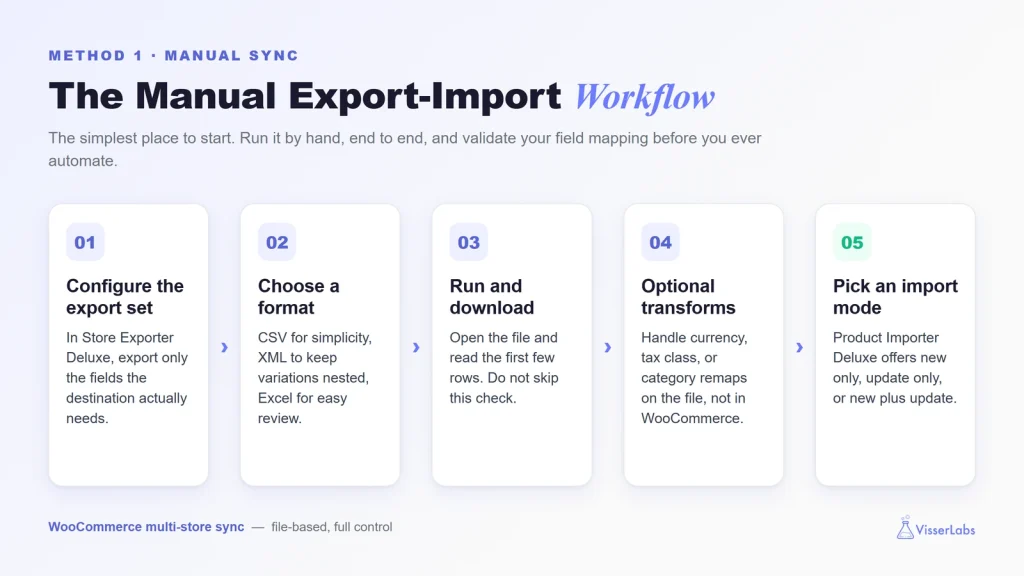
Method 1: the manual export-import workflow — run it by hand end to end to validate your field mapping before you automate.
Step 1: Configure an export set on the source store
In Store Exporter Deluxe, build a products export with only the fields the destination actually needs. Not everything. Syncing every field from the source just moves more data and creates more places for drift to appear.
Step 2: Choose a format
CSV for simplicity and broad compatibility. XML when you have nested variations and want the hierarchy preserved. Excel if the person reviewing the file between export and import lives in Excel.
Step 3: Run the export and download the file
Run it, download it, open it, read the first few rows. Do not skip this. A first export almost always surfaces one or two fields that looked right in the configuration but came out wrong in the file.
Step 4: Optional transformations
Currency conversion, tax class renaming, category remapping. If you need to massage the data before import, do it here, on the file, not inside WooCommerce.
Step 5: Import mode on the destination store
Product Importer Deluxe gives you three import modes. New only for a fresh push of products the destination doesn’t have. Update only for keeping existing products in sync without creating new ones. New plus update for mixed scenarios.
Step 6: Upload and map fields
Upload the CSV, point at a file path, give it a URL, or pull from FTP. Product Importer Deluxe auto-detects standard WooCommerce fields. Confirm any custom meta field mappings manually.
Step 7: Run the import and review the log
Check the errors log. Iterate on the file if needed. The first cycle always surfaces something.
What this method is good at
Full visibility at every step. Easy to validate. Works across hosting providers, regions, architectures. You see exactly what’s happening at each hop.
What this method is not good at
Not real-time. Stock and orders will drift between cycles. Manual effort is fine for weekly or monthly, painful for daily. If you find yourself running the manual cycle more than twice a week, switch to Method 2.
What we’ve seen: The first manual export-import cycle between two stores always surfaces two or three field-mapping issues you didn’t expect. Usually it’s custom meta fields that exist on the source but not the destination, or category slugs that were renamed on one side without the other being updated. Always do at least one end-to-end manual cycle before you schedule anything. If you automate on top of a broken mapping, you automate the breakage.
Method 2: Scheduled FTP Sync (Automated)
Once you’ve validated field mapping manually, automation removes the human from the loop.
When to use scheduled FTP sync
Daily or multi-daily sync requirements. Multiple destination stores (agencies running five to fifty-plus client builds). Any setup where the field mapping is stable and you trust it to run unattended.
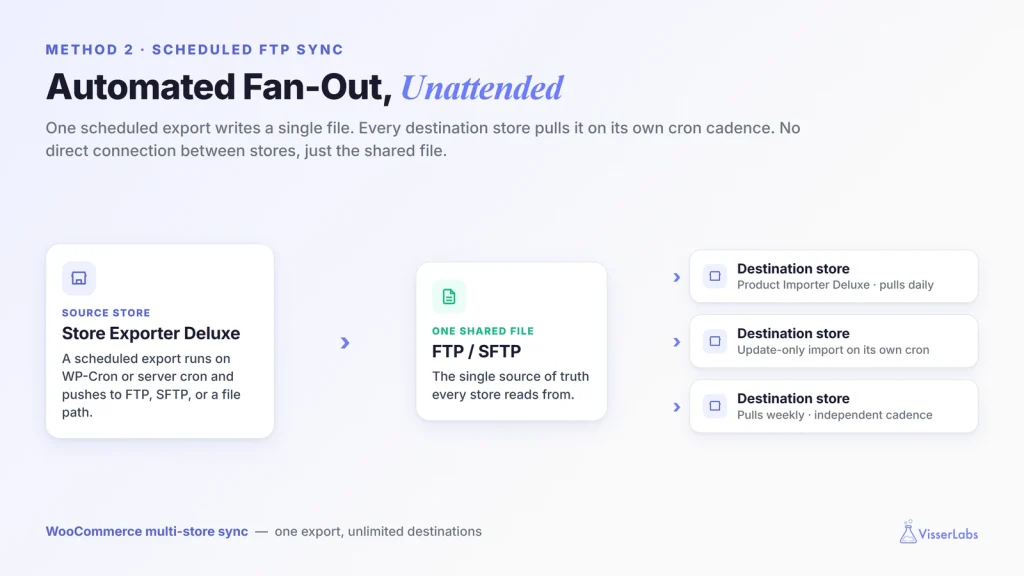
Method 2: scheduled FTP sync — one export writes a single file, and every destination store pulls it on its own cron cadence, with no direct connection between stores.
The architecture
The source store runs a scheduled export that writes to a local path or pushes to an FTP or SFTP target. On each destination store, a scheduled job triggers Product Importer Deluxe to pull that shared file. Both sides operate independently. The “sync” is the shared file, not a direct connection between the stores.
Setting up the source store
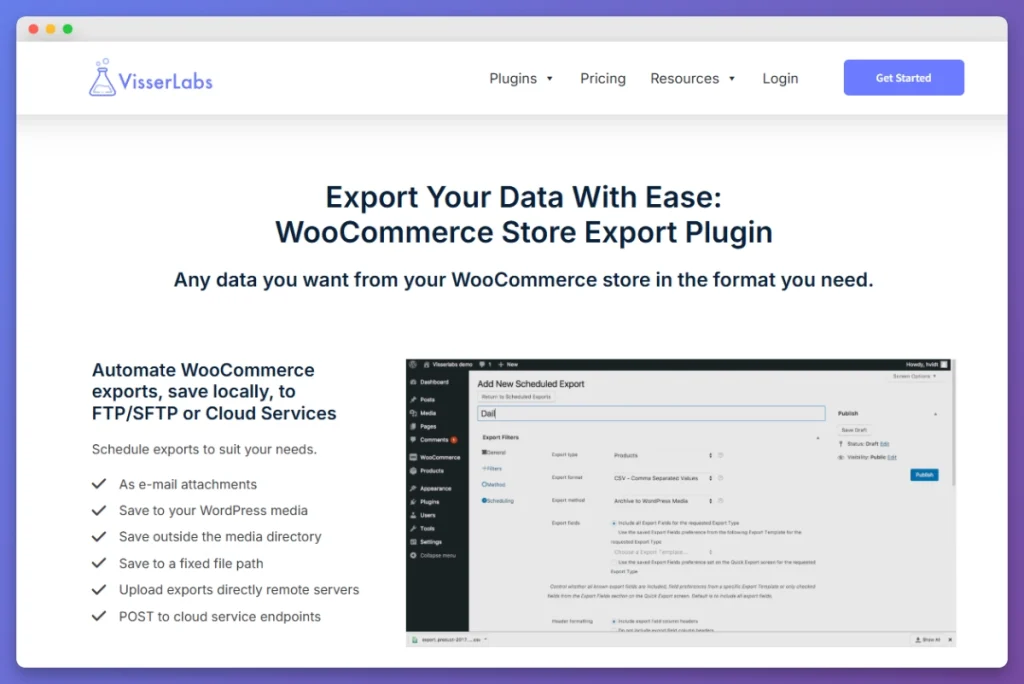
Configure a scheduled export in Store Exporter Deluxe using WP-Cron or server cron. Set the destination to a file path, a remote URL, or direct FTP upload. For the step-by-step configuration, our guide on creating an export schedule walks through every field.
Setting up each destination store
Point Product Importer Deluxe at the FTP location or URL as its import source, and choose the import mode, usually update only for ongoing sync. To run that pull unattended, trigger the import on a schedule with a server cron job (for example, WP-CLI or a cron service calling the import) rather than by hand. Set that job to run 15 to 30 minutes after the source export, so the file has time to land and propagate.
Multi-destination fan-out
Here’s where this workflow shines for agencies and multi-location operators. One source export writes a single file. Each destination pulls the same file on its own cron cadence. You don’t need a separate export per destination.
For an agency running ten or more client stores across the same bundle of plugins, the Agency package at $199/yr for unlimited sites is the pricing tier that makes this work economically. Per-site licenses stop making sense at about three stores. The Agency package stops caring about the count.
Monitoring
Both plugins log each run. Review them weekly once the setup is stable, daily for the first two weeks. Set a calendar reminder to audit product counts between stores monthly. It’s the cheapest way to catch drift before it becomes a support ticket.
Handling Edge Cases
The scenarios that catch multi-store operators off guard, and how to handle each one without fighting the tooling.
Different currencies
Keep the base price in the master currency on the source. Let each destination apply currency conversion on its end, either through a pre-import transformation on the CSV or through a multi-currency plugin on the destination site. Never sync computed display prices. Sync the base, let each store compute its own display.
Different product catalogs per store
Use category or tag filters in the source export to push only the relevant subset to each destination. An AU catalog export filters to AU-tagged products. A US catalog export filters to US-tagged products. The alternative is syncing the full catalog and using a visibility rule on each destination to hide what doesn’t apply locally. Either works. The filter-at-export approach keeps destination databases smaller.
Different tax regions
Tax configuration lives per-store in WooCommerce, not in product data. Don’t try to sync the tax config. What you do sync are the tax class names on products (Standard, Reduced, Zero, or whatever custom classes you use). Make sure the class names match between stores so each store’s tax config can apply the right rate.
Stock race conditions
If two stores are selling from a shared physical pool on a daily sync, you will oversell eventually. Three practical options. Centralize the stock pool on one store and treat the others as display-only for that SKU. Split physical stock between stores and run a less frequent sync (weekly, monthly) for catalog updates only. Move to a dedicated real-time multi-store sync plugin, which is a different tooling category and a sensible choice when velocity demands it.
What We’ve Seen: The three pitfalls that bite multi-store operators running file-based sync are almost always the same. First, SKU conflicts. Someone renames a SKU on one store, the sync re-creates it as new on the other, and now you have two products where you used to have one. Second, currency drift. A product’s base price gets updated on the source in AUD, and the destination’s USD conversion is still using last month’s exchange rate because nobody rebuilt the pricing rules. Third, stock racing. A daily sync means a SKU with 20 units can sell 18 on store A and 15 on store B in the same day, and you find out when fulfilment flags it. For the first two, a pre-import validation pass (even a simple diff of SKU and price columns against the previous export) catches 90% of issues. For the third, be honest about whether your sales velocity demands real-time sync or whether you can split stock between stores. Honesty up front costs less than fixing oversells at the customer service desk.
Does Visser Labs have a real-time multi-store sync plugin?
No. The Visser Labs workflow for WooCommerce multi-store sync is file-based export-import using Store Exporter Deluxe and Product Importer Deluxe, running manually or on a schedule. For true real-time sync between stores, dedicated multi-store sync plugins exist. That’s a separate tooling category, and it makes sense when sales velocity on shared stock makes daily sync risky.
Can I sync orders back from satellite stores to a central store?
Yes, the same export-import workflow applies to orders. In practice, most teams sync orders into a reporting database or ERP rather than into another WooCommerce install, because reporting tools handle cross-store order analysis better than another WooCommerce instance does.
WordPress Multisite or separate installs: which is better for multi-store?
Separate installs for anything doing meaningful revenue or needing isolation between stores. Multisite for small networks with shared users and tight plugin compatibility requirements. Neither architecture syncs product data for you, so the sync layer decision is the same either way.
How much does the WooCommerce multi-store sync workflow cost at scale?
The Store Exporter Deluxe and Product Importer Deluxe bundle is $79/yr per site. For agencies or operators running more than three stores, the Agency package at $199/yr for unlimited sites is the better economics. One price, any number of client builds.
Can I run a different sync schedule per destination store?
Yes. Each destination runs its own import on whatever cadence you set with its cron job, independent of the others. One destination can pull daily, another weekly, another on demand. The source export writes the file once, and each destination pulls it on its own schedule.
What happens if the source export runs but a destination import fails?
Both plugins log each run. A failed import on one destination doesn’t affect the others, and that destination’s next scheduled run will attempt the file again. Review the error log, fix whatever broke (usually a field mapping or a permissions issue on the FTP path), and the next cycle picks up normally.
Conclusion
Multi-store WooCommerce operators need a sync layer regardless of architecture. WordPress Multisite doesn’t give it to you. Separate installs don’t give it to you. The architecture decision sets constraints for everything else, but it doesn’t solve the day-to-day reality of keeping product data, stock, and prices consistent across stores.
Manual export-import handles small or infrequent sync needs and every first cycle between a new pair of stores. Scheduled FTP sync handles daily or multi-daily cadence and agencies running fan-out across many client stores. Real-time sync is a separate tooling category, and reaching for it when your sales velocity demands it is the honest call.
The Store Exporter Deluxe and Product Importer Deluxe bundle handles the large middle segment of real-world WooCommerce multi-store sync needs. $79/yr per site, or $199/yr for unlimited sites through the Agency package. If you’re running three or more stores, or an agency building stores for clients at any volume, the Agency package is the tier to pick.