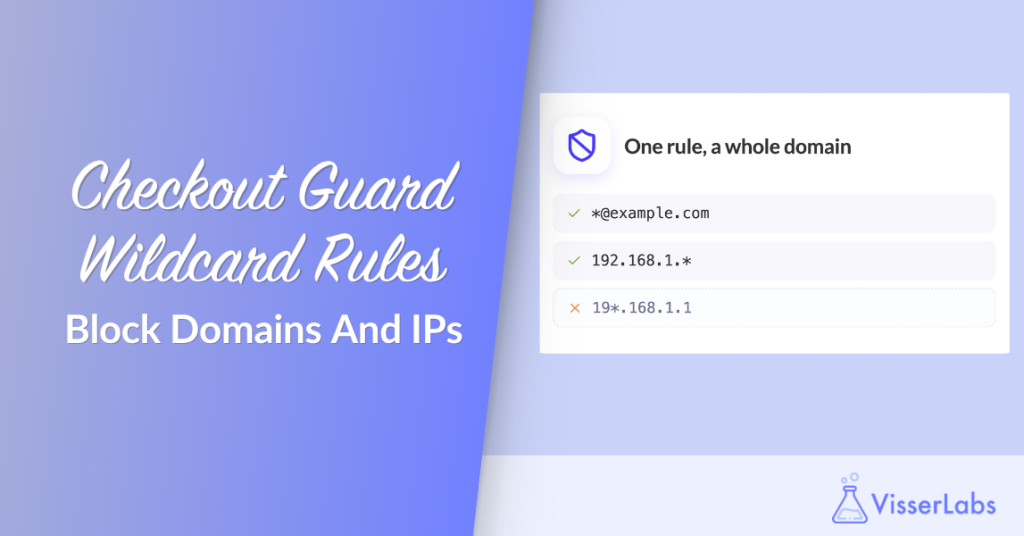
Checkout Guard 1.0.2 lets you block an email domain in WooCommerce with one wildcard rule. A single entry like *@example.com or 192.168.1.* now stops every address on a domain or every IP in a range. Store owners chasing repeat fraud can stop maintaining exact-match lists by hand.
The change is small on screen and large in practice. No new settings page, no new fields, no migration. The same four fields you already use accept one extra character, and that character changes what a single rule can cover. Below we cover what the asterisk does and how IP ranges differ from email and name patterns. We also list the values Checkout Guard will refuse to save, and the one thing to check before you upgrade.
Table Of Contents
- Block An Email Domain In WooCommerce With One Rule
- What The Asterisk Actually Does
- IP Ranges Work By Segment, Not By Pattern
- The Values Checkout Guard Refuses To Save
- Adding Your First Wildcard Rule
- Wildcards Through The REST API
- One Thing To Check Before You Upgrade
- Frequently Asked Questions
Block An Email Domain In WooCommerce With One Rule
Until this release, every value in a Checkout Guard rule was compared as an exact string. Case did not matter for names and emails, but nothing else was flexible. If twenty orders arrived from twenty addresses at the same throwaway domain, you added twenty entries. Then twenty-one when the next address turned up. Keeping that list current is the tedious half of any plan to prevent fake orders in WooCommerce.
That is fine when the problem is one person. It is the wrong shape entirely when the problem is a domain or a network block. That is what abuse usually looks like once it stops being a single angry customer and starts being a script. Wildcards let one rule describe the whole pattern instead of enumerating the instances. Being able to block an email domain in WooCommerce with one entry is what makes it practical to stop spam orders in WooCommerce once the volume climbs.
What The Asterisk Actually Does
In the first name, last name and email fields, * stands for zero or more characters and can appear anywhere in the value:
*@example.comblocks every address at that domainjo*matchesjo,johnandjohnnysm*thmatchessmithandsmyth*sonmatchesJacksonandWilson
Matching stays case-insensitive, exactly as it was. It is also anchored at both ends, which is the detail most people get wrong when they imagine how this works. john* matches johnny, but it does not match ajohn. The pattern has to account for the whole value, not just a slice of it.
Every character other than the asterisk is treated literally. The dot in *@example.com is a real dot, not a regular expression token, so a pattern cannot accidentally match more than you meant it to. When you block an email domain in WooCommerce this way, only that domain is affected.
Names keep the contract they have always had. An entry that blocks on a name needs both the first and last name filled in, and both have to match. Each of those can carry its own wildcard, so john* plus smith* will stop Johnny Smithson and leave Johnny Jones alone. Across field types the logic is still an OR: an entry blocks an order when both names match, or the email matches, or the IP matches.
IP Ranges Work By Segment, Not By Pattern
IP wildcards are deliberately narrower than email and name wildcards. A wildcard IP has to be IPv4 in segment form: exactly four dot-separated segments. Each one is either a plain number from 0 to 255 or a lone *, with at least one real number in there somewhere. The IP field itself arrived in the same release, and our guide to blocking an IP address in WooCommerce covers where Checkout Guard reads the shopper’s address from and how it behaves behind a CDN.
So 192.168.1.*, 192.168.*.1 and 192.*.*.1 are all valid. These are not:
*.*.*.*, because no segment is a real number19*.168.1.1, because a segment has to be all digits or all wildcard, never a mix1.2.3.*.5, because that is five segments2001:db8::*, because IPv6 wildcards are not supported
CIDR notation is out of scope for this release. Exact IPv4 and IPv6 addresses still work the way they did before. The client IP is resolved through WooCommerce’s own geolocation helper, which already accounts for the common proxy and forwarded headers you get behind a CDN.
The Values Checkout Guard Refuses To Save
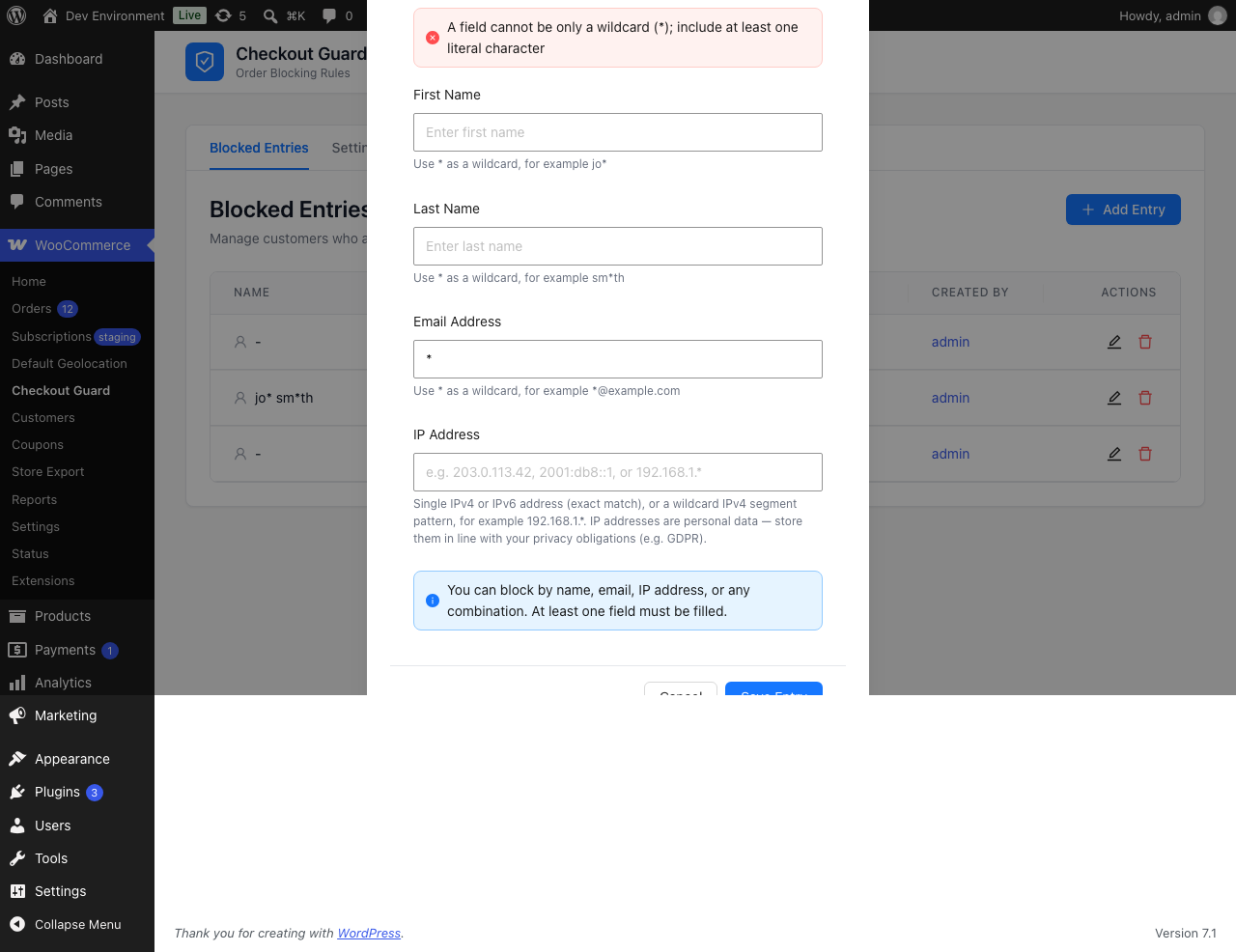
A rule that matches everyone is not a blocking rule, it is an outage. Checkout Guard rejects two shapes outright, in the admin dialog and again on the REST API.
The first is a bare wildcard. If stripping the asterisks, whitespace and separator characters from a value leaves nothing behind, the value is rejected. That covers *, **, * *, and also the sneakier ones like *@*, *.* and *@*.*, each of which would match every candidate in its field. A value like *@example.com survives the same test because examplecom is left over, so it is a pattern rather than a catch-all.
The second is breadth. A single value can use at most five asterisks. Six or more is rejected when you save it. There is also a second guard at match time. If a rule wider than five wildcards somehow ends up stored, the matcher skips it and writes to the debug log rather than compiling an open-ended expression on every checkout.
Both checks exist on the server and are mirrored in the admin dialog so you get the error inline instead of after a round trip. The server is the authority. If the two ever drift, the write fails cleanly rather than storing something wrong.
Adding Your First Wildcard Rule
To block an email domain in WooCommerce, go to WooCommerce → Checkout Guard and open the Blocked Entries tab, then add an entry. The dialog is the same one you have been using, with new hint text under each field:
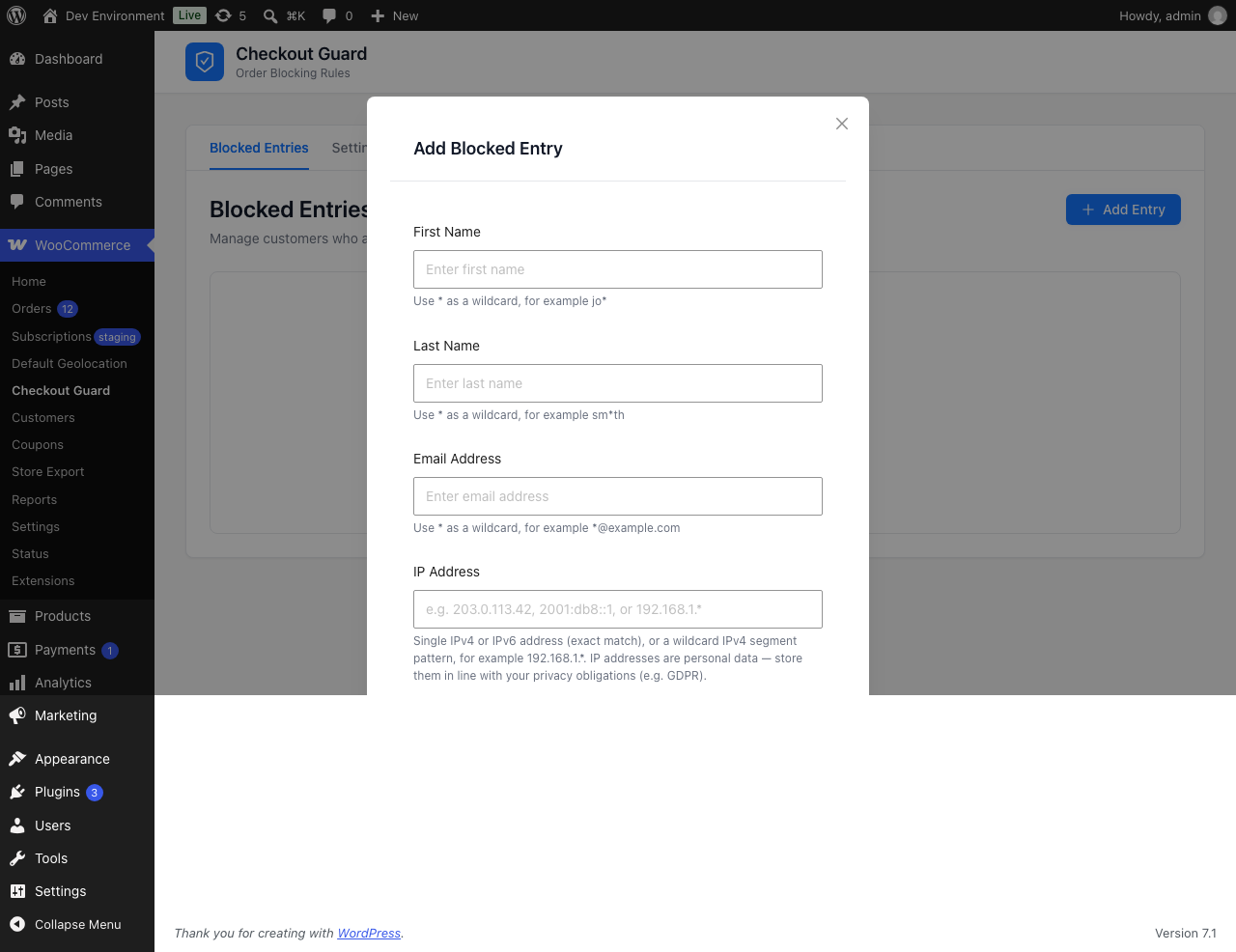
- First Name and Last Name show
Use * as a wildcard, for example jo*andUse * as a wildcard, for example sm*th. - Email Address shows
Use * as a wildcard, for example *@example.com. - IP Address spells out the narrower rule: a single IPv4 or IPv6 address for an exact match, or a wildcard IPv4 segment pattern such as
192.168.1.*. It also reminds you that IP addresses are personal data, which GDPR Recital 30 classes as online identifiers, so store them in line with your privacy obligations. - Save the entry.
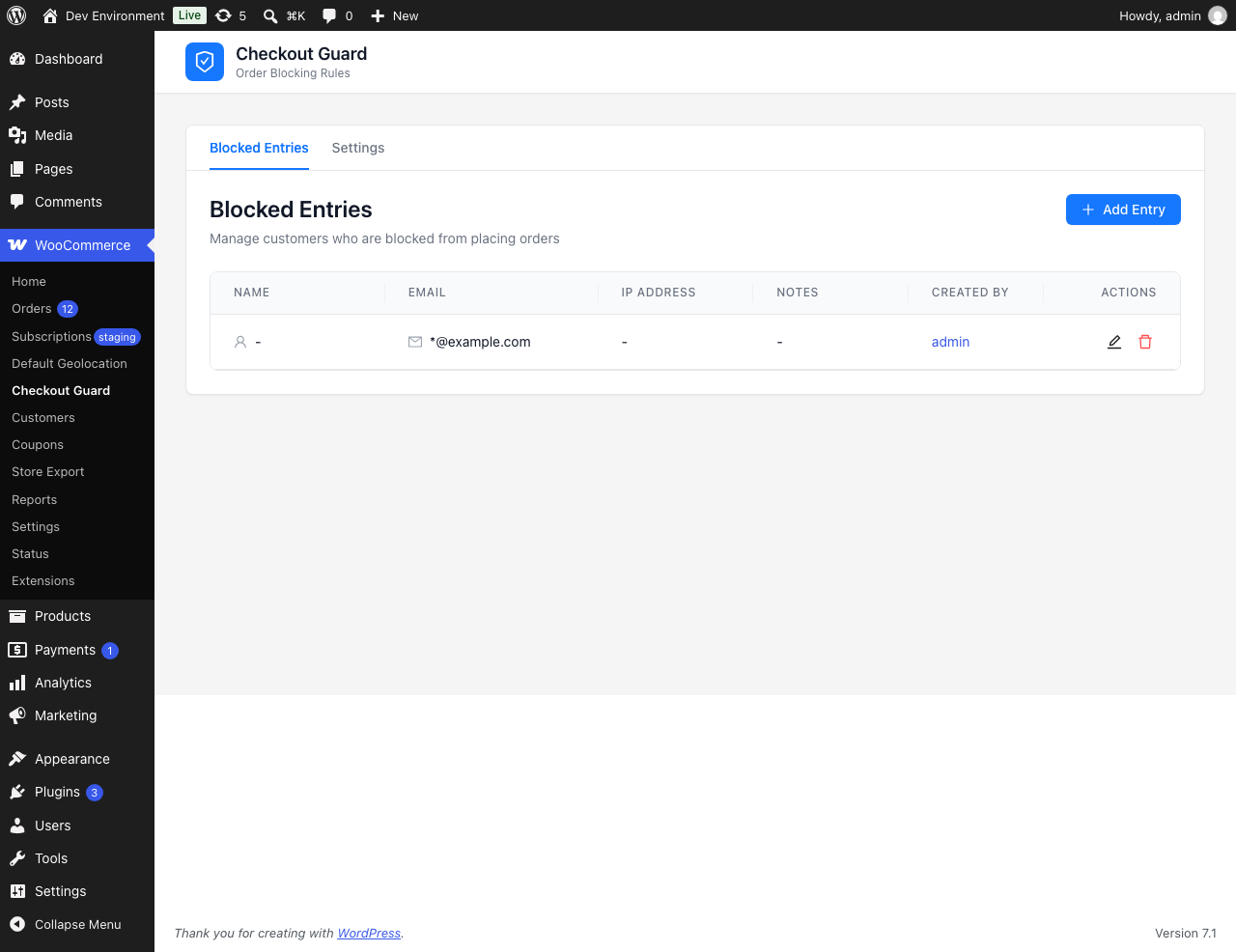
Enforcement has not moved. The rule applies on the classic shortcode checkout and on the block checkout through the Store API, because both paths run through the same matcher. A blocked shopper sees the message you wrote in the Checkout Denial Message setting, the cart is emptied, and no payment is attempted. If you have never touched that setting, the default reads: “Sorry, you’re not allowed to place an order right now, please contact support.”
What we’ve seen: the store owners who get the most out of this are the ones who write the pattern narrow and the note wide. Blocking
*@somedisposabledomain.comis a fine call. Blocking*@gmail.combecause three bad orders happened to use Gmail is how you quietly lose a month of legitimate sales, and nothing in the plugin will stop you, because that rule is technically valid. Wildcards reward precision, so check what a pattern covers before it goes live.
Wildcards Through The REST API
Checkout Guard’s REST API under the cgfw/v1 namespace accepts wildcard values too, on single creates, updates and the batch endpoint, and our full guide to the WooCommerce block list API documents each route. That matters if you want to block an email domain in WooCommerce from a fraud-scoring service or a helpdesk automation. Every route requires the manage_woocommerce capability, and machine callers should authenticate with a WordPress application password rather than a cookie, per the WordPress application passwords documentation.
Two behaviours are worth knowing before you wire anything up:
POST /check, the endpoint that answers “would this customer be blocked”, stays strict. A check candidate is a real customer value and never a pattern, so an asterisk in any field there returns a 400. Rule lookups go the other way: GET /entries?email=*@example.com finds that exact stored rule, because lookups compare literally and never expand a wildcard. For the same reason a wildcard rule and a literal rule with identical characters are always two distinct entries, so deduplication cannot silently merge them.
On batch creates, an item with a bare wildcard is skipped and counted in the response’s skipped total instead of failing the whole request. That matches how malformed IPs were already handled.
One Thing To Check Before You Upgrade
There is a single edge case, and it is worth two minutes of your time. An entry saved before this release that happens to contain a literal asterisk in a name field will now be read as a pattern instead of as that character. No migration runs, because guessing at intent would be worse than the change itself.
If your block list is short, skim it. If it is long, pull it from GET /entries and search for asterisks. Almost nobody has a customer with an asterisk in their surname, but almost nobody is not the same as nobody.
Rules without an asterisk are completely untouched. The comparison for those is byte-for-byte what it was before, so the overwhelming majority of existing block lists behave identically after the update.
You can block an email domain in WooCommerce with a wildcard rule now, in Checkout Guard 1.0.2. Still deciding whether a block list is the right tool for your situation? Our guides on how to block a customer on WooCommerce and what a WooCommerce block list plugin does are the place to start.
Frequently Asked Questions
Can I block an email domain in WooCommerce?
Yes. To block an email domain in WooCommerce, add a Checkout Guard rule with the email value *@example.com and every address at that domain is stopped at checkout. The match is case-insensitive and covers guest checkouts as well as logged-in customers.
Do my existing blocking rules still work after the update?
Yes. Any rule that does not contain an asterisk is compared exactly as it was before. The only exception is a pre-existing rule with a literal asterisk in a name field, which will now be treated as a wildcard pattern.
Can I use a wildcard to block an IP range?
You can block an IPv4 range by segment, for example 192.168.1.* or 192.*.*.1. Each of the four segments must be either a number from 0 to 255 or a single asterisk, and at least one segment must be a number. CIDR notation and IPv6 wildcards are not supported.
Why was my wildcard rule rejected?
Two values get refused. A bare wildcard such as *, *@* or *.* is rejected because it would match every customer. A value using more than five asterisks is rejected for the same reason. Add at least one literal character and keep the pattern under six wildcards.
Does wildcard blocking work on the block checkout?
Yes. Classic shortcode checkout and the block checkout both run through the same matching code, so a wildcard rule behaves identically on either one. The blocked shopper sees your custom denial message and no payment is attempted.
Can I add wildcard rules from an external system?
Yes. The Checkout Guard REST API accepts wildcard values on create, update and batch create, authenticated with an application password by a user with the manage_woocommerce capability. The POST /check endpoint is the exception and rejects wildcards, since it tests real customer values rather than patterns.