To export WooCommerce digital products, run a product export with the Downloadable column and the five download fields: Download File Name, Download File URL Path, Download Limit, Download Expiry and Download Type. Then filter the Downloadable column to Yes in your spreadsheet.
I exported a digital catalogue once to check which download links still worked. The file came back with every product in it and one column holding every download URL at once.
Three files for a single product, crammed into one cell, separated by a character I hadn’t noticed. The data was all there. It just wasn’t in a shape anyone could check.
If you sell ebooks, courses, templates or software, you’ll hit a version of this the first time you try to export WooCommerce digital products properly. The standard product columns come out fine and the part that actually defines a digital product either isn’t there or arrives unreadable. Here’s how to get it out cleanly.
What Makes A Digital Product Export Different
A downloadable product carries data that a physical product simply doesn’t have, and none of it appears in a default product export.
A physical product has a weight, dimensions and a stock count. A downloadable one has file references, a limit on how many times each buyer can download, and an expiry that decides when their link stops working. Those three things are the product, commercially speaking.
Leave them out and you have an export that lists your digital catalogue without describing it. You can see what you sell and what it costs, but not what the customer actually receives.
That’s why “just export your products” is unhelpful advice here. The general export is correct as far as it goes, but it stops short of the fields that matter. Our overview of WooCommerce data export options covers the broader picture of what each export type carries.
Virtual, Downloadable, Or Both
Virtual and downloadable are two separate settings, and conflating them is the most common reason a digital-product export returns the wrong set of products.
Virtual means the product doesn’t ship. There’s nothing to post, so WooCommerce skips shipping fields and shipping calculation entirely.
Downloadable means the product delivers files. The customer gets download links after purchase.
Most digital products are both, but plenty aren’t. A consulting hour is virtual and not downloadable, because there’s nothing to send. A printed book bundled with a PDF companion is downloadable and not virtual, because something physical still goes in the post.
Getting this right decides which column you filter on. Filtering by virtual when you meant downloadable will pull in your services and leave out your bundled products, and the resulting file looks plausible either way.
Variable products add another layer, since a variable product can have downloadable variations. That’s a different job with its own rules, covered in our guide to exporting product variations.
The Five Download Fields, And What Each Is For
Store Exporter Deluxe exposes five download-specific fields on the product export. Each answers a different question about your catalogue.
| Field | What it holds | Typical use |
|---|---|---|
| Download File Name | The label the customer sees | Auditing naming consistency across a catalogue |
| Download File URL Path | The file location | Checking for files that have moved or gone |
| Download Limit | How many downloads each purchase allows | Bulk-changing a policy across products |
| Download Expiry | Days before the link stops working | Finding products with no expiry set |
| Download Type | The product’s download type value | Check a sample export before relying on it |
One thing to be clear about: the export gives you the download URL, not the file. You get a column of paths pointing at where each file lives, which is exactly what you want for an audit, and it isn’t a backup of the files themselves.
That distinction matters when the reason you’re exporting is “check nothing is broken”. A list of URLs lets you test every link. It doesn’t protect you if the files behind those URLs are deleted, so treat this as an inventory rather than an archive and keep a separate WooCommerce backup.
If your products carry download-related data in custom fields rather than the standard ones, our knowledge base covers exporting custom product meta.
Exporting Digital Products With Store Exporter Deluxe
Getting a clean digital catalogue out takes three decisions: which fields, which format, and which products.
Start with the fields. Add the Downloadable and Virtual columns, which read Yes or No for each product, so you can separate digital products from physical stock once the file is open.
Then add the download fields alongside the standard ones. Product name, SKU, price and status give you the context; the five fields above give you the substance. Selecting all five is usually right for an audit, and you can trim later.
For format, any of the supported formats will do the job. XLSX is the easier choice if a person is going to read the file, because long URL columns stay legible.
Finally, narrow it down to the products you want. The Product Types filter can’t separate downloadable products from the rest yet, so leave it alone for this export. Instead, open the file and filter the Downloadable column to Yes, or the Virtual column if you’re auditing services. You can still use the other filters, such as Product Status or Category, to trim the export before it runs.
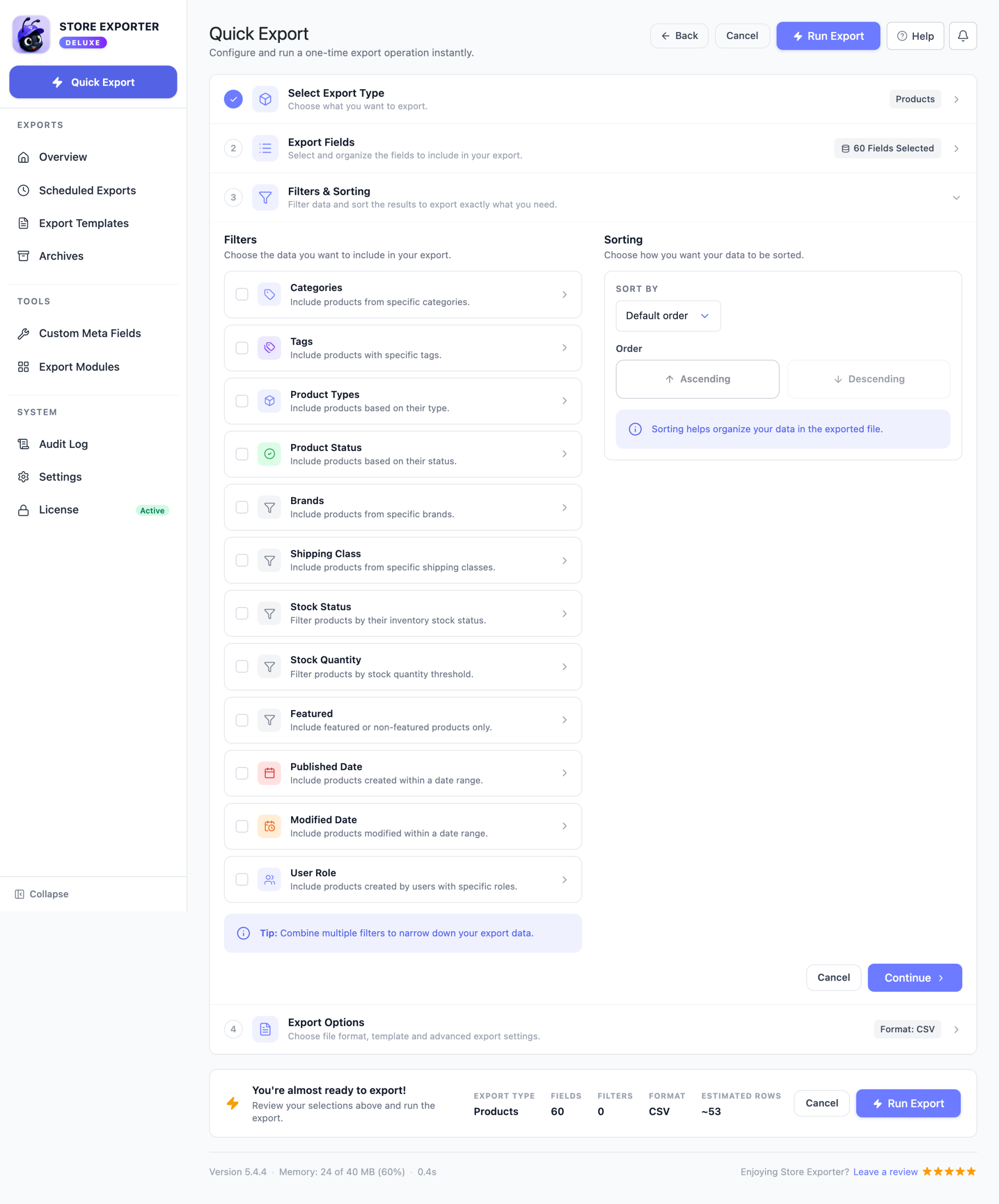
The full product-export walkthrough, including field ordering and custom column labels, is in our guide to exporting WooCommerce products.
When One Product Has Several Files
A single downloadable product can hold several files, and the export puts all of them in one cell.
They’re joined by the character set in the Category Separator setting, the same one the export uses anywhere it has to fit a list into a single column. A course with a workbook, a video and a transcript produces one row with three URLs stacked into the Download File URL Path field.
That’s the correct behaviour for a spreadsheet, since the alternative would be repeating the whole product row three times. It does mean you need to know it’s happening.
Check the Category Separator field in the CSV section of Store Exporter Deluxe’s Settings before you export. It isn’t on the export screen itself. A pipe works well, because it’s a character that shouldn’t appear inside a URL, so you can split the column afterwards in one step. Switch it to a comma and you’ll be untangling it by hand, because URLs can contain commas.
What we’ve seen: multi-file products are where spot-checks go wrong. Someone opens the export, glances down the Download File URL Path column, sees a URL at the start of every row and concludes the catalogue is fine. The second and third files sit past the edge of the cell, unread, and a dead link in position two survives the audit that was supposed to catch it. If you’re checking links, split the column first and count the URLs, then test all of them.
Once the file is split and checked, it can also be the starting point for a bulk update. Store Exporter Deluxe writes data out rather than back in, so you edit the spreadsheet and reimport it with WooCommerce’s built-in importer, as our guide to bulk editing WooCommerce products with CSV shows. Our guide to exporting WooCommerce data covers using exports as the basis for wider catalogue work, and the full product export field list is on the Store Exporter Deluxe page.
Frequently Asked Questions
How do I export downloadable products from WooCommerce?
Run a product export with the Downloadable column and the five download fields: Download File Name, Download File URL Path, Download Limit, Download Expiry and Download Type. Then filter the Downloadable column to Yes in your spreadsheet. Those five carry everything that distinguishes a digital product, and none of them appear in a default product export.
What’s the difference between a virtual and a downloadable product?
Virtual means the product doesn’t ship, so WooCommerce skips shipping fields entirely. Downloadable means the product delivers files to the buyer. Most digital products are both, but a service is virtual without being downloadable, and a physical book bundled with a PDF is downloadable without being virtual.
Why are my download URLs all in one cell?
Because that product has more than one file attached, and the export joins them into a single column using the Category Separator setting, found in the CSV section of the plugin’s Settings. The default separator is a pipe, which shouldn’t appear inside a URL, so you can split the column cleanly in your spreadsheet. If it has been changed to a comma, set it back before exporting.
Does the export include the actual files?
No. The export gives you the download URL for each file, not the file itself. That’s what you want for auditing links or bulk-editing your catalogue, but it isn’t a backup, so don’t treat a product export as protection against the files themselves being deleted.
Can I bulk-change download limits after exporting?
The export is the right first step, because it tells you what every current limit is, including which products have no limit set at all. Store Exporter Deluxe writes data out rather than back in, so the change itself goes through WooCommerce: edit the limits in the spreadsheet and reimport it with WooCommerce’s built-in importer, or update the products directly in the admin.
Get Your Digital Catalogue Out In One Piece
The thing most people want from this export isn’t the catalogue. It’s the confidence that every link in it still resolves, which is a question you can only answer once the download fields are in the file and the multi-file rows are split apart.
Run it once a quarter and the dead-link email from a customer stops being the way you find out.
- What Makes A Digital Product Export Different: know which fields the default export leaves out
- Virtual, Downloadable, Or Both: know which column to filter on
- The Five Download Fields, And What Each Is For: select all five for an audit
- Exporting Digital Products With Store Exporter Deluxe: add the fields, choose a format, filter in your spreadsheet
- When One Product Has Several Files: set a splittable separator first
When you export WooCommerce digital products with the download fields included, you get a catalogue you can actually audit rather than a list of names and prices. See the full field list and current pricing on the Store Exporter Deluxe page.