
Your store holds many kinds of data: products, orders, customers, coupons and more. Before Store Exporter Deluxe can build a file, it needs to know which kind you want. That choice is the export type, and it’s the first decision in every export.
This guide shows what export types are, which ones you get, and how they work in Quick Export and Scheduled Exports. Each type has its own guide with the field-by-field detail, so this article points you there instead of repeating it.
Prerequisites
| Requirement | Details |
|---|---|
| Plugin | Store Exporter Deluxe 5.4.3 or later, active. Earlier versions use the older tab-bar admin, which doesn’t have the screens described here. |
| Access | A WordPress account that can manage WooCommerce |
What an export type is
An export type is the kind of record you export. Pick Orders and each row in your file is an order. Pick Customers and each row is a customer.
The type also decides which fields you can choose. Orders offer fields such as billing details and line items. Products offer fields such as price and stock. So you always choose the type first, then the fields.
Each export covers one type. If you need orders and customers, run two exports.
For the full list of fields behind each type, see Available export fields in Store Exporter Deluxe.
Find your export types
The All Export Items screen shows every export type in one place.
- Go to WooCommerce > Store Export in the WordPress admin.
- On the Overview screen, click View All Export Items in the Quick Export section.
- Browse the cards, or type in the Search export items… box to find one.
- Use the Sort by: dropdown to sort the cards by name or by record count.
- Use the grid and list icons to the right of the Sort by: dropdown to switch layouts.

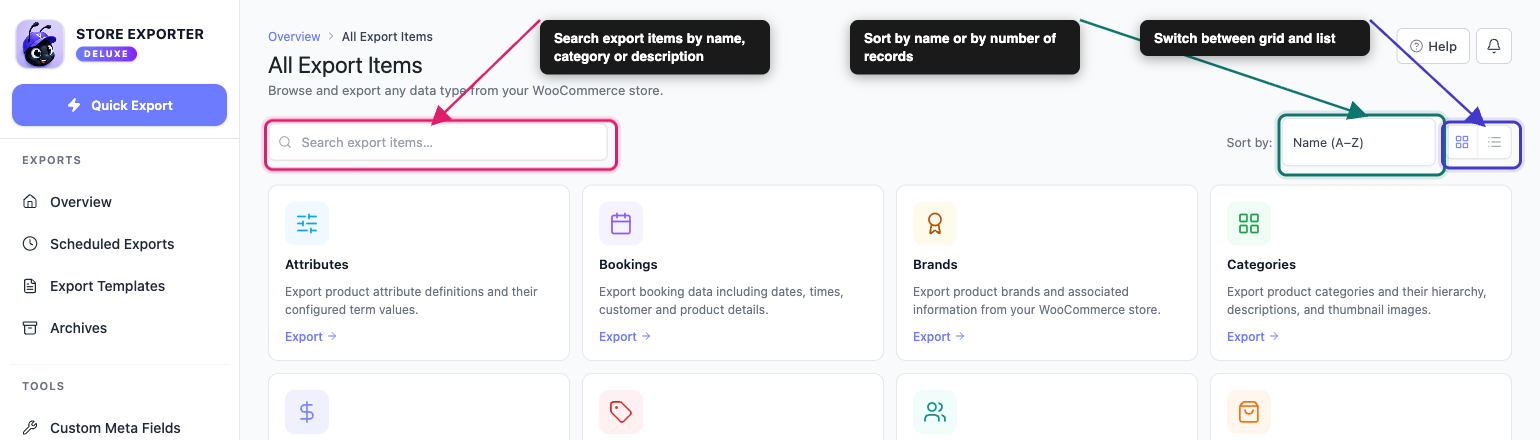
Each card shows the type’s name and a short description of what it exports. Click a card to open Quick Export with that type already selected.
Available export types
Store Exporter Deluxe lists 18 export types, plus Wishlists when SaveTo Wishlist is active (Store Exporter Deluxe 5.4.4 or later). Some read data that every WooCommerce store has. Others need another plugin to supply the data.
Built-in types
These work on any store that has the data.
| Export type | What it exports | Learn more |
|---|---|---|
| Products | Product data including variations, pricing, stock and attributes | Export products |
| Categories | Product categories with their hierarchy, descriptions and images | Export categories |
| Tags | Product tags, including slugs and descriptions | Export tags |
| Attributes | Product attribute definitions and their term values | Export attributes |
| Brands | Product brands. Needs WooCommerce 9.4 or later, or the WooCommerce Brands plugin | Export brands |
| Shipping Class | Shipping class configurations | Export shipping classes |
| Orders | Orders with line items, totals, payment and shipping details | Export orders |
| Customers | Customer details, billing and shipping addresses | Export customers |
| Users | WordPress user accounts, including roles and registration dates | Export users |
| Coupons | Coupon codes, discount types, usage limits and expiry dates | Export coupons |
| Reviews | Product reviews and ratings | Export reviews |
Types that need another plugin
Except for Wishlists, these appear on the screen at all times, but only hold data once the matching plugin is active. Wishlists appears only while SaveTo Wishlist is active.
| Export type | Plugin that supplies the data | Learn more |
|---|---|---|
| Subscriptions | WooCommerce Subscriptions | Export subscriptions |
| YITH Subs | YITH WooCommerce Subscription | Export YITH subscriptions |
| Bookings | WooCommerce Bookings | Export bookings |
| Tickets | FooEvents for WooCommerce | Export tickets |
| Product Vendors | WooCommerce Product Vendors | Export product vendors |
| WC Vendors Products | WC Vendors | Export WC Vendors products |
| Commissions | WC Vendors | Export commissions |
| Wishlists | SaveTo Wishlist (Store Exporter Deluxe 5.4.4 or later) | Export wishlists |
For other plugins whose data you can add to an export, see Store Exporter Deluxe supported plugins list.
Turn export types on and off
Store Exporter Deluxe doesn’t have a switch for each export type. Two things control what you can export instead.
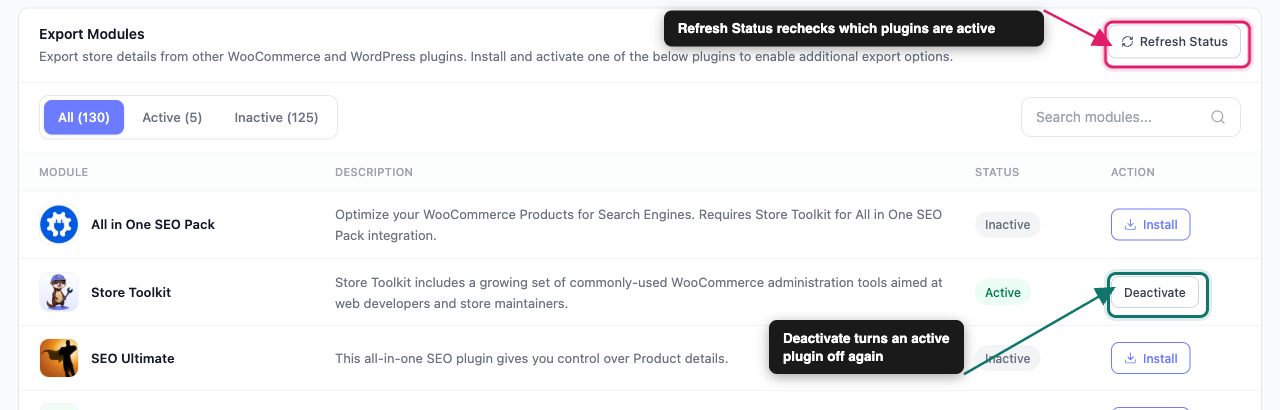
Add or remove the plugin behind a type: Open Export Modules in the sidebar and check whether the plugin is active. Then use the button on its row:
- Install: for a plugin from WordPress.org, Store Exporter Deluxe installs and activates it. For other plugins, the button opens the plugin’s website.
- Deactivate: opens the Plugins screen in a new tab, where you deactivate the plugin.
- Refresh Status: use it if the list looks out of date.
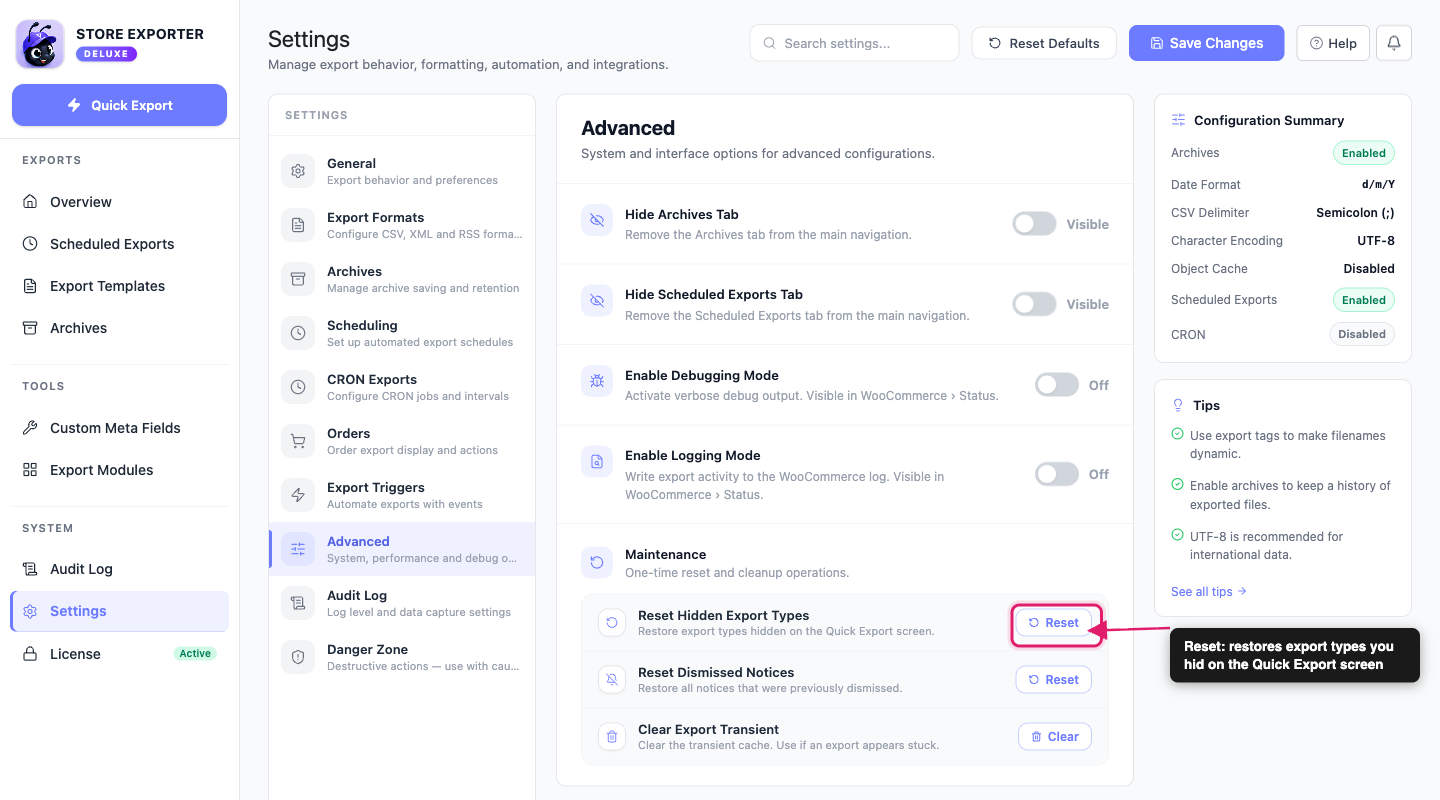
Restore hidden types: If you hid export types on an older version, go to Settings, open the Advanced section, and click Reset next to Reset Hidden Export Types. For the full steps, see How to restore removed export types.
What you see when a type has no data
A type with no source plugin, or no records, still appears. It just can’t be exported.
On All Export Items: the card is shown as normal. If you click it, Quick Export opens and displays No records to export, with a note that the selected export has 0 records.
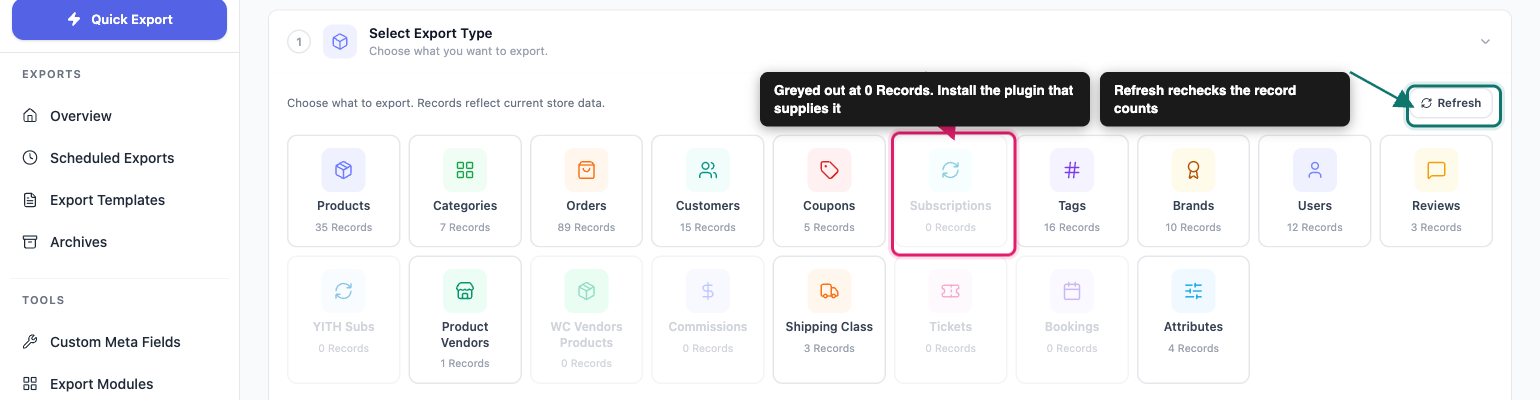
In Quick Export: on the Select Export Type step, the tile reads 0 Records, is greyed out and can’t be selected. Hover over it to see No records available.
How export types work with Quick Export
Quick Export is the screen for one-off exports. The export type is the first of its steps:
- Select Export Type: choose a tile. Each shows its record count, such as 35 Records.
- Export Fields: choose and arrange the fields for that type.
- Filters & Sorting: narrow the records. This step appears only for types that support filters.
- Export Options: choose the file format and other settings.
Changing the type changes the fields and filters on the later steps.
How export types work with Scheduled Exports
A scheduled export runs the same kind of export automatically. When you create one, you choose the type in the Export Setup section of the General step, using the Export Type dropdown. The Export Format dropdown sits right below it. Two types have longer names in this dropdown: YITH Subs appears as YITH Subscriptions and Shipping Class appears as Shipping Classes.
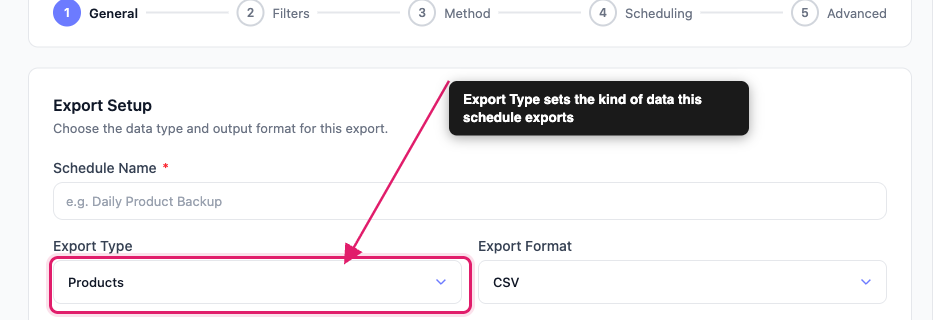
The schedule then repeats that type each time it runs. To export a different type on a schedule, create a separate schedule. For setup steps, see How to schedule exports in Store Exporter Deluxe.
Where to go next
- Choose exactly what appears in your file with Available export fields.
- Run exports on a timetable with How to schedule exports.
- Open the guide for a single type from the Learn more column in the tables above.
Frequently asked questions
Need help?
If you’re using Store Exporter Deluxe and run into an issue this article doesn’t cover, open a support ticket and our team will help you choose and export the right type.
If you’re using the free Store Exporter plugin, ask on the WordPress.org support forum and our team will get back to you there.