
If your store runs on other WooCommerce or WordPress plugins, Store Exporter Deluxe doesn’t just export core WooCommerce data. It also natively pulls in fields from popular plugins that extend your products, orders, and customers, so that data shows up in your export too.
We add native support for more plugins with almost every minor Store Exporter Deluxe update. In most cases, you don’t need to configure anything. Once a supported plugin is active, its fields appear automatically as export options.
Prerequisites
| Requirement | Details |
|---|---|
| Plugin | Store Exporter Deluxe is active and licensed |
| Third-party plugin | The plugin whose data you want to export is installed and active |
Where the extra fields appear
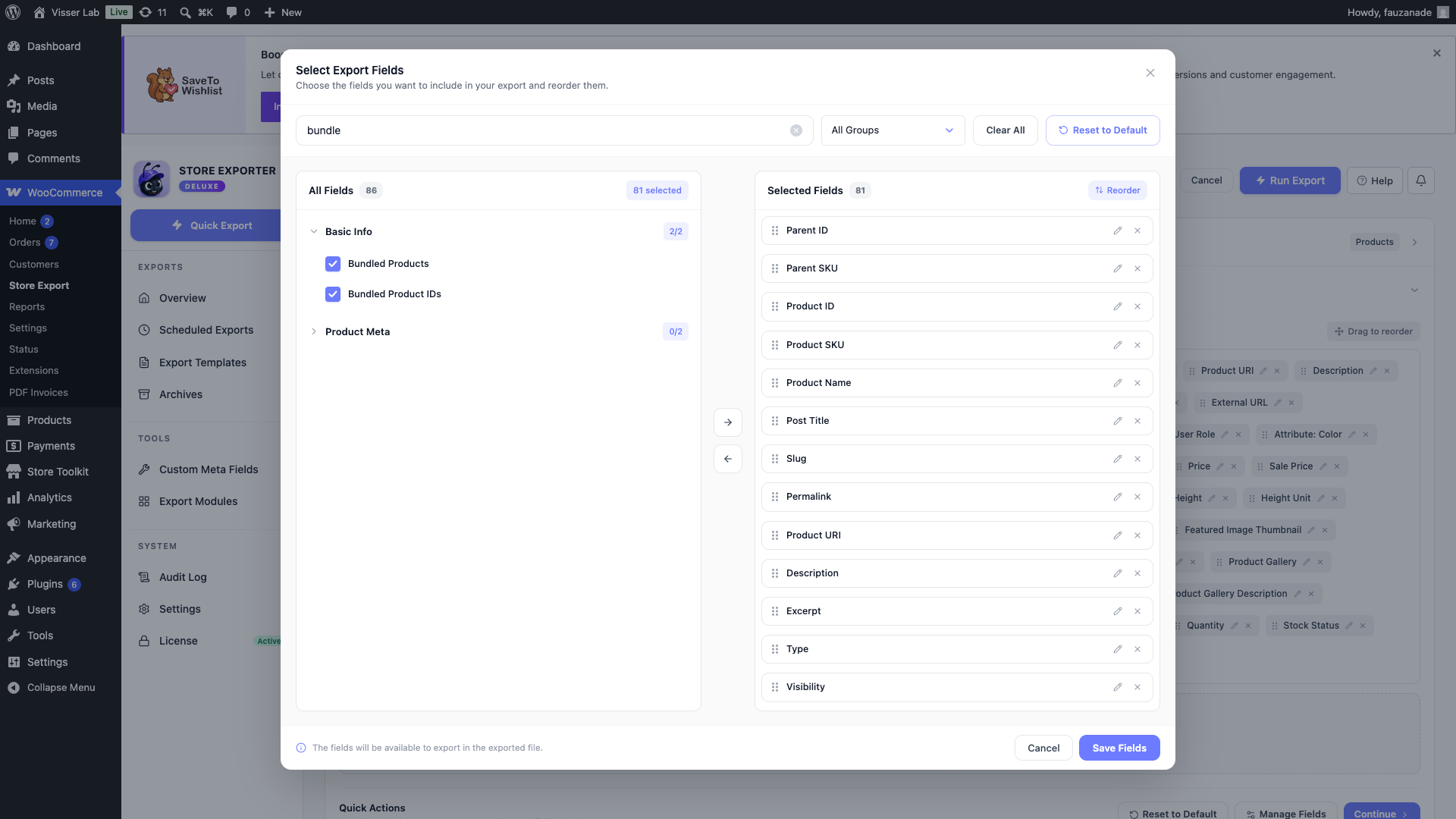
Open WooCommerce → Store Export from the WordPress admin menu, then click the Quick Export button near the top of the sidebar. Once you select an export type (Products, Orders, Customers, and so on), any fields added by an active supported plugin appear alongside the standard fields on the Export Fields step, ready to select like any other field.
WooCommerce plugins
Store Exporter Deluxe adds native export fields for these WooCommerce plugins when they’re active:
- Yoast SEO: WooCommerce
- Store Toolkit
- Advanced Google Product Feed
- WooCommerce MSRP Pricing
- WooCommerce Brands Addon
- Cost of Goods
- Per Product Shipping
- Product Vendors
- WC Vendors
- Product Add-ons
- WooCommerce Sequential Order Numbers
- WooCommerce Sequential Order Numbers Pro
- WooCommerce Print Invoice & Delivery Note
- WooCommerce PDF Invoices & Packing Slips
- WooCommerce Checkout Manager
- WooCommerce Checkout Manager Pro
- Poor Guys Swiss Knife
- Checkout Field Editor
- Checkout Field Manager
- WooCommerce Checkout Add-Ons
- Local Pickup Plus
- WooCommerce Currency Switcher
- WooCommerce Subscriptions
- WooCommerce Extra Product Options
- Booster for WooCommerce
- JetPack for WooCommerce (legacy name for Booster for WooCommerce)
- Booster Plus
- WooCommerce Brands
- WooCommerce Bookings
- WooCommerce EU VAT Number
- WooCommerce EU VAT Assistant
- WooCommerce Hear About Us
- WooCommerce Wholesale Pricing
- Barcodes for WooCommerce
- WooCommerce Smart Coupons
- WooCommerce Pre-Orders
- WooCommerce Basic Ordernumbers
- WooCommerce Admin Custom Order Fields
- WooCommerce Table Rate Shipping Plus
- WooCommerce Extra Checkout Fields for Brazil
- WooCommerce Gravity Forms Product Add-Ons
- WooCommerce Quick Donation
- Easy Checkout Fields Editor
- Product Fees
- WooCommerce Events
- WooCommerce Tab Manager
- WooCommerce Custom Fields
- WooCommerce Barcode & ISBN
- WooCommerce Video Product Tab
- WooCommerce Variation Swatches and Photos
- WooCommerce Uploads
- WooCommerce Profit of Sales Report
- Order Delivery Date for WooCommerce
- Order Delivery Date Pro for WooCommerce
- WooCommerce EU VAT Compliance
- WooCommerce EU VAT Compliance (Premium)
- YITH WooCommerce Checkout Manager
- Discontinued Product for WooCommerce
- YITH WooCommerce Multi Vendor Premium
- WooCommerce Memberships
- WooCommerce Product Bundles
- WooCommerce Min/Max Quantities
- WooCommerce Follow Ups
- UPS WooCommerce Shipping
- Ship to Multiple Addresses
- AweBooking
- YITH WooCommerce Delivery Date Premium
- YITH WooCommerce Brands Add-On
- WooCommerce Tiered Pricing
- WooCommerce BookStore
- WooCommerce Point of Sale
- WooCommerce PDF Product Vouchers
- WooCommerce Multilingual
- WooTabs
- WooCommerce EAN Payment Gateway
- WooCommerce Germanized
- WooCommerce Germanized Pro
- WooCommerce Ultimate Multi Currency Suite
- Entrada
- WooCommerce Delivery Slots
- Products Purchase Price for WooCommerce
- WooCommerce Product Custom Options Lite
- WooCommerce Wholesale Prices
- WooCommerce Show Single Variations
- WooCommerce Deposits
- WooCommerce Unit of Measure
- WooCommerce Easy Bookings
- WooCommerce Advanced Product Quantities
- WP-Lister Pro for Amazon
- WP-Lister Pro for eBay
- AliDropship for WooCommerce
- WooCommerce All Discounts Lite
- ATUM Inventory Management for WooCommerce
- Bookings and Appointments For WooCommerce Premium
- WooCommerce Shipment Tracking
- PPOM for WooCommerce
- Perfect WooCommerce Brands
- WooCommerce P.IVA e Codice Fiscale per Italia
- WooCommerce Easy Codice Fiscale Partita Iva
- WooCommerce Serial Numbers
WordPress plugins
Store Exporter Deluxe also adds native export fields for these general WordPress plugins:
- Gravity Forms
- All in One SEO Pack
- Ultimate SEO
- Yoast SEO
- Advanced Custom Fields
- Nelio External Featured Image
- WPML Multilingual CMS
For a detailed breakdown of exactly which fields each plugin adds, see Supported export fields.
FAQ
Need more help?
If you’re using Store Exporter Deluxe and a supported plugin’s fields aren’t showing up as expected, open a support ticket, and our team will help you sort it out.
If you’re using the free Store Exporter plugin, ask on the WordPress.org support forum, and our team will get back to you there.
