To bulk delete WooCommerce products or orders, use a store-management plugin like the free Store Toolkit by Visser Labs: open its Nuke panel, tick the records you want gone, and click Remove. It clears products, orders, categories, and more in one pass, far faster than deleting them page by page in the native admin. Back up your database first and work on staging.
WooCommerce’s built-in screens were never built for clearing hundreds or thousands of records at once. You can tick a few checkboxes per page, choose Move to Trash, and repeat, but on a busy catalogue or a staging site full of test orders, that grind gets old fast. I’ve sat through it, and it’s the kind of job a single tool should handle in seconds.
This guide walks through how to bulk delete products and orders, how to generate sample data for testing, and how to reset a WooCommerce store cleanly. It also covers the safety steps that keep a quick cleanup from turning into a disaster.
What Is The Store Toolkit Store Management Plugin?
Store Toolkit is a free WooCommerce store-management plugin from Visser Labs, a growing set of everyday admin tools for store maintainers and developers. It helps you manage and tidy a store without writing code or running database queries by hand.
One of its most useful features permanently clears WooCommerce records in bulk. Whether you need to delete old orders, retire a batch of products, or wipe a staging site back to a clean slate, Store Toolkit turns a tedious manual job into a few clicks. It’s also a handy companion to our other free WooCommerce plugins for day-to-day store upkeep.
How To Bulk Delete WooCommerce Products And Orders
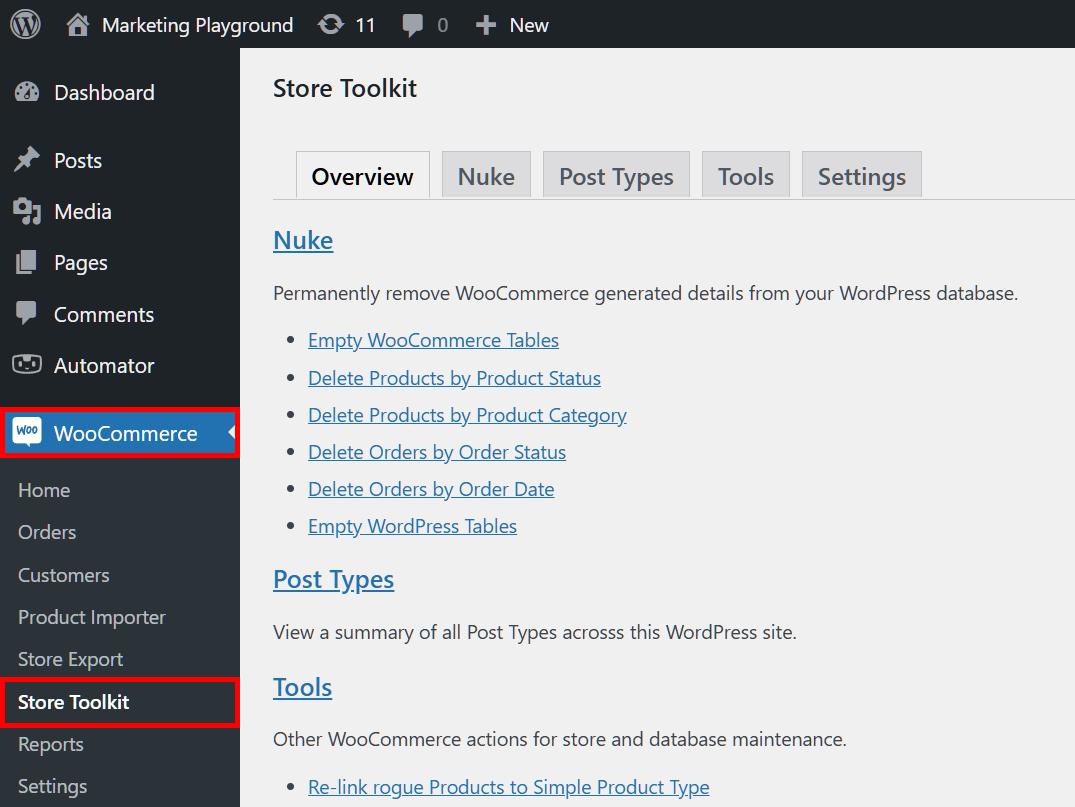
To bulk delete WooCommerce records, go to your WordPress dashboard and click WooCommerce > Store Toolkit. This opens the Store Toolkit page, which has five panels: Overview, Nuke, Post Type, Tools, and Settings.
Click the Nuke panel to open the Nuke WooCommerce page, where the bulk deletion happens. The workflow is simple: tick the checkboxes for the data you want to remove, then click Remove.
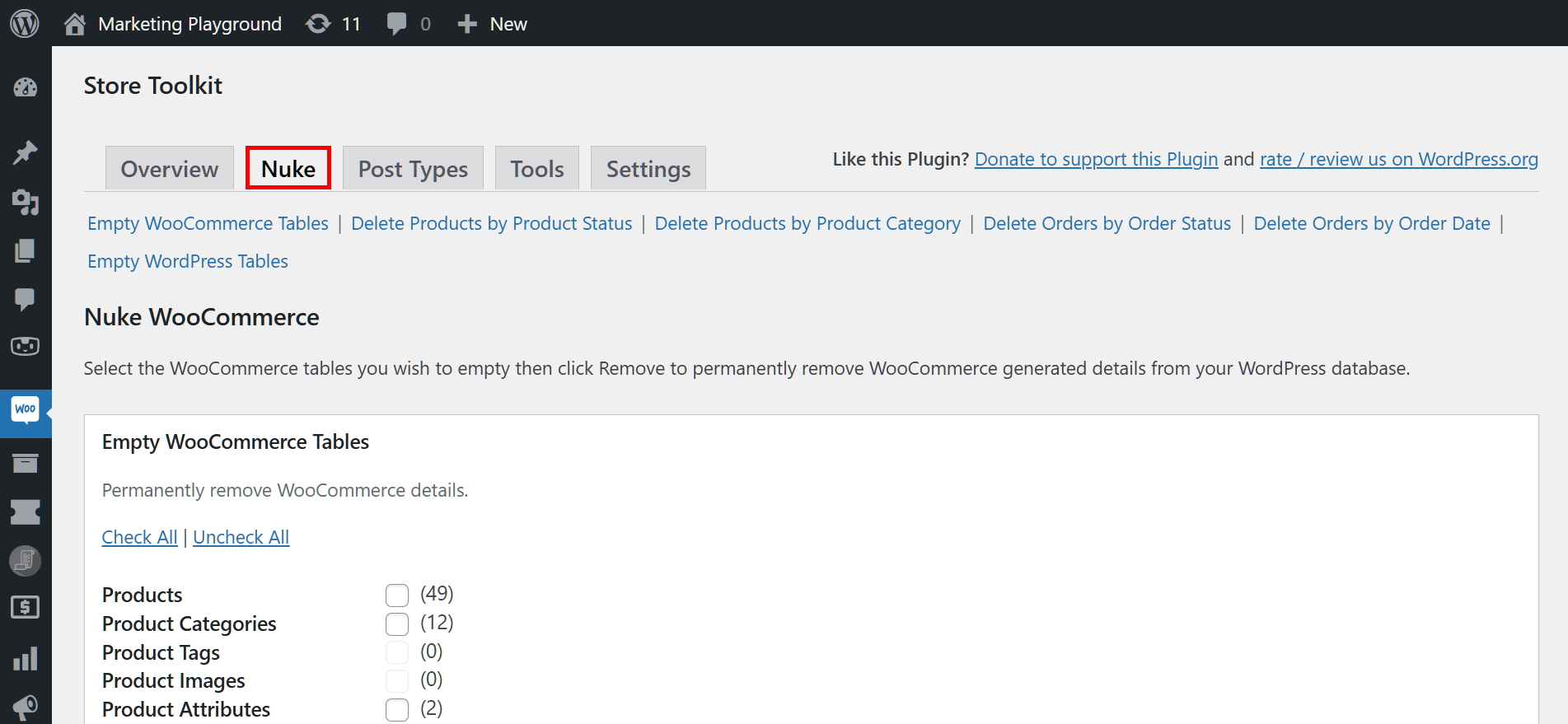
One thing to be clear on before you click anything: nuking data is permanent. There is no Trash to recover from, so only tick records you are certain you no longer need, and read the backup section below first.
Store Toolkit breaks bulk deletion into a few targeted areas so you can remove exactly what you mean to. Here is what each one does.
Empty WooCommerce tables
The Empty WooCommerce Tables area is the most direct way to clear store records. Tick the data types you want gone, then click Remove.
This section lets you delete details such as:
- Products
- Product Categories
- Orders
- Coupons
- Shipping Classes
- … and more
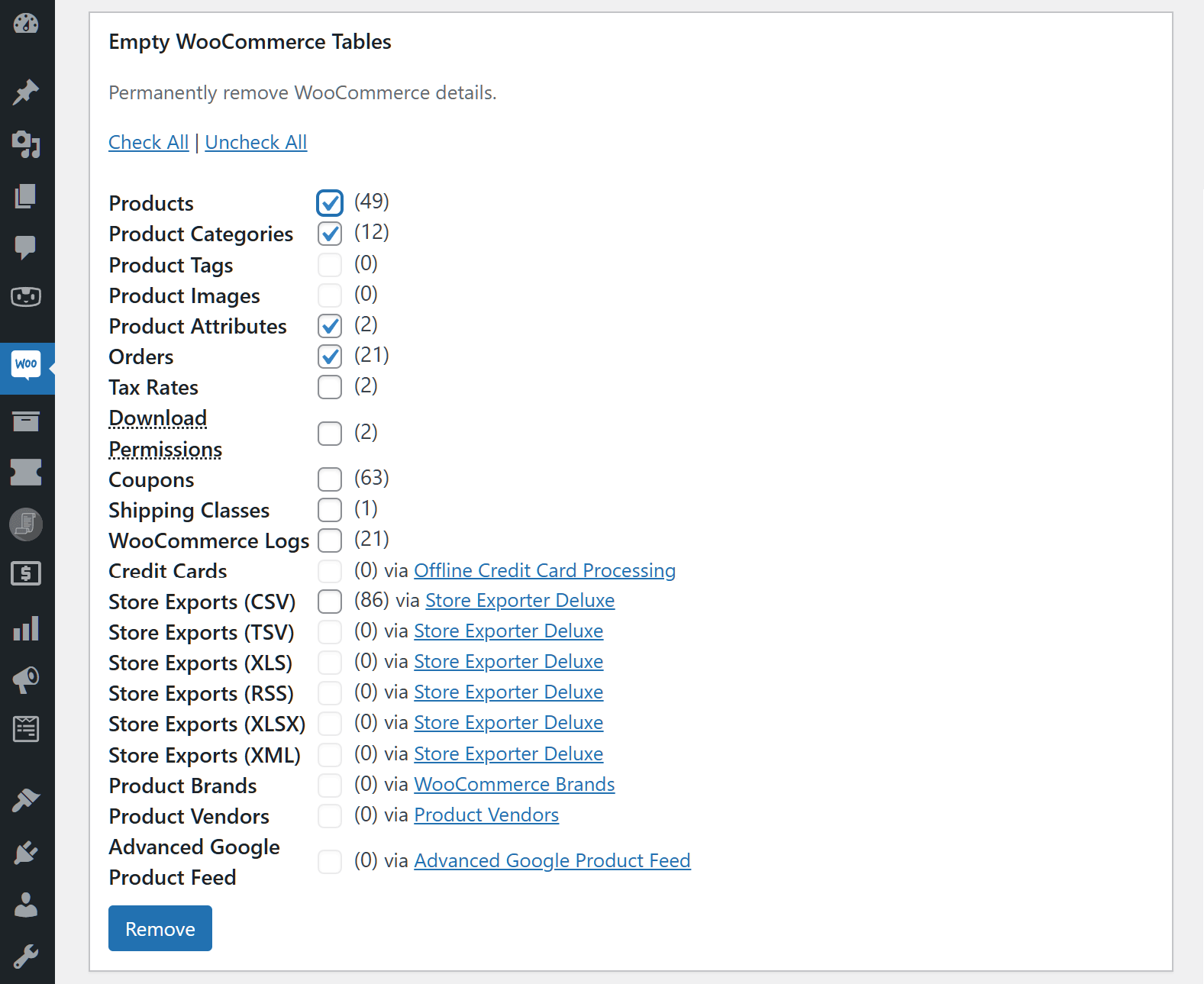
Click Check All to tick every box, or Uncheck All to clear them.
Delete products by product status
This area deletes products based on their status, so you can clear out drafts or trashed items without touching live listings. Statuses include:
- Publish
- Draft
- Trash
- … and more
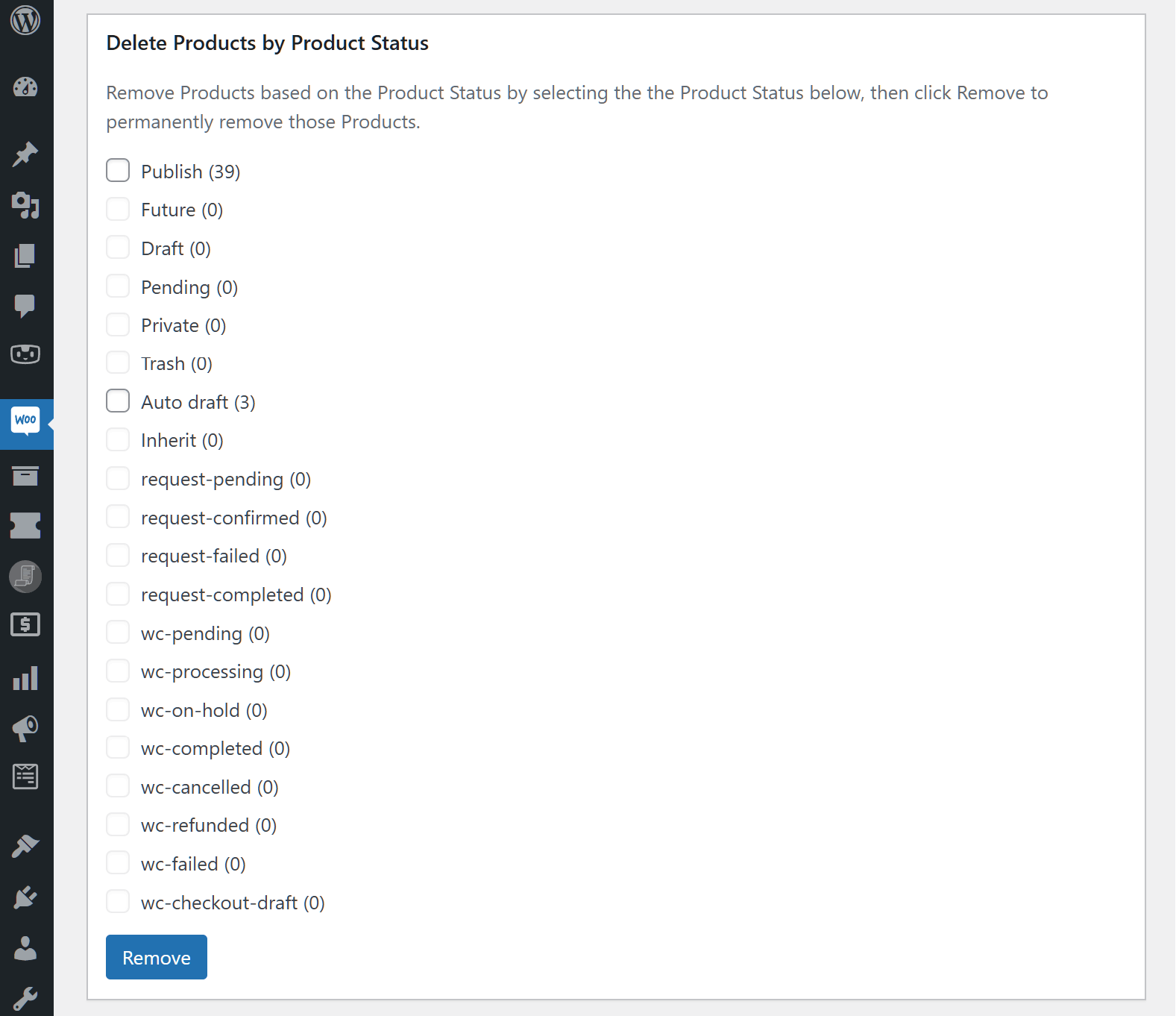
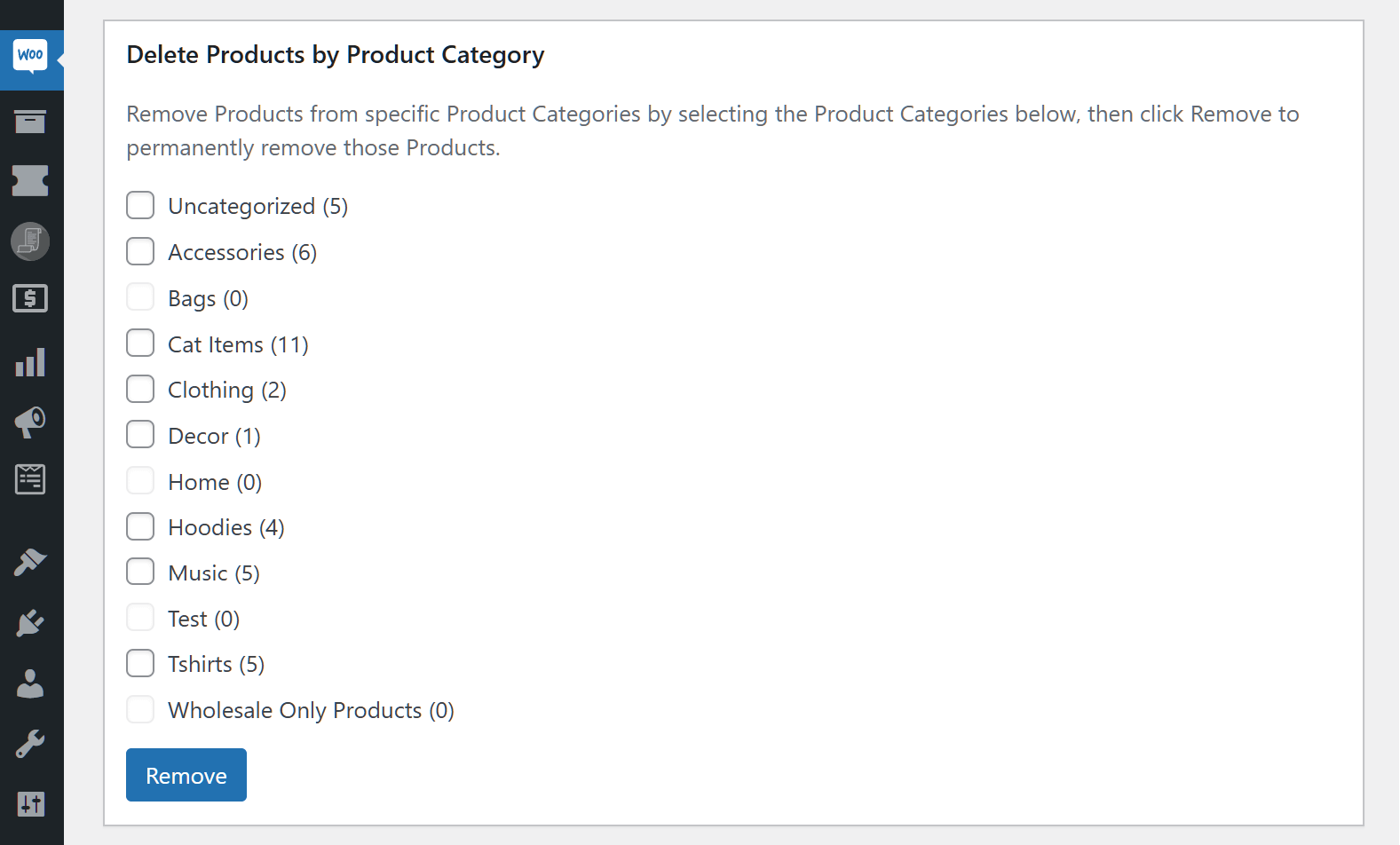
Delete products by product category
Want to clear specific categories? Use the Delete Products by Product Category area. The categories you see depend on the ones you created. For a clothing and pet shop, that might be:
- Bags
- Clothing
- Cat Items
- … and more
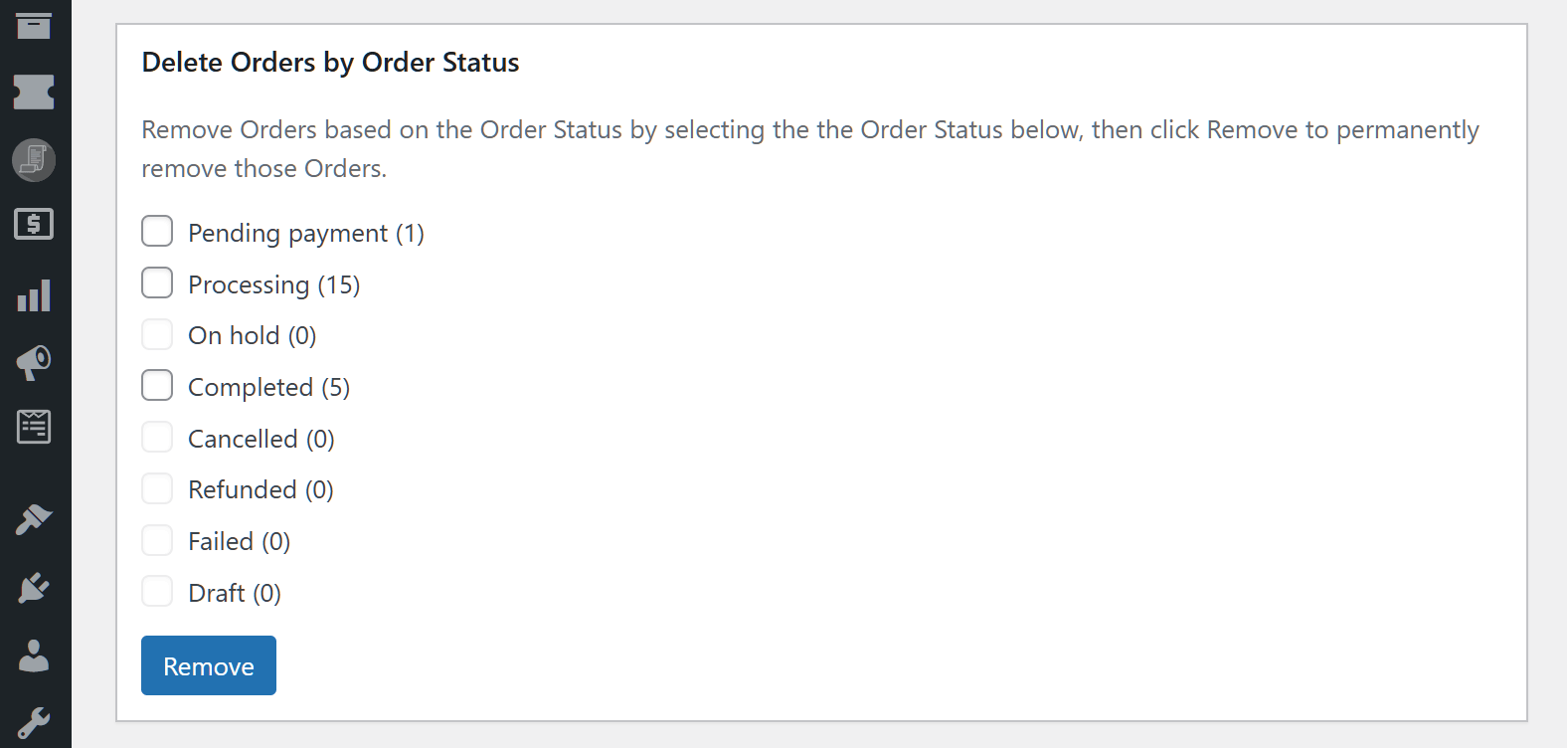
Delete orders by order status
This area clears orders by their status, which is handy for removing test or cancelled orders while keeping completed ones. Statuses include:
- Pending
- Completed
- Refunded
- … and more
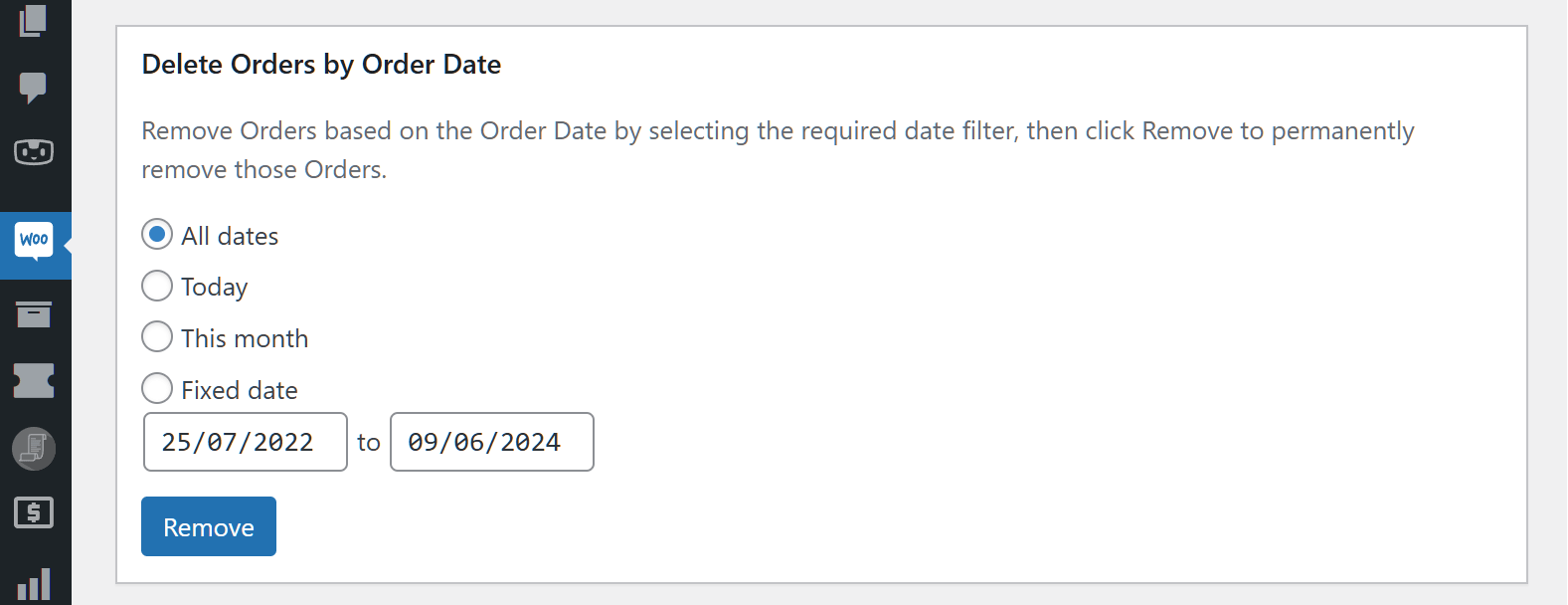
Delete orders by order date
You can also delete orders from a specific date range. Clear the current day’s orders, the current month’s, or every order the store has ever taken, with enough control to keep recent history while trimming the old.
Empty WordPress tables
Need to remove WordPress records too? The Empty WordPress Tables area clears posts, links, comments, and images. To wipe all blog posts, for example, tick “Posts” and click Remove.
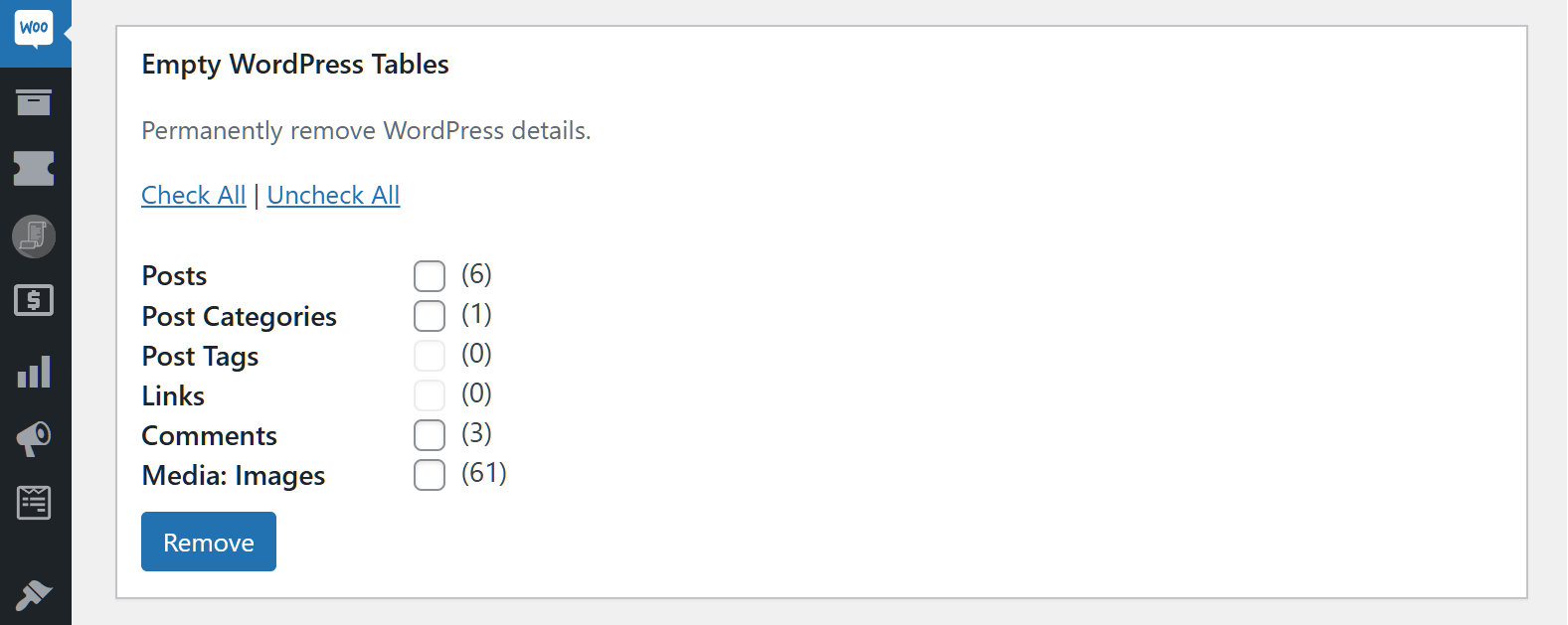
Use Check All and Remove for a full wipe, or Uncheck All if you change your mind before committing.
How To Generate Sample Orders And Products For Testing
Deleting data is only half of store housekeeping. The other half is filling a test or staging site with realistic data so you can try a theme, a checkout change, or a report without touching real customers. Store Toolkit handles that too, from its Tools panel.
The Generate Sample Orders tool creates a batch of random orders using sample customers, dates, and products, which is ideal for stress-testing reports, exports, or an order-management workflow before you rely on it. Pair it with sample products and you have a full dummy catalogue in minutes rather than entering test data by hand.
A typical loop looks like this: generate sample products and orders on staging, test whatever you’re changing, then nuke the sample data with the Nuke panel so you start clean again. It keeps test clutter out of your real catalogue and your reports honest.
How To Safely Reset Your WooCommerce Store
Resetting a WooCommerce store means clearing its products, orders, and related records back to a blank slate, usually before a relaunch, a handover, or a fresh round of testing. Store Toolkit’s Nuke panel does the clearing, but the safe part is what you do before you click Remove.
Follow these steps so a reset never costs you data you actually wanted:
- Back up first. Export your products, orders, and customers before deleting anything. A full export gives you a restore point if you nuke the wrong thing. Our Store Exporter Deluxe plugin exports the lot to CSV, XLSX, or XML, and our guide on how to export WooCommerce data walks through it.
- Work on staging. Run the reset on a staging copy first, confirm the result, then repeat on production. Never test a full wipe on a live store.
- Nuke in the right order. Clear orders and customers before products if you want to keep the catalogue, or use Check All for a complete reset. Tick only what you mean to remove.
- Verify, then rebuild. Check the store is empty as expected, then re-import or regenerate the data you need.
What we’ve seen: the most common Store Toolkit mishap isn’t the plugin, it’s skipping the backup. Store owners nuke a category to tidy up, then realise those products had reviews or order history attached. A two-minute export beforehand turns a panic into a quick re-import. Always export before you nuke.
Another Way To Delete Products
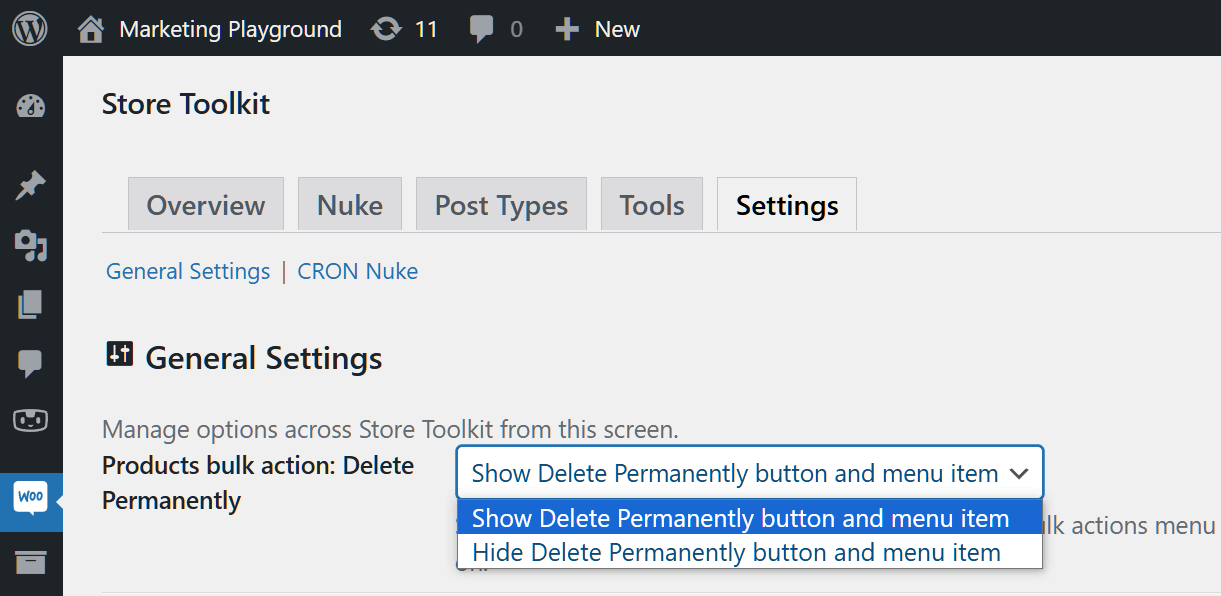
The Nuke panel is the fastest route, but Store Toolkit has a second option built into the Products screen. From the dashboard, click WooCommerce > Store Toolkit, open the Settings panel, and look at the General Settings area.
General Settings can add a Delete Permanently action to the Products page. Open the Products bulk action: Delete Permanently dropdown and select “Show Delete Permanently button and menu item” to switch it on.
To check it’s working, go to Products > All Products and hover over any product. If you enabled it, Delete Permanently appears among the row actions. Click it to remove that product for good.
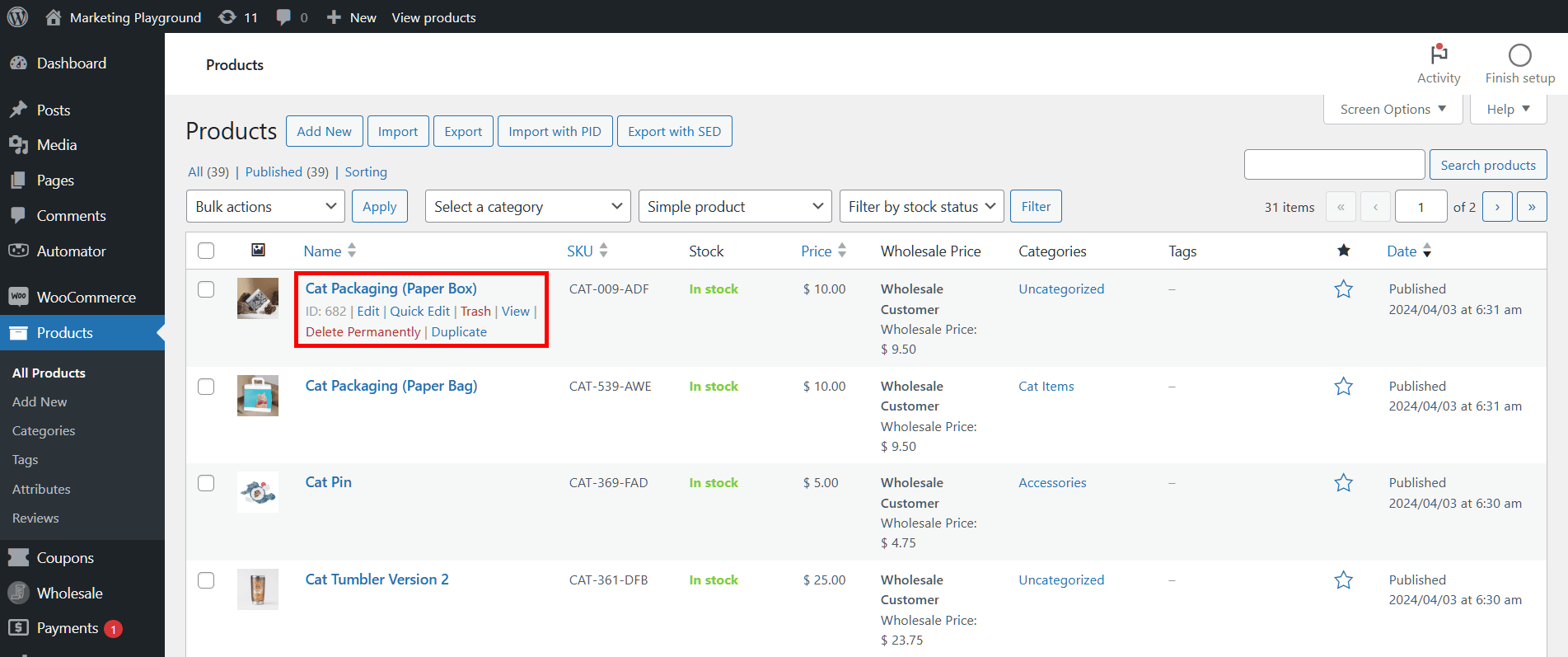
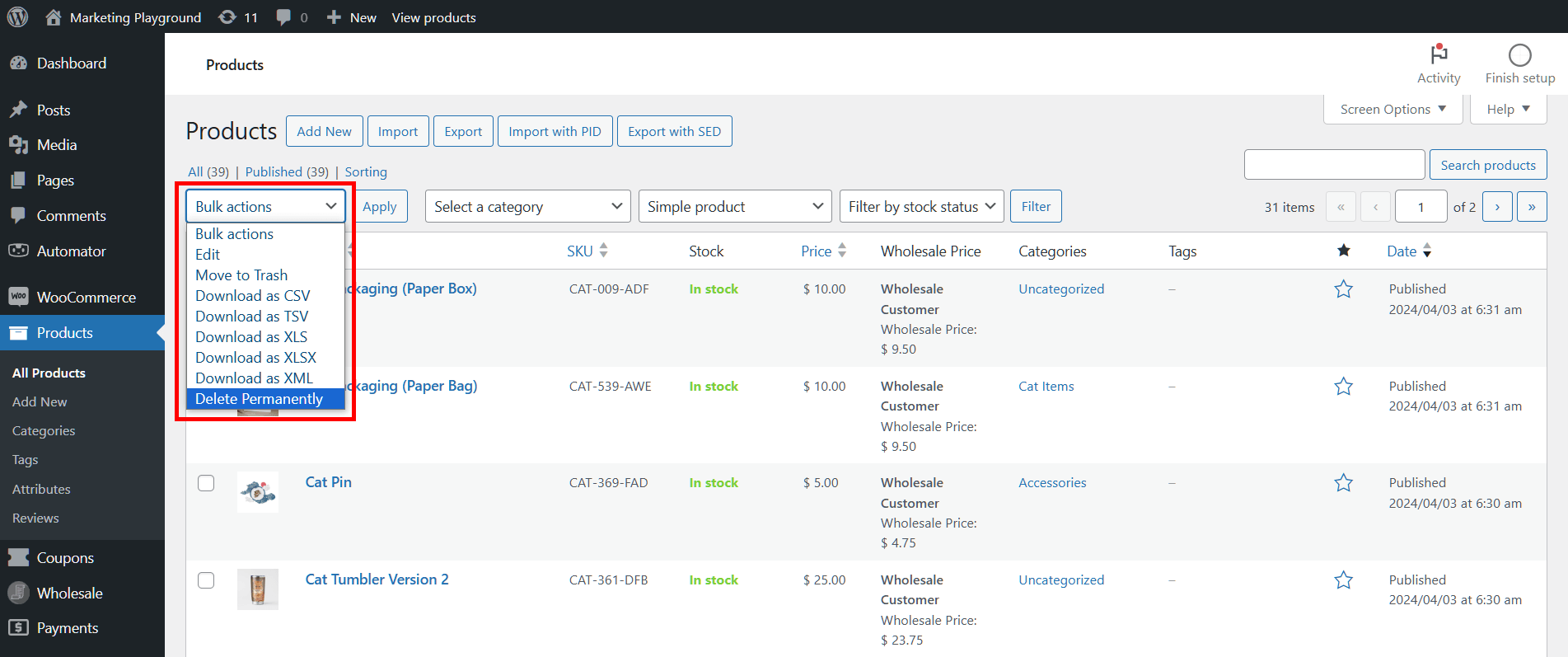
“Delete Permanently” also appears in the Bulk actions dropdown. Tick several products, choose “Delete Permanently,” and click Apply to remove them all at once.
For one more route, including scheduled cleanups, see the Nuking via Manual CRON documentation.
Frequently Asked Questions
How do I delete all products in WooCommerce at once?
Install the free Store Toolkit plugin, open WooCommerce > Store Toolkit > Nuke, tick Products (and Product Categories if you want those gone too), then click Remove. It deletes every matching product in one pass instead of the native admin’s page-by-page Trash. Back up with an export first, because the deletion is permanent.
How do I reset a WooCommerce store to a clean slate?
Export your data as a backup, then use Store Toolkit’s Nuke panel to clear orders, products, categories, and coupons (use Check All for a full reset). Run it on staging first, confirm the result, then repeat on production. This clears WooCommerce content without reinstalling WordPress.
Can I generate test orders and products in WooCommerce?
Yes. Store Toolkit’s Tools panel includes a Generate Sample Orders tool that creates random orders from sample customers, dates, and products, plus sample products for a full dummy catalogue. It’s built for testing themes, checkout changes, reports, and exports on a staging site before you go live.
Is bulk deleting WooCommerce data reversible?
No. Store Toolkit’s Nuke feature permanently deletes records, with no Trash to restore from. That’s why an export backup before you start is essential: if you remove the wrong data, the export is your only way back. Always work on staging first for anything beyond a small, targeted cleanup.
Is Store Toolkit free?
Yes. Store Toolkit is a free WooCommerce plugin from Visser Labs, available on the WordPress.org plugin directory. It sits alongside our other free store utilities, so you can add it for cleanup and testing without a paid licence.
Keep Your Store Clean Without The Risk
Bulk deleting WooCommerce products and orders should be quick, but it should never be careless. Store Toolkit gives you the speed, and a backup-first habit gives you the safety net, so a tidy-up or a full reset stays a routine job rather than a gamble.
- Bulk delete products and orders from the Nuke panel in a few clicks.
- Generate sample data to test changes on staging safely.
- Reset your store only after a full export backup.
Ready to clean up the easy way? Get the free Store Toolkit plugin and handle bulk deletes, test data, and store resets from one screen.