WooCommerce import categories work differently than most store owners expect. There’s no separate category importer, because categories are created as part of a product import. Put your category names in a Categories column, run the built-in importer, and any category that doesn’t exist yet is created for you, including nested parent and child levels.
That’s good news for anyone dreading a manual setup. Building a category tree by hand in WooCommerce takes time and invites typos, and a single inconsistent name leaves you with “T-Shirts” and “Tshirts” sitting side by side in your store.
This guide walks you through how to structure your CSV, run the import with the free built-in tool, assign categories to products in bulk, and fix the problems that come up along the way. So, let’s get started!
Table of Contents
Why Importing WooCommerce Categories Matters
A clear category structure helps customers find their way around your store and helps search engines understand what you sell. Setting it up before you add products also prevents the most common mess in a catalog: products landing in slightly different versions of the same category because someone typed the name by hand each time.
Importing categories from a CSV file lets you plan the whole structure in a spreadsheet first, where it’s easy to see and easy to fix.
- Prepare the full category tree in Excel or Google Sheets
- Map parent and child relationships before anything touches your store
- Keep naming consistent across hundreds of products
- Save hours compared to creating each category by hand
It also avoids a problem that catches people mid-migration: products assigned to categories that don’t exist yet. Good category structure supports your store’s SEO as well, since it shapes how your archive pages are organized.
How WooCommerce Import Categories Actually Works
Categories are imported through your product CSV, not through a separate category file. WooCommerce reads the Categories column on each product row, checks whether each category already exists, and creates any that are missing before assigning the product to them. You never have to create the categories first.
- Nesting: use
>to show hierarchy.Men > Shirts > Casualcreates all three levels and files the product in the deepest one. - Multiple categories: separate them with commas and wrap the field in quotes, as in
"Shirts, Sale Items". - Existing categories: matched by name, so spelling and spacing need to be consistent across rows.
This is why a tidy spreadsheet matters more than any import setting. The category tree you end up with is a direct reflection of what’s in that column.
Prepare Your Product Category CSV
Your file needs one row per product and a Categories column holding that product’s category path. Because categories ride along with products, the rest of the row is a normal product import: a Name at minimum, plus whatever else you want to set.
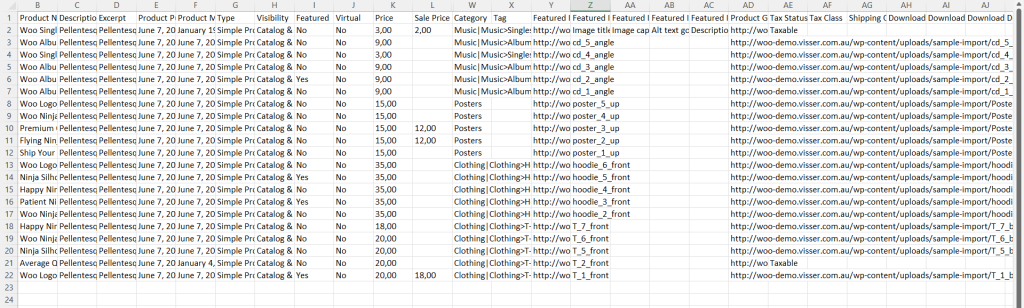
A workable file needs very little:
- Name: the product title, and the only genuinely required column.
- Categories: the full path for that product, using
>for nesting. - SKU: optional but recommended, since it’s how future updates match rows to products.
- Regular price and Stock: optional, include them if you’re building the catalog in the same pass.
Build it in Excel or Google Sheets and export as CSV UTF-8. The encoding matters: save it as plain CSV and accented characters in your category names come through as garbled text.
Use The Built-In WooCommerce CSV Importer
WooCommerce includes a product CSV importer at Products → All Products → Import, and it’s free with the platform. It reads your Categories column, builds the hierarchy, and assigns each product as it goes.
- Go to Products → All Products and click Import.
- Choose your CSV file. If it’s too large to upload, open Advanced options and enter a server file path instead.
- Tick Update existing products if you’re recategorizing products you already have, rather than adding new ones.
- On the Column Mapping screen, confirm your Categories column is mapped to Categories. Your headers don’t have to match WooCommerce’s names, because you can assign each one from the dropdown.
- Click Run the importer, then check Products → Categories to confirm the tree came out the way you planned.
The one thing this tool won’t do is import a list of categories on its own with no products attached. If you want the structure in place before your catalog arrives, import a small batch of products carrying the full category paths, or create the top-level categories by hand under Products → Categories and let the import fill in the rest.
Import Categories With Products
Assigning categories during a full product import is the normal way to do this, and it costs you nothing extra. Each product row carries its own category path, so a 500-product import builds your entire category tree in the same pass.
Structured paths like Men > Shirts > Casual give you a proper hierarchy rather than a flat list, and a quoted comma-separated value puts one product in several categories at once. This is exactly what you want when migrating from another platform or syncing a supplier catalog.
Categories handle the broad organization of your store. A WooCommerce product tag is better for specific, cross-category labels that help customers find related items, and tags import the same way through their own column.
Troubleshooting Category Import Issues
When WooCommerce import categories go wrong, the cause is almost always the spreadsheet rather than the importer. Work through these before running the file again.
- Duplicate categories that look identical: almost always a trailing space or a capitalization difference. “Shirts ” and “Shirts” are two categories to WooCommerce.
- Hierarchy came out flat: check you used
>between levels and not a slash, dash, or pipe. - Multiple categories merged into one: the field needs quotes around it, otherwise the comma splits it into separate CSV columns.
- Categories not assigned at all: the column was probably left on “Do not import” during mapping. Read that screen rather than clicking through.
- Garbled category names: an encoding problem. Re-save the file as CSV UTF-8 and import again.
Export Categories For Backup Or Migration
Exporting your current products and their categories gives you a correctly structured file to work from, which beats building one from scratch. It’s also the fastest way to audit a category tree that’s grown messy, since you can see every assignment in one spreadsheet.
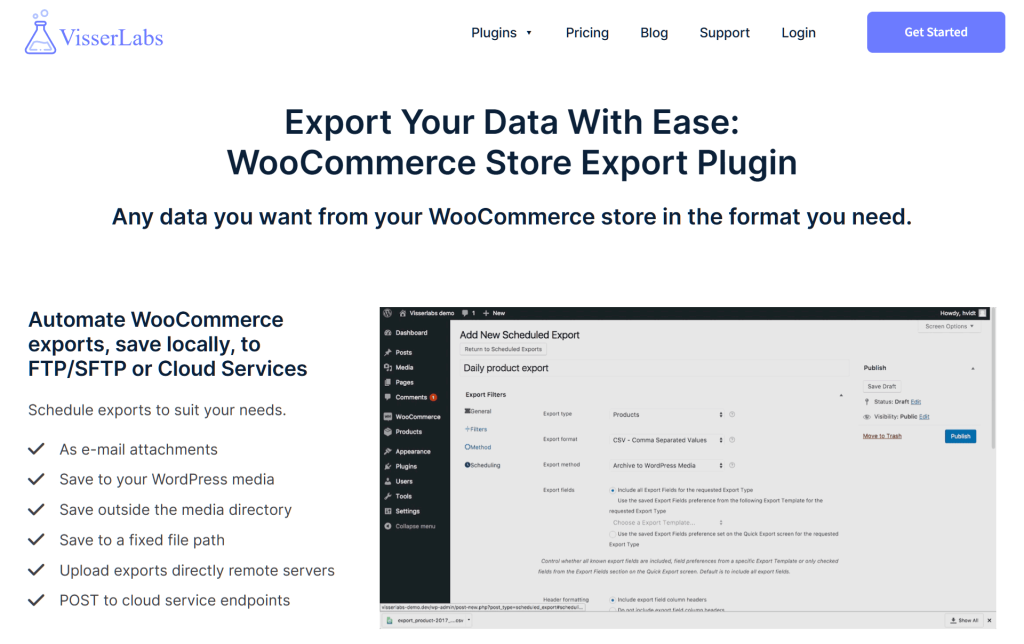
Store Exporter Deluxe handles this side of the workflow:
- Export product data including full category assignments
- Choose exactly which columns you want
- Save as CSV, TSV, XLS, XLSX, XML, or JSON
- Schedule recurring exports for backups
Edit the exported file in a spreadsheet, then bring it back through the importer with Update existing products ticked. For a quick read on format differences, see our guide on CSV vs XML.
Tips For Managing Categories
- Plan the category structure in a spreadsheet before importing anything.
- Keep names and capitalization consistent, since WooCommerce matches on the exact text.
- Go three levels deep at most. Deeper trees get hard for customers to browse.
- Test with 5 to 10 rows before running the full file.
Good category organization improves the customer experience and gives your archive pages a clearer structure for search engines.
Conclusion
WooCommerce import categories come down to one column done well. Get the Categories column right in your CSV and the free built-in importer builds the whole tree for you, nesting included.
Here’s a quick recap of what we covered:
- Categories import through your product CSV, not a separate file.
- Use
>for hierarchy and quoted commas for multiple categories. - Run the built-in importer and check the Column Mapping screen.
- Watch for trailing spaces, the usual cause of duplicate categories.
- Export first when you’re reorganizing an existing catalog.
If you’re ready to reorganize a catalog you already have, start from your real data. Export your products and categories with Store Exporter Deluxe, fix the structure in a spreadsheet, and import it back.
Frequently Asked Questions
How do I import WooCommerce categories only?
WooCommerce import categories run through a product import, because there’s no standalone category importer. Import a small batch of products carrying the full category paths in their Categories column, and the whole tree is built for you. You can also create the top-level categories by hand under Products → Categories and let a later import add the rest.
How do I import nested WooCommerce categories?
Use the > character between levels in your Categories column, as in Men > Shirts > Casual. WooCommerce creates every level in that path that doesn’t already exist and assigns the product to the deepest one, so you don’t need to build the parents first.
Can one product be in multiple categories?
Yes, list the categories comma-separated and wrap the whole field in double quotes, like "Shirts, Sale Items". The quotes matter, because without them the comma is read as a CSV column break and the categories split apart.
Can I create product categories directly in WooCommerce?
Yes, go to Products → Categories and use the fields to add a name, slug, parent, and description. This is fine for a handful of categories, though importing is faster once you’re dealing with dozens of them or a full nested structure.
Can I change categories on products I already have?
Yes, export your products, edit the Categories column in a spreadsheet, and import the file back with Update existing products ticked. Rows are matched on product ID or SKU, so those values need to stay intact for the update to find the right products.
Can I use an XML file instead of CSV?
The built-in WooCommerce importer reads CSV only, so an XML file has to be converted first. Store Exporter Deluxe can export in XML, JSON, and several other formats, but the import side of WooCommerce expects CSV.