Managing your WooCommerce data can be a real challenge, especially when it comes to choosing between CSV vs XML file formats. Many store owners struggle to decide which format best suits their needs.
The right file format can simplify your reporting and help your CRM work better with your data. The short answer: CSV suits flat, spreadsheet-style data and is the only format WooCommerce imports natively, while XML suits nested data headed for another system.
In this guide, we compare CSV and XML by outlining their strengths and weaknesses, and we walk through where each one fits so you can decide which suits your store.
So, let’s get started!
Table of Contents
Understanding CSV vs XML For Data Management
What is CSV?
CSV stands for Comma-Separated Values. In simple terms, it’s a plain text file where each line represents a record, and fields are separated by commas. CSV is popular for both exporting data out of your system and importing it into applications.
What is XML?
XML stands for Extensible Markup Language, defined by the W3C. It organizes data in a structured, tree-like format that clearly shows the relationships between different elements. This format is especially useful for exporting and importing detailed data, making it easier to handle complex system integrations.
Comparison overview
- CSV file: Simple, easy to edit, and ideal for everyday data tasks using spreadsheets.
- XML file: Offers a clear, structured format that works best for managing complex data relationships during both export and import.
Overall, while CSV files offer a straightforward solution for daily reporting, XML files carry the nested structure that complex data integrations need. With these insights in mind, let’s explore the benefits and real-life examples of each file format.
Why Choose CSV For WooCommerce Data Management?
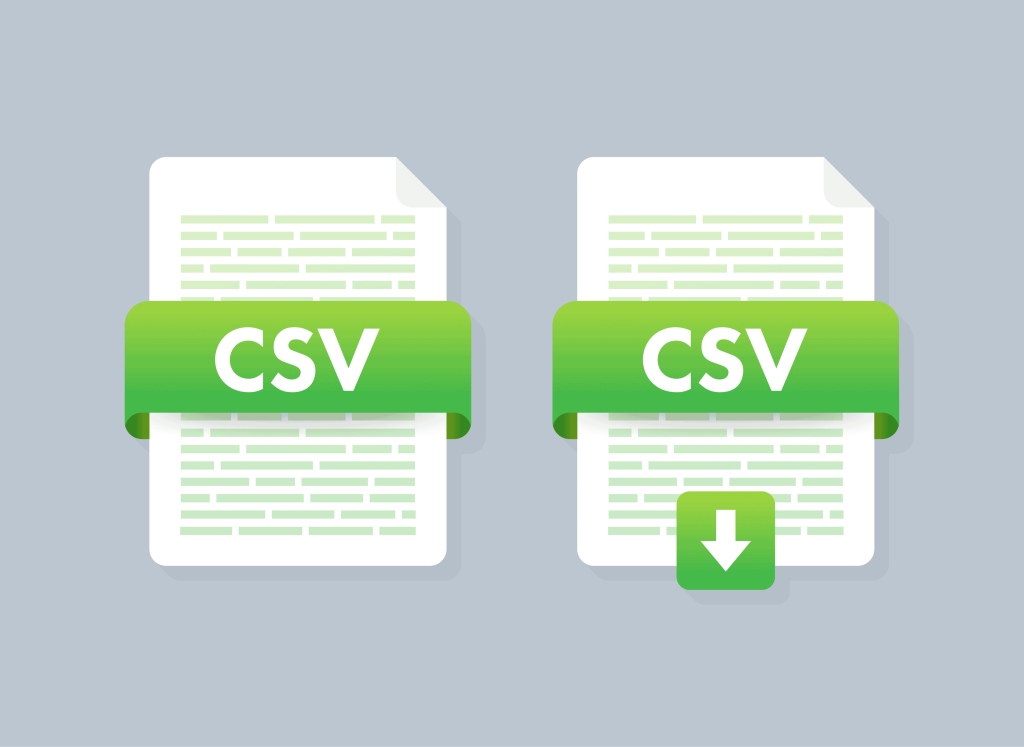
CSV’s simplicity makes it ideal for everyday reporting and quick data reviews. Many store owners find that working with CSV data feels as straightforward as checking a list on paper.
The CSV format is plain text with comma-separated values, and it opens directly in Excel and Google Sheets. It follows the quoting rules set out in RFC 4180, so any value containing a comma is wrapped in double quotes.
One practical detail decides a lot of format choices: WooCommerce’s built-in importer reads CSV only. Bringing XML or JSON into your store means converting it first or using a third-party import tool that accepts those formats.
Benefits and uses of a CSV file:
- It lets you update columns easily using spreadsheet tools.
- Quick imports mean less waiting and faster analysis.
- Its simplicity keeps daily reviews and reporting quick.
- The CSV format is one of the most common data formats used by store owners.
Where CSV earns its place: order reporting. Export your WooCommerce order data as CSV and it opens straight into a pivot table, where sorting by date, category, or customer takes seconds.
That matters because order data is naturally flat. One row per order, one column per field, nothing nested. A format built for rows and columns fits it exactly, and the analysis you can then feed into targeted promotions needs no conversion step first.
For routine tasks, CSV is usually the practical default, because its structure is easy to read and easy to edit. When you compare CSV vs XML for everyday work, that simplicity is the deciding factor more often than not.
Now, let’s take a look at how XML can offer a different approach for more complex reporting tasks.
Why XML Might Be Better For WooCommerce Data Management
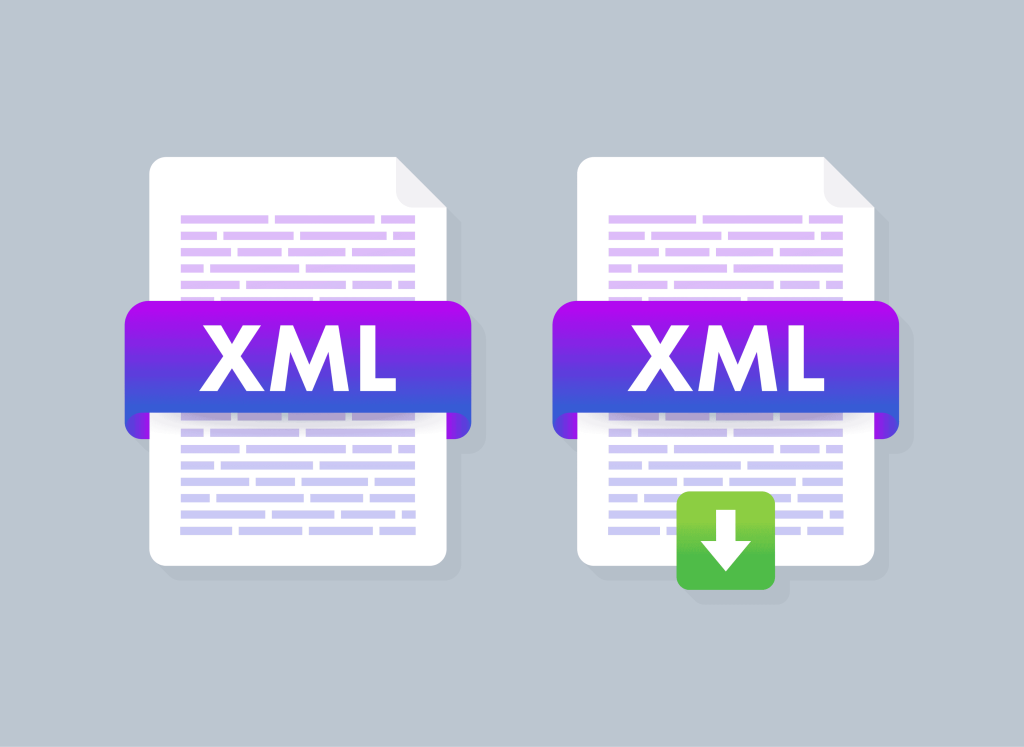
As explained above, XML’s hierarchical structure enables it to handle intricate data integrations efficiently. This XML format clearly shows how different data points relate to each other.
XML data is especially useful when you need to import detailed data into systems that require a clear hierarchy. It handles nested information, such as product variants and order details, more effectively than a simple CSV format.
Benefits of using XML format:
- XML organizes data in a clear, hierarchical tree, making it easier to understand complex relationships.
- You can define custom tags to match your unique data needs, which is useful when working with intricate product details or order information.
- XML handles detailed data much better than simpler data formats, which is especially helpful when importing or exporting rich information.
- Many advanced CRM systems and APIs prefer XML data because of its structured nature, easing the integration process.
- The XML format keeps data context intact, ensuring that important details are maintained during import and export.
Where XML earns its place: variable products. A shirt in five sizes and four colors is twenty variations hanging off one parent, and that shape is a hierarchy rather than a grid.
In CSV, exporting that data means one row for the parent and one row per variation, tied together by a parent reference column. It works, but the relationship lives in a convention rather than in the file’s structure.
XML nests each variation inside its parent, so the relationship is explicit and a receiving system reads it without needing to know your row conventions. That is the real advantage when data is headed into a CRM, an ERP, or a marketplace feed rather than into a spreadsheet.
Which Format Is Right For Your Business?
Deciding between csv vs xml depends on your WooCommerce reporting needs and the complexity of your data. Your choice should align with your business’s specific demands.
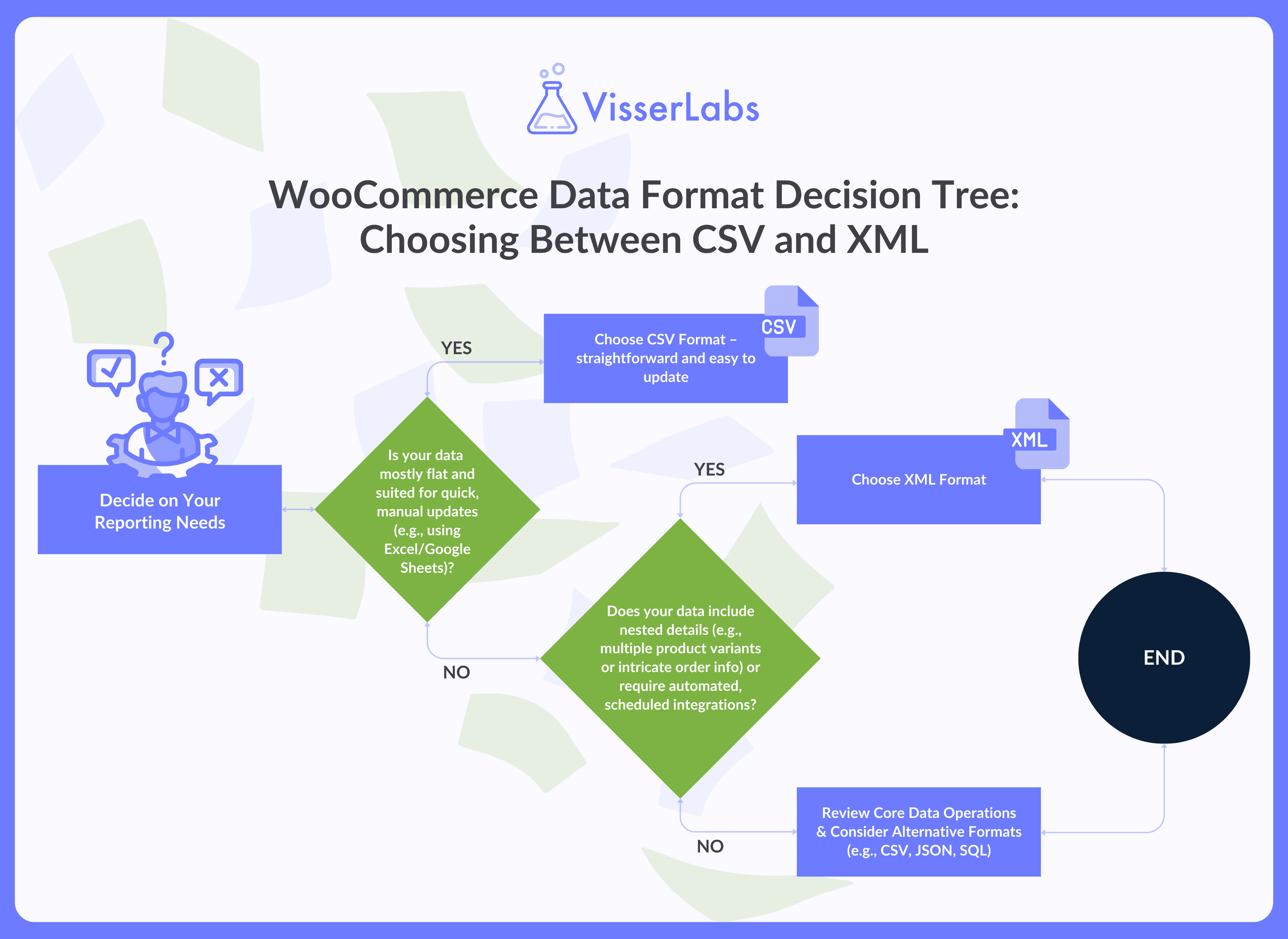
Here are some key considerations:
- If you use simple spreadsheet tools like Excel or Google Sheets, the CSV format works well because it’s a straightforward, comma-separated file that’s easy to update.
- If your data includes nested details such as multiple product variants or intricate order information, an XML format may be more suitable, as it clearly represents relationships within the XML data.
- Consider whether your workflow is more manual or automated; for instance, many store owners import CSV data for quick updates, while others rely on XML data for more detailed integrations.
- Think about your reporting needs: do you require daily updates for quick reviews, or are scheduled imports for comprehensive analysis more important?
Weighing these factors and comparing data formats like CSV vs XML, you can choose the option that fits your business best. Up next, we’ll explore a trusted tool that many store owners rely on to simplify their WooCommerce data reporting.
Best Tools For WooCommerce Data Management
Managing your WooCommerce data is much easier when you use the right tools and follow simple best practices. Many store owners have found that a combination of specialized software and straightforward strategies helps keep their data organized and their reports clear.
We recommend these tools that can handle and manage your WooCommerce data effectively:
1. Store Exporter Deluxe (Visser Labs)
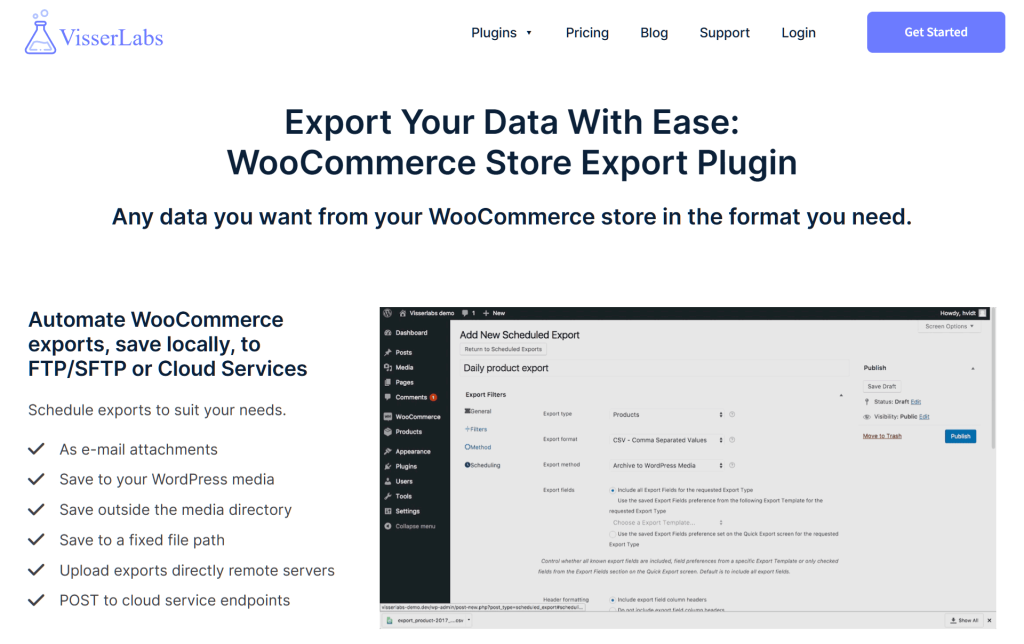
Store Exporter Deluxe is a dedicated WooCommerce export plugin, covering products, orders, customers, categories, and more. It is the tool for getting data out in whichever format your next step needs.
Here are some of its advanced features:
- Export as CSV, TSV, XLS, XLSX, XML, RSS 2.0, or JSON, chosen with a single click.
- Use filtering options to export specific customer data based on defined criteria.
- Customize export columns to adjust the data structure to your needs.
- Configure scheduled exports to run at set intervals, keeping your data current.
- Deliver finished exports by email, FTP or SFTP, a POST to a remote URL, or saved straight to your server.
2. The built-in WooCommerce importer
For getting data back into your store, WooCommerce includes a product CSV importer at Products > All Products > Import. It costs nothing and covers the return leg of the export-edit-import loop.
What it handles:
- CSV files only, which is the main constraint to plan around when choosing a format.
- A Column Mapping screen, so your headers do not have to match WooCommerce’s field names.
- Simple and variable products, categories, tags, and images pulled from URLs.
- Updating products you already have, by ticking Update existing products so rows match on ID or SKU instead of creating duplicates.
What it will not do is schedule imports or pull a file from a URL or FTP server. Those need a third-party import plugin, and they are the main reason a store would look beyond core.
3. MonsterInsights

MonsterInsights is a powerful analytics tool that helps store owners track WooCommerce data effortlessly. It integrates with WordPress to deliver detailed e-commerce reports from your site.
Here are some of its advanced features:
- Connects directly to Google Analytics for in-depth website and sales tracking.
- Provides real-time dashboards with easy-to-read charts and graphs.
- Tracks key e-commerce metrics like conversion rates, revenue, and customer behavior.
- Simplifies data visualization, making it easier to compare different data formats in your reports.
- Integrates smoothly with WooCommerce to offer clear insights into your store’s performance.
Adopting a few best practices can make your WooCommerce data reporting even smoother. For example, using consistent file naming conventions, scheduling regular backups, and integrating your data with your CRM and analytics tools are simple strategies that many store owners have successfully used.
By following these practices, managing your WooCommerce reports becomes less stressful and more organized. With the right tools and these straightforward techniques, you’re well on your way to keeping your data clear and your business informed.
Conclusion
Choosing the right file format for WooCommerce data reporting can make managing your CRM and tracking performance much more efficient. With the right data format and tools, you can turn raw information into meaningful insights for your business.
As your business evolves, it’s important to regularly review and update your data management systems. This ongoing process helps ensure your data remains accurate and your reporting stays aligned with your growing needs.
To recap, here’s what you need to remember:
- Understanding CSV vs XML For Data Management
- Why Choose CSV For WooCommerce Data Management?
- Why XML Might Be Better For WooCommerce Data Management
- Which Format Is Right For Your Business?
- Best Tools For WooCommerce Data Management
Following these points will keep your data reporting quick and your store data organized. If you’ve been considering updating your approach, now is the perfect time to get started!
Frequently Asked Questions
Is CSV or XML better for WooCommerce?
Neither is better outright, because they suit different shapes of data. CSV fits flat, row-and-column data like orders and simple product lists, and it is the only format WooCommerce imports natively. XML fits nested data such as variable products with many variations, and it travels better into other systems.
Can WooCommerce import XML files?
Not with the built-in importer, which reads CSV only. To bring XML data into WooCommerce you either convert it to CSV first or use a third-party import plugin that accepts XML. This is worth deciding before you pick an export format, since it dictates the return trip.
Which format handles product variations better?
XML, because variations nest inside their parent product and the relationship is explicit in the file itself. CSV can carry variations perfectly well using a parent row plus one row per variation, but the link between them depends on a Parent column rather than the structure of the file.
Which format produces smaller files?
CSV, by a clear margin. XML repeats a tag name around every value, so the same data is noticeably larger as XML than as CSV. On a big catalog that difference affects upload limits and processing time, which is another reason CSV suits routine exports.
What other export formats can I use?
Store Exporter Deluxe exports to CSV, TSV, XLS, XLSX, XML, RSS 2.0, and JSON. Pick based on where the file is going: CSV if it is coming back into WooCommerce, XLSX if a person needs to work in it, and XML or JSON if a system is consuming it.