Data export and import processes are the two halves of one loop: export pulls your store’s information into a file you can work with, and import brings the edited version back in. Run them together and you can change hundreds of products in a spreadsheet, then push every change live in a single upload.
Most store owners use only half of it. They export for reporting and never bring anything back, or they import a supplier file without exporting first to see what they already have.
In this article, we’ll cover what each process does, which tools handle each side, and the six things you get from combining them. So let’s get right into it!
Table of Contents
What Are Data Export And Import Processes?
Export copies information out of your store into a file. Import reads a file and writes its contents back into your store. That’s the whole idea, and understanding which direction you need is most of knowing which tool to reach for.
Exporting data
Exporting makes a copy of your store information, such as product or customer details, and saves it outside the store in a format you can open and read. Usually that’s a CSV or an Excel spreadsheet.
Importing data
Importing is the reverse. If you have information sitting in a spreadsheet, importing brings it into your store, either creating new records or updating the ones already there.
Why data export and import processes matter
A spreadsheet is far easier to work in than a product admin screen. Sorting, filtering, find-and-replace, and formulas all become available the moment your catalog is in a file, which is why bulk changes to product or customer details start with an export.
The export on its own is also your backup. If something goes wrong, you have a copy of the data as it was, ready to put back.
What makes the pair useful rather than just handy is the return trip. Export, edit, import, and you’ve changed your whole catalog without touching a single product page.
How To Export And Import Data
Each direction has its own tool. WooCommerce handles the import side itself, and the export side is where a dedicated plugin earns its place, because core’s exporter gives you limited control over what comes out.
What exporter and importer tools do
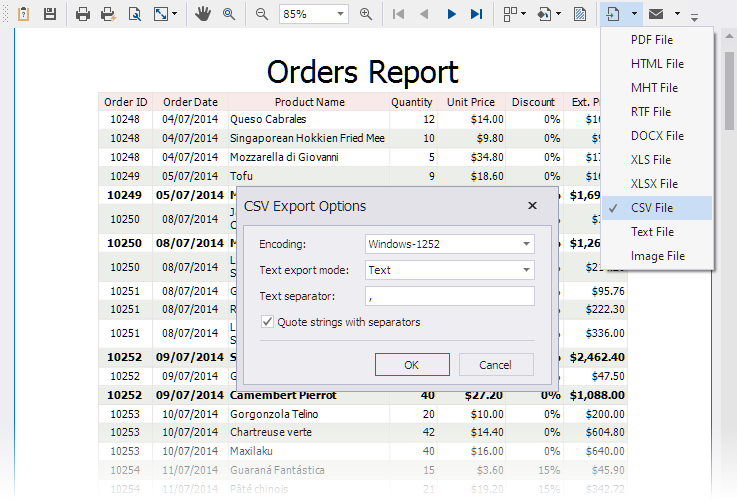
Exporter tools pull data out of your store and write it into a file format you can use elsewhere. Store Exporter Deluxe covers these:
- CSV (Comma Separated Values)
- TSV (Tab Separated Values)
- Excel (XLS and XLSX)
- XML (Extensible Markup Language)
- RSS 2.0 (XML feed format)
- JSON
Pick the format for what you’re doing next. CSV is the one to choose if the file is coming back into WooCommerce, because its importer reads CSV only, and it follows the standard quoting rules set out in RFC 4180, so any value containing a comma needs wrapping in double quotes.
Importer tools read a file and write its contents into your store, matching rows to existing records where they can. WooCommerce includes one at Products → All Products → Import, and it handles simple and variable products, categories, images from URLs, and custom fields at no cost.
The right tools for the job
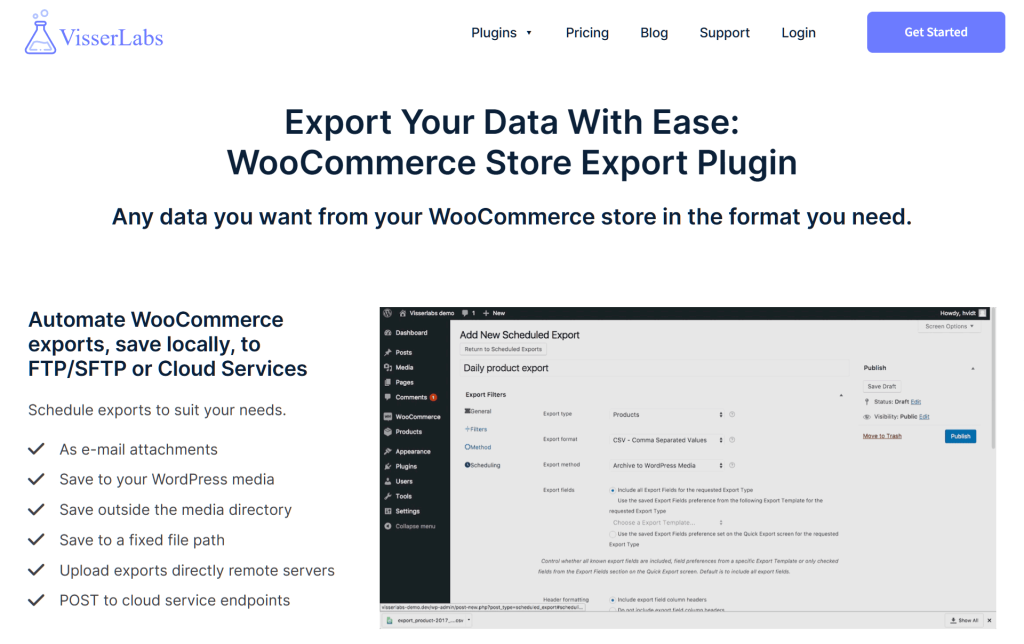
For the export half, Store Exporter Deluxe lets you choose exactly which fields and which records come out, export categories and other datasets alongside products, schedule exports to run on their own, and save export templates so a recurring job is one click.
For the import half, WooCommerce’s built-in importer covers the return trip. Its Update existing products option matches each row against your catalog by product ID or SKU and updates that record rather than creating a duplicate, which is the setting that makes the round trip safe. Its Column Mapping screen also means your headers don’t have to match WooCommerce’s field names exactly.
A paid import plugin only becomes worth it if you need scheduled imports or a supplier feed pulled automatically from a URL or FTP server, which core does not do.
Maximizing The Benefits: A Synchronized Approach
Used together, export and import turn your catalog into something you can edit in bulk and put back safely. Here are the six practical gains.
1. Moving data between systems
A file is the common language between platforms. Exporting to CSV and importing elsewhere is how you move a catalog into an accounting package, a marketplace listing tool, or a second store.
2. System integration
Bringing supplier data in becomes routine once both directions are set up. You export to see your current structure, match the supplier’s file to it, then import.
3. Consistent data backup
An export is a restore point. Take one before any bulk change, and if the change goes wrong you can import the original file back over the top.
4. Bulk updates without the admin screen
This is the one most stores underuse. Export your products, apply a formula to every price or stock level in a spreadsheet, then import with Update existing products ticked. A change that would take days by hand takes an afternoon.
5. Working with other people
A spreadsheet is something you can hand to a supplier, a copywriter, or a bookkeeper. They work in the file, you import the result, and nobody needs a WordPress login.
6. Room to grow
The loop works the same at 50 products and at 50,000. Once the process is in place, catalog size stops being the thing that decides how long a change takes.
Products and orders aren’t the only data worth this treatment. Customer feedback is another, which is why a complete strategy also covers customer reviews management, using the same export tools to collect and analyze what buyers are saying.
Conclusion
Data export and import processes are worth treating as one workflow rather than two separate jobs. Export to get your data somewhere you can actually work with it, then import to put the result back.
Here’s a quick recap of what we covered:
- What each process does and why the pair matters more than either half.
- Which tool covers which direction, including the free built-in importer.
- The six gains from running them together, bulk updates chief among them.
If you’re ready to put data export and import processes to work on your store, start with a clean export. See what Store Exporter Deluxe can pull from your catalog, then edit the file and bring it back through the built-in importer.
Frequently Asked Questions
What is the difference between data export and import?
Export copies information out of your store into a file, and import reads a file and writes its contents back in. Export is how you get data somewhere you can edit or analyze it; import is how the result gets applied to your store.
Do I need a plugin for data export and import processes?
Not for the import half, since WooCommerce includes a product CSV importer at Products → All Products → Import. The export half is where a plugin helps, because core’s exporter gives you limited control over which fields and which records you pull.
Which file format should I export to?
Export to CSV if the file is coming back into WooCommerce, because its importer reads CSV only and will not accept XLSX or XML. Choose XLSX, XML, RSS, or JSON when the file is headed somewhere else, such as an accounting system or a marketplace feed.
Will importing create duplicate products?
Only if you leave Update existing products unticked on the import screen. With it enabled, WooCommerce matches each row by product ID or SKU and updates that product in place, skipping rows it cannot match rather than adding them.
Can I automate data export and import processes?
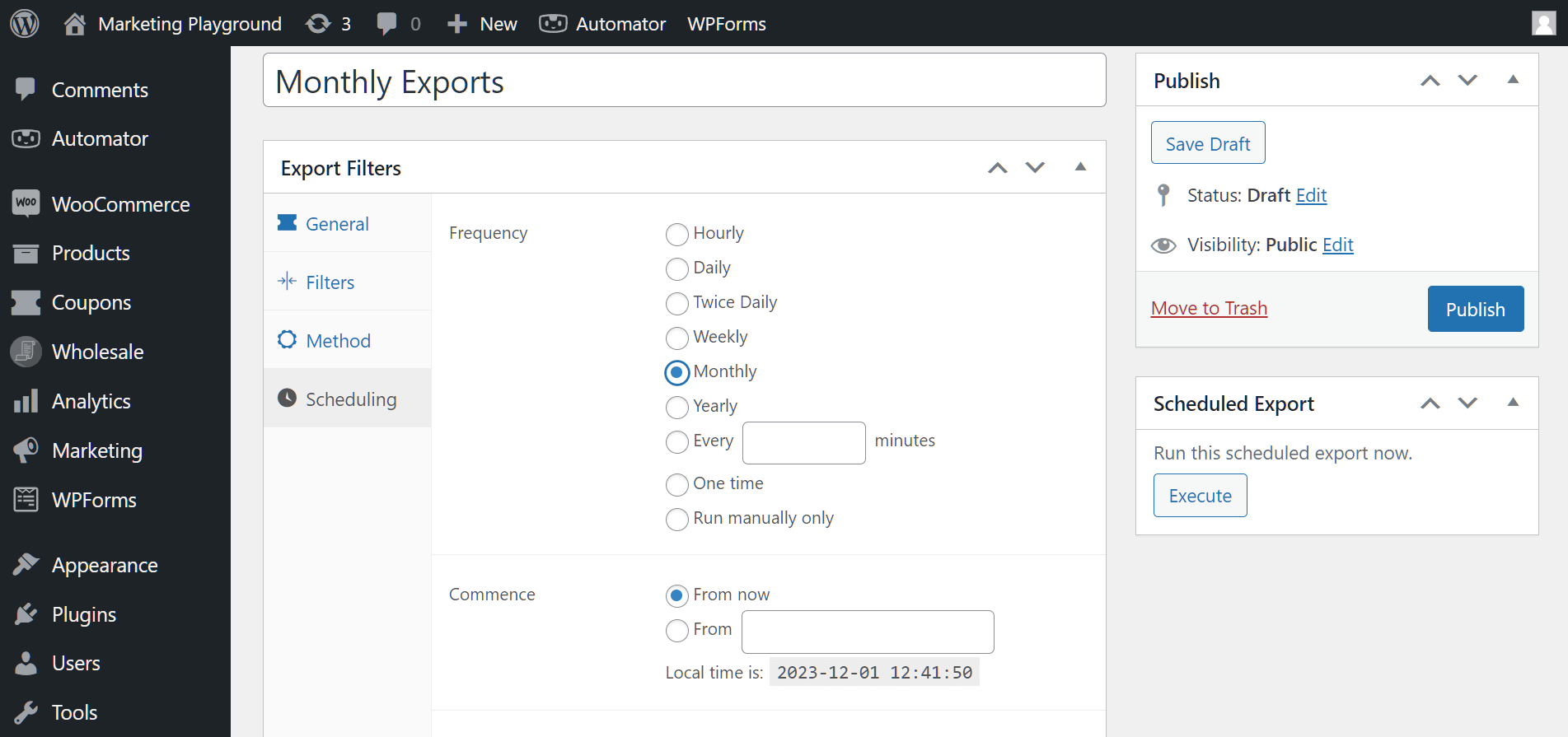
The export side can run on a schedule with delivery by email, FTP, or SFTP. The import side cannot, because WooCommerce’s built-in importer has no scheduling and has to be triggered from the dashboard, so a fully automated loop needs a third-party import plugin that supports cron.