
Creating a WooCommerce export customer list in Excel is a game changer for managing your store’s customer data. Whether you’re looking to analyze purchase patterns, improve marketing strategies, or simply keep organized records, exporting this list into an Excel file offers flexibility and control.
In this guide, we’ll walk you through everything you need to know about creating that list and making the most of your shoppers’ information. We’ll even provide you with a step-by-step tutorial on how to use an advanced export solution to easily export WooCommerce customer details into a file that you can access, examine, and modify using Excel.
So, are you ready to learn how to generate a WooCommerce customer export list in Excel? Then read on!
What’s In A WooCommerce Customer Export
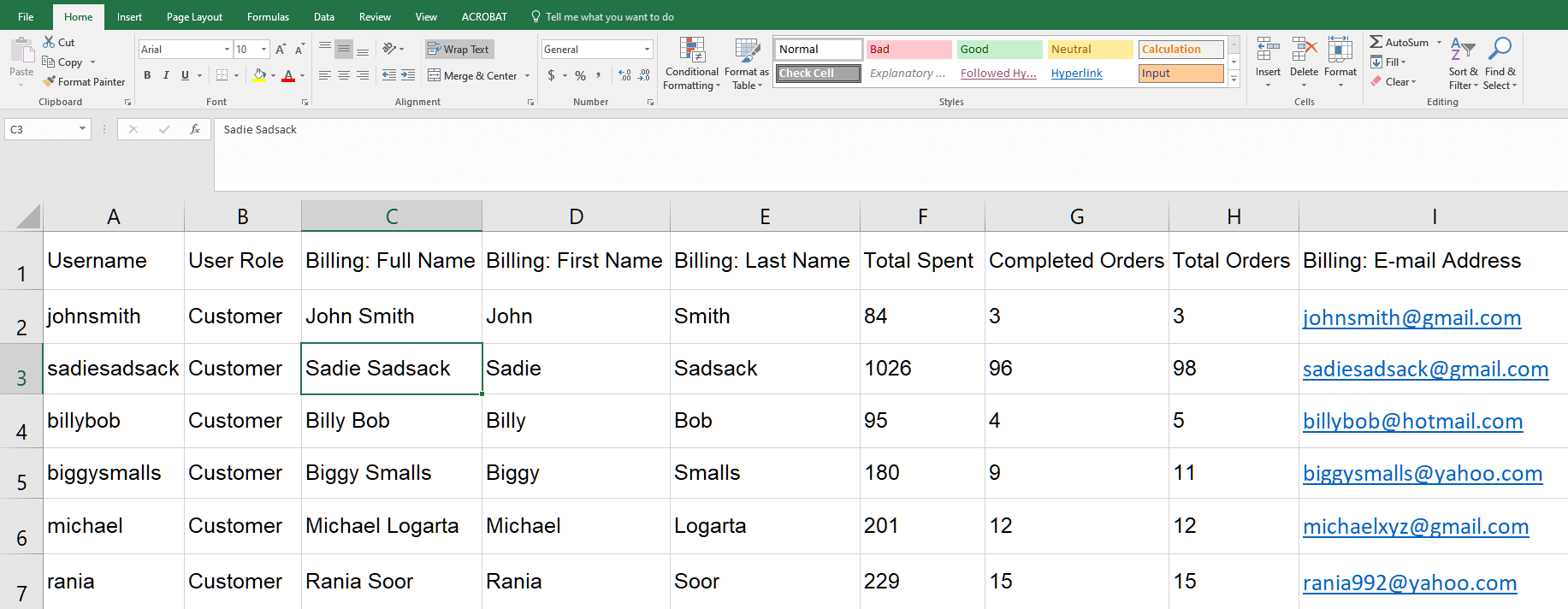
A WooCommerce customer export is a structured file containing the data WordPress and WooCommerce store about each registered customer: name, email, billing and shipping addresses, account creation date, and the orders attached to that customer.
Different export tools surface different fields. The native WooCommerce exporter focuses on the basics, enough to build a contact list or run a quick reconciliation. Dedicated export plugins extend the field set to include lifetime spend, last order date, customer notes, and custom user meta from third-party plugins.
The right tool depends on what you’re going to do with the file. Shipping the list to your accountant? Native export is fine. Segmenting your email list by repeat-customer behavior or country? You’ll need filtering.
How To Export Customers Using Native WooCommerce
WooCommerce ships with a built-in customer export. It’s the fastest way to pull a complete unfiltered customer list.
- Navigate to WooCommerce → Customers in the WordPress admin sidebar.
- Click the Export button at the top of the customer list.
- Download the CSV. The export downloads to your local machine and opens in any spreadsheet app.
The file includes name, email address, billing and shipping addresses, customer creation date, and order count. It does not include filterable segments. You get every registered customer in one pass.
Limitations Of The Native Customer Export
The native export is fast and easy, but it has clear limits that show up the moment you try to do anything other than pull the whole list.
- No filtering. You can’t pull only customers in a specific country, customers who’ve spent over a threshold, or customers who haven’t ordered in 90 days. It’s all-or-nothing.
- No scheduling. You have to manually trigger every export. There’s no way to drop a fresh customer file into your team’s shared folder every Monday morning.
- Limited format options. You’re stuck with CSV. No XLSX, XML, JSON, or TSV, which some email platforms and CRM tools require.
- No custom user meta. If you’ve added custom fields via ACF, MemberPress, or third-party CRM plugins, that data doesn’t make it into the export.
For most stores, the native export works fine for ad-hoc list pulls. The moment customer export becomes a recurring task (for email marketing, accounting, or analytics), those limits become friction.
How To Export Filtered Customer Lists With Store Exporter Deluxe
Store Exporter Deluxe is the export tool we build for stores that need filtered, scheduled, or multi-format customer exports. The same plugin handles product, order, and subscription exports, and customer export is one of its core export types.
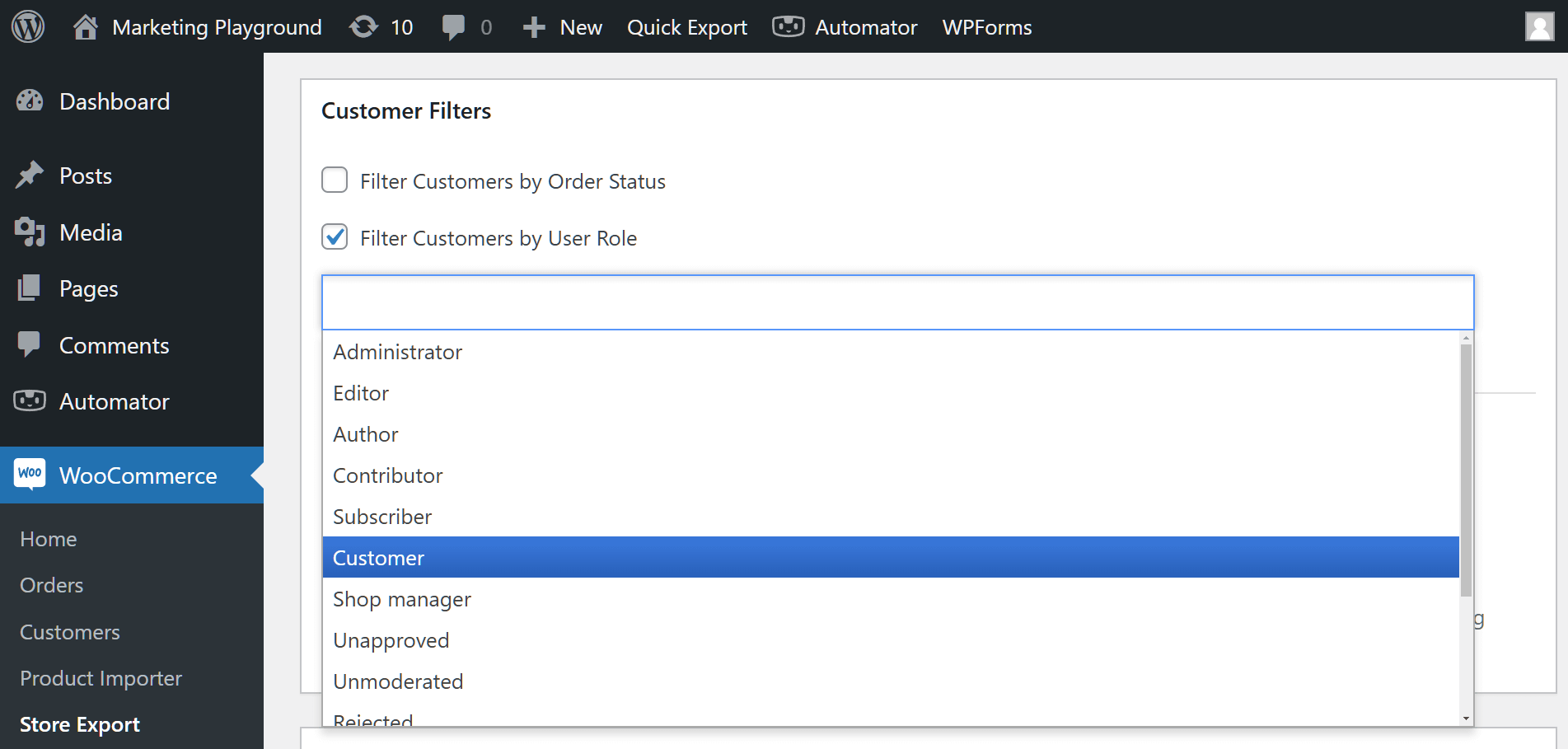
Filter By User Role
Pull only customers in a specific WordPress user role: wholesale customers, members, subscribers, or any custom role you’ve set up. Useful for pulling segmented email lists when different customer tiers get different campaigns.
Filter By Purchase Behavior
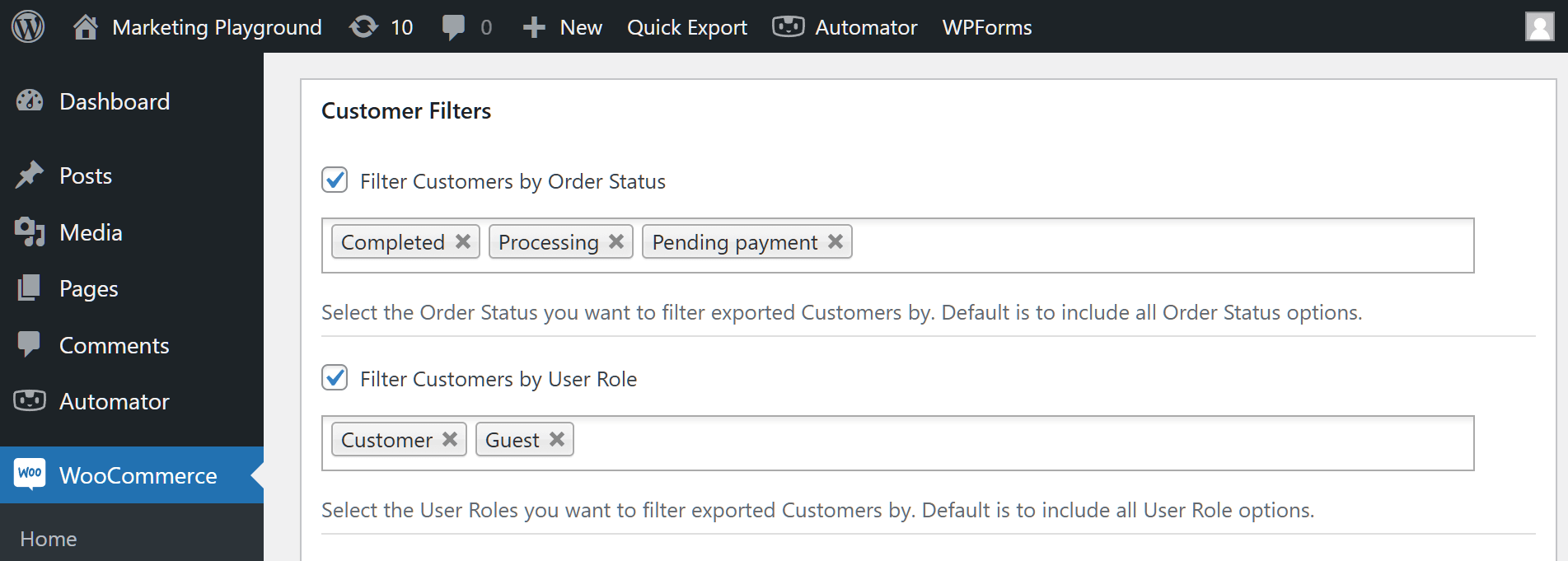
Filter customers based on the orders they’ve placed. This works through the order export. Filter orders by date range, status, product, customer, or country, then export the unique customer list from those orders. The same approach lets you pull “customers who bought Product X in the last 90 days” or “customers in Australia who placed an order over $200”.
Schedule Automatic Customer Exports
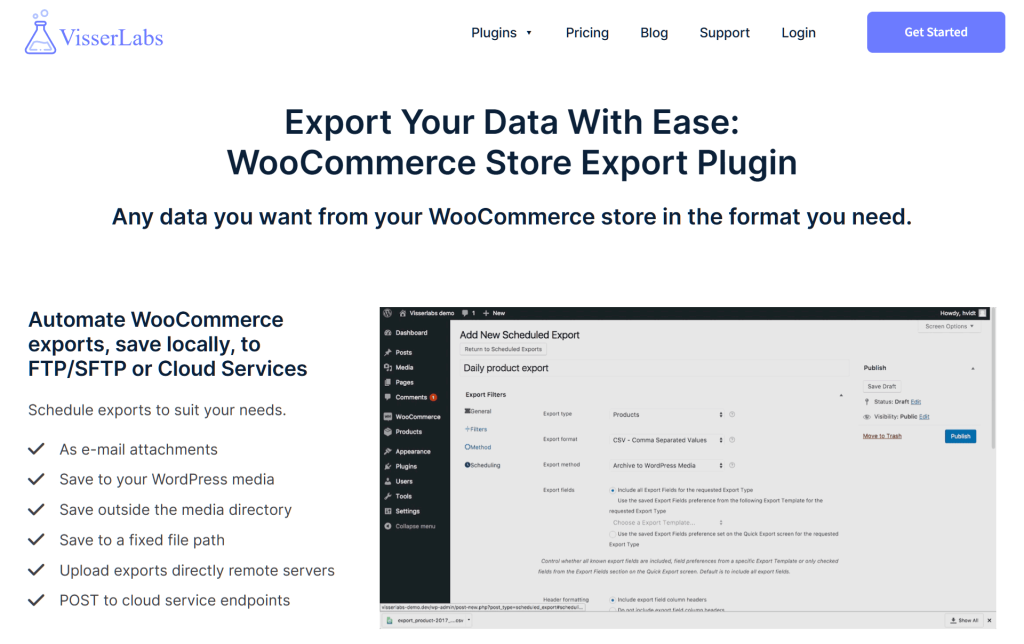
Set up a scheduled export to run on a custom interval: every few minutes, hourly, daily, weekly, or monthly. The output ships to email, FTP/SFTP, or a POST endpoint, with the option to also archive the file on the server. Useful for keeping a CRM in sync, populating a shared customer dashboard, or feeding an email platform’s import-from-URL pipeline.
Multiple Format Options
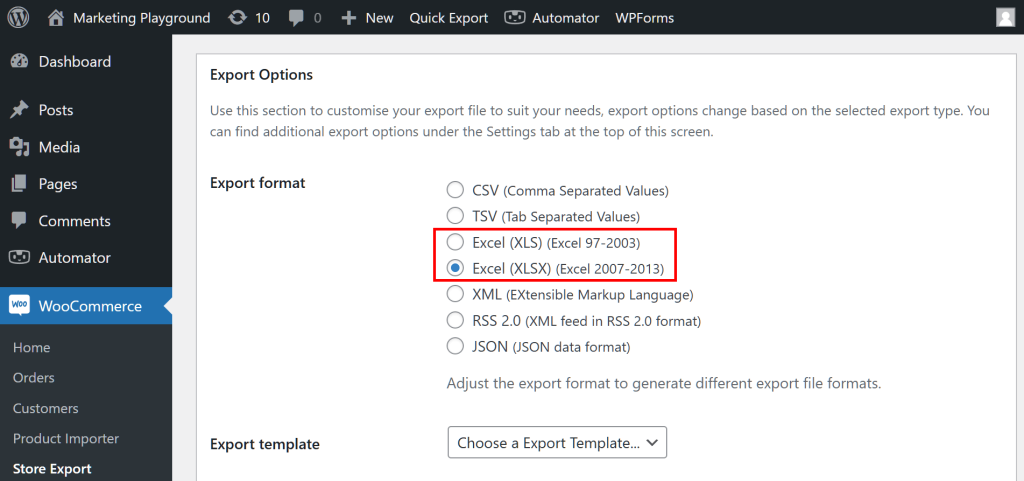
Store Exporter Deluxe supports CSV, TSV, XLS, XLSX, XML, RSS, and JSON output. Pick the format your downstream system expects. JSON for API-based CRM imports, XML for ERP feeds, CSV for everything else.
What We’ve Seen: Store owners often build a custom WordPress query or a SQL export to pull “customers who haven’t ordered in 90 days”, then realize they need it again the following month and have to redo the whole thing. A scheduled customer export with a date filter solves this once and runs forever.
Common Use Cases For Customer Export
Email Marketing List Segmentation
Most email platforms (Mailchimp, ActiveCampaign, Klaviyo, Drip) accept CSV imports for list building and re-engagement campaigns. A filtered customer export (repeat customers, dormant customers, or high-value customers) feeds directly into a re-engagement or upsell campaign without manual list management.
Store owners who export WooCommerce customer emails this way typically end up with cleaner segments than a raw customer dump, since the filtering happens before the data ever reaches the inbox tool.
Accounting And Tax Reconciliation
End-of-quarter reconciliation often needs the customer list joined to order data: who bought, what they bought, where it shipped (for tax jurisdiction), and how much they paid. Exporting customers and orders in tandem gives your accountant or bookkeeper everything they need in two files.
Customer Analytics And Cohort Reporting
Understanding repeat purchase rate, average order value by cohort, and lifetime customer value all start with a clean customer export joined to order history. Tools like Looker Studio, Metabase, and Tableau accept CSV uploads, and a scheduled export keeps the dashboard fresh without manual data pulls.
Migration Or Backup
Moving to a new store, switching email platforms, or just keeping a regular off-site backup of customer data all rely on a structured export. CSV with all customer fields populated works as both a backup and a portable migration file.
Next Steps
If you only need an unfiltered customer list once, the native WooCommerce export is the fastest path. Two clicks, file downloaded.
If customer export is becoming a recurring task (segmented lists for email campaigns, scheduled exports for accounting, or filtered pulls by user role), Store Exporter Deluxe handles the filtering and automation natively.
Need to export orders and products alongside customers? See the guide on exporting orders to CSV or XML and the product export with images guide. Setting up scheduled exports for the first time? See our scheduled export walkthrough.
Frequently Asked Questions
How do I export customers from WooCommerce?
Go to WooCommerce → Customers, click Export, and download the CSV. The native exporter includes name, email, billing and shipping addresses, account creation date, and order count.
Can I export filtered customer lists in WooCommerce?
The native exporter doesn’t filter. It’s all customers in one file. Store Exporter Deluxe adds filtering by user role and order-based filters (date, country, product, status), so you can pull “wholesale customers in Australia who ordered last month” in a single export.
What format does WooCommerce export customers in?
Native export is CSV. Store Exporter Deluxe adds TSV, XLS, XLSX, XML, RSS, and JSON for direct integration with email platforms, ERPs, or CRM tools that need a specific format.
Can I schedule automatic customer exports?
Yes. Store Exporter Deluxe runs scheduled exports on custom intervals (every few minutes, hourly, daily, weekly, or monthly) with output sent to email, FTP/SFTP, or a POST endpoint. Useful for ongoing email-list refreshes and recurring reporting.
How do I export only repeat customers from WooCommerce?
The native exporter doesn’t filter by order count. Use Store Exporter Deluxe’s order export with an order-status and date filter, then deduplicate the customer list. Or use the customer export with a user-role filter if you’ve tagged repeat customers with a specific role.