

If you run a WooCommerce store with recurring revenue, you’ll eventually need to export your subscription data. Maybe your finance team needs a monthly reconciliation report, your accountant wants records for tax season, or you’re migrating platforms and need a clean data extract. Whatever the reason, getting subscription data out of WooCommerce in the right format matters.
The problem is that WooCommerce doesn’t include a built-in subscription export tool. The WooCommerce Subscriptions plugin handles creating and managing subscriptions, but pulling that data out in a structured format requires a separate solution.
In this guide, we’ll walk through how to export WooCommerce subscriptions step by step using Store Exporter Deluxe. You’ll learn how to customize fields, filter by status or product, choose your file format, set up scheduled exports, and handle large datasets without server timeouts.
How To Export WooCommerce Subscriptions With Store Exporter Deluxe
The fastest way to export WooCommerce subscriptions is through the Quick Export tab in Store Exporter Deluxe. This gives you a one-click export with full control over which fields to include and how to filter records.
Here’s how to run your first subscription export:
- Go to WooCommerce > Store Export in your WordPress dashboard.
- Click the Quick Export tab.
- Under Export Type, select Subscription.
- Choose your export format (CSV, XLS, XLSX, or XML).
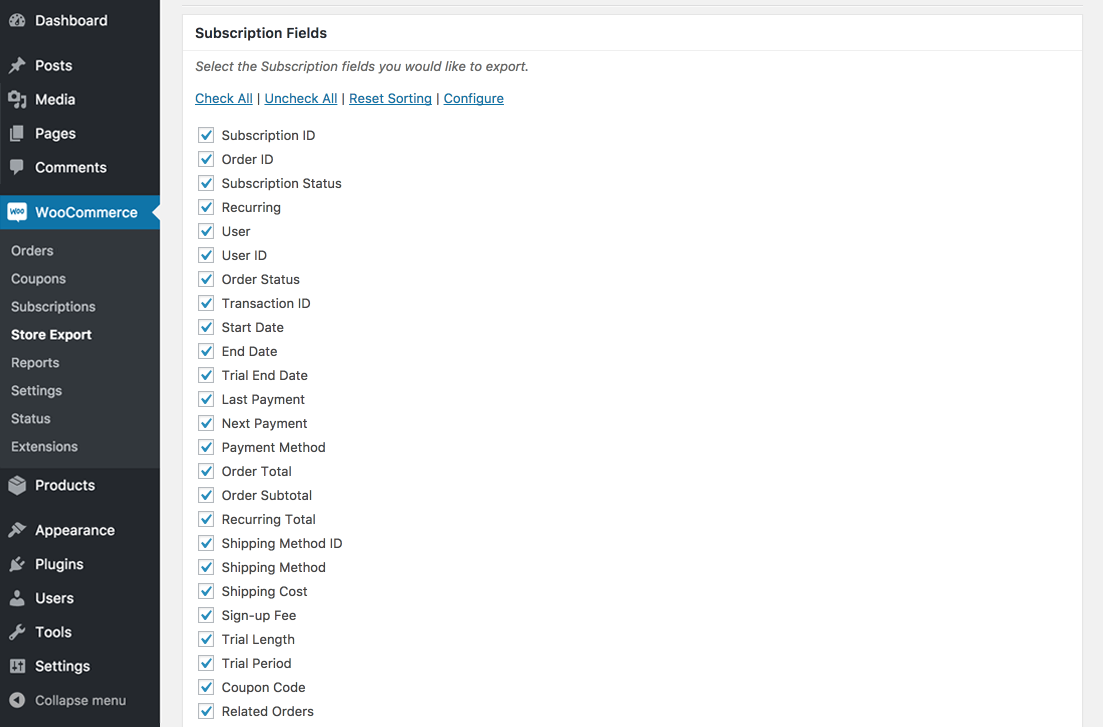
- Select the fields you want to include (see the next section for details).
- Apply any filters (status, product, customer).
- Click Export. Your file downloads immediately.
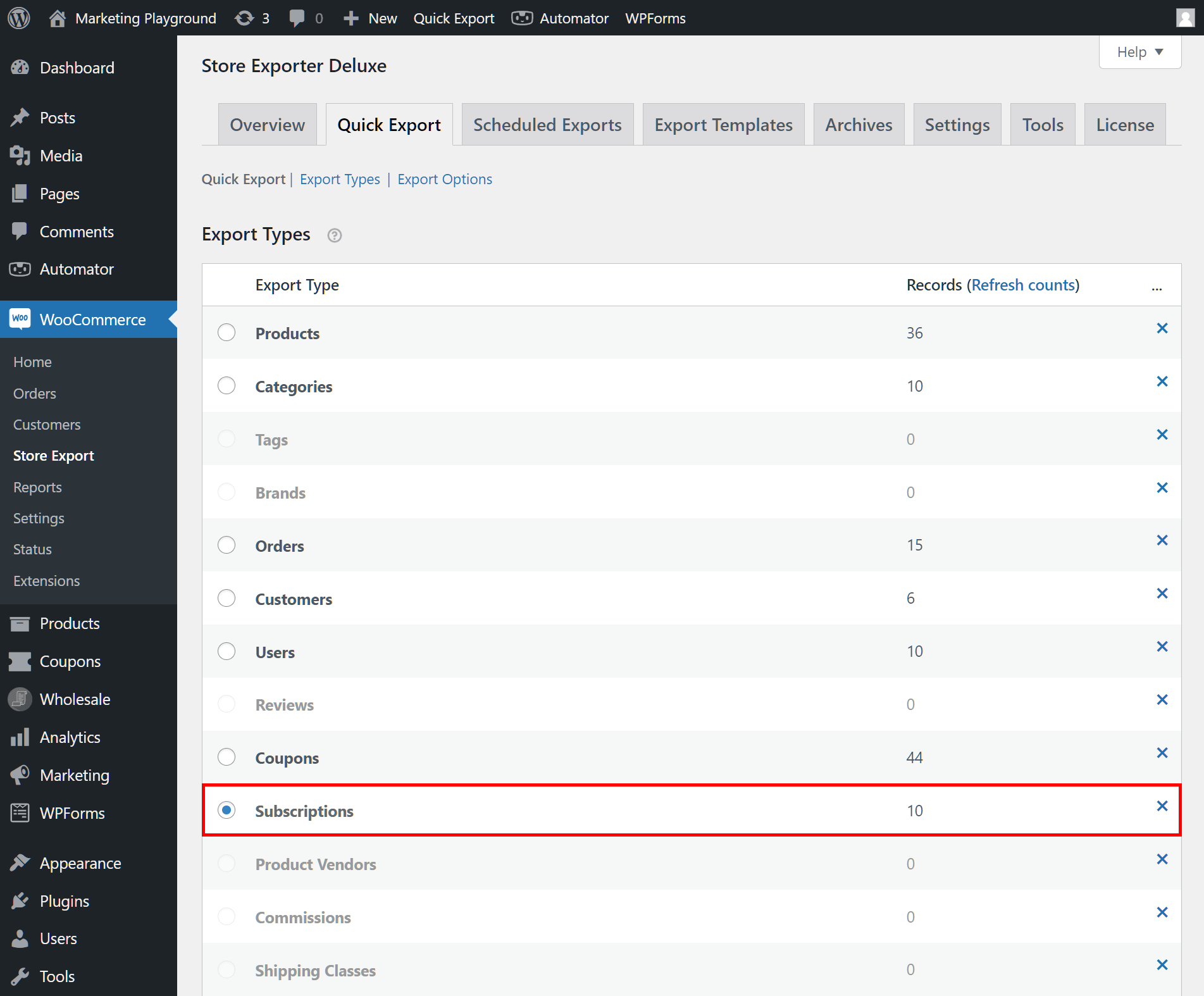
The export runs in your browser and downloads the file directly. For most stores, this takes just a few seconds. If you have a very large number of subscriptions (10,000+), see the batch exporting section below.
How To Customize Your Subscription Export Fields
A raw data dump with every field isn’t always useful. Store Exporter Deluxe lets you control exactly what appears in your export file, from choosing specific data fields to renaming column headers.
Selecting and renaming fields
When you select Subscription as your export type, Store Exporter Deluxe shows you every available field. These include subscription ID, status, start date, next payment date, billing period, customer details, product information, and more.
You can uncheck any fields you don’t need. If your finance team only wants subscription ID, status, customer email, and recurring total, uncheck everything else. This keeps your export clean and easier to work with in a spreadsheet.
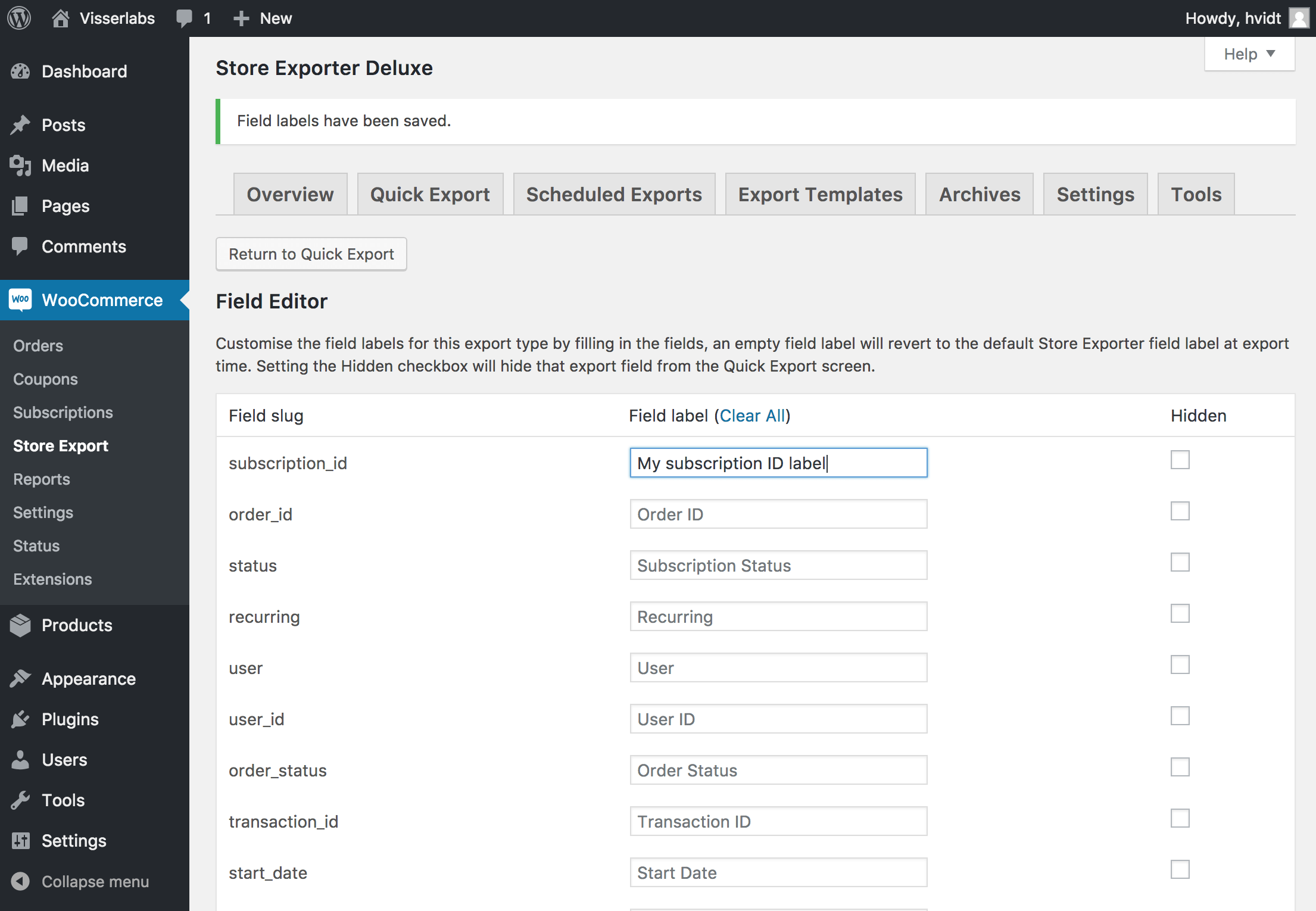
To rename column headers, use the Field Editor. This is useful when your accounting software or CRM expects specific column names. For example, you might rename “Billing First Name” to “First Name” or “Subscription Status” to “Status” to match your import template.
Adding custom meta fields
If you’re using plugins that add custom data to your subscriptions (such as custom checkout fields, delivery preferences, or internal notes) you can include those in your export too. Store Exporter Deluxe supports exporting custom meta fields attached to subscription records.
Enter the meta key name in the Custom Fields section, and it gets pulled into your export as an additional column. This is especially useful for stores that track subscription-specific data beyond what WooCommerce Subscriptions stores by default.
Filtering by status, product, or customer
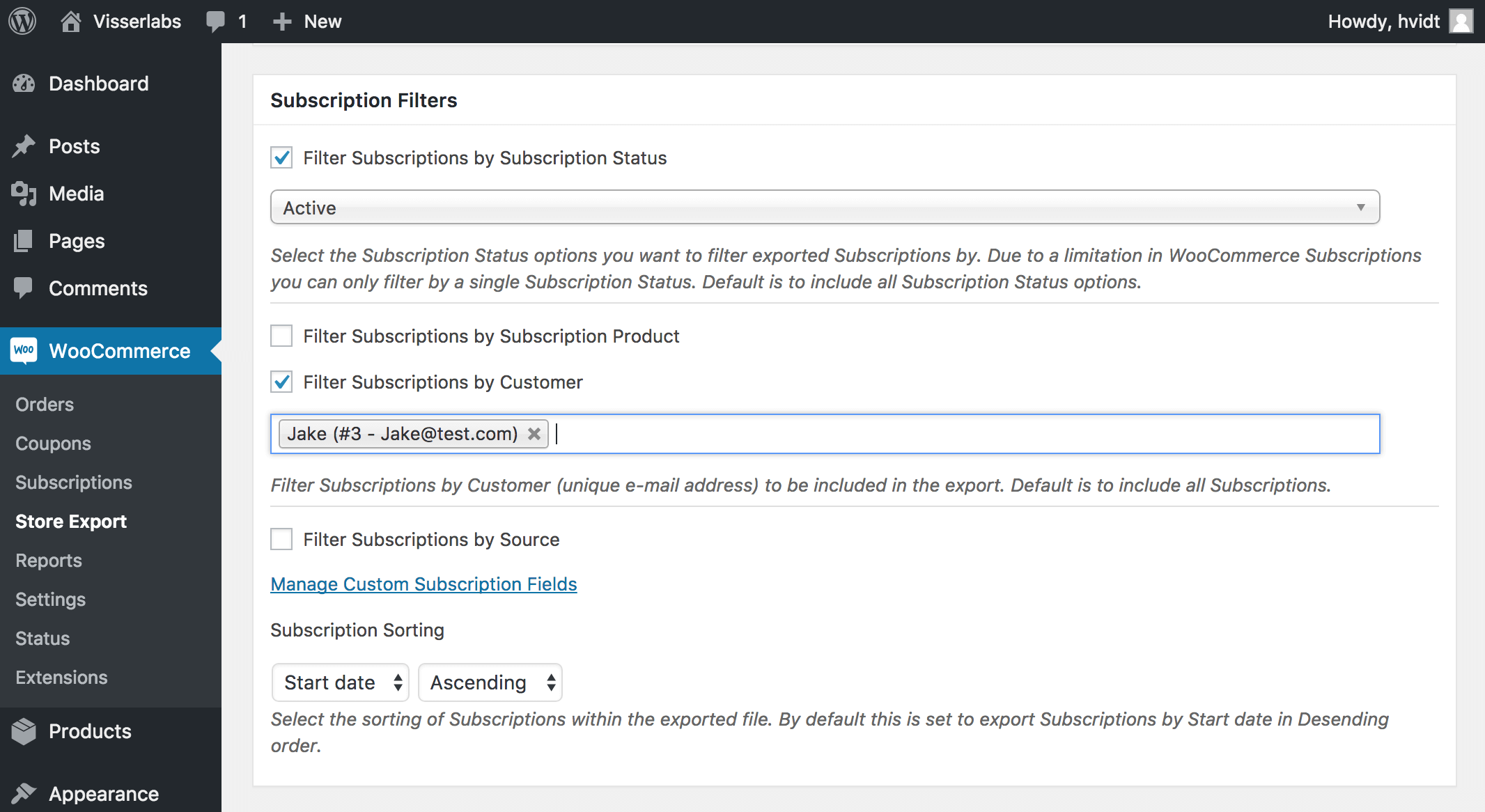
You don’t always need every subscription in your export. Store Exporter Deluxe includes filters so you can narrow your export to exactly the records you need:
- By status: Export only active subscriptions, or only cancelled, on-hold, pending-cancel, or expired ones. This is useful for churn analysis or for sending a list of active subscribers to your email marketing platform.
- By product: If you sell multiple subscription products, filter the export to include only subscriptions for a specific product. Helpful when you need a report on a single subscription tier or plan.
- By customer: Filter by specific customers when you need to pull subscription records for individual accounts. Useful for support tickets or account reviews.
You can combine these filters. For example, export only active subscriptions for a specific product, giving you a precise list of current subscribers on that plan.
What We’ve Seen: A common mistake we see is store owners exporting all subscriptions without filtering by status, then spending time manually removing cancelled and expired records in their spreadsheet. Use the status filter before exporting. It saves significant cleanup time, especially for stores with years of subscription history.
Choosing The Right Export Format
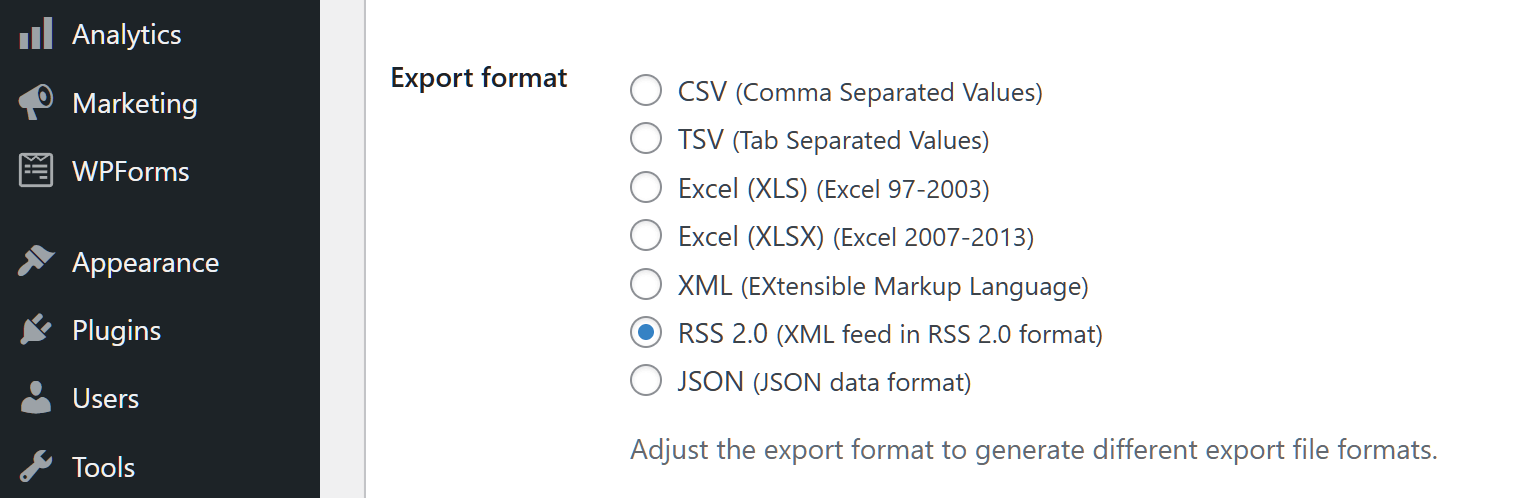
Store Exporter Deluxe supports four export formats for subscription data. The best choice depends on what you’re doing with the file afterward.
- CSV (Comma-Separated Values): The most universal format. Works with Excel, Google Sheets, accounting software, CRMs, and virtually any data import tool. If you’re unsure which format to use, CSV is the safest choice.
- XLS / XLSX (Excel): Best if you’re working directly in Microsoft Excel and want to preserve formatting. XLSX is the modern Excel format and supports larger datasets than the legacy XLS format.
- XML: Useful for integrations with enterprise systems, custom APIs, or applications that consume structured XML data. Less common for day-to-day reporting but essential for certain technical workflows.
For most WooCommerce store owners, CSV is the recommended format. It’s lightweight, universally compatible, and easy to open in any spreadsheet application. Use Excel format if you need to share files with team members who work primarily in Excel. Use XML only if a downstream system specifically requires it.
How To Handle Large Subscription Exports
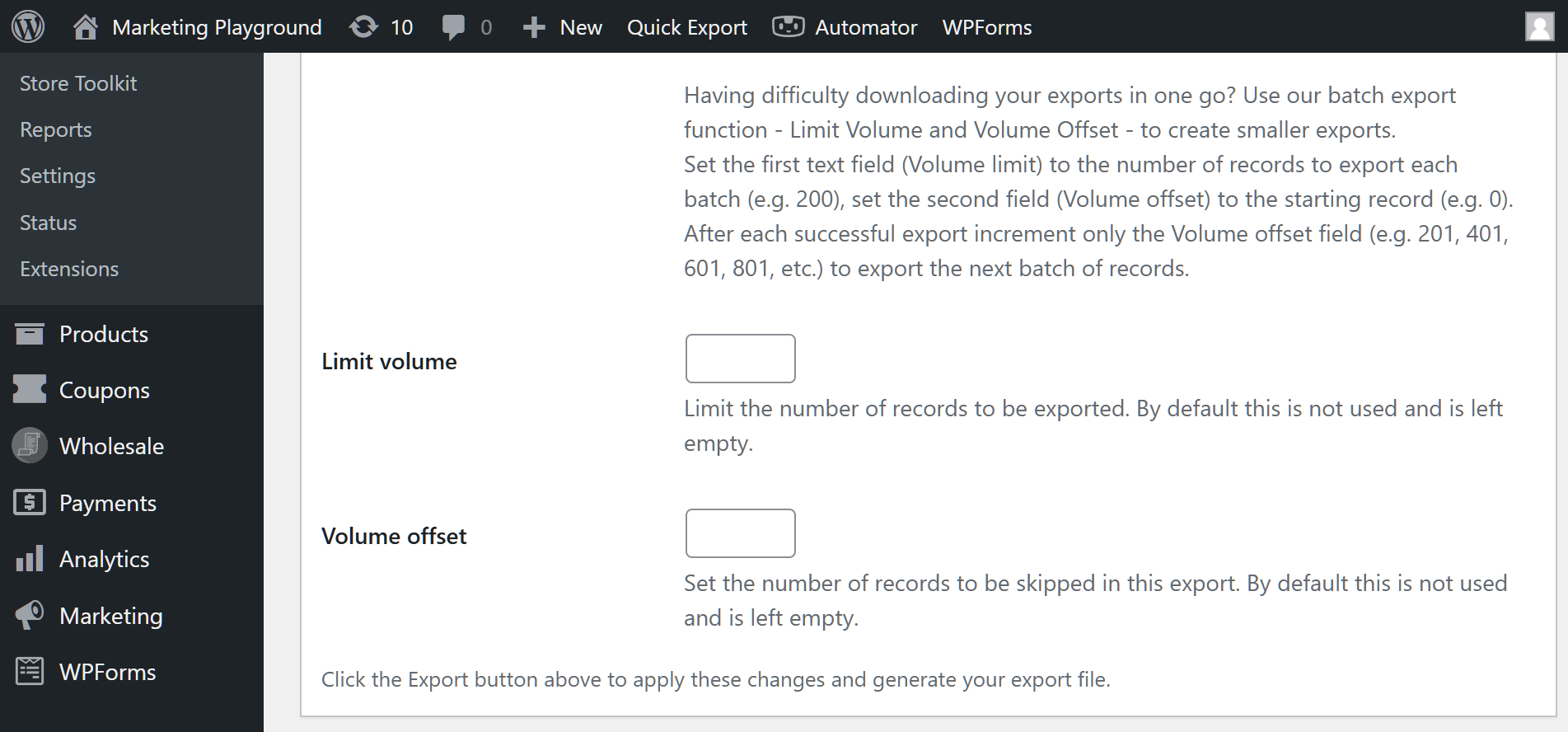
If your store has thousands of subscriptions, exporting everything in a single request can time out, especially on shared hosting where server resources are limited. Store Exporter Deluxe handles this through batch exporting with volume offset.
Here’s how batch exporting works:
- Set the Volume field to the number of subscriptions to export per batch (e.g., 2,000).
- Set the Offset to 0 for your first batch.
- Run the export.
- For the next batch, change the Offset to 2,000 (or whatever your volume was).
- Continue incrementing the offset until you’ve exported all records.
For example, if you have 8,000 subscriptions and export 2,000 at a time, you’d run four exports with offsets of 0, 2,000, 4,000, and 6,000. Each produces a separate file that you can combine afterward.
Tips for stores with 10,000+ subscriptions:
- Use smaller batch sizes (1,000-2,000) on shared hosting to avoid server timeouts.
- Run exports during off-peak hours when your server has more available resources.
- Consider using scheduled exports (covered next). They run via WordPress cron in the background, bypassing browser timeout limits entirely.
- If you’re on a VPS or dedicated server, you can typically increase your batch size to 5,000+ without issues.
How To Schedule Automatic Subscription Exports
Manual exports work fine for one-off tasks. But if you need regular subscription reports (weekly summaries for your finance team, monthly churn reports, or daily backups) you can set up scheduled exports that run automatically.
Store Exporter Deluxe includes a scheduled export feature that lets you configure recurring exports with automatic delivery. Here’s how to set one up:
- Go to WooCommerce > Store Export and click the Scheduled Exports tab.
- Create a new scheduled export and select Subscription as the export type.
- Choose your fields, filters, and format (the same options available in Quick Export).
- Set the schedule frequency (daily, weekly, or monthly).
- Configure delivery: email the file as an attachment, or send it to a remote server via FTP or SFTP.
- Save the scheduled export.
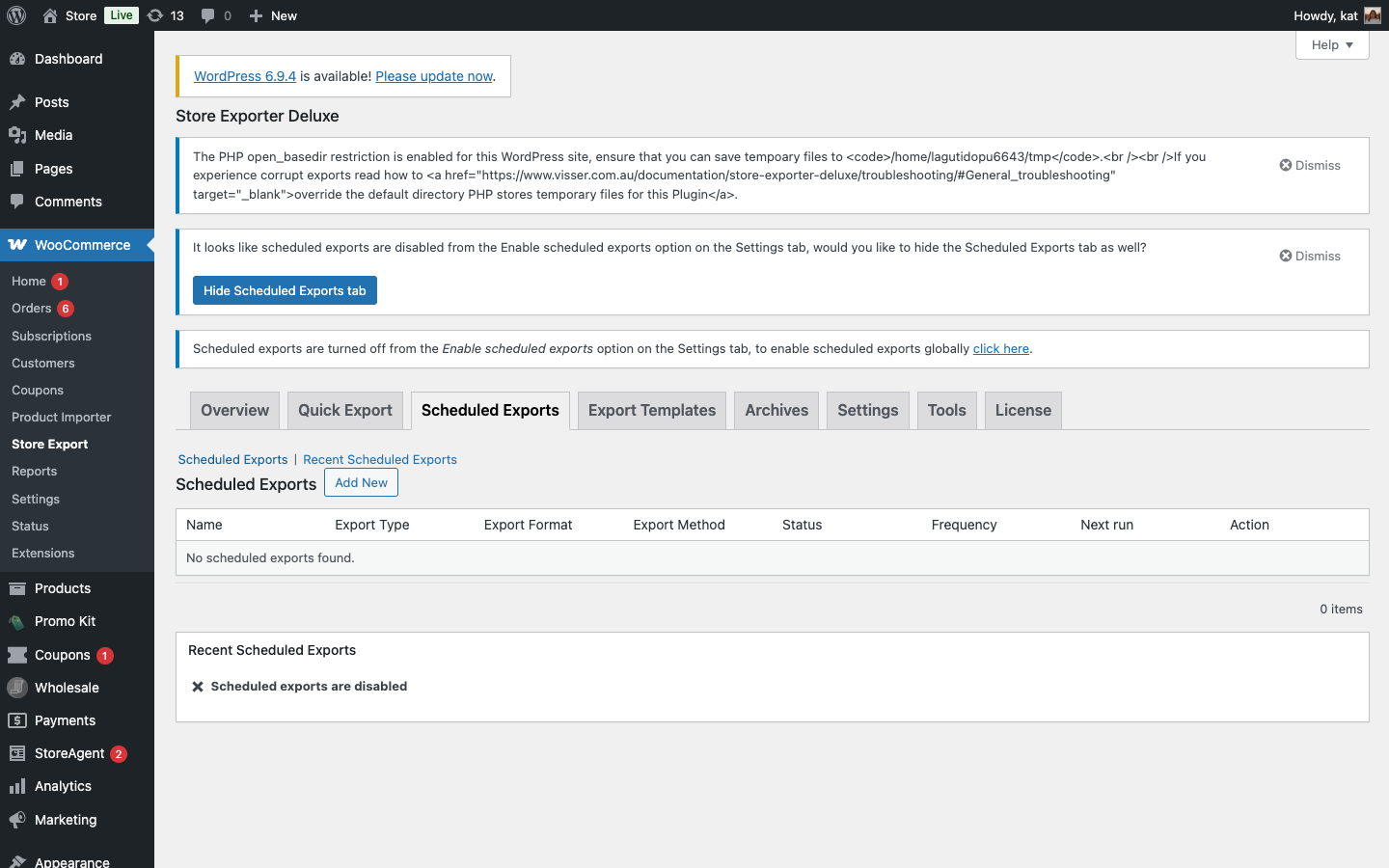
Once saved, the export runs automatically on your chosen schedule. Your finance team, accountant, or fulfillment partner receives the file without anyone needing to log into WordPress.
Common use cases for scheduled subscription exports:
- Weekly active subscriber report sent to your finance team for revenue reconciliation.
- Monthly churn report (cancelled subscriptions) sent to your marketing team for retention analysis.
- Daily backup of all subscription data delivered to a secure FTP server.
- Quarterly export of all subscription records for your accountant during tax preparation.
What We’ve Seen: Store owners who set up a weekly scheduled export early on avoid the scramble at month-end or tax time. It takes five minutes to configure once, and then your subscription data is always up to date wherever you need it.
How To Open Subscription Exports In Google Sheets Or Excel
Once you’ve exported your subscription data, you’ll want to open it in a spreadsheet for analysis, sharing, or further processing.
Opening in Google Sheets
Store Exporter Deluxe includes a Google Sheets integration that sends export data directly to a Google Sheets spreadsheet. This is ideal for teams that collaborate in Google Workspace.
To export directly to Google Sheets, configure the Google Sheets connection in Store Exporter Deluxe’s settings. Once connected, your subscription export populates a Google Sheets spreadsheet automatically, with no file download needed.
If you prefer to work with a downloaded CSV file instead, you can import it into Google Sheets manually:
- Open Google Sheets and create a new spreadsheet.
- Go to File > Import.
- Upload your CSV file.
- Select “Comma” as the separator type and click Import Data.
Opening in Microsoft Excel
If you exported in XLS or XLSX format, the file opens directly in Excel. Just double-click it.
If you exported as CSV, follow these steps to ensure your data imports cleanly:
- Open Excel and go to File > Open.
- Select your CSV file.
- If the Text Import Wizard appears, select Delimited, choose Comma as the delimiter, and click Finish.
Tip: If subscription IDs or phone numbers display in scientific notation (e.g., 1.23E+10), format those columns as “Text” or “Number” with zero decimal places before importing. This is a common Excel behavior with large numbers in CSV files, not an issue with the export itself.
Frequently Asked Questions
How do I export WooCommerce subscriptions?
Install Store Exporter Deluxe, then go to WooCommerce > Store Export > Quick Export. Select “Subscription” as the export type, choose your fields and format (CSV, Excel, or XML), apply any filters you need, and click Export. The file downloads immediately to your computer.
Can I export specific subscription statuses like active, cancelled, or on-hold?
Yes. Store Exporter Deluxe includes a status filter on the Quick Export screen. You can select one or more statuses (active, cancelled, on-hold, pending-cancel, or expired) and the export only includes subscriptions matching those statuses. This is useful for churn reports or active subscriber lists.
What file formats can I export subscriptions to?
Store Exporter Deluxe supports four formats: CSV, XLS (legacy Excel), XLSX (modern Excel), and XML. CSV is the most universal and works with virtually any spreadsheet or data import tool. Use Excel format for direct use in Microsoft Excel, or XML for enterprise system integrations.
How do I download WooCommerce subscriptions?
You can download WooCommerce subscriptions as a file using Store Exporter Deluxe’s Quick Export. Select “Subscription” as the export type, pick CSV or Excel as the format, and click Export. The file downloads to your browser instantly. For recurring downloads, use the Scheduled Exports feature to automate delivery via email or FTP.
Where are WooCommerce subscriptions stored?
WooCommerce Subscriptions stores subscription data in your WordPress database, specifically in the custom order tables (if using HPOS) or the wp_posts and wp_postmeta tables (legacy storage). Store Exporter Deluxe reads this data and converts it into structured export files you can open in any spreadsheet application.
Can I schedule automatic subscription exports?
Yes. Store Exporter Deluxe includes a Scheduled Exports feature. You can configure recurring exports (daily, weekly, monthly) with automatic delivery via email attachment or FTP/SFTP. This is ideal for sending regular subscription reports to your finance team or maintaining automated backups.
Start Exporting Your WooCommerce Subscriptions
Subscription data sits at the heart of your recurring revenue business. Having a reliable, repeatable way to export that data keeps your finance team, your accountant, and your backup strategy in sync with your store.
Here’s what to do next:
- Run your first Quick Export to get a subscription data file in minutes
- Customize your export fields so your file only contains the data you need
- Set up a scheduled export to automate weekly or monthly reports
- Use batch exporting if your store has thousands of subscription records
Store Exporter Deluxe integrates natively with WooCommerce Subscriptions and supports CSV, Excel, XML, and Google Sheets output. View pricing and plans to get started.