

Your operations manager needs to see this week’s orders. Your marketing lead wants to cross‑reference order data with campaign performance. Your bookkeeper needs the monthly totals. They all want it in Google Sheets because that’s where your team lives. The most efficient solution is to export WooCommerce orders to Google Sheets automatically.
Right now, somebody has to log into WooCommerce, run a manual export, download the CSV, upload it to Drive, and share the link. Every single time.
I’ve set up WooCommerce‑to‑Google‑Sheets automation on dozens of client stores, and there are actually four methods that work. This guide walks through all of them, when each one fits, and how to pick the right one. The whole setup takes about 10 minutes once you know which method suits your team. If you want to export WooCommerce orders to Google Sheets without coding, the native Google Sheets delivery method (below) is your best bet.
- Why Google Sheets For WooCommerce Orders?
- Method 0: Native Google Sheets Delivery (Recommended)
- Method 1: Scheduled CSV Export Plus Google Sheets Import
- Method 2: Email Export To A Sheets-Connected Inbox
- Method 3: FTP Export To A Google Drive-Synced Folder
- Other Delivery Methods (POST to URL, Archive to Media)
- Setting Up Automated Workflows
- Useful Formulas And Pivot Tables For Order Data In Sheets
- Start Exporting WooCommerce Orders To Google Sheets Automatically
- Frequently Asked Questions
Why Google Sheets For WooCommerce Orders?
Google Sheets earns its place in WooCommerce workflows for four reasons that Excel can’t quite match. And when you export WooCommerce orders to Google Sheets on a schedule, your entire team gets live data without lifting a finger.
Real-time collaboration
Multiple team members can view and edit the same sheet simultaneously. That’s useful when operations and marketing both need to see the order data and nobody wants to deal with file version conflicts.
Cloud access on any device
No desktop software needed. Whoever has the link and the right permissions can open Sheets from a laptop, tablet, or phone without installing anything.
Built-in analysis tools
Pivot tables, charts, filters, and functions like IMPORTDATA, IMPORTRANGE, and QUERY let you turn raw order data into useful reporting without exporting again. Apps Script extends this to custom automation if you need it.
Sharing and permissions
Share read-only access with your accountant, edit access with your ops team, and comment access with stakeholders. Permissions are granular and auditable in a way that emailing a file isn’t.
If your team is more comfortable in Excel than Sheets, the trade-offs go the other way for heavy data manipulation. Both Sheets and Excel work well once the data is flowing in automatically, and the choice really comes down to where your team does its analysis.
For that workflow, see Visser Labs’ guide on exporting WooCommerce orders to Excel.

Method 0: Native Google Sheets Delivery (Recommended)
Store Exporter Deluxe includes a built‑in “Save to Google Sheets” delivery method. This is the easiest and most reliable way to export WooCommerce orders to Google Sheets. The plugin pushes order data directly into a Google Sheet of your choice.
Step 1: Set up a scheduled order export
In Store Exporter Deluxe, go to WooCommerce → Store Export → Scheduled Exports → Add New, then choose Orders as the Export Type. From the same screen, choose your export fields (order number, date, status, totals, customer details, line items), set filters for order status and date range, and configure the schedule — you can choose from hourly, daily, twice‑daily, weekly, monthly, yearly, one‑time, run manually only, or a custom interval in minutes.
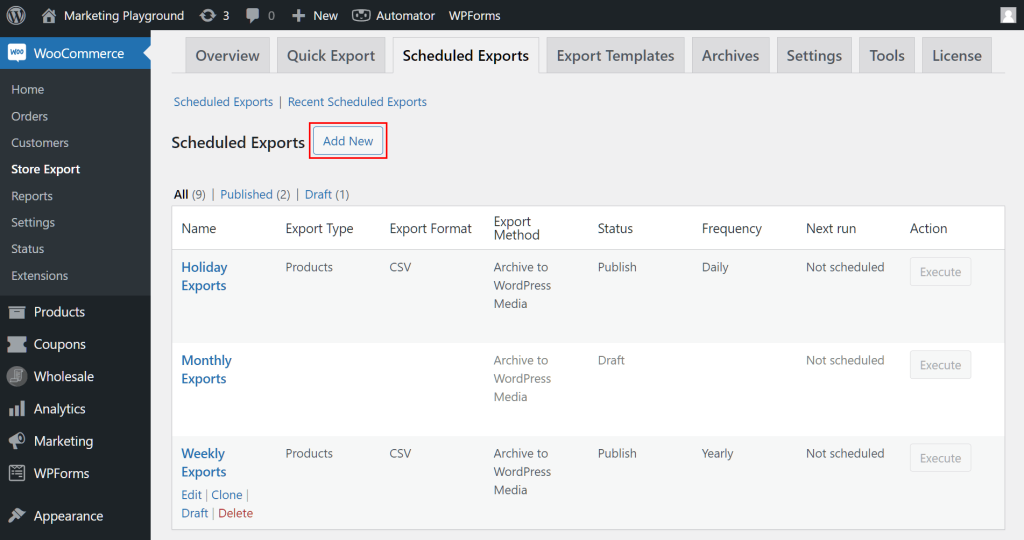
Step 2: Choose the Google Sheets delivery method
In the scheduled export settings, look for the delivery method dropdown. Select “Google Sheets” (or “Save to Google Sheets”). The plugin will then ask for:
- Client ID – from your Google Cloud project (OAuth 2.0 credentials).
- Access code – generated after authorising the plugin to access your Drive.
- Sheet Name – the name of an existing Google Sheet you want the export written to.
- Sheet Tab Name – the worksheet within that sheet.
Store Exporter Deluxe provides a step‑by‑step guide to generate these credentials inside the plugin settings.
Step 3: Authenticate and name your sheet
After entering your Client ID, click the authentication link, log into your Google account, and grant the requested permissions. The plugin will give you an access code to paste back. Then set the sheet name and tab name, save the schedule, and you’re done.
Why this is the best method
- Direct push – No intermediate CSV, no public URL, no email parsing.
- Fully automated – Runs on your chosen schedule without any external scripts.
- Clean data – Order fields land exactly where you want them, in the right tab.
- No extra cost – Included in the plugin (no Zapier or Make subscription needed).
If you’re starting from scratch, use this native method. The three methods below are only for edge cases where you can’t use OAuth (e.g., very restrictive hosting) or need a CSV for another purpose.
Method 1: Scheduled CSV Export Plus Google Sheets Import
This method is still useful if you prefer to keep a CSV file on your server and let Google Sheets pull it via IMPORTDATA. It’s a valid way to export WooCommerce orders to Google Sheets when you don’t want to use OAuth.
Step 1: Set up a scheduled order export
In Store Exporter Deluxe (WooCommerce, Store Export, Orders tab), choose CSV as the format, select the fields you need, and set filters. Then create a scheduled export with your preferred frequency (hourly, daily, weekly, etc.).
Move to the Scheduled Exports tab and create a new schedule. Point the output at a known destination, either a saved path on your server or an FTP folder you control.
For a full walkthrough of scheduling, see Visser Labs’ guide on setting up an automated export system.
Step 2: Configure delivery to a URL Google Sheets can reach
For Google Sheets’ IMPORTDATA to pull the CSV automatically, the file needs to live at a URL that Sheets can fetch. A publicly accessible URL on your site (or a Drive-hosted CSV set to view-by-link) both work. If you don’t want a public URL, skip ahead to Method 2 or 3.
Step 3: Pull the CSV into Google Sheets with IMPORTDATA
In a Google Sheet, enter this formula in cell A1:
=IMPORTDATA("https://example.com/path-to-your-export.csv")
Replace the URL with your actual export file URL. IMPORTDATA pulls the CSV contents into the sheet starting at A1, and Sheets refreshes the imported data approximately every hour. For most reporting use cases, that cadence is more than enough.
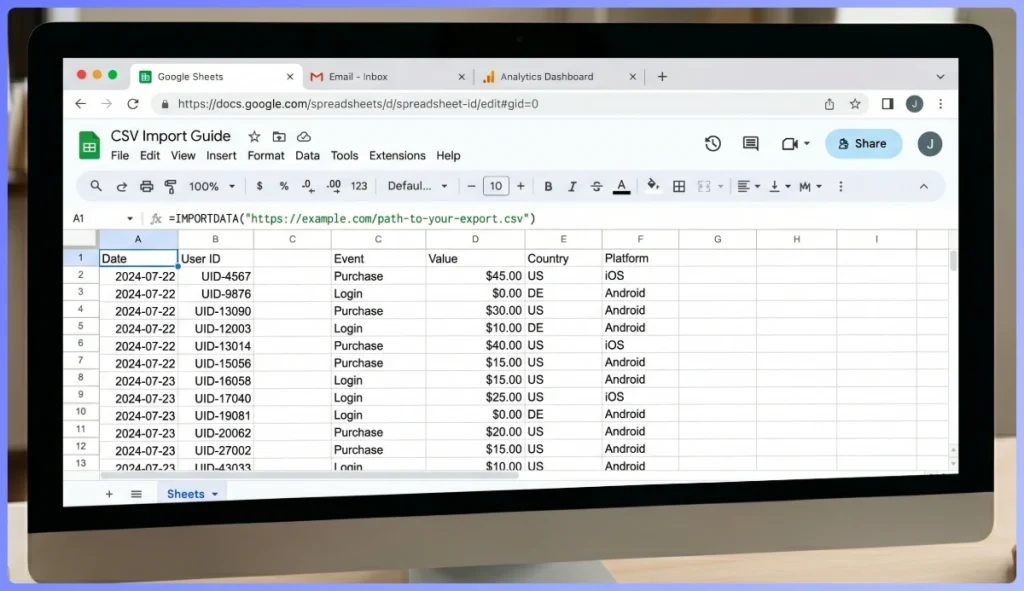
Alternative Step 3: Upload CSV to Drive and link
If you’d rather not expose a public URL, upload the CSV to a Drive folder (manually or via script) and reference it from Sheets using the File, Import menu. Set the import to replace existing data so each new upload refreshes your sheet.
Hands-on notes
On one of my recent setups, I configured a daily CSV export of completed orders, pointed IMPORTDATA at the URL, and the Sheet refreshed within the hour. The whole setup took about 15 minutes, including field selection, schedule configuration, and formula testing. Once it was running, the team stopped asking for weekly order exports because the data was already there.
One thing to note: IMPORTDATA refreshes on Google’s schedule (typically hourly). If you need true real-time sync, you’ll want a dedicated sync plugin, but for daily reporting this is more than sufficient and far cheaper.
Method 2: Email Export To A Sheets-Connected Inbox
Method 2 uses email as the transport between Store Exporter Deluxe and Google Sheets. It’s more moving parts than Method 0 or Method 1, but it avoids exposing any URL publicly. You can still export WooCommerce orders to Google Sheets via email, but expect a few extra steps.
Step 1: Email the CSV from Store Exporter Deluxe
Configure the scheduled export’s delivery destination as email, pointing at a dedicated Gmail address. Store Exporter Deluxe will send each scheduled export as an email attachment.
Step 2: Extract the attachment into Sheets
You have two options for pulling the attachment into Sheets. A Google Apps Script that monitors the inbox, extracts the CSV attachment, and writes rows to a target sheet gives you full control but requires a bit of script setup. A no-code alternative is Zapier or Make, which can connect Gmail to Sheets with a drag-and-drop trigger. That’s faster to set up but adds a monthly subscription on top of your plugin cost.
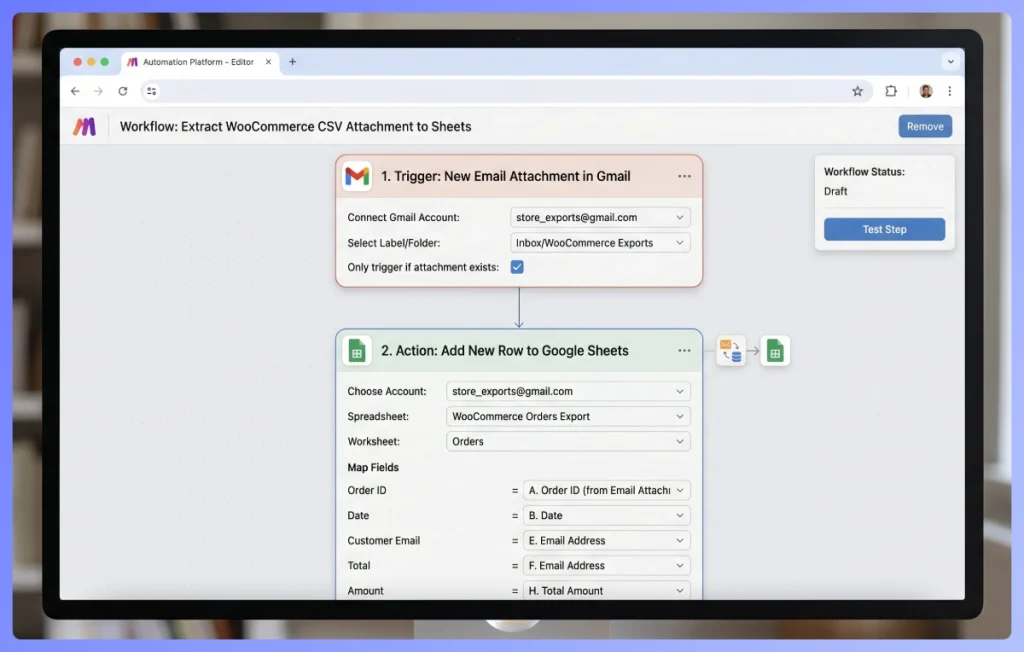
When this method fits
Use email delivery when you can’t expose a URL for IMPORTDATA, and you also can’t use the native Google Sheets delivery (e.g., OAuth restrictions). Or when you specifically need the CSV as both an email record (for audit trail) and a Sheets data source.
Honest assessment
Method 2 works, but it has more failure points than Method 0 or Method 1. Every extra system (Gmail, Apps Script or Zapier, Sheets) is another place the pipeline can break. I’d recommend it only if the native Google Sheets method doesn’t fit your hosting setup or if you need email as an audit trail.
Method 3: FTP Export To A Google Drive-Synced Folder
Method 3 skips the URL and email route. Store Exporter Deluxe uploads the CSV via FTP or SFTP to a folder that’s synced with Google Drive. This is another solid way to export WooCommerce orders to Google Sheets if you already run Drive for Desktop and prefer file‑based workflows.
Step 1: Set up Google Drive for Desktop
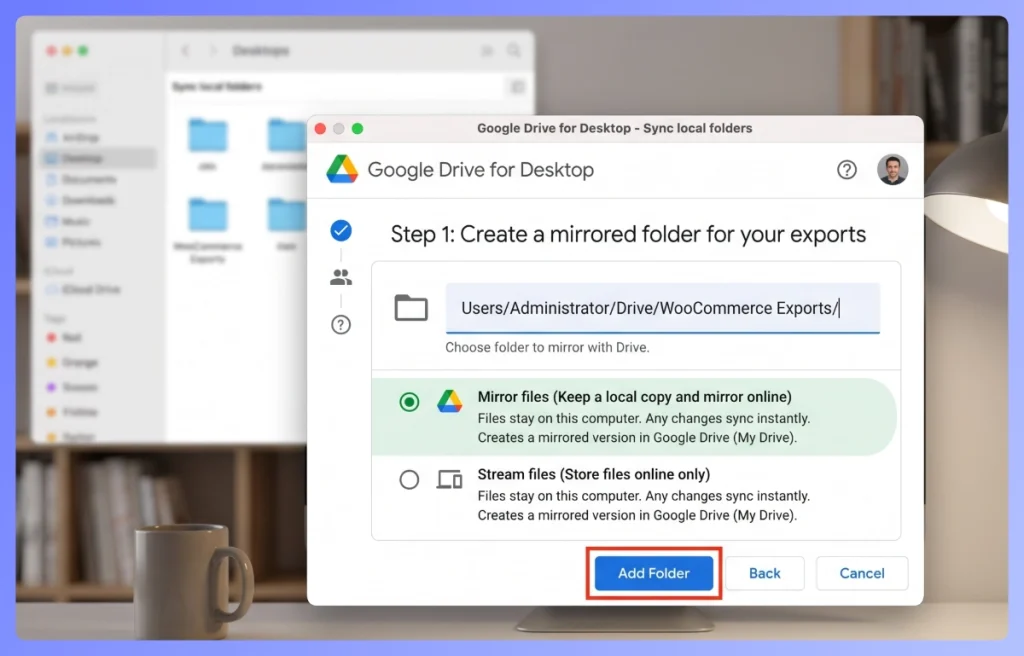
Install Google Drive for Desktop on a machine that stays online, ideally a server rather than a laptop that sleeps. Create a synced folder (for example, ~/Drive/WooCommerce Exports/) that’s mirrored to your Drive account.
Step 2: Point Store Exporter Deluxe’s FTP delivery at the folder
In Store Exporter Deluxe’s scheduled export delivery settings, configure FTP or SFTP delivery with the host, port, username, password or key, and the remote path matching your synced folder. Test the connection by running the export manually first.
Step 3: Open or reference the file from Google Sheets
Once the CSV lands in Drive, you can open it directly in Sheets (right-click the file, Open with, Google Sheets) or reference it from another sheet using IMPORTRANGE if you’ve converted it to a Sheet.
When this method fits
Method 3 makes sense when you already have Google Drive for Desktop running on a server or always-on workstation, or when your team prefers the Drive file browser as the primary data source. Without the Drive-sync infrastructure, Method 0 or Method 1 are simpler.
Limitation
This method depends on the machine running Drive for Desktop staying online and keeping sync healthy. If the machine sleeps or loses its connection, the exports pile up in the FTP folder and don’t propagate to Drive until sync resumes.
Other Delivery Methods (POST to URL, Archive to Media)
Store Exporter Deluxe also includes two other delivery options that are less relevant for Google Sheets but worth mentioning:
- POST to remote URL – Sends the export data as a POST request to any endpoint (useful for webhooks or custom integrations).
- Archive to WordPress Media – Saves the export file as a media attachment inside your WordPress library.
Neither of these directly send data to Google Sheets, so they’re not covered in depth here. But they exist if you need them.
Setting Up Automated Workflows
Here’s how to pick the right method for your setup and keep it running cleanly over time.
Illustrative comparison, not benchmarked.
| Method | Complexity | Extra Cost | Best For |
|---|---|---|---|
| Method 0: Native Google Sheets delivery | Low | $0 (included in plugin) | Most stores – direct, reliable, no workarounds |
| Method 1: Scheduled CSV + IMPORTDATA | Low | $0 | When you prefer a public CSV and hourly refresh |
| Method 2: Email to Sheets | Medium | Zapier/Make subscription if using no-code | Audit trail or no public URL / no OAuth |
| Method 3: FTP to Drive-synced folder | Medium | Already-running Drive Desktop setup | Teams with existing Drive‑sync infrastructure |
Frequency guidance
For active stores with daily order volume, schedule exports daily to keep reporting sheets fresh. For smaller-volume stores, weekly is plenty. Monthly schedules work for high-level summary dashboards but feel stale for operational reporting. Remember you can use hourly, twice‑daily, or any custom minute interval if needed.
Field selection
Export only what you need in Sheets. Fewer columns means faster imports, cleaner pivot tables, and less data to parse. For full configuration guidance, see Visser Labs’ guide on creating an export schedule.
What We’ve Seen: A pattern we see often is store owners setting up a manual export-to-Sheets workflow that works fine for the first few weeks. Then life gets busy. The Monday export gets skipped, data gaps accumulate, and within a month the Sheets dashboard is stale and abandoned. Automation isn’t a nice-to-have here, it’s the difference between a reporting system that actually gets used and one that dies quietly. Even a simple weekly scheduled export eliminates the single biggest failure point: the human who forgets.
Useful Formulas And Pivot Tables For Order Data In Sheets
Once order data is flowing into Sheets automatically, a handful of formulas turn it into real reporting.
- Revenue by date range:
=SUMIFS(Orders!G:G, Orders!B:B, ">="&A2, Orders!B:B, "<="&A3)sums column G (order total) where column B (order date) falls between the dates in A2 and A3. - Orders by product (pivot): Insert, Pivot table, Rows = product name, Values = count of order number, Filters = order status. Gives a clean top-products summary that updates as new orders flow in.
- Repeat customers:
=COUNTIF(Orders!E:E, E2) > 1returns TRUE for customers with more than one order. Useful for flagging loyal customers in a new column. - Conditional formatting for high-value orders: Format, Conditional formatting, Custom formula
=G2>500highlights any row with an order total over $500 (adjust for your store’s average).
These are starter formulas. Once your order data is flowing in automatically, the analysis possibilities scale with your team’s familiarity with Sheets.
Start Exporting WooCommerce Orders To Google Sheets Automatically
The manual download-and-upload loop dies the moment you automate it. Method 0 (native Google Sheets delivery) is the right starting point for almost every store. Methods 1–3 are workarounds for specific edge cases (no OAuth, need a public CSV, existing Drive‑sync infrastructure).
Here’s how to move from this guide to a running pipeline:
- Choose Method 0 – it’s the simplest and most reliable.
- Set up the scheduled export in Store Exporter Deluxe with the “Google Sheets” delivery option.
- Authenticate with your Google account and name your sheet.
- Layer on formulas and pivot tables as your reporting needs grow.
Ready to export WooCommerce orders to Google Sheets automatically? Get Store Exporter Deluxe and stop running the same manual export every Monday morning.
Frequently Asked Questions
Can I sync WooCommerce orders to Google Sheets in real-time?
Store Exporter Deluxe runs on a schedule (as often as every hour, or a custom minute interval). For true real-time sync, you’d need a dedicated sync plugin, which typically costs several times more per year. For most reporting use cases, a daily or hourly schedule is more than sufficient and significantly more affordable.
Do I need a paid tool to export to Google Sheets?
You can manually export a CSV from WooCommerce and upload it to Sheets for free on a one-off basis. For automated workflows that run on a schedule and deliver to Sheets without human intervention, Store Exporter Deluxe covers the scheduling and delivery features. Check the Visser Labs website for current pricing (it is competitively priced for the features offered).
Will my Google Sheet update automatically?
Yes – if you use the native Google Sheets delivery method, the sheet updates every time the scheduled export runs. With Method 1 (IMPORTDATA), Sheets refreshes approximately hourly. With Method 2 or 3, updates happen when your email script or Drive sync completes.
How often should I schedule WooCommerce order exports?
Match the frequency to your reporting needs. Daily works for active stores and operational dashboards. Weekly is plenty for summary reporting, month-end reviews, or lower-volume stores. Monthly fits quarterly or annual reviews but feels stale for anything time‑sensitive. You can also use hourly or custom minute intervals if needed.
Can I export specific fields only?
Yes. Store Exporter Deluxe lets you select the exact fields to include in each export and save the selection as a reusable template. Smaller exports import faster into Sheets and make downstream analysis less cluttered.