
If you’re feeding store data into a script, an API, or another system, a flat spreadsheet gets in the way. JSON gives you each record as a self-contained object that nearly every programming language and integration tool can read directly. Store Exporter Deluxe can export any supported data type as JSON through its CRON export URL. Below, you turn on CRON exports, build the URL that returns JSON, and learn how to read, open, and customize the output.
Prerequisites
| Requirement | Details |
|---|---|
| Plugin | Store Exporter Deluxe installed, active, and licensed |
| WooCommerce | Active, with at least one record of the type you want to export |
| Administrator access | You’ll need an account with access to the WordPress admin dashboard |
| A way to request a URL | A web browser is enough. A tool such as curl or wget works too if you want to automate it |
Step 1: Turn on CRON exports
- Go to WooCommerce → Store Export.
- In the sidebar, click Settings.
- Click CRON Exports.
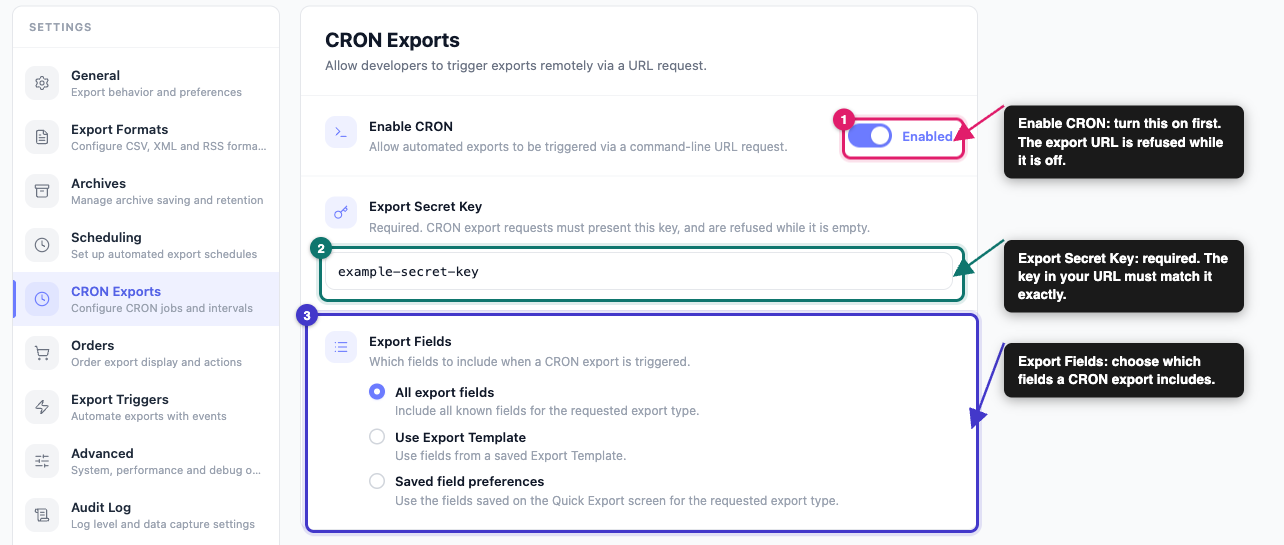
- Turn on Enable CRON.
- Enter a long, random value in Export Secret Key.
- Under Export Fields, choose which fields a CRON export includes.
- Click Save Changes.
Enable CRON is off by default. While it’s off, the plugin ignores the export URL. It also ignores any request whose key doesn’t match Export Secret Key, and every request while that field is empty. Treat the key like a password, because anyone with the key and your URL can download your store data.
The Export Fields options are:
- All export fields: includes every known field for the export type you request.
- Use Export Template: uses the fields from a saved Export Template.
- Saved field preferences: uses the fields you saved on the Quick Export screen for that export type.
Step 2: Build the export URL
Start from your site address and add the parameters below. Replace YOUR_SECRET_KEY with the key you set in Step 1:
https://example.com/?action=woo_ce-cron&key=YOUR_SECRET_KEY&type=product&format=json&response=download| Parameter | What it does |
|---|---|
action | Always woo_ce-cron. This tells the plugin the request is a CRON export. |
key | Your export secret key. |
type | The data to export: product, category, tag, brand, order, customer, user, review, coupon, subscription, product_vendor, commission, shipping_class, ticket, or booking. The subscription, product_vendor, commission, ticket, and booking types need the matching plugin to be active. Without it, the export has no records. |
format | Set to json. If you leave it out, the export defaults to CSV. |
response | download sends a .json file to your browser. raw prints the JSON straight to the page, which suits scripts and API-style requests. |
limit | Optional. The maximum number of records to export. Leave it out to export everything. |
offset | Optional. The number of records to skip, which helps when you export a large store in pieces. |
Step 3: Run the export
Open the URL in your browser. With response=download, your browser saves a file named like my-store-export_product-2026_10_20-07_18_54-93680224.json. With response=raw, the JSON appears on the page instead.
To automate it, request the same URL from a script or a scheduled job on your server:
curl -s "https://example.com/?action=woo_ce-cron&key=YOUR_SECRET_KEY&type=order&format=json&response=raw" -o orders.jsonWhat the output looks like
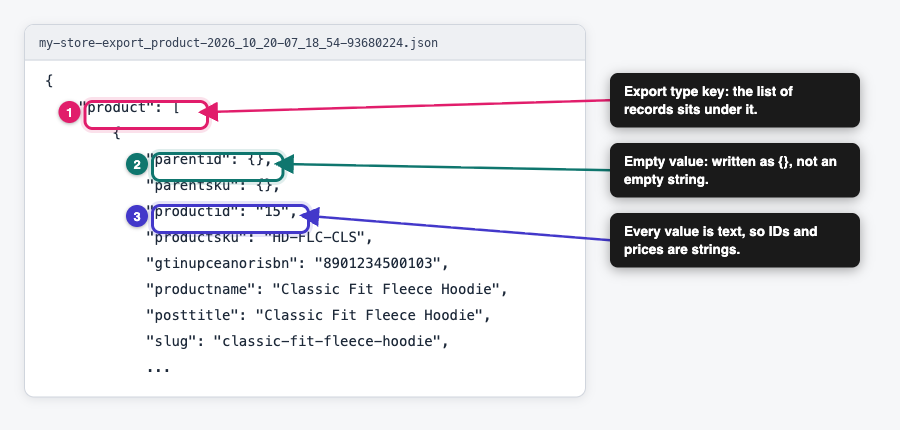
The file is one JSON object. Its single key is the export type, and its value is a list of records. A Products export looks like this:
{
    "product": [
        {
            "productid": "15",
            "productsku": "HD-FLC-CLS",
            "productname": "Classic Fit Fleece Hoodie",
            "parentsku": {}
        }
    ]
}
A few things are worth knowing before you build anything on top of it:
- Field names are simplified: each field’s name is its column label in lowercase, with spaces and most symbols removed. Hyphens and underscores stay. So Product Name becomes
productname, and E-mail becomese-mail. - Every value is text: numbers, prices, and IDs are written as strings, such as
"15"rather than15. Convert them in your own code if you need numeric types. - Some values are written as
{}: a field with no value is written as{}, not""ornull. The Category field of a Products export, and text that holds special characters such as non-breaking spaces, also come through as{}. If you need those values, export the same data as XML or CSV. - Orders carry an extra key: each order record also includes an
@attributesentry holding the order’s ID. - A single record isn’t wrapped in a list: if your export contains exactly one record, the export type’s key holds that record directly instead of a one-item list. If you pull in one record at a time using
limit=1, handle both shapes in your code. - The output is pretty-printed: the file uses indentation and line breaks so it’s easy to read.
Format-specific options
JSON exports have no settings of their own. There’s no delimiter or structure option to choose, and the file is always UTF-8. General settings still apply, so Date Format controls how dates appear in the JSON. Settings that only apply to other formats, such as Field Delimiter and Line Ending Formatting (CSV and TSV), don’t change a JSON file. To change the JSON itself, use the hooks in the developer section below.
Opening your JSON file
- Web browser or code editor: open the file in any modern browser, VS Code, or a text editor. Most editors can collapse and expand each object.
- Command line: use jq to filter and reshape it, for example
jq '.product[].productsku' products.json. - API tools: tools such as Postman can load a JSON file as a request body or as sample data.
- Spreadsheets: Excel’s Get Data → From File → From JSON option (Power Query) can flatten the records into rows. If you mainly want a spreadsheet, a CSV or Excel export is simpler.
- Your own code: every mainstream language can parse JSON with a built-in or standard library.
Customizing the JSON output with hooks
Store Exporter Deluxe fires filter hooks around the JSON export, so a developer can change the output without editing plugin files. These hooks run for exports requested through the CRON URL.
| Filter | What it does |
|---|---|
woo_ce_export_json_constants | Sets the options passed to wp_json_encode(). The default is JSON_PRETTY_PRINT. |
woo_ce_export_json_before_dataset | Runs before the records are added. Receives the empty export object. |
woo_ce_export_json_after_dataset | Runs after the records are added. Receives the finished export object, before it’s converted to JSON. |
woo_ce_cron_allowed_export_types | Limits which export types the CRON URL accepts. |
For example, to remove the indentation and keep slashes and non-English characters readable, return different JSON options:
add_filter( 'woo_ce_export_json_constants', function () {
    return JSON_UNESCAPED_SLASHES | JSON_UNESCAPED_UNICODE;
} );
The JSON_UNESCAPED_SLASHES option stops URLs from being written as https:\/\/example.com. The JSON_UNESCAPED_UNICODE option keeps characters such as accents and non-Latin scripts as they are instead of turning them into \u codes.
For the wider list of hooks that run during an export, see Available hooks and filters for further customization.
Troubleshooting
key in your URL matches it exactly. When any of these is wrong, the plugin ignores the request and your site loads as usual.type is in the URL and is one of the values listed in Step 2. Also check that format is exactly json. The plugin doesn’t recognize any other spelling and returns nothing.type is the data you expect.&response=download or &response=raw to the URL. Without a valid response value, the plugin returns only a status number instead of the file.&encoding=UTF-8 to the export URL. JSON exports don’t work with UTF-16.format parameter is missing. Without it, the CRON export defaults to CSV. Add &format=json to the URL.{} wherever it expects text. Empty fields are written as {}, and so are the Category field and text with special characters such as non-breaking spaces. If you need those values, export the same data as XML or CSV.Frequently asked questions
&encoding=UTF-8 to the export URL. To change how special characters are written, use the woo_ce_export_json_constants filter.type list in Step 2 can be requested with format=json.Related articles
- How to export via manual CRON
- Available hooks and filters for further customization
- How to export WooCommerce data to Excel (XLS/XLSX)
Need help?
If you have a question or run into any issues, we’re here to help.
- Premium users: Open a support ticket
- Free users: Visit our community forum