
Your store might carry products from a dozen different brands, but WooCommerce has no built-in way to pull that list out as a file. If you need to hand a brand list to a supplier, check which brands actually have products attached, or back up your brand descriptions and logos before a redesign, you’re stuck copying rows by hand from Products → Brands.
Store Exporter Deluxe gives you a proper export instead. Pick the fields you want, choose a format, and download every brand on your store in one file.
This article covers a one-off Quick Export of your brands first, then how to run the same export automatically on a schedule.
Which brands does this export?
A Brands export reads every brand source on your store at the same time:
- WooCommerce Brands, the brands you manage in Products → Brands.
- Perfect WooCommerce Brands, when that plugin is active.
- YITH WooCommerce Brands Add-On, when that plugin is active.
If you use more than one of these, every brand from each source gets its own row in the same file. The Brand Taxonomy column, which is in the default field list, shows which source each row came from. That’s handy when two sources have a brand with the same name.
One more source can show up. If your store has a global product attribute with the slug brand (in Products → Attributes), its values are exported as brand rows too. In the Brand Taxonomy column, those rows read pa_brand, so you can find them and remove them in your spreadsheet if you don’t need them.
For the full list of plugins Store Exporter Deluxe supports, see Store Exporter Deluxe supported plugins list.
Prerequisites
| Requirement | Details |
|---|---|
| Plugin | Store Exporter Deluxe is installed and active |
| WooCommerce | Version 9.6 or later, which includes the built-in Brands feature. You can also use Perfect WooCommerce Brands or YITH WooCommerce Brands Add-On, on their own or together with it. |
| Brand data | At least one brand exists in Products → Brands, or in the brands plugin you use. An empty brand list has nothing to export. |
| Admin access | An account that can manage WooCommerce exports. Administrators have this by default. |
Where to find Quick Export
Open WooCommerce → Store Export from the WordPress admin menu. That opens the Store Exporter Deluxe dashboard.
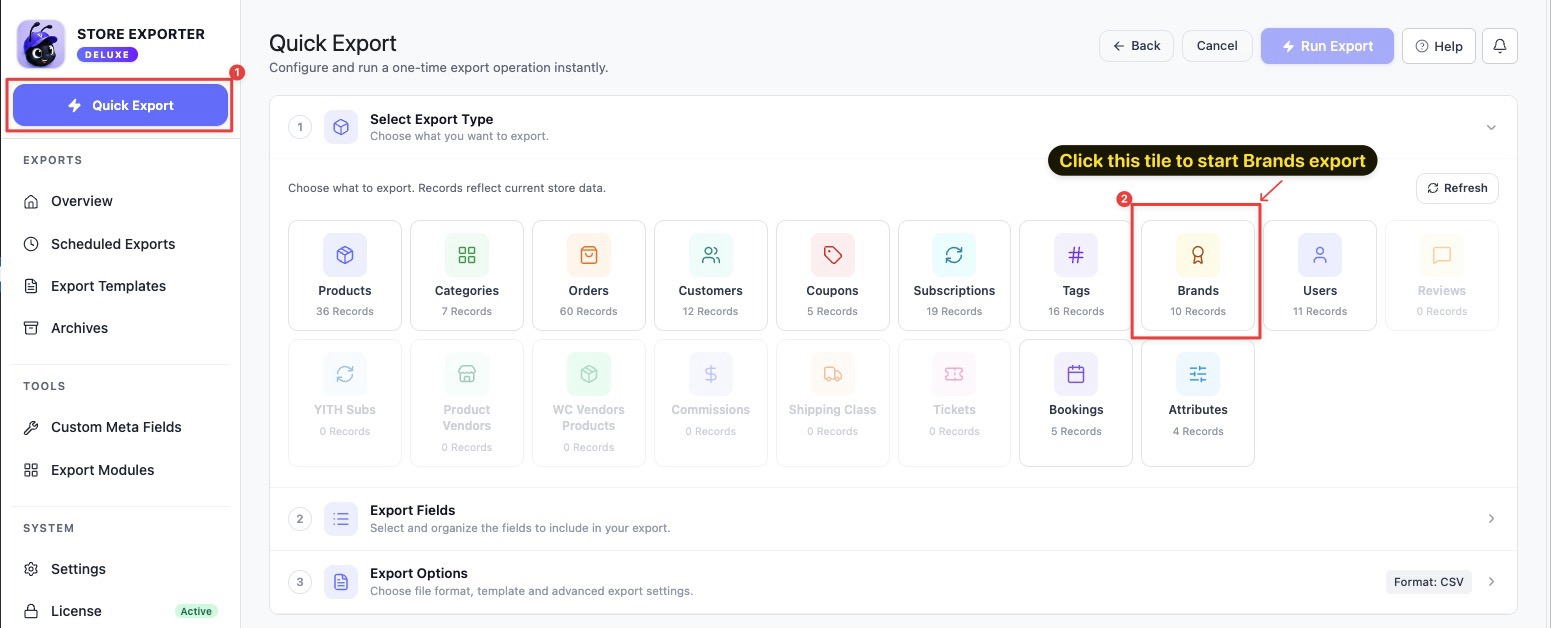
In the sidebar, Quick Export is its own button near the top, above the EXPORTS group. Click it to start a new export.
Step 1: Choose the Brands export type
On the Select Export Type step, click the Brands tile. You can also get here from All Export Items, where every export type is listed with a short description.
Step 2: Pick your brand fields
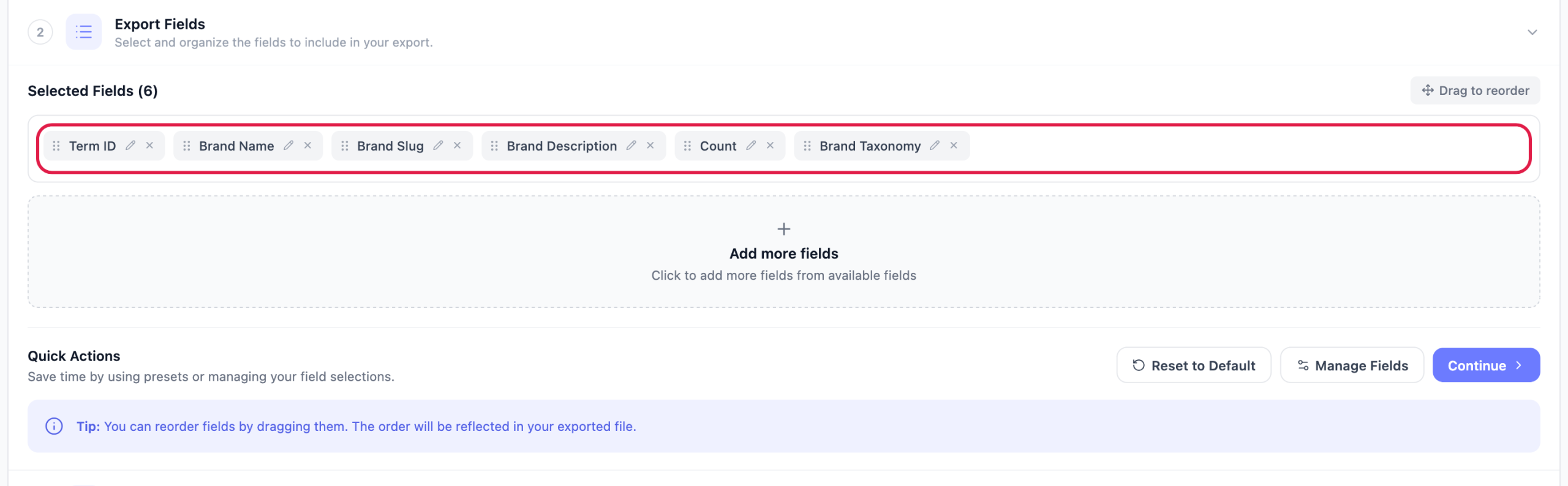
On the Export Fields step, the columns you’re about to export appear as chips under Selected Fields. Brands start with six of them:
- Term ID
- Brand Name
- Brand Slug
- Brand Description
- Count
- Brand Taxonomy
From there you can shape the column list:
- Click Add more fields to open the Select Export Fields popup and add anything that isn’t already a chip.
- Click Manage Fields to open the same popup with the full list.
- Drag a chip to change the column order in your file.
- Click the pencil icon on a chip to rename that column heading. The underlying data stays the same.
- Click the X on a chip to drop that column.
- Use Reset to Default to go back to the starting six.
Available brand fields:
| Field | What it is |
|---|---|
| Term ID | The brand term’s internal WordPress ID |
| Brand Name | The brand’s display name |
| Brand Slug | The URL-friendly version of the name |
| Parent Term ID | The term ID of the parent brand, for brand hierarchies |
| Brand Description | The description text entered on the brand’s term page |
| Brand Image | The brand’s image, as a URL |
| Count | How many products are assigned to that brand |
| Brand Taxonomy | Which brand source the row came from: product_brand (WooCommerce Brands), pwb-brand (Perfect WooCommerce Brands), yith_product_brand (YITH WooCommerce Brands Add-On), or pa_brand (a global Brand attribute) |
For the full list across every export type, see Available export fields in Store Exporter Deluxe.
Step 3: Check the filters and sort order
Open the Filters & Sorting step. The left panel shows “No filters available for this export type.”
Your brands export in alphabetical order by Brand Name, A to Z. If you need a different order, sort the file in your spreadsheet. Leave Sort by on Default order, then click Continue to move on.
Step 4: Set your format and run the export
- On the Export Options step, pick a file format. CSV suits most jobs, since nearly every spreadsheet and import tool reads it.
- Optional: if you saved a setup on the Export Templates screen, pick it from the Export Template dropdown. This saves you from rebuilding your field list by hand.
- Check the summary bar. It shows EXPORT TYPE, FIELDS, FILTERS, FORMAT, and ESTIMATED ROWS. FILTERS always reads 0 on a Brands export, because Brands exports don’t have filters.
- Click Run Export.
- In the Export in Progress window, click Download File.

Exporting brands on a schedule
If you need a fresh brand list every week for a supplier or a syncing tool, build it as a scheduled export instead of running Quick Export by hand each time.
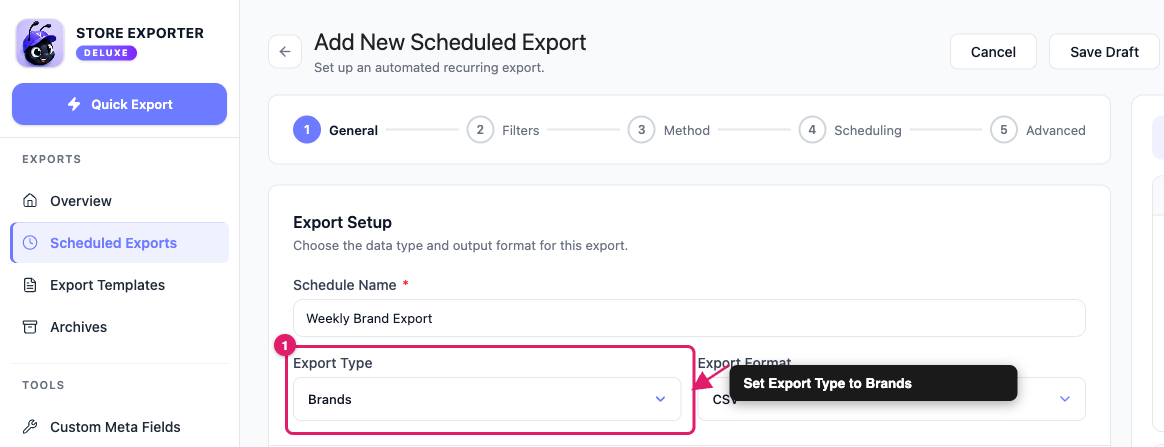
- Go to Scheduled Exports in the EXPORTS group.
- Click New Schedule.
- Set Export Type to Brands.
A scheduled Brands export uses the same alphabetical order as Quick Export, and you get a full delivery setup on top: email, FTP/SFTP, POST to URL, and more. For detailed instructions on building a schedule, see How to schedule exports in Store Exporter Deluxe.
Troubleshooting
FAQ
Related articles
- How to export WooCommerce products with Store Exporter Deluxe
- How to export WooCommerce customers with Store Exporter Deluxe
- Store Exporter Deluxe supported plugins list
- Available export fields in Store Exporter Deluxe
- How to schedule exports in Store Exporter Deluxe
Need more help?
If you’re using Store Exporter Deluxe, open a support ticket and our team will help you get your brand export working.
If you’re using the free Store Exporter plugin, ask on the WordPress.org support forum and our team will get back to you there.
