
Running a marketplace means your product catalogue belongs to many different sellers. When you need to send a vendor their own listings, audit what each shop has published, or move your marketplace data somewhere else, you want one file with every vendor’s products and their shop details.
Store Exporter Deluxe does this from the store admin with a dedicated WC Vendors Products export type. It exports products across all your vendors in one run, lets you choose and reorder the columns, and adds each vendor’s shop details to every row. You can filter the export by vendor, and you can also run it on a schedule.
This article covers a one-off Quick Export first, then how to run the same export on a schedule.
How the integration works
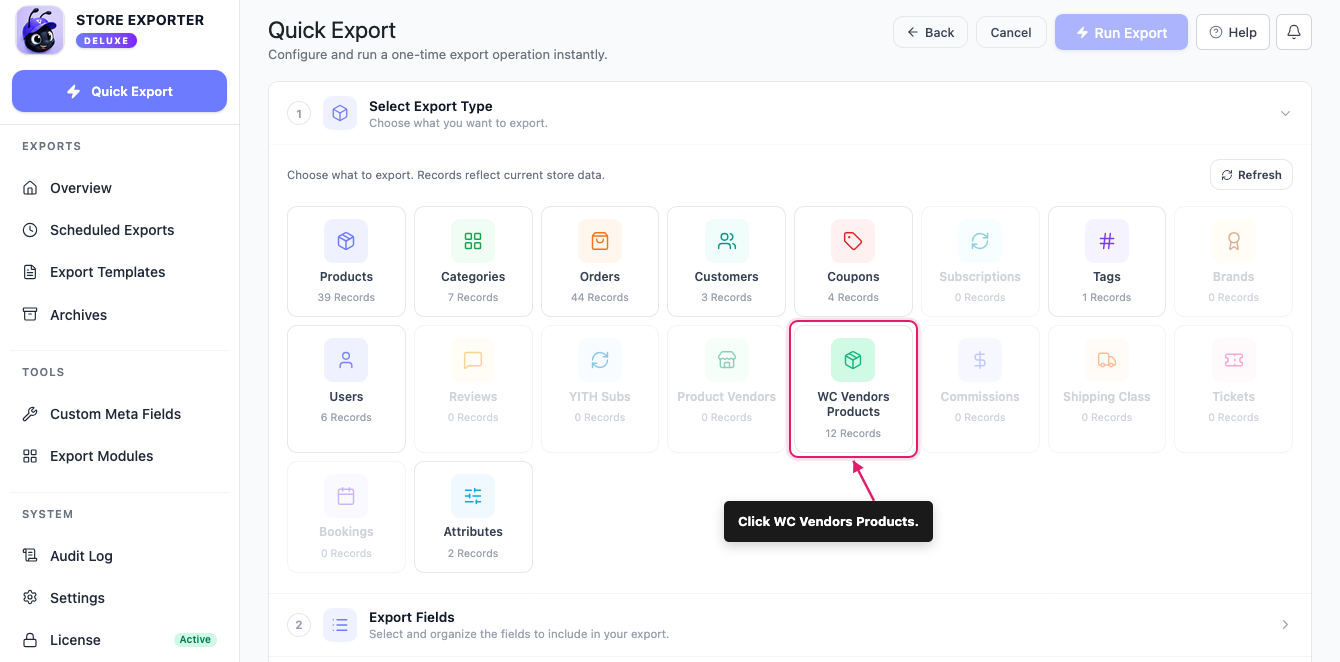
When the WC Vendors plugin is active, Store Exporter Deluxe detects it and turns on the WC Vendors Products export type. The WC Vendors Products tile in Quick Export starts to show a record count, and the type also appears in Scheduled Exports. That export only includes products owned by accounts with the vendor role, so products you’ve added yourself as the store owner are left out. It uses the same product fields as a regular Products export, plus six extra vendor fields.
Prerequisites
| Requirement | Details |
|---|---|
| Plugin | Store Exporter Deluxe is installed and active |
| Required plugin | The free WC Vendors plugin is installed and active. Without it, the WC Vendors Products tile in Quick Export is greyed out, and the type is missing from Scheduled Exports. |
| Vendor data | At least one vendor account with a product assigned. If no account has the vendor role, there’s nothing to export. |
| Admin access | An account that can manage WooCommerce exports. Administrators have this by default. |
Confirm the integration is active
Before you export, check that Store Exporter Deluxe has picked up WC Vendors.
- Go to WooCommerce → Store Export in the WordPress admin menu.
- Click Export Modules in the TOOLS group of the sidebar.
- Type “WC Vendors” in the Search modules… box.
- Check that the WC Vendors row shows Active under Status.
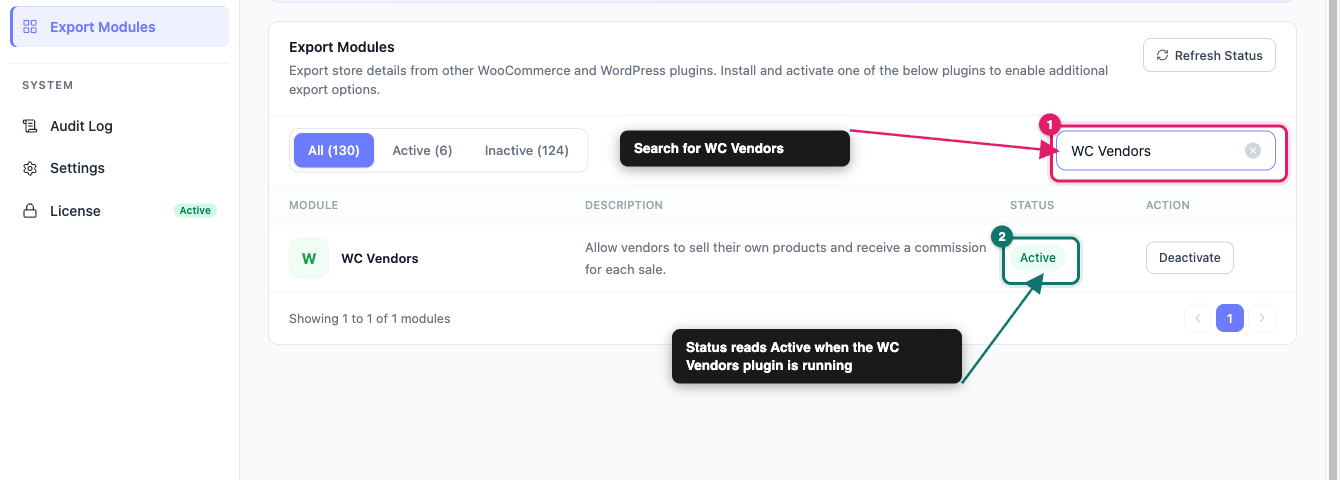
If the row shows Inactive, install and activate the WC Vendors plugin from Plugins → Add Plugin. Then click Refresh Status on the same screen.
Where to find Quick Export
Open WooCommerce → Store Export from the WordPress admin menu. In the sidebar, click Quick Export near the top, above the EXPORTS group.
Step 1: Choose the WC Vendors Products export type
On the Select Export Type step, click the WC Vendors Products tile. It sits in the grid next to the Product Vendors and Commissions tiles.
Step 2: Pick your export fields
On the Export Fields step, your columns appear as chips under Selected Fields. A WC Vendors Products export starts with 10 of them:
- Parent ID
- Parent SKU
- Product ID
- Product SKU
- GTIN, UPC, EAN, or ISBN
- Product Name
- Post Title
- Slug
- Permalink
- Product URI
From there you can shape the column list:
- Click Add more fields to open the Select Export Fields popup and add anything that isn’t already a chip.
- Click Manage Fields to open the same popup with the full list.
- Drag a chip to change the column order in your file.
- Click the pencil icon on a chip to rename that column heading. The underlying data stays the same.
- Click the X on a chip to drop that column.
- Use Reset to Default to go back to the starting 10.
The popup lists the standard product fields, such as Price, Stock Status, Category and Featured Image. For the full list, see Available export fields in Store Exporter Deluxe.
Vendor fields added by the integration
The integration adds six vendor fields. To find them, type “Vendor” in the search box at the top of the Select Export Fields popup. None of them are selected by default, so add the ones you need.
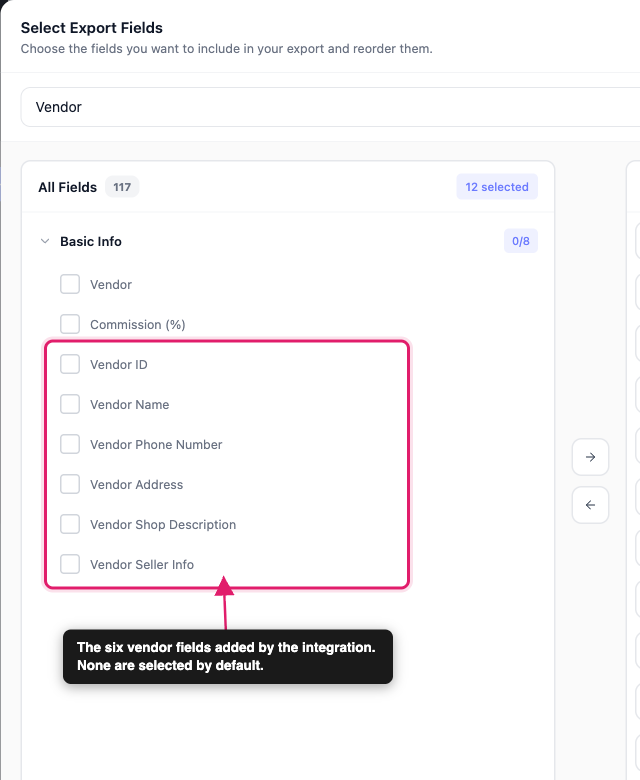
| Field | What it contains |
|---|---|
| Vendor ID | The vendor’s WordPress user ID |
| Vendor Name | The vendor’s shop name |
| Vendor Phone Number | The store phone number saved on the vendor’s account |
| Vendor Address | The first line of the vendor’s store address |
| Vendor Shop Description | The shop description the vendor entered |
| Vendor Seller Info | The seller info text the vendor entered |
Two more vendor-related fields come from the standard product field list, so you can also add them:
| Field | What it contains |
|---|---|
| Vendor | The vendor’s username |
| Commission (%) | The commission rate saved on that individual product |
Step 3: Filter by vendor (optional)
After you save your fields, the Filters & Sorting step opens. It has a Vendor filter card when at least one account has the vendor role. If no account has that role, this step doesn’t appear and you go straight from Export Fields to Export Options. To export every vendor’s products, skip the filter and click Continue.
To export the products of some vendors only:
- Click the Vendor card to open it.
- Under Select vendors, tick each vendor you want. Vendors are listed by shop name, or by display name when there’s no shop name, with the username in brackets.
- Under Vendor mode, keep Include only these Vendors. To export everyone except the vendors you ticked, choose Exclude these Vendors.
- Click Continue.
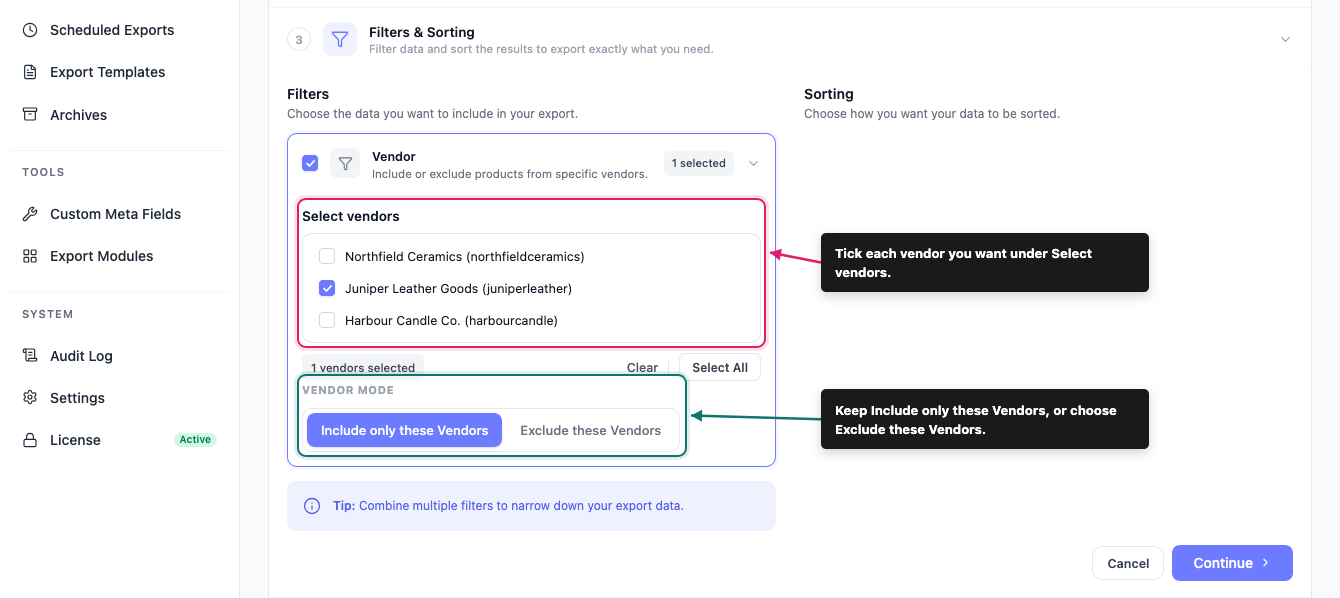
The card’s checkbox turns on by itself when you tick a vendor. If you tick the card’s checkbox first, every vendor is selected, so untick the ones you don’t need. The Sorting side of this step has no options for WC Vendors Products.
Step 4: Set your format and run the export
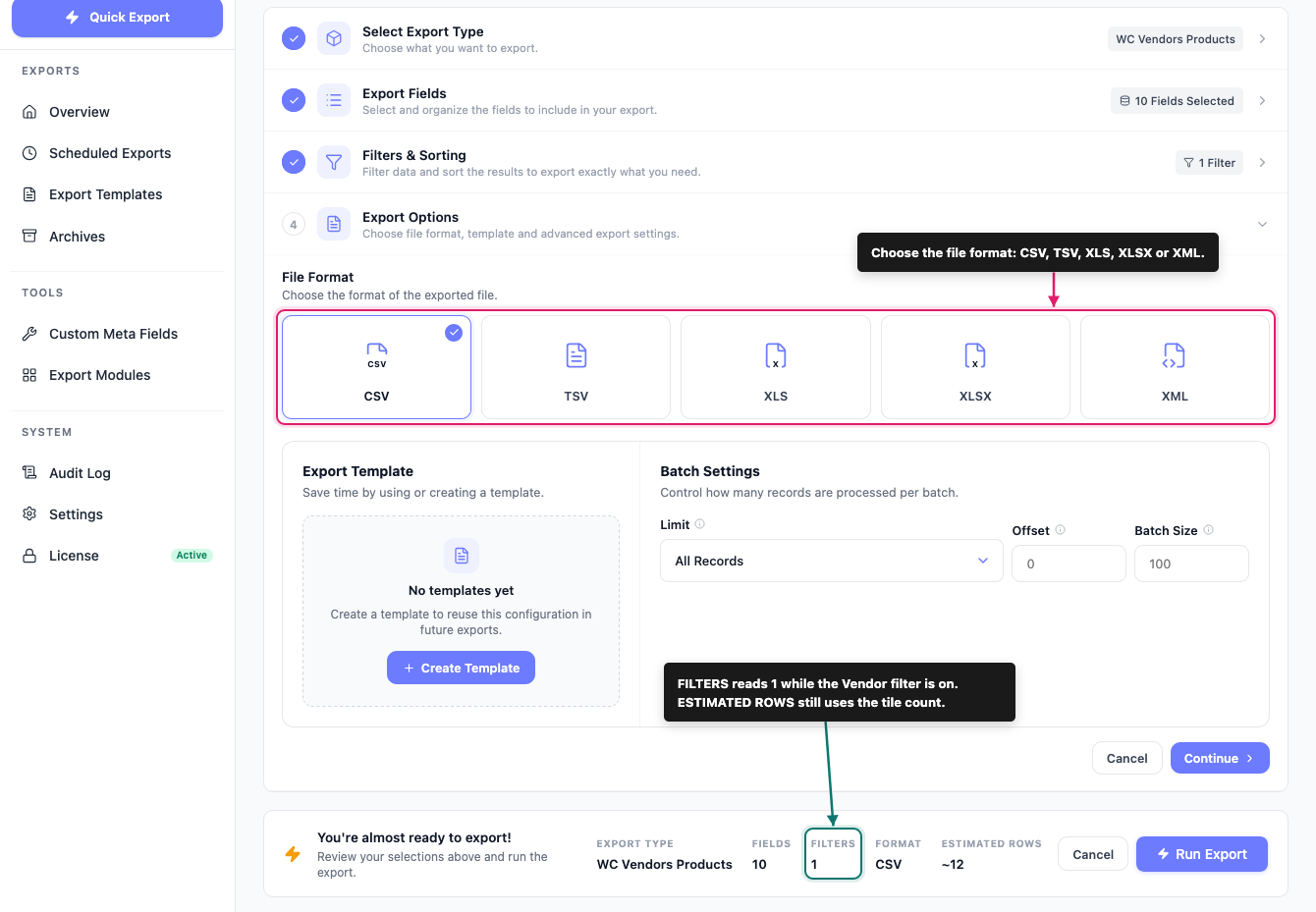
On the Export Options step, pick a file format: CSV, TSV, XLS, XLSX or XML. CSV suits most jobs, since nearly every spreadsheet and import tool reads it. If you’ve already saved a setup on the Export Templates screen, apply it from the Export Template dropdown instead of rebuilding your field list by hand.
Under Batch Settings, you can limit the number of records, set an Offset to skip the first rows, and change the Batch Size.
Before you run it, check the summary bar at the bottom of the page. It shows EXPORT TYPE, FIELDS, FILTERS, FORMAT, and ESTIMATED ROWS for your export. FILTERS reads 1 when the Vendor filter is on. ESTIMATED ROWS comes from the record count on the tile, so it doesn’t go down when you filter by vendor. When everything looks right, click Run Export. Your file downloads once the run finishes.
What the export includes and leaves out
Keep these points in mind when you read your file:
Only vendor-owned products are included: Products owned by accounts without the vendor role don’t appear, including products you’ve added as the store owner. To export your full catalogue, use the regular Products export type instead.
Vendor Name is the shop name: It comes from the shop name on the vendor’s account, so it can differ from the vendor’s username. The Vendor field gives you the username.
Vendor Address is one line: It contains the first address line only. City, state and postcode aren’t included.
Commission (%) can be blank: It fills in only when a commission rate is saved on that specific product. A blank cell means the product has no product-level rate.
Every vendor is included unless you filter: Without the Vendor filter from Step 3, each run includes every vendor product on your store, and the FILTERS count in the summary bar reads 0. Turn the filter on to include or exclude specific vendors. The count then reads 1.
Pending vendors are left out: Products owned by accounts with the Pending Vendor role aren’t exported. The tile count still includes them, so ESTIMATED ROWS can be higher than the number of rows in your file.
Commissions are a separate export: Commission payments and totals aren’t part of this file. Use the Commissions export type for those.
Exporting vendor products on a schedule
If you send vendors or a syncing tool a fresh product list every week, build it as a scheduled export instead of running Quick Export by hand each time.
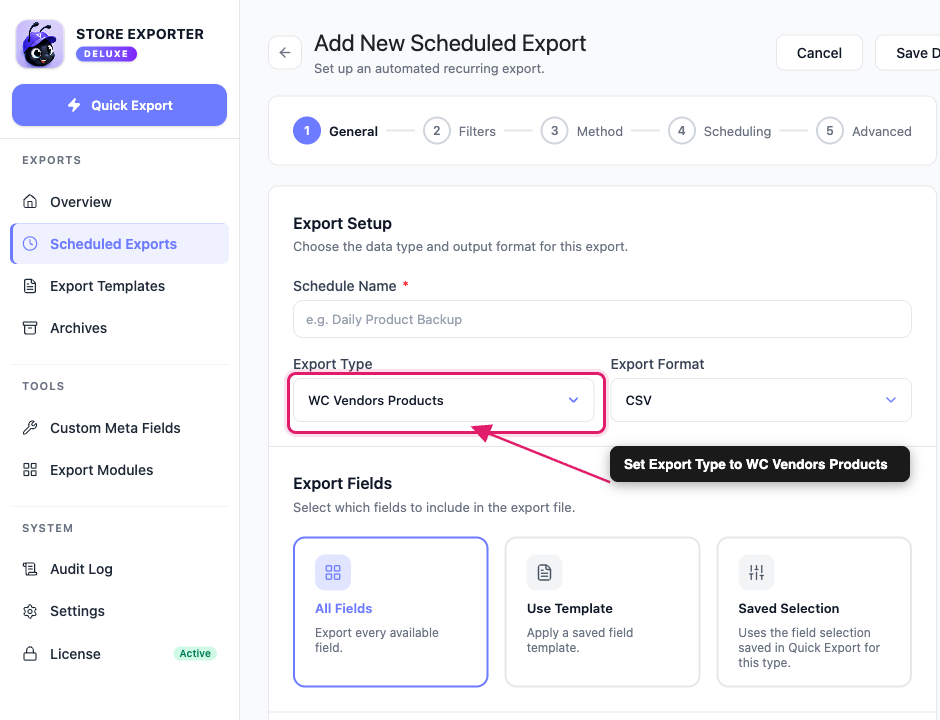
Go to Scheduled Exports in the EXPORTS group, then click New Schedule and set Export Type to WC Vendors Products. Under Export Fields, choose All Fields, Use Template, or Saved Selection. Saved Selection reuses the fields you saved in Quick Export for this type. On the Filters step, use the Vendor Filters group to pick vendors under Vendors and set the Vendor mode, the same way as in Quick Export. On the Method step, choose how the file is delivered: Archive to Media, Save to Server, Send as Email, POST to URL or FTP / SFTP. For detailed instructions on building a schedule, see How to schedule exports.
Troubleshooting
Frequently asked questions
Related articles
- How to export WooCommerce products with Store Exporter Deluxe
- Store Exporter Deluxe supported plugins list
- Available export fields in Store Exporter Deluxe
- How to schedule exports
Need help?
If you have a question or run into any issues, we’re here to help.
- Premium users: Open a support ticket
- Free users: Visit our community forum
