
Seeing a Creation of dynamic property ... is deprecated line in your error log after an export? Here is what the message means, how to stop it, and what to check if it comes back. It applies to Store Exporter Deluxe for WooCommerce on PHP 8.2 or later.
A dynamic property notice appears after you export
What’s happening
You run an export on PHP 8.2 or later. Then your PHP error log, or the top of the admin screen, shows a line like this one:
PHP Deprecated: Creation of dynamic property Automattic\WooCommerce\Admin\Overrides\Order::$followup_optout is deprecated in /wp-content/plugins/woocommerce-store-exporter-deluxe/includes/order.phpThe name after ::$ changes from site to site. You might see the key of a custom meta field instead.
Why it happens
PHP 8.2 marks a common coding pattern as deprecated: adding a value to an object under a name the object doesn’t declare. PHP 8.2 logs a notice each time code does this.
Store Exporter Deluxe 5.4.1 and later include updates for PHP 8.2 that cover the most common cases.
A deprecation notice is a warning about future PHP versions. It is not a fatal error, and on its own it doesn’t stop PHP from running the export.
How to fix it
Update Store Exporter Deluxe to version 5.4.1 or later.
Check your PHP version
- Go to Tools → Site Health.
- Click the Info tab.
- Open the Server section.
- Find the PHP version row.
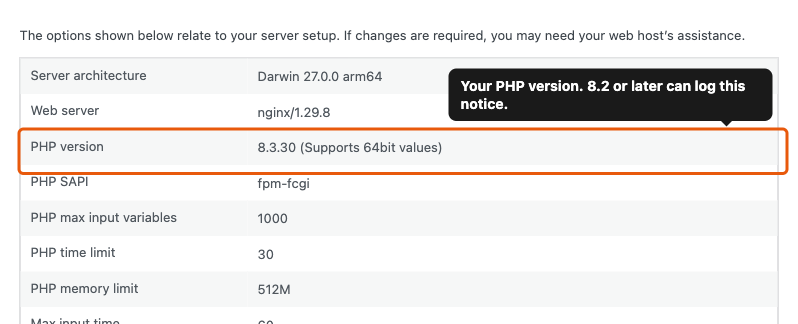
If the version is 8.1 or lower, the line doesn’t come from the PHP 8.2 dynamic property check. Read the full log line, or ask your host which code logged it.
Update Store Exporter Deluxe
- Go to Plugins → Installed Plugins.
- Find Store Exporter Deluxe for WooCommerce in the list.
- Check the version number under the plugin description.
- If the version is lower than 5.4.1, click update now in the update notice below the plugin.

Don’t see an update notice? Store Exporter Deluxe only checks for updates while your license is active. Check your license status, or download the latest version from your account and install it.
Run the export again
- Run the same export that showed the notice.
- Open your PHP error log.
- Check that no new
Creation of dynamic propertylines fromwoocommerce-store-exporter-deluxeappear.
If a line from woocommerce-store-exporter-deluxe still appears, follow the steps in The notice still appears after you update.
Not sure where your error log is? Ask your host. Many hosts show it in the hosting control panel. If you turned on WordPress debug logging, the file is usually wp-content/debug.log.
The notice still appears after you update
What’s happening
You’re on version 5.4.1 or later, but a Creation of dynamic property line still shows up.
Why it happens
Many plugins and themes trigger the same PHP 8.2 notice. The line may come from different code, or it may be an old entry written before you updated.
A few export settings and add-ons can also still log this notice from Store Exporter Deluxe. Step 4 below covers that case.
How to fix it
- Check the date and time at the start of the log line. Ignore entries from before you updated.
- Read the file path that follows the word
innear the end of the line. - If the path doesn’t contain
woocommerce-store-exporter-deluxe, contact the author of the plugin or theme in that path. - If the path does contain
woocommerce-store-exporter-deluxe, open a support ticket.
In your ticket, paste the full log line. Also include your Store Exporter Deluxe version, the export type you ran, and any add-ons or custom fields in that export.
Deprecation notices show on screen on your live store
What’s happening
Deprecation notices print at the top of admin pages or on the front end of your store.
Why it happens
WordPress debug mode is on (WP_DEBUG is true), and it shows PHP notices on screen by default. That’s useful on a test site, but not on a live store.
How to fix it
Send notices to a log file instead. In your wp-config.php file, make sure these lines sit above the line that starts with /* That's all, stop editing!:
define( 'WP_DEBUG', true );
define( 'WP_DEBUG_LOG', true );
define( 'WP_DEBUG_DISPLAY', false );
Notices then go to wp-content/debug.log and stop showing on screen. If you don’t need the log, set WP_DEBUG to false instead. If WP_DEBUG is already false and notices still show, ask your host to turn off display_errors in your PHP settings. See Debugging in WordPress for all the debug settings.
Frequently asked questions
Need help?
If you have a question or run into any issues, we’re here to help.
- Premium users: Open a support ticket
- Free users: Visit our community forum