
Your CSV opens in Excel with every value in a single column, your dates look swapped, or a run on the Archives screen has no file to download. The cause is often a setting on the Settings screen in Store Exporter Deluxe.
This article is a reference, not a walkthrough. Each section lists the options you can see and change, their defaults, and when to change them. The two settings that matter most for support, Character Encoding and Field Delimiter, come first.
Prerequisites
| Requirement | Details |
|---|---|
| Plugin version | Store Exporter Deluxe 5.4.5 or later, with the sidebar dashboard (not the older tab-bar admin) |
| Permissions | Your WordPress account needs the manage_woocommerce capability |
| Where to find it | Open WooCommerce → Store Export, then select Settings in the SYSTEM section of the sidebar |
How the Settings screen works
The screen has three parts. A category list sits on the left, the options for the selected category sit in the middle, and a Configuration Summary sits on the right. The categories are General, Export Formats, Archives, Scheduling, CRON Exports, Orders, Export Triggers, Advanced, Audit Log, and Danger Zone.
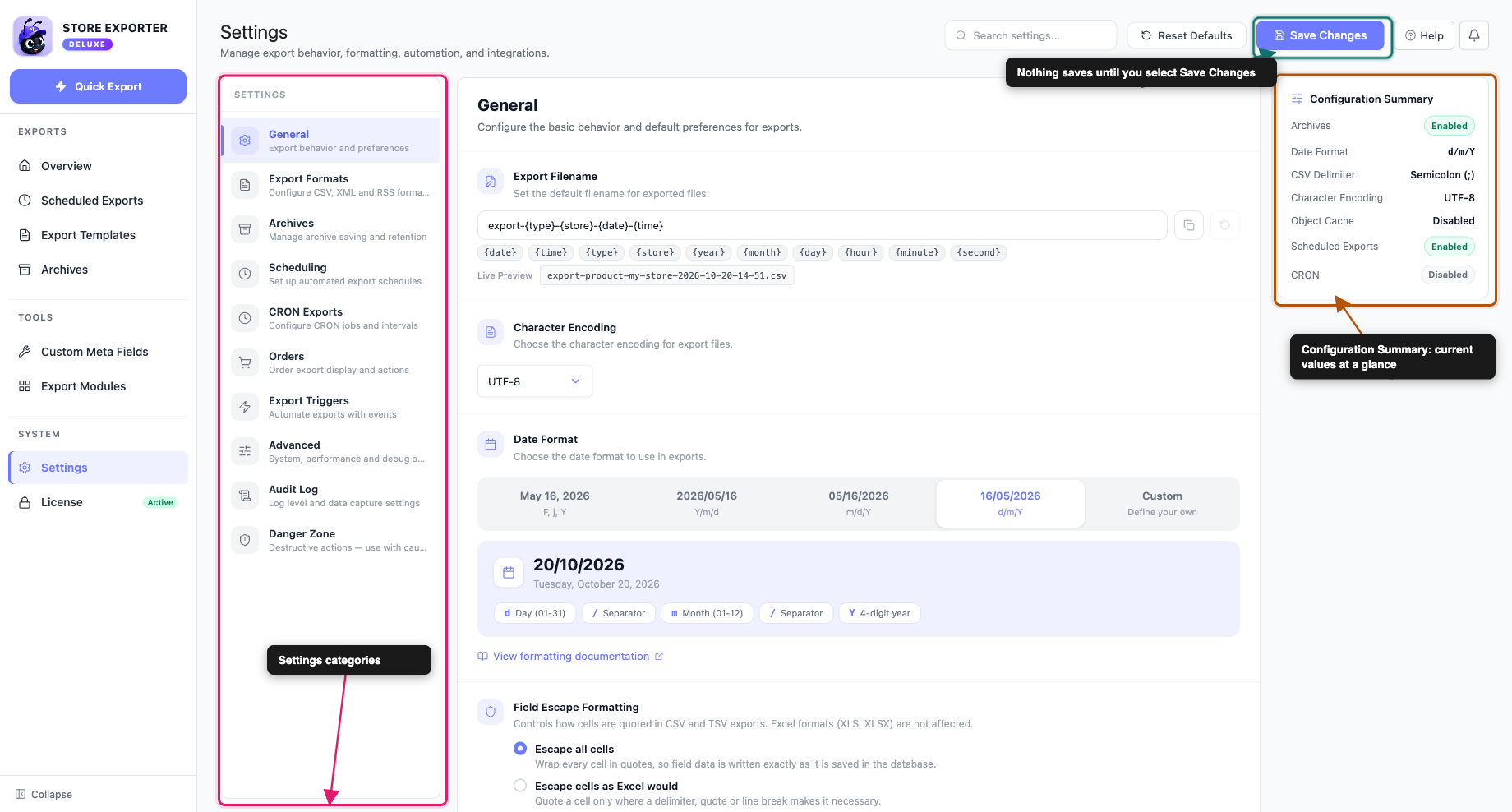
Changes don’t save on their own. Select Save Changes at the top of the screen (the button reads Saved! for a few seconds afterwards). While you have edits waiting, a bar at the bottom shows how many unsaved changes you have. Use Reset Changes in that bar, or Reset Defaults at the top, to discard those edits and go back to your last saved values.
Character encoding and delimiter settings
These settings decide how text and columns are written to your file. They are the first place to look when a CSV opens badly in Excel. Field Delimiter applies to CSV files. Field Escape Formatting applies to CSV and TSV files. XLS and XLSX ignore both. For Excel files, see How to export WooCommerce data to Excel.
Character Encoding
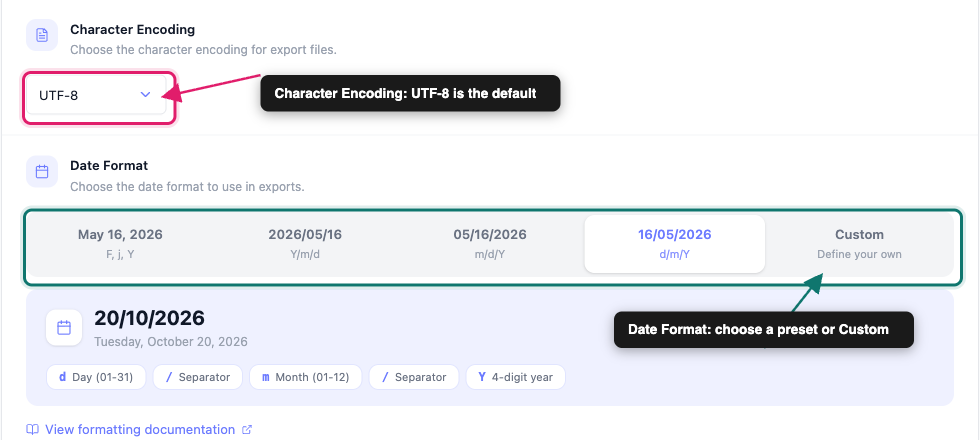
Find this under General. It sets the encoding that your export names in the XML and RSS file declaration and in the download header. It doesn’t convert the text in a CSV file. The default is UTF-8.
| Option | When to use it |
|---|---|
| UTF-8 | Default. Keep it unless the tool you import XML or RSS into asks for something else |
| UTF-16 | Only when the program reading the file asks for UTF-16 |
| ISO-8859-1 | Older systems that expect Western European Latin text |
| Windows-1252 | Older Windows programs that expect this encoding |
Add BOM Character
Also under General. It’s a Yes or No switch, and it’s Yes by default.
Field Delimiter
Find this under Export Formats, in the CSV Format panel. It’s the character that separates one cell from the next. The default is a comma (,). Enter a single character, or the word TAB.
| You type | Result |
|---|---|
, | Comma-separated file (default) |
; | Semicolon-separated file |
TAB | Tab-separated file. The Configuration Summary shows this as Tab |
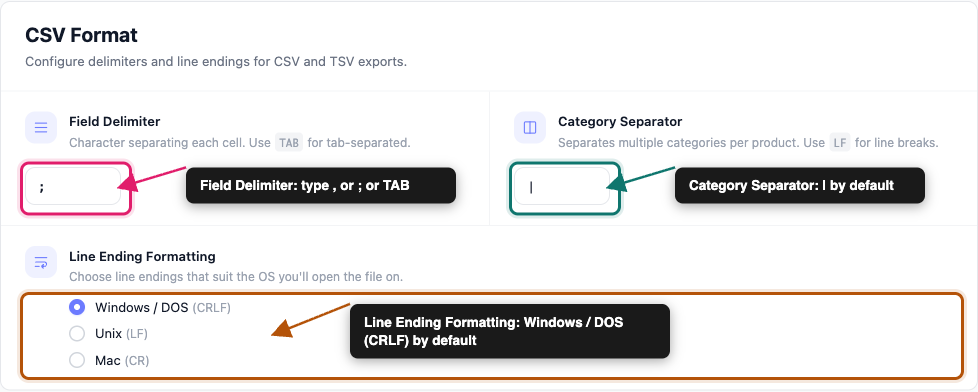
Change it to ; when Excel opens your CSV with every value in one column. Many regional versions of Excel expect a semicolon instead of a comma, because those regions use the comma as a decimal point.
Category Separator
Under Export Formats → CSV Format, next to Field Delimiter. It separates multiple categories on one product. The default is a pipe (|). Type LF to put each category on its own line inside the cell.
Line Ending Formatting
Under Export Formats → CSV Format. It has three options.
| Option | Default |
|---|---|
| Windows / DOS (CRLF) | Yes |
| Unix (LF) | No |
| Mac (CR) | No |
Field Escape Formatting
Under General. It controls how cells are quoted in CSV and TSV exports. XLS and XLSX aren’t affected.
| Option | What it does | Default |
|---|---|---|
| Escape all cells | Wraps every cell in quotes, so field data is written exactly as it’s saved in the database | Yes |
| Escape cells as Excel would | Quotes a cell only where a delimiter, quote or line break makes it necessary | No |
| Do not escape any cells | Quotes nothing, except a field containing a line break | No |
Date Format
Find this under General. It sets how dates appear in your exports. The default is d/m/Y, which shows a date as 16/05/2026.
| Option | Pattern | Example |
|---|---|---|
| May 16, 2026 | F j, Y | May 16, 2026 |
| 2026/05/16 | Y/m/d | 2026/05/16 |
| 05/16/2026 | m/d/Y | 05/16/2026 |
| 16/05/2026 | d/m/Y | 16/05/2026 |
| Custom | Your own pattern | Depends on the pattern |
Select Custom to type your own pattern in the field. A live preview shows today’s date in that pattern as you type. Select a token chip to insert it, or pick one of the quick examples next to Try:. The chips cover these tokens:
| Token | Meaning |
|---|---|
Y | 4-digit year |
y | 2-digit year |
m | Month (01-12) |
n | Month (1-12) |
d | Day (01-31) |
j | Day (1-31) |
F | Month name |
M | Short month |
D | Short day |
l | Full day name |
/ | Slash separator |
- | Dash separator |
For more tokens, select View formatting documentation to open the PHP date format reference. Pick Y-m-d if your import tool wants dates in year-month-day order.
WordPress Object Cache
Find this under General. It has two options.
| Option | Default |
|---|---|
| Flush before each export | Yes |
| Do not flush | No |
Leave this on its default unless our support team asks you to change it.
Archives
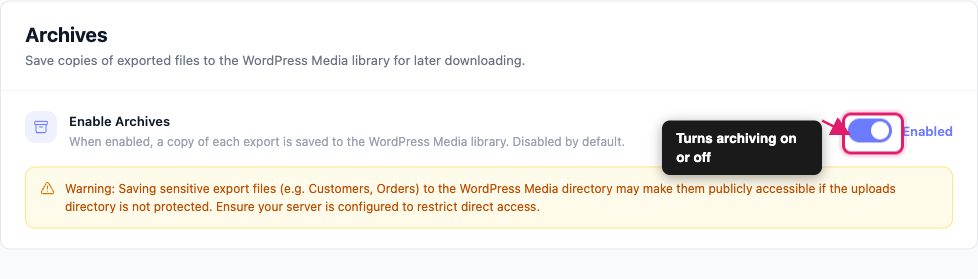
Find this under Archives. The category has one switch, Enable Archives, and it’s off by default. When it’s on, a copy of each export is saved in a protected folder on your server. You download it from the Archives screen in the sidebar.
The Archives screen depends on this switch for its files. With it off, Quick Export runs still show on the Archives screen, but they have no Download link. A scheduled export or a new-order trigger that saves to the archive still keeps its file. For how archives work, see How to use export archives in Store Exporter Deluxe.
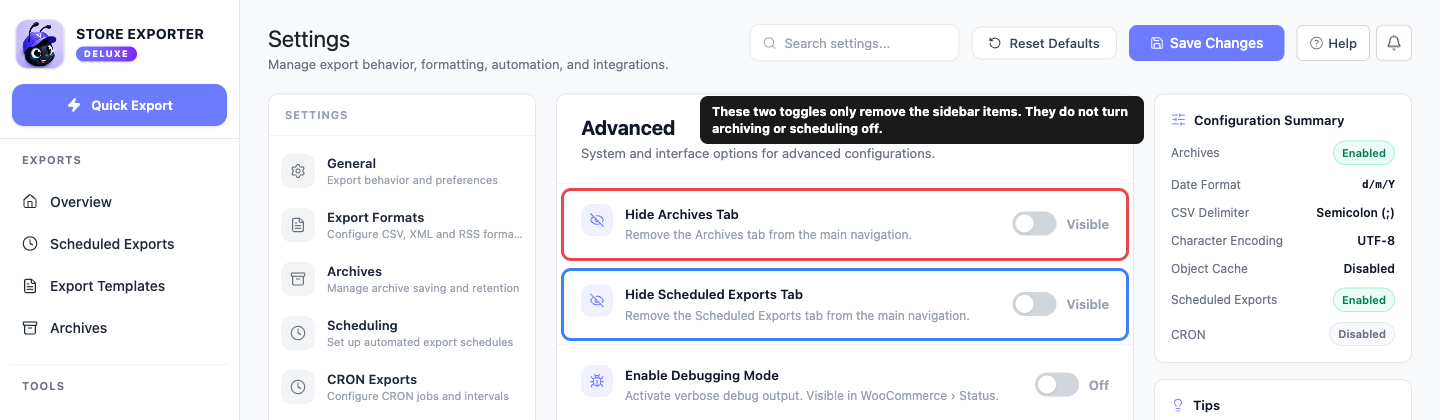
You can also hide the Archives item from the sidebar under Advanced with Hide Archives Tab. That only removes the menu item. It doesn’t turn archiving on or off.
Scheduling
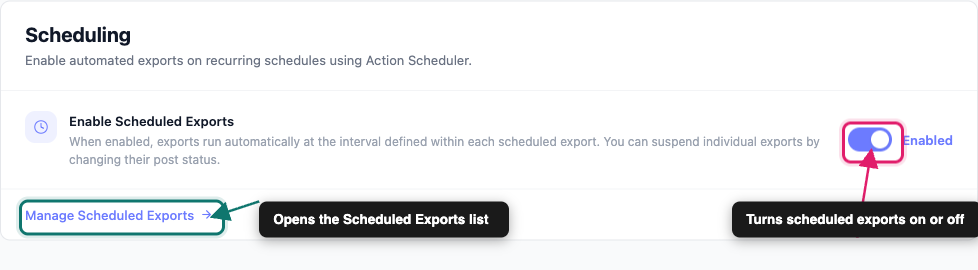
Find this under Scheduling. The category has one switch, Enable Scheduled Exports, and it’s off by default. When it’s on, each scheduled export runs automatically at the interval set inside that export. Scheduled exports run through Action Scheduler.
To stop a scheduled export, turn off its toggle on the Scheduled Exports screen. Its status changes to Paused, and a Paused export doesn’t run. Select Manage Scheduled Exports below the switch to open the scheduled exports list. For how to build one, see How to schedule exports in Store Exporter Deluxe.
Configuration Summary
The Configuration Summary box sits on the right of the screen and stays visible whichever category you open. It lists seven values at a glance.
| Row | What it shows |
|---|---|
| Archives | Enabled or Disabled |
| Date Format | Your date pattern, for example d/m/Y |
| CSV Delimiter | Comma (,), Semicolon (;), Tab, or the character you typed |
| Character Encoding | Your chosen encoding, for example UTF-8 |
| Object Cache | Flush Enabled or Disabled |
| Scheduled Exports | Enabled or Disabled |
| CRON | Enabled or Disabled |
The summary updates as you change options, including edits you haven’t saved yet. So select Save Changes before you rely on it.
It’s most useful when you contact support. A screenshot of this box tells us your encoding, delimiter and date format in one glance, which are the settings behind most “my export looks wrong” reports.
Other settings in the General category
These sit alongside the settings above under General, in the order they appear on screen.
| Setting | What it does | Default |
|---|---|---|
| Export Filename | A text field with token chips and a preview | export-{type}-{store}-{date}-{time} |
| Header Formatting | Include column headers or Exclude column headers | Include column headers |
| Excel Formulas | Allows Excel formulas in exported files. When off, formulas are stripped | Stripped |
| Restrict Image Embedding | Embeds images in XLS and XLSX exports only for columns that hold an image, such as Featured Image | Any column |
| Escape Formulas in CSV/TSV | Prefixes any CSV or TSV cell a spreadsheet would run as a formula with a single quote. Negative amounts and international phone numbers are left alone. XLS and XLSX are always protected | Escaped |
| Script Timeout | The longest an export can process before it stops. Options are 10 minutes, 30 minutes, 1 hour and Unlimited | Unlimited |
Other categories
The remaining categories each have their own article or are covered where you use them.
| Category | What it covers |
|---|---|
| Export Formats | Besides the CSV settings above, the XML Format panel (root attributes) and the RSS Format panel (Title Element, Link Element and Description Element) |
| CRON Exports | Remote export triggers through a URL, protected by an Export Secret Key |
| Orders | Export buttons and options on the WooCommerce orders screen |
| Export Triggers | Exports that run when a new order arrives |
| Advanced | Hide Archives Tab, Hide Scheduled Exports Tab, Enable Debugging Mode, Enable Logging Mode, and maintenance actions |
| Audit Log | The log of export runs. For detailed instructions, see How to use the Audit Log in Store Exporter Deluxe |
| Danger Zone | Destructive reset actions. Read each warning before you use one |
XML root attributes
Under Export Formats → XML Format, the Attribute Display checkboxes choose which details appear on the root XML element. They appear in this order:
| Checkbox | Default |
|---|---|
| Site Address | On |
| Site Title | On |
| Export Date | On |
| Export Time | Off |
| Export Type | On |
| Export Order By | Off |
| Export Order | Off |
| Limit Volume | Off |
| Volume Offset | Off |
Troubleshooting
; under Export Formats → CSV Format, select Save Changes, and export again.Frequently asked questions
Need help?
If you’re using Store Exporter Deluxe and a setting isn’t behaving as described, open a support ticket and include a screenshot of your Configuration Summary. Our team will help you track it down.
If you’re using the free Store Exporter plugin, ask on the WordPress.org support forum, and our team will get back to you there.