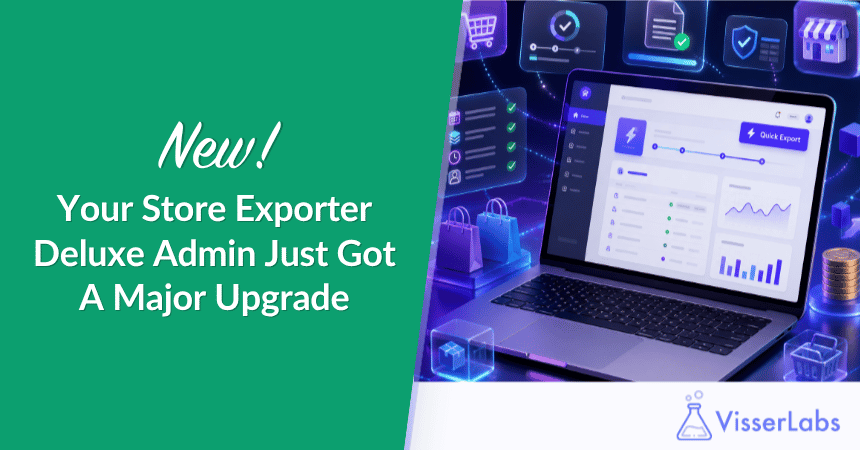
The new Store Exporter Deluxe admin is here, and it’s the biggest change to how the plugin looks and feels since it launched. The whole interface has been rebuilt from the ground up: a fast, modern, single-screen experience with no more full page reloads, a guided Quick Export wizard, and a brand-new Audit Log that tracks every export you run.
If you’ve used Store Exporter Deluxe for a while, you’ll remember the old admin. It did the job, but it leaned on classic WordPress tabs and reloaded the page every time you moved between steps. This update replaces all of that with a clean, app-like interface that responds the moment you click.
In this article, we’ll walk through the redesigned admin screen by screen: the new Overview hub, the Quick Export wizard, Scheduled Exports, Export Templates, Archives, the Audit Log, and the tools that extend everything. We’ll also cover why it’s easier to use, and the reliability fixes that shipped alongside. Let’s take a look.
Table of Contents
- What’s New In The Store Exporter Deluxe Admin?
- A Modern, Single-Screen Admin
- Quick Export, Now A Step-By-Step Wizard
- Scheduled Exports With Full Visibility
- Save Time With Export Templates
- Archives And Downloads In One Place
- Track Every Run With The New Audit Log
- Custom Meta Fields And Export Modules
- A Cleaner, Distraction-Free Workspace
- Why We Rebuilt The Store Exporter Deluxe Admin
- Everything Else Improved In This Update
- How To Get The New Admin
- Conclusion
- Frequently Asked Questions
What’s New In The Store Exporter Deluxe Admin?
The Store Exporter Deluxe admin is now a complete interface rebuild. Every screen runs as a single, fast page, so moving between Quick Export, Scheduled Exports, Templates, and Settings happens instantly without reloading. On top of the new look, this update adds a first-class Audit Log for tracking export runs, and cleans up the workspace so only the plugin’s own notices show.
Here’s the short version of what changed:
- A modern, single-screen interface with a clear sidebar and no page reloads.
- Quick Export as a guided wizard, with live record counts and a real-time progress screen.
- A new Audit Log that records every manual, scheduled, and order-triggered export.
- A cleaner workspace, with third-party admin banners hidden on the plugin’s own pages.
- A batch of reliability fixes, most of them around scheduled exports.
A Modern, Single-Screen Admin
The redesigned Store Exporter Deluxe admin loads once and then responds instantly as you click around. A left-hand sidebar groups everything into clear sections: Exports (Overview, Quick Export, Scheduled Exports, Export Templates, Archives), Tools (Custom Meta Fields, Export Modules), and System (Audit Log, Settings, License). No more hunting through stacked WordPress tabs.
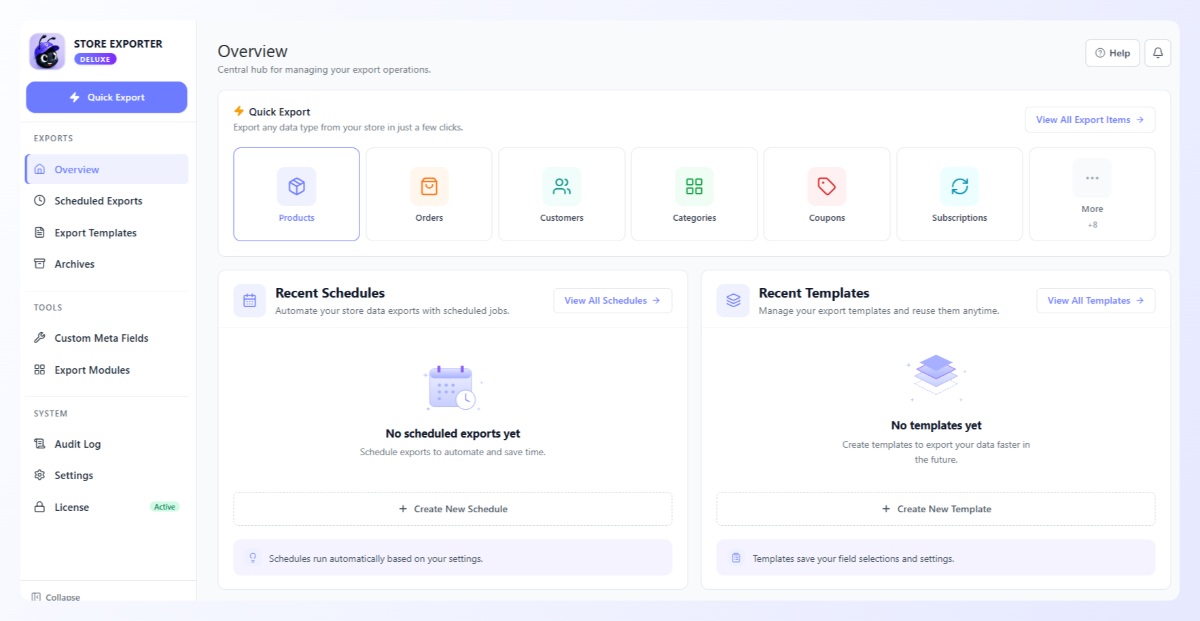
The Overview screen is your central hub. It puts Quick Export data types right at the top, then shows your recent schedules and recent templates below, so you can jump straight back into whatever you were doing.
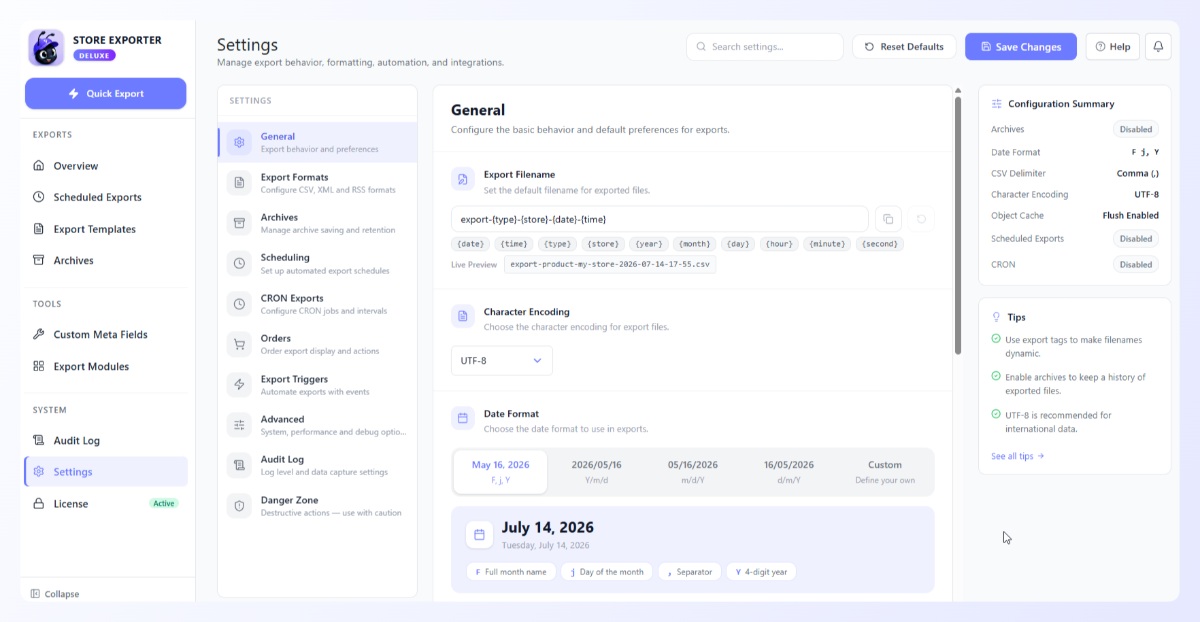
The Settings area got the same treatment. General preferences, export formats, scheduling, and advanced options each have their own panel, and a Configuration Summary on the right shows your current setup at a glance. It feels like part of your store, not an off-the-shelf add-on.
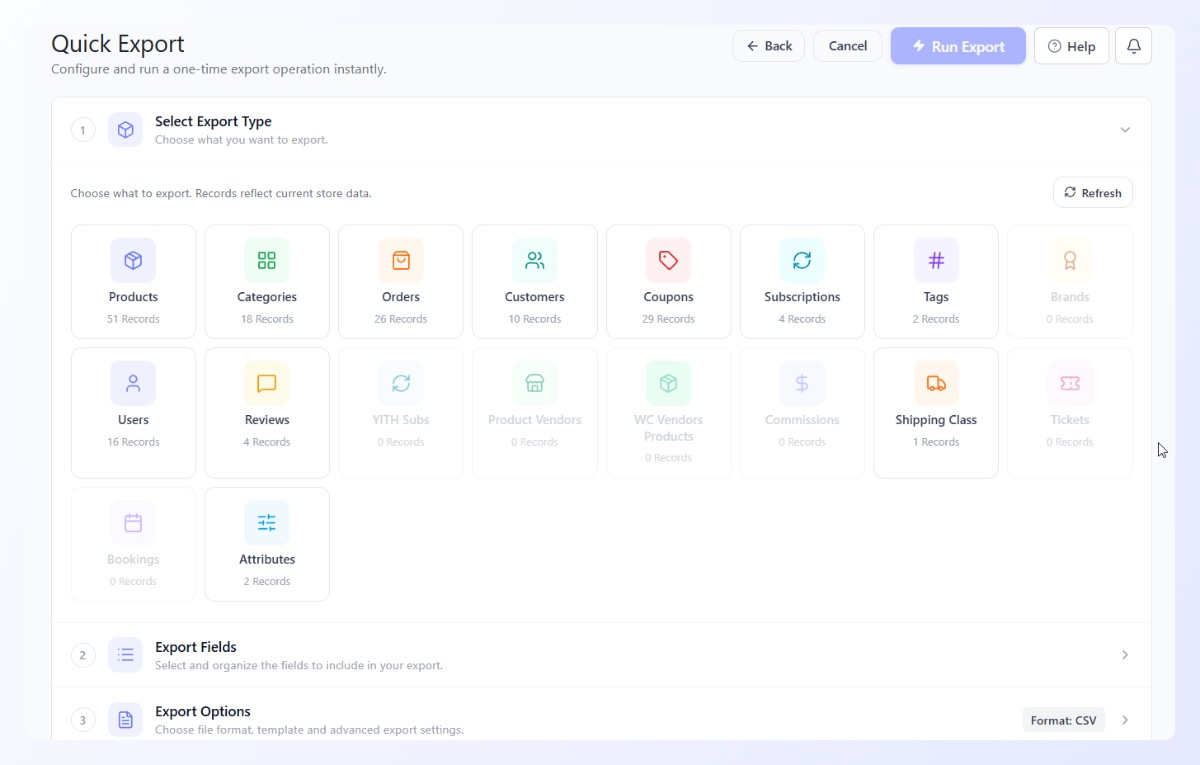
Quick Export, Now A Step-By-Step Wizard
Quick Export now walks you through a one-time export in four clear steps: choose an export type, pick your fields, set filters and sorting, then choose your format and run it. Each export type shows a live record count up front (Products, Orders, Customers, Coupons, Subscriptions, and more), so you know exactly how much data you’re about to pull before you start.
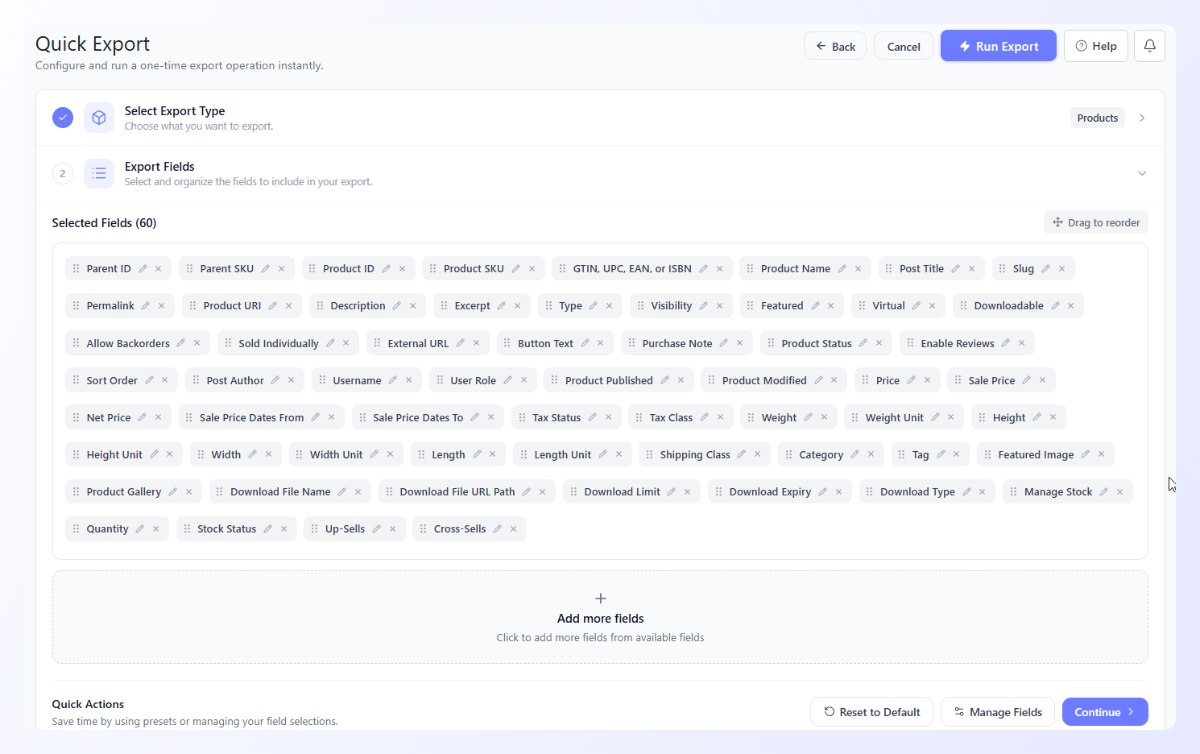
The Export Fields step lets you select and drag-to-reorder every column, with presets to reset to a default set. So you get exactly the columns you want, in the order you want them.
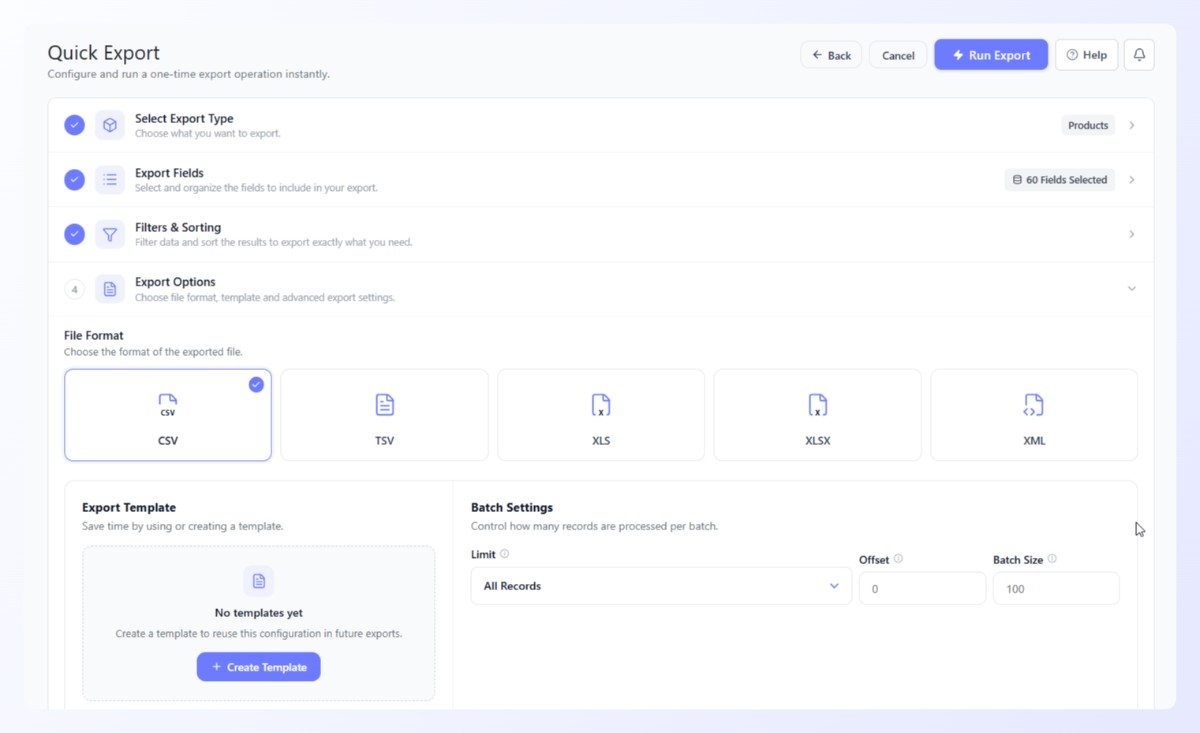
When you reach Export Options, you can pick from CSV, TSV, XLS, XLSX, or XML, save the whole configuration as a template, and control batch settings like limit, offset, and batch size for larger catalogs.
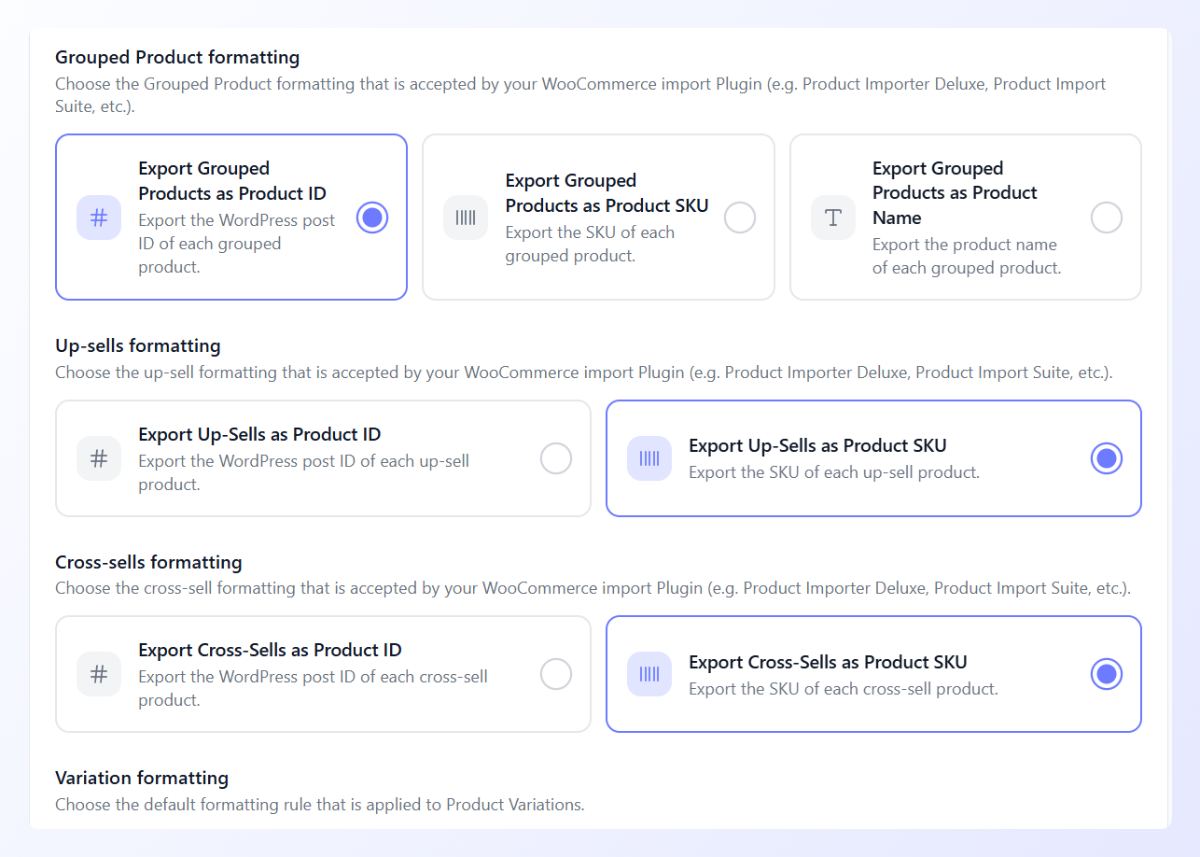
There’s also formatting built specifically for re-importing. You can export grouped products, up-sells, and cross-sells as either a product ID or a SKU, which keeps your data compatible with import plugins like Product Importer Deluxe. This means the file you export is ready to load back into WooCommerce without manual cleanup.
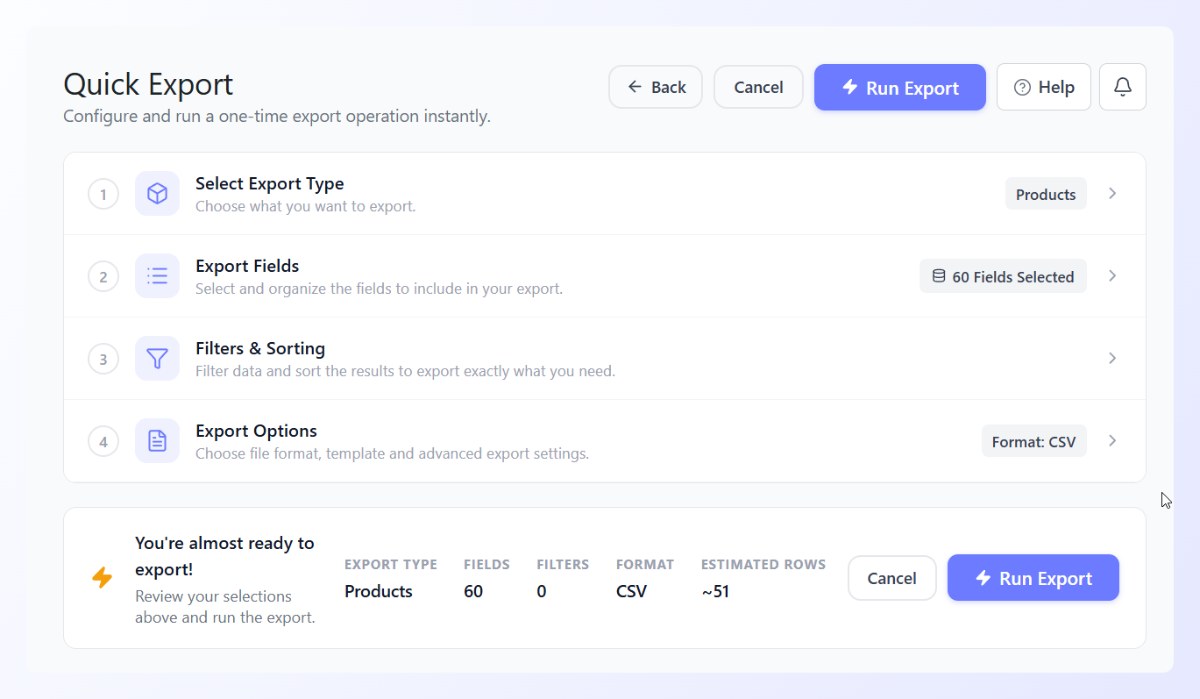
Before you run anything, a review bar sums up your selections: export type, field count, filters, format, and estimated rows. You get a clear picture of what you’re about to export.
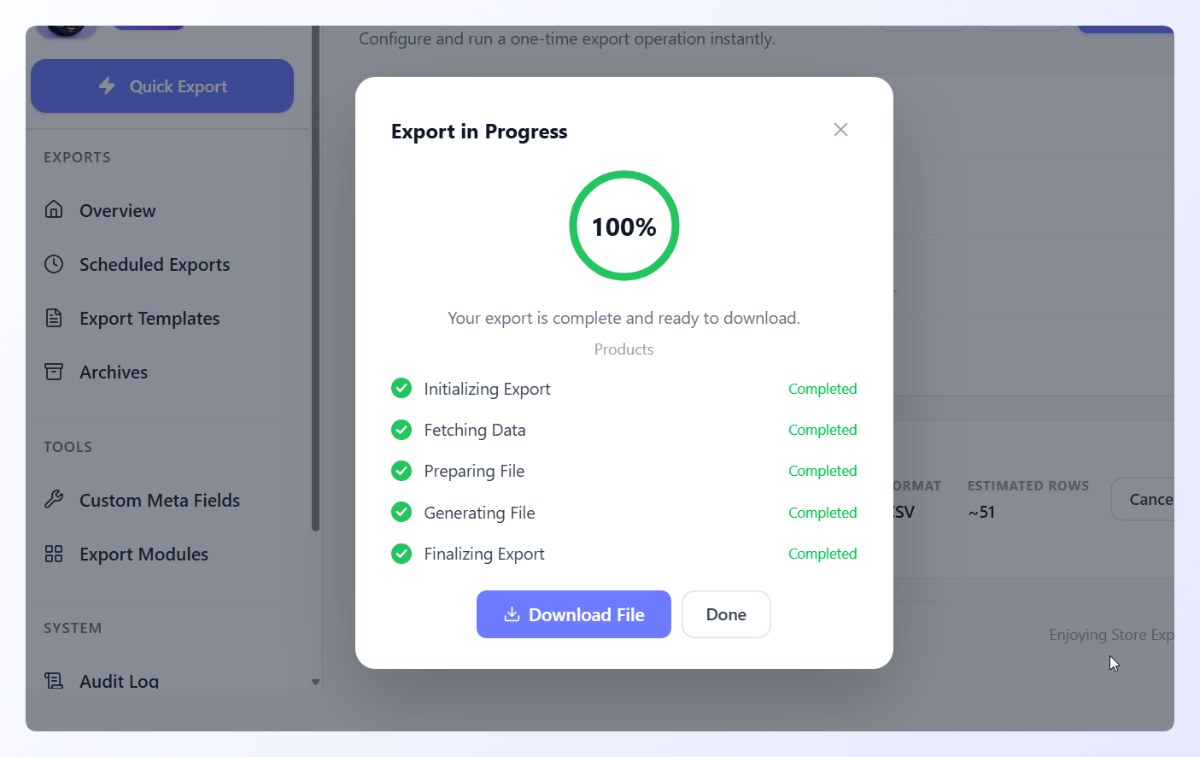
Best of all, you can finally watch the export happen. A progress screen steps through Initializing, Fetching Data, Preparing File, Generating File, and Finalizing, then hands you a Download File button at the end. No more clicking export and wondering if anything’s happening.
Scheduled Exports With Full Visibility
Scheduled Exports now live on their own screen where you can see every recurring job in one table: its frequency, next run, last run, format, and status. You can search and filter by status or frequency, and a Recent Activity panel below shows how your latest scheduled runs went, with an Errors Only view when you need to troubleshoot.
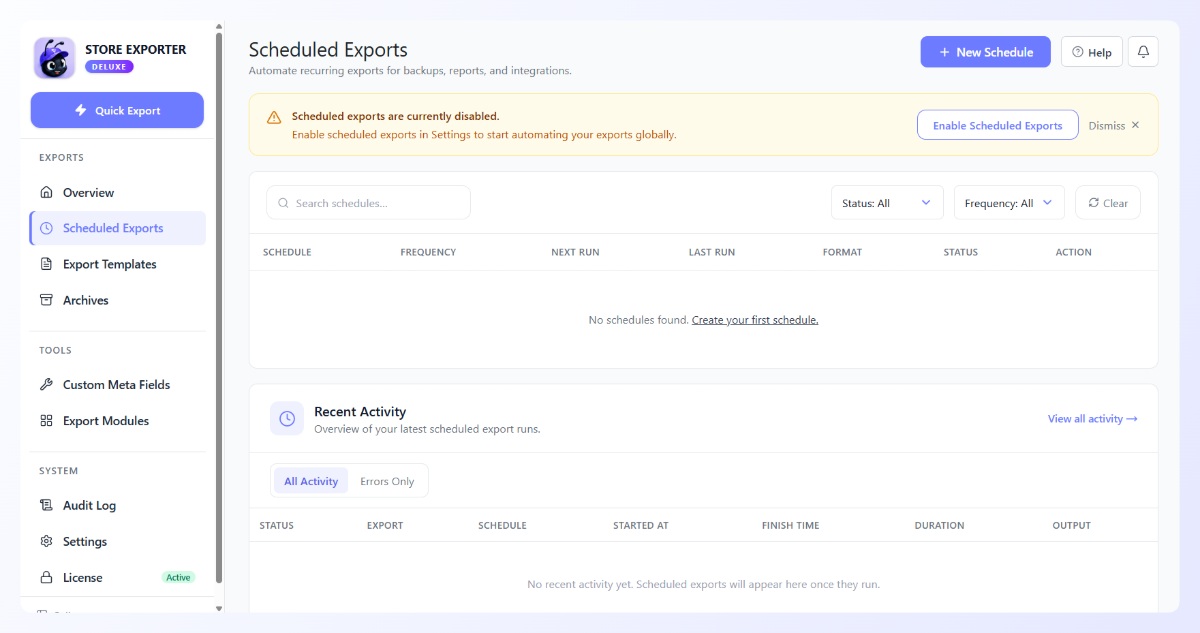
Scheduled exports are the backbone of automated backups, reporting, and integrations, so seeing them clearly matters. When a schedule is disabled, the screen tells you plainly and gives you a one-click way to enable it in Settings.
Save Time With Export Templates
Export Templates let you save a full export configuration (fields, filters, and formatting) and reuse it whenever you need it. Instead of rebuilding the same product or order export every month, you set it up once and run it in a couple of clicks. Templates also power scheduled exports, so a template you trust can run on autopilot.
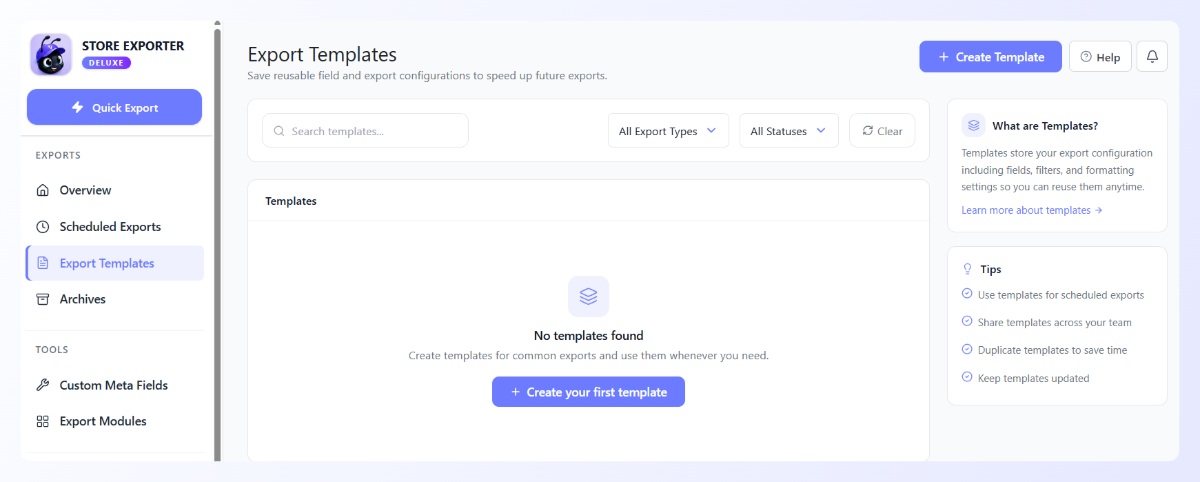
To get you started, the plugin ships with pre-built starter templates: Product Catalog Export, Orders Backup, and Customer Export. Each one comes with a sensible set of fields already selected, so you can use it as-is or tweak it in the two-step builder. Pretty handy, right?
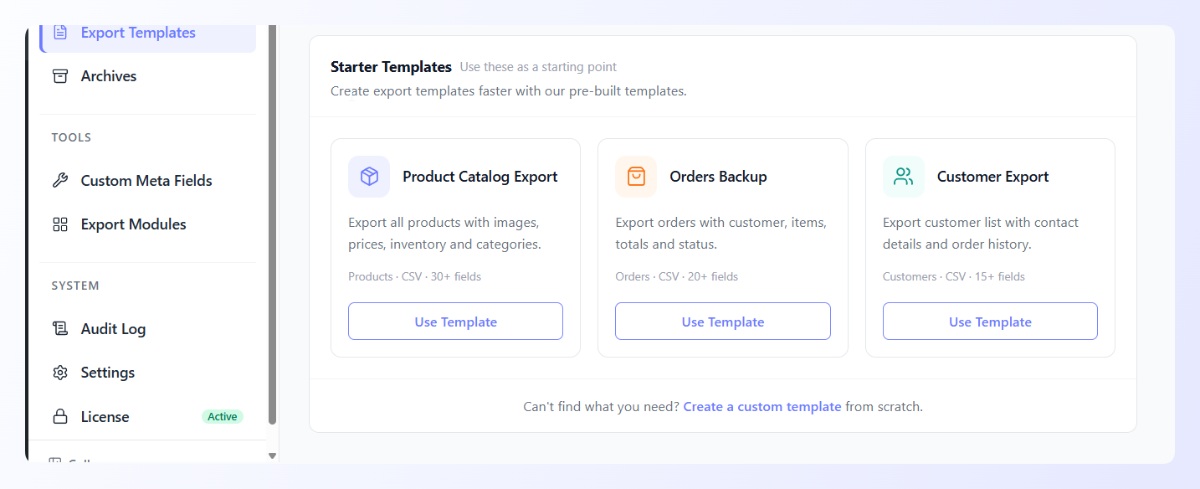
Building your own is just as simple. The template builder splits the job into configuration and field selection, with a running summary of your export type and field count as you go.
Archives And Downloads In One Place
The Archives screen keeps a full history of your exported files so you can find and re-download them later. Each run shows its export type, trigger, row progress, status, date, and file size, and an Archive Summary panel tracks your total runs and total size. When you enable archives, exported files are saved automatically to your WordPress Media Library.
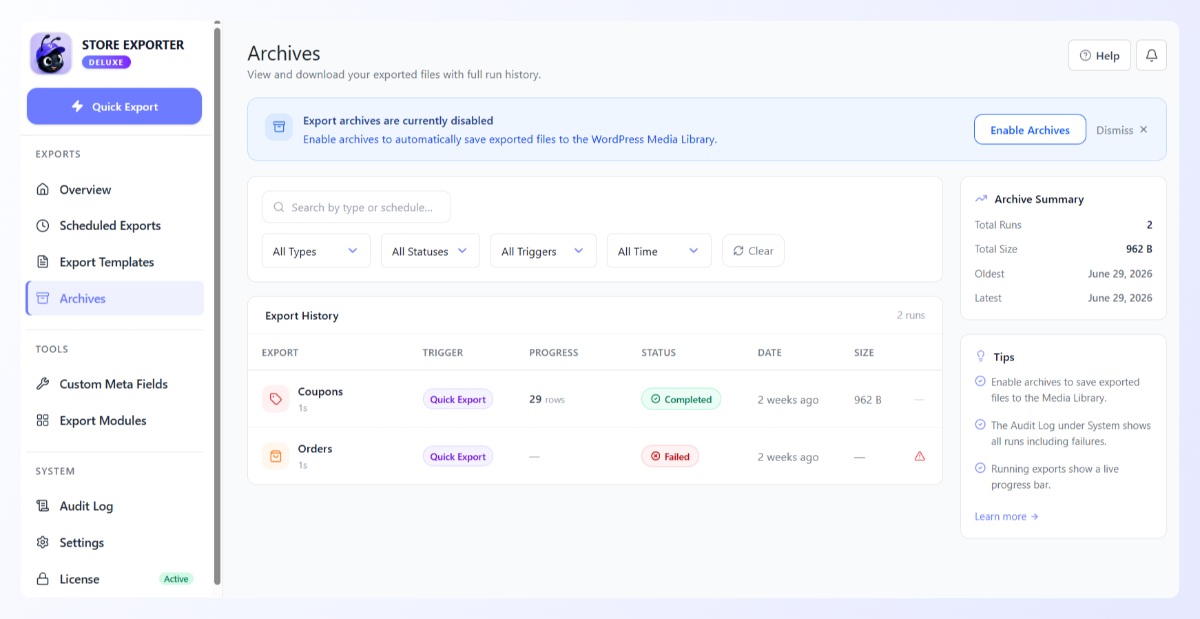
This means you’re never digging through your downloads folder for last month’s order export. The file you generated is right there, tied to the run that created it.
Track Every Run With The New Audit Log
The Audit Log is a new feature that records every export run in one place: manual exports, scheduled exports, and exports triggered by a new order. For each run it shows the export type, trigger, row progress, status, level, and start time, so you always know what ran, when, and whether it finished cleanly.
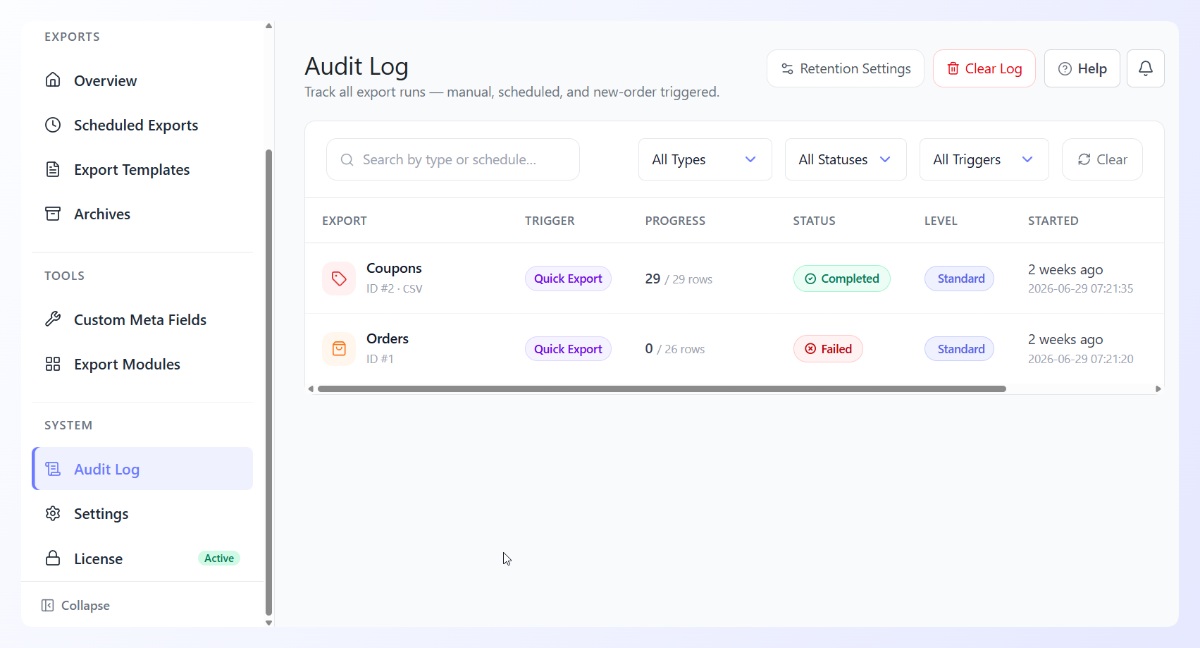
This is where the log earns its place. If a scheduled export fails overnight, you’ll see it flagged here with the details, instead of finding out when someone asks where the report is. You also get Retention Settings to control how long entries are kept, and a Clear Log action when you want a fresh start.
For any store that treats exports as part of a real workflow, backups, accounting handoffs, or feeding another system, that history is the difference between guessing and knowing.
Custom Meta Fields And Export Modules
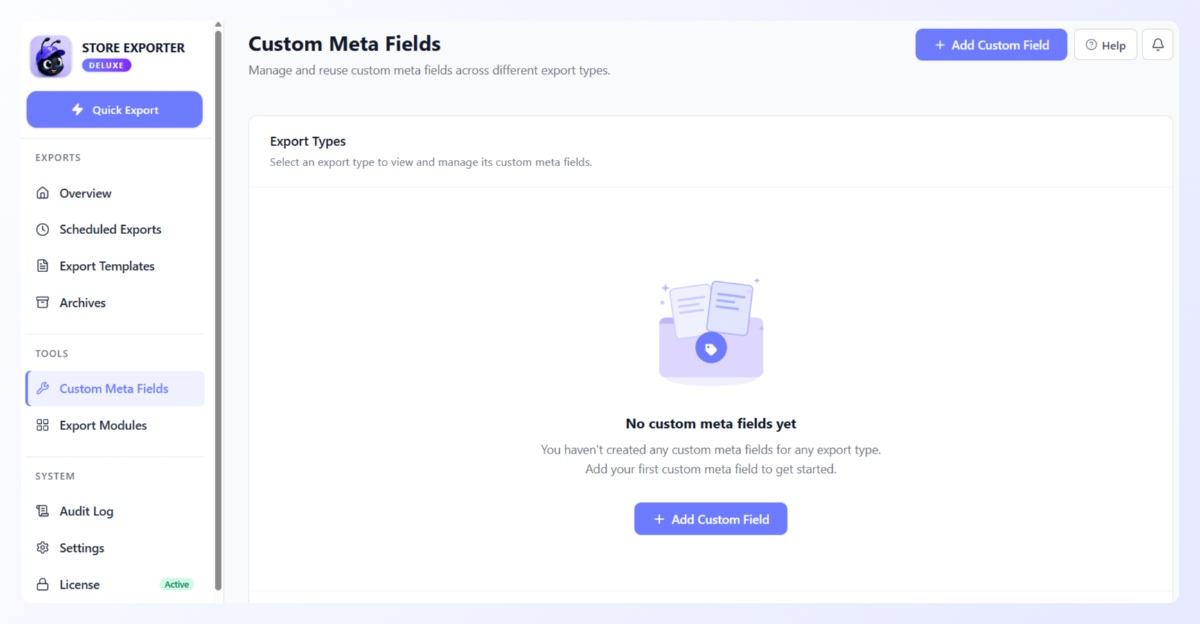
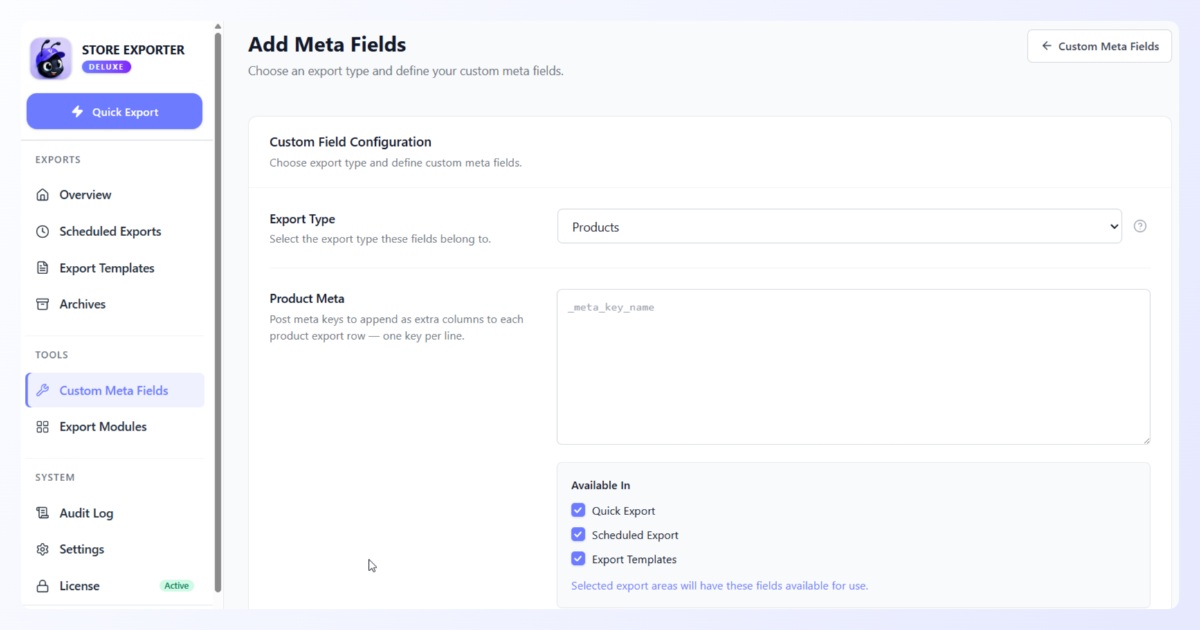
Two tools sit alongside the core export screens and make the plugin fit your store’s data. Custom Meta Fields let you add post meta keys and WooCommerce attribute taxonomies as extra columns, one per line, and choose whether they’re available in Quick Export, Scheduled Exports, or Export Templates. It’s how you get the fields WooCommerce doesn’t expose by default into your export.
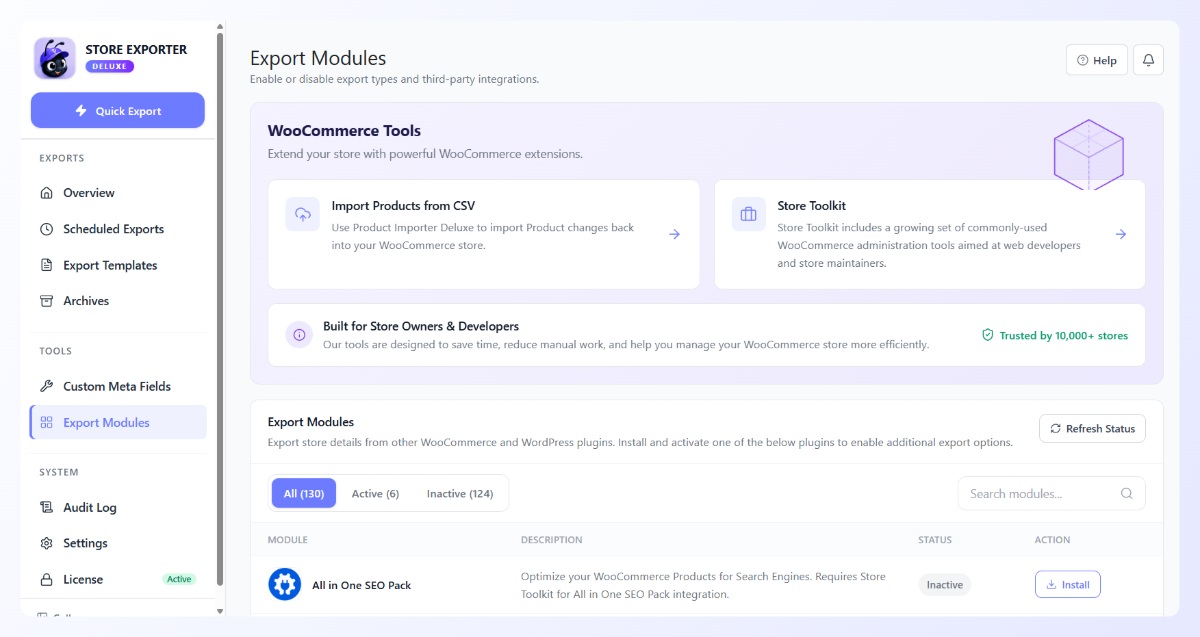
Export Modules is where you enable or disable export types and third-party integrations. The screen lists a large catalog of modules with active and inactive filters, plus quick links to Product Importer Deluxe for round-tripping product changes and Store Toolkit for wider store maintenance. You turn on only what your store actually uses.
A Cleaner, Distraction-Free Workspace
The redesigned admin now hides foreign admin notices on the plugin’s own pages, so the banners other plugins and WordPress core inject on every screen no longer stack up and push the interface down. Your own export notices still show; everyone else’s stay out of the way.
It’s a small change with a big effect on how the redesign feels. WooCommerce does the same thing on its core screens, and here it keeps the new interface rendering flush at the top where it belongs.
Why We Rebuilt The Store Exporter Deluxe Admin
We rebuilt the Store Exporter Deluxe admin to make exporting your store data faster, clearer, and a lot less fiddly. The old interface worked, but it felt dated and made you wait through a page reload on every step. The new one responds the moment you click and keeps everything in one clean, organized space.
Everything is easier to find and follow now. The sidebar puts every tool one click away, each export walks you through clear steps, and you can watch your export run instead of guessing whether it worked. Less clicking, less waiting, less second-guessing, so you can spend more time actually using your data and less time wrestling the export. Cleaner exports also make it easier to put your store’s data to work in your marketing.
The new Audit Log is the clearest win. You finally get a complete history of every export in one place, so you always know what ran and when. It’s a genuinely new capability, and it makes the whole plugin easier to trust.
How To Get The New Admin
Getting the new admin is a standard plugin update. If you already run Store Exporter Deluxe with an active license, update to the latest version from your WordPress plugins screen, then open the plugin to explore the redesigned interface. Your existing exports, schedules, and settings carry over.
If you’re not using Store Exporter Deluxe yet, this is a good moment to start. It handles product, order, customer, subscription, and coupon exports across CSV, TSV, XLS, XLSX, and XML, with scheduling and templates built in. You can compare options on the Store Exporter Deluxe plans page.
Conclusion
This update turns the Store Exporter Deluxe admin into a modern, responsive workspace that’s genuinely nicer to use, and adds real capability on top of the new look.
Here’s a quick recap of what we covered:
- A rebuilt, single-screen admin with a clear sidebar and no page reloads
- A step-by-step Quick Export wizard with live record counts and a progress screen
- Scheduled Exports, Templates, and Archives on their own focused screens
- A brand-new Audit Log for tracking every export run
- A cleaner workspace and a batch of scheduled-export reliability fixes
If you’re ready to see the redesigned Store Exporter Deluxe admin for yourself, update to the latest version and open the plugin, or explore the Store Exporter Deluxe plans to get started. For a refresher on how WooCommerce handles product data, WooCommerce’s own CSV import and export documentation is a useful companion.
Frequently Asked Questions
Is the new Store Exporter Deluxe admin a free update?
Yes, the new Store Exporter Deluxe admin ships as a standard update for licensed users. Update the plugin from your WordPress plugins screen and the redesigned interface loads automatically, with your existing exports and settings intact.
Will the redesign change how my existing scheduled exports work?
No, your existing scheduled exports keep running as configured. The redesign changes how you view and manage them, not how they run. In fact, several scheduled-export bugs are fixed in this update, so some schedules will run more reliably than before.
What does the new Audit Log track?
The Audit Log tracks every export run in your store: manual exports, scheduled exports, and exports triggered by a new order. Each entry records the export type, trigger, row progress, status, and start time, and you can control how long entries are kept with Retention Settings.
Do I need to reconfigure anything after updating?
No, you don’t need to reconfigure anything after updating. Your export types, fields, schedules, templates, and settings all carry over. You can jump straight into the new interface and pick up where you left off.
Could updating the plugin break my site?
No, and this update specifically makes updates safer. A fix in this release prevents a rare bad-state load (from an incomplete update or stale server cache) from taking down the whole site. In that situation the plugin now sits out the request and recovers on its own, so your store stays online.
Which export formats does Store Exporter Deluxe support?
Store Exporter Deluxe exports to CSV, TSV, XLS, XLSX, and XML. You choose the format in the Quick Export wizard’s Export Options step, and you can save that choice, along with your fields and filters, as a reusable template.