
If you need your WooCommerce data in a structured, machine-readable format, rather than a flat spreadsheet, XML is the format to reach for. Store Exporter Deluxe lets you export products, orders, customers, or any other supported data type as a valid XML document, with each record wrapped in its own node and ready to feed into another system, script, or integration.
This article covers the setting that applies to XML exports, selecting XML as your export format, what the output looks like, where to use it, and how developers can customize the node structure with hooks.
Prerequisites
| Requirement | Details |
|---|---|
| Plugin | Store Exporter Deluxe 5.4.5 or later is active and licensed |
| WooCommerce | Active, with at least one record of the type you want to export |
| Administrator access | You’ll need an account with access to the WordPress admin dashboard |
| XML-aware tool (optional) | A text editor, browser, or script if you want to inspect or process the output yourself |
Step 1: Set the character encoding
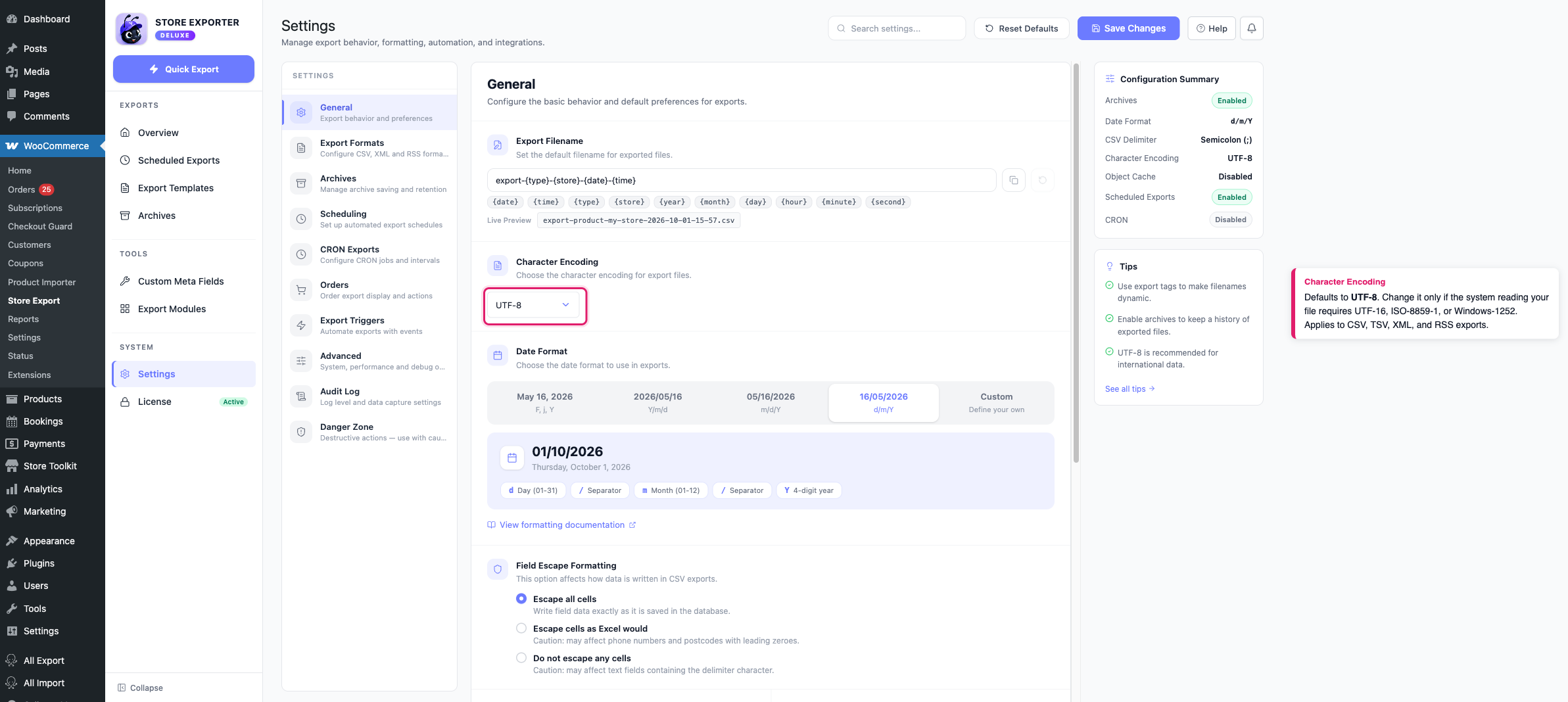
XML exports use the Character Encoding setting in Settings → General. Check it before you start the export:
- Go to WooCommerce → Store Export in your WordPress admin.
- Click Settings in the sidebar.
- Open the General section.
- Check the Character Encoding value.
- Click Save Changes if you changed it.
Character Encoding defaults to UTF-8, which covers virtually every store. You can also choose UTF-16, ISO-8859-1, or Windows-1252 if the system you’re feeding the file into requires one of those specifically. Whatever you pick is written into the file’s XML declaration (<?xml version="1.0" encoding="UTF-8"?>), so the tool reading the file knows how to interpret it.
Step 2: Choose XML as your export format
- Click Quick Export in the sidebar.
- Under Select Export Type, choose the data you want to export, such as Products, Orders, or Customers.
- Choose your columns under Export Fields, and any filters under Filters & Sorting.
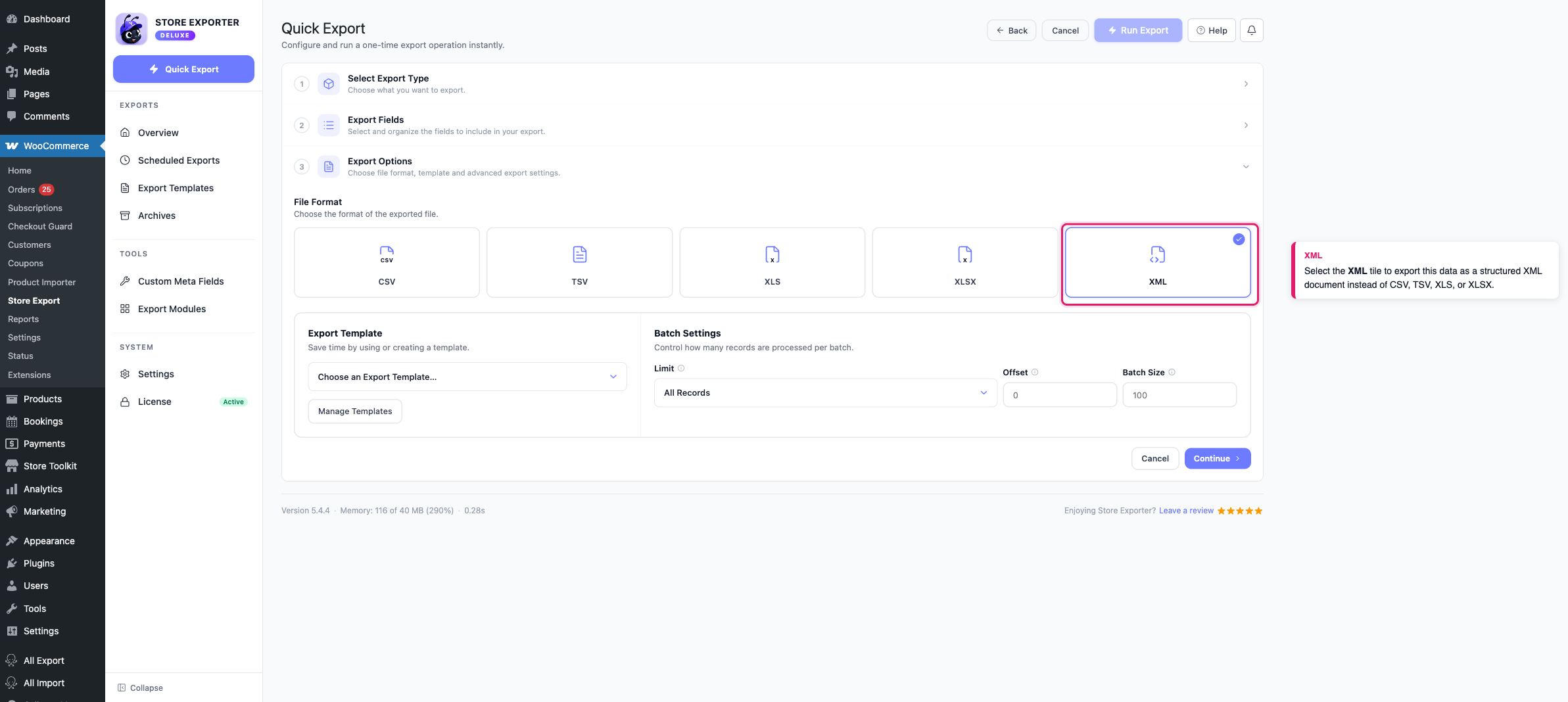
- Under Export Options, select the XML tile in File Format.
XML is available for every export type the plugin supports, not just Products and Orders.
Step 3: Run the export
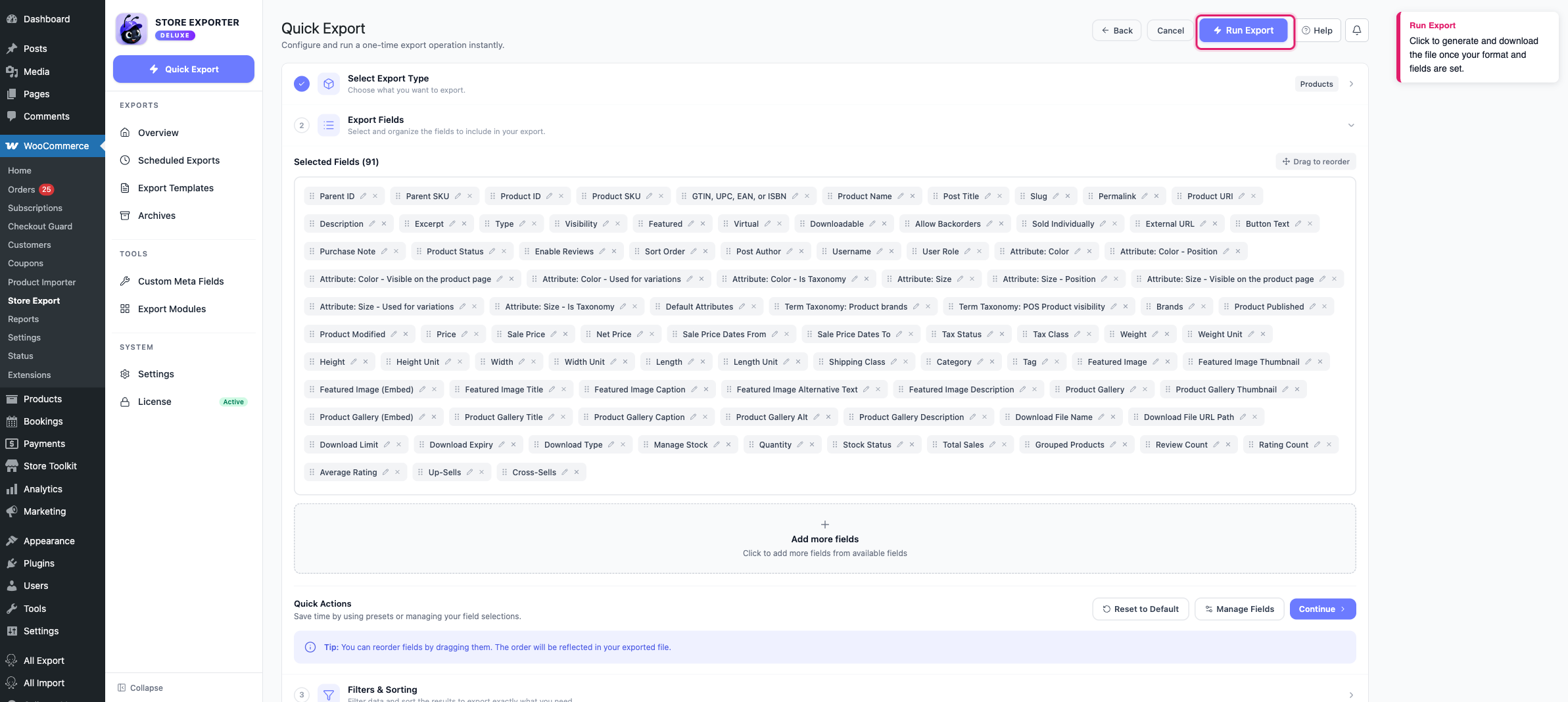
Click Run Export. The Export in Progress dialog opens and builds the XML document with your selected fields and filters. Wait for it to finish, then click Download File to save the .xml file.
If you’d rather have this export run automatically on a schedule, see How to schedule exports. Scheduled exports support XML the same way Quick Export does.
What the output looks like
Every XML export is wrapped in a single <store> root node, with a set of attributes describing the export itself (your site URL, the export date, your store name, and the export’s record limit), followed by one child node per record. A Products export looks like this:
<?xml version="1.0" encoding="UTF-8"?>
<store url="https://example.com" date="2026-10-01" name="Example Store" export="product" limit="100" offset="0">
  <product>
    <productsku>WIDGET-001</productsku>
    <productname>Blue Widget</productname>
    <price>19.99</price>
  </product>
  <product>
    <productsku>WIDGET-002</productsku>
    <productname>Red Widget</productname>
    <price>21.99</price>
  </product>
</store>
Which root attributes appear depends on the toggles in Settings → Export Formats → XML Format.
Each record’s node is named after the export type (product, order, customer, and so on), and each field becomes a child node named after its column label, lowercased with spaces and symbols removed. So Product Name becomes productname. Rename a column in Export Fields (via Manage Fields) to change its node name.
Special characters such as < and & are escaped so the file stays valid XML, and line breaks inside a value are removed. Product categories are always written as CDATA.
Where to use an XML export
Because XML is a structured, self-describing format, it’s a good fit for:
- Custom scripts and integrations: any language with an XML parser (PHP, Python, JavaScript, and so on) can read the file without you writing a custom CSV parser.
- Systems that expect XML feeds: ERPs, PIMs, and other third-party platforms that accept data as XML rather than flat files.
- Inspecting data structure: the node hierarchy makes parent/child relationships (like an order’s line items) easier to read at a glance than a flattened CSV row.
If you’re exporting to re-import the data into another WooCommerce store or a spreadsheet-based tool, a flat format like CSV (see Getting started with Store Exporter Deluxe) or XLSX is usually the better fit, since most import tools, including the WooCommerce product importer, are built around flat, row-based files.
Customizing the XML structure with hooks
Store Exporter Deluxe fires a set of filter hooks specifically for XML exports, letting a developer rename nodes or change which attributes appear on the root <store> node, without editing any plugin files.
To turn root attributes on or off without writing any code, go to Settings → Export Formats → XML Format. The filters below are for developers who need the same control programmatically.
Root node attributes: each attribute on the <store> node has its own on/off filter, so you can drop any you don’t need:
| Filter | Controls |
|---|---|
wsed_xml_attribute_url | The url attribute (your site URL) |
woo_e_xml_attribute_date | The date attribute |
wsed_xml_attribute_time | The time attribute (off by default) |
wsed_xml_attribute_title | The name attribute (your store name) |
wsed_xml_attribute_export | The export attribute (the export type) |
wsed_xml_attribute_orderby | The orderby attribute |
wsed_xml_attribute_order | The order attribute |
wsed_xml_attribute_limit | The limit attribute |
wsed_xml_attribute_offset | The offset attribute |
Each filter receives the current on/off value. Return false to remove that attribute from the output:
add_filter( 'wsed_xml_attribute_time', '__return_false' );Node names: wsed_export_xml_store_node renames the root <store> node, and wsed_export_xml_order_node renames the per-record node that wraps every export type (despite the name, it applies to products, customers, coupons, and every other export type, not just orders):
add_filter( 'wsed_export_xml_order_node', function( $node_name ) {
    return 'item';
} );
This is the same hook set used to wrap content before and after the dataset (wsed_export_xml_before_dataset, wsed_export_xml_after_dataset) and to control the opening declaration (wsed_export_xml_first_line). For the full list of hooks that run during the export pipeline, including the ones for RSS output and the legacy per-type node filters used by manual CRON exports, see Available hooks and filters for further customization.
Troubleshooting
FAQ
<store> node and the per-record node can only be renamed with the filter hooks in Customizing the XML structure with hooks above.<rss> and <channel> nodes) intended for feed readers and services that expect that specific schema. RSS 2.0 is available only in Scheduled Exports, not Quick Export. Use XML for a general-purpose structured export, and RSS only if the system you’re feeding it into specifically requires an RSS feed.Related articles
- How to export WooCommerce data to Excel (XLS/XLSX)
- Available hooks and filters for further customization
- How to schedule exports
Need more help?
If you’re using Store Exporter Deluxe and run into an issue this article doesn’t cover, open a support ticket and our team will help you get your XML export working.
If you’re using the free Store Exporter plugin, ask on the WordPress.org support forum and our team will get back to you there.
