
Selling gift cards and store credit with WooCommerce Smart Coupons? Your coupon export can carry those Smart Coupons settings too, like each coupon’s validity period and whether it’s visible storewide. This guide shows you how to use Store Exporter Deluxe to check the integration, add the columns, filter by coupon type, and export on a schedule.
Prerequisites
| Requirement | Details |
|---|---|
| Plugin | Store Exporter Deluxe 5.4.5 or later, active and licensed |
| WooCommerce Smart Coupons | Installed and active on the same site |
| Coupons | At least one coupon in WooCommerce |
| Administrator access | You’ll need an account with access to the WordPress admin dashboard |
Check that Store Exporter Deluxe detects Smart Coupons
Store Exporter Deluxe adds the Smart Coupons fields on its own when it detects the Smart Coupons plugin. There’s nothing to switch on. You can confirm the detection in a few clicks.
- Go to WooCommerce → Store Export.
- Click Export Modules under the Tools group in the sidebar.
- Type
Smart Couponsinto the Search modules… box. - Check the Status column for the WooCommerce Smart Coupons row.
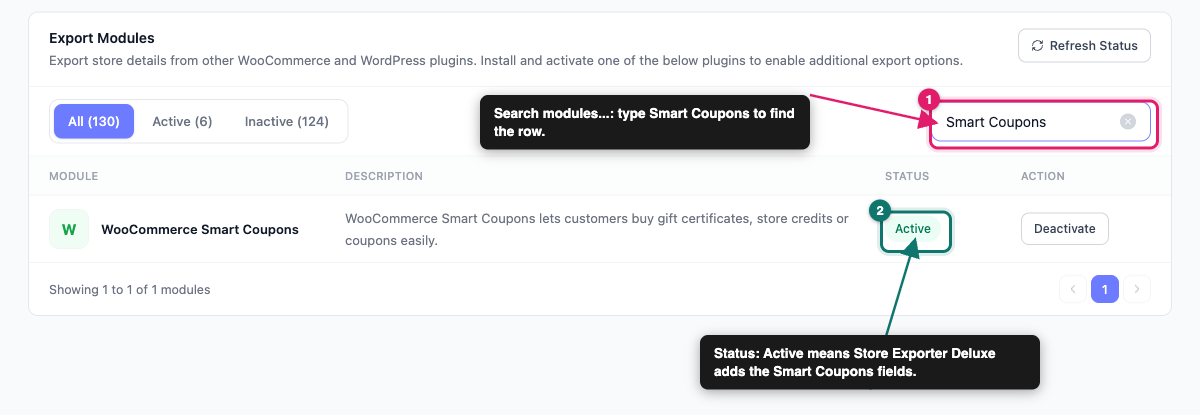
If the status reads Active, you’re ready to export. If it reads Inactive, install and activate WooCommerce Smart Coupons, then come back to this page.
Add the Smart Coupons fields to a coupon export
The Smart Coupons fields aren’t part of the default coupon field selection, so you add them yourself the first time. Quick Export saves your field selection for coupons each time you run a Coupons export, so the next one starts with the same fields.
Pick the Smart Coupons fields
- Go to WooCommerce → Store Export.
- Click Quick Export in the sidebar.
- Under Select Export Type, click the Coupons tile.
- In the Export Fields step, click Add more fields.
- Type a Smart Coupons field name, such as
Valid for, into the Search fields… box. - Tick the checkbox next to each Smart Coupons field you want.
- Click Save Fields.
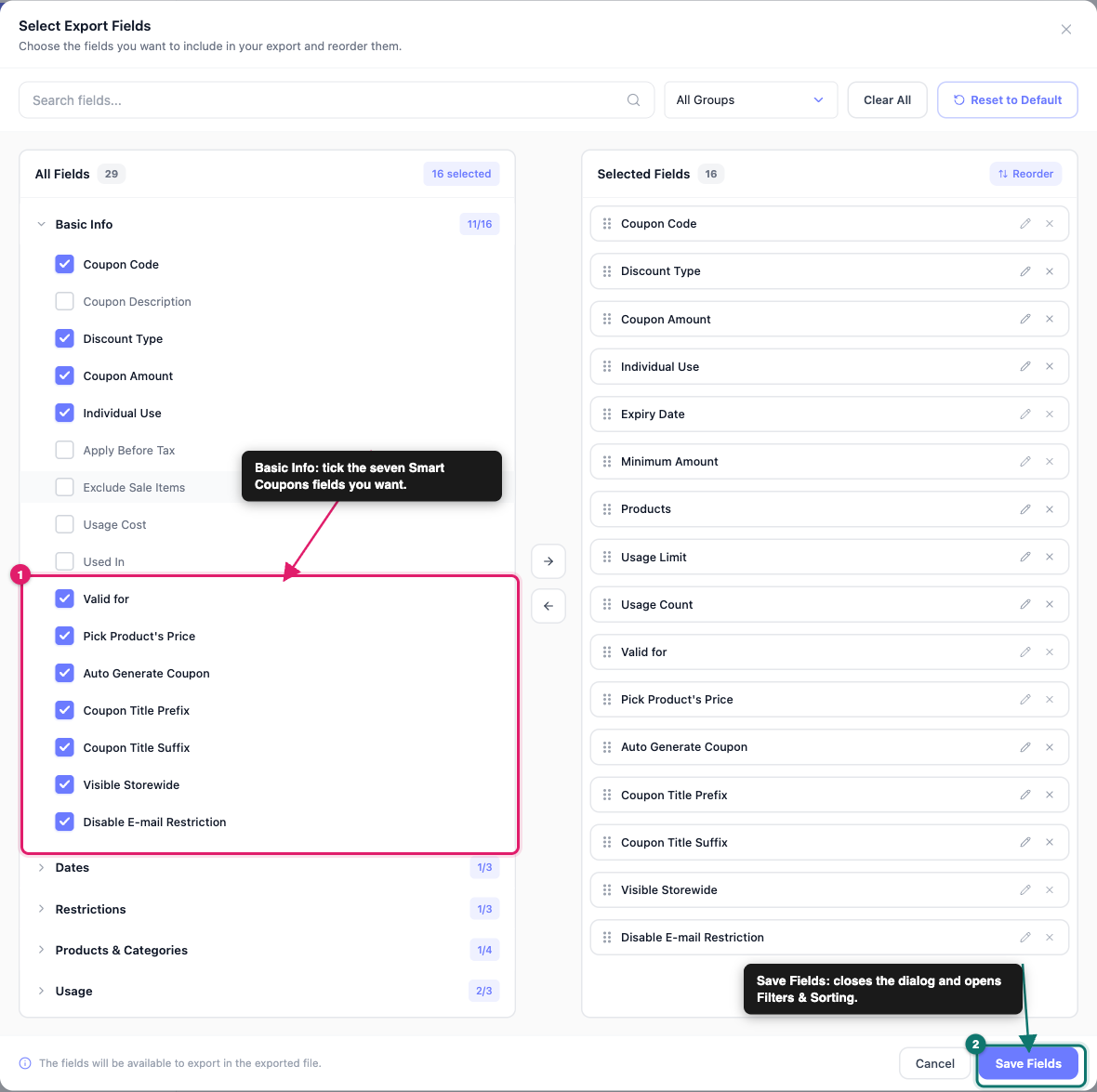
The Smart Coupons fields sit in the Basic Info group of the field picker. After you click Save Fields, the dialog closes and the Filters & Sorting step opens.
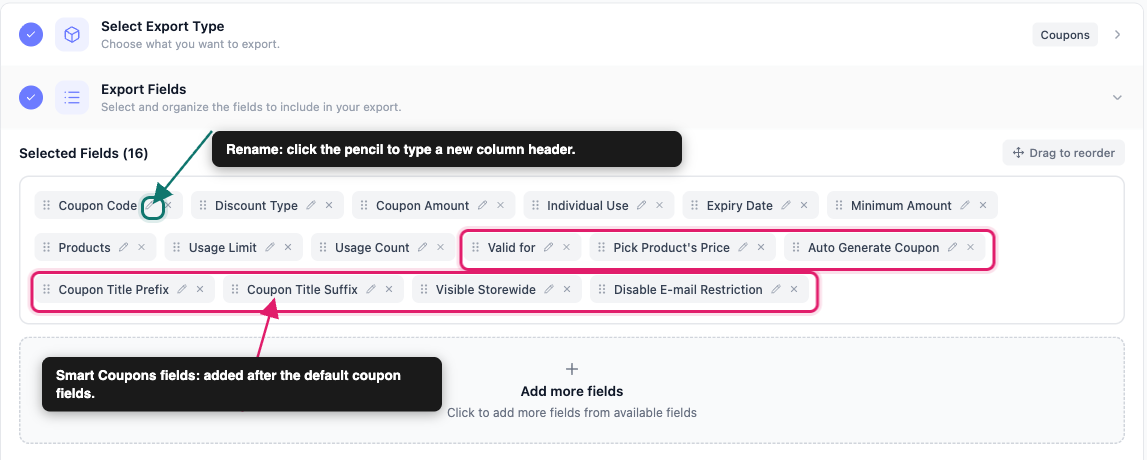
To change a column’s position or header, click Export Fields to open that step again. Drag a field to move its column, or click its Rename (pencil) icon and type a new header.
Run the export
- (Optional) In Filters & Sorting, narrow down which coupons are included.
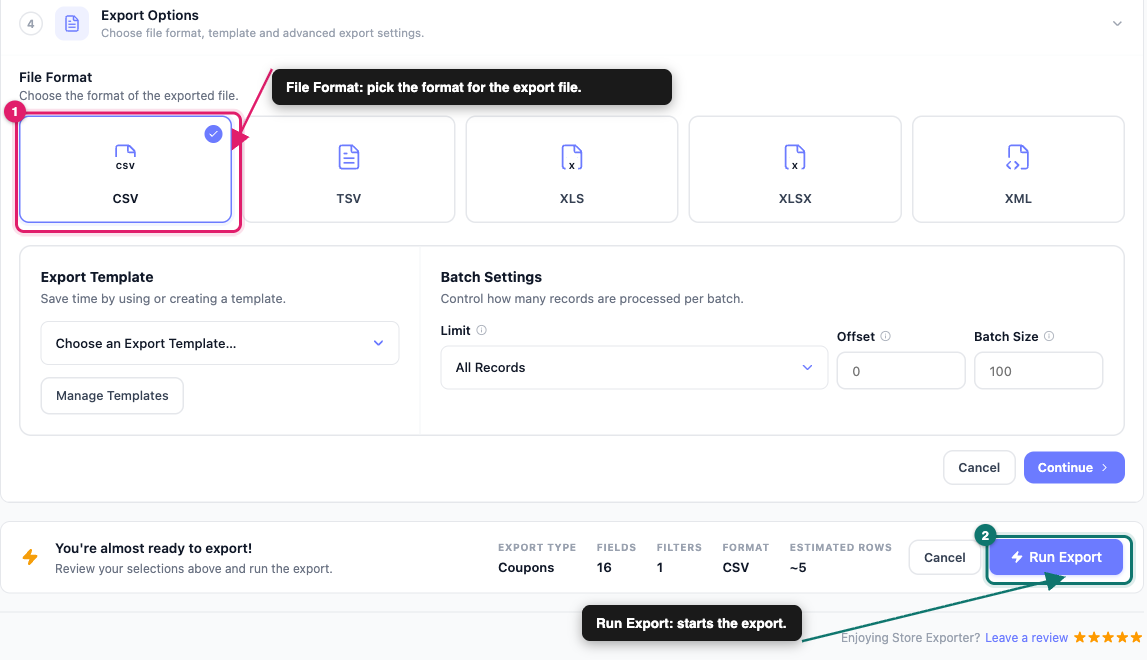
- Open Export Options.
- Pick a file format under File Format.
- Click Run Export.
- Click Download File once the export finishes.
For a full tour of the coupon export screen, including filters and batch settings, see How to export WooCommerce coupons with Store Exporter Deluxe.
Smart Coupons fields you can export
Store Exporter Deluxe adds these seven columns to the Coupons export type when Smart Coupons is active. Each column reads a setting that Smart Coupons saves on the coupon.
| Field | What it contains |
|---|---|
| Valid for | The coupon’s validity period as a number and a unit, for example 30 Days. Blank when either part isn’t saved |
| Pick Product’s Price | Yes or No |
| Auto Generate Coupon | Yes or No |
| Coupon Title Prefix | The prefix text, exactly as saved |
| Coupon Title Suffix | The suffix text, exactly as saved |
| Visible Storewide | Yes or No |
| Disable E-mail Restriction | Yes or No |
Yes or No columns: A coupon that has never had the setting saved exports as No, not as a blank cell. So a No can mean the setting is off, or that it was never set.
Valid for needs both parts: The column is filled only when the coupon has both a validity number and a unit saved. If either is missing, the cell stays blank.
Your export can also include the standard coupon columns, such as Coupon Code, Discount Type, and Coupon Amount, next to the Smart Coupons ones. See Available export fields in Store Exporter Deluxe for the full list.
Export only one type of Smart Coupons coupon
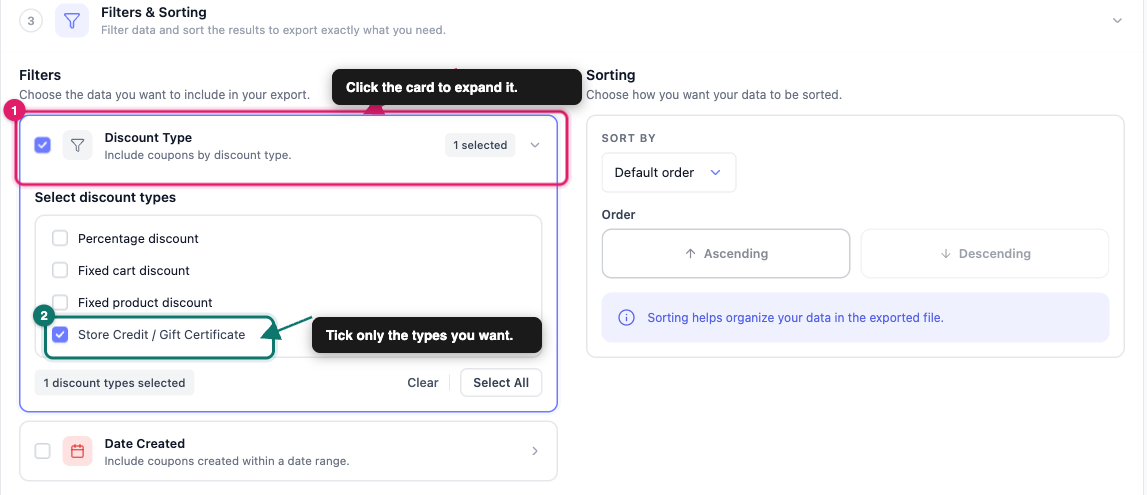
The Discount Type filter lists every discount type registered on your store, including any that Smart Coupons adds. Use it when you want, for example, only your store credit coupons in the file.
- On the Coupons Quick Export, open Filters & Sorting.
- Click the Discount Type card to expand it.
- Tick only the discount types you want to export.
- Click Run Export.
Export Smart Coupons fields on a schedule
The scheduled export wizard doesn’t have a field picker. You choose the fields with the Export Fields setting on the General step instead.
- Go to WooCommerce → Store Export and click Scheduled Exports in the sidebar.
- Click New Schedule.
- Type a name into Schedule Name.
- On the General step, set Export Type to Coupons.
- Under Export Fields, pick All Fields, Use Template, or Saved Selection.
- Continue through the remaining steps to set the filters, delivery method, and schedule.
- Click Create Schedule.
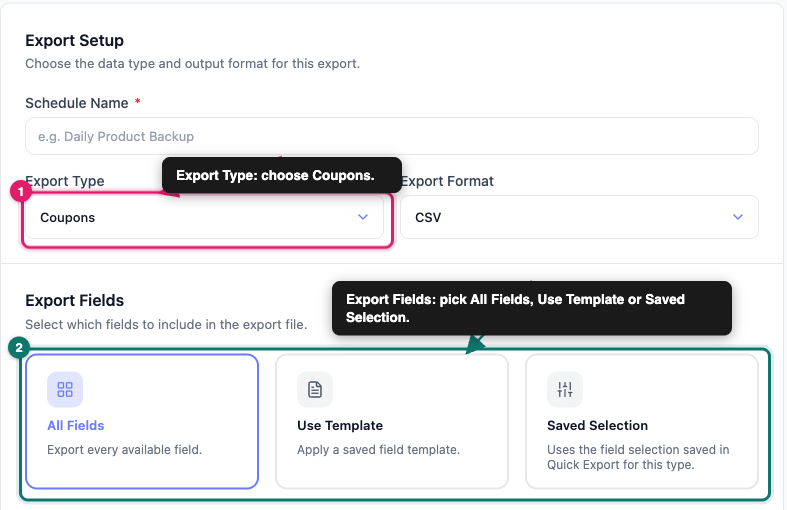
All Fields includes the Smart Coupons columns along with every other coupon field. Saved Selection reuses the fields from your last Coupons Quick Export, so run one Quick Export with the Smart Coupons fields first. Use Template applies a saved export template, so build one that includes the Smart Coupons fields before you pick it. For the rest of the wizard, see How to schedule exports in Store Exporter Deluxe.
Known limitations
Only seven Smart Coupons settings are exported. The integration covers the seven fields listed above. Other Smart Coupons data on a coupon doesn’t get its own column.
Custom Meta Fields does not cover coupons. The Custom Meta Fields tool lets you add extra meta keys to some export types, but Coupons isn’t one of them. You can’t add another Smart Coupons setting as a custom coupon column.
Smart Coupons fields are on the Coupons export only. Other export types, such as Orders, don’t get Smart Coupons columns.
Troubleshooting
The Smart Coupons fields are missing from the field picker
Go to Export Modules and check that WooCommerce Smart Coupons shows Active. If it does, reload the Quick Export screen and pick the Coupons tile again. Also check that you’re on a Coupons export, because the fields don’t appear for other export types. If the fields still don’t appear after you check this, open a support ticket.
The Valid for column is blank
Open the coupon in WooCommerce and check that both the validity number and its unit are saved in the Smart Coupons settings. The column stays blank if either one is missing.
Every Yes or No column shows No
Open one of the coupons and check its Smart Coupons settings. A setting that was never saved exports as No.
My scheduled export has no Smart Coupons columns
Check the Export Fields choice on the General step. With Saved Selection, run one Coupons Quick Export with the Smart Coupons fields first, so they’re saved. Or switch to All Fields.
Frequently asked questions
Do I need to turn on the Smart Coupons integration?
No. Store Exporter Deluxe detects WooCommerce Smart Coupons on its own and adds the fields when the plugin is active.
Can I rename the Smart Coupons column headers?
Yes. In the Export Fields step, click the Rename (pencil) icon next to the field and type the header you want.
Can I export Smart Coupons data with my orders?
No. The Smart Coupons fields are only available on the Coupons export type.
Related articles
- How to export WooCommerce coupons with Store Exporter Deluxe
- How to schedule exports in Store Exporter Deluxe
- Available export fields in Store Exporter Deluxe
- Store Exporter Deluxe supported plugins list
Need help?
If you have a question or run into any issues, we’re here to help.
- Premium users: Open a support ticket
- Free users: Visit our community forum