
You ran a spring sale with three coupon codes, and now you need every order that used any of them in one spreadsheet. Exporting them one code at a time means three files to stitch together, and it’s easy to miss an order along the way.
The Coupon Code filter in Store Exporter Deluxe handles this in a single export. Type your codes into one box, separated by commas, and the file contains every order that used at least one of them.
This article covers a one-off Quick Export. For the full order export walkthrough, see How to export WooCommerce orders with Store Exporter Deluxe.
Prerequisites
| Requirement | Details |
|---|---|
| Plugin | Store Exporter Deluxe 5.4.4 or later, installed and active |
| WooCommerce | Active, with orders that used the coupons you want |
| Coupon codes | The exact codes you want to include, such as save10 and flat5 |
Step 1: Open Quick Export and choose Orders
- Go to WooCommerce → Store Export.
- Click Quick Export in the sidebar.
- On the Select Export Type step, click the Orders tile.
Step 2: Add the Coupon Code field
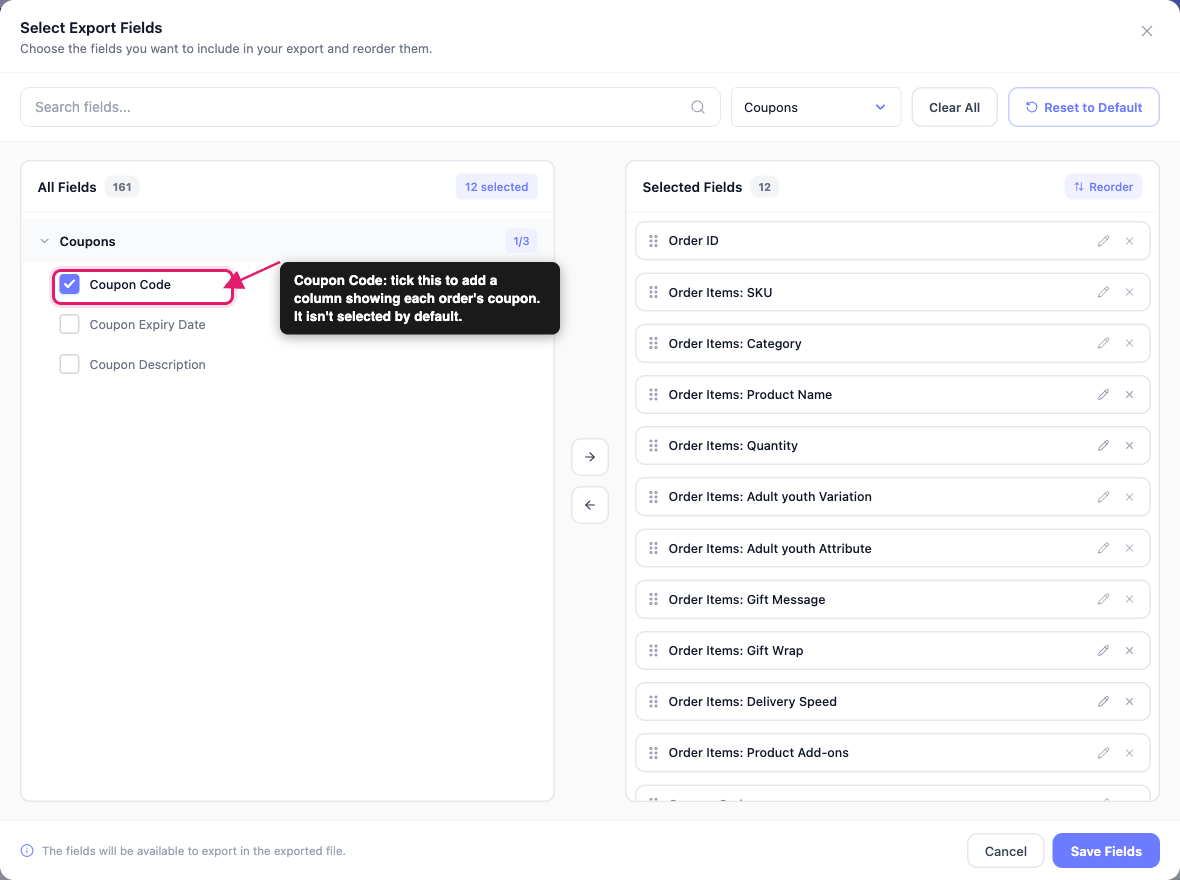
The coupon code isn’t part of the default column set, so add it yourself. Without it, your file lists the matching orders but doesn’t show which coupon each one used.
- On the Export Fields step, click Add more fields.
- In the Select Export Fields popup, open the Coupons group.
- Tick Coupon Code.
- Click Save Fields.
The Coupons group also has Coupon Expiry Date and Coupon Description if you want them in the same file.
Step 3: Filter by your coupon codes
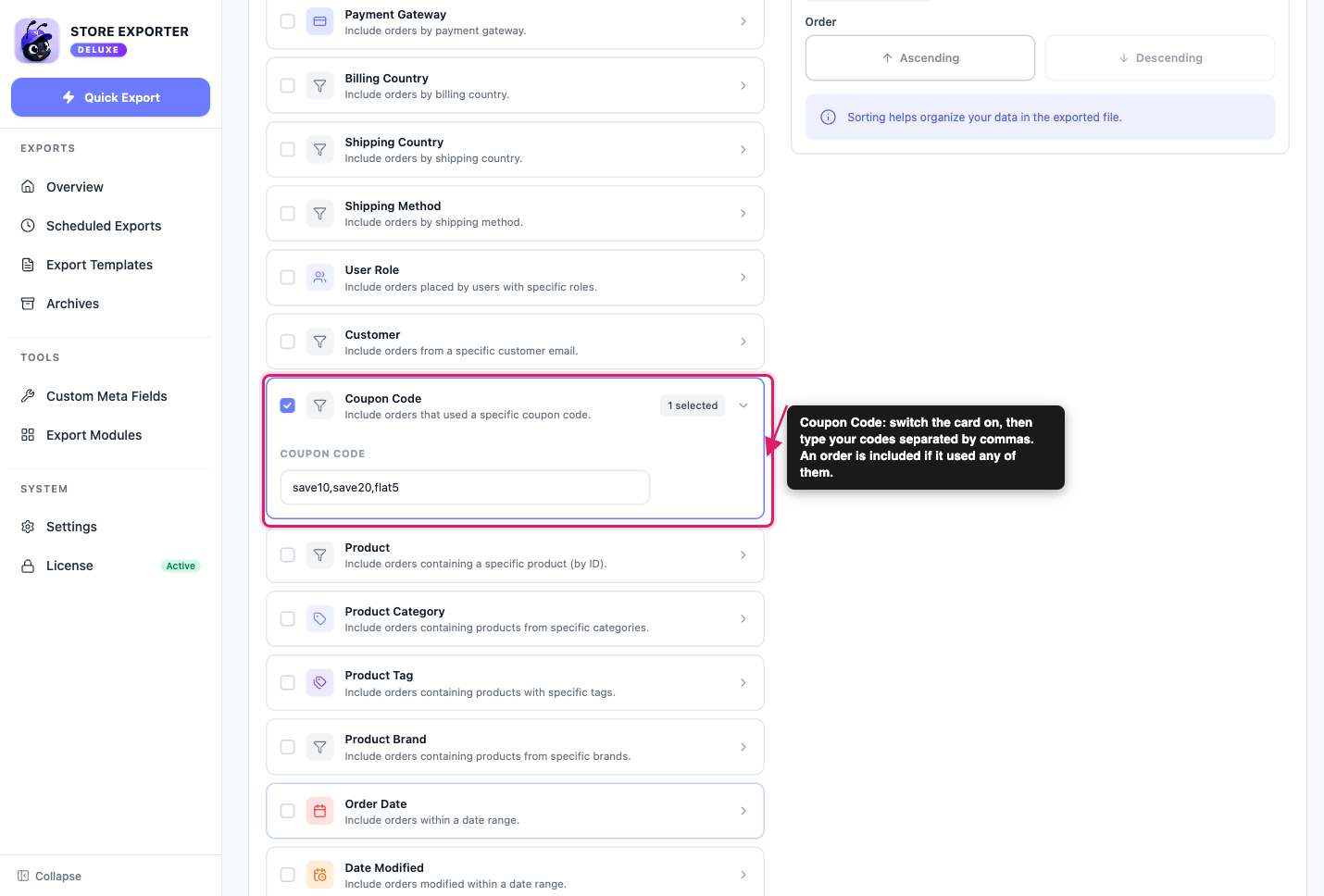
- Open the Filters & Sorting step.
- Tick the Coupon Code card (“Include orders that used a specific coupon code”).
- In the Coupon code box, type your codes separated by commas, for example
save10,save20,flat5.
Here’s how the box treats what you type:
- Any of the codes matches: an order is included if it used at least one of the codes you list. It doesn’t need to have used all of them.
- Spaces are fine:
save10, save20, flat5works the same assave10,save20,flat5. - Capitals don’t matter: WooCommerce stores coupon codes in lowercase, and the filter matches them the same way, so
SAVE10finds orders that usedsave10. - Commas are the only separator: don’t use semicolons or line breaks between codes.
- Deleted coupons still work: you can filter on a code you’ve since deleted from WooCommerce, because the filter reads the code recorded on each order.
The filter only looks at the coupon code. Combine it with other cards, such as Order Date or Order Status, to narrow the file further.
Step 4: Choose a format and run the export
- Open the Export Options step.
- Pick a format under File Format. CSV suits most jobs.
- Check the summary bar. The filter count now reads 1.
- Click Run Export.
What the exported file looks like
You get one row per matching order. The Coupon Code column shows the code that order used. With the three-code example above, the relevant columns look like this:
| Order ID | Coupon Code |
|---|---|
| 167 | save10 |
| 168 | save20 |
| 169 | flat5 |
If a single order used more than one coupon, all of its codes sit in the same cell, joined by the category separator. By default that’s a pipe, so you see save10|flat5. You can change the separator in the plugin’s Settings screen.
Common uses
- Campaign reporting: export every order from a promotion that ran under several codes, then total the results in a spreadsheet.
- Affiliate or partner codes: pull all orders for a group of related codes in one pass.
- Staff or wholesale discount audits: check who used which internal discount code.
- Recurring reports: use the same filter in a scheduled export. Go to Scheduled Exports, create a schedule with Export Type set to Orders, and add the Coupon Code filter on the Filters step. For detailed instructions, see How to schedule exports.
Troubleshooting
save10;save20 or save10 save20 is read as one code that doesn’t exist, so no orders match. Replace the semicolons or spaces with commas.FAQ
Related articles
- How to export WooCommerce orders with Store Exporter Deluxe
- How to schedule exports
- Supported export fields
Need more help?
If you’re using Store Exporter Deluxe and hit something this article doesn’t cover, open a support ticket and our team will help you get your coupon export working.
If you’re using the free Store Exporter plugin, ask on the WordPress.org support forum and our team will get back to you there.
