Store Exporter Deluxe 5.4.6 brings WooCommerce MCP support to your exports. Connect Claude, ChatGPT or another AI assistant through the free StoreAgent plugin, then ask it to run an order export, check a schedule or find last week’s file in plain English.
If you run reports every month, you know the routine. You open the exporter, pick the type, set the dates, tick the fields and wait. Then you do it again for the next report. When a scheduled export goes quiet, you dig through logs to find out why.
Store Exporter Deluxe 5.4.6 lets you hand that routine to your AI assistant. This release also fixes a long list of bugs, so it’s worth installing even if you never touch AI. Below we cover what WooCommerce MCP means for your exports, what the AI can and can’t do, and how to connect it.
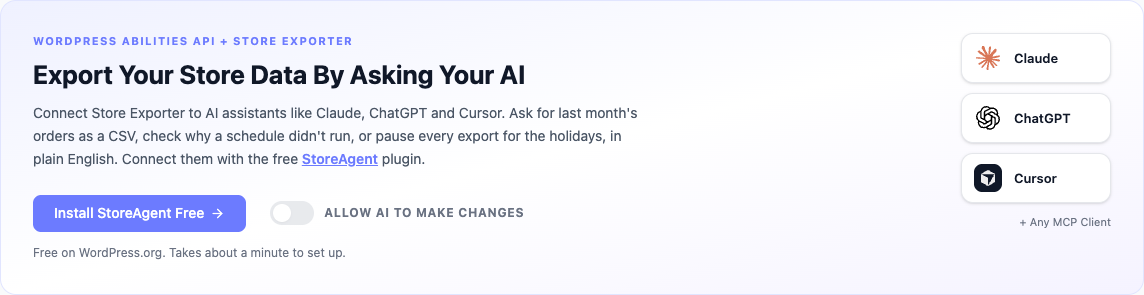
Table Of Contents
- What’s New In Store Exporter Deluxe 5.4.6
- What WooCommerce MCP Means For Your Exports
- The 20 Export Abilities Your AI Can Use
- What AI Can And Can’t Do With Your Export Data
- How To Connect Your AI Assistant
- Prompts To Try First
- The Bug Fixes Worth Knowing About
- Start Running WooCommerce MCP Exports
- Frequently Asked Questions
What’s New In Store Exporter Deluxe 5.4.6
Version 5.4.6 adds two AI features and a long list of fixes. Here’s the short version:
- WordPress Abilities API support: Store Exporter Deluxe now registers 20 export abilities, so AI assistants can find and run your exports.
- A new AI / MCP screen: This screen helps you install and connect StoreAgent. A single switch controls whether AI can change your exports.
- More than 70 bug fixes: Quick Export, scheduled exports, orders, customers, file formatting, POST to URL delivery and several integrations all get fixes.
- Security hardening: A few internal requests now run stricter checks.
The AI features need WordPress 6.9 or later and an up-to-date version of StoreAgent. The fixes work on any supported setup.
What WooCommerce MCP Means For Your Exports
MCP lets an AI assistant use tools inside other software. According to the Model Context Protocol documentation, MCP is “an open-source standard for connecting AI applications to external systems.” Anthropic introduced it in November 2024 so AI tools could reach data without a custom connector for every app.
WordPress added the other half in version 6.9. According to the WordPress core team’s Abilities API announcement, plugins can now list what they do in one registry that can be “discovered, validated, and executed” in a standard way. Store Exporter Deluxe 5.4.6 adds its export tools to that registry. StoreAgent then makes them available to your AI assistant over MCP.
In practice, you ask for an export the way you’d ask a colleague. This sits alongside the automations you may already run, like the ones in our guide to WooCommerce data automation workflows. Scheduled exports still suit fixed jobs, and sending exports to Zapier still suits pipelines. WooCommerce MCP covers the one-off questions that never deserved their own schedule.
The 20 Export Abilities Your AI Can Use
Store Exporter Deluxe 5.4.6 gives your AI assistant 20 abilities. Each one does a single job. Twelve only read information. The other eight run or change something, and those stay locked until you allow them.
| Group | What the AI can do | Needs change access? |
|---|---|---|
| Discovery (5) | List export types, list fields, list filter options, count records, list your saved templates | No |
| Scheduled exports (8) | List and read schedules | No |
| Scheduled exports | Create, update, switch on or off, run now, stop | Yes |
| Scheduled exports | Check the progress of a running schedule | No |
| Export history (2) | List past exports with download links, read one export’s log | No |
| Settings (4) | Read custom fields and the New Order trigger | No |
| Change custom fields and the New Order trigger | Yes | |
| One-off export (1) | Run an export of one type in one format | Yes |
The scheduled export abilities map to the same schedules you set up by hand, as covered in our guide on how to schedule exports. Every ability uses the same permission check as the admin screens, and most use the same validation too. So the access rules you rely on in the dashboard also apply to your AI.
What AI Can And Can’t Do With Your Export Data
The AI works with information about your exports and never receives the data inside them. No ability returns customer, order or product rows to the AI assistant. It sees file names, record counts, statuses, errors and download links.
A few more limits are worth knowing before you start:
- Filters on AI exports are for orders only: A one-off export can filter orders by date range, order status, customer email and billing country. Other export types don’t accept filters through AI. Use a saved template or a field list for those instead.
- Download links are private: A link works for the user who asked, in the browser where they’re logged in. Without a browser session, open the file from the Archives screen.
- Permissions match the dashboard: Export abilities need the Shop Manager role or higher. A customer account can’t call them.
- One-off exports are saved to Archives: With the Audit Log turned on, they’re logged in the Audit Log too. Scheduled exports that AI starts use their own delivery method.
Worth checking: Before 5.4.6, a scheduled product export ignored every setting on its Filters tab, including category, tag, brand and stock. If your scheduled product files have looked bigger than they should, this release is the fix. Run the schedule once after updating and check the record count.
How To Connect Your AI Assistant
The AI / MCP screen walks you through each step. Its main button changes as you go, so you always see the next step.
- Update Store Exporter Deluxe to 5.4.6. Your site also needs WordPress 6.9 or later.
- Go to WooCommerce > Store Export, then click AI / MCP. You’ll find it in the System group of the plugin’s sidebar, marked “NEW”.
- Install StoreAgent. Click “Install StoreAgent Free”. It installs and activates on the same screen. If your site blocks plugin installs from the dashboard, the button links to the plugin page instead.
- Connect StoreAgent and turn on MCP. The button sends you to StoreAgent to finish setup. If you have an older StoreAgent, update it to 1.1.9 or later first.
- Copy your MCP endpoint. Once MCP is on, the Copy button on the “Your Store’s MCP Endpoint” card turns on. Paste the URL into Claude, ChatGPT, Cursor or any MCP client. Check that your AI plan supports custom MCP connectors.

StoreAgent is the bridge between your store and your AI client. Our WooCommerce AI tools roundup covers what else it does, and the StoreAgent team explains the connection itself on its WooCommerce MCP page.
Choosing Whether AI Can Make Changes
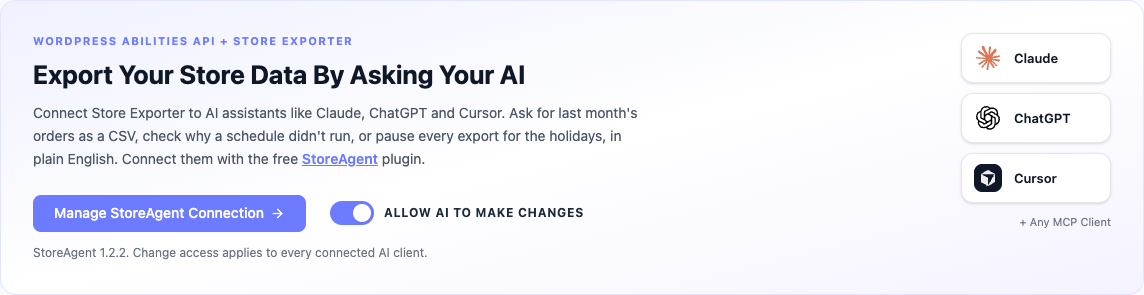
The “Allow AI to make changes” switch decides whether your assistant can run or change exports. While it’s off, the AI can look things up but can’t run, schedule or stop anything. Turn it on, and all eight write abilities are allowed at once. If the switch shows a count such as “2 of 8 allowed”, some were allowed directly in StoreAgent and still work. Turn the switch on and then off to block them all.
The switch only covers Store Exporter Deluxe abilities. Other plugins’ permissions stay as they are in StoreAgent, which has its own MCP settings for every ability. The setting applies to every AI client you’ve connected.
Prompts To Try First
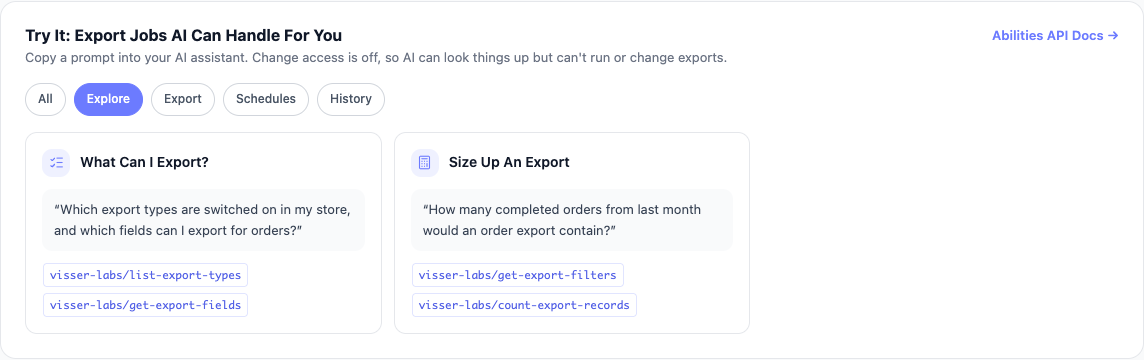
The AI / MCP screen includes example prompts you can copy into your assistant. Prompts that need change access show a “Needs change access” label while the switch is off. Here are good ones to start with:
- What can I export? “Which export types are switched on in my store, and which fields can I export for orders?”
- Size up an export: “How many completed orders from last month would an order export contain?”
- Month-end orders: “Export last month’s completed orders as a CSV using my Accounting template and send me the download link.”
- Schedule health check: “List my scheduled exports and tell me which are switched off or haven’t run in the last week.”
- Run it now: “Run my Daily Orders schedule now and tell me when it’s finished.”
- Why did it fail? “Did any exports fail this week? Show me the errors and how many rows each one exported.”
The month-end prompt works best with a saved template, because your columns then stay the same every month. See our guide to export templates to set one up. Swap in your own template and schedule names, and the AI finds them by name.
The Bug Fixes Worth Knowing About
The rest of 5.4.6 is fixes, and several affect everyday exports. We grouped the ones you’re most likely to notice.
Quick Export
- Sorting works again: The Ascending and Descending toggle, and several sort options, now change the output.
- Order item filters apply: Order item filters now take effect in your exports.
- No more 30-minute lockouts: A finished export no longer blocks the next one, even if you didn’t download it.
- The list screen buttons open the right export: “Export” on the Products, Orders and Coupons screens now selects that export type.
Scheduled exports
- Saved filters and sorting apply: This covers product, user, bookings and YITH subscriptions schedules.
- JSON schedules run: A scheduled export in JSON format no longer always fails.
- Run history stays small: The list of recent runs no longer grows forever.
Orders, customers and coupons
- Blank columns are filled: This covers the PayPal columns, coupon description and expiry, variation categories and custom attribute values.
- Item rows stay separate: “Individual rows” no longer copies one item’s SKU and IDs into the next row.
- Customer counts are right: “Completed Orders” now counts past 10, and the shipping state now matches the shipping country.
- New Order trigger behaves: With “Any Order status”, an order is no longer re-exported on every status change.
Files and delivery
- Characters export cleanly: “&” no longer turns into “&” in category, shipping class and attribute names.
- Line endings and spreadsheets behave: CSV and TSV files now follow the Line Ending Formatting setting. XLSX files keep zero values and no longer leave row 1 blank.
- POST to URL reports honestly: It now sends a true multipart upload. Errors from the receiving server are no longer logged as a success.
Check before you update: The default line ending is “Windows / DOS (CRLF)”, so CSV and TSV rows that used to end in LF now end in CRLF. To keep the old output, choose “Unix (LF)” under Line Ending Formatting in Settings. Order exports that use Unique item formatting also drop some empty “Order Items” columns, so an import that maps columns by position may need remapping.
Integration fixes cover Yoast SEO, TM Extra Product Options, FooEvents, WooCommerce Product Vendors, WC Vendors and YITH subscriptions. For the full list, open “View changelog” on the Store Exporter Deluxe plugin page.
Start Running WooCommerce MCP Exports
With 5.4.6, a question about your exports takes one sentence to ask, so the reports you used to put off get done. A good first step is to keep change access off for a week. Ask questions, check your schedules and let the AI find files. Turn on change access once you trust what you see.
- See what’s new in 5.4.6 and update first
- Check the limits before you plan a workflow
- Connect your AI assistant from the AI / MCP screen
- Copy a starter prompt and try it on a real report
Store Exporter Deluxe is the export engine behind every WooCommerce MCP request. See Store Exporter Deluxe plans and pricing to get 5.4.6 running on your store.
Frequently Asked Questions
What is WooCommerce MCP?
WooCommerce MCP connects an AI assistant like Claude or ChatGPT to your WooCommerce store through the Model Context Protocol. The assistant can then use tools that plugins register on your site. With Store Exporter Deluxe 5.4.6 and StoreAgent, those tools include running, scheduling and finding your exports.
Do I need StoreAgent to use the AI export abilities?
Yes, for the supported setup. StoreAgent is the connection that the AI / MCP screen sets up and supports. It serves the export abilities to your AI client over MCP and controls which write abilities are allowed. An administrator can install the free StoreAgent plugin from the screen in one click, and the endpoint is ready to copy once MCP is on.
Can the AI see my customer data?
No. The abilities return information about your exports, not their contents. Your AI assistant sees things like record counts, statuses, errors and download links. Download links only work for the logged-in user who asked, in their own browser session.
Which WordPress version do I need?
The AI abilities need WordPress 6.9 or later, because that’s the version that added the Abilities API. On older versions, Store Exporter Deluxe 5.4.6 still installs and every bug fix applies. The AI / MCP screen loads, but the change access switch stays disabled.
Can I stop the AI from changing my exports?
Yes. Leave “Allow AI to make changes” off on the AI / MCP screen. The AI can still list types, count records, read schedules and find past exports. It can’t run, create, update, stop or switch off anything until you turn the switch on. If the switch shows a count such as “2 of 8 allowed”, turn it on and then off to block every write ability.
Can the AI filter a product or customer export?
Not yet. AI-run exports accept filters for orders only: date range, order status, customer email and billing country. For other export types, the AI can use a saved export template or a list of fields, and the export includes every record of that type.