
You ran an export last week and now you need the same file again. Or a scheduled export ran overnight and you want to check what it produced. Without a saved copy, you’d have to run it all over. The Archives screen in Store Exporter Deluxe keeps a copy of each export file, so you can download it again whenever you need it.
This article covers what an archive stores, how to turn archives on, how to read the screen and its filters, and how to download or remove saved files.
Prerequisites
| Requirement | Details |
|---|---|
| Plugin | Store Exporter Deluxe 5.4.4 or later |
| Permissions | A WordPress account with the manage_woocommerce capability |
| Archives setting | Enable Archives turned on to get a downloadable file for each new run. It’s off by default, and you can still see the run history without it. See “Turn on archives” below |
What the archive stores
When Enable Archives is on, Store Exporter Deluxe saves a copy of each export file as soon as the export finishes. That covers Quick Exports, scheduled exports, manual runs of a schedule, and exports started by a new order. Each saved file appears on the Archives screen as a Download link on the row of the run that created it. A scheduled export set to the Archive to Media method, or a new-order trigger set to Add to Archive, also saves its file here.
Keep in mind that archives only start saving files from the moment you turn them on. Runs that finished earlier stay in the list, but they have no file to download. Run those exports again if you need a copy.
The files are stored in a protected folder on your server. You can’t open them with a direct link, so you download them from the Archives screen while you’re logged in.
Open the Archives screen
Open WooCommerce → Store Export from the WordPress admin menu, then click Archives in the sidebar.
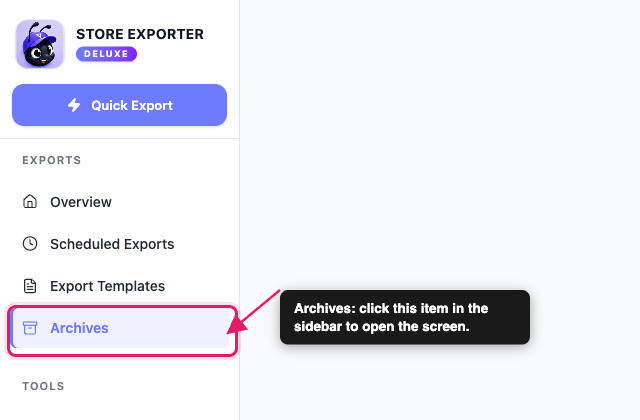
If you don’t see Archives in the sidebar, the item may be hidden. Go to Settings → Advanced and turn off Hide Archives Tab, then select Save Changes.
Turn on archives
Until archives are on, the Archives screen shows a banner that reads Export archives are currently disabled. The run history still appears, but new runs don’t get a downloadable file. You can turn archives on from either of two places:
- On the Archives screen, click Enable Archives in the banner.
- Go to Settings → Archives, switch on Enable Archives, and select Save Changes.
The banner also has a Dismiss button. It only hides the banner for the moment and doesn’t turn anything on.
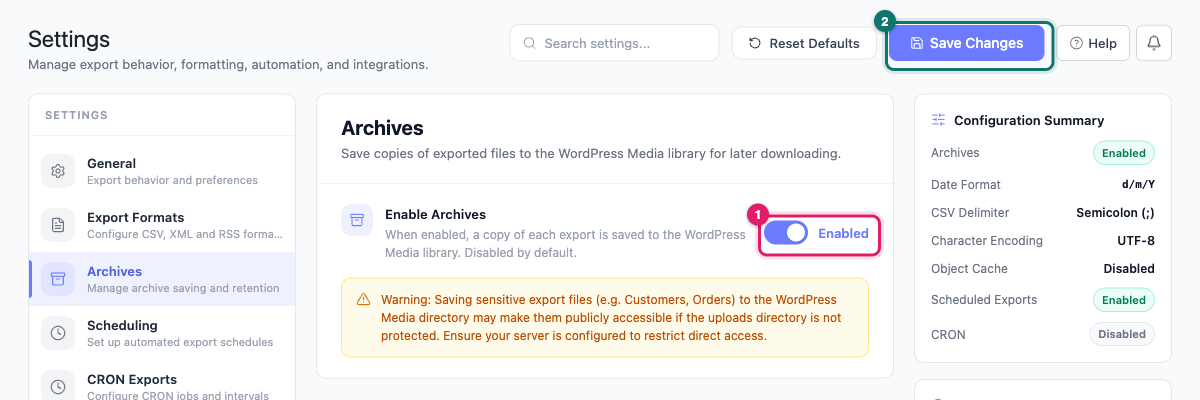
For every other option on the Settings screen, see the Store Exporter Deluxe settings.
Read the archive summary
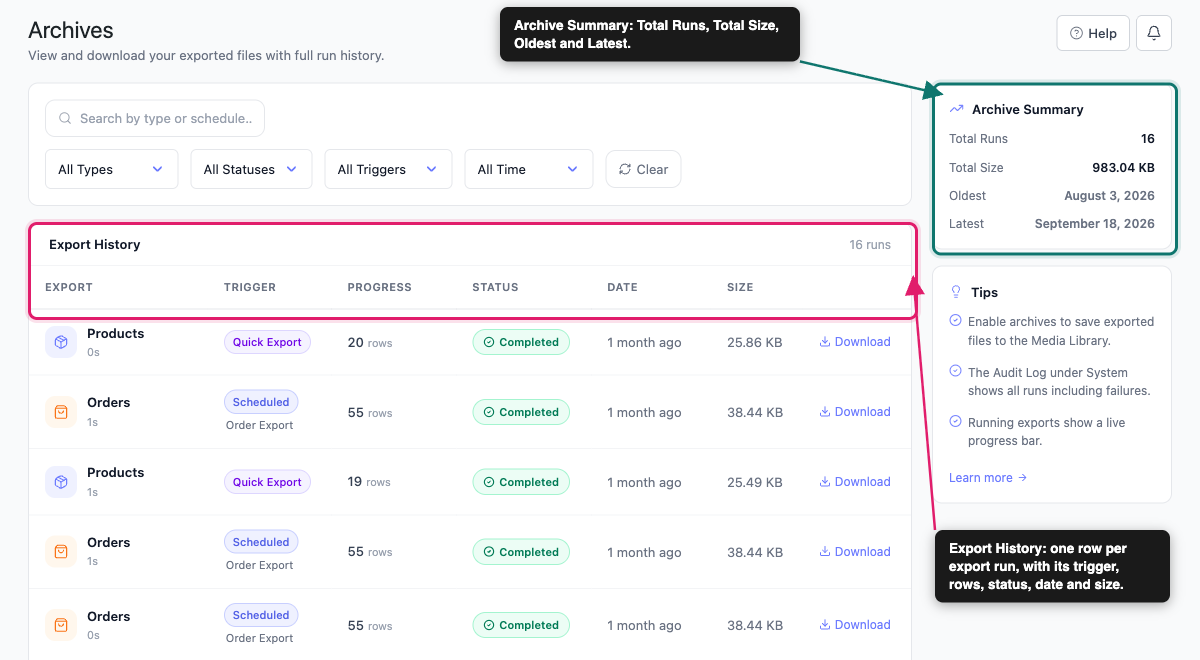
The Archive Summary panel sits on the right side of the screen. It gives you four quick facts:
- Total Runs: how many runs match your current filters
- Total Size: the combined size of the export files for the runs on the current page
- Oldest: the date of the oldest run on the page
- Latest: the date of the newest run on the page
Read the export history list
The Export History list is the main part of the screen. A counter at the top shows how many runs it holds, and the list shows 20 runs per page. Use the page arrows at the bottom to move through longer lists.
Each row records one export run with these columns:
| Column | What it shows |
|---|---|
| Export | The export type, such as Products or Orders, and how long the run took |
| Trigger | How the export started, plus the schedule name for scheduled runs |
| Progress | The number of rows exported, or a live progress bar while the export is still running |
| Status | Completed, Running, or Failed |
| Date | How long ago the export started |
| Size | The size of the export file the run created. It shows even when the run has no saved file |
The last column holds the Download link. A run that has no saved file shows a dash instead, for example a run that finished while Enable Archives was off. On a Failed row you see a warning icon. Hover over the icon to read the error message.
The Trigger column uses these labels: Quick Export, Scheduled, Manual Run, New Order, and Manual.
Filter and search the list
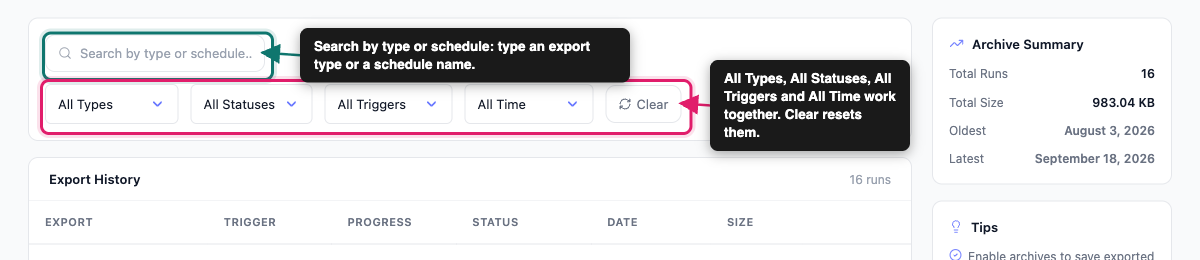
Use the bar above the list to find a specific run.
- Search: type in the Search by type or schedule… box to match an export type or a schedule name.
- All Types: pick Products, Orders, Customers, Users, Coupons, Subscriptions, Bookings, Reviews, or Categories.
- All Statuses: pick Completed, Running, or Failed.
- All Triggers: pick Quick Export, Manual, Scheduled, Manual Run, or New Order.
- All Time: pick Today, Last 7 Days, or Last 30 Days.
The filters work together. For example, choose Orders and Scheduled to see only your scheduled order exports. Click Clear to reset every filter at once.
Legacy archives
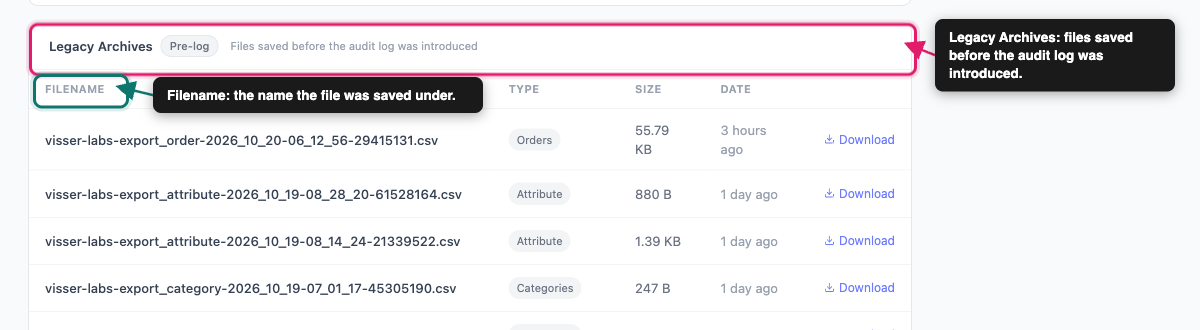
Below the Export History list you may see a second table called Legacy Archives, marked with a Pre-log badge. It carries the note Files saved before the audit log was introduced.
These are saved files that have no matching run record, such as files saved by older versions of the plugin, before the Audit Log started recording every export. Because there’s no run record, the table shows less detail: Filename, Type, Size, Date, and a Download link.
The Filename is the name the export file was saved under, so this is the easiest place to match a file to a download you remember. The table lists up to 20 legacy files, and only on the first page. It’s hidden when you filter by a status other than Completed, or by a specific trigger.
Download an archived file
- Open the Archives screen.
- Find the run you want. Use the filters if the list is long.
- Click Download at the end of the row.
The file downloads to your computer through your logged-in session. If the link says it has expired, reload the Archives screen and click Download again.
Remove archived files
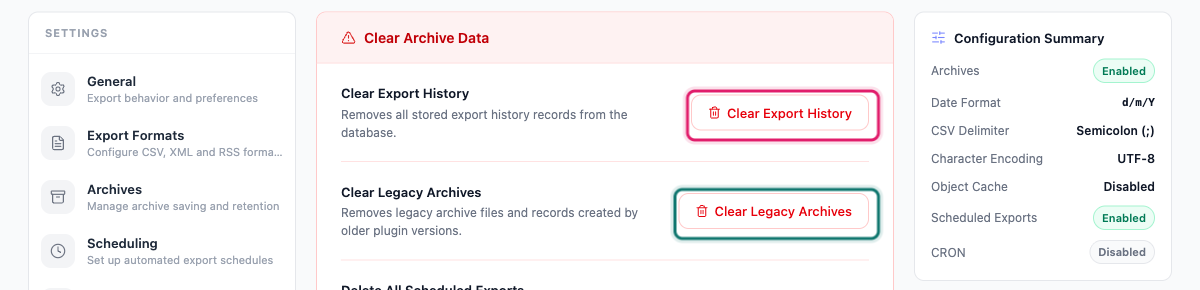
The Archives screen has no remove button on individual rows. You clear archive data in bulk from Settings → Danger Zone, under Clear Archive Data.
- Clear Export History: removes the run records. The saved files stay on your server and then show under Legacy Archives.
- Clear Legacy Archives: deletes every archived file that has no run record. These are the files that show under Legacy Archives, including any beyond the 20 the table lists.
To delete the files of your recent runs, clear the export history first, then click Clear Legacy Archives.
Each button opens a confirmation. Click Yes, Clear to go ahead, or Cancel to back out. Neither can be undone.
If you only want to remove a single run record, use the delete icon in the Actions column of the Audit Log instead. The run record is removed, and its saved file then moves to Legacy Archives.
How archives relate to the Audit Log
The Archives screen and the Audit Log show the same run records. On the Archives screen, a run that has a saved file shows a Download link. Enable Archives controls whether new runs get a saved file. The Audit Log adds much more detail about each run.
Troubleshooting
If new runs still don’t appear, go to Settings → Audit Log. Check that Enable Audit Log is on, and that the right source under Log Sources isn’t set to None: Quick Exports, or Scheduled Exports, which also covers manual schedule runs and new-order triggers. Runs from a source set to None aren’t recorded.
Frequently asked questions
Need more help?
If you’re using Store Exporter Deluxe and run into an issue with archives, open a support ticket, and our team will help you sort it out.
If you’re using the free Store Exporter plugin, ask on the WordPress.org support forum, and our team will get back to you there.