Some of the most valuable WooCommerce data automation workflows are also the most boring, which is exactly why they get left manual. Look at how a typical WooCommerce store handles its data and the same patterns show up again and again. Orders being manually exported into a spreadsheet at the end of every week. Stock levels updated by hand from a supplier email. Customer lists pulled into a CSV once a month and then dragged into an email tool. None of this is hard work. It’s just repetitive, and it quietly consumes the hours that should be going into things that actually move revenue.
Most online advice about “WooCommerce automation” talks about Zapier triggers, webhooks, and API glue. Those have their place, and if you sell B2B there’s a whole separate playbook for automating a WooCommerce wholesale workflow, and WooCommerce’s own product CSV importer and exporter handles one-off bulk jobs well. But the workflows that break first for a scaling store are the boring, scheduled data flows, not the flashy integrations. Getting orders to the accountant. Keeping stock in sync with the supplier. Feeding customers into the email tool. Sending daily shipment files to the warehouse.
This article is the strategic overview, not the step-by-step. For each of the 5 WooCommerce data automation workflows below, you’ll get a short strategy write-up, the tools that do the job, and a link to the detailed how-to guide on the Visser Labs site if you want to build it out. The two plugins doing most of the heavy lifting are Store Exporter Deluxe for the export side and Product Importer Deluxe for the import side.
By the end, you’ll know which of these WooCommerce data automation workflows belongs at the top of your list and where to go to implement it.
Table of Contents
Why These WooCommerce Data Automation Workflows Matter
Three things happen when these WooCommerce data automation workflows stay manual. They eat time, they introduce mistakes, and they fail without warning. Each of these WooCommerce data automation workflows is manageable on its own, but together they quietly drain a scaling store.
First, they eat time. Running all 5 by hand takes a scaling store somewhere between 4 and 8 hours a week once you factor in the actual export, the file formatting, then email to the accountant or warehouse. The inevitable “did anyone send the stock update?” chase. That’s a whole working day every week on data handling alone.
Second, they introduce mistakes. Manual exports pick the wrong date range. Supplier files get uploaded with a shifted column. Customer lists get truncated at 5,000 rows because someone hit Excel’s limit and didn’t notice. The cost of a single bad export can be anything from a rejected fulfillment file to a supplier chasing a stock figure that never made it onto the site.
Third, and most importantly, they fail silently. A missed weekly report doesn’t announce itself. A stale stock file doesn’t trigger an alert. You notice when a customer complains or an accountant escalates, not before.
With that framing set, here are the WooCommerce data automation workflows worth putting first.
The 5 Workflows You Should Automate
These WooCommerce data automation workflows are in priority order based on what we see breaking first in real stores. If you only have the budget and bandwidth to automate one, start at the top and work down.
1. Weekly order export to your accountant
Every store has to get order data into an accountant’s hands. Most of the time, that’s a weekly or fortnightly CSV covering completed orders, with the data laid out the way the bookkeeper wants it. The default setup is someone on the team manually pulling that export every Friday afternoon. Which means the “weekly” export becomes whatever-week-it-happens-to-be.
Automating this guarantees the accountant gets clean data, in the right format, on the same day every week. The bookkeeping side also gets cleaner because the column mapping stays locked instead of drifting every time a new person runs the export.
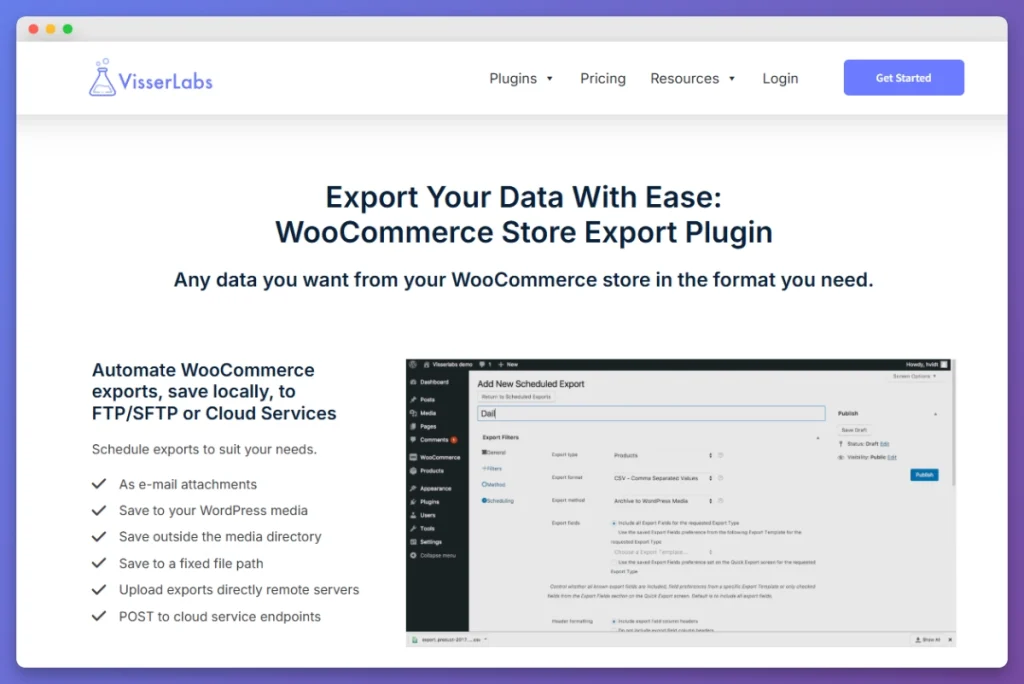
Tools needed: Store Exporter Deluxe with a scheduled export. Output as XLSX if your accountant lives in Excel, or CSV if they prefer plain text. Delivery options include email attachment and FTP drop into a shared folder your accountant already monitors.
What it looks like in practice: a schedule set to run every Monday at 6am, exporting the previous week’s completed orders filtered by date range, emailed as an XLSX attachment to the accountant’s inbox. The same schedule runs every Monday whether or not anyone is at their desk.
One detail worth getting right: schedule the export for 6am Monday rather than late Friday, so you avoid partial-week data. Friday-night orders are often still being finalized at 11pm, and some show as “processing” rather than “completed” if the export runs then. Pushing it to Monday morning means every weekend’s orders have closed status by the time the file goes out, so your accountant stops flagging rows that have to be reconciled later.
For the full step-by-step on setting up the schedule, see our guide to creating a WooCommerce export schedule.
2. Daily stock refresh from a supplier feed
If you sell dropshipped or supplier-held stock, your WooCommerce catalog is only as fresh as your last supplier file upload. Miss a day, and customers are buying items that went out of stock yesterday. Miss a week, and the back-in-stock items are still hidden from the site. Manual uploads are the single most common cause of overselling we see.
Automating this keeps the site catalog aligned with what’s actually available. It prevents overselling on items that have gone out of stock, prevents the inverse problem of hiding items that are back in stock, and removes the daily mental tax of remembering to upload the file.
Tools needed: Product Importer Deluxe pointed at a remote FTP or SFTP source, using its “update only” import mode so new products aren’t accidentally created from a malformed row.
What it looks like in practice: the supplier drops a CSV onto an FTP server each night. Product Importer Deluxe pulls from that remote source in update-only mode, matches products by SKU, and updates the stock fields for every match. Its real-time logging shows you which rows imported cleanly, so you can check anything that didn’t match in the morning.
The failure mode we see most is supplier feeds changing their column order without warning. One week the stock column is at position 4, the next week it’s at position 6 because the supplier’s ERP team added a new field upstream. Update-only mode and column detection help here, because the importer matches on your mapping rather than blindly writing whatever sits in each position. This means a shifted column shows up on the morning log check rather than a week later when a customer complaint lands.
The full walkthrough for importing from a CSV is in our WooCommerce import CSV guide.
3. Monthly customer export for email marketing
Your customer list is a growing asset, but it’s only useful if it’s in the tool doing the marketing. Whether you’re on Drip, Lindris, Mailchimp, or something else, the customer data in WooCommerce needs to get into your email platform on a regular cadence, or your segments go stale.
Automating a monthly customer export keeps new customers flowing into your email flows, keeps segmentation accurate, and makes sure lapsed-customer campaigns actually target customers who lapsed this quarter, not two quarters ago.
Tools needed: Store Exporter Deluxe with a scheduled customer export. Filter by registration date range so you’re only pulling the delta each month. The customer export also includes the total spend field per customer, so you can segment by customer value once the data is in your email tool. Delivery by email, FTP, or a drop folder that your email platform can ingest.
What it looks like in practice: on the first of every month, export all customers who registered in the previous month. Because the export carries the total spend field too, your email platform can tag high-value records into the right segments once it picks up the file from its import folder.
One thing we’ve seen trip up stores is exporting the full customer list every month and then wondering why their email tool bills jump over time. Most email platforms charge by contact count, and syncing the entire list over and over means every inactive record keeps counting. The fix is filtering by registration date on the export side, so you’re only syncing the month’s new customers rather than the entire list.
For the column setup and filter options, see our how to export WooCommerce customers guide.
4. Daily order feed to your fulfillment center via FTP/SFTP
Third-party fulfillment centers and 3PLs typically want a daily order file in a very specific CSV or XLSX format, dropped onto their FTP server at a set time each day. The column order is fixed. The file naming convention is fixed. The time window is usually fixed too, because the warehouse batches picking against the file. Doing this manually is the quickest way to delay your own shipping.
Automating this means orders reach the warehouse on the same schedule every day, shipping SLAs don’t depend on whether someone remembered to log in, and the file format stays consistent so the warehouse team stops rejecting files for malformed columns.
Tools needed: Store Exporter Deluxe with the FTP/SFTP delivery option, a scheduled export, custom field mapping to match the fulfillment center’s exact spec, and filters set to only pull new orders since the last run.
What it looks like in practice: a scheduled export at 5am daily, pulling all “processing” orders from the last 24 hours, formatted into the 3PL’s required column order, uploaded to their SFTP inbox with a date-stamped filename like orders-2026-04-21.csv. The warehouse processes the file, marks the orders shipped, and the next day’s file goes out at the same time.
Most 3PLs reject files that include test orders or orders with missing shipping addresses. Filtering the export by order status AND by the presence of a shipping address before the file leaves the server saves a daily back-and-forth with the warehouse team. It also avoids the awkward situation where a test order placed internally ends up in the picking queue.
For the full walkthrough on combining scheduling, FTP delivery, and filtering in one workflow, see our guide to setting up an automated export system in WooCommerce.
5. Quarterly product catalog export for sales and reporting
At the quarter mark, someone always wants a clean snapshot of the catalog. SKUs, prices, stock levels, categories, sometimes custom fields. It might be the sales team preparing a partner pack, management wanting a reporting view, or a wholesale client asking for the latest product file. A manual export is fine the first time. Doing it every quarter, to the same spec, is the kind of job that gets skipped or rushed.
Automating a quarterly catalog export means the snapshot is always available, the filters stay consistent across quarters so the data is actually comparable, and the person asking for it doesn’t have to chase anyone on your team.
Tools needed: Store Exporter Deluxe exporting products as XLSX, scheduled quarterly, with filters for status=publish, stock_status=instock, and whichever custom fields the sales team or partners care about.
What it looks like in practice: a scheduled export on the first day of each quarter, outputting to a dated filename like product-catalog-2026-Q2.xlsx. The file drops into a shared Google Drive folder or gets emailed directly to the sales lead. No one has to remember it. No one has to build the filter list again from scratch.
The subtle win here is comparability. A scheduled export with locked filters means the Q1 file and the Q3 file line up column-for-column. Manual exports drift because the person running them tweaks which columns to include or which categories to filter to. Within a year, the quarterly files stop matching each other and you can’t do quarter-over-quarter analysis without cleaning each file manually.
For the list of product fields available and how to filter the export, see our guide to exporting WooCommerce products.
Combining Workflows Into A Single Automation Schedule
Most stores don’t run these 5 WooCommerce data automation workflows in isolation. Once two or three are automated, it’s worth treating the whole schedule as a single system rather than a set of separate scripts.
Two practical pointers. First, keep all your scheduled exports inside Store Exporter Deluxe’s schedule manager so they’re visible in one place. If the accountant export, the fulfillment feed, and the catalog export are all defined in the same interface, you can see the whole weekly rhythm at a glance and spot conflicts before they cause trouble. Second, keep your stock import running from Product Importer Deluxe against the same remote source, so the import side lives in one place too.
Avoid running a stock import at the same minute as a product export. They won’t technically conflict, but they compete for database resources on a live site, and staggering them by 15 to 30 minutes keeps both runs clean.
The Store Exporter Deluxe and Product Importer Deluxe bundle covers all 5 of these WooCommerce data automation workflows with no additional plugins required.
Frequently Asked Questions
Do I need a separate automation tool like Zapier to run these workflows?
No. You don’t need Zapier to run these WooCommerce data automation workflows. For the export side, the scheduling and delivery are built into Store Exporter Deluxe directly. You define the schedule, the filters, and the delivery method inside the plugin, and the WordPress cron handles execution. Product Importer Deluxe brings in your supplier file from a remote FTP source on the import side. Zapier becomes relevant only when a workflow needs to trigger another SaaS tool, like kicking off a Slack message when a scheduled export finishes. For the data movement itself, you don’t need it.
How often should I run each of these workflows?
The 5 cadences for these WooCommerce data automation workflows (weekly, daily, monthly, daily, quarterly) match what we see working for most stores. Higher-volume stores can tighten the order export to daily and the stock refresh to twice a day. Lower-volume stores can relax the fulfillment feed to every other day if their 3PL allows it. The quarterly catalog is almost always quarterly regardless of size because that’s the reporting cadence most finance teams use.
What happens if a scheduled export fails mid-run? Do I get alerted?
Store Exporter Deluxe logs each scheduled run and can be configured to email a status report after each execution. Don’t rely on silence to mean success. We recommend enabling the status email at least for the first month after setting up a new schedule, so you can confirm the export is running and delivering cleanly before you stop watching it closely.
Can I automate imports and exports on the same store without conflicts?
Yes, and most stores do. The only caution is timing. Avoid pointing a stock import and a product export at the same minute, because they’ll compete for the same database tables. Staggering them by 15 to 30 minutes is enough to keep both runs clean on a typical store.
Is this the same thing as using Zapier webhooks for WooCommerce?
Not quite. Webhooks are event-driven, so they fire when something happens in WooCommerce (a new order, a stock change). The WooCommerce data automation workflows above are schedule-driven, so they run at fixed times regardless of what happened in the store. Both approaches have a place. Scheduled exports and imports are the right fit when the receiving system (accountant, warehouse, email tool) expects a file on a rhythm, not a stream of events.
Does automating all 5 WooCommerce data automation workflows require the full bundle?
Four of the 5 workflows (order export, customer export, fulfillment feed, catalog export) use Store Exporter Deluxe. The stock refresh uses Product Importer Deluxe. The bundle covers both and is priced at $79 a year for the full export and import toolset, so if you’re automating more than one workflow it’s the more economical route.
Putting The 5 Workflows On Autopilot
Here’s the short version. The 5 WooCommerce data automation workflows most worth putting on autopilot are the weekly order export to your accountant, the daily stock refresh from a supplier feed, the monthly customer export for email marketing, the daily order feed to your fulfillment center, and the quarterly product catalog export. Each one is small on its own. Together they’re roughly half the admin time a scaling store spends on data handling.
The two tools doing the heavy lifting are Store Exporter Deluxe for the four export workflows and Product Importer Deluxe for the stock refresh. Scheduling, filtering, FTP delivery, and logging on the export side are built into Store Exporter Deluxe, so these WooCommerce data automation workflows run without you stitching together Zapier zaps or writing custom scripts to make them work.
If the weekly accountant export is the one costing your team the most time right now, start there. If the supplier stock file is the one that keeps causing overselling, start there instead. The 5 workflows are a menu, not a mandate. Pick the one where the pain is loudest and work down the list.