

To import WooCommerce product reviews, you export them from the source store, map each review to the right product on the destination, and bring them in as WordPress comments rather than as product data. Reviews are not part of a product CSV, which is exactly why they get left behind so often: the products arrive on the new site and years of social proof quietly doesn’t.
It is recoverable. As long as the source database or a clean export still exists, reviews can be moved across with author names, star ratings, and original dates intact.
If you’re reading this, you’re probably somewhere in a similar migration. Maybe you’re moving from Shopify to WooCommerce and your Judge.me reviews didn’t come across. Maybe you’re consolidating WooCommerce stores. Maybe you’re rebuilding on a clean install and the comments table got left behind.
This guide walks through the real mechanics of importing product reviews into WooCommerce. It’s honest about which tools do what, where attribution typically breaks, and how to validate the result on staging before you go live. Across Shopify migrations, WooCommerce consolidations, and post-rebuild recoveries, the pattern we see is always the same: the quality of your import is set at the export stage.
Table of Contents
Why You’d Want To Import WooCommerce Product Reviews
Reviews are not decorative. They’re social proof equity your store has accumulated, sometimes over years. Losing them during a migration quietly kills conversion because every product page looks brand new to visitors who don’t know you just moved.
Migrating from Shopify, BigCommerce, or Magento to WooCommerce
Reviews on Shopify usually live in a review app (Judge.me, Yotpo, or the Shopify Product Reviews app), not in Shopify core. BigCommerce and Magento have their own review modules. None of those export formats land cleanly inside WooCommerce without reformatting, which is why the process looks more involved than “click import.”
Consolidating multiple WooCommerce stores into one
Agencies and multi-brand operators hit this when merging stores. Products and customers are straightforward. Reviews are harder because they’re stored as WordPress comments with product-specific metadata, and most generic comment importers drop the fields that matter.
Restoring reviews after a site rebuild or database restore
Developers rebuild on clean WordPress installs, migrate products, and sometimes forget the comments table. The reviews still exist in the old database, but the new site doesn’t see them until you move them across deliberately.
A product page with 47 reviews averaging 4.6 stars converts differently from the same page showing “no reviews yet.” Social proof is one of the highest-correlated factors with ecommerce conversion.
How WooCommerce Reviews Actually Work Under The Hood
WooCommerce reviews are not a separate post type. They’re comments with a specific type and some metadata.
Where reviews live. Reviews sit in the wp_comments table with comment_type set to review. Every review has a comment_post_ID linking it to a specific product. If that product ID doesn’t exist on the destination, the review orphans and doesn’t display anywhere.
Star ratings. The 1-to-5 rating is not stored in wp_comments directly. It lives in wp_commentmeta under the rating key. Any import method that doesn’t carry this meta field produces reviews with no star rating.
Moderation status. comment_approved holds the status: 1 for approved, 0 for pending. If you import with 0, all reviews land in the moderation queue, which can overwhelm the admin on a large migration.
Author attribution. comment_author, comment_author_email, and comment_author_url hold the reviewer’s public identity. These fields are where attribution usually breaks. A generic importer often fills comment_author with “Anonymous” and leaves the email blank.
When you understand these fields, the import stops feeling like a black box.
Step 1: Export Reviews Cleanly From The Source Store
The quality of your import is limited by the quality of your export. This is where most migration problems start, so it’s worth slowing down here.
If your source is WooCommerce
Use Store Exporter Deluxe on the source store. It exports reviews as a native dataset, not as generic comments, which means the star rating, product SKU, and verified-buyer flag come out in the CSV already mapped to the right columns.
Install Store Exporter Deluxe on the source site. Navigate to WooCommerce, Store Export, then select the Reviews tab. Tick the fields you need. The reviews dataset offers Review ID, Product ID, Product SKU, Product Name, Reviewer, E-mail, Content, Review Date, Review Time, Rating, Verified, and IP Address. Choose CSV for maximum compatibility, or one of TSV, XLS, XLSX, XML, RSS, or JSON if another format suits your import path better.
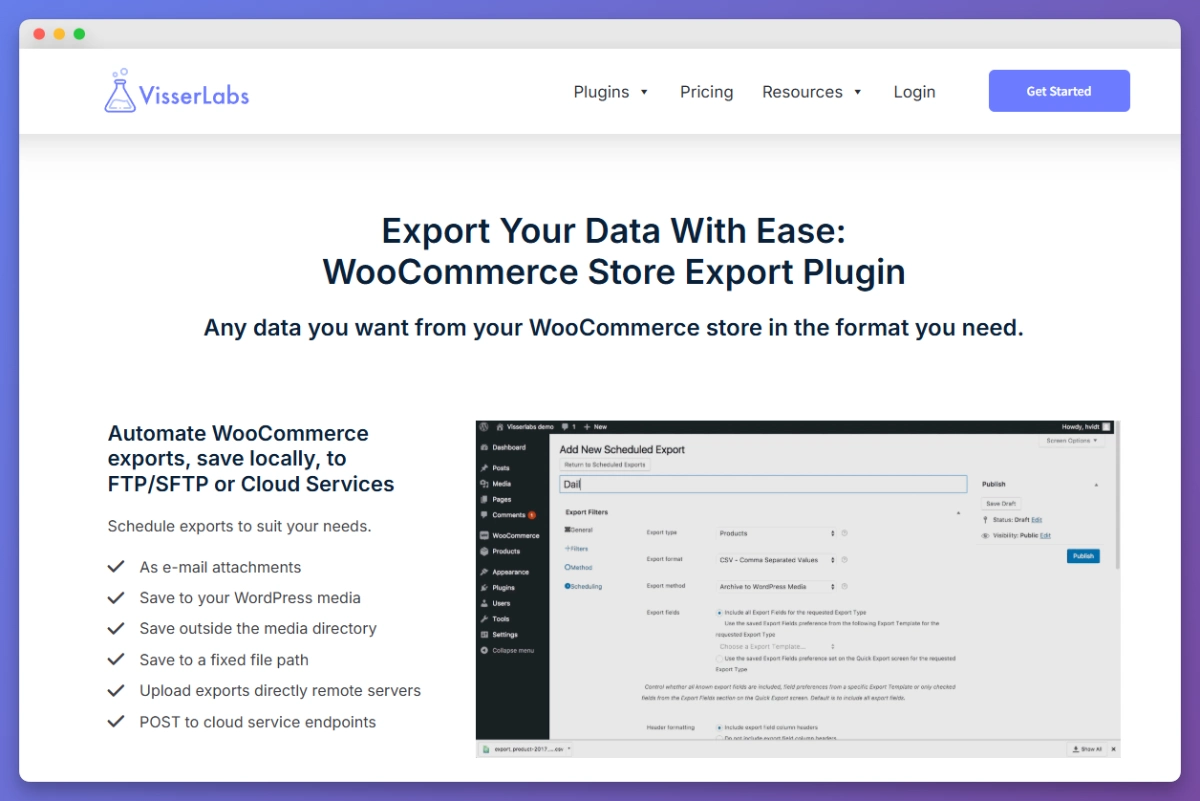
Run the export. Because the reviews dataset is purpose-built rather than a generic comment dump, every row comes out with the reviewer name, email, timestamp, 1-to-5 rating, and product SKU populated. That completeness is what lets you re-link reviews to the correct products on the destination without manual cleanup.
💡 For the deeper configuration walkthrough, Visser Labs has a full guide to exporting WooCommerce reviews.
If your source is Shopify
Shopify does not store reviews in core. They live in whichever review app you installed. Export from the app:
- Judge.me: Dashboard, Export Reviews, CSV. You get product handle, reviewer name, email, rating, review body, date, and verified status.
- Yotpo: Admin settings, Export, filter by date range and product.
- Shopify Product Reviews app: Apps, Product Reviews, Export, CSV download.
Map the resulting CSV to match the column names Store Exporter Deluxe produces so the downstream import stays consistent across sources. The same UTF-8 encoding rules apply to order exports.
If your source is Magento or BigCommerce
Use the platform’s native review export, then reformat the columns to match the WooCommerce review structure before import. Magento’s export lives under Marketing, User Content, Reviews. BigCommerce exports from Products, Reviews.
Understanding The CSV Format Reviews Need For Import
Whatever your source, the CSV you use to import WooCommerce product reviews needs a specific structure. Missing columns or wrong data types are the main reasons reviews look broken after an import.
Minimum required columns:
review_content: the review textauthor_name: reviewer’s display nameauthor_email: reviewer’s emailreview_date: ISO 8601 format (YYYY-MM-DD HH:MM:SS)rating: integer 1 to 5product_skuorproduct_id: the link to the destination productapproved: 1 for approved, 0 for pending
Linking reviews to products. If the destination uses the same SKUs as the source, SKU matching is safest. If SKUs differ (common in Shopify to WooCommerce migrations where Shopify’s handle doesn’t match WooCommerce’s slug), you need a mapping table: source SKU mapped to destination product ID. Build this before you import, not during.
Character encoding. Save the CSV as UTF-8 to preserve accented characters, emojis, and non-Latin scripts. Reviews from international customers break frequently on encoding because Excel defaults to Windows-1252 on some locales, which silently corrupts characters. Open your CSV in a plain text editor to verify before import.
Step 2: Import Reviews Into The Destination WooCommerce Store
With a clean export in hand, the import becomes about picking the right method for your source format.
Option A: WordPress Importer (WXR/XML)
If your source export is in WordPress eXtended RSS format (WXR, WordPress’s native XML export), the official WordPress Importer plugin can bring in comments, including reviews, alongside posts. Go to Tools, Import, WordPress on the destination site. Install the WordPress Importer plugin if you haven’t already. Upload your XML file and choose to import comments when prompted. The catch: the WXR file must include the comments section. A plain product XML export won’t carry reviews. This works best for WooCommerce-to-WooCommerce migrations.
Option B: Third-party review import plugins
Several WordPress plugins exist to import reviews from CSV. The landscape changes often, so search the WordPress.org plugin directory for “import reviews” and sort by last updated date. Evaluate candidates on four things: CSV structure flexibility, SKU-to-product matching, star rating preservation, and date/author preservation. Always test on staging with a small subset before running the full import.
Option C: Manual SQL import (developer-only)
For one-off migrations with unusual source formats, a developer can write an SQL script that inserts directly into wp_comments and wp_commentmeta. This is the most reliable method for preserving every field because you control exactly what goes into each column. Before running: take a full database backup, build a complete SKU-to-product-ID mapping table, and write a validation query to compare review counts against source. This approach requires SQL fluency.
Option D: as part of a full store migration
If you’re doing a complete store migration (products, customers, orders, reviews), consider the coordinated path. Moving everything in a planned sequence avoids the “reviews orphaned because products weren’t there yet” problem.
Start with Visser Labs’ full WooCommerce migration guide. The companion guide to importing WooCommerce products covers the product side, which must run first. WooCommerce’s built-in product CSV importer handles the products themselves, but it does not touch reviews at all, because reviews are comments rather than product data. Reviews go through one of the three methods above once the products are in place.
What We’ve Seen: One pattern we see repeatedly on review imports: reviewers lose their attribution. The review text survives, but the author email disappears, the review date resets to the import date so every review looks like it was posted yesterday, and the star rating drops entirely because the importer did not carry the
comment_metarating field. On the new store, every product shows “Anonymous, 2026-04-21, no rating” on reviews that were originally “Sarah M., 2023-08-12, 5 stars.” This is almost always a format problem at the export stage, not the import stage. Fix it by re-exporting with the right fields, not by patching data on the destination.
Worked Example: Importing 500 Product Reviews From A Shopify Export
Here’s the sequence for a Shopify to WooCommerce migration carrying 500 reviews collected through Judge.me. The same shape works for any source once you swap out the export step.
Step 1: Export from Judge.me. Dashboard, Export Reviews, CSV. The file had columns for product handle, reviewer name, email, rating, review body, date, and verified status. Row count: 500.
Step 2: Build the mapping table. Shopify product handles would not match WooCommerce product slugs exactly. Export products from the new WooCommerce store with Store Exporter Deluxe to get a list of product IDs and slugs, then cross-reference the Shopify handles against them with VLOOKUP. Expect a portion of reviews to reference handles with no obvious match, usually because product names were tidied during the migration. Resolve those by hand, matching review text against product descriptions.
Step 3: Reformat the CSV. Rename columns to match the destination structure, add a product_id column from the mapping table, convert Judge.me’s date format to ISO 8601, and set approved to 1 for rows that were already approved at source. Keep the verified column: WooCommerce stores verified-buyer status in the verified comment meta key, so it does have a direct equivalent, though WooCommerce also recalculates it against order history on the destination.
Step 4: Save as UTF-8. Spot-check ten rows containing accented characters in a plain text editor and confirm they render correctly before going any further.
Step 5: Run the import on staging first. Never production. Clone the destination to staging, run the import there, and validate before touching the live site.
Step 6: Validate on staging. Pick 10 random imported reviews and check five things on each: author name matches source, author email matches source, review date matches source, star rating is populated, and the review displays on the correct product page. If any fail, fix the export or the mapping and re-run. Don’t patch records on the destination, because the same fault will repeat on every later batch.
Step 7: Run on production. With staging validated, schedule the production import for a low-traffic window and run the same process.
The result you’re aiming for: every review moved across with complete attribution. Author names preserved, original dates intact, star ratings populated, and each review linked to the correct product through the SKU mapping, so the new store launches with its social proof visibly intact.
Common Gotchas And How To Avoid Them
A few recurring issues catch store owners out. Knowing them in advance saves re-runs.
- Duplicate reviews: Running an import twice without deduplicating creates duplicates. Before running, query the destination for existing review counts. If the destination already has reviews, match on author email + review date + product as a dedup key.
- Moderation queue flooding: Importing with
approved = 0sends every review to the moderation queue. Pre-approve during export if source reviews were already approved. - Product ID drift: If you run the review import before products are fully imported, reviews attach to nothing. Products first, reviews second.
- Orphaned reviews: Reviews without a matching product create orphan comments that exist in the database but don’t display. Run a validation query after import counting reviews whose
comment_post_IDdoesn’t match an existing product. Zero is the target. - Timezone mismatches: If source reviews were stored in UTC and the destination runs in a different timezone, dates can shift. Normalise to UTC during export and let WordPress handle timezone conversion at display.
- Rich media in reviews: Photo reviews from Judge.me and Yotpo store images separately. The text imports fine, but photos don’t come with a standard CSV. Flag image migration as a separate project upfront.
Frequently Asked Questions
Can the WooCommerce product importer import reviews?
No, WooCommerce’s built-in product CSV importer cannot import WooCommerce product reviews. It reads product data only, and reviews are stored as WordPress comments rather than product fields, which makes them a separate import path entirely. Use the WordPress Importer if your source is a WXR/XML export, a dedicated review import plugin from the WordPress directory, or a manual SQL import for unusual source formats. To get reviews out of a source WooCommerce store cleanly, Store Exporter Deluxe handles the export side as a native dataset.
Will imported reviews keep their star ratings?
Only if your import method writes to the wp_commentmeta table with the rating key. Generic comment importers often skip this because star ratings are a WooCommerce-specific addition on top of standard WordPress comments. After any import, validate star ratings on 10 random reviews before declaring the migration complete.
How do I link reviews to the correct products after migration?
Link by SKU if SKUs match exactly between source and destination (most reliable for WooCommerce-to-WooCommerce). Link by a manual mapping table if SKUs differ, which is typical for Shopify-to-WooCommerce migrations where product handles and slugs don’t match. Build the mapping before you import, not during.
Should I import reviews before or after products?
Always products first. Reviews need product IDs to link to. If products don’t exist on the destination, the reviews orphan. Correct sequence: products, customers, orders, reviews.
Can I preserve verified buyer badges during migration?
Verified buyer status is determined by WooCommerce matching a review’s author email against order history on the destination store. If your customer and order data migrates before reviews, the verification logic runs automatically on the new site and marks reviews as verified where there’s a matching order. If orders are not migrated, verified status will not carry across.
Bringing Your Reviews Across Without Losing Social Proof
Reviews are brand equity, and losing them during a migration quietly costs conversion on the new store. Done properly, the work to import WooCommerce product reviews is mechanical rather than difficult. The work isn’t glamorous: clean export, correct CSV structure, product mapping, staging validation, then production import. Every failure mode traces back to either the export being incomplete or the import method being mismatched to the source format. The hard part is not the import click itself. It’s the field mapping and attribution preservation that happens before and during. Get the export right, and the rest is mechanical.
Here’s how to act on this guide:
- Start with Step 1 to get your source reviews exported cleanly with all fields populated.
- Review the CSV format before picking an import method.
- Pick an import option based on your source format.
- Validate on staging before touching production.
If this is part of a bigger move, the Visser Labs WooCommerce migration guide covers the full store migration playbook. For the source-side review export, Store Exporter Deluxe is the tool that gets your data out cleanly with every field mapped correctly.