
To import customers into WooCommerce you need a plugin, because WooCommerce has no built-in customer importer. Its CSV importer handles products only, and customers are stored as WordPress users with billing and shipping details attached as user meta, which is a different import path entirely.
That surprises most people mid-migration, usually after the products and orders have already moved across. This guide covers every legitimate way to import customers into WooCommerce, what each method actually handles, and where the traps are.
This guide covers four real methods, a decision framework for picking the right one, and the full migration workflow for readers moving off another WooCommerce store (including where Visser Labs’ tools fit, and where they honestly don’t).
Why You’d Import Customers Into WooCommerce
Three scenarios drive almost every customer import job.
Use case 1: Store migration
You’re moving from another platform (Shopify, BigCommerce, Magento) or consolidating two WooCommerce stores into one. Customers need to exist in the new system so their order history, marketing history, and account context are preserved. If you’re doing a full WooCommerce migration, customer import is step 3 or 4 of a larger workflow (products, orders, customers, then reconciliation).
Use case 2: Consolidating customer lists
You’ve got customer data sitting in a CRM, email platform, or a secondary store you want unified inside WooCommerce. Maybe your retail store has 8,000 customers in Mailchimp and your wholesale side lives in WooCommerce. Pulling everything into WooCommerce means your segmentation, order history, and marketing context all live in one place.
Use case 3: Reactivating a dormant customer base
You’re relaunching an old store or resurrecting a customer list after a rebuild. Picture a CSV of 6,000 customers from a store you shut down two years ago, sitting on your desktop while you plan the relaunch email. Good use case, but read the honest note below before you act on it.
Quick honest note: if you’re importing a list to email people who haven’t consented, stop and review GDPR or CAN-SPAM first. Importing is the easy part. The legal and deliverability side is where stores get into trouble, and a technically perfect import can still damage a sender reputation if nobody checked the consent basis on an older list.
The Truth About WooCommerce’s Built-In Customer Import
Here’s what WooCommerce core actually ships with: a product CSV importer under Products, All Products, Import. That’s the full list of native import tools WooCommerce gives you for bulk data.
There is no built-in customer importer. Not hidden in a menu. Not behind a feature flag. Not one plugin install away. It simply is not a feature of WooCommerce core.
WordPress core (separate from WooCommerce) has a Tools, Import screen that accepts user data, but out of the box it doesn’t include a users importer. You have to install the free “Import users from CSV with meta” plugin or a similar well-maintained alternative to get that functionality. And even then, it handles WordPress user accounts and meta. It doesn’t know about WooCommerce-specific customer fields unless you feed them in as meta columns.
It is worth stating plainly, because the assumption that a native customer importer exists is a common one. It does not. Every method in this article uses either a WordPress users plugin or a dedicated WooCommerce import tool. If a guide tells you to go to WooCommerce, Import and upload your customer file, it is either wrong or describing a plugin it forgot to mention.
Now let’s walk through the four methods that do work.
Method 1: WordPress Users CSV Import (Free Plugin Route)
Best for: Small-to-medium lists (up to around 5,000 customers), straightforward user data, no complex metadata.
What you need: The free “Import users from CSV with meta” plugin from the WordPress plugin repository, or a similar well-maintained alternative.
Step 1: Install and activate the plugin
Plugins, Add New, search for “Import users from CSV with meta” (or your chosen alternative), install and activate.
Step 2: Prepare your CSV
Include the core WordPress fields as columns: user_login, user_email, user_pass (or leave blank to auto-generate), first_name, last_name, and role (set to “customer” for WooCommerce).
Step 3: Add WooCommerce customer meta
Add WooCommerce-specific meta fields as additional columns: billing_first_name, billing_last_name, billing_address_1, billing_city, billing_postcode, billing_country, billing_email, billing_phone, shipping_first_name, shipping_last_name, shipping_address_1, shipping_city, shipping_postcode, shipping_country.
Step 4: Run the import
From Users, Import From CSV (menu location varies by plugin), upload the file and run it.
Step 5: Verify a sample
Check Users, All Users for the account creation. Then open WooCommerce, Customers and confirm billing and shipping fields populated for a handful of records.
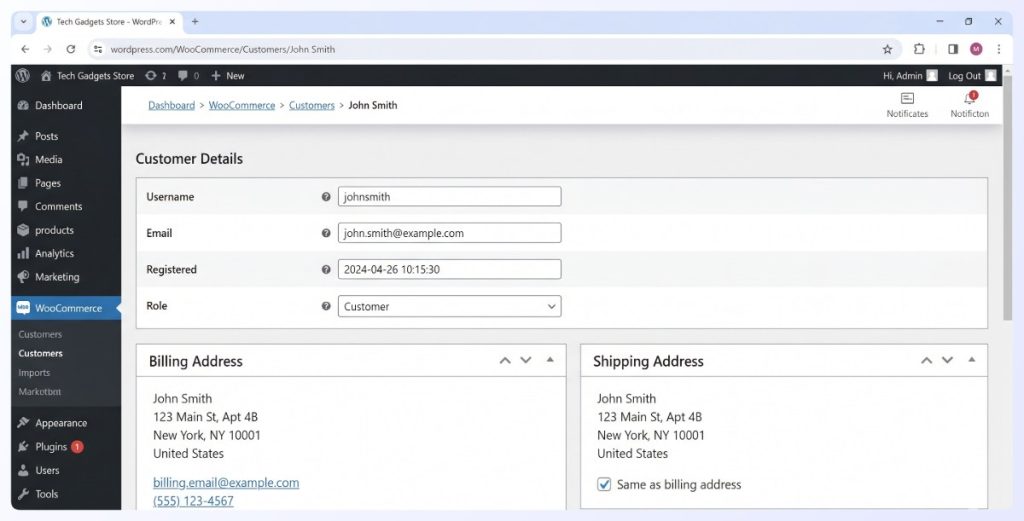
The detail that catches people out on this route is column naming. Billing fields tend to populate without much trouble, but shipping meta only imports when the headers use WooCommerce’s exact meta keys, so shipping_address_1 rather than shipping_street. Column naming matters more than most guides explain. If your source CSV uses different header names, either rename the columns before importing or pick a plugin with mapping flexibility (Method 2).
Honest caveat on passwords: if you don’t have hashed passwords from the source system in a format WordPress accepts, leave the user_pass column blank and let the plugin auto-generate one. Customers will need to reset on first login. This is normal and expected, but walk them through it in your launch email so they’re not surprised.
Method 2: WP All Import (Premium, Flexible Mapping)
Best for: Large lists, messy CSVs, complex metadata, custom fields, or CSVs where the column headers don’t match WordPress conventions.
Why this is different
WP All Import has a dedicated Import Users add-on that handles mapping between any CSV column and any WordPress or WooCommerce field using a drag-and-drop interface. If your source CSV uses non-standard column names, or your data has custom fields beyond standard billing and shipping, this is the path of least resistance.
Step 1: Install the core plugin and add-on
Install WP All Import (the core plugin) and the Import Users add-on.
Step 2: Start a new import
Upload your CSV and choose “Import into Users” as the target post type.
Step 3: Map your columns
Drag each CSV column onto the matching WordPress or WooCommerce user field in the mapper. Unlike the free plugin in Method 1, WP All Import doesn’t require your columns to be named correctly. You just point and drop.
Step 4: Set the role
In the user role field, set the role to “customer” for all imported records.
Step 5: Preview and run
Preview the mapping on a few sample records, confirm everything lines up, then run the import.
Honest assessment: WP All Import is paid, which puts it ahead of the free Method 1 route on cost. But if your CSV columns don’t match standard WordPress naming conventions, or you have custom metadata to bring across, the mapping flexibility pays for itself the first time you avoid manually renaming 40 columns in a spreadsheet.

If you also need to bring products across in the same migration, see how to choose the right WooCommerce product import plugin for your store, because the product import decision is a separate workflow with its own trade-offs.
Method 3: WebToffee Import Export For WooCommerce
Best for: Store owners already using WebToffee for other import/export tasks, or those who want customer import bundled with order and product import in one plugin.
What it handles
User and customer import via CSV, including WooCommerce billing and shipping fields and the registration date. The same plugin also covers orders, products, and coupons if you need them.
Step 1: Install the plugin
Install WebToffee’s Import Export for WooCommerce plugin.
Step 2: Start a customer import
Go to WebToffee Import Export, Import and select “Customer” as the post type.
Step 3: Upload and map
Upload your CSV and map columns to WooCommerce customer fields. The mapper is less drag-and-drop than WP All Import but still flexible enough for most standard migrations.
Step 4: Set update behavior
Configure the plugin to skip existing customers, update existing customers, or create new ones only. For most migrations you want “create new, skip existing” so you don’t overwrite any accounts already in place.
Step 5: Run and review
Run the import and check the import log for any rejected rows. WebToffee is reasonably verbose on errors, which helps when you’re debugging a partial failure.
Honest assessment: WebToffee is a common choice because it bundles multiple import and export capabilities into one plugin. The trade-off is that the interface can feel busy if you only need customer import and nothing else. Check their site for current licensing before you commit. If you’re already running WebToffee for exports, the customer import path is almost free effort. If you’re not, compare it against WP All Import before committing, and see how to pick between Store Exporter Deluxe and WebToffee on the export side.
Method 4: Manual Bulk User Creation In WordPress Admin
Best for: Tiny lists (under around 50 customers), one-off additions, or when you don’t want to install another plugin.
Step 1: Add the user
Users, Add New. Fill in username, email, and set the role to “Customer”. Repeat for each customer.
Step 2: Add customer meta
Edit each profile afterward to add billing and shipping data under the WooCommerce section of the user profile screen.
Step 3: Verify under WooCommerce, Customers
Confirm the customer appears in the list with correct billing and shipping populated.
Honest assessment: this is tedious. For any list over 20 to 30 customers, install a plugin. It is worth covering because occasionally someone just needs to add a handful of customers from a partial migration without the overhead of configuring an import tool for a one-off job.
What We’ve Seen: One pattern that catches store owners off guard is exporting customers from their old platform, uploading the CSV to WooCommerce, and then realizing their order history didn’t come across. Importing customer accounts and importing order history are two separate jobs. Customer import creates the user profiles. Order history import is a different workflow with its own tool choices. If you’re migrating from another WooCommerce store, Store Exporter Deluxe on the source site handles the order export side, and you match it with a compatible order importer on the destination. Plan both halves before you start, not after.
The Full Migration Workflow: Exporting Customers From The Source Store
If you’re migrating from another WooCommerce store, step 1 isn’t the import. It’s the export from the source store. Here’s the end-to-end workflow.
Step 1: Export customers from the source store
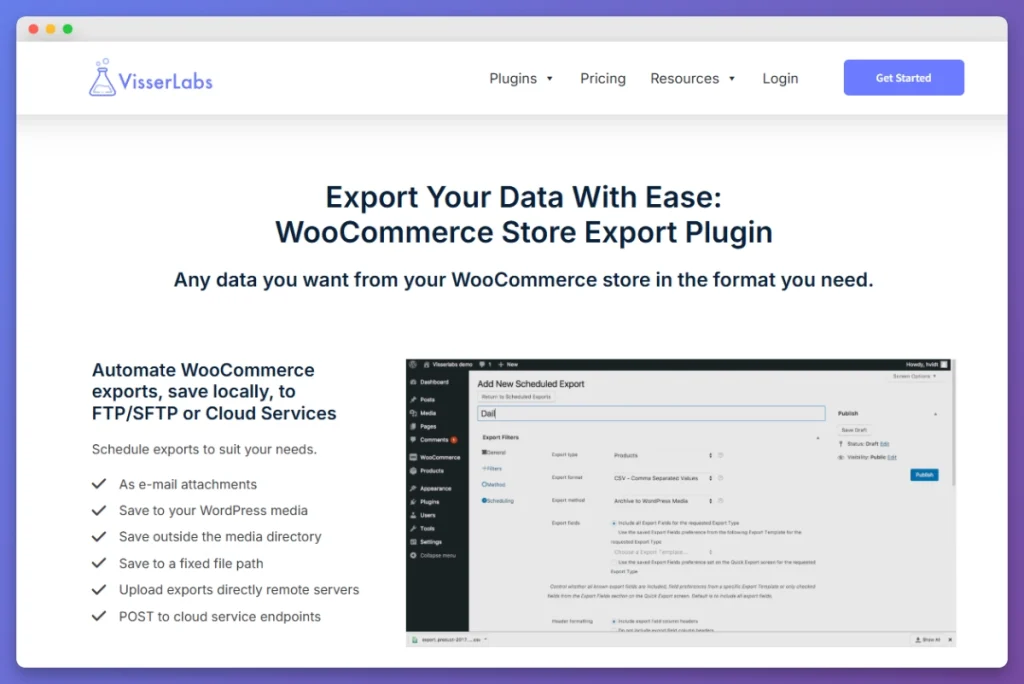
Use Store Exporter Deluxe on the source site to generate a clean customer CSV with all the fields you need: user name, user email, user role, the full billing and shipping address sets, and the registration date. Store Exporter Deluxe has a dedicated customer export tab that exposes these fields and lets you save a template for repeat exports.
See the guide to pull a clean customer CSV out of WooCommerce for specifics on the field selection.
Step 2: Export orders from the source store
Store Exporter Deluxe handles order export with the customer linkage preserved, since the order export carries the customer’s email address and customer ID to tie orders back to customer records on the destination. This is the companion dataset for customer import. See the walkthrough on how to get every dataset out of your WooCommerce store for the full order export configuration.
Step 3: Choose your import tool for the destination
One of Methods 1 to 3 above, depending on list size and data complexity. Visser Labs doesn’t offer a dedicated customer importer, so this is where you reach for WP All Import, WebToffee, or the free WordPress users importer depending on your situation.
Step 4: Import customers first, then orders
If you import orders before customers, the order-to-customer linkages break because the customer user IDs won’t exist yet on the destination. Always customers first, then orders. It is one of the most common mistakes on a migration, and it is painful to unpick afterwards.
Step 5: Verify
Pick 10 customers at random from the imported list. Check that billing, shipping, and role data came through on the destination. Check that their order history links back to them correctly by opening a customer record and confirming the orders tab shows their imports. Spot-check five orders the other direction (open an order, confirm the customer link resolves to an account).
Honest positioning: Visser Labs does not sell a customer importer, and WooCommerce does not include one. For customer import in a full WooCommerce migration, pair Store Exporter Deluxe on the export side with one of the importers in Methods 1 to 3 on the destination side. That is the honest workflow.
Choosing The Right Method For Your Situation
Here’s a decision framework by list size and data complexity.
- Under 50 customers: Manual bulk creation in WordPress admin (Method 4). Skip the plugin overhead.
- 50 to 5,000, clean CSV with standard column names: Free WordPress users CSV importer plugin (Method 1). Cheapest path for straightforward data.
- Any size, messy CSV or custom metadata: WP All Import with the Import Users add-on (Method 2). The mapping flexibility is worth the cost.
- Already using WebToffee for other import/export tasks: WebToffee Import Export for WooCommerce (Method 3). Bundled convenience.
- Migrating from another WooCommerce store: Store Exporter Deluxe on the source for the export, plus one of Methods 1 to 3 on the destination for the import. See the full workflow above.
If you’re also importing products in the same migration job, learn how to bulk import WooCommerce products from CSV, TSV, or TXT in a separate run. Product import and customer import are separate workflows. Don’t try to combine them into one CSV.
Frequently Asked Questions
Does WooCommerce have a built-in customer importer?
No. WooCommerce core ships with a product importer but not a customer importer. To import customers into WooCommerce you’ll need either a WordPress core user import plugin (Method 1), a WooCommerce-focused import plugin like WP All Import or WebToffee (Methods 2 and 3), or manual bulk creation for very small lists (Method 4).
Can the WooCommerce product importer import customers?
No, WooCommerce’s built-in CSV importer handles products only. Customers are WordPress users with billing and shipping details stored as user meta, so they need a users-focused import tool instead. Store Exporter Deluxe covers the customer export side of a migration, but the import side is not part of the Visser Labs product line, which is worth saying plainly so you pick the right tool.
Will customer passwords transfer in an import?
Usually no. Unless you have hashed passwords from the source in the exact format WordPress expects (and permission to use them), customers will need to reset on first login. Leave the user_pass column blank so the plugin auto-generates one, and plan a launch email that walks customers through the password reset. This is normal for migrations.
What about GDPR and consent?
If you’re importing a list to email people you haven’t contacted recently, review your consent basis before you hit send. The import itself is usually fine. The marketing that follows is where stores get into trouble. A dormant list imported into a new store without fresh consent is a deliverability risk and (depending on your jurisdiction) a legal one.
How do I import customer order history at the same time?
You don’t. Customer import and order import are separate jobs. Import customers first, then orders, via whichever tool handles your order format. If you’re migrating from another WooCommerce store, Store Exporter Deluxe handles the order export side and you pair it with an order importer on the destination. Always customers first, orders second.
Do I need to deactivate user registration emails during import?
Yes, if you’re importing more than a handful of accounts. Most users CSV import plugins include a checkbox to skip the “new user registration” email. Tick it. Otherwise every customer in your CSV gets a welcome email the moment their account is created, which is both noisy and confusing if your real launch email is still a week away.
Wrapping Up
The honest summary: WooCommerce does not have a native way to import customers into WooCommerce in bulk. Four legitimate methods cover the real workflows, and the right choice depends on list size and data complexity.
- Under 50 customers? Manual bulk creation.
- Clean CSV, up to 5,000? Free WordPress users importer (Method 1).
- Messy data or custom fields? WP All Import (Method 2).
- Already on WebToffee? WebToffee customer import (Method 3).
- Migrating from another WooCommerce store? Store Exporter Deluxe on the source, plus one of Methods 1 to 3 on the destination.
If you’re on the export side of a WooCommerce-to-WooCommerce migration, get a clean customer, order, and subscription CSV out of your source store with Store Exporter Deluxe. It handles customers, orders, products, and subscriptions in a single tool, with saved templates so your export matches the destination importer’s expected column names. That’s the honest Visser Labs fit in this workflow: the export half.