

It’s the last day of the month, your bookkeeper emails asking for April’s orders, and your WooCommerce Xero integration suddenly becomes the most stressful job on your list. You open WooCommerce, export a CSV, and twenty minutes later she emails back. The columns don’t match Xero’s import template, the dates are in the wrong format, and the tax totals are split across fields she can’t reconcile. Sound familiar?
There’s a much cleaner way than patching CSVs together at midnight. From building export tooling that thousands of WooCommerce stores rely on for their accounting workflows, we’ve seen the same three paths work across every order volume, from a free manual workflow, to a scheduled export your bookkeeper receives automatically, to a real-time sync connector for stores that genuinely need it.
By the end of this guide, you’ll know which method fits your order volume and reconciliation rhythm, and you’ll have a clear set of steps to follow. So, let’s get started!
What “Connecting WooCommerce To Xero” Actually Means
Before picking a method, it helps to be honest about what you need. Most store owners ask for a “WooCommerce Xero integration” when what they actually need is clean order data landing in Xero on a predictable schedule.
There are three distinct needs that get lumped together under the same phrase:
- Sales reconciliation: Get order totals into Xero to match bank deposits at tax time. This is what most store owners need and the easiest to automate.
- Customer and contact sync: Have customer records in Xero for invoicing outside WooCommerce. Useful for B2B stores that also raise manual invoices.
- Product and inventory sync: Keep product data aligned between systems. Less common, and usually only needed when Xero is the source of truth for inventory.
Just as important is the distinction between the three types of “connection”:
- Real-time sync: Two-way, via an API connector plugin. Expensive. Breaks occasionally when either platform ships an update. Worth it for high-volume stores.
- Scheduled export and import: One-way, on a cadence. Cheap. Reliable. Fits the 80% of stores that reconcile weekly or monthly.
- One-off manual export: Free but tedious. Fine for quarterly reconciliation or very low-volume stores.
The honest framing most guides skip: most store owners think they need real-time sync when scheduled export and import does the job. Match the tool to the workflow, not the other way around.
Method 1: Manual CSV Export To Xero Import (The Free Path)
This is the starting point if you’re reconciling monthly or quarterly, you’re comfortable in spreadsheets, and you’re under about 100 orders a month. It costs nothing beyond your time.
The workflow is export from WooCommerce, clean the file to match Xero’s template, then import into Xero. Here’s exactly how to do it.
Step 1: Export orders from WooCommerce
Open WooCommerce, Orders, and use the built-in Export option. This gives you a basic CSV with the default field set, and WooCommerce’s official CSV importer and exporter documentation walks through what the core export covers. If the built-in export doesn’t include everything you need (line items, tax breakdown, billing company), Store Exporter Deluxe gives you a cleaner starting file with every field available as a checkbox.
For a full walkthrough of the export options, see Visser Labs’ complete guide to exporting WooCommerce orders.

Step 2: Match columns to Xero’s sales invoice template
Xero’s sales invoice CSV import expects specific column headers. The key fields are ContactName, InvoiceNumber, InvoiceDate, DueDate, Description, Quantity, UnitAmount, AccountCode, and TaxType. Your WooCommerce export won’t use these header names by default, so you’ll rename columns in Excel or Google Sheets before import.
Step 3: Clean the file
Three things trip up most first-time Xero imports:
- Date format: WooCommerce stores dates as YYYY-MM-DD. Xero’s AU and UK import expects DD/MM/YYYY. Reformat the whole column before import or Xero rejects every row.
- AccountCode: This must match an existing code in your Xero chart of accounts (for example, “200” for Sales). If you invent codes at import time, Xero won’t create them, it rejects the rows.
- TaxType: Xero uses a fixed list of tax codes. For GST-on-income sales in Australia, use “Output”. Match the code to the tax setup your accountant has configured in Xero.
Step 4: Import into Xero
In Xero, navigate to Business, Invoices, and use the Import option. Upload the CSV, review the import preview, and Xero will flag any rejected rows with a reason.
Step 5: Fix rejects and commit
Common rejects are missing AccountCode, wrong date format, or a ContactName that doesn’t exist in Xero (you can set Xero to create contacts on import). Fix them in the CSV, reimport, and commit when the preview is clean.
Honest assessment
This method works. It’s also tedious. For a store doing around 60 orders a month, the end-to-end time tends to run about 45 minutes, most of that spent on column cleanup and fixing rejects. If you’re doing this more than once a month, the time savings of Method 2 pay for themselves in a single afternoon.
Method 2: Scheduled Export From Store Exporter Deluxe To Xero (The Recommended Path)
This is the sweet spot for the middle 80% of stores. Cheap, reliable, hands-off, and gives your bookkeeper exactly what they need on a predictable schedule.
Instead of manually exporting and cleaning every month, Store Exporter Deluxe builds a Xero-ready XLSX or CSV file on the schedule you pick and delivers it to your bookkeeper’s inbox, an SFTP folder, or the WordPress media library. The file is already formatted correctly. Your bookkeeper imports it into Xero in about four minutes.
Here’s how to set it up.
Step 1: Install Store Exporter Deluxe
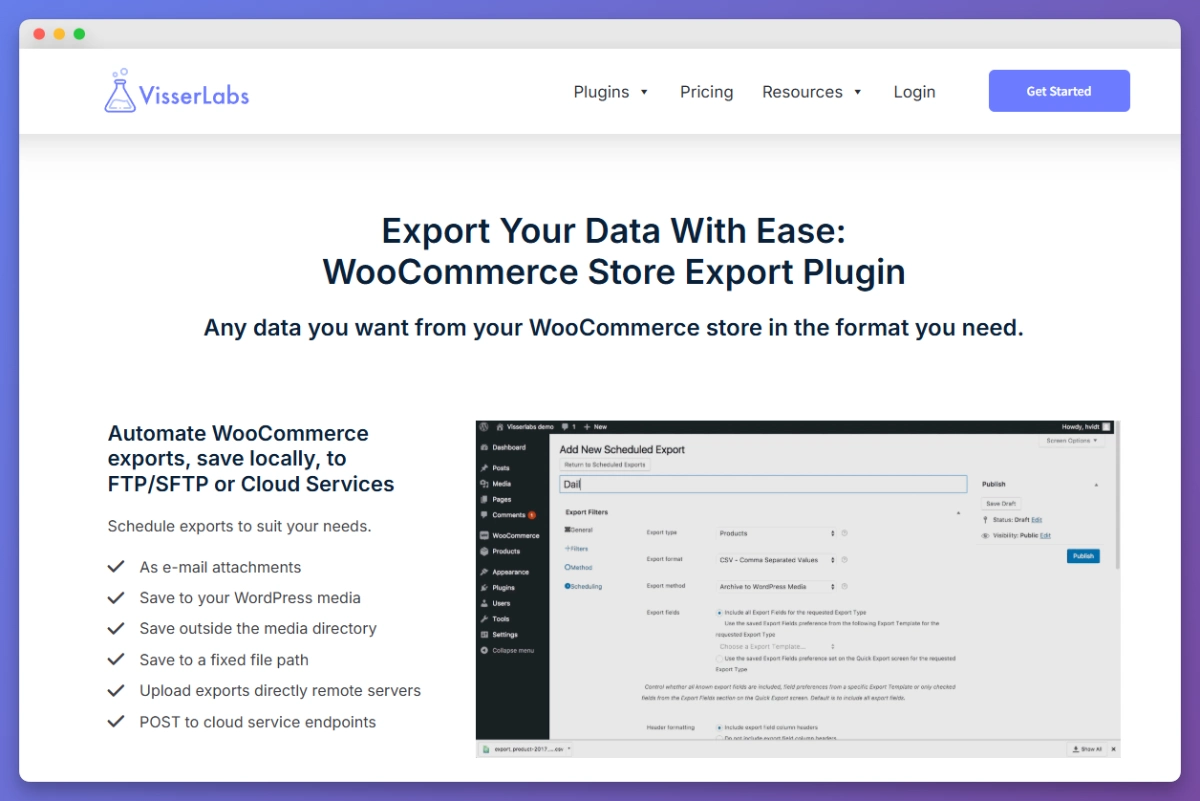
Purchase Store Exporter Deluxe from the plugin page at $39.50/year introductory ($79/year renewal). Upload the ZIP through WordPress admin, Plugins, Add New, Upload Plugin. Activate and enter your license key.
Step 2: Open the Orders export tab
Go to WooCommerce, Store Export, and select the Orders tab. This is where you build your Xero-ready field set.
Step 3: Configure the Xero field set
Tick the fields that map to Xero’s sales invoice template:
- Order number: Maps to InvoiceNumber. Prefix with “WC-” if you also raise invoices directly in Xero to avoid number conflicts.
- Order date: Maps to InvoiceDate. Store Exporter Deluxe lets you set the output date format, so pick DD/MM/YYYY for AU/UK or MM/DD/YYYY for US and you’ve already solved the biggest Method 1 headache.
- Billing company or billing first+last name: Maps to ContactName. Use billing company if present, otherwise the full name.
- Customer email: Useful for contact creation in Xero.
- Line item product name: Maps to Description.
- Line item quantity: Maps to Quantity.
- Line item unit price (ex tax): Maps to UnitAmount. Keep this tax-exclusive if your TaxType is “Output” and Xero will add the tax on its side.
- Tax total and tax rate: Used to set TaxType.
- Order total: Reference column for reconciliation.
- Payment method: Useful reference column for bank rec, though Xero itself doesn’t import this field.
Step 4: Pick XLSX or CSV as the output format
XLSX is cleaner for your bookkeeper to review before import. Xero’s sales invoice import accepts CSV natively, and XLSX files can be saved as CSV with one click before upload. Either works. XLSX is the safer default because it lets your bookkeeper sanity-check the file in Excel before she imports it.
For more detail on the format choice, see Visser Labs’ guide on exporting orders to Excel.

Step 5: Save as a reusable export template
Give your configuration a name like “Xero Import” and save it as a template. This means you don’t rebuild the field selection every time. For the full template workflow, see Visser Labs’ guide on using export templates.
Step 6: Set up a scheduled export
Move to the Scheduled Exports tab and create a new schedule. Configure four things:
- Frequency: Weekly (Monday morning) or monthly (1st of month), depending on how often your bookkeeper reconciles.
- Export template: Pick the “Xero Import” template you just saved.
- Filters: Order status = completed, date range = last 7 days (weekly) or last month (monthly). You only want completed orders in the sales invoice file. Refunds are handled separately.
- Delivery: Email the XLSX to your bookkeeper, drop it onto an SFTP folder they monitor, or save to the WordPress media library for manual retrieval. Email is the easiest starting point.
💡 For the full scheduling walkthrough, see Visser Labs’ guide on creating an export schedule.
Step 7: Test one full cycle
Run the schedule manually once, confirm the XLSX lands where expected, and walk your bookkeeper through her import in Xero. If she hits a rejection, tweak the field set or date format and save the updated template. Once one cycle runs clean, the schedule handles itself.
What we see in practice
A pattern we see across stores running this setup: the weekly XLSX arrives in the bookkeeper’s inbox every Monday morning, the Xero import drops from a 45-minute job to about 4 minutes, and the store owner stops getting Sunday-night “can you pull the orders for me” texts. That’s the whole workflow.
What We’ve Seen: One thing we see regularly is store owners installing a real-time Xero sync plugin, paying $200 to $400/yr for it, and then discovering that 90% of what it does is replicate a weekly CSV export they could have automated for free through scheduling. Real-time sync has its place, for high-volume stores, multi-channel operations, and stores where Xero is the source of truth for inventory. For a typical WooCommerce store doing a few hundred orders a month and reconciling weekly or monthly, a scheduled XLSX export to the bookkeeper is faster to set up, cheaper to run, and less likely to break when Xero or WooCommerce ships an API change. Match the tool to the workflow, not the other way around.
Method 3: Real-Time Sync Via Third-Party Connectors (When You Actually Need It)
Real-time sync is worth the cost in specific situations. If any of these apply to your store, skip Method 2 and look at a dedicated connector:
- 1,000+ orders per month with daily reconciliation needs
- Inventory managed in Xero (not WooCommerce), so stock levels need to flow both ways
- Multiple sales channels feeding into Xero as a single source of truth
- Bookkeeper needs live invoice status for collections or AR management
The main paths for a real-time WooCommerce Xero integration fall into three buckets:
- Xero’s official WooCommerce integration: A direct API connection maintained by Xero. Good for simple setups where you want one vendor responsible for the pipe.
- Dedicated sync-connector plugins: Paid WooCommerce add-ons that handle more complex tax scenarios, inventory sync, and custom field mapping. They sit in the $200 to $500/yr range.
- Zapier or Make.com workflows: Trigger-based automation. You build a custom workflow like “when WooCommerce order is completed, create Xero sales invoice.” Flexible but requires upkeep when either platform changes.
For a store doing 1,800 orders a month across three sales channels, a real-time connector earns its keep. Stock levels stay aligned, the bookkeeper has live invoice status for weekly calls with suppliers, and tax time becomes a non-event. But that kind of volume is what justifies the cost. Most stores don’t have it.
Honest framing: these are legitimate tools. They’re also overkill for most stores. If you’re reading this article, you probably don’t need real-time sync, you need a reliable schedule.

For a broader look at accounting options across the WooCommerce space, Visser Labs’ WooCommerce accounting plugins roundup compares the main categories.

If you use QuickBooks instead of Xero, the similar integration approach for QuickBooks users covers the equivalent workflow.
Mapping WooCommerce Fields To Xero Fields
Field mapping is where most first-time imports stall, and it’s the single biggest reason a WooCommerce Xero integration fails its first run. Here’s a reference table you can copy into your export template setup. Match your Store Exporter Deluxe field selection to the Xero column names and you’ve removed the biggest source of rejected rows.
Reference mapping for Xero’s sales invoice CSV template (AU/UK settings):
| WooCommerce field | Xero sales invoice field | Notes |
|---|---|---|
| Order number | InvoiceNumber | Use as-is, or prefix with “WC-” to avoid conflicts with invoices raised directly in Xero |
| Order date | InvoiceDate | Reformat to DD/MM/YYYY (AU/UK) or MM/DD/YYYY (US) |
| Billing company OR billing name | ContactName | Use billing company if present, otherwise full name |
| Line item product name | Description | Keep under 500 characters per line |
| Line item quantity | Quantity | Integer or decimal depending on product type |
| Line item unit price (ex tax) | UnitAmount | Tax-exclusive if TaxType is “Output” |
| Tax rate / tax type | TaxType | “Output” for GST-on-income in AU; match your Xero tax setup |
| WooCommerce category or product | AccountCode | Must match an existing Xero chart-of-accounts code |
| Payment method | (not imported) | Useful as a reference column for your bookkeeper |
A few gotchas worth flagging before you run your first import:
- Refunds: Xero treats refunds as credit notes, not negative invoices. Export refunded orders as a separate file and handle them via Xero’s credit note import, not the sales invoice import.
- Multiple currencies: If your store sells in AUD, USD, and GBP, filter each scheduled export by order currency and map each to the correct Xero tax type. Three exports, three schedules, clean books.
- AccountCode discipline: Decide upfront which Xero code every product category maps to. If your chart of accounts changes, update the export template once instead of fixing every row manually.
Picking The Right Method: A Decision Framework
Pick your WooCommerce Xero integration by order volume and reconciliation rhythm, not by feature count. Here’s the quick version:
Recommendation by store profile:
| Order volume | Reconciliation cadence | Recommended method | Typical annual cost |
|---|---|---|---|
| 0 to 50 orders/month | Monthly or quarterly | Method 1: Manual CSV | $0 (Store Exporter Deluxe optional) |
| 50 to 1,000 orders/month | Weekly or monthly | Method 2: Scheduled export with Store Exporter Deluxe | $39.50 to $79/yr |
| 1,000+ orders/month | Weekly, daily, or multi-channel | Method 3: Real-time sync connector | $200 to $500/yr |
| Agency or multi-site | Varies | Method 2 with Agency licence | $199/yr (unlimited sites) |
For most WooCommerce stores, Method 2 is the sensible default. It’s cheap enough that you don’t need to agonize over the decision, reliable enough that it runs for years without attention, and flexible enough to handle your bookkeeper’s preferred delivery method. If your volume climbs past 1,000 orders a month and inventory becomes the bottleneck, that’s when you look at Method 3. Not before.
If you also need to import product or customer data into WooCommerce (from Xero or any other source), the Store Exporter Deluxe + Product Importer Deluxe bundle is $79/yr introductory, which covers both plugins.
Set Up Your WooCommerce Xero Integration
Three paths, one recommendation for most stores. The right WooCommerce Xero integration isn’t the most expensive one, it’s the one that fits your order volume and your bookkeeper’s rhythm.
For the vast majority of stores, a scheduled XLSX export landing in your bookkeeper’s inbox every Monday beats a real-time sync connector at four times the price. The file is clean, the schedule is predictable, and nobody is patching CSVs at 11pm on the last day of the month.
Here’s a quick recap of what we covered:
- Pick the method that matches your order volume and reconciliation cadence.
- Start with Method 1 if you’re under 50 orders a month and reconciling quarterly.
- Set up Method 2 if you’re reconciling weekly or monthly, this fits 80% of stores.
- Evaluate Method 3 only if you have 1,000+ orders a month and multi-channel sync needs.
If you’re ready to stop patching CSVs every month and set up a clean WooCommerce Xero integration, get Store Exporter Deluxe for $39.50/year and hand your bookkeeper a Xero-ready export every Monday morning.
Frequently Asked Questions
Does Store Exporter Deluxe have a native Xero integration?
No. Store Exporter Deluxe is a WooCommerce export plugin that generates Xero-ready XLSX or CSV files on a schedule. It doesn’t connect to Xero’s API directly. For most stores, that’s actually the right shape for a WooCommerce Xero integration, because the export-to-import workflow is reliable, cheap, and handles the hard half (generating a clean file) automatically. If you need real-time API sync, you’ll want a dedicated connector plugin (see Method 3).
Can I automate the import into Xero as well?
Xero’s API allows imports but requires a separate connector tool to run the import programmatically. Most stores use Store Exporter Deluxe to automate the export half (the harder half) and have their bookkeeper handle the quick Xero import on her end. If full end-to-end automation matters enough to justify the cost, Method 3 is the right path.
What format does Xero accept for sales invoice imports?
CSV is the native format for Xero’s sales invoice import. XLSX files work if you “Save As CSV” in Excel before importing, which takes about ten seconds. Store Exporter Deluxe exports in either format, so pick the one your bookkeeper prefers to review in.
Will this handle refunds and partial refunds?
Orders with refunds need separate handling, because Xero treats them as credit notes rather than negative invoices. Export completed orders and refunded orders as two separate scheduled reports, each mapped to the matching Xero import (sales invoice for completed, credit note for refunded). That keeps your reconciliation clean and avoids the “why is there a negative line in my sales report” conversation.
How do I handle multiple currencies or international tax?
Filter your scheduled export by order currency and set up one schedule per currency, each mapped to the correct Xero tax type. For example, AUD orders to Output (GST), USD orders to Tax Exempt or the US equivalent in your Xero setup, GBP orders to your UK VAT code. Three schedules, three clean import files, no mixing.
What happens if Xero changes their import template?
Xero’s sales invoice CSV template has been stable for years, and changes tend to be additive rather than breaking. If they do change it, update your Store Exporter Deluxe field selection, save it as a new template version, and you’re back in business. It’s a five-minute job, not a project.