
When a customer picks extra options on a product, like a gift message or an upgraded material, you probably want that choice to show up in your order records. Store Exporter Deluxe adds native support for TM Extra Product Options Pro, so you can add those selections to your order exports.
This support covers the options a customer actually chose on an order, not the option definitions you set up on a product. If you’re after the full list of options configured for a product, that lives in TM Extra Product Options Pro itself, not in a Store Exporter Deluxe export.
Prerequisites
| Requirement | Details |
|---|---|
| Plugin | Store Exporter Deluxe 5.4.5 or later is active and licensed |
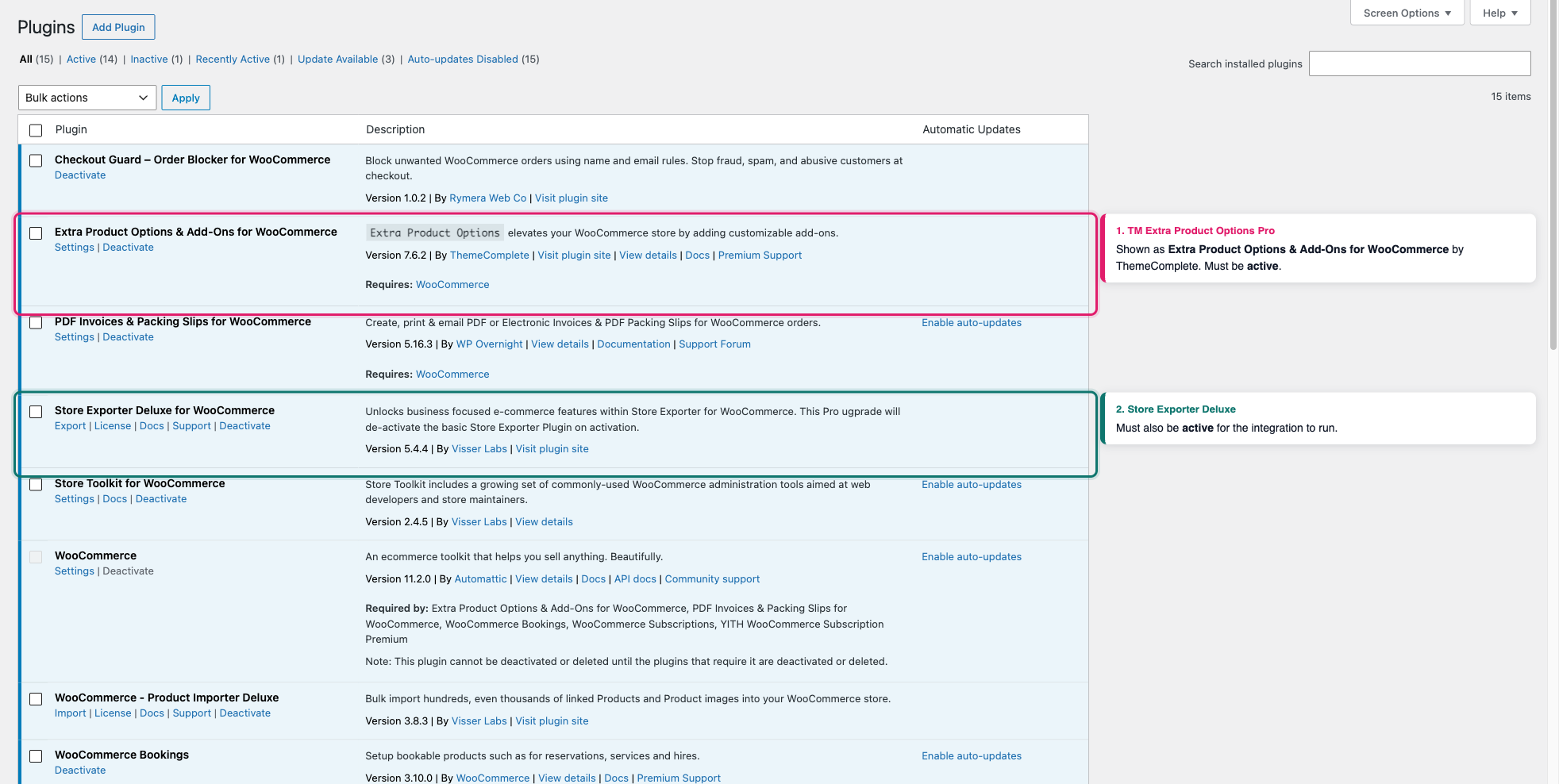
| Third-party plugin | TM Extra Product Options Pro is active. It’s listed as Extra Product Options & Add-Ons for WooCommerce in your Plugins screen, by ThemeComplete. Free plugins with a similar name, such as Extra Product Options For WooCommerce by ThemeHigh, are not supported |
| Order data | At least one order with extra options selected on a line item, so you can confirm the columns populate |
How it works
Store Exporter Deluxe checks whether TM Extra Product Options Pro is active, and if it is, adds a field for every extra option it finds on your orders. Each field is named Order Items: Gift Wrap (using the option’s name), or Order Items: Delivery Extras when the option belongs to a labeled section (using the section label instead). Each field only fills in for a line item where the customer actually selected that option. Line items without any extra options selected simply leave these columns blank.
Store Exporter Deluxe builds this field list by scanning your existing orders for extra options, and caches the result for up to an hour. If a customer selects a brand-new option name for the first time, its field won’t appear in Add more fields until that order has been placed and the cached list has refreshed.
Exporting TM Extra Product Options Pro data
Confirm both plugins are active
- Go to Plugins in your WordPress admin and confirm Store Exporter Deluxe and TM Extra Product Options Pro both show as active.
Start an Orders export
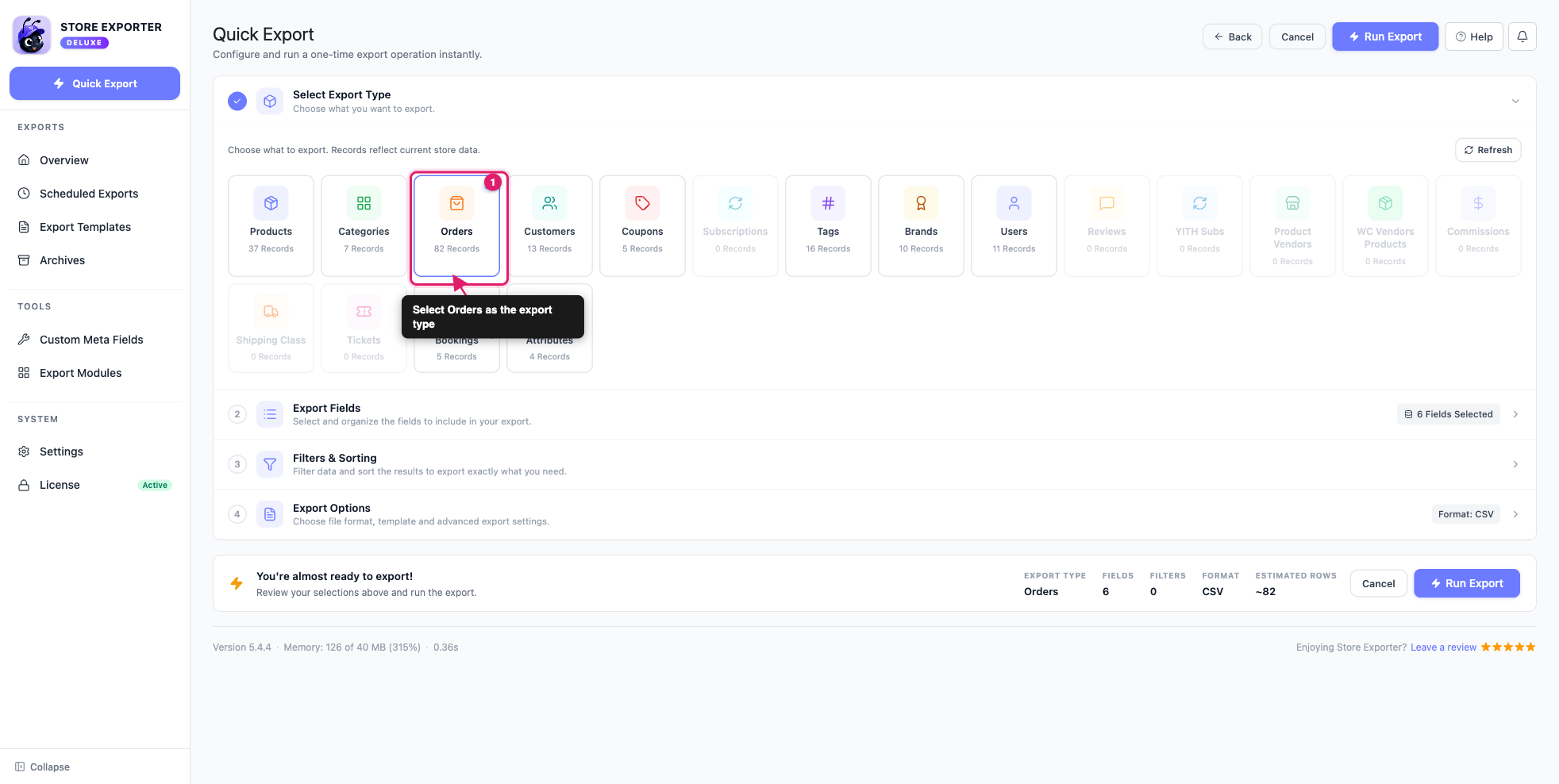
- Go to WooCommerce → Store Export, then click Quick Export in the sidebar.
- Under Select Export Type, select Orders. The extra option fields only appear on an Orders export, since the data comes from what a customer picked on an order, not from the product’s option setup.
Add the extra option fields and run the export
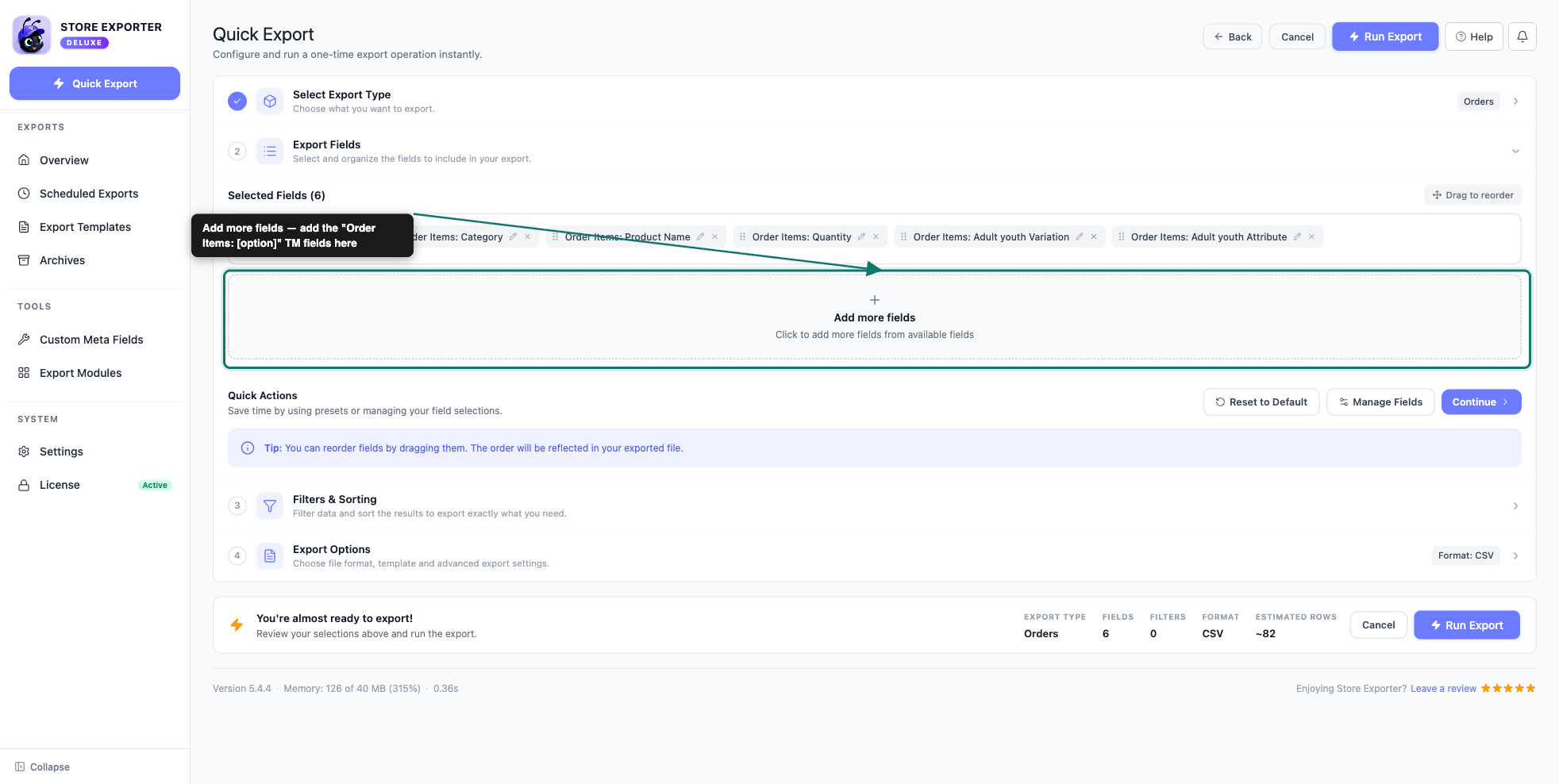
- On the Export Fields step, click Add more fields and add the Order Items: [option name] field for each option you want in your export.
- Apply any filters you need, then choose your export format.
- Click Run Export.
- When the Export in Progress dialog finishes, click Download File.
Open the file. The value the customer selected appears in the Order Items: [option name] column, or in Order Item #1: [option name], Order Item #2: [option name] and so on, depending on the Order Items Formatting option.
Troubleshooting
FAQ
Need more help?
If you’re using Store Exporter Deluxe and your TM Extra Product Options Pro data isn’t exporting as expected, open a support ticket, and our team will help you sort it out.
If you’re using the free Store Exporter plugin, ask on the WordPress.org support forum, and our team will get back to you there. Note that TM Extra Product Options Pro integration is only available in Store Exporter Deluxe.
