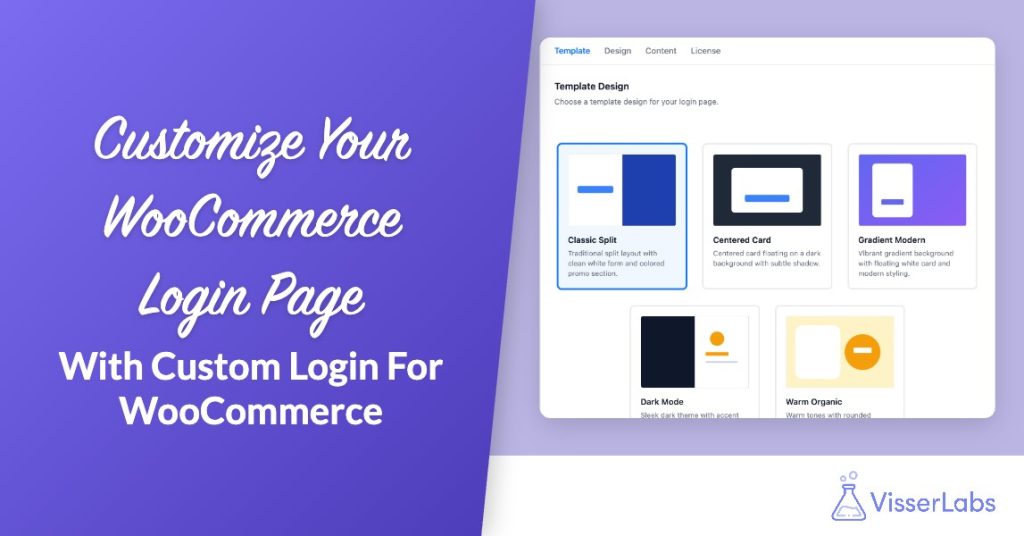
You can now customize your WooCommerce login page without code. Custom Login for WooCommerce, new from Visser Labs, gives returning customers a branded page at /login with five templates, your logo, and a promo panel beside the form.
Most stores never touch their login screen. WooCommerce shows a basic username and password form on the My Account page, styled by whatever theme you run. It works, but it looks like an afterthought, and it is the one page your repeat customers see every time they come back.
Custom Login for WooCommerce fixes that. Below we cover why the default login falls short, what the plugin does, the five templates, how to use the promo panel, and how to set it all up in a few minutes.
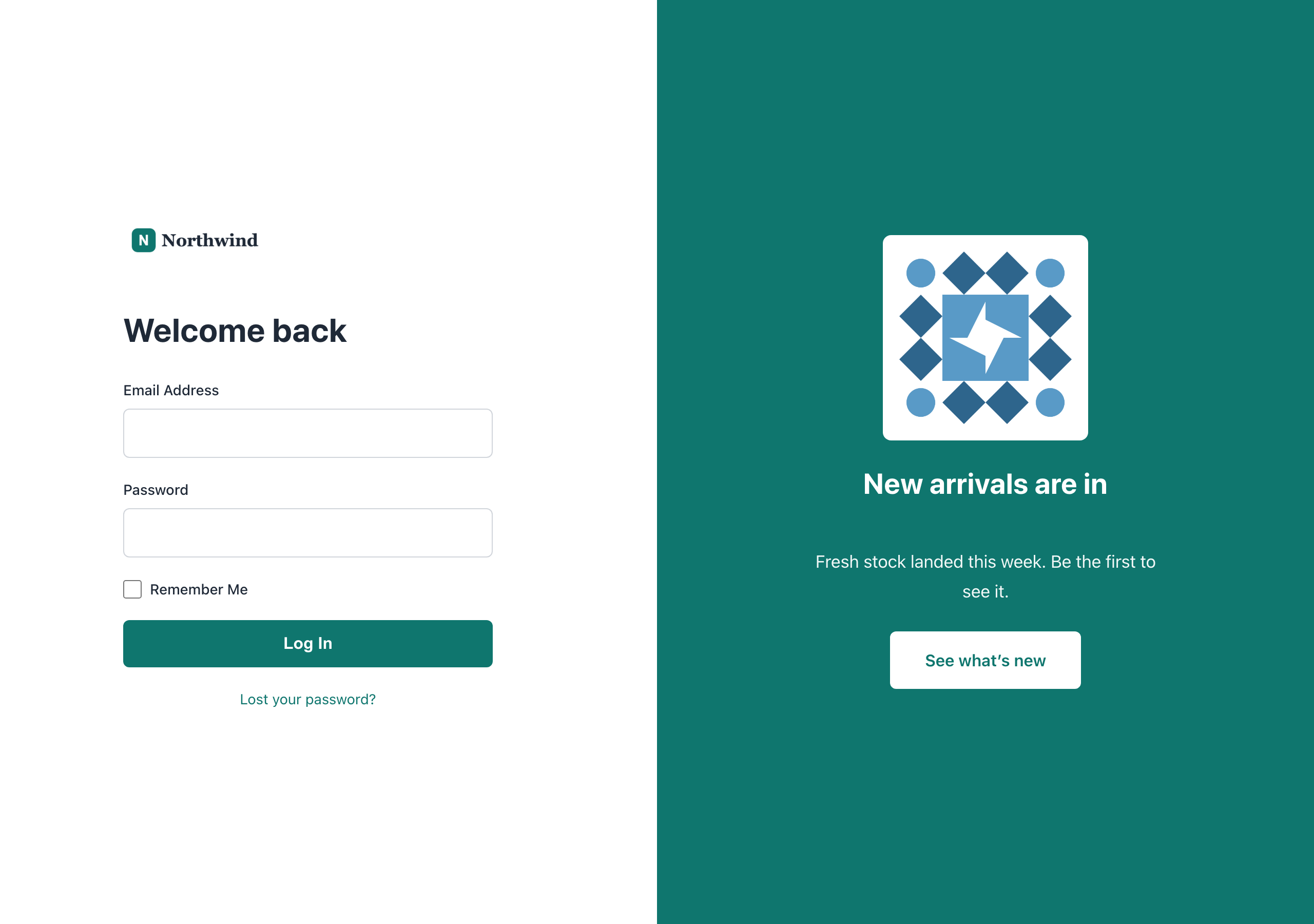
Table Of Contents
- Why The Default WooCommerce Login Page Falls Short
- What Custom Login For WooCommerce Does
- Five Templates For Your WooCommerce Login Page
- Turn Your Login Page Into A Promo Spot
- How To Customize Your WooCommerce Login Page
- How Logins And Redirects Work
- For Developers: Hooks And Filters
- Pricing And Requirements
- Give Returning Customers A Better Welcome
- Frequently Asked Questions
Why The Default WooCommerce Login Page Falls Short
The default WooCommerce login is a functional form with no branding or messaging of its own. It sits inside your theme’s My Account template, so changing how it looks usually means editing theme files or writing CSS.
The people who log in are your existing customers, the group most likely to buy again. Our guide to the benefits of customer retention explains why that audience deserves extra care.
Signing in is also a point where shoppers drop off. According to Baymard Institute, password reset problems caused some existing account users to abandon checkout on retail sites in its testing. A focused login page with a visible “Lost your password?” link gives those customers a clear way back in.
Another problem is wasted space. A login page gets steady traffic from people who already trust you, and the default form uses none of it to tell them about a sale, a new product, or a loyalty offer. If you have read our strategies to reduce cart abandonment, you know how much each small step in the buying path counts.
What Custom Login For WooCommerce Does
Custom Login for WooCommerce creates a standalone login page at /login and sends logged-out shoppers there from My Account. You control the layout, logo, colors, wording, and a promotional panel from one settings screen under WooCommerce.
Here is what ships in version 1.0.3:
- Automatic /login page: Activating the plugin creates a Login page at /login if your site doesn’t already have one.
- My Account redirect: Logged-out visitors who open My Account are sent to /login, then returned to My Account after they sign in.
- Five templates: Classic Split, Centered Card, Gradient Modern, Dark Mode, and Warm Organic.
- Branding controls: Add your logo, change the heading, and set colors for panels, buttons, links, and input fields.
- Editable form labels: Rename the email and password labels, the Remember Me text, the login button, and the lost password link.
- Promo panel: Show a heading, short message, and call-to-action button beside the login form.
- Rotating content: Add several promo messages and show a random one on each visit.
- Mobile control: Hide the promo panel on phones or stack it below the login form.
It also declares compatibility with High-Performance Order Storage. WooCommerce describes HPOS as a database structure built specifically for ecommerce order data, per the WooCommerce HPOS documentation. Stores that have switched to it won’t see a compatibility warning for Custom Login for WooCommerce.
Five Templates For Your WooCommerce Login Page
Each template is a complete login page design, and you switch between them with one click on the Template tab. Your logo, heading, and labels carry across, so trying a different look takes seconds. Centered Card shows the login form on its own, without the promo panel, so pick one of the other four if you want to show an offer.
| Template | What it looks like |
|---|---|
| Classic Split | Clean white login form on one side, colored promo section on the other |
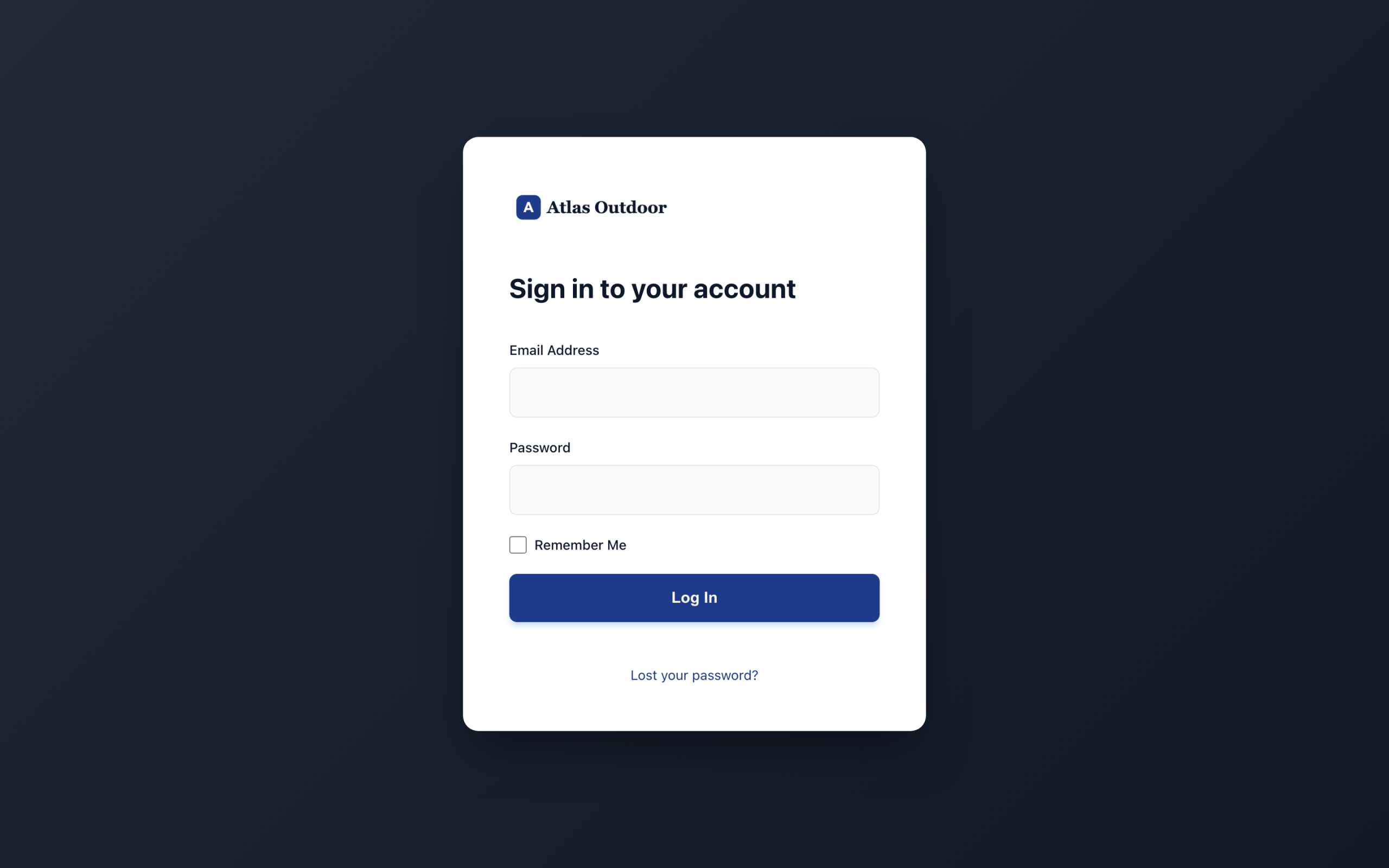
| Centered Card | A single login card on a dark background, without the promo panel |
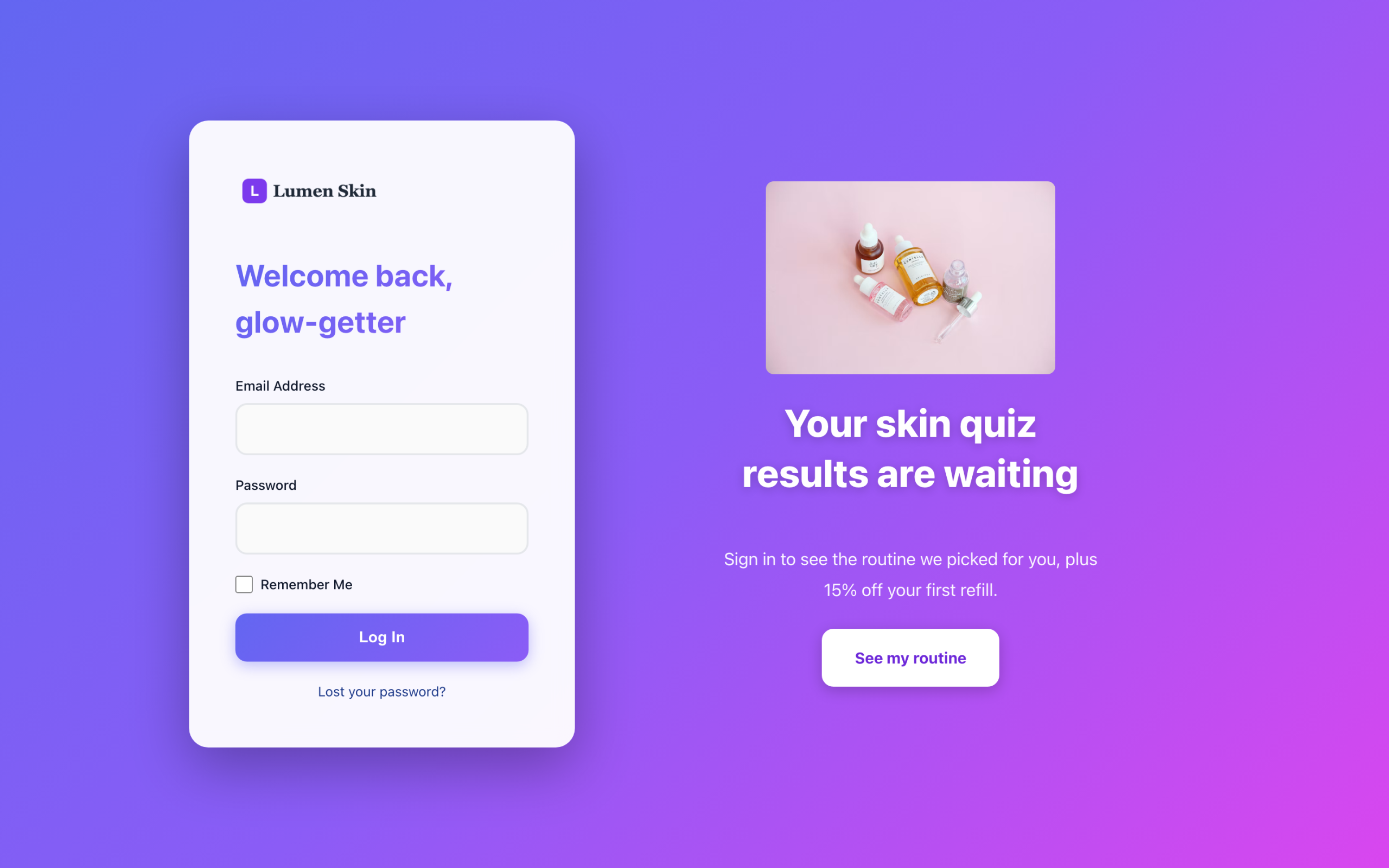
| Gradient Modern | A bright gradient background with a floating white card |
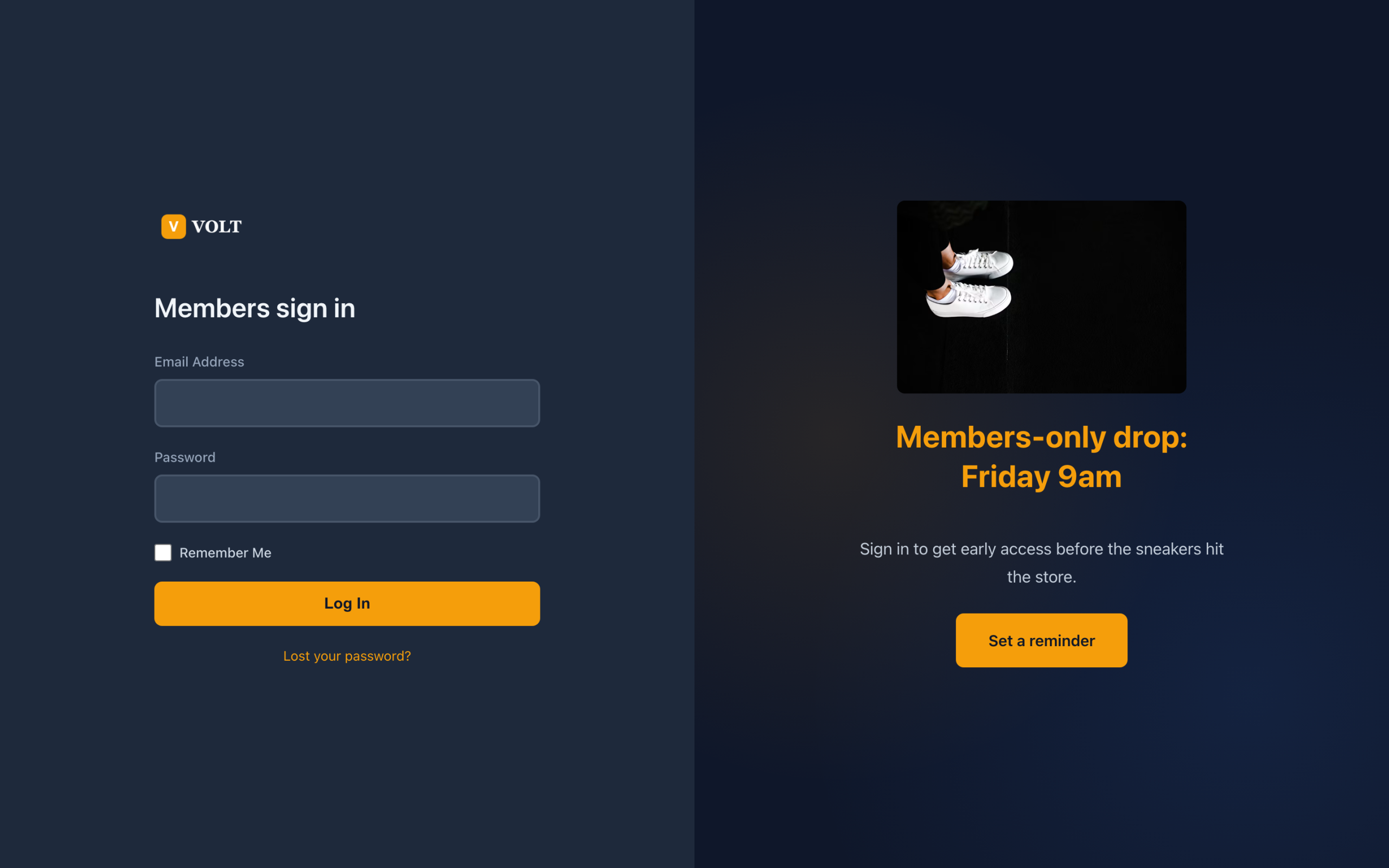
| Dark Mode | A dark theme with accent colors |
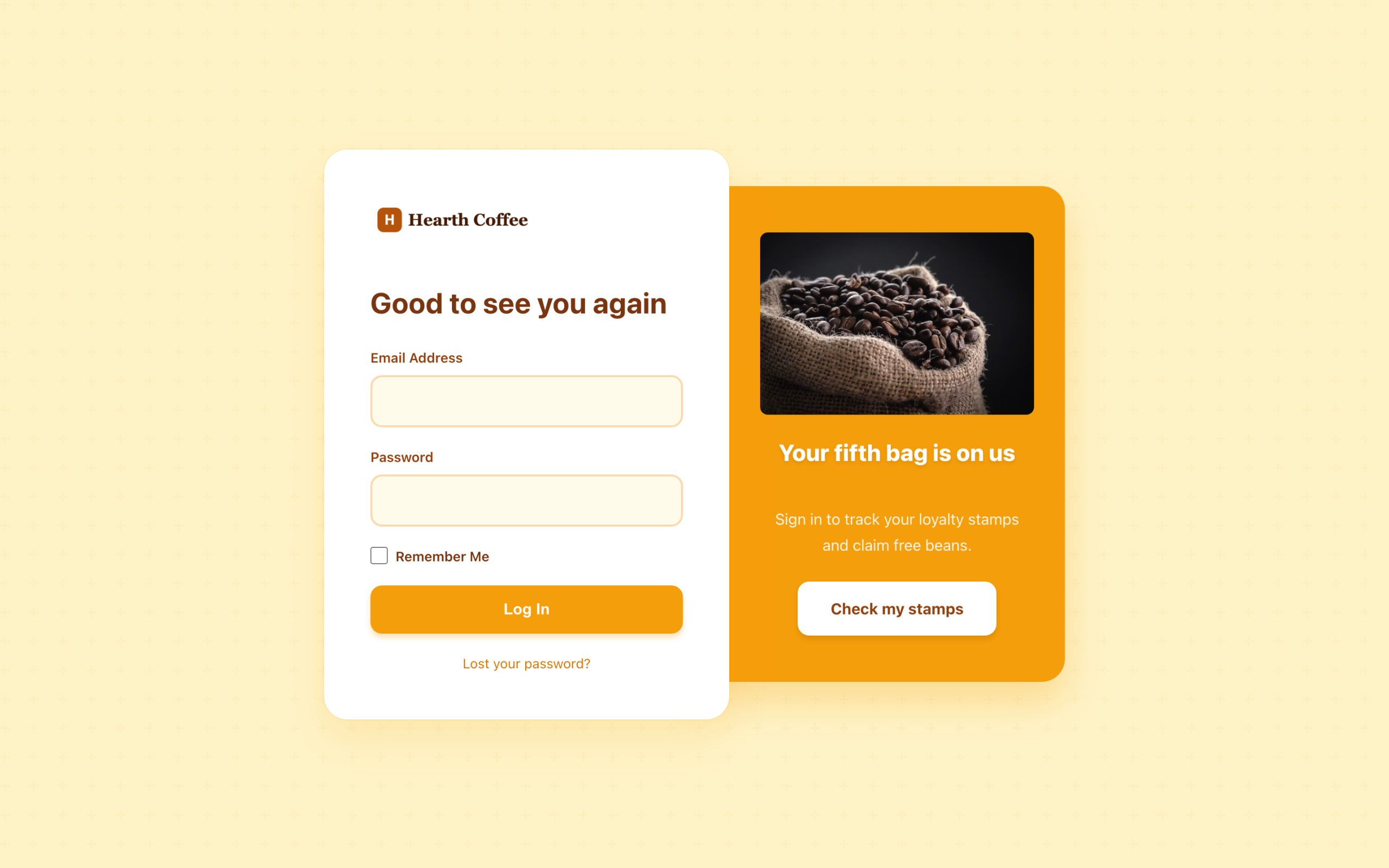
| Warm Organic | Warm tones and rounded shapes for a friendly feel |
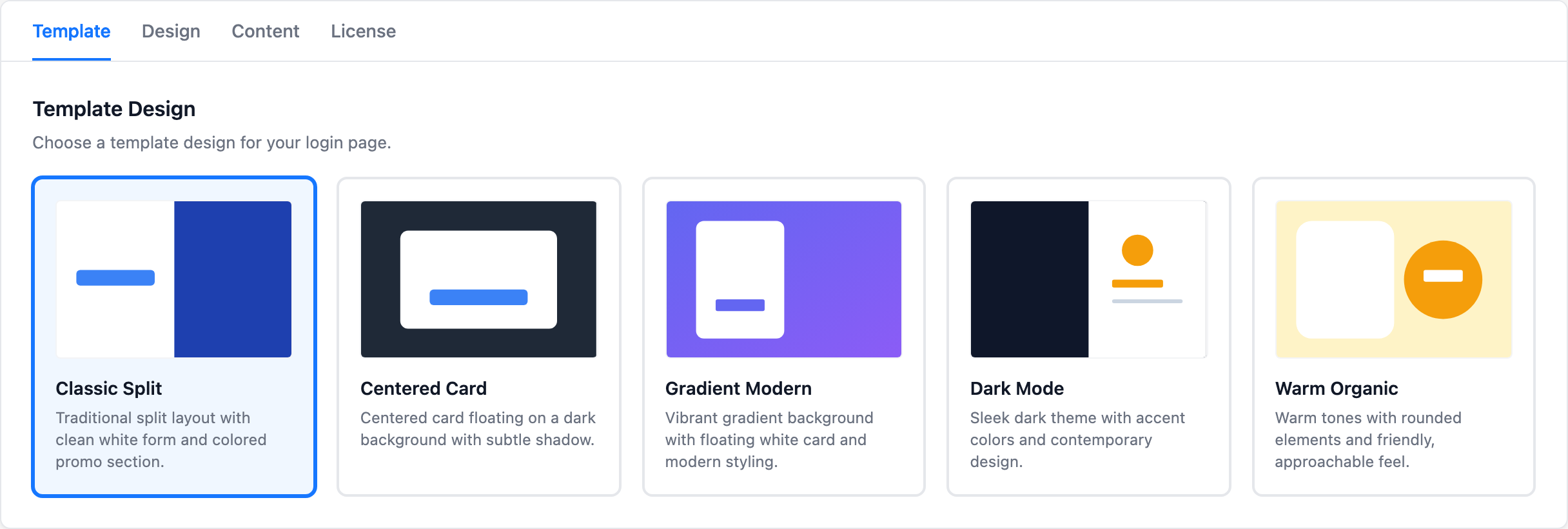
Classic Split is the layout we use on the Visser Labs store. Some templates keep more of their own color scheme than others, so preview your Design tab colors on the template you pick. If you want your login page to match exact brand colors, Classic Split is a good place to start.
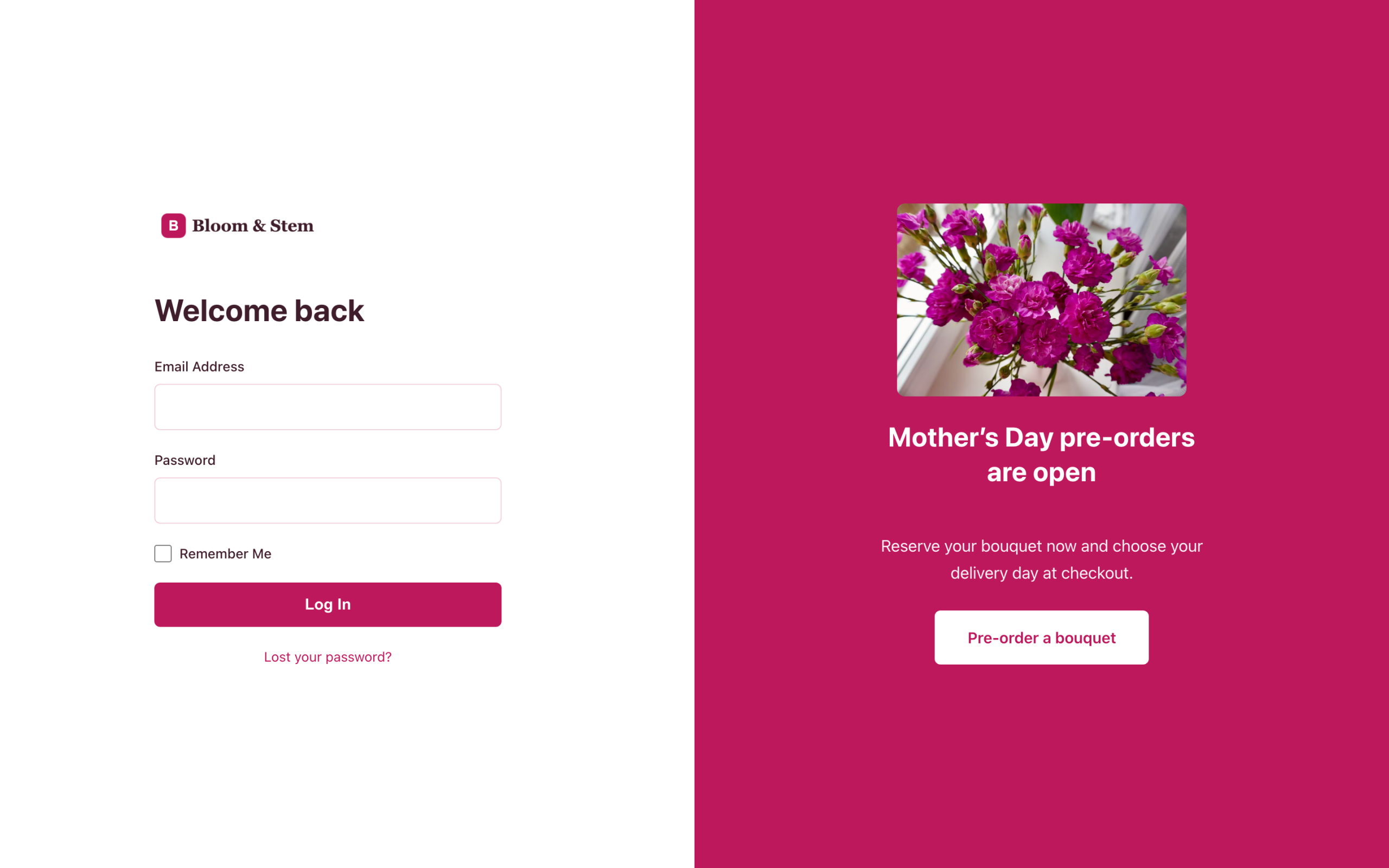
Here’s what each template looks like with example store branding. We built these five example stores on our test site, one per template, so you can see the range before you pick.
Turn Your Login Page Into A Promo Spot
The promo panel puts an offer in front of every customer who signs in. It shows a heading, a short message, and a button that links anywhere you like, right beside the login form your customers are already looking at.
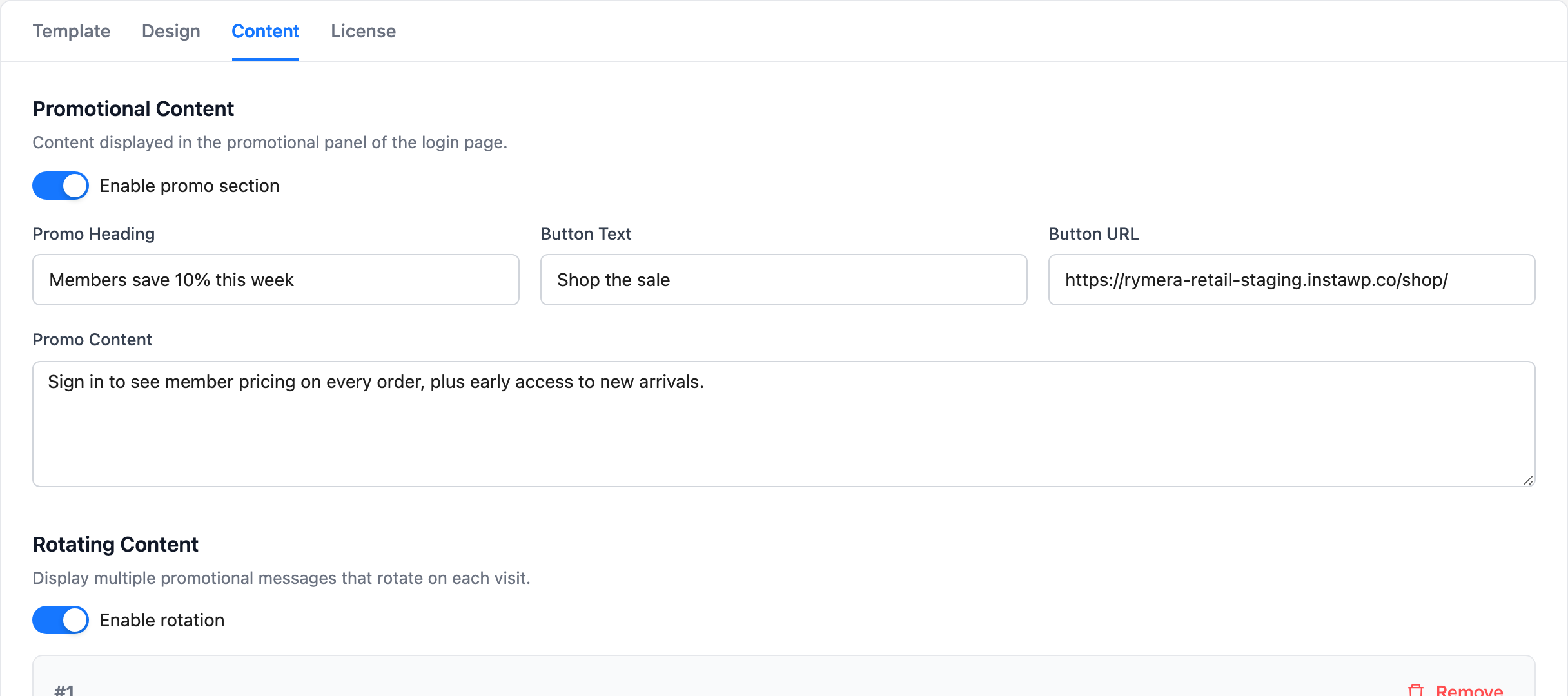
You set it up on the Content tab. Switch on Enable promo section, then fill in four fields:
- Promo Heading: The headline in the panel.
- Promo Content: One or two sentences of supporting text.
- Button Text: The label on the call-to-action button.
- Button URL: Where the button goes. It opens in a new tab, so the customer’s login page stays open.
Showing a different message on each visit
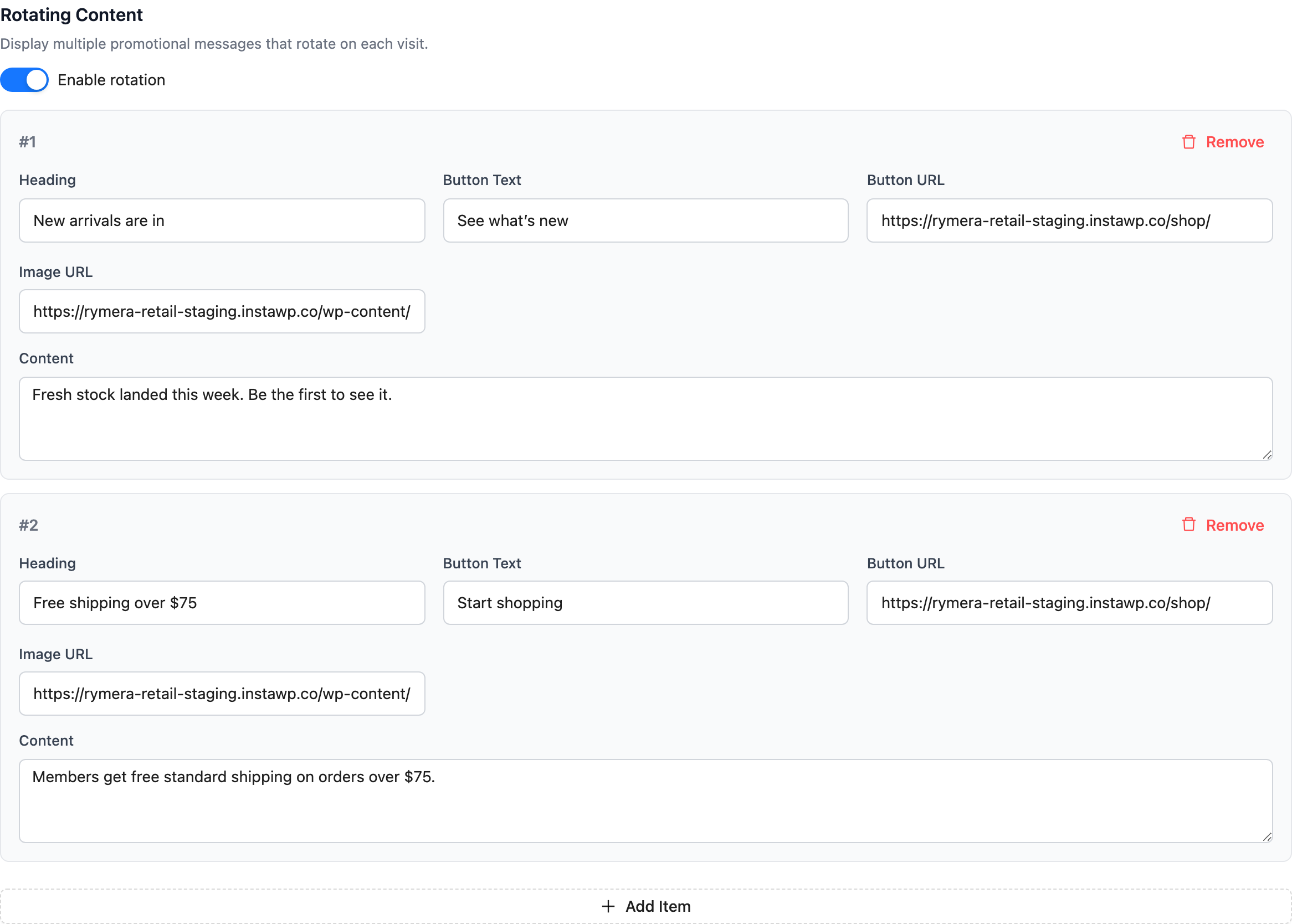
Rotating content lets you run several promos at once. Switch on Enable rotation, click Add Item, and give each item its own Heading, Content, Button Text, Button URL, and Image URL. Custom Login for WooCommerce then picks one item at random each time the page loads.
This works well for stores with more than one thing to say. One item could push a seasonal sale, another a new product range, and a third your newsletter signup.
What we’ve seen: On our own Visser Labs login page, the promo panel doesn’t advertise a Visser plugin at all. It rotates offers for our sister plugins, such as SaveTo Wishlist and Advanced Coupons, and the SaveTo Wishlist offer carries a tracked link so we can see its clicks. A login page is a good place to cross-sell something related, because the people reading it already have an account with you. Our article on boosting sales with SaveTo Wishlist Pro covers why a wishlist offer suits returning customers.
Choosing how the promo looks on mobile
Phones don’t have room for two panels side by side, so the Design tab has a Mobile Promo Display setting with two choices. Hide on mobile shows only the login form on small screens, and it’s the default. Stack below login form keeps the promo visible underneath.
Pick Stack below login form if your promo carries a real offer. Keep the default if the panel is mainly decoration.
How To Customize Your WooCommerce Login Page
To customize your WooCommerce login page, you work through four tabs and one Save button. Everything lives under WooCommerce > Custom Login.
- Install and activate the plugin. Upload Custom Login for WooCommerce from Plugins > Add New, then activate it. Your /login page is created automatically.
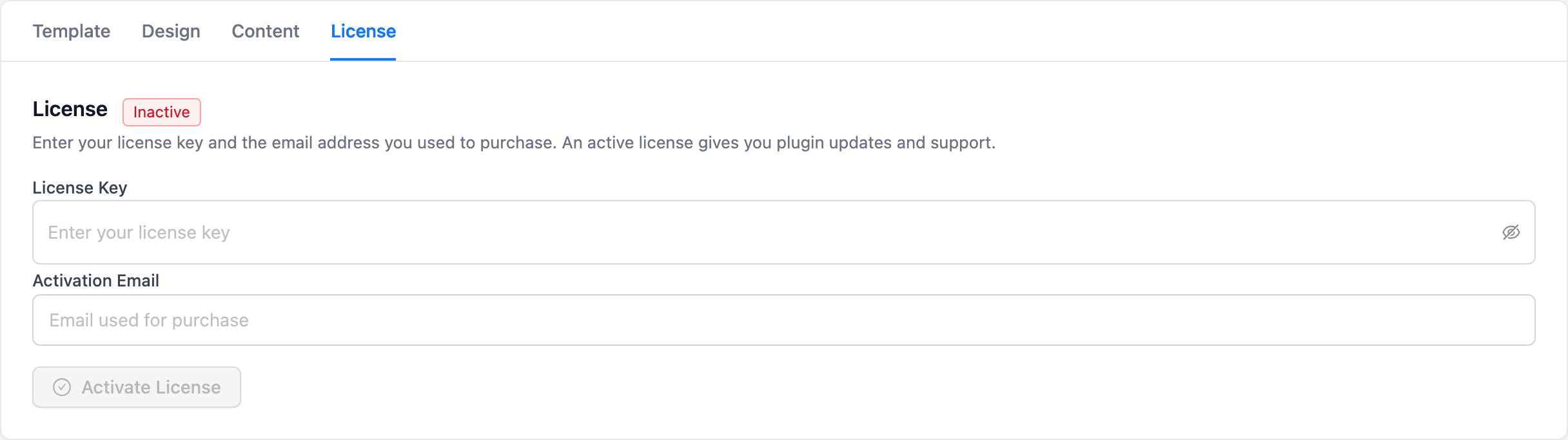
- Activate your license. Open the License tab, enter your License Key and the Activation Email you used at purchase, and activate. An active license gives you plugin updates and support.
- Choose a template. On the Template tab, click the design you want.
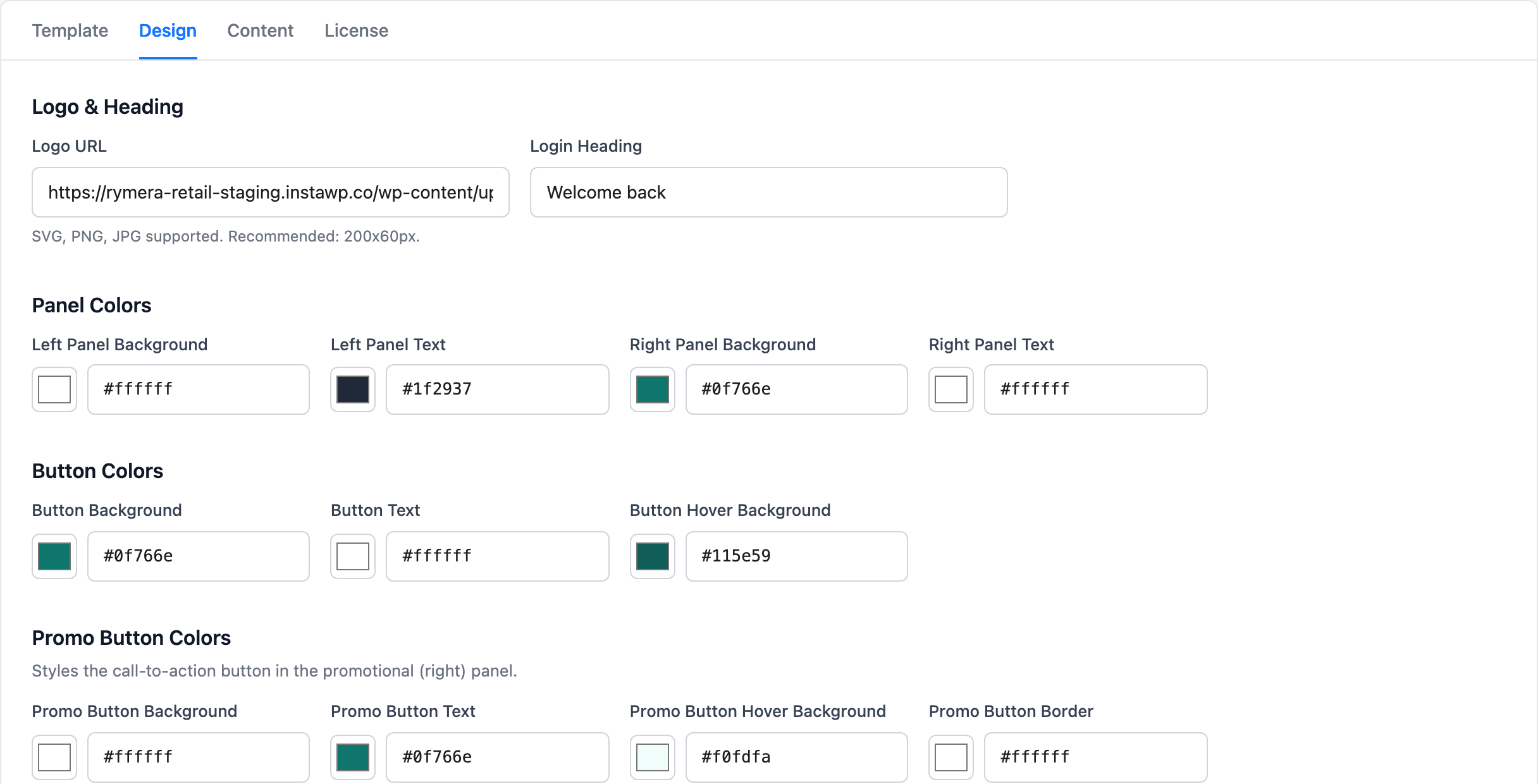
- Brand it. On the Design tab, paste your logo address into Logo URL (SVG, PNG and JPG are supported, and 200x60px is recommended), then set your Login Heading.
- Set colors and labels. Still on the Design tab, adjust Panel Colors, Button Colors, Promo Button Colors, Link Colors, and Input Colors, then rename any Form Labels you want to change.
- Add your promo. On the Content tab, fill in the promo panel or switch on rotating content.
- Save. Click Save Settings at the top of the settings screen, then open yoursite.com/login in a private browser window to check the result.
Use a private window for that last check. Logged-in users who visit /login are sent straight to My Account, so you won’t see the login page while you’re signed in as an admin.
How Logins And Redirects Work
Custom Login for WooCommerce uses WooCommerce’s own login flow, so your customers’ accounts, passwords, and order history stay the same. Only the page they sign in on is new.
A few details are worth knowing:
- Sign in with username or email: The login field accepts either, just like standard WordPress.
- Back to where they started: When a shopper is sent from My Account to /login, they return to My Account after signing in.
- Password resets still work: The “Lost your password?” link goes to WooCommerce’s normal lost password page, and that page is never redirected.
- Logout lands on /login: After logging out, customers return to your login page with a confirmation message.
- One error message: A wrong password and an unknown username show the same message, “Unknown username or incorrect password.” This stops anyone using the form to check which accounts exist.
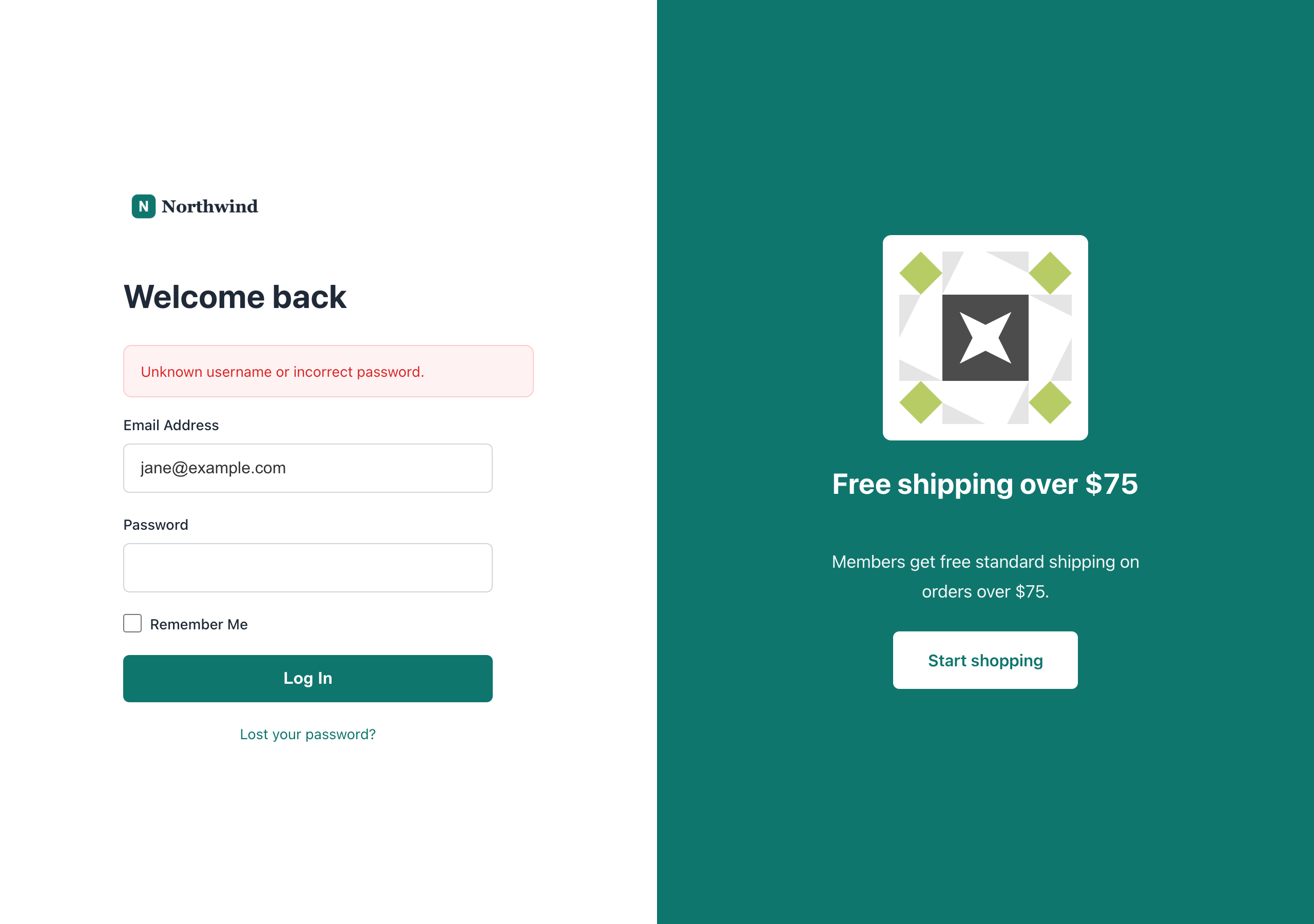
The login form also runs WooCommerce’s standard login form hooks. Extensions that add fields to the WooCommerce login form, such as CAPTCHA plugins, can add them to your new page too. If bots are a problem for your store, our guide on how to prevent fake orders in WooCommerce covers the wider picture.
For Developers: Hooks And Filters
Developers can change how Custom Login for WooCommerce behaves with two filters and three actions. These are the supported way to customize it without editing plugin files.
clwc_login_redirect: Change where a customer goes after a successful login. It receives the redirect URL and the user.clwc_logout_redirect: Change where a customer goes after logging out.clwc_after_login_form: Runs after the login form, for extra links or notices.clwc_login_footer: Runs in the login page footer.clwc_login_enqueue_scripts: Enqueue scripts or styles for the login page. The page doesn’t firewp_enqueue_scripts, so use this action instead.
The redirect after login also passes through WooCommerce’s own woocommerce_login_redirect filter, so existing redirect code keeps working.
Pricing And Requirements
Custom Login for WooCommerce is sold as an annual license; check the plugin page for current pricing. That includes automatic updates and support, and it’s covered by the Visser Labs 14-day money back guarantee.
Your store needs:
- WordPress 5.8 or higher
- PHP 7.4 or higher
- WooCommerce 6.0 or higher
Give Returning Customers A Better Welcome
Your login page is one of the few pages people visit on purpose, again and again. When you customize your WooCommerce login page, that visit becomes a branded moment, and the promo panel gives you a spot to show returning customers what’s new.
- Check why the default login falls short for your store
- Pick one of the five templates that suits your brand
- Set up the promo panel with an offer for returning customers
- Follow the setup steps and test in a private window
Ready to customize your WooCommerce login page? Get Custom Login for WooCommerce and give your returning customers a login page that looks like your store.
Frequently Asked Questions
What is a WooCommerce custom login page?
A WooCommerce custom login page is a dedicated sign-in page with your own design, instead of the default form on the My Account page. Custom Login for WooCommerce creates one at /login with your choice of five templates, your logo, custom colors, and an optional promo panel.
Will my customers need new passwords?
No. Custom Login for WooCommerce uses the standard WordPress and WooCommerce login, so every existing account, password, and order history stays as it is. Customers sign in with the same details on the new page.
Does Custom Login for WooCommerce change the WordPress admin login?
No. It handles the customer login at /login and the redirect from My Account. Your wp-admin login screen isn’t changed.
Can I show different promotions on my login page?
Yes. Switch on rotating content on the Content tab and add as many items as you like. Each item has its own heading, text, button, and image, and Custom Login for WooCommerce shows one at random on each visit.
Does it work with HPOS?
Yes. Version 1.0.3 declares compatibility with WooCommerce High-Performance Order Storage, so stores using HPOS won’t see a compatibility warning.
What happens if a logged-in customer visits /login?
They’re sent straight to their My Account page. The login form only appears to visitors who aren’t signed in.