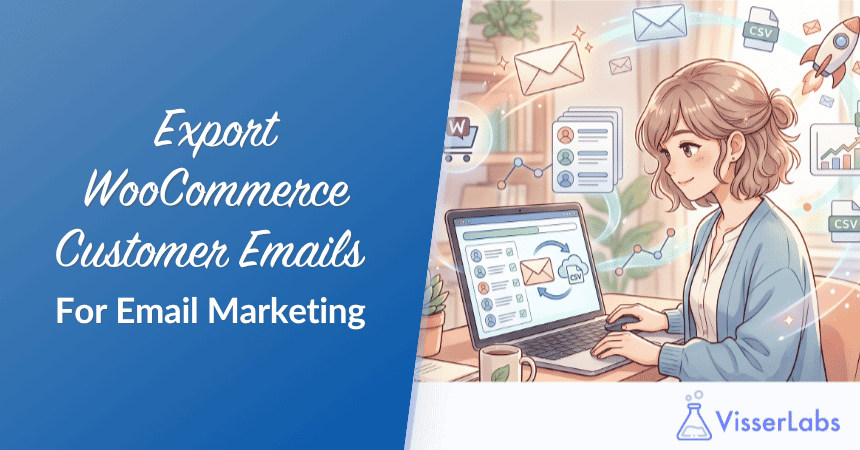
Thousands of WooCommerce stores sit on a customer list that never gets used. The owner runs the store for years, builds steady repeat business, and never once thinks to export WooCommerce customer emails into an email marketing tool. If that pattern sounds familiar, you’re in the majority, and the fix is genuinely easier than most store owners expect.
This guide walks you through the full workflow: pulling your customer emails out of WooCommerce with consent data attached, cleaning the file, segmenting for real campaigns, and uploading the segments to your email marketing platform. The focus is responsible marketing to customers who have opted in, not scraping and blasting. We use Store Exporter Deluxe in the examples because it’s the tool that gives you the field-level control the job actually needs.
In this guide, we’ll cover the compliance reality check, the exact export workflow, how to clean the file, the five segments worth building on day one, and how to automate the whole thing once it’s running.
Why Your WooCommerce Customer List Is Worth Exporting
Your customer list is the single most valuable marketing asset your store owns, and in most WooCommerce stores it’s doing nothing. Here’s what becomes possible once you get the data into an email platform.
Repeat purchase economics
Existing customers convert at several multiples of cold traffic. Email is the cheapest channel to reach them, since there’s no ad spend between you and their inbox. Even a modest monthly campaign to past buyers tends to return more revenue than an equivalent spend on paid social.
Re-engagement
Quiet customers who haven’t ordered in 90 or 180 days are often one good email away from coming back. Without an exported list and a segment for lapsed buyers, you have no way to reach them.
Newsletter foundation
Even a monthly “what’s new” email keeps your brand top-of-mind between purchases. It doesn’t have to be clever. It has to be consistent.
Segment-specific campaigns
You can send very different messages to high-spend customers versus one-time buyers, or to buyers of specific product categories. A generic blast to your whole list underperforms every time.
If you landed here but actually want the operational side of customer exports (support, data migration, admin tasks), read our broader guide to exporting WooCommerce customers. This article is specifically for store owners who want to run email marketing with the data.
Before You Export: The GDPR And CAN-SPAM Reality Check
Before any export step, the compliance piece. Get this wrong and a marketing list turns into a legal problem.
The non-negotiable
You can only email customers who’ve opted in to marketing. “They bought something from me” isn’t marketing consent under GDPR Article 7. Purchase consent covers transactional messages (order confirmations, shipping updates, refund notices). It doesn’t cover newsletters, promos, or re-engagement campaigns. CAN-SPAM in the US is more permissive, but even there, every marketing email needs a clear unsubscribe path and an accurate sender identity.
Where opt-in consent usually lives
The cleanest opt-in source is the “subscribe to our newsletter” checkbox at checkout. WooCommerce stores typically store this as a custom meta field (something like _billing_marketing_consent or a plugin-specific key depending on which newsletter integration you use). Whatever the field name, that checkbox is what separates customers you can legitimately email from customers you can’t.
What to export
Only customers whose consent status you can verify. That means including the consent meta field as a column in your export so you can filter on it once the file is open.
What to exclude
Customers who haven’t opted in. Customers who previously unsubscribed (keep a suppression list from your email platform and filter them out). Customers in regions where you lack a lawful basis for marketing email.
How Store Exporter Deluxe helps here
Field-level export control means you can include the consent meta field as a column in your customer export. From there you filter the CSV for opted-in customers in your spreadsheet before uploading anywhere. You’re not dumping every customer record and uploading it blind.
Across the WooCommerce stores we’ve seen run consent-filtered exports for a re-engagement campaign, the cleaned file usually lands at roughly 50 to 70% of the raw customer count once unconsented records and never-purchasers are stripped out. Every record left in that file is safe to upload to Mailchimp, and there’s nothing to guess about.
For a deeper look at the compliance landscape, see our full WooCommerce GDPR guide.
Step-By-Step: How To Export WooCommerce Customer Emails With Store Exporter Deluxe
WooCommerce’s built-in customer export doesn’t give you field-level control or segmentation filters. You get everything or nothing. That’s fine for a data dump but useless for email marketing. Here’s the workflow we recommend to export WooCommerce customer emails in a campaign-ready format.
Step 1: Install and activate Store Exporter Deluxe
Purchase Store Exporter Deluxe and upload the ZIP through WordPress admin, Plugins, Add New, Upload Plugin. Activate and enter your licence key on the plugin settings screen.
Step 2: Open the customer export screen
Go to WooCommerce, Store Export in the admin menu. Select the Customers tab.
Step 3: Select your export format
CSV is the safest choice because every email platform accepts it. Choose XLSX if you want to clean the file in Excel first before converting to CSV for upload.
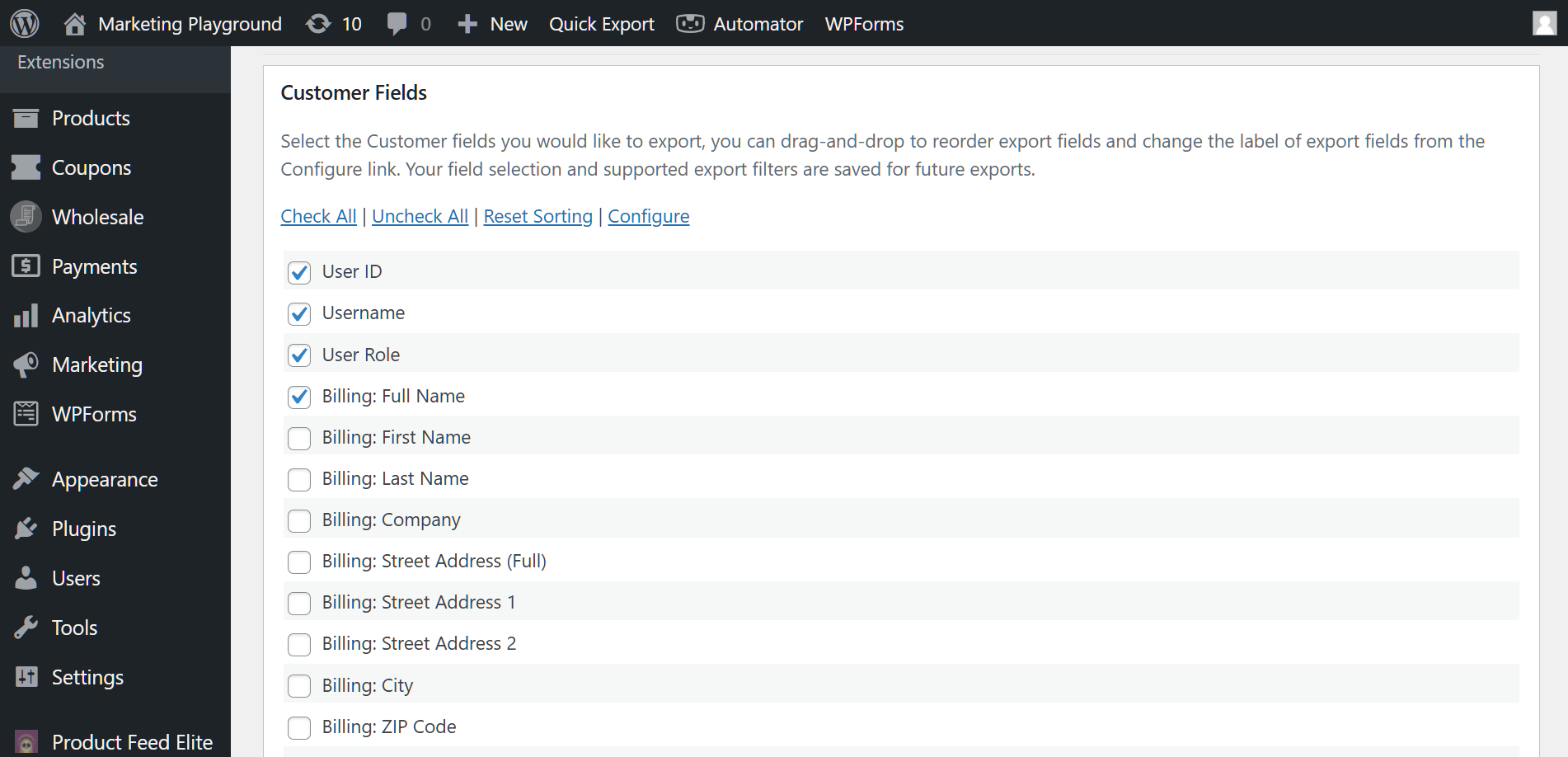
Step 4: Choose your fields
At minimum: billing email, billing first name, billing last name. Add money spent, date registered, and the marketing consent meta field if your checkout captures one. If you want to support personalization later, include billing city and country so your email platform can use them in merge tags.
Two fields people often expect that aren’t on the Customer export type: last order date and purchased product categories. Those live on the Order export. We’ll come back to them in the segmentation section, because that’s where they actually matter.
Step 5: Apply filters
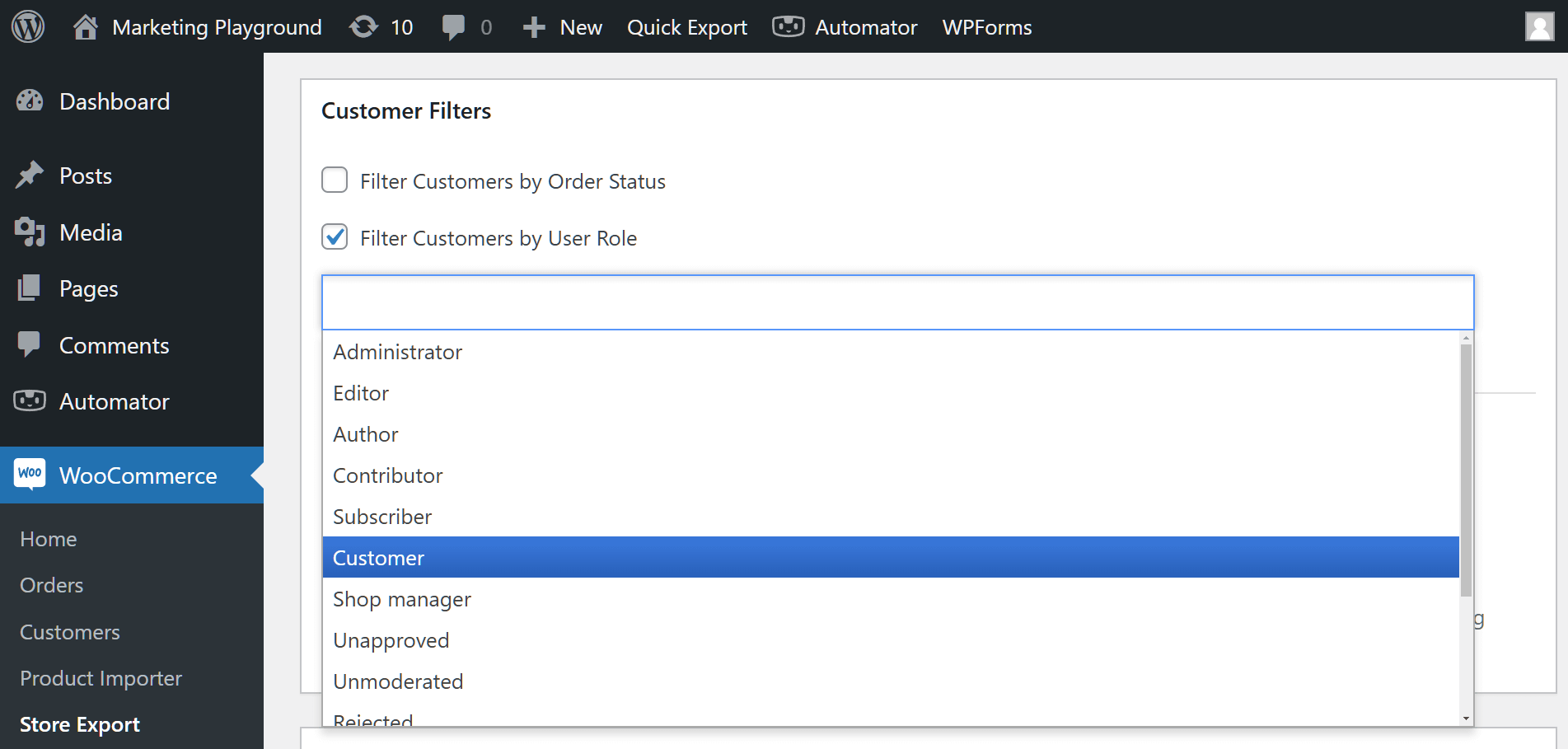
The Customer export type supports two main filters at this stage:
- Order status (limit to customers with completed or processing orders to exclude registered-but-never-purchased accounts)
- User role (limit to the Customer role)
For recency, spend-threshold, and category-based segments, run a separate Order export with those filters applied, then dedupe the resulting file to one row per email address. That two-step pattern is the workhorse of every campaign segment we cover next.
Step 6: Export and download the file
Run the export. Store Exporter Deluxe generates the file and offers it as a download. If you set up a scheduled export (covered later), it can also email the file or drop it on FTP or SFTP.
If you haven’t picked up the plugin yet, the Store Exporter Deluxe product page has the full feature list and pricing.
Cleaning Your Export Before Upload
Don’t upload the raw CSV straight to your email platform. Most platforms will flag malformed or duplicate records, and a messy first upload can hurt your sender reputation before you’ve sent anything.
Open the CSV in a spreadsheet (Excel, Google Sheets, Numbers) and run through this checklist:
- Remove duplicates on the email column.
- Strip whitespace from the email field (leading and trailing spaces are a common cause of “this looks like a new subscriber but it’s actually a duplicate” errors).
- Lowercase all emails. Email addresses aren’t case-sensitive in practice, but text comparison is. “[email protected]” and “[email protected]” will land as two subscribers if you skip this.
- Validate email format with
=ISEMAIL()in Google Sheets or a simple regex in Excel. Delete rows that fail. - Remove role-based addresses (info@, admin@, sales@) if you want higher engagement. These inboxes usually belong to nobody in particular.
- Split full name into first and last if your email platform expects separate fields.
Save a cleaned master file and a platform-specific upload file separately. You’ll reuse the master when you build more segments.
If your workflow overlaps with order data (for example, you want to pair the customer email segment with a recent orders report), our guide on exporting WooCommerce orders to Excel walks through the parallel process.
What We’ve Seen: A pattern that shows up constantly in WooCommerce support tickets: store owners export the customer list, upload the raw file straight to Mailchimp or Drip, then watch the first campaign’s bounce rate spike to 8 to 12%. The culprit is almost always the same short list of issues. Duplicate entries with different casing. Stale addresses from customers who changed emails years ago. Role-based inboxes that no human reads. Spending ten minutes cleaning the CSV before upload routinely cuts bounce rates to under 2% on the first send, which matters because high bounces flag you with inbox providers and deliverability suffers from there on out.
Segmenting Customers For Targeted Campaigns
Generic blasts to your whole list underperform. Segmented campaigns get higher opens, higher clicks, and lower unsubscribe rates. Here are five segments worth building on day one, each with a campaign angle that actually works.
Segment 1: High-spend customers (VIP)
Run an Order export filtered by total spent above a threshold, typically the top 20% of customers. Dedupe to one row per email. Campaign angle: early access to new products, loyalty perks, a personal note from the founder. These customers already love you. Treat them that way.
Segment 2: Recent buyers (last 30 to 60 days)
Run an Order export filtered by order date within the last 30 to 60 days, then dedupe. Campaign angle: cross-sell complementary products, request a product review, invite them to a rewards program. The post-purchase window is the highest-intent moment you get.
Segment 3: Lapsed customers (no order in 180+ days)
Run an Order export filtered by order date older than 180 days, dedupe, then subtract any emails that appear in your recent-buyers segment. Campaign angle: “we miss you” re-engagement, a win-back discount, what’s changed since they last shopped. This segment won’t have your highest open rates, but a well-written win-back email often has the highest revenue-per-send of any campaign you run.
Segment 4: Category-specific buyers
Run an Order export filtered by purchased product category, then dedupe. Campaign angle: new arrivals in that category, related products, category-specific content (buying guides, comparison posts). Your “bought a dog product” segment doesn’t want emails about cat products.
Segment 5: Wishlist abandoners
If you run a wishlist plugin like SaveTo Wishlist, export customers with wishlist items they haven’t purchased. Campaign angle: “items on your wishlist are still available”, “the item you saved is back in stock”, or a small discount on the saved item. Wishlist data is the highest-intent signal a store owner has, short of an abandoned cart.
How to build these with Store Exporter Deluxe
For VIP, recent-buyer, lapsed, and category segments, the workflow is the same: run an Order export with the right date, total-spent, or category filter, then dedupe the file to one row per customer email before upload. Tag each file by segment as you import so the segments stay separate inside your email platform.
A pattern we see consistently across WooCommerce stores running their first segmented sends: a VIP-only campaign tends to open at roughly double the rate of a generic blast, and a well-written 90-day-lapsed win-back often drives the highest revenue-per-email of any campaign in the quarter. Same customer base, same product catalog, different results because the segmentation does the work.
Uploading To Your Email Marketing Platform
Every major email platform accepts CSV uploads with field mapping. The specifics differ, but the two rules are the same everywhere: only mark customers as “subscribed” if they have verified marketing consent, and tag by segment on import so you don’t have to re-segment inside the platform later.
Mailchimp
Audience, Import contacts, Upload a file, map your CSV columns to Mailchimp’s import fields. During import, set up tags for each segment so VIPs, recent buyers, and lapsed customers stay distinguishable.
Drip
People, Import subscribers, upload the CSV, map fields, assign tags. Drip doesn’t apply a double-opt-in flow to imports, so only upload customers with confirmed marketing consent. Drip is the email tool Rymera uses internally, but we mention it here as a common WooCommerce email platform, not as a referral.
Lindris
Subscribers, Import, upload CSV, map fields. Lindris is the newer email tool used by some Rymera brands. If you’re on Lindris, the flow matches Drip closely.
Klaviyo
Lists and Segments, Create List, Manage List, Import Contacts, upload the CSV. Klaviyo will ask about consent status during import. Choose “subscribed” only for customers with verified opt-in, and “never subscribed” for anyone whose consent you can’t verify.
ActiveCampaign
Contacts, Import, upload CSV, map fields, select lists and tags. ActiveCampaign’s automation builder rewards good tagging at import, so take the extra minute.
The two rules across every platform
First, only mark as “subscribed” customers with verified marketing consent. Second, tag by segment on import. If you skip the tagging step, you’ll spend three times as long building segments inside the email platform later.
Automating Recurring Exports For Ongoing Campaigns
Once you have a newsletter cadence, you want new customers flowing into your email platform automatically. Manual monthly exports are a time sink and they’re the first thing to get skipped when you’re busy.
Option 1: Scheduled exports
Store Exporter Deluxe’s scheduled export feature runs on a frequency you choose (weekly, monthly, or a custom interval via WP-Cron) and delivers a fresh customer file via email, FTP, or SFTP. Pair it with an Order export filtered to recent dates and you get a rolling file of new orders ready to dedupe and add to your email platform.
Option 2: Direct integration
Some email platforms (Mailchimp, Klaviyo) have native WooCommerce integrations that sync customers in real time. These are great for ongoing sync but lack the filtering flexibility of a field-level export. You get every customer record, not a segment-ready file.
Hybrid approach
Use a native integration for ongoing sync of all opted-in customers, and use Store Exporter Deluxe for ad-hoc segmented exports when you want to run a specific campaign. The sync keeps your list fresh. The export gives you the campaign segments.
A workflow we see work well: a weekly scheduled Order export of the last seven days dropped to a Dropbox folder, with a Zap picking up the file, deduping to email, and adding rows to Mailchimp tagged “new this week”. The owner stops manually touching the customer list, and newsletter growth runs on autopilot.
Frequently Asked Questions
Can I export WooCommerce customer emails with the built-in export?
WooCommerce has a customer CSV export, but it doesn’t support field-level selection or fine-grained filtering. You get every customer field at once, with no way to filter before the export runs. For campaign-ready exports, Store Exporter Deluxe is the practical option.
Is it legal to email my WooCommerce customers?
Only if they’ve opted in to marketing. A past purchase isn’t consent for promotional emails under GDPR. Transactional emails (order confirmations, shipping updates) are a separate legal category and don’t require marketing consent. Newsletters, promos, and re-engagement campaigns all need a verified opt-in.
Can I export only customers who’ve bought a specific product?
Yes, with one extra step. Run an Order export filtered by the product or category you care about, then dedupe the resulting file to one row per customer email. Store Exporter Deluxe handles the filtering on the Order side. Your spreadsheet handles the dedupe in a minute.
How often should I re-export my customer list?
If you’re using an ongoing sync integration (Mailchimp, Klaviyo native sync), not often. If you’re running periodic campaigns with fresh segments, a fresh export before each campaign keeps the recency filters accurate and picks up any new opt-ins.
What if some customers have unsubscribed?
Keep a suppression list from your email platform and filter those addresses out before upload, or rely on your platform’s suppression handling if it syncs unsubscribes back to your CRM. Never re-upload unsubscribed customers to “try again”. That’s the fastest route to spam complaints and deliverability damage.
How do I handle customers who registered but never purchased?
Filter on Order status (completed or processing) at export time if you only want buyers. If your registration flow includes a marketing opt-in separate from the purchase flow, you can also segment registered-but-unpurchased customers with verified consent into their own welcome sequence.
Recap And Next Step
Getting your WooCommerce customer emails into an email marketing platform is straightforward once you split the job into the right steps. You filter for consent up front, export the fields you need, clean the file before upload, and segment on the way into your email tool.
Here’s a quick recap of what we covered:
- Start with the compliance framing so your export only includes customers you can legitimately email.
- Run the field-level export with status and role filters applied to the Customer export type.
- Clean the file before it ever touches your email platform.
- Build the five segments using Order exports plus a dedupe step so your campaigns are targeted, not generic blasts.
- Automate the recurring exports so new opt-ins flow in without manual work.
If you’re ready to export WooCommerce customer emails properly and start running real email campaigns, Store Exporter Deluxe gives you the field-level control and consent-friendly workflow to do it. At $39.50 a year with a 14-day money-back guarantee, it pays for itself on your first segmented campaign.