
You set out to export WooCommerce products to Google Merchant Center. You uploaded your feed, and it came back with a wall of red. “Missing required attribute: gtin.” “Incorrect value: price.” “Disapproved item: image_link.” If you’ve ever stared at that dashboard wondering why Google is so picky about a list of products, you’re not alone.
Google Merchant Center expects a very specific feed structure, and WooCommerce doesn’t speak that language natively. You need to bridge the gap, and there’s more than one way to do it.
The most common mistake we see WooCommerce store owners make is picking a tool before understanding what the feed actually needs. Whether your catalog is 50 products or several thousand, the fix is the same. In this article, we’ll cover the three methods that work to export WooCommerce products to Google Merchant Center, the fields Google typically looks for, and how to choose the right setup for your store.
Table of Contents
Why Export WooCommerce Products To Google Merchant Center?
A validated product feed is the entry ticket for every shopping surface Google offers. Without it, you can’t run paid shopping ads, appear in free product listings, or use Performance Max at all.
Here’s what a working feed unlocks:
- Google Shopping ads: The paid product cards at the top of product-related searches. These run in Google Ads but pull inventory from Merchant Center.
- Free product listings: Organic placements on the Shopping tab and across Google surfaces like Images and YouTube. Same feed as paid ads, no ad spend.
- Performance Max campaigns: Google’s automated campaign type combining Shopping, Display, YouTube, and Search inventory. Performance Max needs a Merchant Center feed as its input, no way around it.
- Local inventory ads: For stores with physical locations. A product feed plus a local inventory feed lets you show nearby shoppers what’s in stock.
Paid ads or free listings, the feed comes first. Get that right and every downstream campaign type becomes available to you.
What Google Merchant Center Typically Expects In A Product Feed
Google publishes a Product data specification listing every attribute it accepts, which are required for which product types, and the format each field should follow. That specification is the source of truth, and Google updates it regularly, so cross-check against the current version before you build your feed.
At the time of writing, Google typically expects most feeds to include a core set of attributes.
Core attributes most feeds need
- id: Unique identifier, usually your WooCommerce SKU or product ID.
- title: The product name, keyword-relevant but not stuffed.
- description: Plain-text product description (HTML gets stripped).
- link: The full product URL on your store.
- image_link: Publicly accessible URL for the main product image.
- availability: Usually
in_stock,out_of_stock,preorder, orbackorder. - price: Numeric price with ISO currency code (e.g.
29.99 USD). - brand: The product’s brand name.
- One of gtin, mpn, or identifier_exists=false for most categories.
Commonly required structured attributes
- condition:
new,used, orrefurbished. - google_product_category: From Google’s own taxonomy.
- product_type: Your store’s taxonomy (usually your WooCommerce category path).
Common optional fields with high impact
- additional_image_link: Extra product images. More images generally means better ad performance.
- sale_price: When the product is on sale.
- shipping and tax: For regions where feed-level shipping overrides help.
- color, size, age_group, gender: Required for apparel, useful elsewhere.
Google accepts feeds in XML (RSS 2.0 with the Google namespace), TXT (tab-separated), or direct API upload. Delivery methods include manual file upload, scheduled fetch from a URL, the Content API, and Google Sheets.
One more time, because it matters: Google updates these requirements periodically. Open the official Product data specification and confirm which attributes are still required for your categories before you build anything.
Method 1: AdTribes Product Feed PRO (Dedicated Feed Plugin)
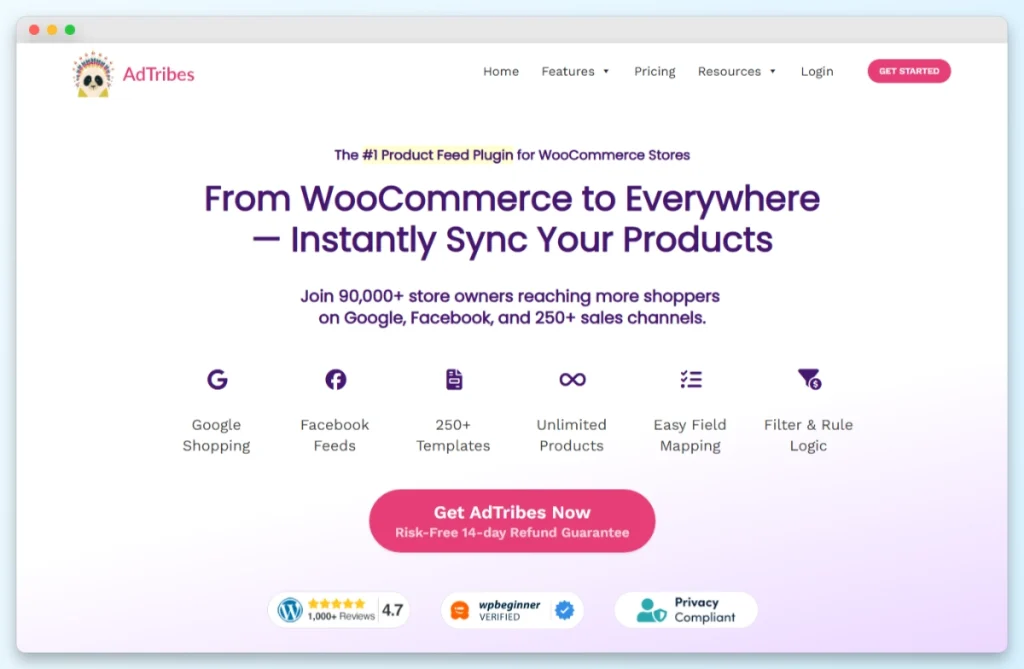
If you want a purpose-built workflow for Google Shopping feeds, this is the fastest path. AdTribes is a sister Rymera brand, and AdTribes Product Feed PRO is designed specifically to generate and maintain shopping feeds for Google, Facebook, Bing, TikTok, and other channels from your WooCommerce store.
Why consider this first
AdTribes Product Feed PRO handles the schema for you. It pre-fills common field mappings between WooCommerce and Google Merchant Center, generates a live feed URL, and keeps that URL in sync with your catalog automatically. You don’t need to touch XML or maintain a custom export.
Who it fits
- Store owners who want a dedicated shopping-feed plugin and nothing else.
- Stores running multiple feeds (Google plus Facebook plus Bing) from a single tool.
- Catalogs following fairly standard WooCommerce patterns, where default mappings hold up.
- Teams that don’t want to inspect XML or troubleshoot feed schema themselves.
High-level setup
- Install AdTribes Product Feed PRO and activate the license.
- Create a new feed and select Google Shopping as the template. The plugin pre-fills mappings for id, title, description, link, image_link, availability, price, and brand.
- Fill the Google-specific fields the plugin exposes: GTIN, condition, age_group, color, size, google_product_category. Category-level defaults and product-level overrides handle the gaps.
- Generate the feed URL. The plugin publishes the feed at a URL on your site that updates automatically on a schedule you pick.
- Submit the feed URL in Google Merchant Center as a scheduled fetch: Products, Data sources, Add data source, Scheduled fetch, paste the URL.
What to expect
On a mid-size catalog (around 2,800 SKUs, mostly variable products with 3 to 6 variations each), AdTribes Product Feed PRO typically generates a clean XML file on the first run with no mapping errors. The one field you’ll usually set manually is google_product_category, because the WooCommerce category hierarchy rarely maps cleanly to Google’s taxonomy. AdTribes also emits one feed item per variation, which is what Google expects. That’s the kind of detail that makes a dedicated plugin worth the setup.
AdTribes maintains detailed field-mapping documentation if you want to reference specific attributes before building your feed.
Method 2: Store Exporter Deluxe (Custom XML Export)
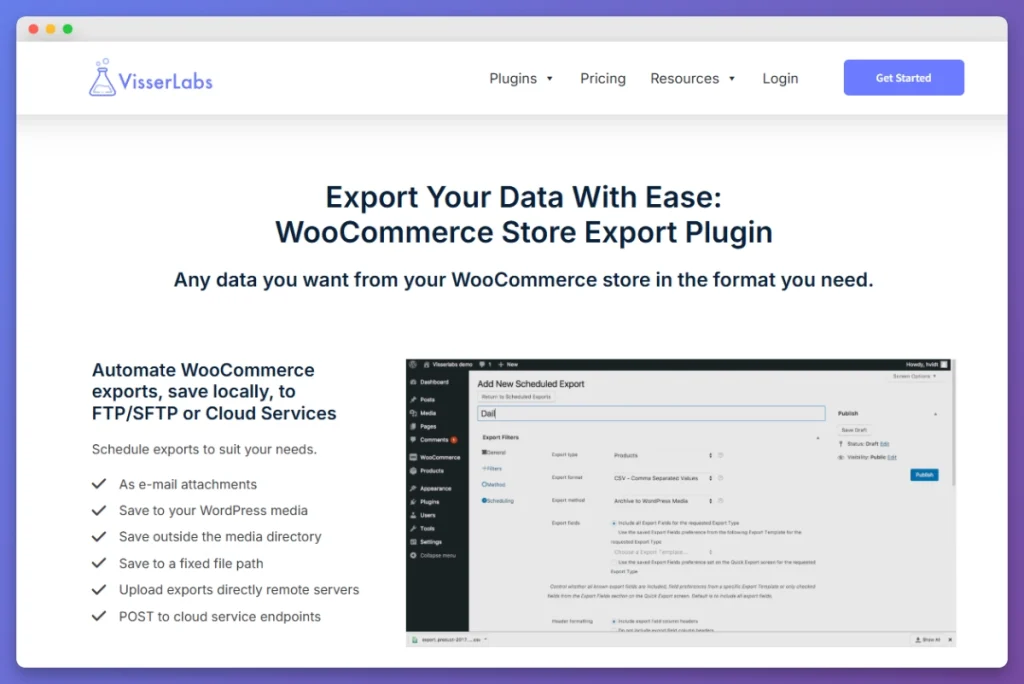
Store Exporter Deluxe is not a dedicated Merchant Center plugin. It’s a flexible WooCommerce product and order exporter, and for stores that need schema control, custom field mapping, or a scheduled XML file at a specific URL, it’s the right tool. For standard Google Shopping setups, a dedicated feed plugin will be faster. Store Exporter Deluxe shines when the standard path doesn’t fit your store.
Why consider this
Store Exporter Deluxe gives you the fields, the format, and the delivery pipeline without locking you into a pre-built feed template. Use it when you need schema control, unusual product data mapped to Google’s attributes, a scheduled export writing to a specific URL or FTP endpoint, or a feed you can version and inspect.
Who it fits
- Stores with custom product structures or unusual taxonomies.
- Developers who want to version the exported feed and review diffs.
- Merchants running scheduled exports into a wider data pipeline (analytics warehouse, ERP, feed aggregator).
- Teams that want the XML file at a fixed URL or FTP path under their control.
Setup walkthrough
Step 1: Install Store Exporter Deluxe and activate the license on your store.
Step 2: Go to WooCommerce, Store Export, Products tab. Choose XML as the export format.
Step 3: Select the fields that map to Google’s required attributes:
- id: SKU or product ID
- title: Product name
- link: Product URL
- price: Regular price with currency code appended
- availability: Stock status (in stock or out of stock)
- image_link: Featured image URL
- description: Short or long description (pick one, strip HTML)
- brand, condition, gtin, mpn: From whichever custom fields or product attributes you’ve captured these in
Step 4: If you’re including additional images in the feed, review the image handling settings. Our guide on exporting WooCommerce products with their images covers the image field options.
Step 5: Run a manual export first. Open the XML file and check it against Google’s Product data specification: attribute names, value formats, required fields for your product categories. Fix any mismatches in the Store Exporter Deluxe field mapping before you scale up.
Step 6: Once the manual export looks clean, set up a scheduled export so the XML file regenerates automatically at a URL Google can pull from. Daily is a common choice for active stores. Weekly works for lower-volume catalogs.
Step 7: In Google Merchant Center, add the feed as a Scheduled fetch (Products, Data sources, Add data source, Scheduled fetch) pointing to your Store Exporter Deluxe output URL.
Important clarification
Visser Labs does not have a native Google Merchant Center integration, and we’d rather be upfront than have you expect one. The workflow is simple: Store Exporter Deluxe generates the XML, Google pulls that file from your URL on a schedule, or you upload it manually. The connection from Store Exporter Deluxe to Merchant Center is URL-based, not API-based.
What to expect
Store Exporter Deluxe is built for exactly this kind of non-standard setup. Say you have tens of thousands of SKUs with heavy custom attributes (material, country of origin, and custom category IDs all stored as product meta). You can map those fields into a custom XML structure that matches both Google Merchant Center and a separate retail partner feed, then run it as a scheduled fetch to a URL you control. Google picks it up on whatever schedule you set. That level of field-level control is what you give up with a pre-built feed plugin, and it’s why Store Exporter Deluxe is the right tool for non-standard data.
Method 3: Google Listings & Ads (The Official Plugin)
Google’s own Listings & Ads plugin is the free, official path. Maintained by Google and WooCommerce together, it covers the basic Merchant Center plus Google Ads flow end-to-end. If your catalog is simple and you only need Google, this is worth a look before paying for a dedicated feed plugin.
Why consider this
It’s free, it’s official, and it handles account connection, feed sync, and campaign creation from inside WooCommerce. For a small-to-mid store with a clean catalog and no multi-channel feed requirement, it’s often enough.
Who it fits
- Smaller stores with simple catalogs.
- Merchants running Google only (no Facebook, Bing, or TikTok feeds).
- Store owners who prefer the official integration with less plugin sprawl.
High-level setup
- Install Google Listings & Ads (now listed as Google for WooCommerce) from WooCommerce.com or WordPress.org.
- Connect your Google account, Merchant Center account, and Google Ads account through the onboarding wizard.
- Map your product attributes using the plugin’s built-in field-mapping UI.
- Sync your catalog to Merchant Center.
Honest limitations
You get less control over custom field mapping than with a dedicated feed plugin. No XML file to inspect, version, or hand off elsewhere. If you expand beyond Google later, you’ll need a separate tool for those channels, and your Google feed still lives inside the plugin.
When To Use Each Method
The decision mostly comes down to how standard your catalog is and how many channels you plan to feed.
- Use AdTribes Product Feed PRO when: You want a dedicated shopping-feed plugin, your catalog is fairly standard, and you may want to add Facebook, Bing, or TikTok feeds later from the same tool.
- Use Store Exporter Deluxe when: You need custom XML structure, you have unusual product data that needs mapping, you want scheduled exports to a URL or FTP endpoint you control, or you’re integrating the feed into a wider data pipeline.
- Use Google Listings & Ads when: You’re running a smaller store on Google only, you want the official path, and you don’t need custom schema or multi-channel support.
For most stores, a dedicated feed plugin is the easiest win. Store Exporter Deluxe is the right tool when the standard path doesn’t fit. Google’s own plugin is fine for the simplest cases.
What We’ve Seen: The feed errors we see most often in Google Merchant Center aren’t mysterious, they’re the same three issues again and again. Missing GTINs: Google typically expects a GTIN (or a valid MPN plus brand, or identifier_exists=false) for most new products. If WooCommerce isn’t capturing GTIN as a field, your feed won’t include it, and Google flags it. Price format issues: Google typically expects prices with an ISO currency code (e.g., “29.99 USD”), not just the number. Feeds that send “29.99” alone often get disapproved. Image URLs behind login or with session tokens: If your image URLs require authentication or carry short-lived query strings, Google’s crawler can’t fetch them and the product gets rejected. Before you submit any feed, test with a small batch of 10 to 20 products and fix these three categories of error before scaling up.
Frequently Asked Questions
Do I need a paid plugin to submit a feed to Google Merchant Center?
No. You can export WooCommerce products to Google Merchant Center for free using Google Listings & Ads, which handles the full Merchant Center connection for a simple catalog. Paid plugins (AdTribes Product Feed PRO, Store Exporter Deluxe) add automation, deeper field mapping, multi-channel support, and custom XML output. They’re worth it when your catalog or workflow outgrows the free plugin.
How often should my Google Merchant Center feed update?
Google retrieves a scheduled fetch automatically (every 24 hours for a URL feed, per Google’s upload documentation), and product data that isn’t refreshed can expire. Most dedicated feed plugins handle this for you. If you’re using scheduled XML exports, match the schedule to your catalog’s change frequency: daily for active stores, weekly for smaller-volume catalogs.
Can I use Store Exporter Deluxe and a dedicated feed plugin at the same time?
Yes. Many stores use Store Exporter Deluxe for custom exports or historical reporting and a dedicated feed plugin for ongoing Merchant Center sync. The two don’t conflict, and they solve different problems. Store Exporter Deluxe is more flexible for one-off or custom exports, while a dedicated feed plugin keeps your shopping feed in sync automatically.
What if my products don’t have GTINs?
For handmade, custom, or private-label products that genuinely have no global identifier, Google accepts identifier_exists=false on the product. Don’t use this flag to dodge the GTIN requirement on branded products. Google validates it, and feeds with incorrect identifier_exists values can get flagged. Check Google’s current Product data specification for the exact rules that apply to your category.
Which method is best if I’m new to Google Shopping?
Start with AdTribes Product Feed PRO if you’re willing to use a paid dedicated plugin, or Google Listings & Ads if you want the free official route. Both handle the schema and field mapping for you. Save Store Exporter Deluxe for when you know you need custom XML or a scheduled URL feed into a wider pipeline.
Start Exporting Your WooCommerce Products To Google Merchant Center
Three methods to export WooCommerce products to Google Merchant Center, three different fits. The right one for your store depends on how standard your catalog is and how many channels you plan to feed. Whatever method you pick, test with a small batch first, check your output against Google’s current Product data specification, and fix feed errors before you scale up.
Here’s how to move from this guide to a live feed:
- Pick your method based on catalog complexity and channel count.
- Check Google’s typical field requirements against your current WooCommerce data and fill any gaps before you build the feed.
- Build your feed using the walkthrough that matches your choice: AdTribes Product Feed PRO for most stores, Store Exporter Deluxe for custom setups, Google Listings & Ads for the simplest path.
- Test with a small batch and fix GTIN, price-format, and image-URL errors before submitting the full catalog.
If you’re ready to export WooCommerce products to Google Merchant Center with custom XML output or a scheduled feed into a wider data pipeline, Store Exporter Deluxe gives you that flexibility without locking you into a pre-built feed template. Start with a small test export, confirm it matches Google’s spec, then scale up.