
Moving to a new store, cleaning up a messy attribute list, or sharing your setup with a developer? WooCommerce has no built-in way to export your global attributes like Color, Size or Material.
With Store Exporter Deluxe, you can download every attribute and its terms in one file, either as a one-off Quick Export or on a schedule.
Prerequisites
| Requirement | Details |
|---|---|
| Plugin | Store Exporter Deluxe is installed and active |
| Attribute data | At least one global attribute exists. You can add attributes under Products → Attributes. |
| Admin access | An account that can manage WooCommerce exports. Administrators and Shop Managers have this by default. |
Where to find Quick Export
- In your WordPress admin, go to WooCommerce → Store Export.
- In the sidebar, click Quick Export. It sits near the top, above the EXPORTS group.
Step 1: Choose the Attributes export type
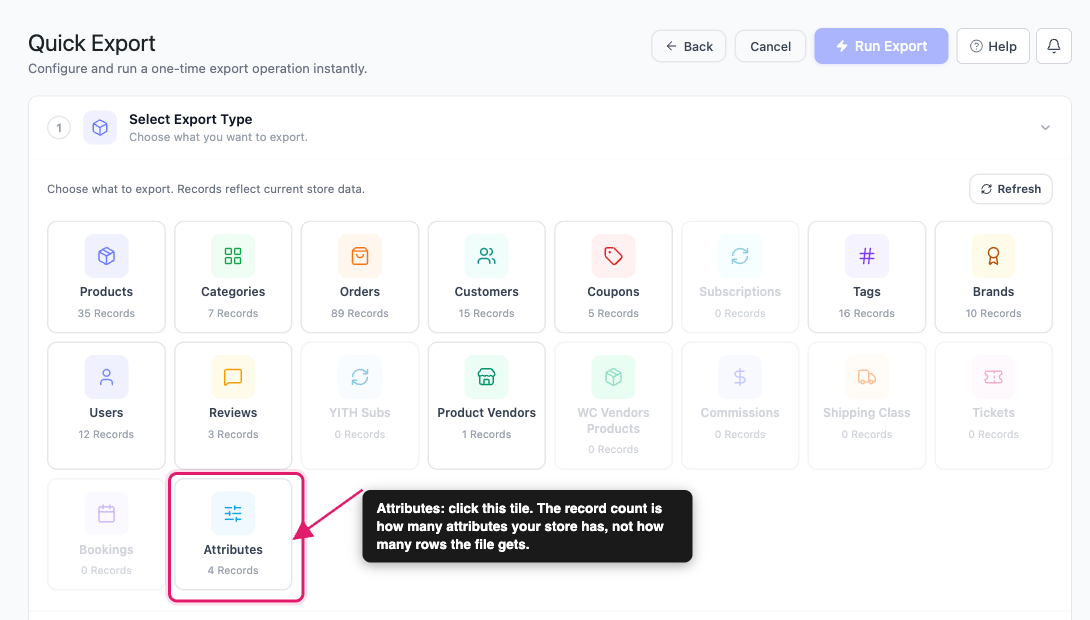
On the Select Export Type step, click the Attributes tile. The tile shows how many attributes your store has. It counts attributes only, so your file ends up with more rows than that number, because each term gets its own row (see the layout section below).
Step 2: Pick your attribute fields
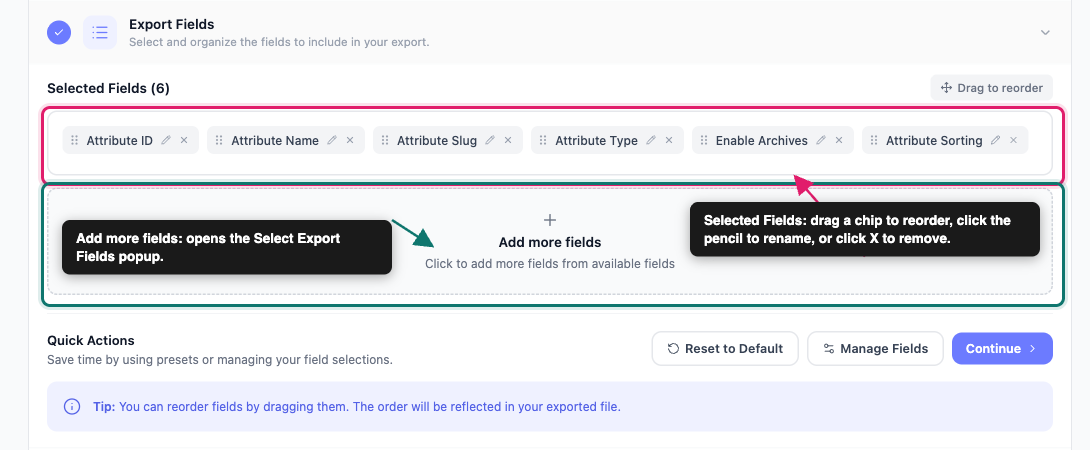
On the Export Fields step, the columns you’re about to export appear as chips under Selected Fields. Attributes start with six of them:
- Attribute ID
- Attribute Name
- Attribute Slug
- Attribute Type
- Enable Archives
- Attribute Sorting
From there you can shape the column list:
- Click Add more fields to open the Select Export Fields popup. Tick the fields you want, then click Save Fields.
- Click Manage Fields to open the same popup with the full list.
- Drag a chip to change the column order in your file.
- Click the pencil icon on a chip to rename that column heading. The underlying data stays the same.
- Click the X on a chip to drop that column.
- Use Reset to Default to go back to your last saved selection. Quick Export remembers the fields from the last export you ran, so on a fresh install that’s the starting six.
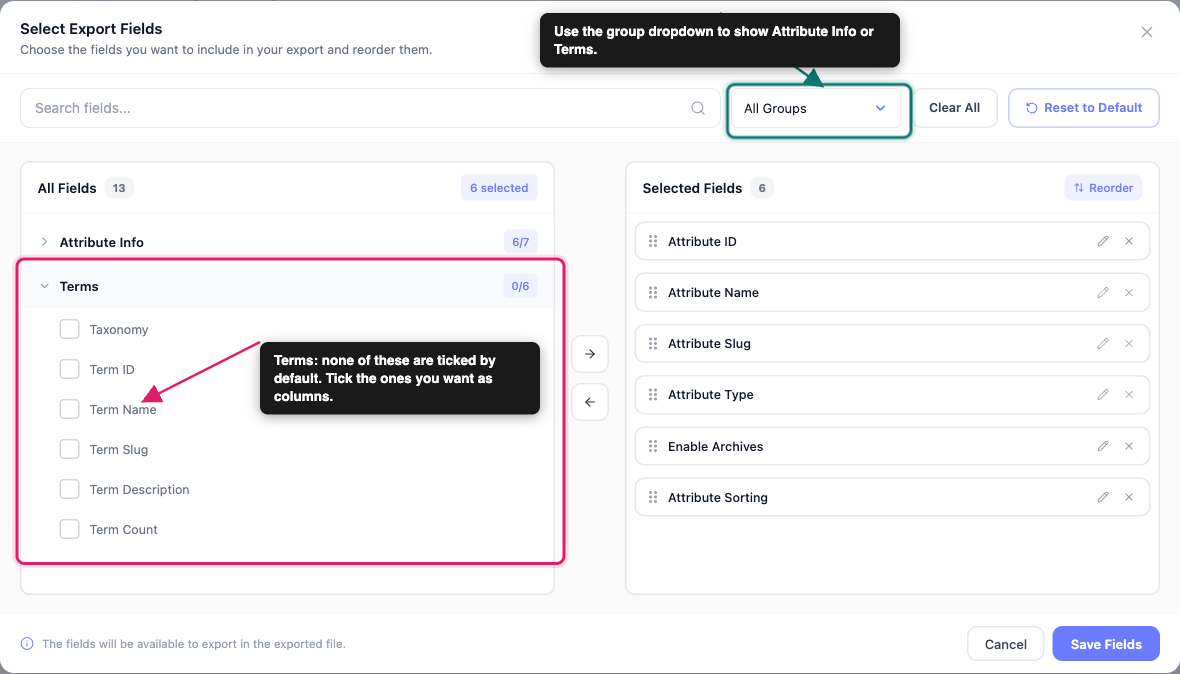
In the popup, attribute fields sit under Attribute Info and term fields sit under Terms. Use the group dropdown to show one group at a time. Clear All empties your selection so you can build the column list from scratch.
Available attribute fields:
| Field | What it is |
|---|---|
| Attribute ID | The attribute’s internal WooCommerce ID |
| Attribute Name | The attribute’s display name, such as Color |
| Attribute Slug | The URL-friendly version of the name |
| Attribute Type | The attribute’s type, shown as Select or Text |
| Enable Archives | Yes or No, depending on whether the attribute has archive pages turned on |
| Attribute Sorting | How the attribute’s terms are ordered on your store: Custom ordering, Name, Name (numeric) or Term ID |
| Attribute Count | How many terms the attribute has. It’s off by default, so add it from the popup. |
Available term fields:
| Field | What it is |
|---|---|
| Taxonomy | A row marker. It reads Taxonomy on an attribute’s own row and Term on its term rows. |
| Term ID | The term’s internal WordPress ID |
| Term Name | The term’s display name, such as Large |
| Term Slug | The URL-friendly version of the term name |
| Term Description | The description text entered on the term’s edit screen |
| Term Count | How many products use that term |
None of the term fields are selected by default. Add them if you want the terms in your file, not just the attributes.
For the full list across every export type, see Available export fields in Store Exporter Deluxe.
Step 3: Skip the filters step
This export has no filters. The Quick Export screen goes straight from Export Fields to Export Options, and the summary at the bottom shows Filters as 0.
Step 4: Set your format and options
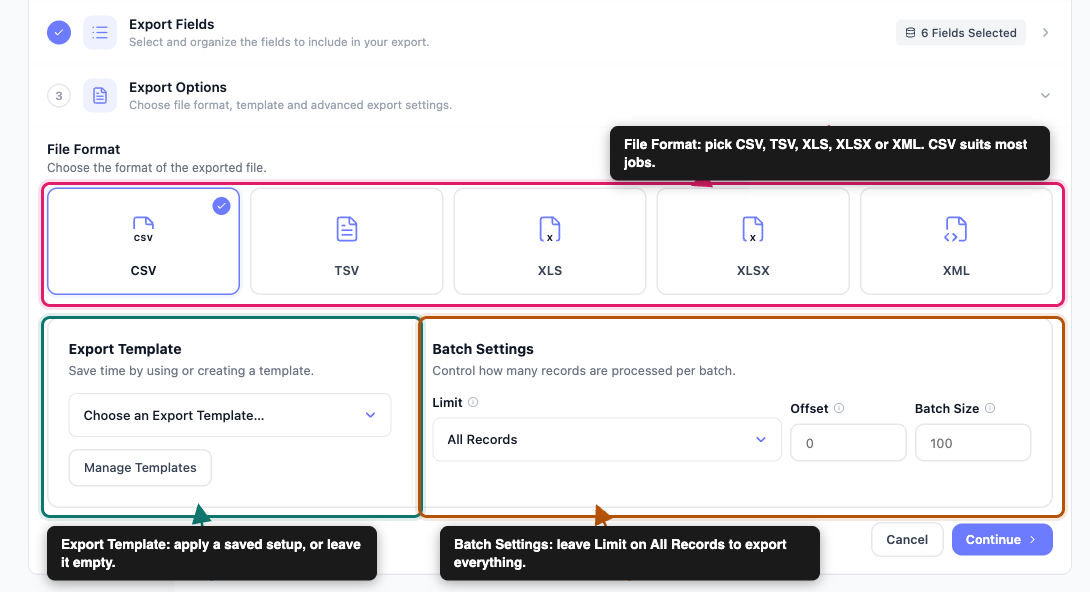
On the Export Options step, you can set up how the file is built.
File Format: Pick CSV, TSV, XLS, XLSX or XML. CSV suits most jobs, since nearly every spreadsheet and import tool reads it.
Export Template: If you’ve already saved a setup on the Export Templates screen, apply it from the Export Template dropdown. For detailed instructions, see How to use Export Templates in Store Exporter Deluxe.
Batch Settings: Use Limit, Offset and Batch Size to control how many records the export handles. Leave Limit on All Records to export everything. Most stores don’t need to change these.
Step 5: Run the export
- Click Run Export. A progress dialog counts through each stage, from Initializing Export to Finalizing Export.
- Click Download File to save the file to your computer.
- Click Done to close the dialog.
If you turn on archiving in the plugin settings, a copy of each export is also saved on the Archives screen, so you can download it again later. Archiving is off by default.
How your attributes file is laid out
An attributes file has one row for each attribute, plus one row for each of its terms. That means a Size attribute with four terms takes up five rows.
- The attribute row: It carries the attribute’s details. The term columns on this row are empty, and Taxonomy reads Taxonomy.
- The term rows: Each term row repeats the attribute’s details, then adds the term’s own details. Taxonomy reads Term on these rows.
If you only select attribute fields, you still get the term rows, but they look like repeats of the attribute row. Add the Terms fields so you can tell them apart.
Here’s what the first rows look like when the term fields are selected too (some columns are hidden to keep the table narrow):
| Attribute ID | Attribute Name | Attribute Slug | Taxonomy | Term ID | Term Name | Term Slug | Term Count | Attribute Count |
|---|---|---|---|---|---|---|---|---|
| 1 | Color | color | Taxonomy | 3 | ||||
| 1 | Color | color | Term | 22 | Brown | brown | 1 | 3 |
| 1 | Color | color | Term | 23 | Dark Navy | dark-navy | 1 | 3 |
| 1 | Color | color | Term | 24 | Sage Green | sage-green | 1 | 3 |
Attributes are listed alphabetically by slug, and each attribute’s terms follow it in alphabetical order by name. The columns follow the order of your Selected Fields chips, so a field you add last appears last.
Run it on a schedule
If you need a fresh attribute list every week for a sync tool or a report, build it as a scheduled export instead of running Quick Export by hand each time.
Go to Scheduled Exports in the EXPORTS group, then click New Schedule. The setup form has five steps: General, Filters, Method, Scheduling and Advanced.
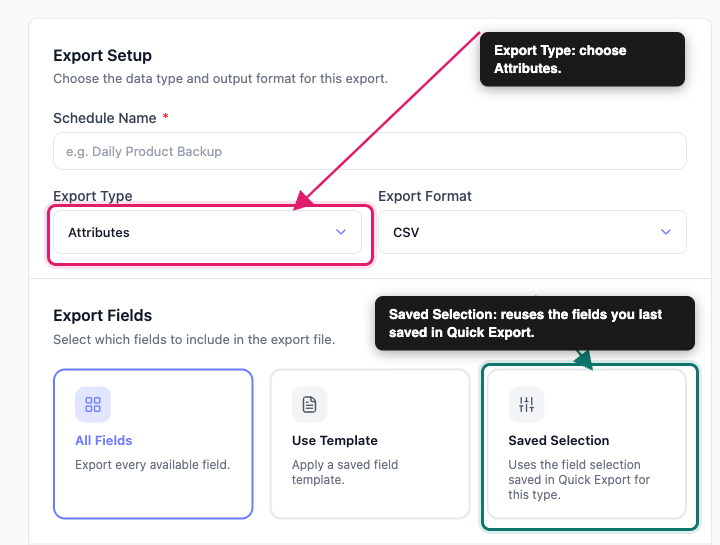
General: Enter a Schedule Name, set Export Type to Attributes, then choose an Export Format. Scheduled exports also offer RSS 2.0 on top of the Quick Export formats. Under Export Fields, choose All Fields, Use Template or Saved Selection. All Fields exports every available field, while Saved Selection reuses the field selection you last saved in Quick Export for attributes.
Filters: Attributes have no filters. This step still shows sort options, but they don’t change an Attributes export, so you can ignore them. Click Next: Method.
Method: This step decides where the finished file goes. Choose Archive to Media, Save to Server, Send as Email, POST to URL or FTP / SFTP.
Scheduling: Pick a Frequency: Hourly, Daily, Weekly, Monthly, Custom or Manual. Then set the time of day and your timezone. Choose Manual if you only want to run the export on demand.
Advanced: You don’t need to change anything on this step for an Attributes export. Click Create Schedule to save it.
For detailed instructions on each of these steps, see How to schedule exports in Store Exporter Deluxe.
Common ways to use an attribute export
Move attributes to another store: Export Attribute Name, Attribute Slug, Attribute Type, Term Name and Term Slug, then use the file as your checklist when you rebuild the attributes on the new store.
Audit unused terms: Add Term Count to your fields and sort the file by that column in your spreadsheet. Terms with a Term Count of 0 aren’t used by any product, so they’re safe candidates to clean up.
Review your attribute setup: Add Enable Archives and Attribute Sorting to see how each attribute is configured. That’s handy before a theme change or a filter plugin setup.
Troubleshooting
Frequently asked questions
Related articles
- How to export WooCommerce products with Store Exporter Deluxe
- How to export WooCommerce brands with Store Exporter Deluxe
- Available export fields in Store Exporter Deluxe
- How to use Export Templates in Store Exporter Deluxe
- How to schedule exports in Store Exporter Deluxe
Need help?
If you have a question or run into any issues, we’re here to help.
- Premium users: Open a support ticket
- Free users: Visit our community forum
