
If you run subscription products through YITH WooCommerce Subscription, you’ll eventually need that data outside your store. Maybe you want a backup of active subscribers, a list of upcoming renewals for your accounting system, or a record of cancelled subscriptions to review. Store Exporter Deluxe has a dedicated YITH Subs export type for exactly this, right alongside its other export types.
Prerequisites
| Requirement | Details |
|---|---|
| Plugin | Store Exporter Deluxe is active and licensed |
| YITH WooCommerce Subscription | Installed and active. This is what populates the YITH Subs export type. |
| WooCommerce | Active, with at least one YITH subscription to export |
| Administrator access | You’ll need an account with access to the WordPress admin dashboard |
Quick Export: YITH Subs
To export your YITH subscription data right away:
- Go to WooCommerce → Store Export.
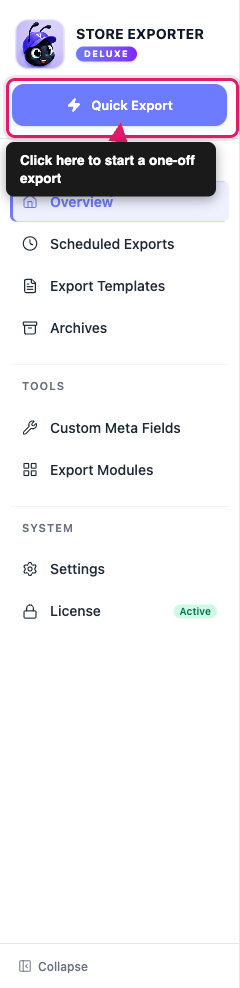
- Click the Quick Export button in the sidebar.
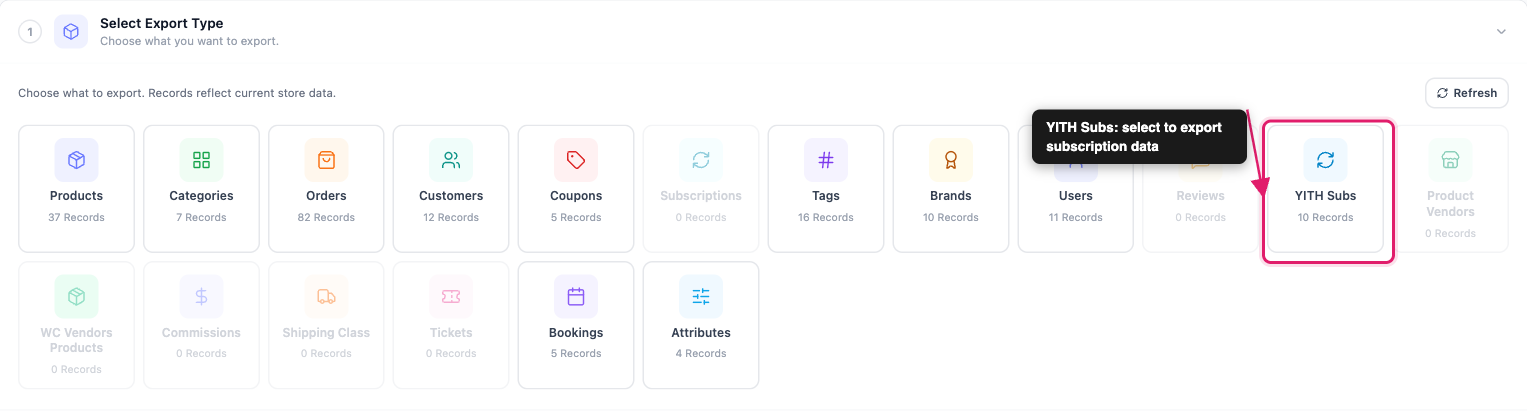
- On the Select Export Type step, click the YITH Subs tile.
- On the Export Fields step, choose the fields you want to include.
- On the Export Options step, choose a file format.
- Click Run Export.
- In the Export in Progress window, click Download File.
Available YITH subscription fields
Selecting YITH Subs takes you to the Export Fields step with 10 fields preselected: Subscription ID, Order ID, Subscription Status, User, User ID, Start Date, End Date, Expired Date, Cancelled Date, and Payment Due Date.
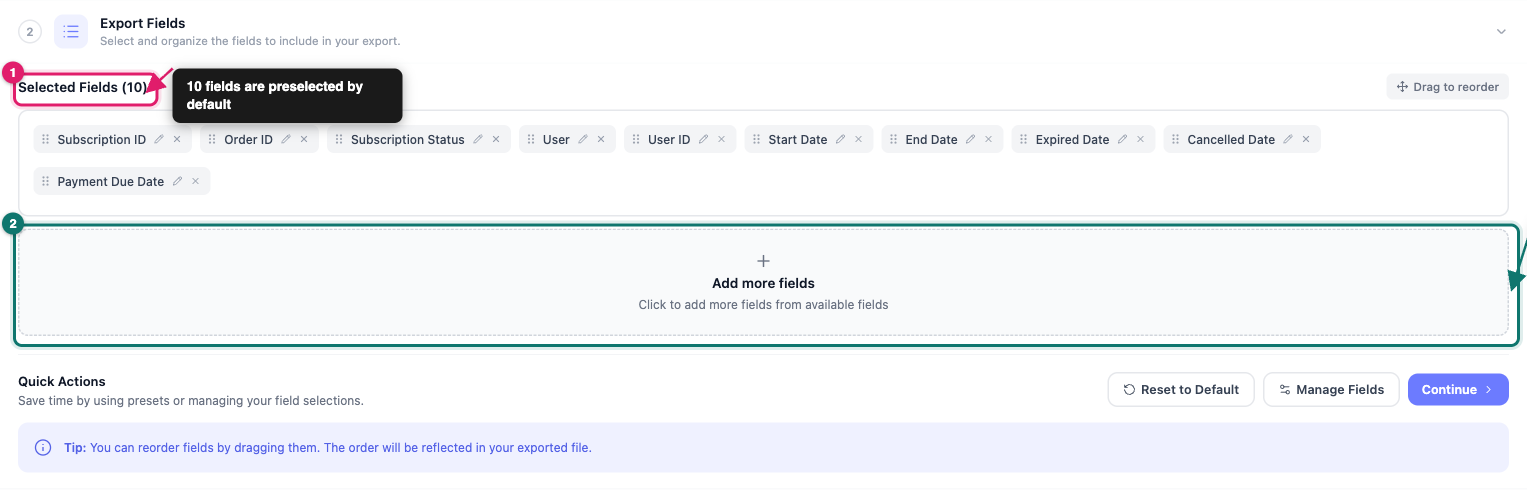
Click Add more fields to open the full field picker, which also lets you search by name. Beyond the preselected set, you can add:
- Pricing: Recurring Price, Price Per Period, Trial Period, Max Length.
- Product: Product ID, Product Name, Product SKU.
- Billing address: Full Name, First Name, Last Name, Company, Street Address (Full), Street Address 1, Street Address 2, City, ZIP Code, State (prefix), State, Country (prefix), Country, Phone Number, E-mail Address. Each field is labeled “Billing: [field]”.
If you’re exporting for accounting purposes, add Recurring Price, Price Per Period, and Payment Due Date. Remove a field from your selection with its × button, or drag fields to reorder the columns in your exported file.
Choosing a format and export options
The Export Options step covers the rest of the setup:
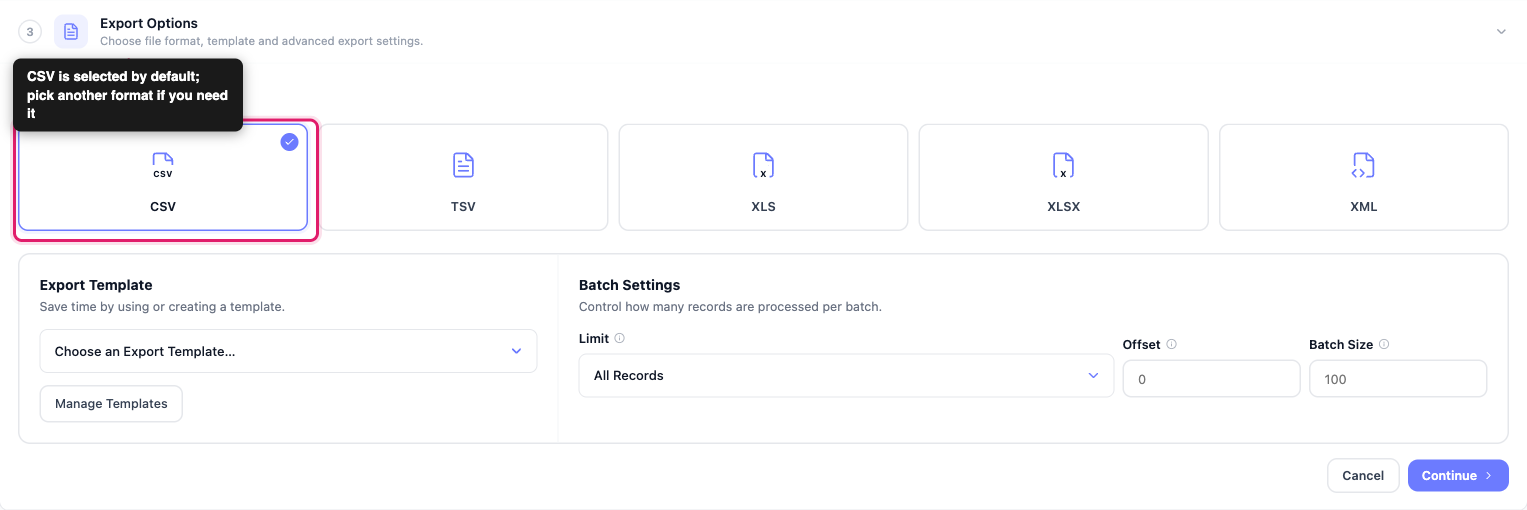
- File format: CSV, TSV, XLS, XLSX, or XML. CSV is selected by default.
- Export template: Reuse a saved export template from a previous export, or skip this if you don’t have one set up yet.
- Batch settings: Set Limit if you want to cap the export at a specific number of records (default is All Records), and adjust Offset and Batch Size if you’re exporting a very large number of subscriptions in stages.
Click Continue, then Run Export. When the export finishes, click Download File in the Export in Progress window.
Common use cases
Backing up subscriber data. Export the full YITH subscription list to keep an offline copy of your subscribers and their renewal dates.
Reviewing subscription status. Include the Subscription Status field, then sort the exported file to review active or cancelled subscriptions. This helps when you check why customers cancel or plan a campaign to win them back.
Feeding your accounting system. Export Recurring Price, Price Per Period, and Payment Due Date to reconcile upcoming subscription revenue outside WooCommerce.
Migrating to another platform. Export the full field set as a structured file that another system can import, if you move away from YITH WooCommerce Subscription.
Troubleshooting
- Confirm YITH WooCommerce Subscription is installed and active under Plugins → Installed Plugins.
- Go to YITH → Subscriptions and confirm that at least one subscription is listed.
- Click the Refresh button at the top of the Select Export Type step to recalculate the record counts.
- If YITH WooCommerce Subscription is active, you have subscriptions, and the tile still shows 0 Records after you click Refresh, contact support.
FAQ
Need more help?
If you’re using Store Exporter Deluxe and run into an issue this article doesn’t cover, open a support ticket and our team will help you get your YITH subscription export working.
If you’re using the free Store Exporter plugin, ask on the WordPress.org support forum and our team will get back to you there.
