
Need a subscriptions export for just last month’s billing run, or a list of everyone who signed up this week? Store Exporter Deluxe has a Subscription Date filter built into its Subscriptions export, so you don’t have to export every subscriber and trim the file afterward.
You’ll see how to set the filter, what it matches, and what to check when the export is empty.
For the full rundown of available fields, formats, and Scheduled Exports for subscriptions, see How to export subscriptions in Store Exporter Deluxe.
Prerequisites
| Requirement | Details |
|---|---|
| Plugin | Store Exporter Deluxe is active and licensed |
| WooCommerce Subscriptions | Installed and active, with at least one subscription on your store |
| Administrator access | You’ll need an account with access to the WordPress admin dashboard |
Set the Subscription Date filter
- Go to WooCommerce → Store Export, then click Quick Export.
- Under Select Export Type, choose Subscriptions.
- Click the Filters & Sorting step to expand it.
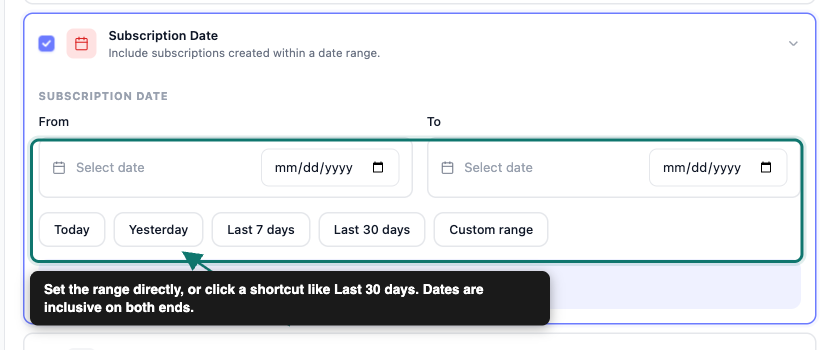
- Tick the Subscription Date checkbox. Its description reads “Include subscriptions created within a date range.”
- Set both the From and To fields, or click one of the shortcut buttons: Today, Yesterday, Last 7 days, Last 30 days, or Custom range.
- Open Export Options and pick a File Format.
- Click Run Export.
What the date filter matches
The Subscription Date filter matches each subscription’s creation date, not its next payment date, trial end date, or last payment date. If you need subscriptions due to renew in a specific window instead, export without the date filter and sort or filter the resulting file by the Next Payment column.
You can combine Subscription Date with the Subscription Status and Subscription Product filters on the same Filters & Sorting step to narrow the export further. For example, tick Subscription Status, select Active, and set a date range together to list only the active subscriptions created in that period.
Common use cases
Use the Subscription Date filter for billing period reconciliation: export subscriptions created in a given month and match them against your accounting records. It also works well for new subscriber audits, pulling a list of everyone who signed up this week or last week with the Last 7 days shortcut.
For a recurring feed into a CRM or accounting tool, a Scheduled Export isn’t the right fit here: its date range is fixed at save time and never advances. Instead, run a fresh Quick Export each period and set a new From and To date each time.
Supported export formats
Quick Export offers CSV, TSV, XLS, XLSX, and XML for subscription exports, with the same date filter available in every format. If you need JSON or RSS output instead, set up a scheduled export, which supports those two formats as well.
Troubleshooting
FAQ
Related resources
- How to export subscriptions in Store Exporter Deluxe
- How to schedule exports in Store Exporter Deluxe
- Store Exporter Deluxe product page
Need more help?
If you’re using Store Exporter Deluxe and run into an issue this article doesn’t cover, open a support ticket and our team will help you get your subscription export working.
If you’re using the free Store Exporter plugin, ask on the WordPress.org support forum and our team will get back to you there.
