
On a WordPress Multisite network, each subsite keeps its own products, orders, and customers in its own set of tables. In Store Exporter Deluxe, Quick Export and Scheduled Exports export one site at a time, so each export covers only the site whose dashboard you have open. If you need data from several sites, export each site and combine the files afterwards.
This holds even for a Super Admin on the network’s main site. This article covers how activation works on a network, what stays separate for each site, and where to manage your license.
Prerequisites
| Requirement | Details |
|---|---|
| WordPress Multisite | Your WordPress installation is already set up as a Multisite network |
| Store Exporter Deluxe | Active and licensed on at least the site you’re exporting from |
| Administrator access | An account with access to each site’s WordPress admin dashboard |
Activate the plugin across your network
You don’t need to network-activate Store Exporter Deluxe for it to work with Multisite. You have two options, and both are valid:
- Network-activate it from Network Admin → Plugins so it’s available on every existing and future site without visiting each one individually.
- Activate it per site on just the sites where you plan to run exports.
Either way, you only need the plugin active on whichever site you’re actually exporting from.
What stays per site and what’s shared network-wide
Most of what you configure in Store Exporter Deluxe is separate for each site in your network:
- Export settings, like Export Filename, Date Format, and Script Timeout under Settings → General, are set independently on each site.
- Scheduled exports and their run history belong to the site that created them, so a scheduled export set up on one subsite doesn’t appear on another.
- Saved export files are stored in the media library of whichever site generated them.
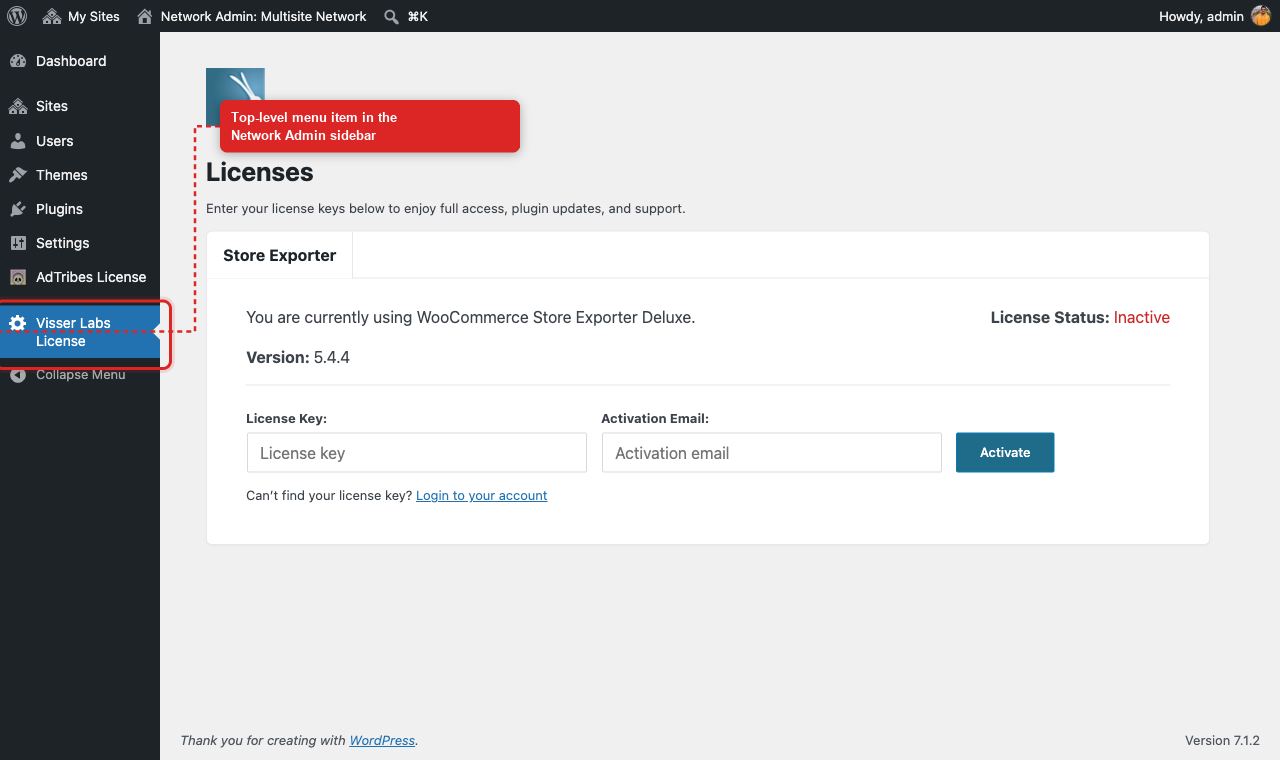
Your license is the exception. Your license key and activation are shared across the whole network, not tied to a single site. On a Multisite network, you manage it from Network Admin → Visser Labs License, a top-level item in the Network Admin sidebar. Only a Super Admin can open it.
Export data from a single site
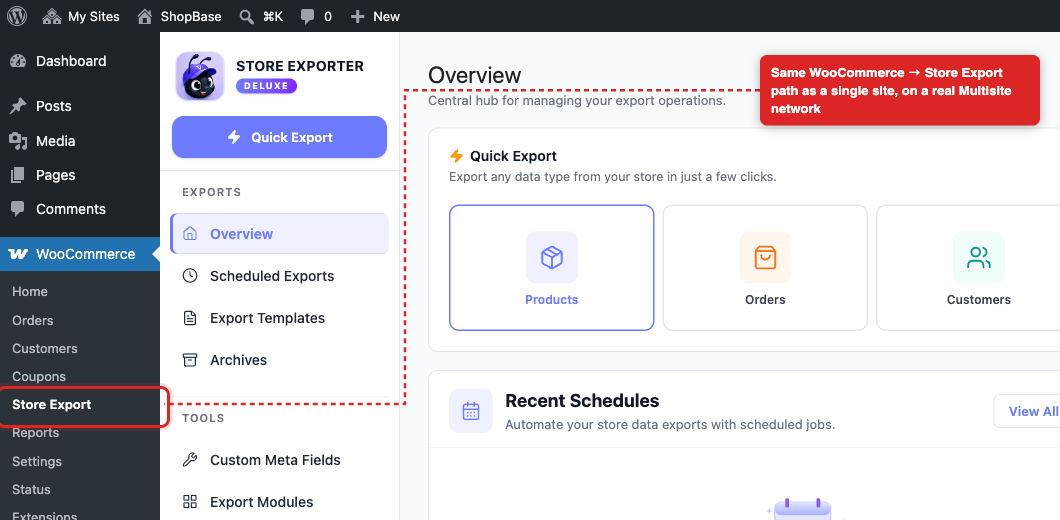
Exporting from one site in your network works exactly like exporting from any single-site WooCommerce store.
- Open the dashboard of the site whose data you want to export (My Sites in the admin bar).
- Open WooCommerce → Store Export from that site’s admin menu.
- Run a Quick Export or Scheduled Export as you normally would.
This export only pulls data from the site whose dashboard you have open. It doesn’t touch any other site on the network, no matter which account you use.
Troubleshooting
FAQ
Related articles
Need more help?
If you’re using Store Exporter Deluxe and need help with Multisite exports, open a support ticket and our team will help you get it working.
If you’re using the free Store Exporter plugin, ask on the WordPress.org support forum and our team will get back to you there.
