Every trade show season the same scramble plays out. Ten days out from the booth going live, someone on the team asks, “Can we bring a proper WooCommerce product catalog this year?” Cue the mad dash to pull product data out of WooCommerce, wrangle it into a designer’s template, and hope the printer hits the deadline.
It doesn’t have to be that scramble. Offline product catalogs (printed booklets, wholesale price lists, emailable PDFs) still do real commercial work in 2026, especially for B2B and wholesale stores. Most guides on this topic jump straight to “install this one plugin” without explaining the actual workflow. A catalog is a data handoff problem that ends in a design tool. Get the data out cleanly and the rest of the job gets easy.
In this guide we’ll walk you through the five-step workflow we recommend to store owners: plan, export, build, format, distribute. By the end you’ll know which tool belongs at which step, and why the WooCommerce product catalog export is the load-bearing move.
Table of Contents
Why An Offline WooCommerce Product Catalog Still Matters In 2026
Isn’t print dead? Short answer, no. Longer answer, “offline” doesn’t mean “print-only.” Offline just means “not the live website.” A branded PDF in a wholesale buyer’s inbox is offline. A printed booklet on a trade show stand is offline. A shareable flipbook link in an email signature is offline. All three still sell.
Four real use cases drive offline catalog work for the WooCommerce stores we support today:
- B2B and wholesale buyers. Procurement teams want a PDF they can mark up, forward internally, and compare side by side. A wholesale buyer who has to click into 40 product pages to compile a quote will quietly move to a supplier that sent the list upfront.
- Trade shows and field sales. Booth foot traffic, sales reps in cars, in-office demos. All of it benefits from a leave-behind document, printed or digital.
- Hybrid retail and showrooms. Brick-and-mortar partners and distributors often request a printed catalog for their floor staff. If you sell through resellers, a branded catalog puts your products in front of their sales team every day.
- Seasonal and campaign catalogs. Holiday gift guides, new-season launches, clearance price lists. Time-boxed documents that pair with email campaigns.
The reframe worth holding onto: a catalog works as a companion to your website. The website stays the live source of truth. The catalog is the portable snapshot your customer uses when they’re not on your site.
What We’ve Seen: Store owners who treat offline catalogs as a regular quarterly rhythm, not a one-off trade show panic, tend to close bigger wholesale accounts. Buyers notice when your documentation is as organized as your website.
Step 1: Plan Your Catalog Scope And Audience
Before you export a single SKU, answer four questions. This is the step everyone wants to skip and the one that saves the most time when you don’t.
- Who reads this catalog? Retail buyer, wholesale account, trade show attendee, or a sales rep’s leave-behind? A retail buyer wants retail price and a short hook. A wholesale buyer wants SKU, case quantity, and their tier price. Pick the primary audience before you pick anything else.
- What format will it land in? Printed booklet, emailable PDF, spreadsheet price list, or an online catalog viewer? Format drives everything downstream.
- How many products? A 40-SKU seasonal flyer is a different exercise from a 2,000-SKU wholesale master catalog. The toolchain changes above roughly 200 products, where manual layout stops being viable and Data Merge starts paying for itself.
- How often will you update it? One-off for a trade show, quarterly refresh, monthly wholesale price list? Update cadence drives whether you invest in a reusable template or a one-shot layout.
Write the answers down. A one-page spec with audience, format, SKU count, update cadence, and branding notes is all you need.
What We’ve Seen: Every catalog project that goes off the rails skips this step. The team exports everything, then spends three days figuring out what to cut. Plan first, export second. It saves hours.
Step 2: Export Product Data With Store Exporter Deluxe
This is the WooCommerce product catalog export step, and it’s where the honest framing starts paying off. Your goal is a clean, fielded spreadsheet that matches your spec from Step 1. The job here is simple: get your product data out of WooCommerce in a shape your design tool can read, cleanly and in the right columns.
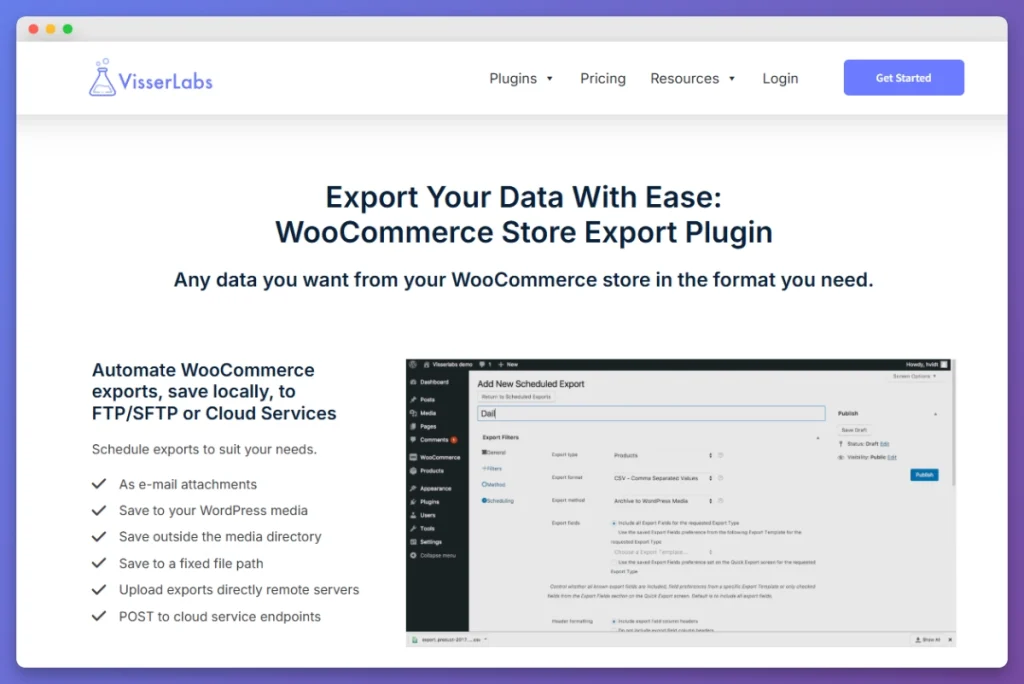
Copy-pasting from the WooCommerce admin is a dead end above about 20 SKUs. The native CSV export works for simple cases but skips custom fields, gives you limited filtering, and rarely hits the column structure a designer needs. For a proper catalog project, you want Store Exporter Deluxe, which is purpose-built for this slot.
Here’s the standard catalog field set to export:
- Product name, SKU, short description, and full description (or a trimmed version)
- Categories and tags (for organizing the document)
- Regular price, sale price, and wholesale price if you run one
- Featured image URL and gallery image URLs
- Stock status (optional, usually useful for wholesale catalogs)
- Custom fields and meta (product specifications, dimensions, warranty info, and any other detail your catalog needs to show)
Now the walk-through in Store Exporter Deluxe for this use case:
Step 1: Open the Products tab
Navigate to WooCommerce, Store Export in the admin menu, and select the Products tab. This is the export surface that matches a catalog project.
Step 2: Pick the fields you actually need
Select the fields from the list above and uncheck the defaults you don’t need. This is the single most important move on the whole project. A clean 15-column spreadsheet is fast to work with. A 120-column spreadsheet is a design bottleneck.
Step 3: Filter by scope
Filter by category, product type, or status if your catalog is scoped. “Only published, only this season’s collection” is a common filter. You can also export your categories if your layout needs category divider pages.
Step 4: Choose the export format
Pick the format that fits your downstream tool. Store Exporter Deluxe supports CSV, TSV, XLS, XLSX, and XML. The right pick depends on what comes next.
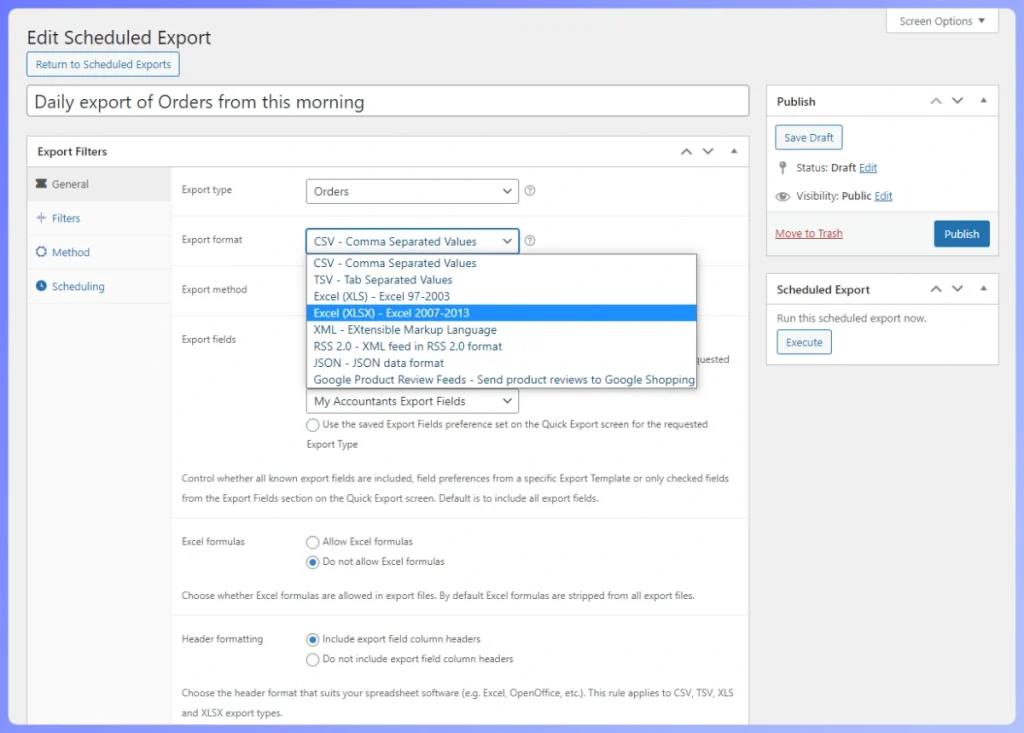
Export format mapped to downstream tool:
- XLSX (Excel): Best for editing in Excel or Google Sheets, building a wholesale price list, or handing to a designer for Adobe InDesign. Preserves formatting and column types.
- CSV: Best for online catalog generators, catalog software imports, and most print-on-demand tools. Simple, universal, plays well with every downstream system.
- XML: Best for custom formatters, developer-built catalog scripts, or data merge workflows. More verbose but holds structure.
For the complete walk-through of every field, filter, and option, the full guide to exporting WooCommerce products goes deeper than this catalog-focused section.
What We’ve Seen: The number-one time-saver on every catalog project is exporting only the fields the designer will actually use. Stores default to “export everything” and end up with 120-column spreadsheets that slow the whole project down. Fifteen minutes of field selection saves four hours of cleanup.
Need clean product data out of WooCommerce in XLSX, CSV, or XML? Store Exporter Deluxe handles that slot at $39.50/year introductory.
Step 3: Build The Catalog Document
Your exported spreadsheet is the data source. Now turn it into a readable document. Tool choice depends on SKU count, layout complexity, and who’s doing the work.
Match the tool to the project size:
- Under 50 SKUs, simple layout. LibreOffice Draw or Writer, Google Docs, or Canva Free. Zero cost, fast, no design skills required. Copy columns into a table, add a header, export to PDF.
- 50 to 500 SKUs, branded layout. Affinity Publisher (one-off license around $70) or Canva Pro templates. Real layout control, data pastes in sections, acceptable print quality. This is where most wholesale price lists and small trade show booklets sit.
- 500+ SKUs or designer involvement. Adobe InDesign with the Data Merge feature, fed by your XLSX or CSV. Data Merge is a built-in InDesign tool that maps each spreadsheet column to a placeholder, then generates one formatted page (or page block) per row. Your designer maps fields once, then regenerates the whole catalog every time you re-export.
- Online catalog generators. Tools like Flipsnack, Issuu, Publitas, and FlippingBook take your CSV or PDF and turn it into a browsable flipbook (a web-based page-turn viewer). Best when your offline catalog is actually a digital PDF viewer rather than a physical print piece.
Honest rule of thumb: match the tool to the project. A 40-SKU seasonal flyer does not need InDesign. A 2,000-SKU wholesale master catalog does not belong in Canva.
A few layout notes that save pain later:
- Group products by category. That’s why we exported categories in Step 2.
- For price lists, one product per row. For branded catalogs, one product per half-page or quarter-page.
- Build the sticky pages once: cover, contents, category dividers, pricing legend, ordering instructions, back cover. These don’t change between editions.
What We’ve Seen: If you’re running a quarterly wholesale catalog, build the InDesign or Affinity template once with Data Merge, then every quarter you just re-export the XLSX and regenerate the document. We’ve seen stores cut their catalog build time from three days to three hours with this one setup. The upfront template work pays back on edition two and every edition after.
Step 4: Format For Print Or Distribution
The document is built. Now format for output. This is where rushed projects quietly fall apart, and the fix is a five-minute pre-flight check at the end.
Image handling for print-quality catalogs
Your website images are typically 72 DPI (dots per inch, the resolution unit printers care about) and sized for screens. Print needs 300 DPI at final print size. When Store Exporter Deluxe pulls the featured image URL, you get the full-resolution original, the size uploaded to the media library. That’s what you want for print.
Store Exporter Deluxe exports image URLs, not image files. For InDesign Data Merge you’ll want a local folder of images. Designers either batch-download from the URLs or run a separate image-export step. Our exporting products with images guide covers that workflow.
For file format, use TIFF or high-quality JPEG. CMYK (cyan-magenta-yellow-black, the color model printers use) for a professional printer. sRGB if the output is staying digital.
PDF output specifics
- For print. PDF/X-1a or PDF/X-4 (both are PDF variants designed for print), fonts embedded, bleed set (usually 3mm, the edge area printers trim off), CMYK color. Your printer will tell you their exact preset. Ask before exporting.
- For digital or email. Standard PDF, compressed images, total file size under 10 MB if possible. Clickable links back to product pages for conversion tracking.
Distribution channels
Pick the channel that matches the audience from Step 1:
- Email the PDF to your mailing list, with clickable links back to product pages
- Upload to an online catalog viewer for a shareable flipbook link
- Send to a printer for physical copies. Quote trade show quantities well in advance
- Host the PDF on your website as a lead magnet, gated or ungated
What We’ve Seen: The three mistakes we see on every rushed catalog project are stale prices that don’t match the live site (because the export was pulled three weeks ago and prices moved), mismatched SKUs between the catalog and the website (usually from manual edits in the spreadsheet), and low-resolution images pulled from the website’s thumbnail URL instead of the full-size original. Every one of these is fixable in 15 minutes if you catch it before the print run. Build a final-check step into every catalog workflow. Re-export fresh data the day before sending to print, spot-check five random SKUs against the live site, and verify image resolution by opening one image at 100% in Preview or Photoshop. Every catalog we’ve seen bomb at the trade show had skipped this step.
Step 5: Match The Workflow To Your Use Case
Here’s how the five-step workflow maps to the five catalog projects we see most often.
- Wholesale price list. A B2B customer asks for your full product list. Export XLSX with SKU, product name, regular price, and your wholesale price column. If you run tiered pricing, our sister brand Wholesale Suite manages the tier logic inside WooCommerce, then Store Exporter Deluxe pulls the tier-specific prices out.
- Trade show booklet. 80 hero SKUs, full-color, A5 booklet, 500 to 2,000 print run. Export XLSX with imagery URLs, build in Affinity Publisher or InDesign, send to printer two weeks ahead.
- Seasonal email PDF. 30 holiday gift ideas, Canva template, branded PDF, email with a “shop now” button per product linking back to the site. Update annually.
- B2B sales rep leave-behind. Full product lineup, 8 to 12 page PDF, mix of imagery and specification copy. Refresh quarterly alongside the wholesale price list.
- Distributor master catalog. Full SKU set, organized by category, 40 pages and up, mailed to partners. Updated annually or semi-annually. This is the Data Merge candidate. Build the template once, regenerate every cycle.
Pick the use case that matches your audience from Step 1, then match the tool from Step 3 and the output format from Step 4 back to it.
Frequently Asked Questions
Does Store Exporter Deluxe generate PDF catalogs directly?
No. Store Exporter Deluxe is the data export layer. It gets clean, fielded product data (XLSX, CSV, XML, TSV, or XLS) out of WooCommerce. The PDF or print document is built in a layout tool like Canva, Affinity Publisher, InDesign, or LibreOffice, fed by the export. The plugin feeds your catalog tool rather than replacing it.
Can I export products filtered by category?
Yes. Store Exporter Deluxe lets you filter by category, tag, product type, or status before exporting. That’s how you scope a seasonal or category-specific catalog without manually cutting rows later.
What’s the cheapest end-to-end toolchain for an offline catalog?
Store Exporter Deluxe at $39.50/year introductory plus LibreOffice (free) covers under-50-SKU catalogs. For branded 50 to 200-SKU catalogs, add Canva Pro. You can produce a branded offline catalog workflow for less than the cost of a single freelance design hour.
Can I include wholesale pricing in the catalog export?
Yes, if your wholesale prices are stored as product meta (which they are if you use a wholesale pricing plugin). Store Exporter Deluxe pulls custom fields and meta. Tick the relevant columns in the field selector. If you run tiered pricing through Wholesale Suite, the tier-specific prices sit in product meta and flow straight into the catalog export.
How do I keep the catalog in sync with the website?
You don’t. An offline WooCommerce product catalog is a snapshot, not a live sync. Build a re-export cadence that matches your catalog’s shelf life. Monthly for wholesale price lists, quarterly for full catalogs, seasonally for campaigns. Print the export date on the cover or footer so readers know how current the snapshot is.
What export format should I pick for my designer?
Ask them first, then default to XLSX. XLSX preserves column types and formatting, opens cleanly in Excel and Google Sheets, and flows into InDesign Data Merge with minimal fuss. CSV is the fallback if the design tool only accepts plain text imports.
Your Offline Catalog Workflow Starts With A Clean Export
Here’s what we covered:
- Plan the catalog scope and audience before you export anything
- Export clean, scoped product data with Store Exporter Deluxe
- Build the document in a tool matched to your SKU count
- Format for print or digital, with a five-minute pre-flight check
- Match the workflow to your specific use case
A WooCommerce product catalog is a data handoff problem first, a design problem second. Get the data right and the design gets fast. Skip the data step and every design hour doubles. The stores that treat the export as a thoughtful step, with clean field selection and scoped filters, ship catalogs that look professional, match the live site, and land on time.
If the starting point is the export, Store Exporter Deluxe is the tool built for that slot. $39.50/year introductory, handles XLSX, CSV, XML, TSV, and XLS, with category, tag, status, and custom-field filtering.
If you’re ready to make your catalog a recurring sales asset instead of a once-a-year scramble, start with clean data. Get Store Exporter Deluxe and give the rest of the workflow what it needs.