
Switching export plugins always feels risky. What if your scheduled exports break? What if the CSV column order changes and the accountant’s import script falls over? What if you lose the template you spent hours fine-tuning? These same concerns come up every time a store owner would switch from WP All Export to Store Exporter Deluxe.
The good news: it’s much simpler than it looks, as long as you follow a proper migration sequence.
In this article, we’ll cover the pre-migration audit, a parallel-run test phase so nothing breaks silently, and the cutover checklist that lets you retire WP All Export with confidence. So, let’s get started!
Table Of Contents
- Why Store Owners Switch From WP All Export
- Before You Migrate: Pre-Migration Checklist
- Step-By-Step Migration Process
- WP All Export vs Store Exporter Deluxe: Feature Mapping
- Ready To Switch From WP All Export?
Why Store Owners Switch From WP All Export
Most store owners don’t switch away from WP All Export because it’s a bad plugin. They switch because the tool’s design was built for general WordPress data, while their day-to-day work is specifically WooCommerce data.
Pricing and renewal cost
WP All Export and its WooCommerce add-on are sold as separate components, and the ongoing renewal cost for the full bundle often catches store owners off guard at year two. Store Exporter Deluxe by Visser Labs starts at $39.50/year (introductory, normally $79/year) for the exporter-only plan, or $79/year for the bundle with Product Importer Deluxe. The agency plan covers unlimited sites at $199/year, compared with WP All Export’s per-site developer licensing.
WooCommerce-specific limitations
WP All Export is a general WordPress export tool with a WooCommerce layer added on top. Nested data like subscription renewals, bookings, or variable product variations often requires XPath expressions in the field mapping. Building a WP All Export template for a store running WooCommerce Subscriptions, for example, usually means writing XPath for the next-renewal-date field, which can take an hour or more to get right. In Store Exporter Deluxe, the same field is a checkbox in the export setup.
125+ plugin integrations built in
Store Exporter Deluxe advertises native support for 125+ WooCommerce and WordPress plugins, including WooCommerce Subscriptions, Bookings, Gravity Forms, WPML, Yoast SEO, and dozens more. For a WooCommerce store with a typical plugin stack, that means less custom field mapping and fewer edge cases when a third-party plugin updates.
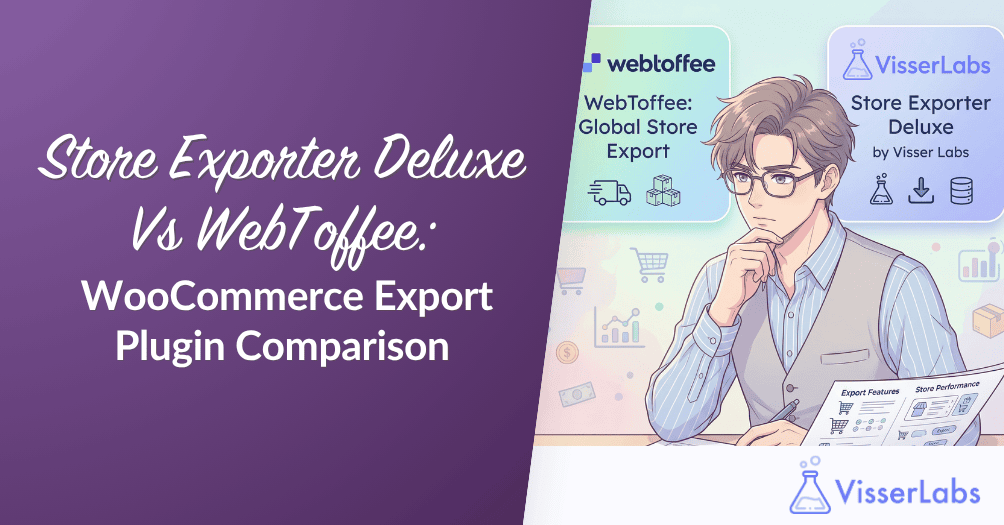
For a fuller side-by-side breakdown, see our Store Exporter Deluxe vs WP All Export comparison before starting the migration.

If you’re still weighing options, the WP All Export alternatives guide covers the broader market.
Before You Migrate: Pre-Migration Checklist
Running a migration without a pre-flight audit is how exports go missing. The first hour spent auditing your current setup saves a painful afternoon later.
Audit your current WP All Export setup
List every export template currently running on your store. For each one, document the data type (products, orders, customers, subscriptions), the file format, the schedule frequency, the delivery destination, and who receives the file.
Screenshot each template’s field mapping. You won’t import these templates directly into Store Exporter Deluxe, but you need a reference for which fields to select and what column labels to use. If a template relies on custom PHP, XPath expressions, or the custom function editor, note those too. Most of them can be replicated using Store Exporter Deluxe’s custom labels, sorting, and filter hooks.
Back up your site
Standard rule: run a full site backup before any plugin change. UpdraftPlus, your hosting provider’s snapshot tool, or a manual database and files backup all work fine. The point is to have a rollback path if something unexpected happens.
Alongside the backup, download a recent export file from each active template. These become your reference files when you compare Store Exporter Deluxe outputs during the test phase.
Plan your migration window
If your scheduled exports hit external systems like an FTP server, accounting software, or a fulfillment centre inbox, plan the migration between scheduled runs. Expect 30 to 60 minutes per template to recreate in Store Exporter Deluxe, depending on complexity. Keep WP All Export active during the test phase so you can run both plugins in parallel before the cutover.
Step-By-Step Migration Process
Each step in this sequence builds on the previous one, and skipping any of them is how migrations end up with silent failures two weeks in.
Step 1: Install Store Exporter Deluxe
Start by purchasing Store Exporter Deluxe from the Visser Labs plugin page. You’ll receive a plugin ZIP file and a licence key.
Upload the ZIP via WordPress admin, Plugins, Add New, Upload Plugin. Activate the plugin, then enter your licence key under the plugin’s licence screen. Confirm Store Exporter Deluxe loads under WooCommerce, Store Export in the admin menu.
Step 2: Recreate your first export template
Start with your simplest WP All Export template, typically a weekly order CSV. In Store Exporter Deluxe, open the Export Types tab and select Orders.
Configure the format (CSV, TSV, XLS, XLSX, or XML, with JSON and RSS also available) to match your WP All Export setup. If you’re not sure which format your downstream system expects, the WooCommerce Product CSV Importer and Exporter documentation is a good reference for how WooCommerce structures CSV exports natively. Set the date range, order status filters, and any additional filters (custom fields, product SKU, customer email) to mirror what you had before.
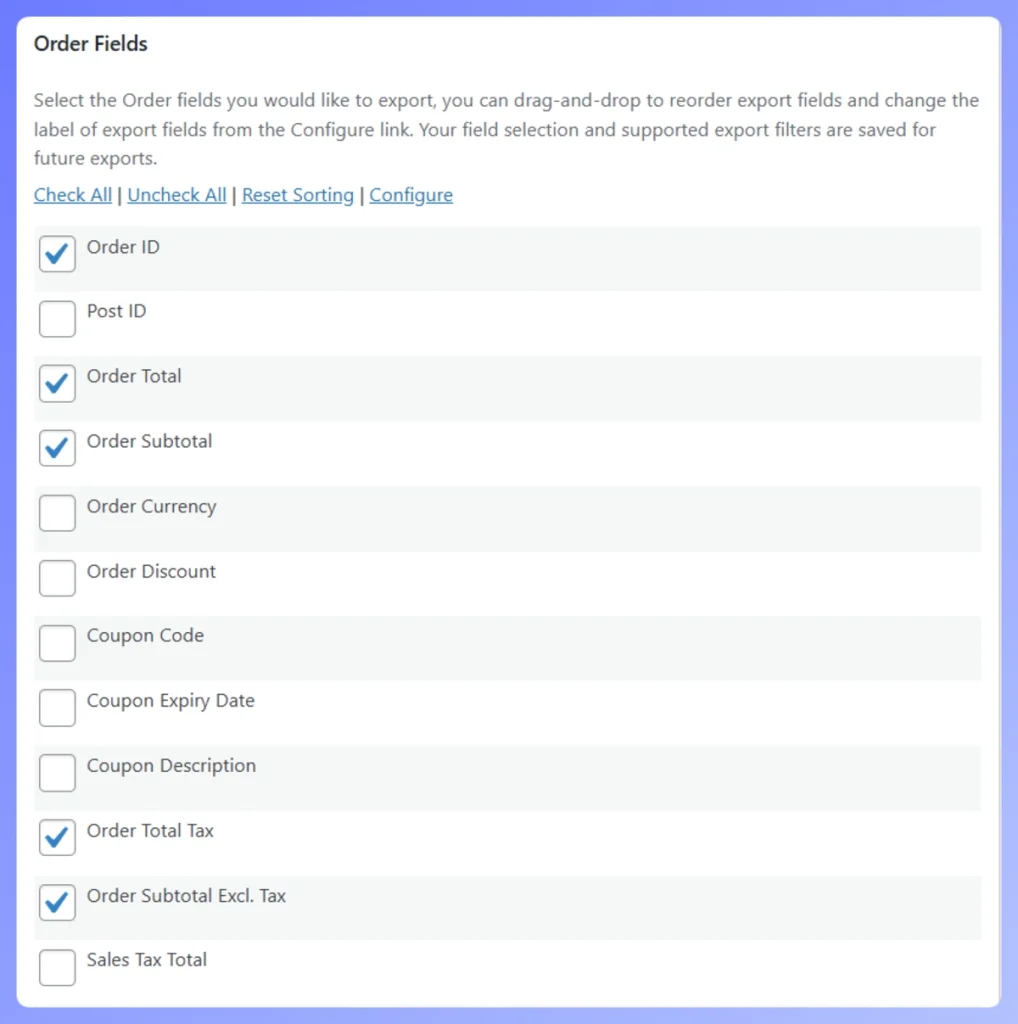
Move to the field selection screen. Store Exporter Deluxe shows every available order field as a checkbox. Check the fields your WP All Export template includes, in the order they appear in the original export. Save the configuration as an Export Template so you can reuse it.
Start with the order export, since it’s usually the highest-volume and most mission-critical template. Getting the column order identical to the old output is the one thing that prevents downstream import scripts at the accountant’s office or the fulfillment centre from failing.
Step 3: Test export and compare outputs
Run the new Store Exporter Deluxe export manually and download the file. Pull the most recent WP All Export output for the same date range. Open both files in Excel or a diff tool and compare them line by line.
Check the row count first. Then compare column order, column headers, and the actual field values in each row. Common mismatches to watch for: date formats, currency formatting (symbol vs numeric), boolean fields (yes/no vs 1/0), and any meta field that WP All Export pulled using XPath. Adjust field selection and custom labels in Store Exporter Deluxe until the output matches, then re-run and compare again.
What We’ve Seen: The most common migration mistake we see is assuming the field names will match between the two plugins. They rarely do. WP All Export uses the raw database field names (
_billing_first_name), while Store Exporter Deluxe uses human-readable labels (Billing First Name) that you can relabel to match your existing CSV headers. Spend 15 extra minutes on your first template matching column labels exactly, and every downstream system (accounting software, fulfillment imports, custom scripts) will keep working without a single code change.
Step 4: Recreate scheduled exports and delivery
Open the Scheduled Exports tab in Store Exporter Deluxe. Recreate each scheduled export from your WP All Export inventory: frequency (daily, weekly, monthly), time of day, and which export template to use.
Configure the delivery destination. Store Exporter Deluxe offers direct download, WordPress media library, FTP/SFTP, local server path, email, and remote POST to a URL (handy for cloud webhooks). For FTP/SFTP, enter the host, port, username, password or key, and the remote path. For email, enter the recipient, subject line, and body text.
Test each scheduled export by triggering it manually first. Confirm the file arrives at the correct destination in the correct format. For detailed configuration guidance, see Visser Labs’ guide on creating an export schedule.
Scheduled exports are where migrations fail silently. The plugin runs on schedule, but the file never arrives because of a trailing-slash typo in the FTP path or a wrong email address. Always trigger each schedule manually after setup and verify the file actually landed where it’s supposed to.
Step 5: Run both plugins in parallel for one cycle
Keep WP All Export active and running its normal scheduled exports. Let Store Exporter Deluxe run the same schedules, but point its outputs to a test FTP folder, a separate email address, or a different filename prefix.
For one full cycle (a week for weekly schedules, a month for monthly), compare outputs side by side. Once the Store Exporter Deluxe outputs consistently match WP All Export, you’re ready to cut over.
Step 6: Cutover and deactivate WP All Export
Point Store Exporter Deluxe’s scheduled exports at the production destinations: the real FTP server, the fulfillment email address, the accountant’s inbox. Disable WP All Export’s scheduled exports, or deactivate the plugin entirely.
Monitor the first production cycle closely. Spot-check the first few scheduled runs to confirm files are arriving correctly. Keep WP All Export installed but deactivated for 2 to 4 weeks as a rollback safety net. After 30 days of successful Store Exporter Deluxe runs, you can uninstall WP All Export and cancel the renewal.
WP All Export vs Store Exporter Deluxe: Feature Mapping
Here’s how each WP All Export feature maps to Store Exporter Deluxe. Use this as a cheat sheet while rebuilding templates.
Feature mapping based on each plugin’s official documentation as of 2026. Pricing reflects Visser Labs introductory rates.
| WP All Export Feature | Store Exporter Deluxe Equivalent | Notes |
|---|---|---|
| Drag-and-drop field mapping | Checkbox field selection with custom labels | No XPath knowledge required |
| XPath for nested data | Built-in 125+ plugin integrations | Subscriptions, Bookings, Brands are native |
| Scheduled exports | Scheduled exports (built in) | Included in base price |
| FTP delivery | FTP/SFTP delivery (built in) | Plus email, media library, remote POST to a URL |
| Custom functions / PHP editor | Custom labels, sorting, filter hooks | Most cases covered without code |
| Export templates | Export templates (reusable) | Save and reuse field configurations |
| CSV, XML, Excel formats | CSV, TSV, XLS, XLSX, XML | Plus JSON and RSS — seven formats total |
| Per-site renewal pricing | $39.50/year introductory, single-site | Or $79/year bundle with Product Importer Deluxe |
| Multi-site developer licence | Agency package: $199/year (unlimited sites) | Single licence covers all client work |
For templates that relied on custom PHP or the XPath expression editor, check Visser Labs’ guide on using export templates. Most custom logic can be replicated through built-in filter hooks or custom label configuration.
Most store owners find that migrations fit into one of these time windows:
Based on typical WooCommerce store setups, not benchmarked data.
| Store Complexity | Templates To Migrate | Estimated Migration Time |
|---|---|---|
| Simple (orders only) | 1 to 2 | 1 to 2 hours |
| Standard (orders + products + customers) | 3 to 5 | 2 to 4 hours |
| Complex (subscriptions, bookings, 10+ templates) | 10+ | 4 to 8 hours (half day) |
| Agency (multi-site rollout) | Varies | Use Agency package, plan per client |
Ready To Switch From WP All Export?
The actual migration is mechanical. Audit, back up, recreate one template at a time, test in parallel, cut over. What trips most store owners up isn’t the plugin, it’s skipping the parallel-run step and discovering a format mismatch the day the accountant’s import script breaks.
For a typical store, Store Exporter Deluxe covers every WP All Export use case for a fraction of the annual cost, with 125+ plugin integrations and WooCommerce-native field handling built in. The 14-day money-back guarantee means you can run a real migration on your store and refund the purchase if it doesn’t fit.
Here’s a quick recap of what we covered:
- Audit your current WP All Export templates and back up the site.
- Install Store Exporter Deluxe and recreate your first template.
- Test and compare outputs side by side until they match.
- Run both plugins in parallel for one full cycle before cutover.
- Use the feature mapping table as your rebuild reference.
If you’re ready to make the switch from WP All Export, explore Store Exporter Deluxe plans starting at $39.50/year and start your migration with a 14-day money-back guarantee.
Frequently Asked Questions
Can I import my WP All Export templates directly into Store Exporter Deluxe?
No, the template formats are different. You’ll need to recreate each template in Store Exporter Deluxe, but the process is typically faster than building templates from scratch in WP All Export because the field selection uses checkboxes instead of XPath expressions.
Will my scheduled exports break during migration?
Not if you run both plugins in parallel during the test phase. Keep WP All Export’s scheduled exports active until Store Exporter Deluxe’s outputs match exactly, then switch over. The 2 to 4 week cool-off period with WP All Export installed (but deactivated) gives you a rollback path if anything unexpected appears in the first production cycle.
Do I need to cancel my WP All Export licence before migrating?
No. Run both plugins in parallel for one full export cycle, confirm everything works, then cancel the WP All Export renewal at its next billing date. You can deactivate the plugin any time after cutover, and uninstall it after 30 days of clean Store Exporter Deluxe runs.
What if I need features WP All Export had that Store Exporter Deluxe doesn’t?
In practice this is rare for WooCommerce workflows. Store Exporter Deluxe covers 125+ plugin integrations and more than 10 data types natively, including orders, products, customers, subscriptions, categories, tags, coupons, reviews, and bookings. If you hit a specific gap, Visser Labs’ premium support team can usually point to a built-in option or a filter hook that handles the case.
How long does a typical migration take?
For a store with 2 to 3 export templates, plan for 2 to 4 hours total. For complex setups with 10 or more templates and heavy third-party plugin data, plan for a half day. Agency rollouts depend on how many client sites are involved, but the Agency package removes per-site licensing as a blocker.
Does Store Exporter Deluxe support the same export formats as WP All Export?
Yes, with broader coverage. Store Exporter Deluxe supports CSV, TSV, XLS (Excel 97-2003), XLSX (Excel 2007+), XML, JSON, and RSS. That matches WP All Export’s formats and adds TSV, modern XLSX, JSON, and RSS natively.