
If your invoice needs a Tax ID or different billing details, you can edit them from your account. This guide shows you how to add the number to your Visser Labs purchase invoice and download a new PDF.
How you pay for a licence
Licence purchases on the Visser Labs store are paid at checkout by card or PayPal. We do not offer purchase-order or invoice billing, so we cannot send an invoice for payment before you place the order. After you pay, you can download an invoice for the order, and this guide shows you how.
Before you start
Sign in to the account associated with the order you want to invoice. Have your Tax ID or VAT number ready. You do not need to open a support ticket to use the invoice editor.
Open the invoice editor
- Sign in to your account on the Visser Labs website.
- Find the relevant order in your account.
- Click Invoice for that order.

The Generate Invoice form lets you review the billing details used on the invoice. If you already have Invoice Preview open, click Edit details to return to that form.
Add your Tax ID and check the details
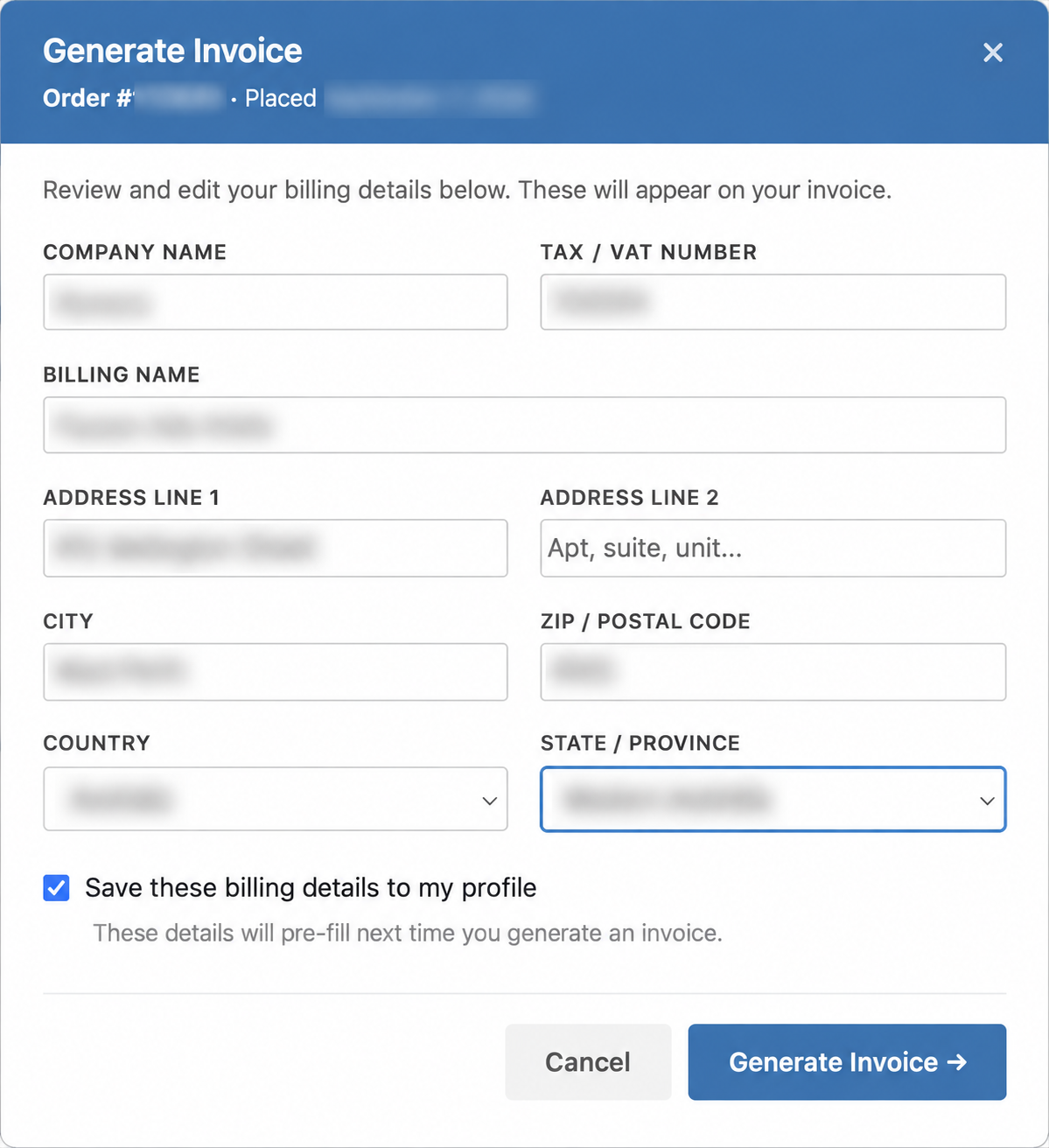
- Enter your number in Tax / VAT Number.
- Review the other billing fields and correct any details that need changing.
- If you want to reuse the company name, Tax / VAT number, and address details, select Save these billing details to my profile. Leave it unchecked if you only want to use those details for this invoice. An edited Billing Name applies to the generated invoice but is not saved by this checkbox.
- Click Generate Invoice.
Saving details to your profile is optional. The checkbox pre-fills your company name, Tax / VAT number, and address details the next time you generate an invoice. It does not save an edited Billing Name. Review the details each time you generate an invoice.
Preview and download the invoice
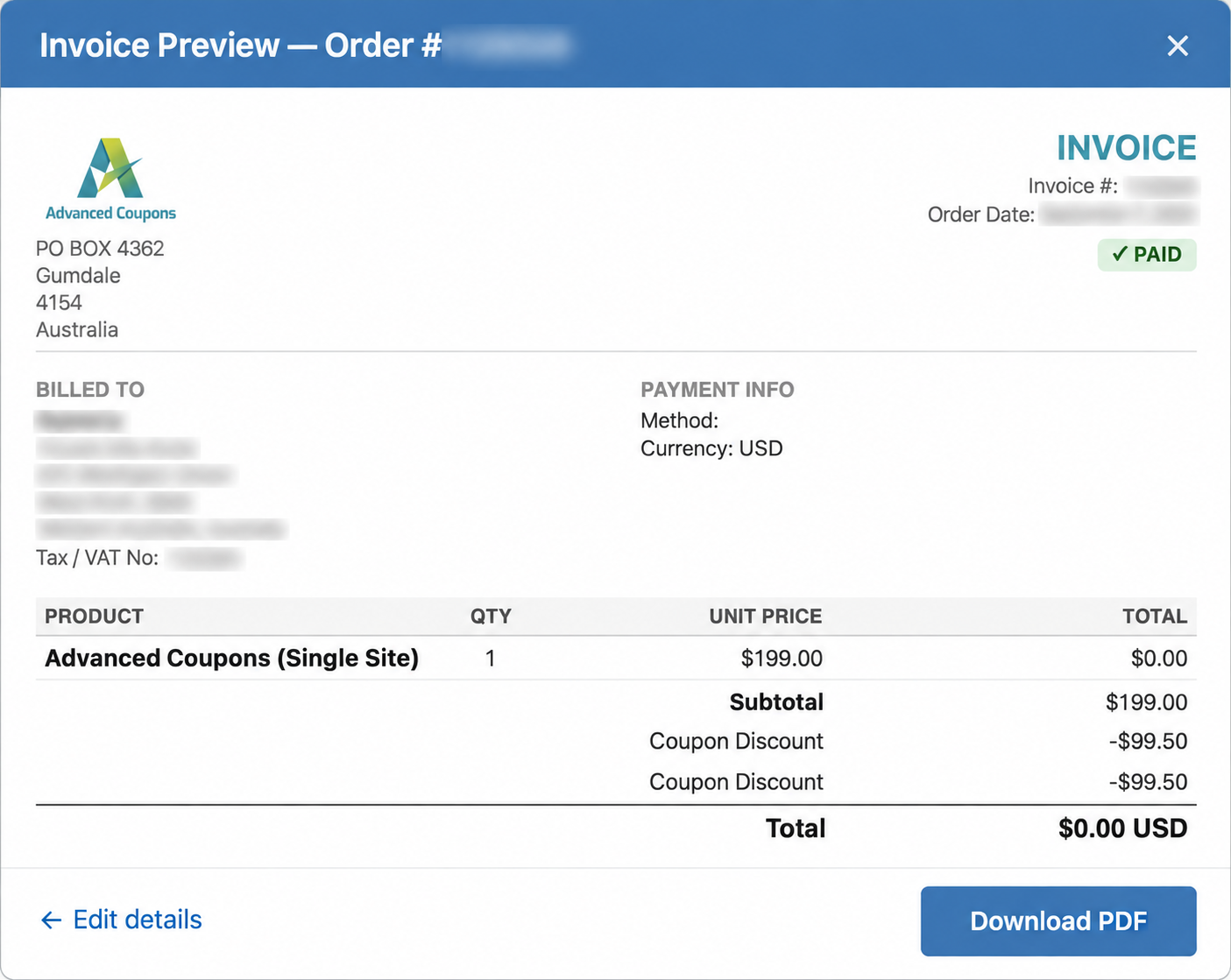
- Check the number shown as Tax / VAT No under Billed To.
- If a correction is needed, click Edit details.
- Correct the relevant fields.
- Click Generate Invoice again.
- Click Download PDF.
- Open the downloaded file and check the billing details before using it.
Troubleshooting
The Invoice button or editor is missing. Check that you are signed in to the account associated with the order. If the editor is still unavailable, contact support with the order reference and describe what you see.
The Tax ID is missing or incorrect. Return to Edit details, check Tax / VAT Number, and generate the preview again. If the correct number still does not appear, include the order reference when contacting support.
The PDF shows the previous details. Generate a fresh preview and download a new PDF after making the correction. Check that you opened the new file rather than an earlier download. If the preview and new PDF still differ, contact support with the order reference.
Frequently asked questions
Do I need support to add a Tax ID?
No. You can add it yourself in the invoice editor. Contact support if the editor is unavailable or the updated details do not appear.
Can I correct other billing details at the same time?
Yes. Review the billing fields in the same form before generating the invoice preview.
Does adding a Tax ID change the tax charged on my order?
The Tax / VAT Number field adds the number to your invoice. It does not recalculate the order or process a refund. Contact support if your question is about the amount charged.
Need help?
If you have a question or run into any issues, we’re here to help.
- Premium users: Open a support ticket
- Free users: Visit our community forum
