
Some problem customers are hard to stop by name or email. They place an order, get cancelled, then come back with a new email address and a slightly different name. Their IP address, the network address their device uses to reach your store, often stays the same. Checkout Guard lets you block that address, or a whole range of addresses, so those orders are stopped at checkout.
This article shows you how to add an IP address to your Blocked Entries list, which address formats Checkout Guard accepts, and how to block a range with the * wildcard. To block by name or email instead, see Block customers by name or email in Checkout Guard.
Prerequisites
| Requirement | Details |
|---|---|
| Plugin | Checkout Guard version 1.0.2 or later, installed and active. An active license gives you updates and support. For setup, see Getting started with Checkout Guard. |
| IP address | The address you want to block. Open the order in WooCommerce → Orders to find the customer’s IP address in the order details. |
Add a blocked IP address
- Go to WooCommerce → Checkout Guard. The Blocked Entries tab opens by default.
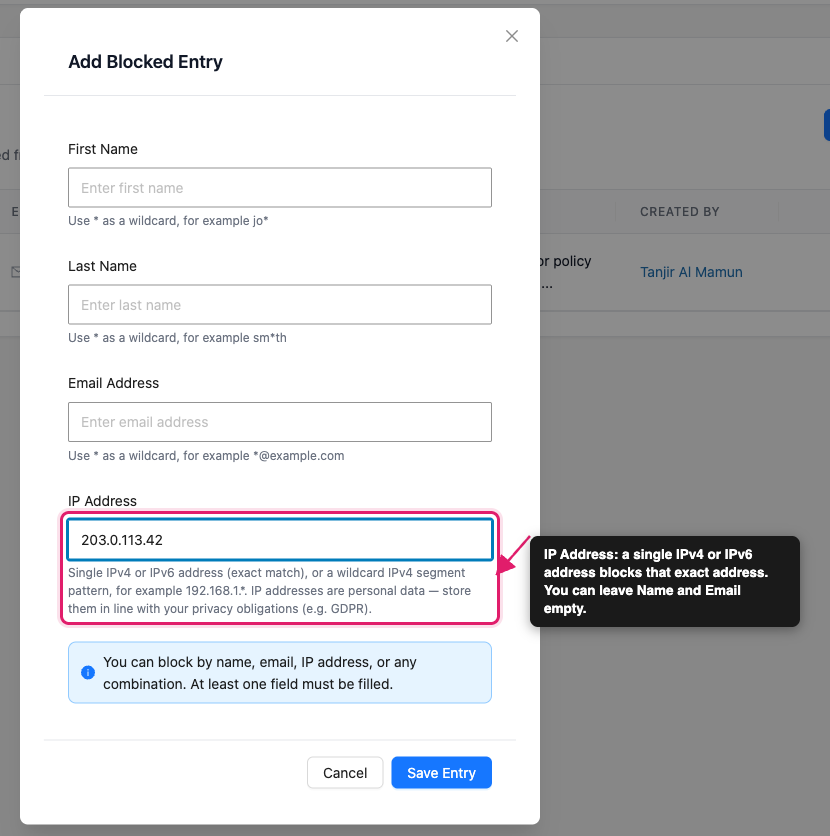
- Click Add Entry (or Add First Entry if your list is empty). The Add Blocked Entry dialog opens.
- Enter the address in the IP Address field, for example
203.0.113.42. - Click Save Entry.
An Entry created confirmation appears and the entry is added to your Blocked Entries list. Checkout Guard starts checking new checkout attempts against it straight away. There’s no separate switch to turn blocking on.
You don’t need to fill in a name or email. The dialog reads “You can block by name, email, IP address, or any combination. At least one field must be filled.” So an entry with only an IP Address is valid.
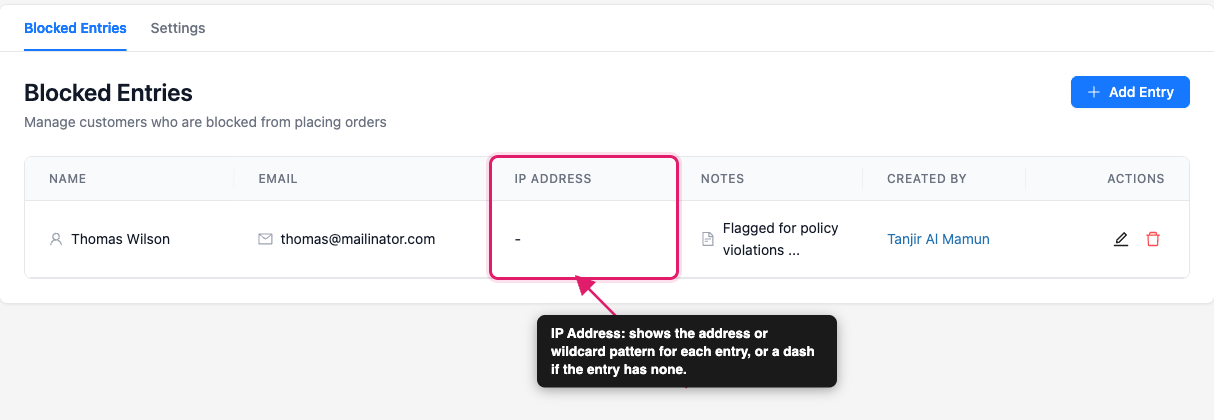
Your new entry shows in the IP Address column of the Blocked Entries list. An entry with no address shows a dash in that column.
Supported IP address formats
The IP Address field accepts a single address in either of these formats. An address without a * is an exact match.
| Format | Example | What it blocks |
|---|---|---|
| IPv4 | 203.0.113.42 | Only that exact address |
| IPv6 | 2001:db8::1 | Only that exact address |
If the value isn’t a valid address, the dialog shows “Please enter a valid IP address (IPv4 or IPv6), or a wildcard pattern like 192.168.1.*” and doesn’t save it. Some values get past the dialog but show Failed to save entry when you click Save Entry. Examples are an IPv4 address with leading zeros, such as 192.168.01.5, or a malformed IPv6 address, such as 2001:db8:::1.
Keep in mind that IP matching is case sensitive. For an IPv6 address, enter it exactly as it appears in the order details, including upper or lower case letters and in the same short or long form. Otherwise Checkout Guard may not recognize the same address when the customer returns.
Block a range of addresses with a wildcard
To block a whole range, use * in place of one or more segments of an IPv4 address. For example, 192.168.1.* blocks every address from 192.168.1.0 to 192.168.1.255. The IP Address field shows this same example in its hint text.
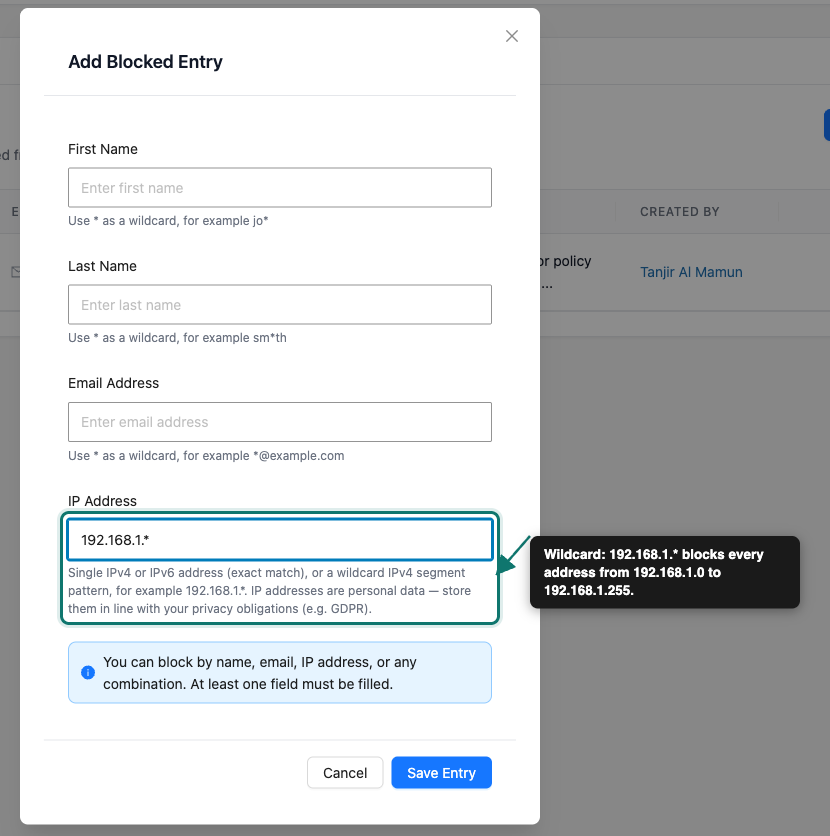
A wildcard address follows these rules:
- It has exactly four segments separated by dots.
- Each segment is either a number from 0 to 255 or a single
*. - At least one segment is a number. A pattern made only of wildcards is rejected.
- Numbers don’t have leading zeros. Write
192.168.1.*, not192.168.01.*. - Wildcards work with IPv4 only. IPv6 wildcards aren’t supported.
| Pattern | Valid? | What it blocks |
|---|---|---|
192.168.1.* | Yes | Every address starting with 192.168.1. |
192.168.*.* | Yes | Every address starting with 192.168. |
10.*.1.5 | Yes | Any address that has 10 first, 1 third, and 5 last |
*.*.*.* | No | Rejected, because it would block every customer |
192.168.* | No | Rejected, because it has only three segments |
2001:db8::* | No | Rejected, because IPv6 wildcards aren’t supported |
How IP blocking works at checkout
Whenever someone attempts to check out, Checkout Guard looks up their IP address and compares it with every entry in your Blocked Entries list. It reads the address the same way WooCommerce does, which covers common setups such as stores behind Cloudflare.
IP address blocking sits alongside name and email blocking. Any one of these matches blocks the order:
- The customer’s billing first name and last name both match an entry.
- The billing email matches an entry.
- The customer’s IP address matches an entry.
That means an entry can use several fields, but each field works on its own. If you enter both an email and an IP address in one entry, a customer who matches either one is blocked. They don’t need to match both.
This check runs the same way on the classic checkout and WooCommerce’s Block Checkout. A blocked customer sees the message you set in Checkout Denial Message on the Settings tab. By default it reads “Sorry, you’re not allowed to place an order right now, please contact support.” To see everything that happens when an order is stopped, see How Checkout Guard blocks orders at WooCommerce checkout.
Edit or delete a blocked IP address
Find the entry in your Blocked Entries list and use the edit or delete icon in the Actions column. Clicking the delete icon opens a Delete this entry? confirmation, and you click Delete to remove the entry. You can change the IP Address the same way you’d edit any other field, and the same format rules apply. For the full steps, see Block customers by name or email in Checkout Guard.
Troubleshooting
Frequently asked questions
Need more help?
Checkout Guard is a licensed plugin. If you run into trouble blocking an IP address, open a support ticket and our team will help you sort it out.
