
Your login page is often the first branded screen a customer sees after clicking My account. A layout that clashes with your store, or hides your promo message, can make the page feel unfinished. Custom Login for WooCommerce gives you five ready-made templates, so you can change the whole look in one click.
This article shows you how to pick a template, how the five differ, and how the split layout works. The split layout puts your login form on one side and a promo panel on the other. Colours, form labels, and promo text have their own settings and aren’t covered here.
Prerequisites
| Requirement | Details |
|---|---|
| Plugin | Custom Login for WooCommerce installed and active |
| WooCommerce | Installed and active |
| Access | An account that can manage WooCommerce settings |
Step 1: Open the Template tab
- Go to WooCommerce → Custom Login in your WordPress admin.
- Click the Template tab.
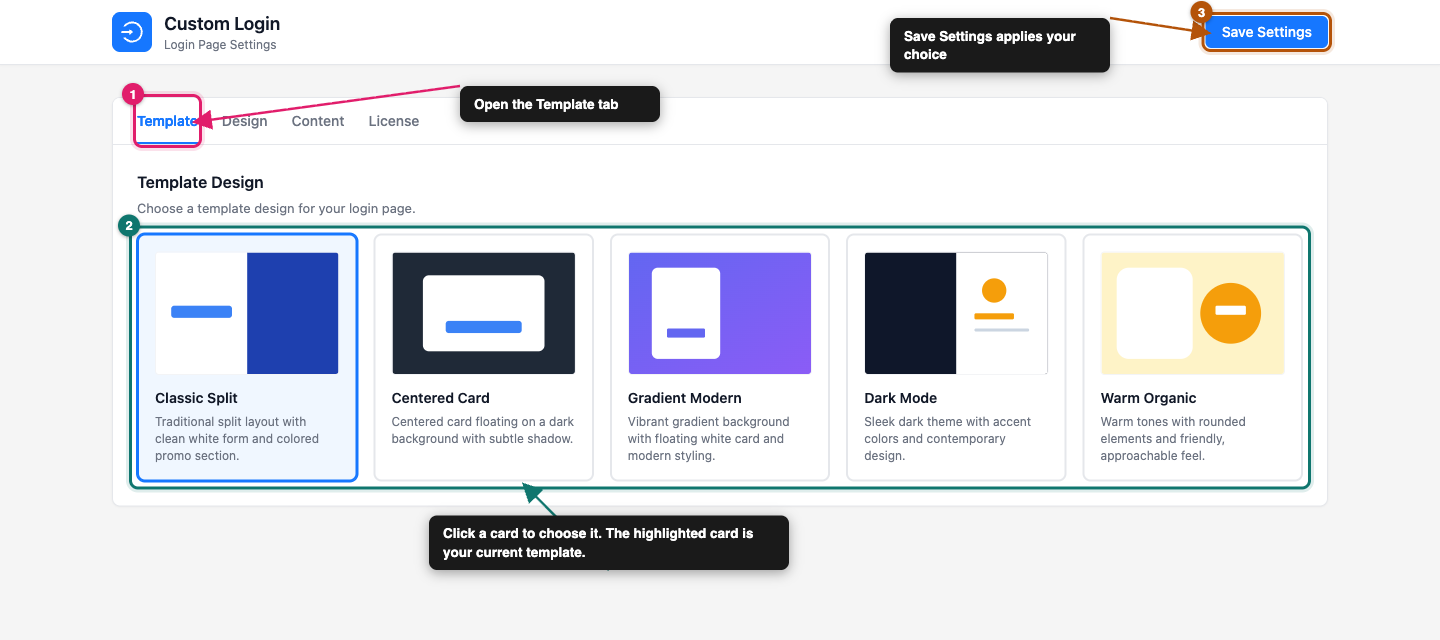
The tab shows a heading called Template Design and five cards. Each card shows a small preview, the template name, and a one-line description. The card for your current template is highlighted.
Step 2: Pick a template
Click the card for the template you want. The highlight moves to your choice. Here’s how the five compare:
| Template | Look and feel | Promo panel |
|---|---|---|
| Classic Split | White form on one side, coloured promo panel on the other | Shown, side by side |
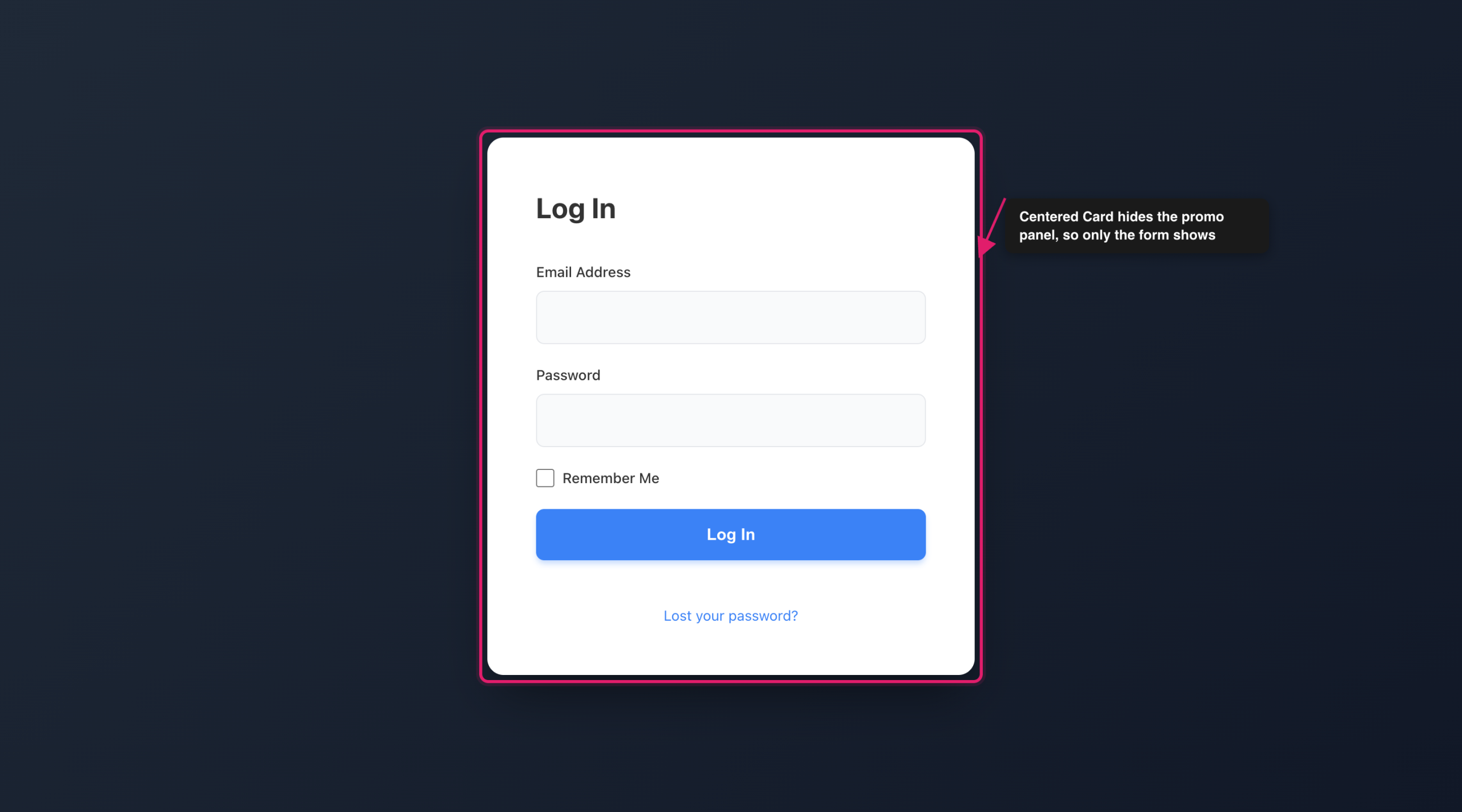
| Centered Card | White card centered on a dark background | Hidden on wide screens |
| Gradient Modern | Purple gradient background with a floating white card | Shown beside the card |
| Dark Mode | Dark form and dark promo panel with amber accents | Shown, side by side |
| Warm Organic | Warm yellow tones, rounded corners, and a friendly feel | Shown, overlapping the card |
Classic Split is the default. If you haven’t chosen anything yet, your login page uses it.
Not sure which to pick? Use this as a starting point:
- Classic Split: a clean, familiar layout that works for most stores.
- Centered Card: a simple, focused form with nothing else on the page on wide screens.
- Gradient Modern: a bold, colourful look for brands with a modern feel.
- Dark Mode: a darker style that suits tech, gaming, or night-friendly brands.
- Warm Organic: a soft, approachable look for craft, food, or lifestyle stores.
Step 3: Save your choice
Click Save Settings. Your template applies to the login page straight away.
Step 4: Check your login page
- Log out, or open a private browser window.
- Go to
yourstore.com/loginto see your new template. - Check the page on a phone too, because the promo panel behaves differently on small screens.
How the split layout works
A split layout shows two panels: the login form and a promo panel. The promo panel is where your heading, message, button, and optional image appear. Classic Split is the clearest example, with the form on one side and the promo on the other. Dark Mode also divides the screen in half. Gradient Modern and Warm Organic keep the form in a card. Gradient Modern places the promo panel next to the card, and Warm Organic tucks it partly behind the card.
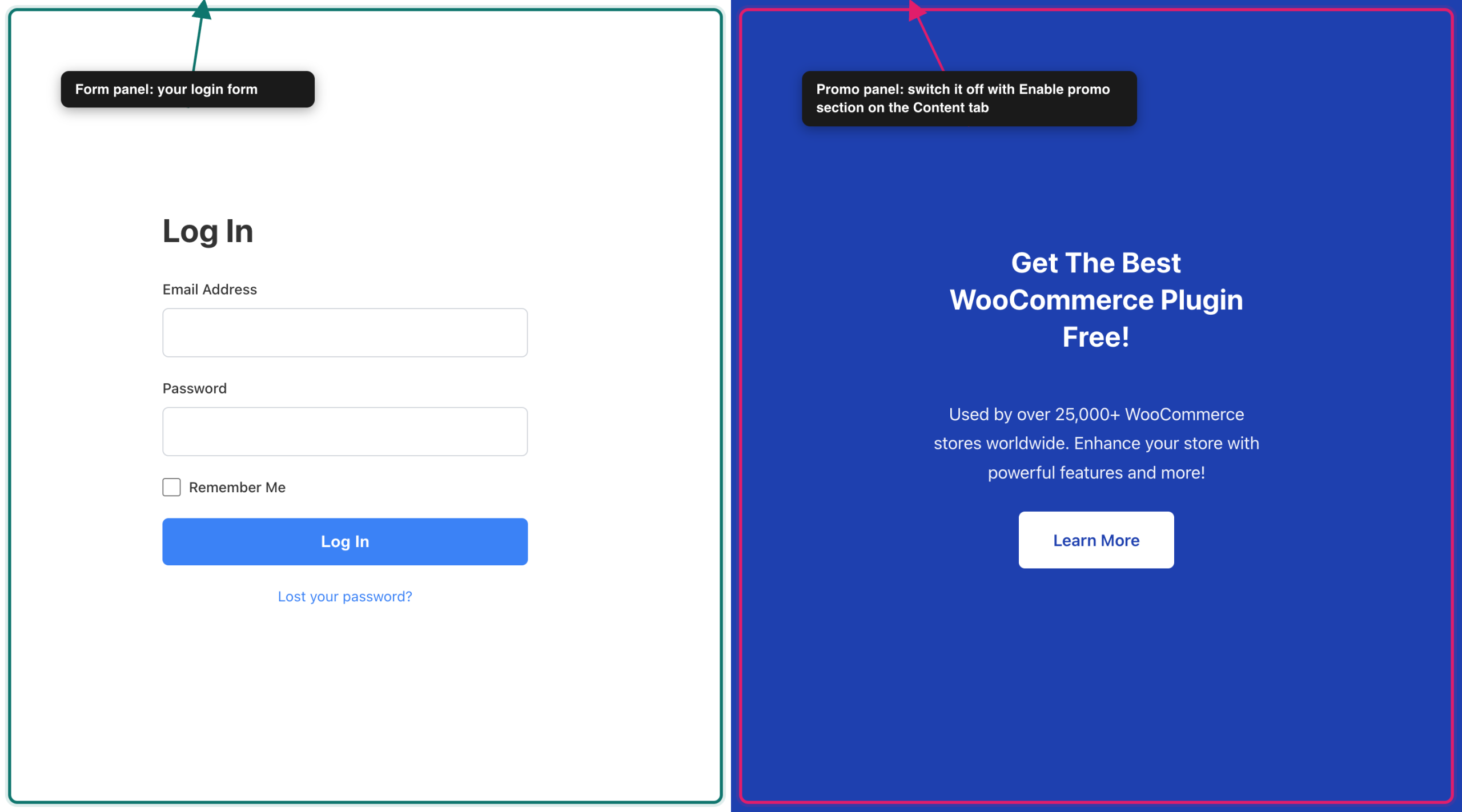
Two settings control whether the promo panel shows.
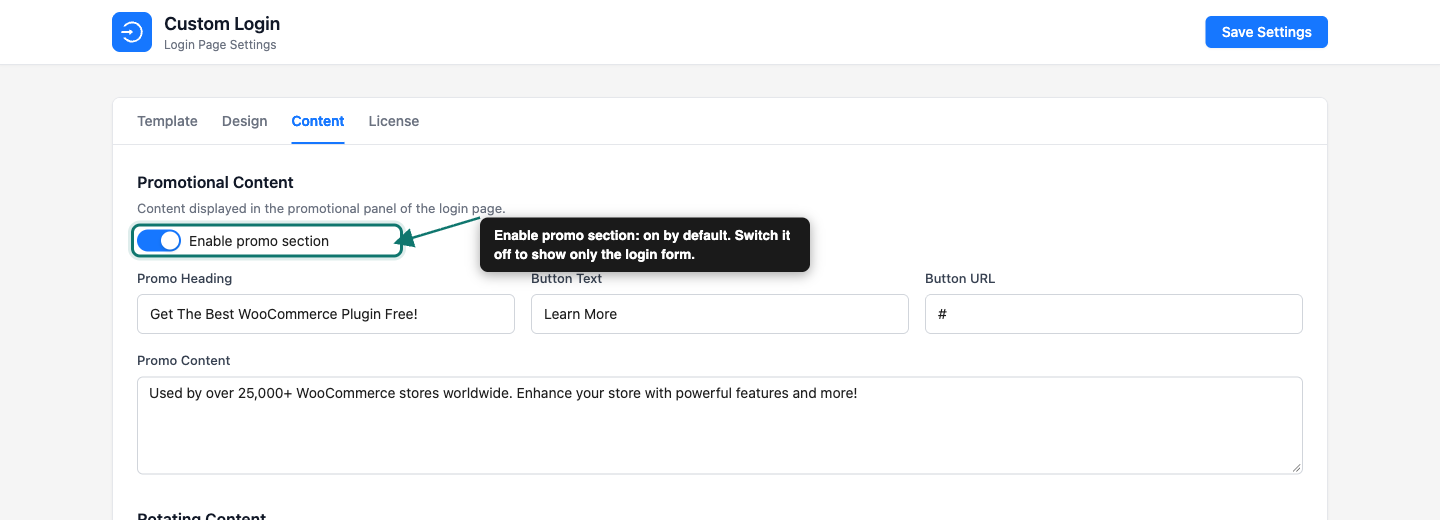
Enable promo section is on the Content tab, and it’s on by default. Switch it off and the login page shows only the form, whichever template you choose.
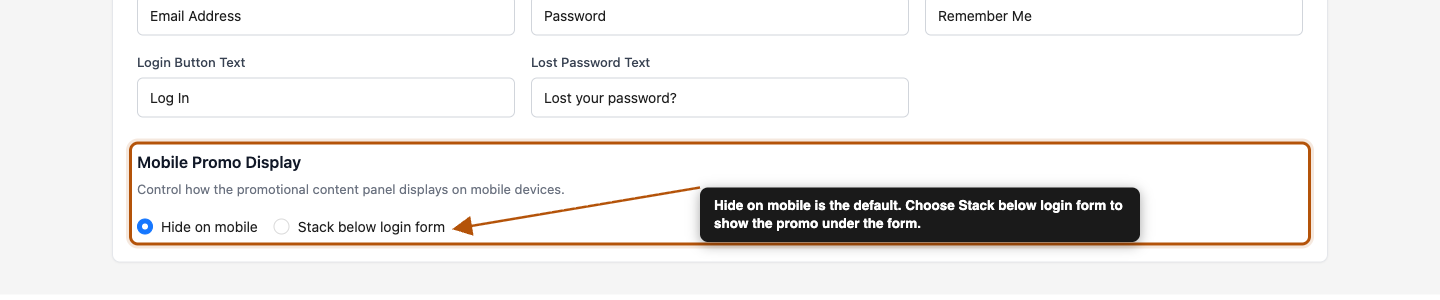
Mobile Promo Display is on the Design tab. Choose Hide on mobile to show only the form on small screens, or Stack below login form to show the promo under the form. The default is Hide on mobile.
To change what the promo panel says, see the Promotional Content section on the Content tab.
Troubleshooting
yourstore.com/login in a private window. If you use a caching plugin or a site-wide cache, clear that cache too.Frequently asked questions
Need help?
Custom Login for WooCommerce is a premium plugin, so if you run into trouble, open a support ticket and our team will help you get set up.