
When a customer picks a gift message, a wrapping option or a delivery speed on a product, you’ll want that choice in your order records. Store Exporter Deluxe adds native support for WooCommerce Product Add-Ons, so you can add those selections to your exports.
This guide shows how to confirm the integration is active, which fields it adds, and how to fix blank add-on columns.
Prerequisites
| Requirement | Details |
|---|---|
| Plugin | Store Exporter Deluxe 5.4.5 or later, active and licensed |
| Third-party plugin | WooCommerce Product Add-Ons, active |
| Add-on setup | At least one add-on group under Products → Add-ons in your WordPress admin |
| Order data | For an Orders export, at least one order where a customer chose an add-on, so you can confirm the columns fill in |
How it works
Store Exporter Deluxe checks whether WooCommerce Product Add-Ons is active. If it is, the plugin reads the add-ons in your global add-on groups and adds export fields for each one: a summary field plus one field per add-on on an Orders export, and a label and price pair per add-on on a Products export. On an Orders export the values come from what the customer chose on each order line item, while on a Products export they come from the add-ons saved on each product.
Confirm the integration is active
Check this first, because the add-on fields only appear when Store Exporter Deluxe detects Product Add-Ons.
- Go to WooCommerce → Store Export in your WordPress admin.
- Click Export Modules in the sidebar.
- Type Product Add-ons in the Search modules… box.
- Check that the Product Add-ons row shows an Active badge.
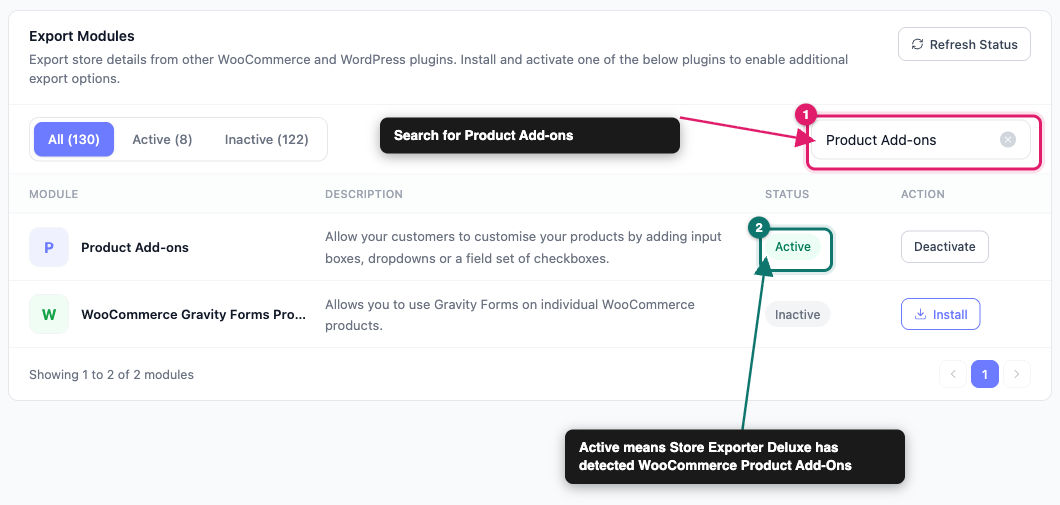
If the badge reads Inactive, activate WooCommerce Product Add-Ons on your Plugins screen, then click Refresh Status on the Export Modules screen. Store Exporter Deluxe also refreshes its module list whenever you activate or deactivate a plugin.
Export Product Add-ons with your orders
Use the Orders export type when you want to see what customers actually chose.
- Go to WooCommerce → Store Export.
- Click Quick Export in the sidebar.
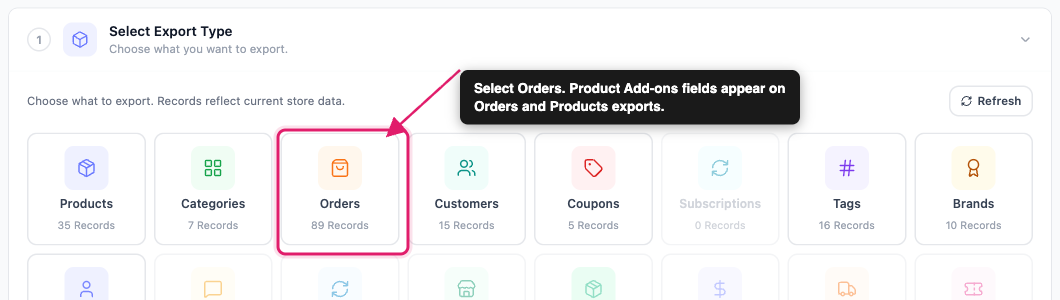
- Under Select Export Type, select Orders.
- On the Export Fields step, click Add more fields.
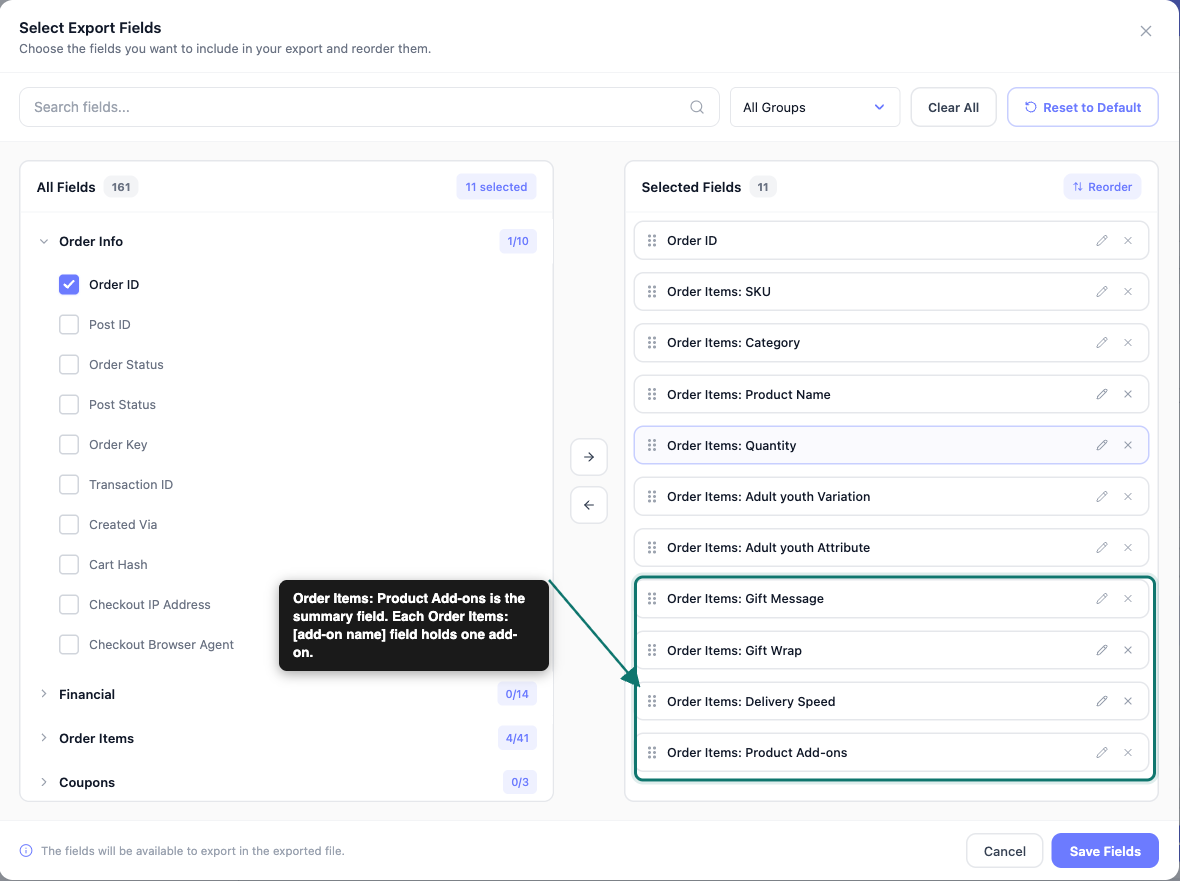
- In the Select Export Fields dialog, tick Order Items: Product Add-ons and the Order Items: [add-on name] field for each add-on you want.
- Click Save Fields.
- Click Run Export.
- Click Download File.
The fields work like this:
| Field | What it exports |
|---|---|
| Order Items: Product Add-ons | A summary of every add-on chosen on the line item, written as Name: value, with one add-on per line in the cell |
| Order Items: [add-on name] | The value the customer chose for that one add-on, for example the text they typed in a Gift Message add-on |
Prices that WooCommerce Product Add-Ons saves with a choice, such as Standard wrap (+$5.00), export as part of the value. Line items where the customer didn’t choose an add-on leave that column blank.
If an order has more than one line item, the Order Items Formatting card on the Filters & Sorting step decides how those items sit in your file. For detailed instructions, see How order items export formats work in Store Exporter Deluxe.
Export Product Add-ons with your products
Use the Products export type when you want to see how add-ons are set up on each product.
- Go to WooCommerce → Store Export.
- Click Quick Export in the sidebar.
- Under Select Export Type, select Products.
- On the Export Fields step, click Add more fields.
- In the Select Export Fields dialog, tick the Product Add-ons: [add-on name] Label and Product Add-ons: [add-on name] Price fields you want.
- Click Save Fields.
- Click Run Export.
- Click Download File.
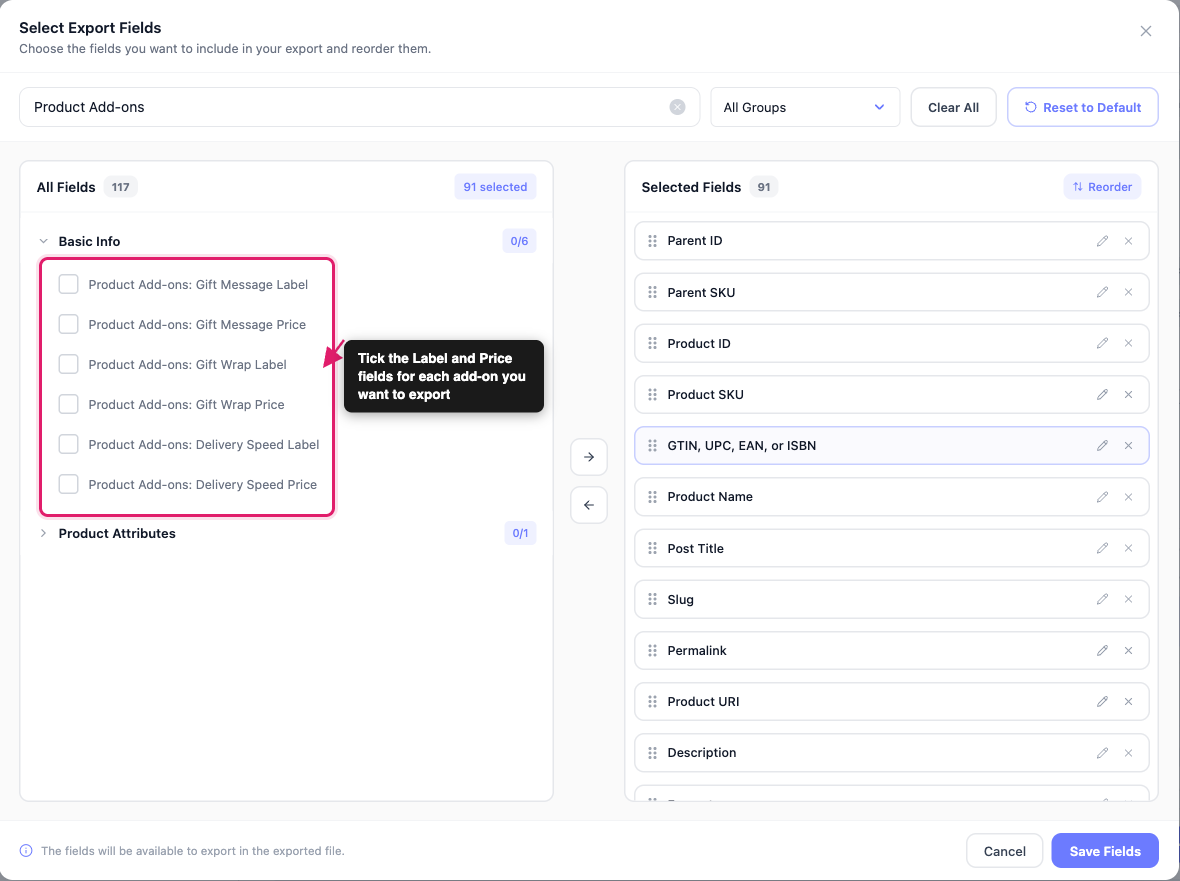
For detailed instructions on the rest of the export, see How to export WooCommerce products with Store Exporter Deluxe.
What the integration covers
Keep these limits in mind when you plan your export:
- Fields come from global add-on groups: An add-on gets its own field only when it belongs to a group under Products → Add-ons. An add-on you create on a single product doesn’t get a field.
- Products exports cover checkbox add-ons saved on the product: A Products export fills these columns only for a checkbox add-on saved on the product itself, with the same name as an add-on in a global group. The Label and Price columns list each option, joined into one cell with your category separator. Other add-on types, such as text fields and multiple choice, export as blank.
- Orders exports record what customers chose: They don’t list the add-ons you’ve set up on a product.
- Subscriptions exports have the same fields: They are named Subscription Items: Product Add-ons and Subscription Items: [add-on name].
Troubleshooting
- Update Store Exporter Deluxe and WooCommerce Product Add-Ons to their latest versions. Store Exporter Deluxe 5.4.1 fixed a conflict with WooCommerce Product Add-Ons and empty Product Add-ons values in exports.
- Deactivate WooCommerce Product Add-Ons on your Plugins screen.
- Run the export again.
- If the export now finishes, reactivate WooCommerce Product Add-Ons and open a support ticket with the error message you saw.
Frequently asked questions
Standard wrap (+$5.00).Need more help?
If you’re using Store Exporter Deluxe and your Product Add-ons data isn’t exporting as expected, open a support ticket, and our team will help you sort it out.
If you’re using the free Store Exporter plugin, ask on the WordPress.org support forum, and our team will get back to you there.
